Transcendence72
Member
- Local time
- 10:13 PM
- Posts
- 65
- OS
- Windows 11
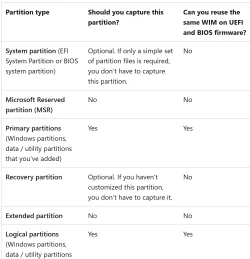
I am trying to create image of my drive. For that I followed a very well articulated article from MS Learn website. Now typically a drive that is preloaded with Win 10/11 has 4 partitions. They are
1) UEFI System partition for booting, i.e. ESP
2) Microsoft reserved partition (MSR)
3) Windows OS partition or Data Partition
4) WinRE partition or the Windows Recovery tool partition
For creating images I could assign drive letters (like D:\, R:\, S:\, W:\, etc) to all the partitions but not the second one. i.e. Microsoft reserved partition (MSR). The error message that I got is that since a volume is not assigned to the partition, hence cannot assign a drive letter. So my questions are as follows
1) How can I assign a drive letter to the Microsoft reserved partition (MSR) partition? Do I have to create a volume, assign the volume to the Microsoft reserved partition (MSR) and then assign a drive letter? Is there some other way?
If I have to create a volume, assign the volume to a partition and then give it a drive letter, then will I have to undo the steps after creation of the image? i.e. unassign the drive letter. disassociate the volume from the MSP and then delete the volume that was created? Gosh I hope there is a better way.
2) Is there a mechanism via which DISM can create an image without assigning a drive letter? Can I mount the partition into some folder say %TEMP%\MSP? I will create this particular folder, i.e. %TEMP%\MSP
1) UEFI System partition for booting, i.e. ESP
2) Microsoft reserved partition (MSR)
3) Windows OS partition or Data Partition
4) WinRE partition or the Windows Recovery tool partition
For creating images I could assign drive letters (like D:\, R:\, S:\, W:\, etc) to all the partitions but not the second one. i.e. Microsoft reserved partition (MSR). The error message that I got is that since a volume is not assigned to the partition, hence cannot assign a drive letter. So my questions are as follows
1) How can I assign a drive letter to the Microsoft reserved partition (MSR) partition? Do I have to create a volume, assign the volume to the Microsoft reserved partition (MSR) and then assign a drive letter? Is there some other way?
If I have to create a volume, assign the volume to a partition and then give it a drive letter, then will I have to undo the steps after creation of the image? i.e. unassign the drive letter. disassociate the volume from the MSP and then delete the volume that was created? Gosh I hope there is a better way.
2) Is there a mechanism via which DISM can create an image without assigning a drive letter? Can I mount the partition into some folder say %TEMP%\MSP? I will create this particular folder, i.e. %TEMP%\MSP
My Computer
At a glance
Windows 11Intel16 GBIntel UHD Integrated
- OS
- Windows 11
- Computer type
- Laptop
- CPU
- Intel
- Memory
- 16 GB
- Graphics Card(s)
- Intel UHD Integrated
- Mouse
- Inbuilt
- Browser
- Firefox
- Antivirus
- Microsoft Defender