Solved How to create an image of the MSP Partition on a drive using DISM


Local time
2:54 PM
Posts
65
OS
Windows 11
I am trying to create image of my drive. For that I followed a very well articulated article from MS Learn website. Now typically a drive that is preloaded with Win 10/11 has 4 partitions. They are
1) UEFI System partition for booting, i.e. ESP
2) Microsoft reserved partition (MSR)
3) Windows OS partition or Data Partition
4) WinRE partition or the Windows Recovery tool partition


For creating images I could assign drive letters (like D:\, R:\, S:\, W:\, etc) to all the partitions but not the second one. i.e. Microsoft reserved partition (MSR). The error message that I got is that since a volume is not assigned to the partition, hence cannot assign a drive letter. So my questions are as follows

1) How can I assign a drive letter to the Microsoft reserved partition (MSR) partition? Do I have to create a volume, assign the volume to the Microsoft reserved partition (MSR) and then assign a drive letter? Is there some other way?
If I have to create a volume, assign the volume to a partition and then give it a drive letter, then will I have to undo the steps after creation of the image? i.e. unassign the drive letter. disassociate the volume from the MSP and then delete the volume that was created? Gosh I hope there is a better way.

2) Is there a mechanism via which DISM can create an image without assigning a drive letter? Can I mount the partition into some folder say %TEMP%\MSP? I will create this particular folder, i.e. %TEMP%\MSP
 

My Computer

System One

  • OS
    Windows 11
    Computer type
    Laptop
    CPU
    Intel
    Memory
    16 GB
    Graphics Card(s)
    Intel UHD Integrated
    Mouse
    Inbuilt
    Browser
    Firefox
    Antivirus
    Microsoft Defender
Why not use backup software to create images of disk.
 

My Computer

System One

  • OS
    Windows 11
    Computer type
    PC/Desktop
    Manufacturer/Model
    HP Pavilion
    CPU
    AMD Ryzen 7 5700G
    Motherboard
    Erica6
    Memory
    Micron Technology DDR4-3200 16GB
    Graphics Card(s)
    NVIDIA GeForce RTX 3060
    Sound Card
    Realtek ALC671
    Monitor(s) Displays
    Samsung SyncMaster U28E590
    Screen Resolution
    3840 x 2160
    Hard Drives
    SAMSUNG MZVLQ1T0HALB-000H1
I am trying to create image of my drive. For that I followed a very well articulated article from MS Learn website...

For creating images I could assign drive letters (like D:\, R:\, S:\, W:\, etc) to all the partitions but not the second one. i.e. Microsoft reserved partition (MSR). The error message that I got is that since a volume is not assigned to the partition, hence cannot assign a drive letter. So my questions are as follows

1) How can I assign a drive letter to the Microsoft reserved partition (MSR) partition? ...
Hi Transcendence72,

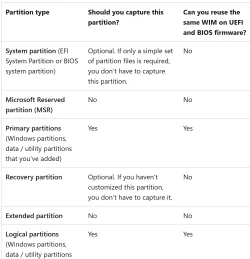
You can't and you shouldn't. See chart below from this article:

1769197838021.webp


I would suggest you make the MSR partition after you do all your capturing. Just leave a empty partition in the preferred order and then make your MSR partition with it.

Kind regards,

tecknot
 

My Computer

System One

  • OS
    Windows 11 Pro 25H2 build 26200.8457
    Computer type
    Laptop
    Manufacturer/Model
    Lenovo ThinkPad Workstation P72
    CPU
    Intel i7 8750H @ 2.2 GHz
    Motherboard
    Lenovo 01YU291
    Memory
    16 GB (all Samsung) DDR4-3200 SODIMM (non-ECC) PCIe 3
    Graphics Card(s)
    Intel UHD Graphics 630 & NVIDIA Quadro P600
    Sound Card
    Realtek ALC3286 & Focusrite Saffire 24 Pro DSP
    Monitor(s) Displays
    17.3"
    Screen Resolution
    3840x2160
    Hard Drives
    1TB SSD Samsung 860 EVO SATA 3
    1TB SSD Samsung 970 EVO M.2 NVMe PCIe 3 x 4
    2TB SSD Samsung 990 PRO M.2 NVMe PCIe 3 x 4
    PSU
    230W
    Cooling
    fan
    Keyboard
    UltraNav
    Mouse
    Kensington wireless Orbit
    Internet Speed
    640Mbps
    Browser
    DuckDuckGo and Firefox
    Antivirus
    Defender
    Other Info
    CM246 Chipset
Is there a mechanism via which DISM can create an image without assigning a drive letter

Yes I prefer to use wimlib, but it can be done with dism

couple of examples

guid path
Dism /Capture-Image /ImageFile:"I:\somename.wim" /CaptureDir:\\?\Volume{789F97D1-BE32-4F0B-9405-7798D093A712}\ /Name:anyname

device path
Dism /Capture-Image /ImageFile:"I:\somename.wim" /CaptureDir:\\?\GLOBALROOT\Device\HarddiskVolume1\ /Name:anyname

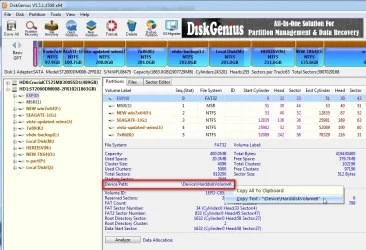
the easiest way to find both of those paths is with diskgenius (free version will do ) . Can be handily rt clicked and copy


dg-devicepath6.webp


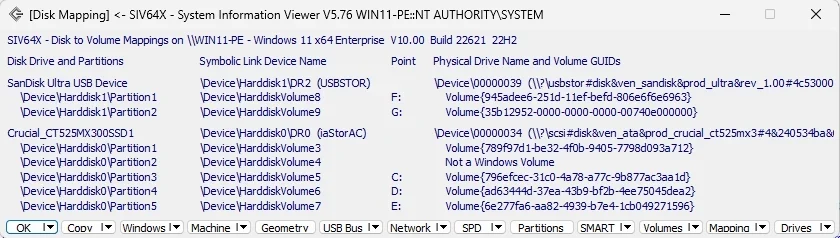
can also be found using ray hinchliffe's siv under disk mapping

siv1.webp


siv2.webp

I like to have both the above tools in/accessible to my winpe

siv-disk-mapping-win11.webp

I have a little thing with pecmd for finding bootdevs which displays the paths, but not for the msr obviously. Wim is file based and there is nothing in the msr

getbootdev-win11.webp
 
Last edited:

My Computers

System One System Two

  • OS
    Win7,Win11
    Computer type
    PC/Desktop
    CPU
    i7-9700
    Motherboard
    gigabyte b365m ds3h
    Memory
    2x16gb 3600mhz
    Monitor(s) Displays
    benq gw2480
    PSU
    bequiet pure power 11 400CM
    Cooling
    cryorig m9i
  • Operating System
    win7,win11
    Computer type
    PC/Desktop
    CPU
    i5-8400
    Motherboard
    gigabyte b365m ds3h
    Memory
    2x8gb 3200
    PSU
    xfx pro 450
MSR doesn't have a filesystem. It's normally empty.

In case you need to convert a basic disk to a dynamic disk, or perform other legacy disk tasks, it gives up a certain amount of blocks to store metadata for the dynamic disk. If you're not doing anything like that, then technically a Windows system disk can be created without a MSR.

When using DISM, there's no way to capture that metadata. If you were re-install Windows, the correct approach would be to recreate the dynamic disk from scratch. Most users aren't using dynamic disks, so there isn't a real need to capture the MSR's contents. Especially if it's unused data.
 

My Computer

System One

  • OS
    Windows 7
If you are restoring from a wim there has to be a partition to apply it to. An alternative is to capture the os partition as install.wim and pop it into the sources folder on installation media then if you fancy using setup.exe it can do the partitioning for you

One way is something like this

wimlib-imagex.exe append %systemdrive% "N:\install.wim" --snapshot --create --config="path_to_wimscript.ini"

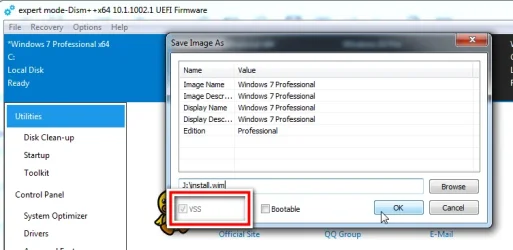
the first time that is run it creates n:\install.wim by capturing %systemdrive% using vss snapshot ( the configfile is optional )
each subsequent run uses vss and appends the changes to another image in the same wim

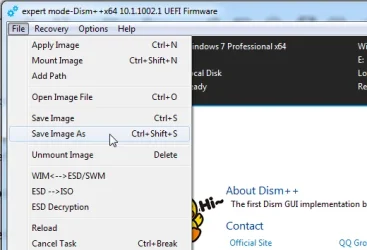
or you could do something similar with dism++ Save Image

dism++-save-image-as1.webp


dism++-save-image-as2.webp
 
Last edited:

My Computers

System One System Two

  • OS
    Win7,Win11
    Computer type
    PC/Desktop
    CPU
    i7-9700
    Motherboard
    gigabyte b365m ds3h
    Memory
    2x16gb 3600mhz
    Monitor(s) Displays
    benq gw2480
    PSU
    bequiet pure power 11 400CM
    Cooling
    cryorig m9i
  • Operating System
    win7,win11
    Computer type
    PC/Desktop
    CPU
    i5-8400
    Motherboard
    gigabyte b365m ds3h
    Memory
    2x8gb 3200
    PSU
    xfx pro 450

My Computer

System One

  • OS
    Win 7,8.1,10,11, Mint, Kde Plasma, Debian
    Computer type
    Laptop
    Manufacturer/Model
    Dell
    CPU
    Intel(R) Core(TM) i7-6500U CPU @ 2.50GHz
    Memory
    16 GB
    Graphics Card(s)
    Intel(R) HD Graphics 520/Nvidia GeForce 930M
    Sound Card
    Intel(R) Display Audio/RealtekAudio
    Monitor(s) Displays
    Generic Pnp Monitor
    Screen Resolution
    1366 X 768
    Hard Drives
    ST2000LM024-1EJ164
    Keyboard
    Eng (US)
    Mouse
    Sanwa Supply
    Browser
    Firefox
    Antivirus
    Avast One
    Other Info
    Too many laptops with different system specifications.
Why not use backup software to create images of disk.

Why not try backup software. It is simple and easy to use.
I suggest Veeam Agent for Microsoft Windows here and Macrium Reflect here.

@FreeBooter and @pewa there are two primary reasons. Firstly, I wanted to see how far I can go without depending on 3rd party solutions and only solutions available OOTB with Windows. A wise guy told me once, always keep your options open and have alternatives in place, just in case.
Secondly, I am observing a trend that most of the basic partition/recovery tools are going the way of a subscription models, like ChatGPT or Claude or Netflix. In this economy, this is getting way too much in terms of financing. Also it does not make sense for me to pay for subscription for a functionality that I use say once a quarter or worse come worse once a month. I am the resident IT expert for my parents, extended family on both of my parents side, few neighbors and a few close friends. I need a permanent license which is getting hard and hard to come by.

Not belittling your suggestion, just my 2 cents.
 

My Computer

System One

  • OS
    Windows 11
    Computer type
    Laptop
    CPU
    Intel
    Memory
    16 GB
    Graphics Card(s)
    Intel UHD Integrated
    Mouse
    Inbuilt
    Browser
    Firefox
    Antivirus
    Microsoft Defender

Hi Transcendence72,

You can't and you shouldn't. See chart below from this article:

View attachment 160917


I would suggest you make the MSR partition after you do all your capturing. Just leave a empty partition in the preferred order and then make your MSR partition with it.

Kind regards,

tecknot
Thanks @tecknot. I do not know how I missed this.
One question that I had, after looking at the image given above, was that it said No to Extended Partitions but yes to Logical Partitions. Is it because Extended partitions are typically MBR based partitions. While Logical Partitions are GPT based partitions? Or is there some other reasons?
 

My Computer

System One

  • OS
    Windows 11
    Computer type
    Laptop
    CPU
    Intel
    Memory
    16 GB
    Graphics Card(s)
    Intel UHD Integrated
    Mouse
    Inbuilt
    Browser
    Firefox
    Antivirus
    Microsoft Defender

MSR doesn't have a filesystem. It's normally empty.

In case you need to convert a basic disk to a dynamic disk, or perform other legacy disk tasks, it gives up a certain amount of blocks to store metadata for the dynamic disk. If you're not doing anything like that, then technically a Windows system disk can be created without a MSR.

When using DISM, there's no way to capture that metadata. If you were re-install Windows, the correct approach would be to recreate the dynamic disk from scratch. Most users aren't using dynamic disks, so there isn't a real need to capture the MSR's contents. Especially if it's unused data.
@garlin I do not plan currently to use a dynamic disk. And I will not like to close the option to use dynamic disk in the future. Though using Laptops, All-in-one and Mini Desktops does typically preclude one from using a dynamic disk.
Is there a way to capture the data of the dynamic disk which is stored in MSR?
 

My Computer

System One

  • OS
    Windows 11
    Computer type
    Laptop
    CPU
    Intel
    Memory
    16 GB
    Graphics Card(s)
    Intel UHD Integrated
    Mouse
    Inbuilt
    Browser
    Firefox
    Antivirus
    Microsoft Defender
Yes I prefer to use wimlib, but it can be done with dism

couple of examples

guid path
Dism /Capture-Image /ImageFile:"I:\somename.wim" /CaptureDir:\\?\Volume{789F97D1-BE32-4F0B-9405-7798D093A712}\ /Name:anyname

device path
Dism /Capture-Image /ImageFile:"I:\somename.wim" /CaptureDir:\\?\GLOBALROOT\Device\HarddiskVolume1\ /Name:anyname

the easiest way to find both of those paths is with diskgenius (free version will do ) . Can be handily rt clicked and copy


View attachment 160923


can also be found using ray hinchliffe's siv under disk mapping

View attachment 160921


View attachment 160922

I like to have both the above tools in/accessible to my winpe

View attachment 160924

I have a little thing with pecmd for finding bootdevs which displays the paths, but not for the msr obviously. Wim is file based and there is nothing in the msr

View attachment 160925
Thanks @SIW2. One of these days I need to have a in depth look at wimlib and dism+. Are there any posts in this forum which can help? Or are there any tutorials that I can follow.
Also in light of what @garlin said in an earlier post, what would you suggest?

Will have to check whether HirenbootPE has ray hinchliffe's siv as well as winlib installed.
I liked the disk mapping schematic given by ray hinchliffe's siv application. why cannot windows Diskpart give something equivalent? It is sloppy on the side of Redmond. Very sloppy indeed.
 

My Computer

System One

  • OS
    Windows 11
    Computer type
    Laptop
    CPU
    Intel
    Memory
    16 GB
    Graphics Card(s)
    Intel UHD Integrated
    Mouse
    Inbuilt
    Browser
    Firefox
    Antivirus
    Microsoft Defender
@garlin I do not plan currently to use a dynamic disk. And I will not like to close the option to use dynamic disk in the future. Though using Laptops, All-in-one and Mini Desktops does typically preclude one from using a dynamic disk.
Is there a way to capture the data of the dynamic disk which is stored in MSR?
Again, the MSR doesn't store anything. If you create a dynamic disk, a new 1MB partition gets carved out which stores a copy of the Logical Disk Manager (LDM) database. There are no normal Windows tools for reading or writing the LDM.

You're supposed to run Disk Manager to create, destroy and manage dynamic disks at a high level.

Some paid backup tools are aware of dynamic disks, and treat them correctly for recovery. If you're not using a dynamic disk, then it's all irrelevant. Dynamic disks have fallen out of favor as an outdated feature, as Storage Spaces and onboard HW RAID (ie. Intel RST) are more common.

Stop worrying about it.
 

My Computer

System One

  • OS
    Windows 7
If you want more options, you can create a recovery drive. This video will explain step by step how to recover from a BSOD.


Let me put it this way. A recovery drive is stronger than an MCT.
It cleans your drive, ensures that your system is not corrupted and malware-free and you have essential BIOS/UEFI settings for optimal performance and security.
 
Last edited:

My Computer

System One

  • OS
    Win 7,8.1,10,11, Mint, Kde Plasma, Debian
    Computer type
    Laptop
    Manufacturer/Model
    Dell
    CPU
    Intel(R) Core(TM) i7-6500U CPU @ 2.50GHz
    Memory
    16 GB
    Graphics Card(s)
    Intel(R) HD Graphics 520/Nvidia GeForce 930M
    Sound Card
    Intel(R) Display Audio/RealtekAudio
    Monitor(s) Displays
    Generic Pnp Monitor
    Screen Resolution
    1366 X 768
    Hard Drives
    ST2000LM024-1EJ164
    Keyboard
    Eng (US)
    Mouse
    Sanwa Supply
    Browser
    Firefox
    Antivirus
    Avast One
    Other Info
    Too many laptops with different system specifications.
One of these days I need to have a in depth look at wimlib and dism+. Are there any posts in this forum which can help? Or are there any tutorials that I can follow.

There are instructions for the various commands on wimlib site.

I already posted the most useful command for backing up the os to a .wim which seems to fit the bill for what you want

dism++ is easy. Just look through the menus. If it is not obvious to you, ask here, I am quite familiar with it.

You could also use winntsetup which is excellent. It requires a bit of knowledge if you want to put presets in the WinNTSetup.ini file . pdf file attached at bottom of post if you want to do that. It is not required.


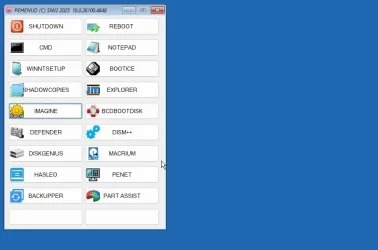
If you are using wim backups it might be a good idea to have a simple pe on usb stick with dism++, winntsetup and a partition manager e.g. diskgenius included. That would be handy for restoring.

something a bit like this but you wont need macrium, hasleo or backupper in there if you are using wim files


I usually set up hotkeys as well in case recovery environment is wanted.. ctrl+alt+r for recovery environment. ctrl+alt+m return the menu

26100-4648-winre.webp
 

Attachments

Last edited:

My Computers

System One System Two

  • OS
    Win7,Win11
    Computer type
    PC/Desktop
    CPU
    i7-9700
    Motherboard
    gigabyte b365m ds3h
    Memory
    2x16gb 3600mhz
    Monitor(s) Displays
    benq gw2480
    PSU
    bequiet pure power 11 400CM
    Cooling
    cryorig m9i
  • Operating System
    win7,win11
    Computer type
    PC/Desktop
    CPU
    i5-8400
    Motherboard
    gigabyte b365m ds3h
    Memory
    2x8gb 3200
    PSU
    xfx pro 450
Wim files have to be applied to a partition.

Most likely recovery scenario is just applying the wim contents to the original os partition. Typically format the existing os partition, apply the wim and that is all.

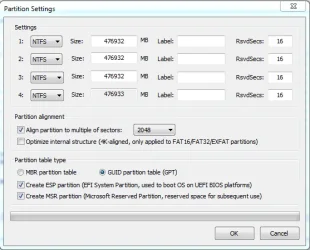
If the disk has failed and you need to apply the wim to a new disk, it needs partitioning first.
Both bootice ( included with winntsetup ) and diskgenius have "quick partition" function

this kind of thing

bootice-repartition.webp
 

My Computers

System One System Two

  • OS
    Win7,Win11
    Computer type
    PC/Desktop
    CPU
    i7-9700
    Motherboard
    gigabyte b365m ds3h
    Memory
    2x16gb 3600mhz
    Monitor(s) Displays
    benq gw2480
    PSU
    bequiet pure power 11 400CM
    Cooling
    cryorig m9i
  • Operating System
    win7,win11
    Computer type
    PC/Desktop
    CPU
    i5-8400
    Motherboard
    gigabyte b365m ds3h
    Memory
    2x8gb 3200
    PSU
    xfx pro 450
Thanks to all who replied back. I will be marking this topic as solved. I have got my answer and some more.
 

My Computer

System One

  • OS
    Windows 11
    Computer type
    Laptop
    CPU
    Intel
    Memory
    16 GB
    Graphics Card(s)
    Intel UHD Integrated
    Mouse
    Inbuilt
    Browser
    Firefox
    Antivirus
    Microsoft Defender
Thanks @tecknot. I do not know how I missed this.
One question that I had, after looking at the image given above, was that it said No to Extended Partitions but yes to Logical Partitions. Is it because Extended partitions are typically MBR based partitions. While Logical Partitions are GPT based partitions? Or is there some other reasons?

Hi Transcendence72,

Logical partitions are to a MBR as primary partitions are to a GPT disk. You will not find logical partition on a GPT disk.

In a GPT (GUID Partition Table) disk, the concept of logical partitions as seen in MBR (Master Boot Record) is not applicable. GPT allows for a maximum of 128 primary partitions without the need for extended or logical partitions, making it more flexible and efficient for managing disk space.

Kind regards,

tecknot
 

My Computer

System One

  • OS
    Windows 11 Pro 25H2 build 26200.8457
    Computer type
    Laptop
    Manufacturer/Model
    Lenovo ThinkPad Workstation P72
    CPU
    Intel i7 8750H @ 2.2 GHz
    Motherboard
    Lenovo 01YU291
    Memory
    16 GB (all Samsung) DDR4-3200 SODIMM (non-ECC) PCIe 3
    Graphics Card(s)
    Intel UHD Graphics 630 & NVIDIA Quadro P600
    Sound Card
    Realtek ALC3286 & Focusrite Saffire 24 Pro DSP
    Monitor(s) Displays
    17.3"
    Screen Resolution
    3840x2160
    Hard Drives
    1TB SSD Samsung 860 EVO SATA 3
    1TB SSD Samsung 970 EVO M.2 NVMe PCIe 3 x 4
    2TB SSD Samsung 990 PRO M.2 NVMe PCIe 3 x 4
    PSU
    230W
    Cooling
    fan
    Keyboard
    UltraNav
    Mouse
    Kensington wireless Orbit
    Internet Speed
    640Mbps
    Browser
    DuckDuckGo and Firefox
    Antivirus
    Defender
    Other Info
    CM246 Chipset
Back
Top Bottom