
Solved How to customize the File Explorer icon on the Taskbar


spapakons

Well-known member
Guru
VIP
Local time
11:24 AM
Posts
9,076
Location
Athens
OS
Windows 11 Pro 23H2 (7582), 25H2 (9457)
Today I asked Google AI and helped me customize the File Explorer icon on the Taskbar from the default flat Windows 11 icon to the old 3D Windows 8.1 icon. First I opened my user folder and then I navigated to the following hidden folder:

AppData\Roaming\Microsoft\Internet Explorer\Quick Launch\User Pinned\Taskbar

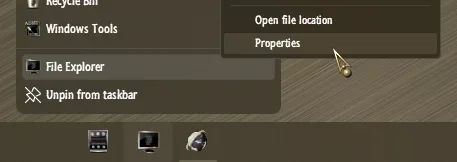
I then right-clicked on the File Explorer shortcut, selected Properties, clicked Change Icon and browsed to the desired icon file. I restarted File Explorer for the changes to take effect and it worked! The only problem is that I was used the the darker default Windows 11 icon and this now looks a little weird, but I will get used to it again soon.

1786438586943.webp

Other customizations you see in the picture are Windows 7 start button, start menu and custom Taskbar color using Open Shell.

To save you Googling, I attach here the default File Explorer icon from Windows 8.1
 
Windows Build/Version
Windows 11 Pro 25H2

Attachments

My Computers My Computers

  • At a glance

    Windows 11 Pro 23H2 (7582), 25H2 (9457)Mobile DualCore Intel Core 2 Duo T7250, 2000 MHz4GBMobile Intel(R) GMA 4500M (Mobile 4 series)
    OS
    Windows 11 Pro 23H2 (7582), 25H2 (9457)
    Computer type
    Laptop
    Manufacturer/Model
    Acer Extensa 5630EZ
    CPU
    Mobile DualCore Intel Core 2 Duo T7250, 2000 MHz
    Motherboard
    Acer Extensa 5630
    Memory
    4GB
    Graphics Card(s)
    Mobile Intel(R) GMA 4500M (Mobile 4 series)
    Sound Card
    Realtek ALC268 @ Intel 82801IB ICH9 - High Definition Audio Controller
    Monitor(s) Displays
    1
    Screen Resolution
    1280x800
    Hard Drives
    Samsung SSD 850 EVO 250GB SATA Device (250 GB, SATA-III)
    Internet Speed
    802.11g wireless 54 Mbps
    Browser
    MICROSOFT EDGE
    Antivirus
    WINDOWS DEFENDER
    Other Info
    Legacy MBR installation, no TPM, no Secure Boot, no WDDM 2.0 graphics drivers, no SSE4.2, cannot get more unsupported ;) This is only my test laptop. I had installed Windows 11 here before upgrading my main PC. For my main PC I use everyday see my 2nd system specs.
  • At a glance

    Windows 11 Pro 25H2 (build 26200.9457)Intel Core-i7 3770 3.40GHz s1155 (3rd generat...2x Kingston Hyper-X Blu 8GB DDR3-1600GIGABYTE GeForce RTX 3050 WINDFORCE OC V2 6GB...
    Operating System
    Windows 11 Pro 25H2 (build 26200.9457)
    Computer type
    PC/Desktop
    Manufacturer/Model
    Custom-built PC
    CPU
    Intel Core-i7 3770 3.40GHz s1155 (3rd generation)
    Motherboard
    Asus P8H61 s1155 ATX
    Memory
    2x Kingston Hyper-X Blu 8GB DDR3-1600
    Graphics card(s)
    GIGABYTE GeForce RTX 3050 WINDFORCE OC V2 6GB (GV-N3050WF2OCV2-6GD)
    Sound Card
    Realtek HD audio (ALC887)
    Monitor(s) Displays
    Sony Bravia KDL-19L4000 19" LCD TV via VGA
    Screen Resolution
    1440x900 32-bit 60Hz
    Hard Drives
    WD Blue SA510 2.5 1000GB SSD as system disk, Western Digital Caviar Purple 4TB SATA III (WD40PURZ) as second
    PSU
    Thermaltake Litepower RGB 550W Full Wired
    Case
    SUPERCASE MIDI-TOWER
    Cooling
    Deepcool Gamma Archer CPU cooler, 1x 8cm fan at the back
    Keyboard
    Mitsumi 101-key PS/2
    Mouse
    Microsoft Compact Optical Mouse
    Internet Speed
    802.11ac 5GHz wireless 260Mpbs
    Browser
    Microsoft Edge, Mozilla Firefox
    Antivirus
    Microsoft Windows Defender
    Other Info
    Legacy BIOS (MBR) installation, no TPM, no Secure Boot, WDDM 3.0 graphics drivers, WEI score 7.4
I just do it right from the Taskbar itself...

13724.webp
 

My Computers My Computers

  • At a glance

    Windows 11 Pro
    OS
    Windows 11 Pro
    Computer type
    PC/Desktop
    Manufacturer/Model
    ASUS ROG Strix
  • At a glance

    Windows 11 Pro
    Operating System
    Windows 11 Pro
    Computer type
    Laptop
    Manufacturer/Model
    ASUS VivoBook
  • ASUS VivoBook 'Lite' ~ Windows 11 Home
I just do it right from the Taskbar itself...

View attachment 179277
I could not make it work back in Windows 11 21H2 like that. I haven't tried with newer versions. I was just Googling and decided to ask AI about it. Yes, you are right. First right-click on the icon on the Taskbar to show you a list of recent folders. At the bottom of the list right-click on the File Explorer app and select Properties. From there you can change icon directly. Thanks for sharing.
 
Last edited:

My Computers My Computers

  • At a glance

    Windows 11 Pro 23H2 (7582), 25H2 (9457)Mobile DualCore Intel Core 2 Duo T7250, 2000 MHz4GBMobile Intel(R) GMA 4500M (Mobile 4 series)
    OS
    Windows 11 Pro 23H2 (7582), 25H2 (9457)
    Computer type
    Laptop
    Manufacturer/Model
    Acer Extensa 5630EZ
    CPU
    Mobile DualCore Intel Core 2 Duo T7250, 2000 MHz
    Motherboard
    Acer Extensa 5630
    Memory
    4GB
    Graphics Card(s)
    Mobile Intel(R) GMA 4500M (Mobile 4 series)
    Sound Card
    Realtek ALC268 @ Intel 82801IB ICH9 - High Definition Audio Controller
    Monitor(s) Displays
    1
    Screen Resolution
    1280x800
    Hard Drives
    Samsung SSD 850 EVO 250GB SATA Device (250 GB, SATA-III)
    Internet Speed
    802.11g wireless 54 Mbps
    Browser
    MICROSOFT EDGE
    Antivirus
    WINDOWS DEFENDER
    Other Info
    Legacy MBR installation, no TPM, no Secure Boot, no WDDM 2.0 graphics drivers, no SSE4.2, cannot get more unsupported ;) This is only my test laptop. I had installed Windows 11 here before upgrading my main PC. For my main PC I use everyday see my 2nd system specs.
  • At a glance

    Windows 11 Pro 25H2 (build 26200.9457)Intel Core-i7 3770 3.40GHz s1155 (3rd generat...2x Kingston Hyper-X Blu 8GB DDR3-1600GIGABYTE GeForce RTX 3050 WINDFORCE OC V2 6GB...
    Operating System
    Windows 11 Pro 25H2 (build 26200.9457)
    Computer type
    PC/Desktop
    Manufacturer/Model
    Custom-built PC
    CPU
    Intel Core-i7 3770 3.40GHz s1155 (3rd generation)
    Motherboard
    Asus P8H61 s1155 ATX
    Memory
    2x Kingston Hyper-X Blu 8GB DDR3-1600
    Graphics card(s)
    GIGABYTE GeForce RTX 3050 WINDFORCE OC V2 6GB (GV-N3050WF2OCV2-6GD)
    Sound Card
    Realtek HD audio (ALC887)
    Monitor(s) Displays
    Sony Bravia KDL-19L4000 19" LCD TV via VGA
    Screen Resolution
    1440x900 32-bit 60Hz
    Hard Drives
    WD Blue SA510 2.5 1000GB SSD as system disk, Western Digital Caviar Purple 4TB SATA III (WD40PURZ) as second
    PSU
    Thermaltake Litepower RGB 550W Full Wired
    Case
    SUPERCASE MIDI-TOWER
    Cooling
    Deepcool Gamma Archer CPU cooler, 1x 8cm fan at the back
    Keyboard
    Mitsumi 101-key PS/2
    Mouse
    Microsoft Compact Optical Mouse
    Internet Speed
    802.11ac 5GHz wireless 260Mpbs
    Browser
    Microsoft Edge, Mozilla Firefox
    Antivirus
    Microsoft Windows Defender
    Other Info
    Legacy BIOS (MBR) installation, no TPM, no Secure Boot, WDDM 3.0 graphics drivers, WEI score 7.4
Well, the Windows 8.1 icon looked too pale and weird, so I opened the file in Microsoft Paint, replaced some of the pale yellow with golden color and saved as BMP 24-bit. I could use that for the File Explorer shortcut icon, but I wanted an ICO file, so I used BMP2ICO to convert to ICO. It looks a little better than the original Windows 8.1 icon, I attach it here:
 

Attachments

My Computers My Computers

  • At a glance

    Windows 11 Pro 23H2 (7582), 25H2 (9457)Mobile DualCore Intel Core 2 Duo T7250, 2000 MHz4GBMobile Intel(R) GMA 4500M (Mobile 4 series)
    OS
    Windows 11 Pro 23H2 (7582), 25H2 (9457)
    Computer type
    Laptop
    Manufacturer/Model
    Acer Extensa 5630EZ
    CPU
    Mobile DualCore Intel Core 2 Duo T7250, 2000 MHz
    Motherboard
    Acer Extensa 5630
    Memory
    4GB
    Graphics Card(s)
    Mobile Intel(R) GMA 4500M (Mobile 4 series)
    Sound Card
    Realtek ALC268 @ Intel 82801IB ICH9 - High Definition Audio Controller
    Monitor(s) Displays
    1
    Screen Resolution
    1280x800
    Hard Drives
    Samsung SSD 850 EVO 250GB SATA Device (250 GB, SATA-III)
    Internet Speed
    802.11g wireless 54 Mbps
    Browser
    MICROSOFT EDGE
    Antivirus
    WINDOWS DEFENDER
    Other Info
    Legacy MBR installation, no TPM, no Secure Boot, no WDDM 2.0 graphics drivers, no SSE4.2, cannot get more unsupported ;) This is only my test laptop. I had installed Windows 11 here before upgrading my main PC. For my main PC I use everyday see my 2nd system specs.
  • At a glance

    Windows 11 Pro 25H2 (build 26200.9457)Intel Core-i7 3770 3.40GHz s1155 (3rd generat...2x Kingston Hyper-X Blu 8GB DDR3-1600GIGABYTE GeForce RTX 3050 WINDFORCE OC V2 6GB...
    Operating System
    Windows 11 Pro 25H2 (build 26200.9457)
    Computer type
    PC/Desktop
    Manufacturer/Model
    Custom-built PC
    CPU
    Intel Core-i7 3770 3.40GHz s1155 (3rd generation)
    Motherboard
    Asus P8H61 s1155 ATX
    Memory
    2x Kingston Hyper-X Blu 8GB DDR3-1600
    Graphics card(s)
    GIGABYTE GeForce RTX 3050 WINDFORCE OC V2 6GB (GV-N3050WF2OCV2-6GD)
    Sound Card
    Realtek HD audio (ALC887)
    Monitor(s) Displays
    Sony Bravia KDL-19L4000 19" LCD TV via VGA
    Screen Resolution
    1440x900 32-bit 60Hz
    Hard Drives
    WD Blue SA510 2.5 1000GB SSD as system disk, Western Digital Caviar Purple 4TB SATA III (WD40PURZ) as second
    PSU
    Thermaltake Litepower RGB 550W Full Wired
    Case
    SUPERCASE MIDI-TOWER
    Cooling
    Deepcool Gamma Archer CPU cooler, 1x 8cm fan at the back
    Keyboard
    Mitsumi 101-key PS/2
    Mouse
    Microsoft Compact Optical Mouse
    Internet Speed
    802.11ac 5GHz wireless 260Mpbs
    Browser
    Microsoft Edge, Mozilla Firefox
    Antivirus
    Microsoft Windows Defender
    Other Info
    Legacy BIOS (MBR) installation, no TPM, no Secure Boot, WDDM 3.0 graphics drivers, WEI score 7.4
I could not make it work back in Windows 11 21H2 like that. I haven't tried with newer versions. I was just Googling and decided to ask AI about it. Yes, you are right. First right-click on the icon on the Taskbar to show you a list of recent folders. At the bottom of the list right-click on the File Explorer app and select Properties. From there you can change icon directly. Thanks for sharing.
Sometimes changing it that way takes a bit of time before it visibly switches over as well. A reboot or logoff and in sometimes activates the change. Also if you have the icon you want in your Start menu just pin it from the Start to your taskbar and that icon will instantly take effect.
 

My Computers My Computers

  • At a glance

    Windows 11 25H2Intel Core Ultra 9 275HX (24-Core)64GB DDR5 6400MT/sNVIDIA GeForce RTX 5080 and Intel UHD Graphics
    OS
    Windows 11 25H2
    Computer type
    Laptop
    Manufacturer/Model
    Alienware 18 Area-51
    CPU
    Intel Core Ultra 9 275HX (24-Core)
    Motherboard
    Alienware
    Memory
    64GB DDR5 6400MT/s
    Graphics Card(s)
    NVIDIA GeForce RTX 5080 and Intel UHD Graphics
    Sound Card
    Onboard, Realtek high-performance Audio chips (ALC3329 & ALC1708))
    Monitor(s) Displays
    300HZ 18-inch QHD 500 nit Comfort View+
    Screen Resolution
    2560 x 1600
    Hard Drives
    2TB NVMe M.2 PCIe Gen 5 SSD
    Case
    Magnesium Alloy
    Cooling
    Advanced Cryo-Tech Quad-Fan Cooling system & large vapor chamber
    Keyboard
    Cherry MX ultra low profile mechanical keyboard with per key AlienFX RGB lighting
    Mouse
    Logitech MX Master 4
    Browser
    Vivaldi (main), Firefox, Chrome, Edge
    Antivirus
    MS Defender and Malwarebytes Free
  • At a glance

    Windows 11 26H2Qualcomm Snapdragon X Elite (12 Core) ARM bas...16GB LPDDR5Qualcomm Adreno X1-85
    Operating System
    Windows 11 26H2
    Computer type
    Laptop
    Manufacturer/Model
    Microsoft Surface Laptop 7
    CPU
    Qualcomm Snapdragon X Elite (12 Core) ARM based CPU
    Motherboard
    Microsoft Corp.
    Memory
    16GB LPDDR5
    Graphics card(s)
    Qualcomm Adreno X1-85
    Sound Card
    Omnisonic speakers with Dolby Atmos spatial sound
    Monitor(s) Displays
    120 Hz 13.8-inch 600 nit PixelSense Flow touchscreen
    Screen Resolution
    2304x1536
    Hard Drives
    1TB NVMe Gen 4 SSD
    Case
    Anodized Aluminum
    Cooling
    Traditional active cooling fan system
    Keyboard
    Mechanical QWERTY, backlit when in use
    Mouse
    Logitech MX Master 4 and Surface Arc Mouse
    Browser
    Vivaldi (main), Firefox, Chrome, Edge
    Antivirus
    MS Defender and Malwarebytes Free

Latest Support Threads

Back
Top Bottom




