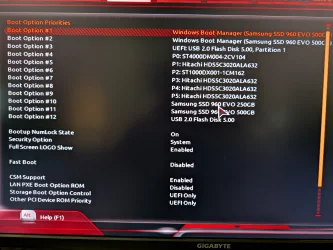
Windows normally boots from the
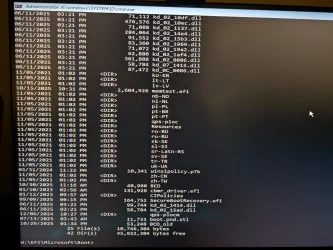
EFI\Microsoft\Boot\bootmgfw.efi file, which corresponds to the “Windows Boot Manager” entry in the UEFI settings. If there’s no “Windows Boot Manager” entry, Windows will boot from
EFI\Boot\bootx64.efi — the UEFI fallback boot mechanism.
If you want to update the firmware entry in NVRAM, you must run the
bcdboot command
without the
/s and
/f options.
BCDBoot Command-Line Options - Microsoft Learn
- On UEFI PCs, BCDBoot can update the firmware entries in the device’s NVRAM: BCDBoot adds a firmware entry in the NVRAM to point to the Windows Boot Manager.
- By default, BCDBoot creates a Windows Boot Manager entry in the NVRAM on the firmware to identify the boot files on the system partition. If the /s option is used, then this entry is not created.
- If you specify the /f option, you must also specify the /s option to identify the volume letter of the system partition.
Boot from the Windows USB stick in
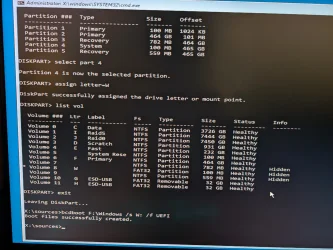
UEFI mode (select the USB stick with a UEFI prefix), and run the following commands at the Windows Recovery Environment command prompt.
On a GPT disk, the
bcdboot command below will not work if the USB stick is booted in
BIOS mode. In that case, you’ll see the error:
- Failure when attempting to copy boot files.
You’ll get the same error:
- if you enter the wrong volume letter for the Windows partition, or
- if the EFI system partition is missing or not formatted as FAT32.
diskpart
list volume (check the volume letter of your Windows partition)
exit
bcdboot x:\windows
Replace "x" with the volume letter of your Windows partition.
The bcdboot command automatically identifies the FAT32-formatted EFI system partition, copies the necessary boot files from the Windows partition to it, and creates a Boot Configuration Data (BCD) store on that partition. It also creates a Windows Boot Manager entry in the NVRAM.
edit: The
/s option is used when you need to override bcdboot's default choice and target a non-default EFI system partition. When you boot your USB stick in UEFI mode, the firmware type
/f uefi is not required.
There appears to be two, I've tried both
You can remove the extra "Windows Boot Manager" entry, if your Gigabyte BIOS version supports it, by selecting the unwanted entry and selecting Remove or Disable Boot Option.