
Starting from Windows 11 24H2, the official installer on the ISO has been replaced. For several reasons, people may prefer launching the legacy installer. In my use case, that new installer does not allow to install Windows on a single pre-formated partiion (+ ESP), but it always wants to create its own
To work around this, it is possible to launch the legacy installer!
In case we need them, we have also have to apply hw eligibility bypass hacks manually – Rufus won't do, because it applies it only for the new installer!

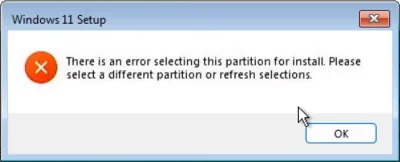
MSR and Recovery partitions. If no space for these partitions is available it will throw:"There is an error selecting this partition for install. Please select a different partition or refresh selections."
To work around this, it is possible to launch the legacy installer!
In case we need them, we have also have to apply hw eligibility bypass hacks manually – Rufus won't do, because it applies it only for the new installer!
Procedure
- Flash the original ISO image onto a USB-Stick.
- Locally, create a file called
winpeshl.iniwith the following contents:
INI:[LaunchApps] %SystemDrive%\bypass.bat %SystemDrive%\sources\setup.exe - Also create a
bypass.batfile:
Batch::: Bypass eligibility checks on a clean install reg add HKLM\SYSTEM\Setup\LabConfig /v BypassCPUCheck /t REG_DWORD /d 1 reg add HKLM\SYSTEM\Setup\LabConfig /v BypassRAMCheck /t REG_DWORD /d 1 reg add HKLM\SYSTEM\Setup\LabConfig /v BypassSecureBootCheck /t REG_DWORD /d 1 reg add HKLM\SYSTEM\Setup\LabConfig /v BypassStorageCheck /t REG_DWORD /d 1 reg add HKLM\SYSTEM\Setup\LabConfig /v BypassTPMCheck /t REG_DWORD /d 1 :: Bypass eligibility checks for upgrade path reg add HKCU\SOFTWARE\Microsoft\PCHC /v UpgradeEligibility /t REG_DWORD /d 1 reg add HKLM\SYSTEM\Setup\MoSetup /v AllowUpgradesWithUnsupportedTPMOrCPU /t REG_DWORD /d 1 :: Bypass forced Microsoft account with internet connection reg add HKLM\SOFTWARE\Microsoft\Windows\CurrentVersion\OOBE /v BypassNRO/t REG_DWORD /d 1 :: Bypass forced BitLocker encryption reg add HKLM\SYSTEM\CurrentControlSet\Control\BitLocker /v PreventDeviceEncryption /t REG_DWORD /d 1 - Navigate to
\sourceson the flashed USB drive with the explorer. Now, look for a file calledboot.wim. Right click and open with 7-Zip. - Once inside
boot.wim, do the following:
1. dragbypass.batinto the folder called2\,
2. dragwinpeshl.iniinto2\Windows\System32\
3. Close 7-Zip.
FYI: Folder "2" will be the root dir during in the live environment/setup process (basically drive letterX:\). :)
Done!
This USB Stick will now launch the old installer and bypass hw eligibility checks!Sources & additional references:
- https://forums.mydigitallife.net/threads/windows-11-now-requires-msr-partition.89254/
- How do I bypass the New Windows Install and only have to Old Setup?
- Install Windows 11 v25H2 on an unsupported pc hardware avoiding error message "This pc can't run Windows 11".
- W11 24h2 and old installation setup
- How to prevent Windows from creating additional partitions during installation?
- How do I bypass the New Windows Install and only have to Old Setup?
- Winpeshl.ini Reference: Launching an app when WinPE starts
- Windows Build/Version
- 25H2v2 ISO
Last edited:






