I'm having problems creating a custom Windows 11 25H2 iso


Changing the edition is not what the op was trying to do.

I did a little batch file years ago for updating win7. The quickest way to do that was to integrate the updates to the first image, then upgrade that first image to the other editions. It is a lot quicker than integrating the updates into all the images separately.
 

My Computers

System One System Two

  • OS
    Win7,Win11
    Computer type
    PC/Desktop
    CPU
    i7-9700
    Motherboard
    gigabyte b365m ds3h
    Memory
    2x16gb 3600mhz
    Monitor(s) Displays
    benq gw2480
    PSU
    bequiet pure power 11 400CM
    Cooling
    cryorig m9i
  • Operating System
    win7,win11
    Computer type
    PC/Desktop
    CPU
    i5-8400
    Motherboard
    gigabyte b365m ds3h
    Memory
    2x8gb 3200
    PSU
    xfx pro 450
Changing the edition is not what the op was trying to do.
I never said they were. I was just showing that it can be changed (or set) without third-party tools.
 

My Computer

System One

  • OS
    Windows 11 Pro 25H2
    Computer type
    PC/Desktop
    Manufacturer/Model
    Intel NUC12WSHi7
    CPU
    12th Gen Core i7-1260P
    Motherboard
    NUC12WSBi7
    Memory
    64 GB Micron PC4-25600
    Graphics Card(s)
    Intel Iris Xe Graphics
    Sound Card
    on-board Realtek HD Audio
    Monitor(s) Displays
    Dell U3219Q
    Screen Resolution
    3840 x 2160
    Hard Drives
    Samsung SSD 990 PRO 1TB
    Crucial MX500 2 TB
    Antivirus
    Microsoft Defender
The edition was already Pro, it was just missing the id from the header. No need to mount to change that.

I think it can be done with microsoft imagex I dont know if there some dism command that will change the image properties . There might be but I havent seen it documented anywhere.

from memory it is something like this
imagex /flags "Professional" /info "path_to_install.wim" image_number
 

My Computers

System One System Two

  • OS
    Win7,Win11
    Computer type
    PC/Desktop
    CPU
    i7-9700
    Motherboard
    gigabyte b365m ds3h
    Memory
    2x16gb 3600mhz
    Monitor(s) Displays
    benq gw2480
    PSU
    bequiet pure power 11 400CM
    Cooling
    cryorig m9i
  • Operating System
    win7,win11
    Computer type
    PC/Desktop
    CPU
    i5-8400
    Motherboard
    gigabyte b365m ds3h
    Memory
    2x8gb 3200
    PSU
    xfx pro 450
Okay mate. You posted a method to change the edition, and someone else thought it was changing the index, which it isn't. All I was doing is posting an alternative method that doesn't rely on potentially shady third-party tools. You can edit with a third-party tools, or you can use what's already in Windows. Also, I literally said it can be done with the DISM exe or cmdlets. Bye now.


My Computer

System One

  • OS
    Windows 11 Pro 25H2
    Computer type
    PC/Desktop
    Manufacturer/Model
    Intel NUC12WSHi7
    CPU
    12th Gen Core i7-1260P
    Motherboard
    NUC12WSBi7
    Memory
    64 GB Micron PC4-25600
    Graphics Card(s)
    Intel Iris Xe Graphics
    Sound Card
    on-board Realtek HD Audio
    Monitor(s) Displays
    Dell U3219Q
    Screen Resolution
    3840 x 2160
    Hard Drives
    Samsung SSD 990 PRO 1TB
    Crucial MX500 2 TB
    Antivirus
    Microsoft Defender
Thanks for the explanation. Let me use you to learn something new (for me at least)

SIW2 was showing how to change the image edition ID, not the index. The index is just the order in which the image appears in the WIM file.

Powershell:
Get-WindowsImage -ImagePath "Q:\Path\To\install.wim" |
ForEach-Object { Get-WindowsImage -ImagePath "Q:\Path\To\install.wim" -Index $_.ImageIndex } |
Format-Table -AutoSize -Property @('ImageIndex', 'ImageName', 'EditionId')

ImageIndex ImageName                         EditionId
---------- ---------                         ---------
         1 Windows 11 Home                   Core
         2 Windows 11 Home N                 CoreN
         3 Windows 11 Home Single Language   CoreSingleLanguage
         4 Windows 11 Education              Education
         5 Windows 11 Education N            EducationN
         6 Windows 11 Pro                    Professional
         7 Windows 11 Pro N                  ProfessionalN
         8 Windows 11 Pro Education          ProfessionalEducation
         9 Windows 11 Pro Education N        ProfessionalEducationN
        10 Windows 11 Pro for Workstations   ProfessionalWorkstation
        11 Windows 11 Pro N for Workstations ProfessionalWorkstationN

You can change the edition ID without any third-party tools. Windows 11 Home has an edition ID of "Core," as shown above.

You can change it to the Pro edition with the DISM executable or cmdlets.

Powershell:
Mount-WindowsImage -ImagePath "Q:\Path\To\install.wim" -Index 1 -Path Q:\SomeMountPath\
Set-WindowsEdition -Edition 'Professional' -Path 'Q:\SomeMountPath'
Get-WindowsImage -Mounted | Dismount-WindowsImage -Save

- When you say "You can change it to the Pro edition with the DISM" you change only the ID, but it is still a Home, isn't it?

Running the first PowerShell command above yields the result below. Note the image name or index doesn't change, but the edition has changed. If I install Windows with this image, I get the Professional edition, not Home.

Powershell:
ImageIndex ImageName       EditionId
---------- ---------       ---------
         1 Windows 11 Home Professional
What is the relation with the Index, ID, [1].xml and the installation wizard? During installation when you choose Pro, what are the procedures taken to mount the image (it use a link to the index or to the ID)?

In the OP case where he generated an install.wim, did this install.wim had the [1].xml file? Was it created when he used Dism++?
 
Last edited:

My Computers

System One System Two

  • OS
    Windows 11 Pro - Windows 7 HP 64 - Lubuntu
    Computer type
    PC/Desktop
    Manufacturer/Model
    custom build
    CPU
    i5 6600K - 800MHz to 4400MHz
    Motherboard
    GA-Z170-HD3P
    Memory
    4+4G GSkill DDR4 3000
    Graphics Card(s)
    IG - Intel 530
    Monitor(s) Displays
    Samsung 226BW
    Screen Resolution
    1680x1050
    Hard Drives
    (1) -1 SM951 – 128GB M.2 AHCI PCIe SSD drive for Win 11
    (2) -1 WD SATA 3 - 1T for Data
    (3) -1 WD SATA 3 - 1T for backup
    (4) -1 BX500 SSD - 256G for Windows 7 and Lubuntu
    PSU
    Thermaltake 450W TR2 gold
    Keyboard
    Old and good Chicony mechanical keyboard
    Mouse
    Logitech mX performance - 9 buttons (had to disable some)
    Internet Speed
    500 Mb/s
    Browser
    Firefox 64
  • Operating System
    Windows 11 Pro
    Computer type
    Laptop
    Manufacturer/Model
    Asus Q550LF
    CPU
    i7-4500U 800- 3000MHz
    Motherboard
    Asus Q550LF
    Memory
    (4+4)G DDR3 1600
    Graphics card(s)
    IG intel 4400 + NVIDIA GeForce GT 745M
    Sound Card
    Realtek
    Monitor(s) Displays
    LG Display LP156WF4-SPH1
    Screen Resolution
    1920 x 1080
    Hard Drives
    BX500 120G SSD for Windows and programs
    & 1T HDD for data
    Internet Speed
    500 Mb/s
    Browser
    Firefox 64
When you say "You can change it to the Pro edition with the DISM" you change only the ID, but it is still a Home, isn't it?

The image is still labelled Home, but what actually gets installed is Professional, after I changed that ID. The image index and name are pretty arbitrary; they're really on there so you have a way to mount them, e.g. "mount image number 1 in this WIM file, so I can remove something or add something." In fact, in a lot of enterprises, we take a multi-index WIM and export out only the index we want. In the case of the WIM I used as an example, I might export out the Pro image to a new WIM file, and its index becomes 1, not 6. So if I want to do something further to it, the number 6 is totally invalid now; it's image #1.

What is the relation with the Index, ID, [1].xml and the installation wizard? During installation when you choose Pro, what are the procedures taken to mount the image (it use a link to the index or to the ID)?

There is no relation to the index and the ID, or the name for that matter. The index is simply the order in which the image was added to the WIM file. Someone like garlin can probably speak to the internals of Windows setup, but I imagine it's something like, "The user picked Windows 11 Pro, that's index 6 in this file, so mount the image in this file that is at index 6 and apply it to the C: drive."

I guess I would think of the index, the name, and the description as friendly things to help the humans manipulating these images. They have little to do with what Windows setup installs.
 

My Computer

System One

  • OS
    Windows 11 Pro 25H2
    Computer type
    PC/Desktop
    Manufacturer/Model
    Intel NUC12WSHi7
    CPU
    12th Gen Core i7-1260P
    Motherboard
    NUC12WSBi7
    Memory
    64 GB Micron PC4-25600
    Graphics Card(s)
    Intel Iris Xe Graphics
    Sound Card
    on-board Realtek HD Audio
    Monitor(s) Displays
    Dell U3219Q
    Screen Resolution
    3840 x 2160
    Hard Drives
    Samsung SSD 990 PRO 1TB
    Crucial MX500 2 TB
    Antivirus
    Microsoft Defender
Another doubt: On an install.wim it can have many Win 11 types. If you mount a type it is around 15G or even bigger. How can Install wim have 11 types and be less than 6 G ? Is there a basic type and the others are made by the basic plus an add on?

Sorry for all the questions but I want to learn something new.
 

My Computers

System One System Two

  • OS
    Windows 11 Pro - Windows 7 HP 64 - Lubuntu
    Computer type
    PC/Desktop
    Manufacturer/Model
    custom build
    CPU
    i5 6600K - 800MHz to 4400MHz
    Motherboard
    GA-Z170-HD3P
    Memory
    4+4G GSkill DDR4 3000
    Graphics Card(s)
    IG - Intel 530
    Monitor(s) Displays
    Samsung 226BW
    Screen Resolution
    1680x1050
    Hard Drives
    (1) -1 SM951 – 128GB M.2 AHCI PCIe SSD drive for Win 11
    (2) -1 WD SATA 3 - 1T for Data
    (3) -1 WD SATA 3 - 1T for backup
    (4) -1 BX500 SSD - 256G for Windows 7 and Lubuntu
    PSU
    Thermaltake 450W TR2 gold
    Keyboard
    Old and good Chicony mechanical keyboard
    Mouse
    Logitech mX performance - 9 buttons (had to disable some)
    Internet Speed
    500 Mb/s
    Browser
    Firefox 64
  • Operating System
    Windows 11 Pro
    Computer type
    Laptop
    Manufacturer/Model
    Asus Q550LF
    CPU
    i7-4500U 800- 3000MHz
    Motherboard
    Asus Q550LF
    Memory
    (4+4)G DDR3 1600
    Graphics card(s)
    IG intel 4400 + NVIDIA GeForce GT 745M
    Sound Card
    Realtek
    Monitor(s) Displays
    LG Display LP156WF4-SPH1
    Screen Resolution
    1920 x 1080
    Hard Drives
    BX500 120G SSD for Windows and programs
    & 1T HDD for data
    Internet Speed
    500 Mb/s
    Browser
    Firefox 64
I see a lot of valid points, but we're still avoiding the primary question...
How does Setup "know" which image to install?

In the absence of an answer file or pid.txt, Setup wants to provide the same Windows editions as the OEM product key (if it exists).
Next in order would be checking if there's an existing Windows folder on the install disk. Setup tries to match that version.

If a generic install or specific activation key is listed in the answer file, or a pid.txt (which does the same thing), then Setup tries to determine if there's a matching edition in the WIM/ESD. To allow free selection of other editions, you can create an EI.cfg on the ISO's sources folder.

If you have an answer file which picks a specific image index number, then that's tried (regardless of the OEM key or existing Windows folder). Same for a specific image edition (by name).

When you're capturing an image, typically you should provide a valid matching name (not just "pseymour's bootleg ISO") or description. This helps Setup in the case it's not picking from an index number. You will need another tool to proper populate all the fields because DISM by itself doesn't.
 
Last edited:

My Computer

System One

  • OS
    Windows 7
When you're capturing an image, typically you should provide a valid matching name (not just "pseymour's bootleg ISO") or description. This helps Setup in the case it's not picking from an index number. You will need another tool to proper populate all the fields because DISM by itself doesn't.
How'd you know what I name my images?

Another doubt: On an install.wim it can have many Win 11 types. If you mount a type it is around 15G or even bigger. How can Install wim have 11 types and be less than 6 G ? Is there a basic type and the others are made by the basic plus an add on?

You're not that far off. WIM images have what is called single-instance storage. That means that however many images are in the WIM, only one copy of each file is stored. So, you could have, say, 100 images in a single WIM file that differ only by one file each. The first image's contents are stored in full. Only the different files in images 2-99 are added to the WIM file after that. That isn't exactly how it works, but trying to keep it simple.

Edit... Oh also there is compression available. That's why a 15 GB image does not necessarily yield a 15 GB WIM.
 

My Computer

System One

  • OS
    Windows 11 Pro 25H2
    Computer type
    PC/Desktop
    Manufacturer/Model
    Intel NUC12WSHi7
    CPU
    12th Gen Core i7-1260P
    Motherboard
    NUC12WSBi7
    Memory
    64 GB Micron PC4-25600
    Graphics Card(s)
    Intel Iris Xe Graphics
    Sound Card
    on-board Realtek HD Audio
    Monitor(s) Displays
    Dell U3219Q
    Screen Resolution
    3840 x 2160
    Hard Drives
    Samsung SSD 990 PRO 1TB
    Crucial MX500 2 TB
    Antivirus
    Microsoft Defender
Another doubt: On an install.wim it can have many Win 11 types. If you mount a type it is around 15G or even bigger. How can Install wim have 11 types and be less than 6 G ? Is there a basic type and the others are made by the basic plus an add on?

Sorry for all the questions but I want to learn something new.
Simple, if they're from the same Windows build then DISM takes advantage of de-duplication to keep only one copy of the shared files.

Something like at least 90% of the files are the same from Home to Enterprise. Some editions have more files than others (Pro vs. Home), some editions have slightly different files. But the bulk of Windows is the same, so it compresses well.

Now it may compress well, but de-duping and conversion to ESD format is a ridiculously expensive operation.

If you create an All-in-One ISO, which was popular back in the day, with W7 thru w10 releases... de-duping is utterly worthless. None of the images share any files, so you just get normal file compression (good) but no de-duping before compression (best).
 

My Computer

System One

  • OS
    Windows 7
An easy way to think of single instance storage is all of the images appear to contain to contain winre.wim. But there is only one winre.wim stored in install.wim. That applies to all the files that are the same.
 

My Computers

System One System Two

  • OS
    Win7,Win11
    Computer type
    PC/Desktop
    CPU
    i7-9700
    Motherboard
    gigabyte b365m ds3h
    Memory
    2x16gb 3600mhz
    Monitor(s) Displays
    benq gw2480
    PSU
    bequiet pure power 11 400CM
    Cooling
    cryorig m9i
  • Operating System
    win7,win11
    Computer type
    PC/Desktop
    CPU
    i5-8400
    Motherboard
    gigabyte b365m ds3h
    Memory
    2x8gb 3200
    PSU
    xfx pro 450
If that edition field is blank or corupt setup.exe will get confused.

I am not sure dism would be able to mount it
 

My Computers

System One System Two

  • OS
    Win7,Win11
    Computer type
    PC/Desktop
    CPU
    i7-9700
    Motherboard
    gigabyte b365m ds3h
    Memory
    2x16gb 3600mhz
    Monitor(s) Displays
    benq gw2480
    PSU
    bequiet pure power 11 400CM
    Cooling
    cryorig m9i
  • Operating System
    win7,win11
    Computer type
    PC/Desktop
    CPU
    i5-8400
    Motherboard
    gigabyte b365m ds3h
    Memory
    2x8gb 3200
    PSU
    xfx pro 450
DISM doesn't care if the EditionID field is populated. I use the WIM format for backing up some things, and it's just folders and files. No EditionId, ProductType, etc. Like the honey badger, DISM does not care.

Powershell:
Get-WindowsImage -ImagePath 'Blah-Blah-Something.wim' -Index 1 | fl *

Version              : 0.0.0.0
DirectoryCount       : 1322
FileCount            : 4044
CreatedTime          : 9/13/2025 7:50:02 PM
ModifiedTime         : 9/13/2025 7:50:02 PM
WIMBoot              : False
ImageType            : Wim
ImagePath            : D:\Blah-Blah-Something.wim
ImageName            : Backup of Something
ImageIndex           : 1
ImageDescription     : backup of something 2025-09-13 19:49:17Z
ImageSize            : 1099417834
Architecture         : 0
ProductName          :
EditionId            :
InstallationType     :
Hal                  :
ProductType          :
ProductSuite         :
MajorVersion         : 0
MinorVersion         : 0
Build                : 0
SPBuild              : 0
SPLevel              : 0
ImageBootable        : No
SystemRoot           :
Languages            : {}
DefaultLanguageIndex : 0
LogPath              : C:\WINDOWS\Logs\DISM\dism.log
ScratchDirectory     :
LogLevel             : WarningsInfo
 

My Computer

System One

  • OS
    Windows 11 Pro 25H2
    Computer type
    PC/Desktop
    Manufacturer/Model
    Intel NUC12WSHi7
    CPU
    12th Gen Core i7-1260P
    Motherboard
    NUC12WSBi7
    Memory
    64 GB Micron PC4-25600
    Graphics Card(s)
    Intel Iris Xe Graphics
    Sound Card
    on-board Realtek HD Audio
    Monitor(s) Displays
    Dell U3219Q
    Screen Resolution
    3840 x 2160
    Hard Drives
    Samsung SSD 990 PRO 1TB
    Crucial MX500 2 TB
    Antivirus
    Microsoft Defender
DISM and Setup are two different animals. How is the starter version of Edge is bundled inside the CU? Using a WIM of course!
 

My Computer

System One

  • OS
    Windows 7
That bypassNRO command no longer works on version 25H2. You need to use “start ms-cxh:localonly” command and create a new user.
BypassNRO is available in 26200.6584. The reports of its death are greatly exaggerated.
 

My Computer

System One

  • OS
    Windows 7
Thanks all for the explanation.
What I didn't understand is how does Setup "know" which image to install?
Setup list some of the types on Install.wim (Home and pro). Where does the list came from? [1].xml?
It seems that [1].xml makes a kind of link between the Setup and the images on install.wim, am I correct?
 

My Computers

System One System Two

  • OS
    Windows 11 Pro - Windows 7 HP 64 - Lubuntu
    Computer type
    PC/Desktop
    Manufacturer/Model
    custom build
    CPU
    i5 6600K - 800MHz to 4400MHz
    Motherboard
    GA-Z170-HD3P
    Memory
    4+4G GSkill DDR4 3000
    Graphics Card(s)
    IG - Intel 530
    Monitor(s) Displays
    Samsung 226BW
    Screen Resolution
    1680x1050
    Hard Drives
    (1) -1 SM951 – 128GB M.2 AHCI PCIe SSD drive for Win 11
    (2) -1 WD SATA 3 - 1T for Data
    (3) -1 WD SATA 3 - 1T for backup
    (4) -1 BX500 SSD - 256G for Windows 7 and Lubuntu
    PSU
    Thermaltake 450W TR2 gold
    Keyboard
    Old and good Chicony mechanical keyboard
    Mouse
    Logitech mX performance - 9 buttons (had to disable some)
    Internet Speed
    500 Mb/s
    Browser
    Firefox 64
  • Operating System
    Windows 11 Pro
    Computer type
    Laptop
    Manufacturer/Model
    Asus Q550LF
    CPU
    i7-4500U 800- 3000MHz
    Motherboard
    Asus Q550LF
    Memory
    (4+4)G DDR3 1600
    Graphics card(s)
    IG intel 4400 + NVIDIA GeForce GT 745M
    Sound Card
    Realtek
    Monitor(s) Displays
    LG Display LP156WF4-SPH1
    Screen Resolution
    1920 x 1080
    Hard Drives
    BX500 120G SSD for Windows and programs
    & 1T HDD for data
    Internet Speed
    500 Mb/s
    Browser
    Firefox 64
Thanks all for the explanation.
What I didn't understand is how does Setup "know" which image to install?
Setup list some of the types on Install.wim (Home and pro). Where does the list came from? [1].xml?
It seems that [1].xml makes a kind of link between the Setup and the images on install.wim, am I correct?
If PC has an licence key embedded in bios, Setup selects the edition related to key, unless you override with an ei.cfg configuration file.
 

My Computer

System One

  • OS
    Windows 11 Pro + Win11 Canary VM.
    Computer type
    Laptop
    Manufacturer/Model
    ASUS Zenbook 14
    CPU
    I9 13th gen i9-13900H 2.60 GHZ
    Motherboard
    Yep, Laptop has one.
    Memory
    16 GB soldered
    Graphics Card(s)
    Integrated Intel Iris XE
    Sound Card
    Realtek built in
    Monitor(s) Displays
    laptop OLED screen
    Screen Resolution
    2880x1800 touchscreen
    Hard Drives
    1 TB NVME SSD (only weakness is only one slot)
    PSU
    Internal + 65W thunderbolt USB4 charger
    Case
    Yep, got one
    Cooling
    Stella Artois (UK pint cans - 568 ml) - extra cost.
    Keyboard
    Built in UK keybd
    Mouse
    Bluetooth , wireless dongled, wired
    Internet Speed
    900 mbs (ethernet), wifi 6 typical 350-450 mb/s both up and down
    Browser
    Edge
    Antivirus
    Defender
    Other Info
    TPM 2.0, 2xUSB4 thunderbolt, 1xUsb3 (usb a), 1xUsb-c, hdmi out, 3.5 mm audio out/in combo, ASUS backlit trackpad (inc. switchable number pad)

    Macrium Reflect Home V8
    Office 365 Family (6 users each 1TB onedrive space)
    Hyper-V (a vm runs almost as fast as my older laptop)
The g-man probably knows, but I don't have an XML with that name on my installation media. Not sure what that is. Setup can just query the install.wim to see which images are in there. There wouldn't be a need for an external list.
 

My Computer

System One

  • OS
    Windows 11 Pro 25H2
    Computer type
    PC/Desktop
    Manufacturer/Model
    Intel NUC12WSHi7
    CPU
    12th Gen Core i7-1260P
    Motherboard
    NUC12WSBi7
    Memory
    64 GB Micron PC4-25600
    Graphics Card(s)
    Intel Iris Xe Graphics
    Sound Card
    on-board Realtek HD Audio
    Monitor(s) Displays
    Dell U3219Q
    Screen Resolution
    3840 x 2160
    Hard Drives
    Samsung SSD 990 PRO 1TB
    Crucial MX500 2 TB
    Antivirus
    Microsoft Defender
The g-man probably knows, but I don't have an XML with that name on my installation media. Not sure what that is. Setup can just query the install.wim to see which images are in there. There wouldn't be a need for an external list.
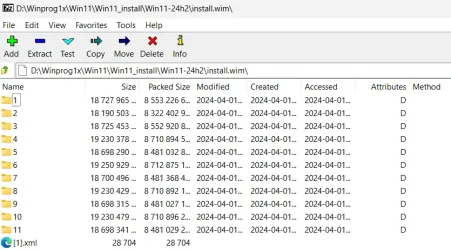
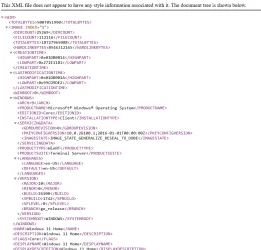
If you open an Install.wim you will see [1].xml and if you open it you will see a detailed information about he images.

1758813476843.webp1758813706847.webp
 

My Computers

System One System Two

  • OS
    Windows 11 Pro - Windows 7 HP 64 - Lubuntu
    Computer type
    PC/Desktop
    Manufacturer/Model
    custom build
    CPU
    i5 6600K - 800MHz to 4400MHz
    Motherboard
    GA-Z170-HD3P
    Memory
    4+4G GSkill DDR4 3000
    Graphics Card(s)
    IG - Intel 530
    Monitor(s) Displays
    Samsung 226BW
    Screen Resolution
    1680x1050
    Hard Drives
    (1) -1 SM951 – 128GB M.2 AHCI PCIe SSD drive for Win 11
    (2) -1 WD SATA 3 - 1T for Data
    (3) -1 WD SATA 3 - 1T for backup
    (4) -1 BX500 SSD - 256G for Windows 7 and Lubuntu
    PSU
    Thermaltake 450W TR2 gold
    Keyboard
    Old and good Chicony mechanical keyboard
    Mouse
    Logitech mX performance - 9 buttons (had to disable some)
    Internet Speed
    500 Mb/s
    Browser
    Firefox 64
  • Operating System
    Windows 11 Pro
    Computer type
    Laptop
    Manufacturer/Model
    Asus Q550LF
    CPU
    i7-4500U 800- 3000MHz
    Motherboard
    Asus Q550LF
    Memory
    (4+4)G DDR3 1600
    Graphics card(s)
    IG intel 4400 + NVIDIA GeForce GT 745M
    Sound Card
    Realtek
    Monitor(s) Displays
    LG Display LP156WF4-SPH1
    Screen Resolution
    1920 x 1080
    Hard Drives
    BX500 120G SSD for Windows and programs
    & 1T HDD for data
    Internet Speed
    500 Mb/s
    Browser
    Firefox 64
Oh, yeah that's the XML data every WIM file has, which contains additional info about the image.
 

My Computer

System One

  • OS
    Windows 11 Pro 25H2
    Computer type
    PC/Desktop
    Manufacturer/Model
    Intel NUC12WSHi7
    CPU
    12th Gen Core i7-1260P
    Motherboard
    NUC12WSBi7
    Memory
    64 GB Micron PC4-25600
    Graphics Card(s)
    Intel Iris Xe Graphics
    Sound Card
    on-board Realtek HD Audio
    Monitor(s) Displays
    Dell U3219Q
    Screen Resolution
    3840 x 2160
    Hard Drives
    Samsung SSD 990 PRO 1TB
    Crucial MX500 2 TB
    Antivirus
    Microsoft Defender

Latest Support Threads

Back
Top Bottom