Microsoft 365 Insider Blog:
Hi, Microsoft 365 Insiders! I’m Bola Soneye, and I’m a Product Manager on the OneNote team. I’m happy to share improvements to the search experience in Microsoft OneNote on Windows, especially for those of you using the Horizontal Tabs layout where the page list is on the right.
Improved search dropdown placement in OneNote on Windows
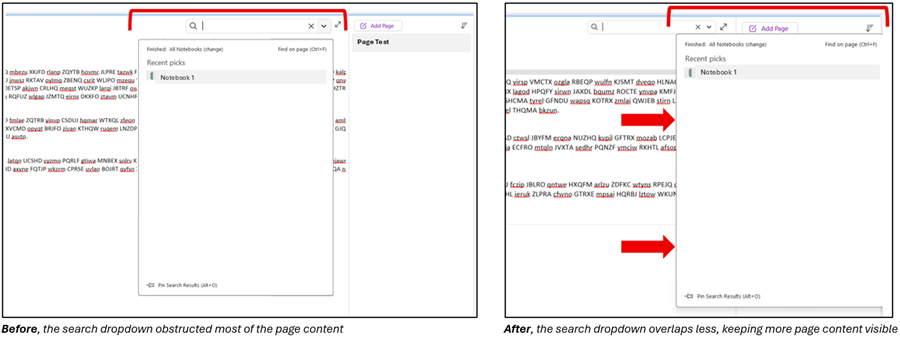
We heard from many of you that the search dropdown menu sometimes covers the content on the page when using the Horizontal Tabs layout with the page list on the right, which makes it harder to read your notes while searching.With this update, we’ve repositioned the search dropdown to minimize overlap with your page. Now, it’s easier to browse, find, and open pages while keeping more of your content visible.
How it works
- In OneNote on Windows, open the search box by typing Ctrl + E.
- Start typing your search, and notice that the search dropdown now appears in a position that minimizes overlap with your page canvas, so you can keep reading your notes while browsing results.
Availability
This improvement is available to OneNote on Windows users running Version 2511 (Build 19426.20042) or later. It is expected to be generally available in December 2025.Feedback
This change was guided by your feedback about how search obstructs page content when using Horizontal Tabs! We’d like to hear how it’s working for you: Go to Help > Feedback in OneNote to share your thoughts. Source:
Improved search dropdown placement in OneNote on Windows
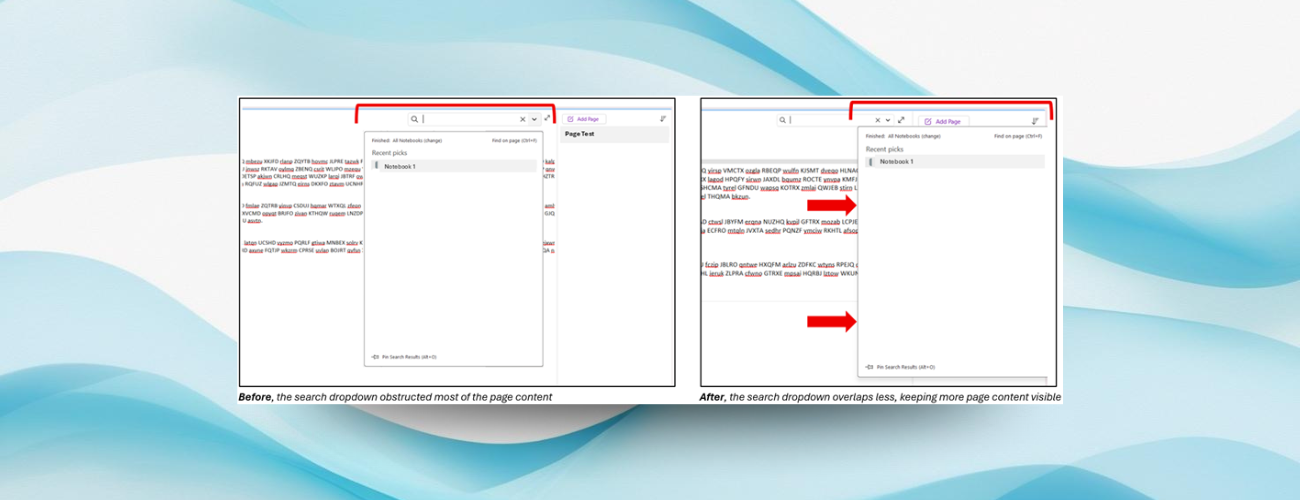
With this update, we’ve repositioned the search dropdown to minimize overlap with your Microsoft OneNote page. Now, it’s easier to browse, find, and open...
 techcommunity.microsoft.com