Microsoft 365 Insider Blog:
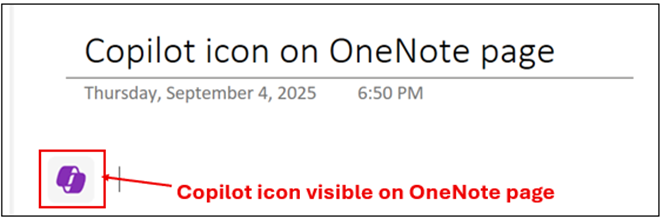
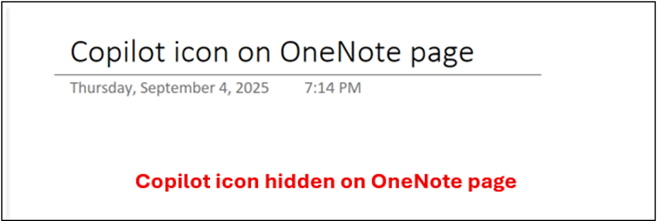
Hi, Microsoft 365 Insiders! I’m Bola Soneye, a Product Manager on the OneNote team. I’m excited to share that we’ve added a simple but powerful customization option in OneNote on Windows: You can now choose whether to show or hide the Copilot icon in your notebook pages.
Show or hide the Copilot icon in OneNote on Windows
We’ve heard from many of you that while Copilot is a helpful tool, you’d like more control over how it appears in your workspace. With this update, you can decide whether the Copilot icon shows up on your pages, giving you a cleaner canvas when you want to focus, and quick access to Copilot when you’re ready to use it.This small setting makes a big difference for staying in control of your note-taking environment!
How it works
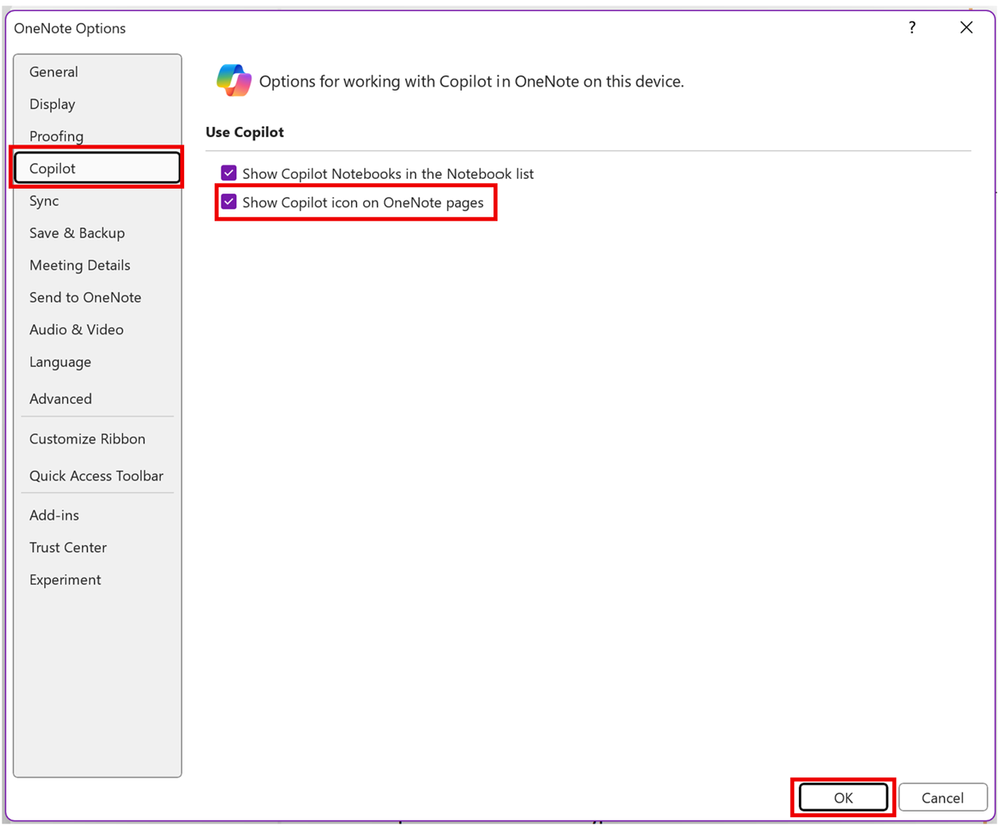
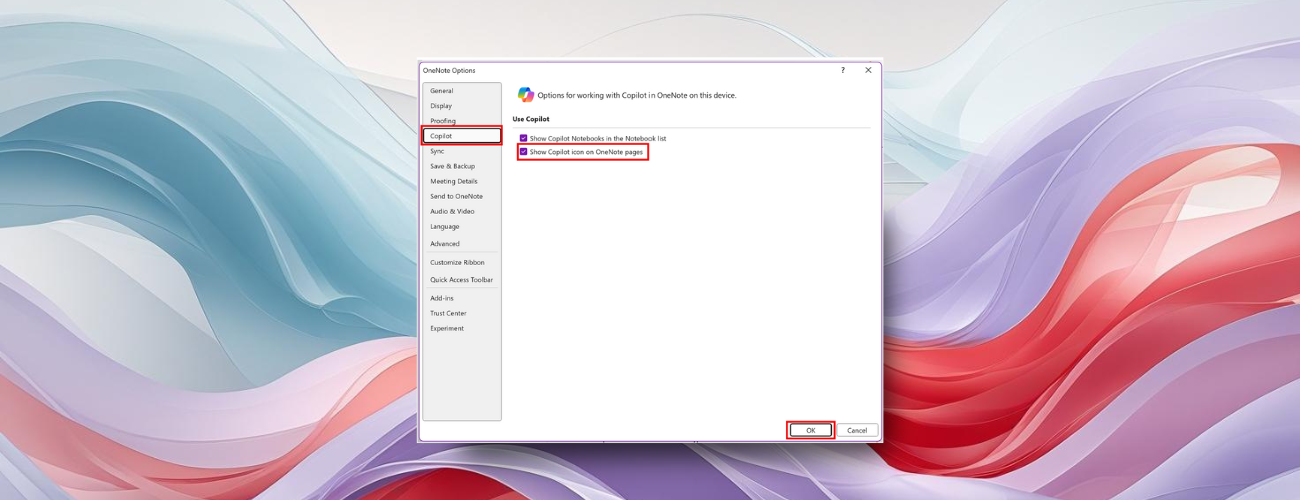
- Open OneNote on Windows and select File > Options.
- Select the Copilot tab.
- Select or clear the Show Copilot icon on OneNote pages check box.
- Select OK to apply your preference.
Availability
The Copilot icon toggle is available to OneNote on Windows users with a Copilot license (get more details on licenses for consumers and for businesses) and running Version 2509 (Build 19207.10000) or later.Feedback
Your feedback helps shape OneNote. We’d love to hear your thoughts on this update: Go to Help > Feedback in OneNote to share your input! Source:
Show or hide the Copilot icon in OneNote on Windows
Give yourself a cleaner canvas when you want to focus, and quick access to Copilot when you’re ready to use it, in Microsoft OneNote on Windows.
 techcommunity.microsoft.com