Microsoft 365 Insider Blog:
Hi, Insiders! I’m Sandhya Rao, a Principal Group Product Manager on the Teams team. I’m excited to announce a new agent experience for driving productivity in Teams: Channel Agent!
Introducing Channel Agent in Teams
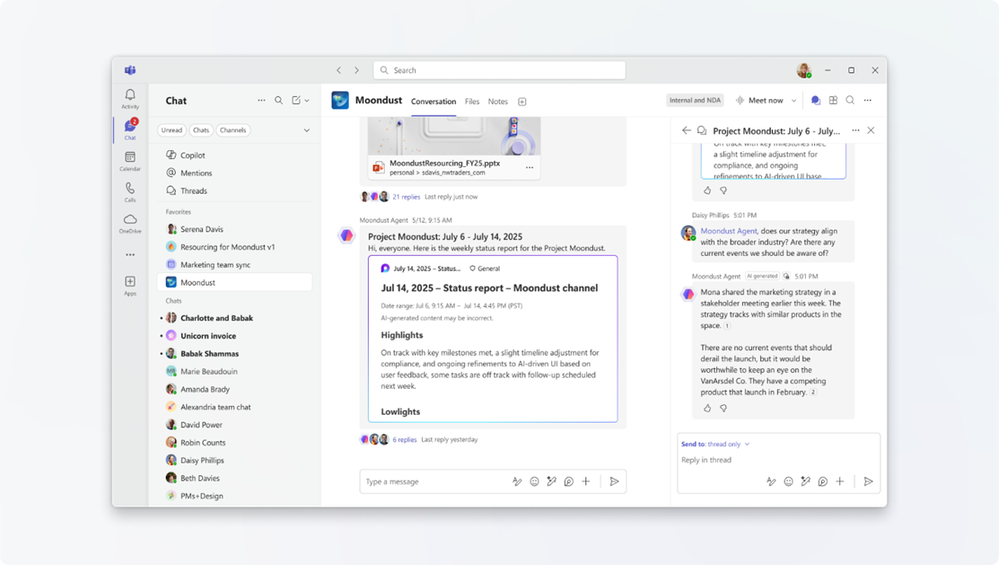
Channel Agent is a dedicated agent created within a Teams channel that leverages channel conversations, Planner boards, and meeting content to act as an expert assistant. It adopts the channel’s name and can be invited to meetings and group chats, making it a powerful sidekick when organizing projects, recapping long discussions, or creating action items from brainstorming sessions. Channel Agent can:- Generate structured Loop reports from channel and meeting activity.
- Answers questions using channel and meeting data, Planner boards, and web search.
- Capture and track tasks in Planner, and provide updates on action items.
- Draft and schedule channel meetings based on your input.
How it works
- Open Teams on your Windows, Mac, Android, or iOS device or on the web, and navigate to a channel you want to create a Channel Agent for.
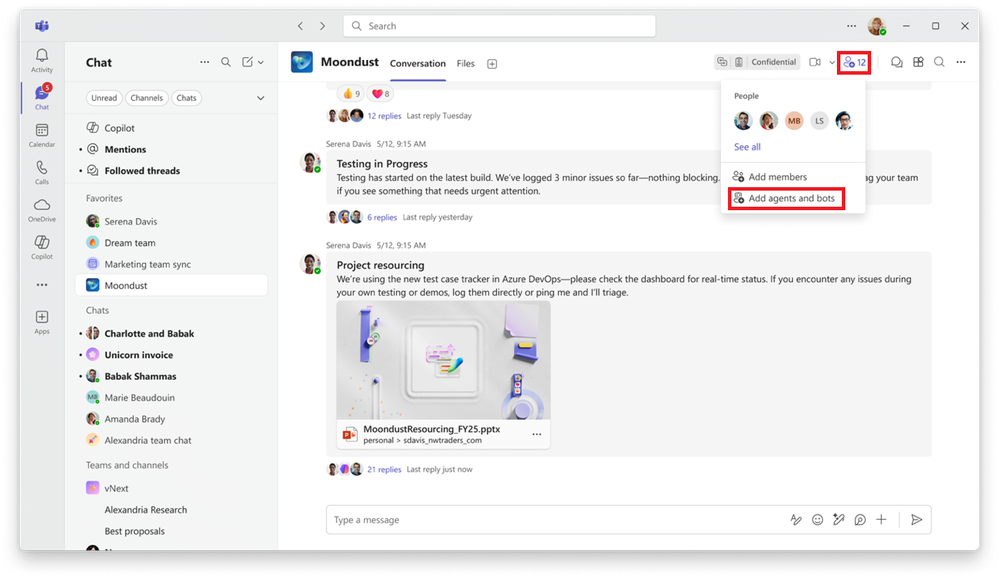
- Select the Add people, agents, and bots menu in the upper right-hand corner of the channel, then select Add agents and bots.
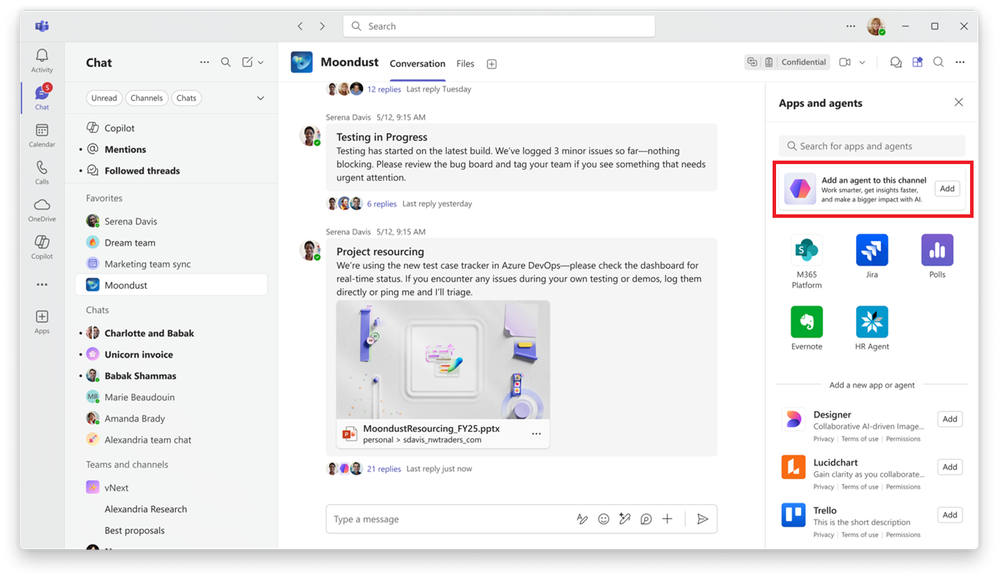
- Select Add an agent to this channel.
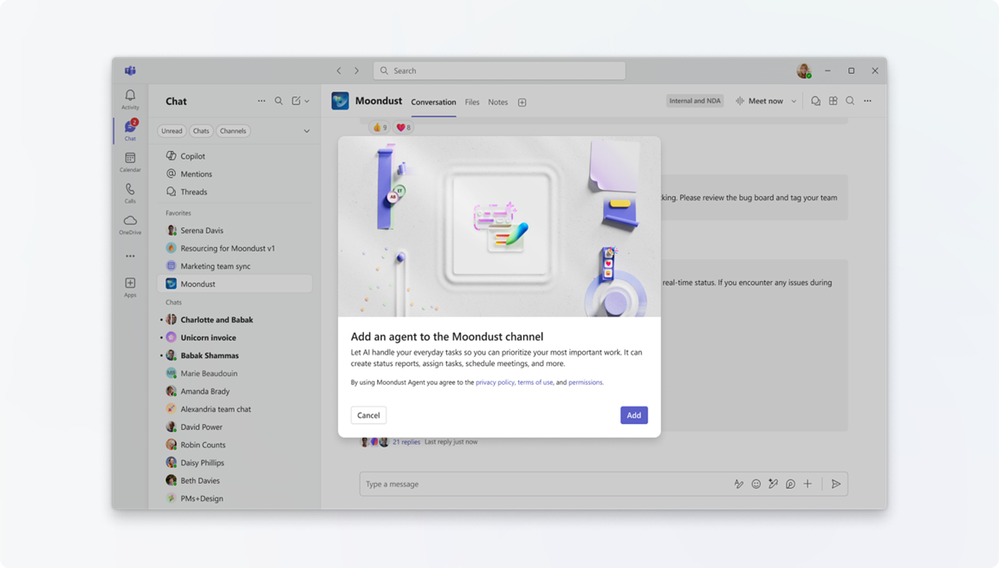
- In the pop-up window asking to confirm if you want to add an agent to your channel, select Add.
Tips and tricks
- To add an existing Channel Agent to a Teams conversation, enter the name of your Channel Agent in the search box when in the Add agents and bots menu, and then select it from the search results.
- To remove a Channel Agent from a chat, select the Remove button next to the agent’s name in the Add agents and bots menu.
- Your IT Admin can turn off this feature in the Teams Admin Center.
- To learn more about leveraging Channel Agents, visit our Support page.
Known limitations
- Channel Agent can’t be added to other channels, one-on-one chats, or private chats.
- Adding Channel Agent to a meeting is restricted to people who are members of the channel and have full access to the meeting’s chat history. Organizer/co-organizer/presenter restrictions apply.
- For more information on limitations, visit our Support page.
Requirements
To create, interact with, and manage Channel Agent in Teams, you must meet the following requirements:- Have a Microsoft 365 Copilot subscription assigned to you.
- Be a member of the channel where the agent was created.
- Be allowed by your IT admin to use apps in Teams.
Availability
To use this new feature, you must be a member of the Teams Public Preview on Windows, Mac, Android, iOS, or the web.To enable your Teams client for the Public Preview, IT administrators must enable Show preview features in their update policy. You can learn more here.
Feedback
We’d love to hear what you think about this feature! Select Settings and more > Feedback in the top-right corner of the Teams app, and then select either Report a problem, Give a compliment, or Suggest a feature to share your thoughts. Source:
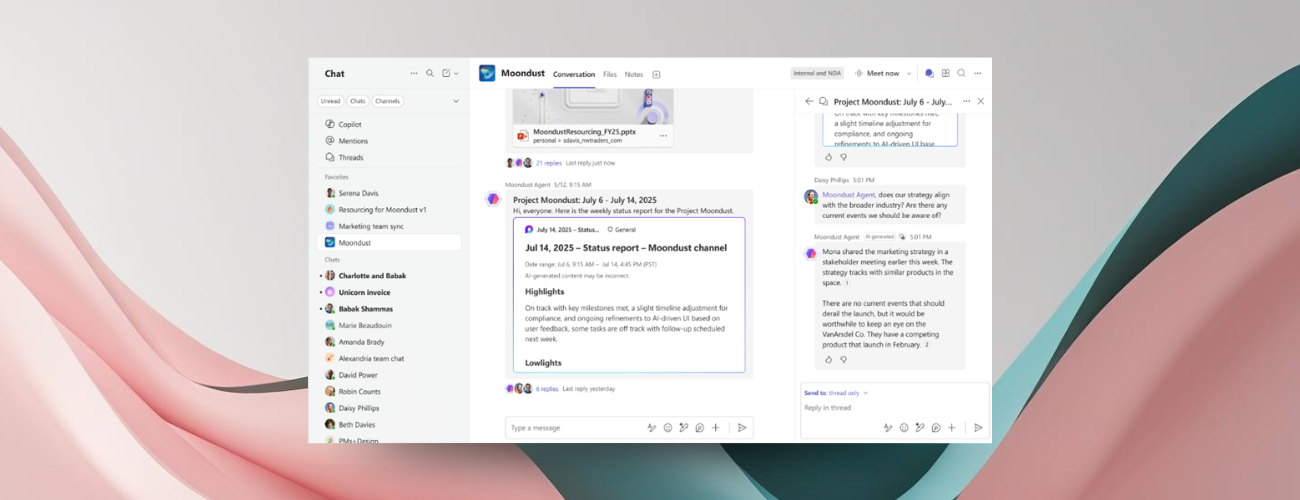
Introducing Channel Agent in Teams
The new Channel Agent in Microsoft Teams can generate Loop reports, answer questions, schedule meetings, and more based on channel activity.
 techcommunity.microsoft.com