Nonprofit Techies:
Microsoft Copilot Pages is a feature within Microsoft 365 that leverages AI to help users create, manage, and collaborate on documents more efficiently. It integrates with various Microsoft 365 apps like Word, Excel, and SharePoint, allowing users to generate content, automate repetitive tasks, and enhance productivity through AI-driven suggestions and automation.
Steps to Create a Copilot Page
- Access Microsoft 365 Copilot:
- Sign into Sign in to your account with your work or school account.
- This is for individuals who are Utilizing Copilot through an organizational account with a Business or Enterprise License, it is currently not available for personal accounts.
- Sign into Sign in to your account with your work or school account.
- Initiate a Copilot Chat:
- Open the Copilot Chat interface.
- Start a new conversation by specifying your requirements. For example, you can prompt Copilot with: “Create a Project Overview’ based on deliverables with Customer X include sections for Introduction, Goals, and Timeline.”
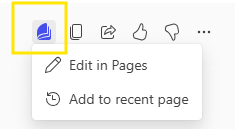
- After Copilot’s response, there is a Pages Icon. Select Edit in Pages
- There is also the ability to add to an existing page
- There is also the ability to add to an existing page
- Edit and Refine:
- Once Copilot generates the content, you can edit and refine it directly within the page.
- Use the dynamic canvas to make real-time adjustments and ensure the content meets your standards.
- Continue editing and talking with Copilot, and each new response will be added to the page. (I.e. “Add a table with Name, Task Assignment, and Due Date for the project deliverables”)
- Collaborate and Share:
- Share the page with your team through Teams, Outlook, or the Microsoft 365 app.
- Collaborate in real-time, seeing everyone's contributions and making necessary adjustments.
- Save and Reuse:
- Your pages will be saved unless you delete them.
- You can revisit and reuse the content for future projects or assessments.
Microsoft Documentation on Copilot Pages
For more detailed information and official documentation, you can refer to the following resources: Source:
Introduction to Microsoft Copilot Pages | Microsoft Community Hub
Microsoft Copilot Pages is a feature within Microsoft 365 that leverages AI to help users create, manage, and collaborate on documents more efficiently. It...
 techcommunity.microsoft.com