Microsoft 365 Insider Blog:
Hi, Insiders! I’m Oby Omu, and I’m a Product Manager on the Microsoft 365 Copilot app team. I’m excited to share that you can now view and restore previous Microsoft 365 Copilot Page versions to easily and confidently refine your work.
View or restore previous versions of Microsoft 365 Copilot Pages
Copilot Pages are built for iteration, and being able to edit and refine AI responses is a core part of the experience. With version history on Windows, Mac, and the web, you can now explore and revert to earlier versions of your work, whether you’re editing a Page manually, with Copilot, or collaboratively, without fear of losing key information or context.How it works
- Open the Microsoft 365 Copilot app on a Windows or Mac device, or navigate to https://m365.cloud.microsoft.
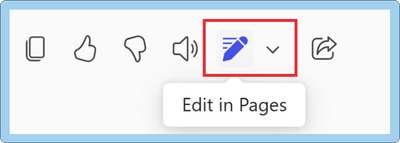
- Open a page in Chat or a notebook. For example, select New chat, then prompt Copilot and select Edit in Pages underneath the response to create a new page.
- Make changes to the page manually, with Copilot, and/or with others.
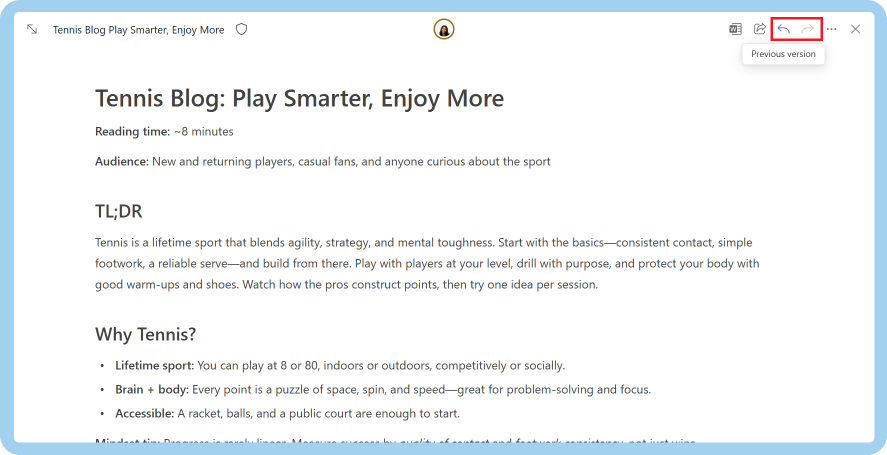
- Select the arrows at the top right-hand corner of the page to browse previous versions.
- Select Restore version at the bottom of a Page version to revert to that version, or Cancel to return to the latest version.

Scenarios to try
This feature can come in handy if you want or need to:- Recover previous versions when important information was deleted or overwritten.
- Revert to a known good state after changes were made.
- Copy sections from past versions without overwriting your current work.
Availability
This feature is rolling out to Microsoft 365 Copilot app users running the app on Windows, Mac, or the web.Feedback
We’d love to hear your thoughts on how this feature is working! From Chat in the Microsoft 365 Copilot app, select ... in the right-hand corner, and then select Send feedback to provide feedback. Source:
View or restore previous versions of Microsoft 365 Copilot Pages
With version history in Microsoft 365 Copilot Pages, you can now explore and revert to earlier versions of your work.
 techcommunity.microsoft.com