Insider KB5055651 Windows 11 Insider Dev build 26200.5581 (24H2) - May 5


UPDATE 5/12:


 Windows Blogs:

Hello Windows Insiders, today we are releasing Windows 11 Insider Preview Build 26200.5581 (KB5055651) to the Dev Channel.

Changes in Dev Channel builds and updates are documented in two buckets: new features, improvements, and fixes that are being gradually rolled out for Insiders who have turned on the toggle to get the latest updates as they are available (via Settings > Windows Update*) and then new features, improvements, and fixes rolling out to everyone in the Dev Channel. For more information, see the Reminders section at the bottom of this blog post.


New features gradually being rolled out to the Dev Channel with toggle on*

Energy saver now available in Microsoft Intune

We are bringing the ability to manage energy saver in Windows 11 to Microsoft Intune to allow IT administrators to control the energy saver settings on Windows 11 PCs through group policies and Mobile Device Management (MDM) configurations.

This feature, when enabled, intelligently balances your battery use, so it can last longer between charges. It extends battery life by managing power usage efficiently. It limits background activity and reduces screen brightness, ensuring that devices consume less power while maintaining optimal performance. By automatically managing system processes and power usage, the energy saver group policy helps reduce overall energy consumption. This not only saves costs but also contributes to environmental sustainability.


IT administrators can activate the policy by using either method below:
  • Local Group Policy Editor in Windows 11
  • Microsoft Intune Admin Center

    New group policy highlighted in a red box in Local Group Policy Editor.
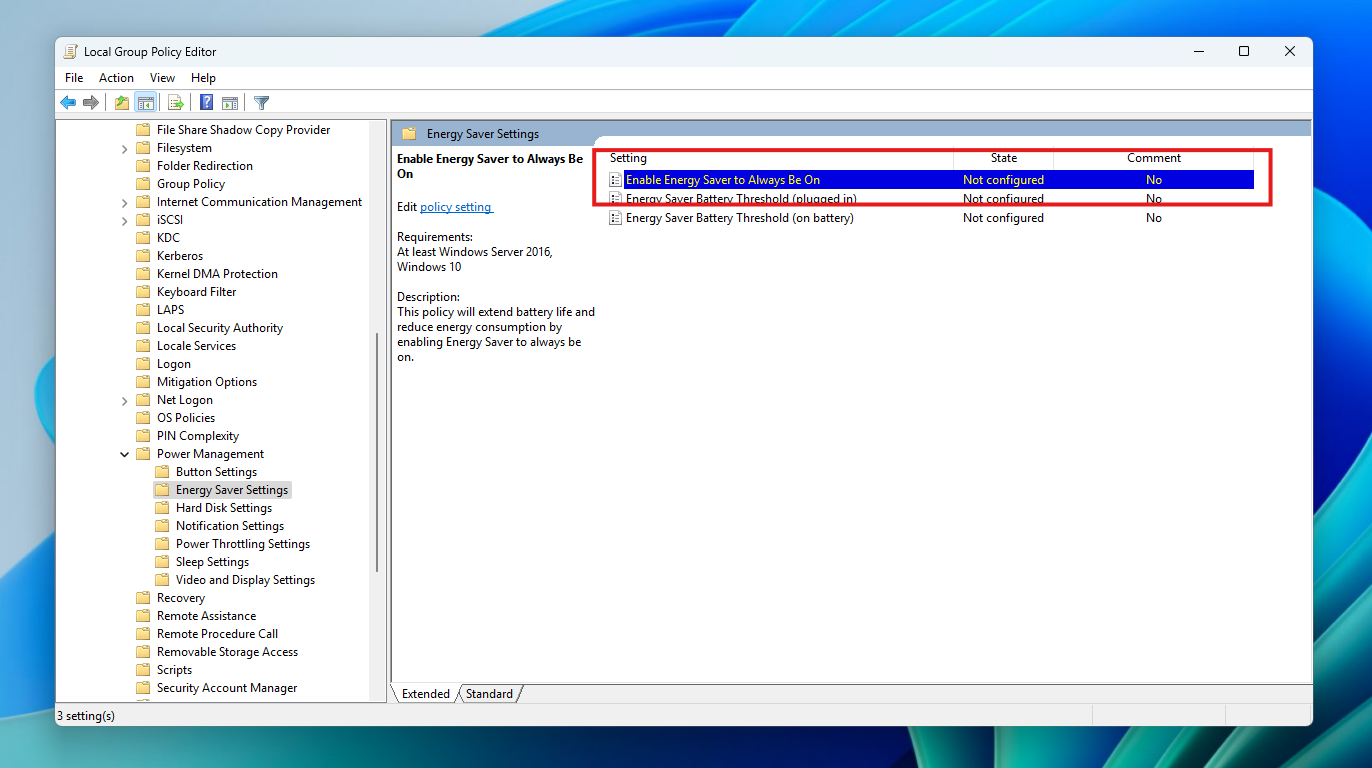
    New group policy highlighted in a red box in Local Group Policy Editor.
The path for the new policy configuration can be found at in Local Group Policy Editor by navigating to Computer Configuration > Administrative Templates > System > Power Management > Energy Saver Settings and “Enable Energy Saver to Always Be On”.

Changes and Improvements gradually being rolled out to the Dev Channel with toggle on*

[Recall (Preview)]

  • We’re trying out different treatments of the UI in Recall including trying out different locations for snapshot actions and the timeline.

[Taskbar & System Tray]

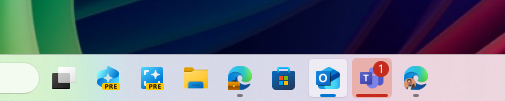
  • We have adjusted the needy state pill under apps on the taskbar that need attention to be wider and more visible.

    Wider needy state pill UI showing for Microsoft Teams on the taskbar indicating the app needs attention.
    Wider needy state pill UI showing for Microsoft Teams on the taskbar indicating the app needs attention.
  • Admins can now allow users to unpin specific pinned apps, ensuring they are not pinned again during the next policy refresh cycle. To enable this feature, use the new PinGeneration option. Learn more about configuring pinned apps on the taskbar.
[Graphics]

We’re introducing some improvements for managing HDR capabilities of your PC via under Settings > System > Display > HDR:
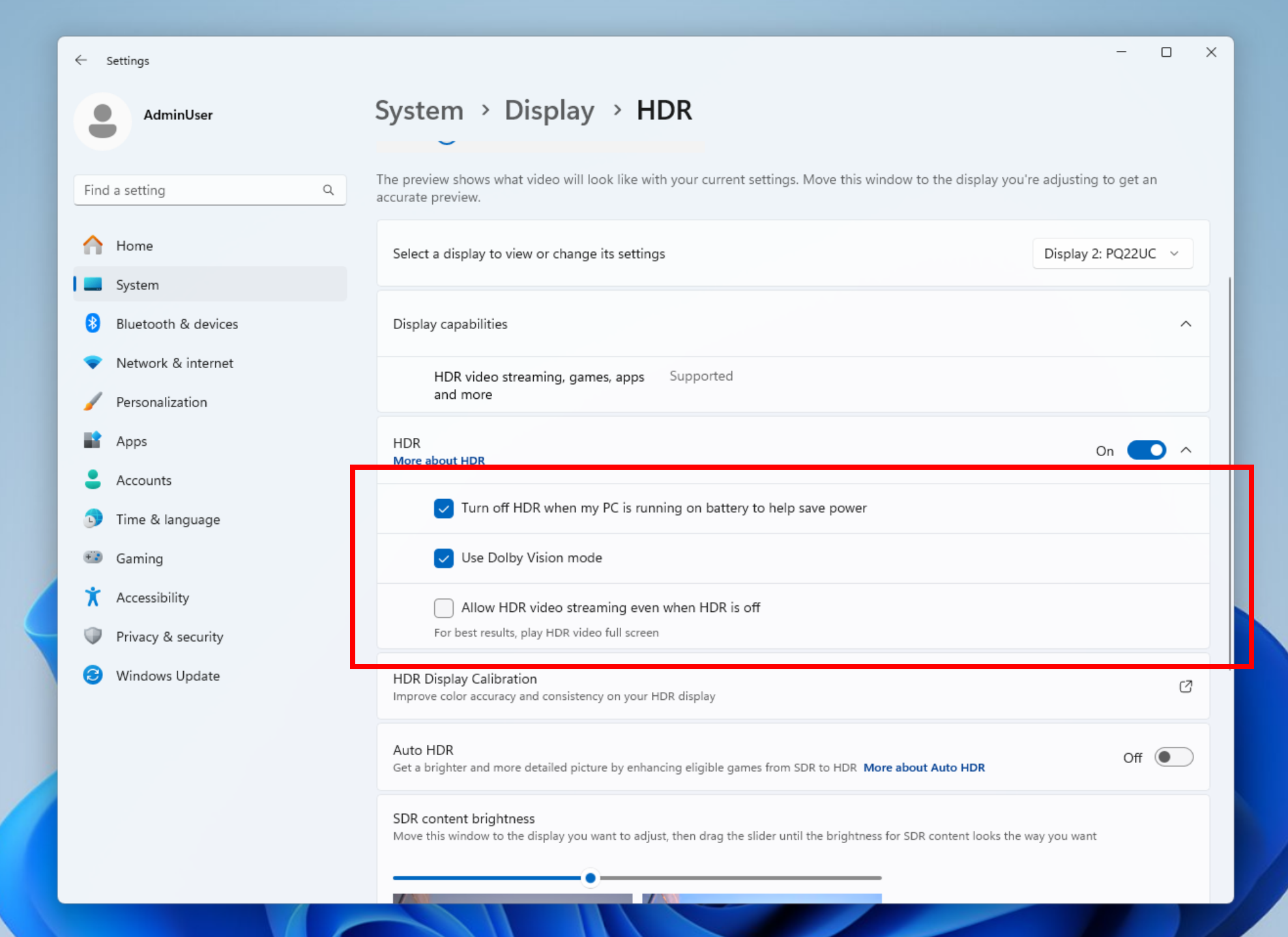
New HDR management settings highlighted in a red box.
  • We have changed the wording for “Use HDR” inside display capabilities to improve clarity on supported media types.

  • On PCs with HDR displays, we have added the option to allow HDR video streaming even when HDR is off in settings.

  • On PCs with Dolby Vision displays, we have added the option to toggle Dolby Vision mode independently from HDR. You can now enjoy HDR with Dolby Vision either on or off based on your preference.
Learn more about HDR settings in Windows.

Fixes gradually being rolled out to the Dev Channel with toggle on*

[Taskbar]

  • Fixed an underlying issue which was causing keyboard focus to get set to widgets in the taskbar on login, which could make widgets unexpectedly invoke.
  • Fixed an issue where WIN + CTRL + wasn’t working to cycle between windows of open apps for that position on the taskbar.

 
Last edited:
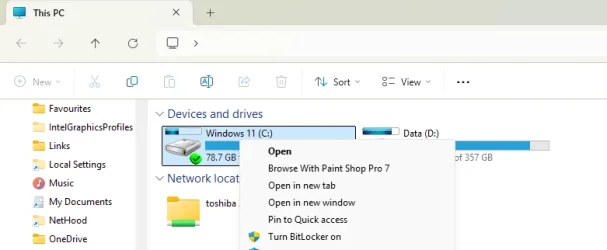
The screenshot I repeated in the post above, and the animation of taking a screenshot of the context menu, were made three days ago.

Today, though they have not had any updates, that same machine and all my others on 26100.3775 fail on the same task 🤬

That setting was then, and still is: Snipping Tool URL:ms-screenclip
All my machines that failed had that setting changed to this:

1746819893020.webp

When I changed to the settings below it fixed the problem on Public Build and Canary, but that same setting does not work with Beta and Dev. 🤣🤬🤷‍♂️


1746820079135.webp
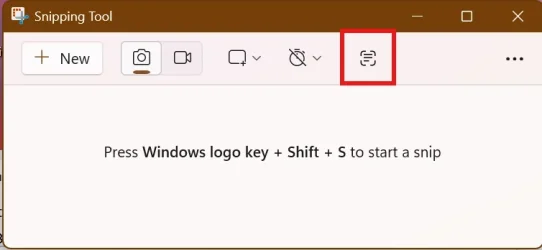
There is also another side effect with this setting. It is incompatible with the new text extractor feature in machines that have that new feature enabled.
Had to set it back to default Snipping Tool to get that feature working. 😵‍💫🤷‍♂️
The old story of the short blanket, fix one and break another. The only choice left is one bug versus the other. 🤣🤣🤣🤣

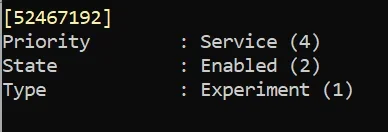
These are the 2 IDs that enable Text Extractor and they require Snipping Tool set as default.
1746841714295.webp
1746841742785.webp
Text Extractor
1746842319717.webp


MS does not need updates to mess things up, they experiment changes and add new bugs with those CFR keys. 🤣🤣🤷‍♂️
 
Last edited:

My Computer

System One

  • OS
    Windows 11 Pro 25H2
    Computer type
    PC/Desktop
    Manufacturer/Model
    Dell XPS 8930
    CPU
    Intel I9-9900K
    Memory
    64GB
    Graphics Card(s)
    NVIDIA RTX 2060
    Sound Card
    NVIDIA High Definition Audio
    Monitor(s) Displays
    4k Samsung
    Screen Resolution
    3840 x 2160
    Hard Drives
    512GB NVMe, ADATA SU 800, 2TB HDD
Anyway, just to get consistent behavior on all builds, I set them all back to the MS default showing below.
I hope they will come up with the proper fix for the problem they recently added on all builds. I just hate inconsistency.
Win + Shift + S should start the snip without closing the File Explorer context menu or any other open context menus. 😉🤷‍♂️

1746831825270.webp


Until the time MS gets this mess figured out, I can live with Win + PrintScreen to get the shots that include the context menus. 😵‍💫🤣🤷‍♂️
 

My Computer

System One

  • OS
    Windows 11 Pro 25H2
    Computer type
    PC/Desktop
    Manufacturer/Model
    Dell XPS 8930
    CPU
    Intel I9-9900K
    Memory
    64GB
    Graphics Card(s)
    NVIDIA RTX 2060
    Sound Card
    NVIDIA High Definition Audio
    Monitor(s) Displays
    4k Samsung
    Screen Resolution
    3840 x 2160
    Hard Drives
    512GB NVMe, ADATA SU 800, 2TB HDD
To make it fail, open File Explorer.

Good for you, I have the problem on all my machines with any Build.

Fair enough, that doesn't work. If ever I want to capture a context menu I do in fact always use 'prt sc' simply because I've got accustomed to it never working historically over many years. I wasn't aware it was made to work recently and then failed.
 

My Computer

System One

  • OS
    W11 Pro x64 ongoing Canary 29500 latest builds
    Computer type
    Laptop
    Manufacturer/Model
    Dell 7760 Mobile Precision 17"
    CPU
    Intel i5
    Motherboard
    Unknown
    Memory
    8Gb
    Graphics Card(s)
    Intel HD Graphics
    Sound Card
    Realtek
    Monitor(s) Displays
    Internal
    Hard Drives
    2 x 256Gb SSD
    PSU
    Dell 240 watt
    Mouse
    Dell Premier Bluetooth
    Internet Speed
    50Mbps
    Browser
    Edge
    Antivirus
    Default Microsoft Security
Fair enough, that doesn't work. If ever I want to capture a context menu I do in fact always use 'prt sc' simply because I've got accustomed to it never working historically over many years. I wasn't aware it was made to work recently and then failed.
Historically it used to work just fine. MS just screwed it up recently. 🤣🤣🤣
There is now a collection of FBH reports on the problem.
Win + PrintScreen is just a workaround, we don't need the full screenshot if we are trying to snip just a detail on the screen. 😝🤷‍♂️
It is an unnecessary extra step. 🤬
 

My Computer

System One

  • OS
    Windows 11 Pro 25H2
    Computer type
    PC/Desktop
    Manufacturer/Model
    Dell XPS 8930
    CPU
    Intel I9-9900K
    Memory
    64GB
    Graphics Card(s)
    NVIDIA RTX 2060
    Sound Card
    NVIDIA High Definition Audio
    Monitor(s) Displays
    4k Samsung
    Screen Resolution
    3840 x 2160
    Hard Drives
    512GB NVMe, ADATA SU 800, 2TB HDD
I think that I am thinking of taking screen shots of context menus applicable to programs rather than just within File Explore now I come to think some more on it. I have always had to use Prt Scr for those. Thanks for clarifying (y)
 

My Computer

System One

  • OS
    W11 Pro x64 ongoing Canary 29500 latest builds
    Computer type
    Laptop
    Manufacturer/Model
    Dell 7760 Mobile Precision 17"
    CPU
    Intel i5
    Motherboard
    Unknown
    Memory
    8Gb
    Graphics Card(s)
    Intel HD Graphics
    Sound Card
    Realtek
    Monitor(s) Displays
    Internal
    Hard Drives
    2 x 256Gb SSD
    PSU
    Dell 240 watt
    Mouse
    Dell Premier Bluetooth
    Internet Speed
    50Mbps
    Browser
    Edge
    Antivirus
    Default Microsoft Security
I think that I am thinking of taking screen shots of context menus applicable to programs rather than just within File Explore now I come to think some more on it. I have always had to use Prt Scr for those. Thanks for clarifying (y)
The same problem with some other context menus not just File Explorer. 😉
Try a right click context menu on a shortcut sitting on the desktop. 😎
 

My Computer

System One

  • OS
    Windows 11 Pro 25H2
    Computer type
    PC/Desktop
    Manufacturer/Model
    Dell XPS 8930
    CPU
    Intel I9-9900K
    Memory
    64GB
    Graphics Card(s)
    NVIDIA RTX 2060
    Sound Card
    NVIDIA High Definition Audio
    Monitor(s) Displays
    4k Samsung
    Screen Resolution
    3840 x 2160
    Hard Drives
    512GB NVMe, ADATA SU 800, 2TB HDD
Indeed. Recycle bin menu disappears when Snipping Tool opened. It must be me, if asked I would have said its always been that since as far back as I can remember.
 

My Computer

System One

  • OS
    W11 Pro x64 ongoing Canary 29500 latest builds
    Computer type
    Laptop
    Manufacturer/Model
    Dell 7760 Mobile Precision 17"
    CPU
    Intel i5
    Motherboard
    Unknown
    Memory
    8Gb
    Graphics Card(s)
    Intel HD Graphics
    Sound Card
    Realtek
    Monitor(s) Displays
    Internal
    Hard Drives
    2 x 256Gb SSD
    PSU
    Dell 240 watt
    Mouse
    Dell Premier Bluetooth
    Internet Speed
    50Mbps
    Browser
    Edge
    Antivirus
    Default Microsoft Security
Actually it is odd. I just tried a context menu (actually a cascaded menu) from a program and the Snipping Tool opened via my shortcut captures it OK. I really can't say for sure if anything is different for me or not. I usually just hit Prt Scr whenever I want a shot of something like this because I know normally it just doesn't work otherwise.


Screenshot 2025-05-10 200445.webp
 

My Computer

System One

  • OS
    W11 Pro x64 ongoing Canary 29500 latest builds
    Computer type
    Laptop
    Manufacturer/Model
    Dell 7760 Mobile Precision 17"
    CPU
    Intel i5
    Motherboard
    Unknown
    Memory
    8Gb
    Graphics Card(s)
    Intel HD Graphics
    Sound Card
    Realtek
    Monitor(s) Displays
    Internal
    Hard Drives
    2 x 256Gb SSD
    PSU
    Dell 240 watt
    Mouse
    Dell Premier Bluetooth
    Internet Speed
    50Mbps
    Browser
    Edge
    Antivirus
    Default Microsoft Security
The same problem with some other context menus not just File Explorer. 😉
Try a right click context menu on a shortcut sitting on the desktop. 😎
The Desktop is another instance of explorer.exe, so that's not really surprising.....

Actually it is odd. I just tried a context menu (actually a cascaded menu) from a program and the Snipping Tool opened via my shortcut captures it OK.
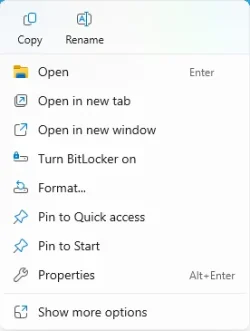
There are two types of context menus now, the old conventional one, and a modern one. It's the modern one that conflicts with the snipping tool.

File Explore actually uses both. It's the modern one you'll see first, identifiable by the set of icons for the most used actions like copy and rename.

1746905793986.webp

Show more options invokes the old style context menu, and that one you can still capture with Winkey+Shift+S.

1746905907490.webp
 

My Computers

System One System Two

  • OS
    Windows 11 Home
    Computer type
    Laptop
    Manufacturer/Model
    Acer Aspire 3 A315-23-R9VY
    CPU
    AMD Athlon Silver 3050U
    Memory
    8GB
    Graphics Card(s)
    Radeon Graphics
    Monitor(s) Displays
    laptop screen
    Screen Resolution
    1366x768 native resolution, up to 2560x1440 with Radeon Virtual Super Resolution
    Hard Drives
    1TB Samsung EVO 870 SSD (from April 2026: 250GB EVO 850)
    Internet Speed
    150 Mbps
    Browser
    Edge, Firefox
    Antivirus
    Defender
    Other Info
    fully 'Windows 11 ready' laptop. Windows 10 C: partition migrated from my old unsupported 'main machine' then upgraded to 11. A test migration ran Insider builds for 2 months. When 11 was released on 5th October 2021 it was re-imaged back to 10 and was offered the upgrade in Windows Update on 20th October. Windows Update offered the 22H2 Feature Update on 20th September 2022. It got the 23H2 Feature Update on 4th November 2023 through Windows Update, 24H2 on 3rd October 2024 through Windows Update by setting the Target Release Version for 24H2, and 25H2 on 30th September 2025 through Windows Update by setting the Target Release Version for 25H2.

    UPDATE - 11 April 2026: due to mechanical deterioration this PC has been retired from active duty. The OS with all software and files has been migrated to my System Seven below to carry on as my general purpose 'main machine'.

    My SYSTEM THREE is a Dell Latitude 5410, i7-10610U, 32GB RAM, 512GB NVMe ssd, supported device running Windows 11 Pro.

    My SYSTEM FOUR is a 2-in-1 convertible Lenovo Yoga 11e 20DA, Celeron N2930, 8GB RAM, 256GB ssd. Unsupported device: currently running Win10 Pro, plus Win11 Pro RTM and Insider Dev, Beta, and RP 24H2 as native boot vhdx.

    My SYSTEM FIVE is a Dell Latitude 3190 2-in-1, Pentium Silver N5030, 8GB RAM, 1TB NVMe ssd, supported device running Windows 11 Pro, plus Insider Beta, Dev, and Canary builds (and a few others) as a native boot .vhdx.

    My SYSTEM SIX is a Dell Latitude 5550, Core Ultra 7 165H, 64GB RAM, 1TB NVMe SSD, supported device, Windows 11 Pro 24H2, Hyper-V host machine. Updated to 25H2 on 30th September 2025.

    My SYSTEM SEVEN is a Lenovo Thinkpad T580, Intel Core i7-8650U, 16GB RAM, 512GB NVMe SSD + 2nd 512GB NVMe SSD, a supported device for Windows 11. This is my current general purpose 'main machine'. The installed Windows 11 Home from my System One has been migrated to this machine.
  • Operating System
    Windows 11 Pro
    Computer type
    Laptop
    Manufacturer/Model
    Dell Latitude E4310
    CPU
    Intel® Core™ i5-520M
    Motherboard
    0T6M8G
    Memory
    8GB
    Graphics card(s)
    (integrated graphics) Intel HD Graphics
    Screen Resolution
    1366x768
    Hard Drives
    500GB Crucial MX500 SSD
    Browser
    Firefox, Edge
    Antivirus
    Defender
    Other Info
    unsupported machine: Legacy bios, MBR, TPM 1.2, upgraded from W10 to W11 using W10/W11 hybrid install media workaround. In-place upgrade to 22H2 using ISO and a workaround. Feature Update to 23H2 by manually installing the Enablement Package. In-place upgrade to 24H2 using hybrid 23H2/24H2 install media. Upgraded to 25H2 by Enablement Package. Also running Insider Dev, and Canary builds and Windows 10 as native boot .vhdx.

    My SYSTEM THREE is a Dell Latitude 5410, i7-10610U, 32GB RAM, 512GB NVMe ssd, supported device running Windows 11 Pro.

    My SYSTEM FOUR is a 2-in-1 convertible Lenovo Yoga 11e 20DA, Celeron N2930, 8GB RAM, 256GB ssd. Unsupported device: currently running Win10 Pro, plus Win11 Pro RTM and Insider Dev, Beta, and RP 24H2 as native boot vhdx.

    My SYSTEM FIVE is a Dell Latitude 3190 2-in-1, Pentium Silver N5030, 8GB RAM, 1TB NVMe ssd, supported device running Windows 11 Pro, plus Insider Beta, Dev, and Canary builds (and a few others) as a native boot .vhdx.

    My SYSTEM SIX is a Dell Latitude 5550, Core Ultra 7 165H, 64GB RAM, 1TB NVMe SSD, supported device, Windows 11 Pro 24H2, Hyper-V host machine. Updated to 25H2 on 30th September 2025.

    My SYSTEM SEVEN is a Lenovo Thinkpad T580, Intel Core i7-8650U, 16GB RAM, 512GB NVMe SSD + 2nd 512GB NVMe SSD, a supported device for Windows 11. This is my current general purpose 'main machine'. The installed Windows 11 Home from my System One has been migrated to this machine.
The Desktop is another instance of explorer.exe, so that's not really surprising.....


There are two types of context menus now, the old conventional one, and a modern one. It's the modern one that conflicts with the snipping tool.

File Explore actually uses both. It's the modern one you'll see first, identifiable by the set of icons for the most used actions like copy and rename.


Show more options invokes the old style context menu, and that one you can still capture with Winkey+Shift+S.
At MS they really know how to screw things up. 🤣🤣🤣🤬
Dev and Beta behavior is even worse for this problem.
 

My Computer

System One

  • OS
    Windows 11 Pro 25H2
    Computer type
    PC/Desktop
    Manufacturer/Model
    Dell XPS 8930
    CPU
    Intel I9-9900K
    Memory
    64GB
    Graphics Card(s)
    NVIDIA RTX 2060
    Sound Card
    NVIDIA High Definition Audio
    Monitor(s) Displays
    4k Samsung
    Screen Resolution
    3840 x 2160
    Hard Drives
    512GB NVMe, ADATA SU 800, 2TB HDD

My Computers

System One System Two

  • OS
    Windows 11 Pro for Workstations
    Computer type
    PC/Desktop
    Manufacturer/Model
    Custom self build
    CPU
    Intel i7-8700K 5 GHz
    Motherboard
    ASUS ROG Maximus XI Formula Z390
    Memory
    64 GB (4x16GB) G.SKILL TridentZ RGB DDR4 3600 MHz (F4-3600C18D-32GTZR)
    Graphics Card(s)
    ASUS ROG-STRIX-GTX1080TI-O11G-GAMING (11GB GDDR5X)
    Sound Card
    Integrated Digital Audio (S/PDIF)
    Monitor(s) Displays
    2 x Samsung Odyssey G75 27"
    Screen Resolution
    2560x1440
    Hard Drives
    1TB Samsung 990 PRO M.2,
    4TB Samsung 990 PRO M.2,
    TerraMaster F8 SSD Plus NAS
    PSU
    Seasonic Prime Titanium 850W
    Case
    Thermaltake Core P3 wall mounted
    Cooling
    Corsair Hydro H115i
    Keyboard
    Amazon Basics Wired Full Keyboard MD005
    Mouse
    Logitech MX Master 4
    Internet Speed
    2 Gbps Download and 100 Mbps Upload
    Browser
    Chrome and Edge
    Antivirus
    Microsoft Defender
    Other Info
    Logitech Z625 speaker system,
    Logitech BRIO 4K Pro webcam,
    HP Color LaserJet Pro MFP M477fdn,
    CyberPower CP1500PFCLCD
    Galaxy S23 Plus phone
  • Operating System
    Windows 11 Pro
    Computer type
    Laptop
    Manufacturer/Model
    Surface Laptop 7 Copilot+ PC
    CPU
    Snapdragon X Elite (12 core) 3.42 GHz
    Memory
    16 GB LPDDR5x-7467 MHz
    Monitor(s) Displays
    15" HDR
    Screen Resolution
    2496 x 1664
    Hard Drives
    1 TB SSD
    Internet Speed
    Wi-Fi 7 and Bluetooth 5.4
    Browser
    Chrome and Edge
    Antivirus
    Microsoft Defender
 

My Computers

System One System Two

  • OS
    Windows 11 Pro for Workstations
    Computer type
    PC/Desktop
    Manufacturer/Model
    Custom self build
    CPU
    Intel i7-8700K 5 GHz
    Motherboard
    ASUS ROG Maximus XI Formula Z390
    Memory
    64 GB (4x16GB) G.SKILL TridentZ RGB DDR4 3600 MHz (F4-3600C18D-32GTZR)
    Graphics Card(s)
    ASUS ROG-STRIX-GTX1080TI-O11G-GAMING (11GB GDDR5X)
    Sound Card
    Integrated Digital Audio (S/PDIF)
    Monitor(s) Displays
    2 x Samsung Odyssey G75 27"
    Screen Resolution
    2560x1440
    Hard Drives
    1TB Samsung 990 PRO M.2,
    4TB Samsung 990 PRO M.2,
    TerraMaster F8 SSD Plus NAS
    PSU
    Seasonic Prime Titanium 850W
    Case
    Thermaltake Core P3 wall mounted
    Cooling
    Corsair Hydro H115i
    Keyboard
    Amazon Basics Wired Full Keyboard MD005
    Mouse
    Logitech MX Master 4
    Internet Speed
    2 Gbps Download and 100 Mbps Upload
    Browser
    Chrome and Edge
    Antivirus
    Microsoft Defender
    Other Info
    Logitech Z625 speaker system,
    Logitech BRIO 4K Pro webcam,
    HP Color LaserJet Pro MFP M477fdn,
    CyberPower CP1500PFCLCD
    Galaxy S23 Plus phone
  • Operating System
    Windows 11 Pro
    Computer type
    Laptop
    Manufacturer/Model
    Surface Laptop 7 Copilot+ PC
    CPU
    Snapdragon X Elite (12 core) 3.42 GHz
    Memory
    16 GB LPDDR5x-7467 MHz
    Monitor(s) Displays
    15" HDR
    Screen Resolution
    2496 x 1664
    Hard Drives
    1 TB SSD
    Internet Speed
    Wi-Fi 7 and Bluetooth 5.4
    Browser
    Chrome and Edge
    Antivirus
    Microsoft Defender
Back
Top Bottom