UPDATE 8/15:
 www.elevenforum.com
Hello Windows Insiders, today we are releasing Windows 11 Insider Preview Build 26200.5742 (KB5064075) to the Dev Channel.
Changes in Dev Channel builds and updates are documented in two buckets: new features, improvements, and fixes that are being gradually rolled out for Insiders who have turned on the toggle to get the latest updates as they are available (via Settings > Windows Update*) and then new features, improvements, and fixes rolling out to everyone in the Dev Channel. For more information, see the Reminders section at the bottom of this blog post.
 www.elevenforum.com
Amanda & Brandon

 blogs.windows.com
Check Windows Updates
UUP Dump:
64-bit ISO download:

ARM64 ISO download:
 www.elevenforum.com
 www.elevenforum.com
KB5065860 Windows 11 Insider Dev build 26200.5751 (25H2) - Aug. 15
Windows Insider Blog: Source: Check Windows Updates UUP Dump: 64-bit ISO download: https://uupdump.net/selectlang.php?id=a2241499-ebd4-49b6-b825-ed4dba606710 ARM64 ISO download: https://uupdump.net/selectlang.php?id=8bafa620-ecc3-46fa-bf3d-2c1ffa216232...
www.elevenforum.com
Windows Insider Blog:
Hello Windows Insiders, today we are releasing Windows 11 Insider Preview Build 26200.5742 (KB5064075) to the Dev Channel.
Changes in Dev Channel builds and updates are documented in two buckets: new features, improvements, and fixes that are being gradually rolled out for Insiders who have turned on the toggle to get the latest updates as they are available (via Settings > Windows Update*) and then new features, improvements, and fixes rolling out to everyone in the Dev Channel. For more information, see the Reminders section at the bottom of this blog post.
Enable or Disable Get Latest Updates as soon as available in Windows 11
This tutorial will show you how to turn on or off "Get the latest updates as soon as they are available" in Windows 11. Starting with Windows 11 build 22621.1635, Microsoft added a new "Get the latest updates as soon as they are available" toggle under Settings > Windows Update. When you turn...
www.elevenforum.com
Changes and Improvements gradually being rolled out to the Dev Channel with toggle on*
[Start menu]
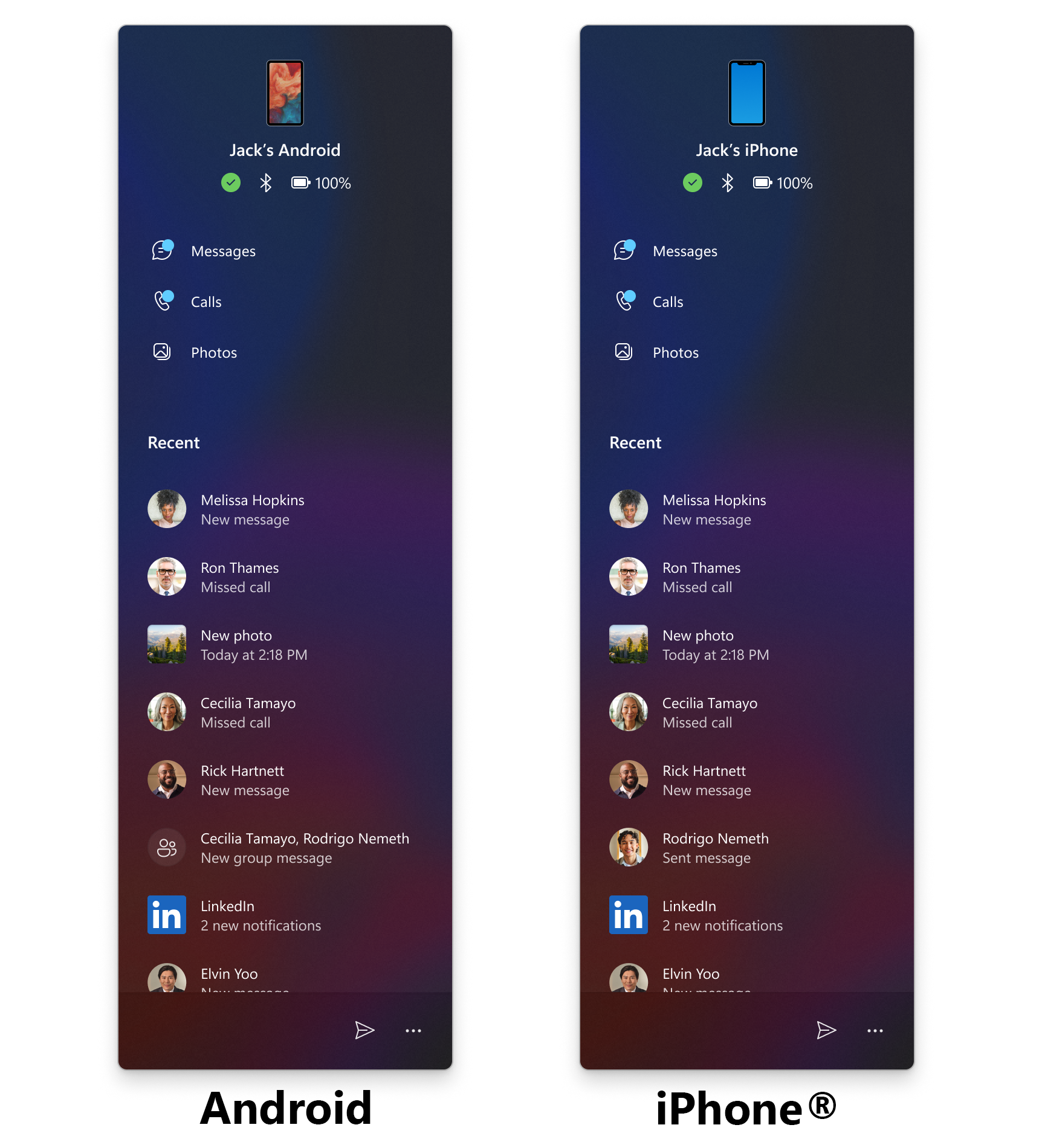
- We’ve redesigned the mobile device companion with an updated layout that lets you access more right from Start. Now, you can scroll to access more recent activity items so you can stay on top of updates from your mobile device. Users will be able to access messages, calls, photos, mobile app updates and more from this new updated layout.

Add or Remove Phone Link Mobile Device on Start Menu in Windows 11
This tutorial will show you how to turn on or off show your Android or iPhone mobile device from Phone Link in the Start menu for your account in Windows 11. Starting with Windows 11 build 26100.3915 (24H2) and build 22631.5262 (23H2), you can directly access content on your mobile device from...
www.elevenforum.com
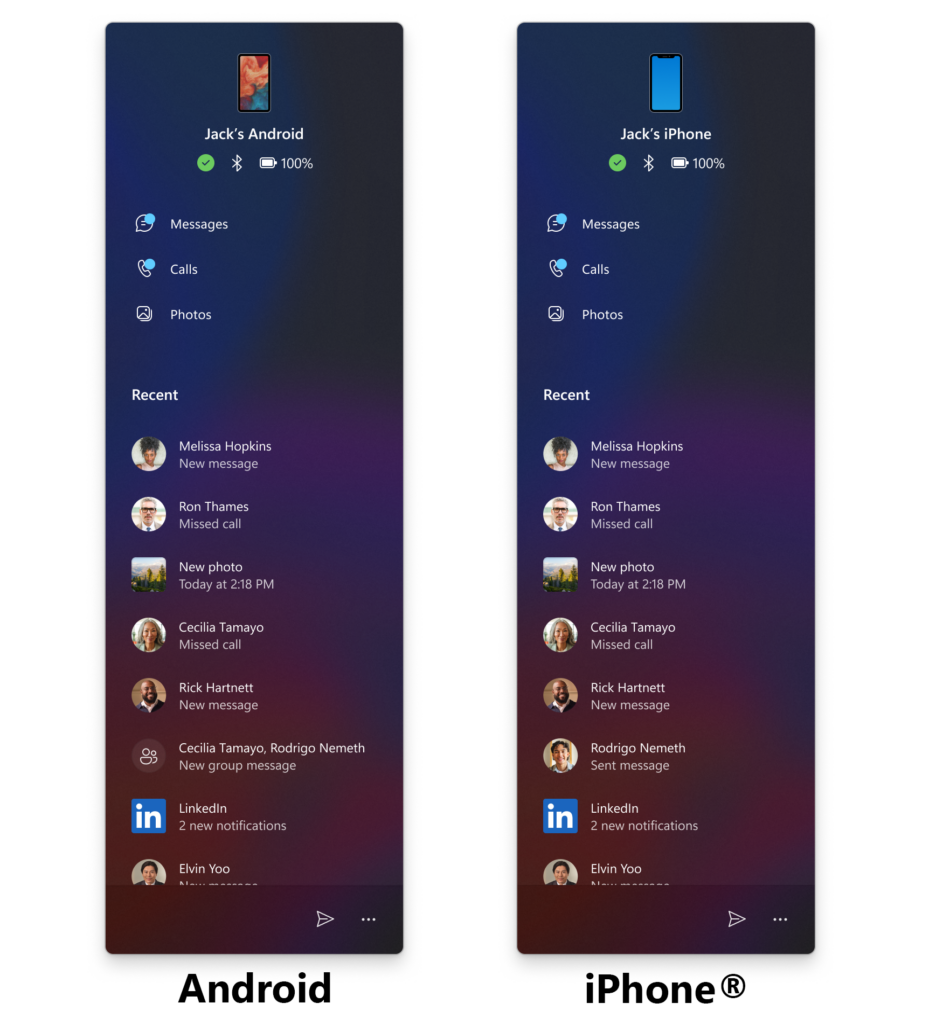
The redesigned mobile device companion experience for the Start menu showing an Android device on the left and iPhone® on the right.
[Settings]
We’re moving more time and language settings from Control Panel to Settings:- You can now add additional clocks from Settings > Time & language > Date & time under the collapsed section which can be expanded for “Show time and date in the system tray”. For those unfamiliar with the feature, these additional clocks display in Notification Center, as well as the tooltip when hovering over the clock in the taskbar.

Add or Remove Additional Clocks for Different Time Zones in Windows 11
This tutorial will show you how to setup and show up to two additional clocks for different time zones on the taskbar for your account in Windows 11. Windows can display up to three clocks on the taskbar: one for the local time and two additional clocks for different time zones. After you set...
www.elevenforum.com
- You can now change your time server from Settings > Time & language > Date & time, under “Additional settings”.
Sync Clock Time with Internet Time Server in Windows 11
This tutorial will show you how to manually synchronize the clock time with an Internet time server for all users in Windows 11. Time is a measure in which events can be ordered from the past through the present into the future, and also the measure of durations of events and the intervals...
www.elevenforum.com
- The formatting settings for date and time have moved from Settings > Time & language > Language & region to Settings > Time & language > Date & time, and you can now change your AM/PM symbol from here as well (along with other existing formatting settings).

Change Date Format in Windows 11
This tutorial will show you how to change the date format used for your account in Windows 11. Your regional format settings will influence how your date/time, numeric, and currency data types appear when you apply formatting options. Windows supports a variety of languages, plus currency and...
www.elevenforum.com

Change Time Format in Windows 11
This tutorial will show you how to change the time format used for your account in Windows 11. Your regional format settings will influence how your date/time, numeric, and currency data types appear when you apply formatting options. Windows supports a variety of languages, plus currency and...
www.elevenforum.com
- You can now change number and currency format from Settings > Time & language > Language & region, under the “Region” section.

Change Number Format in Windows 11
This tutorial will show you how to change the number format used for your account in Windows 10 and Windows 11. Your regional format settings will influence how your date/time, numeric, and currency data types appear when you apply formatting options. Windows supports a variety of languages...
www.elevenforum.com

Change Currency Format in Windows 11
This tutorial will show you how to change the currency format used for your account in Windows 10 and Windows 11. Your regional format settings will influence how your date/time, numeric, and currency data types appear when you apply formatting options. Windows supports a variety of languages...
www.elevenforum.com
- If you’d like to enable Unicode UTF-8 for worldwide language support, there is now a toggle for this under Settings > Time & language > Language & region, under the “Language” section.

Enable or Disable Unicode UTF-8 for Worldwide Language Support in Windows 11
This tutorial will show you how to enable or disable Unicode UTF-8 for worldwide language support for all users in Windows 10 and Windows 11. When you change the display language, the text in menus and dialog boxes for some programs might not be in the language that you want. This happens...
www.elevenforum.com
- If needed, you can now copy current user language and region settings to welcome screen and system account, as well as new user accounts, from Settings > Time & language > Language & region, under “Additional settings”.

Copy Language and Region Settings to Welcome Screen and New Users in Windows 11
This tutorial will show you how to copy your account's language and region settings to the welcome screen (aka: lock screen), system accounts and new user accounts in Windows 11. You can copy your account's current display language, keyboard input language, date and time regional format, and...
www.elevenforum.com
- The setting for character repeat delay/rate has moved to Settings > Accessibility > Keyboard.

Change Keyboard Character Repeat Delay in Windows 11
This tutorial will show you how to change the keyboard character repeat delay for your account in Windows 10 and Windows 11. You can change the keyboard character repeat delay and rate for when you press and hold down a key. The repeat delay is the pause between pressing a key and when it...
www.elevenforum.com

Change Keyboard Character Repeat Rate in Windows 11
This tutorial will show you how to change the keyboard character repeat rate for your account in Windows 10 and Windows 11. You can change the keyboard character repeat delay and rate for when you press and hold down a key. The repeat delay is the pause between pressing a key and when it...
www.elevenforum.com
- The setting for cursor blink rate has moved to Settings > Accessibility >Text cursor. Keyboard character repeat delay/rate is used to control the character repeat duration and repeat frequency. Cursor blink rate is used to control the cursor blinking frequency.

Change Text Cursor Blink Rate in Windows 11
This tutorial will show you how to change the text cursor blink rate for your account in Windows 7, Windows 8, Windows 10, and Windows 11. The text cursor is that blinking line at the end of what you are typing in Windows. The cursor blink rate is how often the text cursor blinks. The default...
www.elevenforum.com
[Other]
- We have updated more dialogs to match the Windows 11 visuals including the dialog for when an app can’t open.
Fixes gradually being rolled out to the Dev Channel with toggle on*
[File Explorer]
- Fixed an issue where some of the icons in Details, Preview, and navigation panes of File Explorer weren’t properly mirrored when Arabic or Hebrew display languages.
- Fixed an issue where the tooltips in File Explorer might unexpectedly stay visible.
Fixed an issue where duplicating a tab in File Explorer on a maximized window would result in a black flash.[UPDATED 8/14] Not fixed.- Improved support for text scaling on desktop icons, addressing an issue which could lead to overlapping icons and text.
- [UPDATED 8/14] Fixed a case where Narrator was not announcing details in the Copy dialog.
- Made some more performance improvements – particularly to help the performance of launching cloud files and loading context menus.
[Start menu]
- Fixed an issue for Insiders with the new Start menu, where they might unexpectedly see a category generated for every letter of the alphabet with blank icons, when opening the Start menu in the “All” section after updating to the previous build.
- Fixed an issue where Visual Studio wasn’t showing in the correct category.
[Task Manager]
- Fixed a few issues impacting Task Manager reliability, including a recent issue which could cause Task Manager to freeze when going to the performance section for some Insiders.
- Fixed a few issues impacting accessibility – including adjusting minimum field sizes, improving contrast for the column headers on the Details page when contrast themes are enabled, and addressing a focus issue with the ‘Select Columns’ dialog on the Details page.
[Input]
- Fixed an underlying issue where if you tried to type Chinese with an IME after copying something with CTRL + C could result in the first character getting dropped.
- Fixed an issue where if you were typing on the touch keyboard with the Changjie, Bopomoji, or Japanese IME wouldn’t work if you had switched to using the previous version of the IME.
[Settings]
- Fixed an issue where if you attempt to add a security key under Settings > Account > Sign-in options could result in Settings crashing.
[Other]
- Fixed an underlying issue with dao360.dll resulting in some apps crashing after the last two builds.
- Fixed an issue causing a small number of Insiders to experience bugchecks with SYSTEM_SERVICE_EXCEPTION in the latest builds.
Known issues
[General]
- Some Windows Insiders may experience a rollback trying to install this update with a 0x80070005 in Windows Update. We’re working on a fix for Windows Insiders impacted. If you are impacted, using Settings > System > Recovery > “Fix issues using Windows update” may resolve the issue.
[For developers]
- We are investigating reports after updating to Build 26200.5722 and higher in the Dev Channe that Visual Studio may crash on Arm64 PCs when running various scenarios that depend on Windows Presentation Foundation (WPF).
[Click to Do (Preview)]
The following known issues will be fixed in future updates to Windows Insiders:- [NEW] After updating to Build 26200.5742, text and image actions in Click to Do may not work and Click to Do may crash. This issue will be fixed in the next flight.
- Windows Insiders on AMD or Intel®-powered Copilot+ PCs may experience long wait times on the first attempt to perform intelligent text actions in Click to Do after a new build or model update.
[Start menu]
- [NEW] For Insiders with the new Start menu, the layout may temporarily show a smaller Start menu (ex. 6 columns of pinned apps instead of 8). This issue will be resolved shortly, and the larger layout will be restored.
[Taskbar & System Tray]
- We are investigating reports that all apps pinned to the taskbar are unpinned for some Insiders after updating to Build 26200.5722 and higher.
[File Explorer]
- In dark mode, the red color used for a low space drive in This PC may be unexpectedly light colored in this build. Some of the other colors may also be incorrect, including that black is used for space remaining instead of a more visible color.
[Live Captions]
- Live captions may crash when attempting to use live translation on a Copilot+ PC.
[Xbox Controllers]
- Some Insiders are experiencing an issue where using their Xbox Controller via Bluetooth is causing their PC to bugcheck. Here is how to resolve the issue. Open Device Manager by searching for it via the search box on your taskbar. Once Device Manager is open, click on “View” and then “Devices by Driver”. Find the driver named “oemXXX.inf (XboxGameControllerDriver.inf)” where the “XXX” will be a specific number on your PC. Right-click on that driver and click “Uninstall”.
Reminders for Windows Insiders in the Dev Channel
- Windows Insiders in the Dev Channel receive updates based on Windows 11, version 25H2 via an enablement package (Build 26200.xxxx). For more information on Windows 11, version 25H2 – see this blog post.
- Many features in the Dev Channel are rolled out using Control Feature Rollout technology, starting with a subset of Insiders and ramping up over time as we monitor feedback to see how they land before pushing them out to everyone in this channel.
- For Windows Insiders in the Dev Channel who want to be the first to get features gradually rolled out to you, you can turn ON the toggle to get the latest updates as they are available via Settings > Windows Update*. Over time, we will increase the rollouts of features to everyone with the toggle turned on. Should you keep this toggle off, new features will gradually be rolled out to your PC over time once they are ready.
- Features and experiences included in these builds may never get released as we try out different concepts and get feedback. Features may change over time, be removed, or replaced and never get released beyond Windows Insiders. Some of these features and experiences could show up in future Windows releases when they’re ready.
- Some features in active development we preview with Windows Insiders may not be fully localized and localization will happen over time as features are finalized. As you see issues with localization in your language, please report those issues to us via Feedback Hub.
- Please note that some accessibility features may not work with features like Recall and Click to Do while in preview with Windows Insiders.
- Because the Dev and Beta Channels represent parallel development paths from our engineers, there may be cases where features and experiences show up in the Beta Channel first.
- Check out Flight Hub for a complete look at what build is in which Insider channel.
Amanda & Brandon
Source:
Announcing Windows 11 Insider Preview Build 26200.5742 (Dev Channel)
Hello Windows Insiders, today we are releasing Windows 11 Insider Preview Build 26200.5742 (KB5064075) to the Dev Channel. Changes in Dev Channel builds and updates are documented in two buckets: new features, impro
blogs.windows.com
Check Windows Updates
UUP Dump:
64-bit ISO download:
Select language for Windows 11 Insider Preview 10.0.26200.5742 (ge_release_upr) amd64
Select language for Windows 11 Insider Preview 10.0.26200.5742 (ge_release_upr) amd64 on UUP dump. UUP dump lets you download Unified Update Platform files, like Windows Insider updates, directly from Windows Update.
uupdump.net
ARM64 ISO download:
Select language for Windows 11 Insider Preview 10.0.26200.5742 (ge_release_upr) arm64
Select language for Windows 11 Insider Preview 10.0.26200.5742 (ge_release_upr) arm64 on UUP dump. UUP dump lets you download Unified Update Platform files, like Windows Insider updates, directly from Windows Update.
uupdump.net
UUP Dump - Download Windows Insider ISO
UUP Dump is the most practical and easy way to get ISO images of any Insider Windows 10 or Windows 11 version, as soon as Microsoft has released a new build. UUP Dump creates a download configuration file according to your choices, downloads necessary files directly from Microsoft servers, and...
www.elevenforum.com
Sync Clock Time with Internet Time Server in Windows 11
This tutorial will show you how to manually synchronize the clock time with an Internet time server for all users in Windows 11. Time is a measure in which events can be ordered from the past through the present into the future, and also the measure of durations of events and the intervals...
www.elevenforum.com
Last edited: