UPDATE 10/21:

 www.elevenforum.com
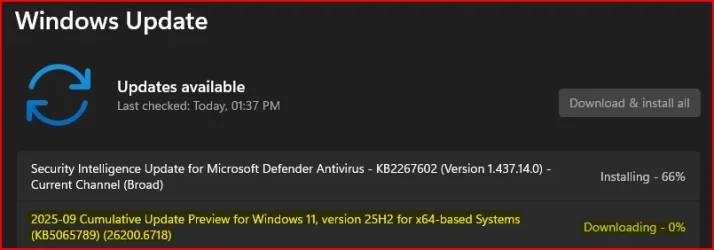
[UPDATE 9/17] We are releasing Builds 26100.6718 and 26200.6718 (KB5065789) today which is a small update that includes some additional changes noted in the updated blog post below.
Hello Windows Insiders, today we’re releasing Windows 11 Builds26100.6713 and 26200.6713 (KB5065789) to Insiders in the Release Preview Channel on Windows 11, version 24H2 (Build 26100) and version 25H2 (Build 26200).
Below is a summary of the new features and improvements included as part of this update separated into two sections: gradual rollout and normal rollout. The bold text within the brackets indicates the item or area of the change we are documenting.
Windows Insider Program Team

 blogs.windows.com
Check Windows Updates
For 64-bit Windows 11
Windows11.0-KB5054156-x64 (ZIP 163KB)
Download
OR
For ARM64 Windows 11
Windows11.0-KB5054156-arm64 (ZIP 167KB)
Download
UUP Dump:
64-bit ISO download:

ARM64 ISO download:
 www.elevenforum.com
KB5067036 Windows 11 Insider Release Preview build 26100.7015 (24H2) and 26200.7015 (25H2) - Oct. 21
Windows Insider Blog: Source: Check Windows Updates UUP Dump: 64-bit ISO download: https://uupdump.net/selectlang.php?id=a8a32b75-1334-4e23-bb1e-ddffdef024dd https://uupdump.net/selectlang.php?id=2e5be87c-a2d1-4164-b90a-17e003156729 ARM64 ISO download...
www.elevenforum.com
Windows Insider Blog:
[UPDATE 9/17] We are releasing Builds 26100.6718 and 26200.6718 (KB5065789) today which is a small update that includes some additional changes noted in the updated blog post below.
Hello Windows Insiders, today we’re releasing Windows 11 Builds
Below is a summary of the new features and improvements included as part of this update separated into two sections: gradual rollout and normal rollout. The bold text within the brackets indicates the item or area of the change we are documenting.
Gradual rollout
The following features and improvements might not be available to all users because they will roll out gradually. Text bolded in brackets indicate the area of the change being documented. Please note that features and improvements that gradually roll out may not begin rolling out right away nor will they immediately show up right away.- [Click to Do]
New!Click to Do can now detect tables. You can now highlight any simple table and send it to Excel, copy or share it. With a table in any application, you can press Win + Click to invoke Click to Do, or Win + Q or right swipe and tap to select the table. Once selected, you’ll see the actions you can take like Convert to table with Excel. Just click, capture and continue. This is available on Snapdragon-powered Copilot+ PCs, with support for AMD and Intel-powered Copilot+ PCs coming soon. You’ll need the latest Microsoft Excel application installed on your PC to see Convert to table with Excel and a Microsoft 365 Subscription. This change is not yet rolling out to Windows Insiders in the EEA (European Economic Area).[UPDATE 9/17] This feature will roll out in a future update.

Use Click to Do in Windows 11
This tutorial will show you how to use Click to Do to perform AI actions with text and images for your account on a Windows 11 Copilot+ PC. Click to Do (preview) helps you get things done faster by identifying text and images on your screen that you can take actions with. Click to Do analyzes...
www.elevenforum.com
- New! New and popular action tags in the Click to Do context menu help you discover the latest and most widely used AI-powered actions.
- New! Click to Do now provides more concise summaries with the Summarize action. The output for text entities is shorter and more focused. Ongoing improvements continue to enhance clarity and precision.
- [Agents in Settings] New! A direct navigation link to the corresponding settings page is now available from agent search results. This improvement is currently rolling out to agents in Settings on Copilot+ PCs.

Find a Setting in Settings app in Windows 11
This tutorial will show you how to search to find a setting within the Settings app in Windows 11. Microsoft designed Settings to be beautiful, easy to use and inclusive of all your Microsoft experiences in Windows 11. Settings has left-handed navigation that persists between pages, and...
www.elevenforum.com

Enable or Disable Settings Search Agent in Windows 11
This tutorial will show you how to enable or disable the Settings agentic search experience for all users on Windows 11 Copilot+ PCs. Starting in Windows 11, version 24H2 with KB5062660 on Copilot+ PCs, the agent in Windows Settings is a feature that uses on-device AI to help you find and...
www.elevenforum.com
- [Desktop] New! You can now move the hardware indicators for brightness, volume, airplane mode, and virtual desktops to different positions on your screen. To change their position, go to Settings > System > Notifications, and then pick from the options in the Position of the onscreen pop-up in the dropdown list.
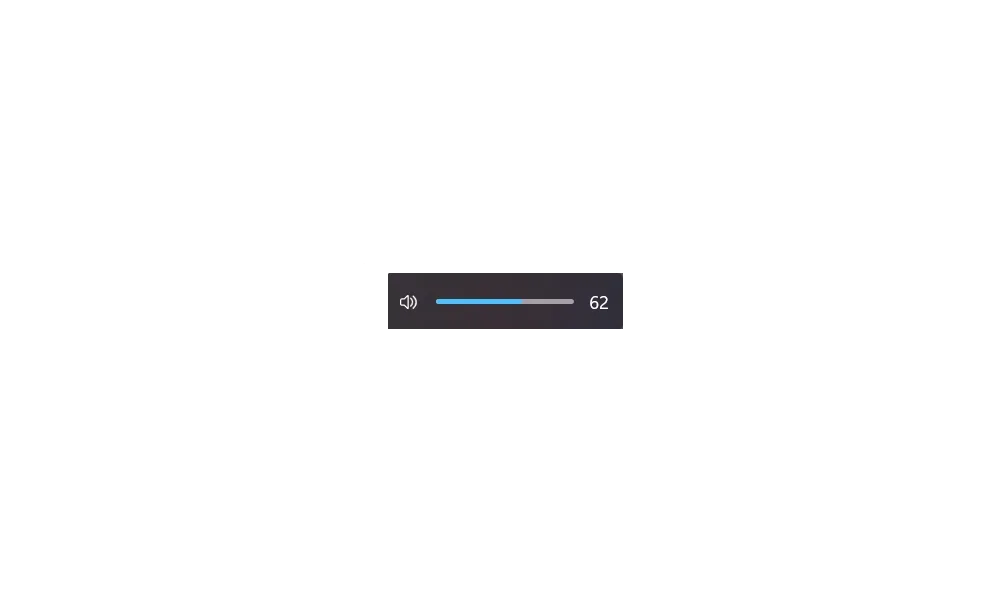
Change Position of On-screen Indicators in Windows 11
This tutorial will show you how to change the position of where hardware indicators appear on-screen by default for your account in Windows 11. When you change the brightness, volume, airplane mode, or virtual desktops from keyboard actions, you will see a on-screen indicator of that action at...
www.elevenforum.com
- [Taskbar] New! IT administrators no longer need to restart explorer.exe to apply the pinning policy. After applying the policy, users might see a pin on their taskbar within approximately 8 hours, depending on the refresh interval.
Pin to Taskbar an App, Drive, File, Folder, or Site in Windows 11
This tutorial will show you how to pin an app, drive, file, folder, or site to the taskbar for your account in Windows 11. The taskbar in Windows 11 shows the Start menu, Search, Task View, Widgets, Chat, File Explorer, Microsoft Edge, and Microsoft Store buttons (icons) aligned to the center...
www.elevenforum.com
- [Notification Center] [ADDED 10/2] New! The Notification Center functionality is now available on secondary monitors. To open it, select the date and time in the system tray on the taskbar. With the August 2025 non-security update (KB5064081), you can also show a larger clock with seconds above the calendar.

Add or Remove Time in Notification Center in Windows 11
This tutorial will show you how to turn on or off showing time (clock) in the Notification Center for your account in Windows 11. The Notification Center (Win+N) is a taskbar flyout where you can quickly access notifications, the calendar, and start or end a focus session from. Starting with...
www.elevenforum.com
- [File Explorer]
- New! Use AI actions in File Explorer to edit images or summarize documents. Just right click (or press Shift +F10) on the file and select AI actions. This experience is not yet available for customers in the EEA (European Economic Area).

Use AI Actions in File Explorer in Windows 11
This tutorial will show you how to use AI actions in File Explorer for your account in Windows 11. Starting with Windows 11 build 262100.6725 (24H2), Microsoft is introducing AI actions in File Explorer. With AI actions in File Explorer, you can interact more deeply with your files by...
www.elevenforum.com
- Image actions: You can now use four AI-powered image actions with .jpg, .jpeg, and .png files. Visual Search searches the web using an image instead of text. Blur Background opens the Photos app to highlight the subject and blur the background. Erase Objects removes unwanted elements from your photo. Remove Background uses Paint to change any image leaving a smooth cut out the subject.
- AI actions in Microsoft 365 make it easier to work with your documents. With the Summarize action in Copilot, you can quickly generate summaries of files stored in OneDrive and SharePoint—no need to open each one. This AI action requires an active Microsoft 365 subscription and a Copilot license (Microsoft account and Microsoft Entra ID supported).
- Improved: The File Explorer context menu has been updated to remove the accent colored backplate behind packaged app icons in the Open With list when right clicking a file (for example, for Snipping Tool). In doing this, the icons should be easier to see now.
- Improved: Made underlying changes to help improve the performance of launching cloud files from File Explorer and loading context menus.
- Fixed: Icons and text may become overlapping on the desktop when using increased text scaling.
- Fixed: Icons in the details, preview, and navigation panes of File Explorer aren’t properly mirrored when using an Arabic or Hebrew display language.
- New! Use AI actions in File Explorer to edit images or summarize documents. Just right click (or press Shift +F10) on the file and select AI actions. This experience is not yet available for customers in the EEA (European Economic Area).
- [Windows Share] New! You can pin your favorite apps in the Windows share window to quickly access them when you need them.

Pin or Unpin Apps on Windows Share in Windows 11
This tutorial will show you how to pin or unpin apps in Windows Share for your account in Windows 11. You can use Windows Share to share a file or link with an app. Starting with Windows 11 build 262100.6725 (24H2) and build 28020.2991 (Beta 26H1), you can pin your favorite apps in the Windows...
www.elevenforum.com
[Emoji]New! The Emoji 16.0 release includes a small but meaningful set of new emoji— Face with Bags Under Eyes, Fingerprint, Root Vegetable, Leafless Tree, Harp, Shovel, and Splatter. These new emoji are designed to resonate across cultures and contexts. You’ll find them in the emoji panel starting with this build.[UPDATE 9/29] This feature will roll out in a future update.

Open Emoji Panel in Windows 11
This tutorial will show you how to open the Emoji Panel in Windows 11. An emoji is a pictogram, logogram, ideogram or smiley embedded in text. Windows 11 includes 3D Fluent emoji you can use from the Emoji Panel. Starting with Windows 11 build 22631.3810, Microsoft is adding support for Emoji...
www.elevenforum.com
- [Advanced Settings] New! The redesigned Advanced settings page (Settings > System > Advanced) is an update of the For Developers page and makes it easier to find key options. Settings include File Explorer + version control, which shows Git details such as branch, diff count, and last commit message directly in File Explorer when you select a repository folder.

Add or Remove Repository Folders for File Explorer version control in Windows 11
This tutorial will show you how to add and remove repository folders used for File Explorer version control for your account in Windows 11. File Explorer version control integration provides version control information directly in File Explorer. File Explorer + version control provides the...
www.elevenforum.com
[Automatic Super Resolution (Auto SR)] New!Auto SR on Snapdragon®-powered Copilot+ PCs helps gamers improve visual quality with minimal effort through simplified settings. When a supported game is launched, Windows displays a notification that allows users to turn on Auto SR with a single click. The feature is now easier to find and manage in Graphics settings, and future updates might enable users to turn on Auto SR directly from the Game Bar during gameplay.[UPDATE 9/29] This feature will roll out in a future update.

Enable or Disable Automatic Super Resolution in Windows 11
This tutorial will show you how to enable or disable using Automatic Super Resolution (AI upscaler) for your account in Windows 11. Automatic Super Resolution (Auto SR) seamlessly integrates with Windows on a Copilot+ PC with a Qualcomm® Snapdragon® X Elite processor to automatically enhance a...
www.elevenforum.com
- [Input]
- New! Insert dashes with new keyboard shortcuts. You can quickly insert an en dash (–) or em dash (—) while typing. Press Windows logo key + Minus (-) to insert an en dash, and Windows logo key + Shift + Minus (-) to insert an em dash. If Magnifier is running, Windows logo key + hyphen (-) will zoom out Magnifier instead of inserting an en dash.

Type Special Characters and Symbols in Windows 11
This tutorial will show you different ways to find and type special characters, accents (diacritical mark), and symbols in Windows 11. Starting with Windows 11 build 262100.6725 (24H2), Microsoft is adding a new keyboard shortcut to make it easier for you to insert an En dash (–) or Em dash (—)...
www.elevenforum.com
- Fixed: After waking a PC from sleep, touch input may not work to enter your pin on the login screen.
- New! Insert dashes with new keyboard shortcuts. You can quickly insert an en dash (–) or em dash (—) while typing. Press Windows logo key + Minus (-) to insert an en dash, and Windows logo key + Shift + Minus (-) to insert an em dash. If Magnifier is running, Windows logo key + hyphen (-) will zoom out Magnifier instead of inserting an en dash.
- [Narrator]
- New! Narrator now includes Braille Viewer, which shows both on-screen text and its Braille equivalent on a refreshable Braille display. To open Braille viewer and start Narrator, press the Windows logo key + Ctrl + Enter, press Narrator key + Alt + B. A new floating window opens and updates dynamically as you navigate with Narrator. Before using Braille viewer, you must set up Narrator for Braille. To download and install the Braille support package, go to Settings > Accessibility > Narrator > Use a Braille display with Narrator.

Install or Uninstall Braille Support for Narrator in Windows 11
This tutorial will show you how to install or uninstall braille support for Narrator for all users in Windows 11. Narrator is a screen reader included with Windows 11 that describes what's on your screen. Narrator lets you use your PC without a mouse to complete common tasks if you’re blind or...
www.elevenforum.com

Enable or Disable Braille Support for Narrator in Windows 11
This tutorial will show you how to turn on or off braille display support for Narrator for your account in Windows 11. Narrator is a screen reader included with Windows 11 that describes what's on your screen. Narrator lets you use your PC without a mouse to complete common tasks if you’re...
www.elevenforum.com

Open Braille Viewer in Narrator in Windows 11
This tutorial will show you how to open and use the Braille viewer in Narrator in Windows 11. Narrator is a screen reader included with Windows 11 that describes what's on your screen. Narrator lets you use your PC without a mouse to complete common tasks if you’re blind or have low vision. It...
www.elevenforum.com
- New! Narrator now offers a smoother, more natural experience in Word, with improved voice feedback, reliable continuous reading, and better navigation for footnotes, comments, lists, and tables. Enhancements include consistent list announcements, clearer table boundaries, and intuitive selection feedback.
- New! Narrator now includes Braille Viewer, which shows both on-screen text and its Braille equivalent on a refreshable Braille display. To open Braille viewer and start Narrator, press the Windows logo key + Ctrl + Enter, press Narrator key + Alt + B. A new floating window opens and updates dynamically as you navigate with Narrator. Before using Braille viewer, you must set up Narrator for Braille. To download and install the Braille support package, go to Settings > Accessibility > Narrator > Use a Braille display with Narrator.
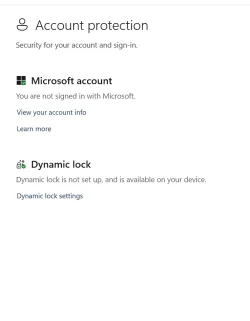
[Administrator Protection Preview] Administrator protection aims to protect free floating admin rights for administrator users allowing them to still perform all admin functions with just-in-time admin privileges. This feature is off by default and needs to be enabled via Windows Security under Account protection or via group policy. [UPDATE 9/16] The ability to enable this via Windows Security under Account protection is coming in a later update.[UPDATE 9/30] This feature will roll out in a future update.

Enable or Disable Administrator Protection for Admin Approval Mode in Windows 11
This tutorial will show you how to enable or disable Administrator Protection for admin approval mode elevations in Windows 11. Starting with Windows 11 build 26100.9278 (24H2) and build 26200.9278 (25H2), Administrator protection aims to protect free-floating admin rights for administrators...
www.elevenforum.com
- [Passkeys] New! A seamless plugin passkey provider integration in Windows 11. You can now use plugin credential manager for passkeys. To set up a plugin credential manager, go to Settings > Accounts > Passkeys > Advanced options. Turn on support and complete user verification using Windows Hello (through face recognition, fingerprint, or PIN). Once verified, you can use your existing passkeys saved to the plugin credential manager or save new passkeys.

Create and Save Passkey for Website in Windows 11
This tutorial will show you how to create a passkey for a website and save the passkey in Windows 11. Passkeys provide a more secure and convenient way to sign in. With passkeys, you can use Windows Hello to sign in with a PIN, facial recognition, or fingerprint, making the authentication...
www.elevenforum.com
- [Settings]
- New! The Manage or clear your Bing search history entry under Settings > Privacy & security > Search > Search history has been removed. You can now manage your Bing search history directly from the Privacy dashboard, accessible via the Privacy resources link under Related settings on that Settings page.

Delete Bing Search History in the Cloud
This tutorial will show you how to delete your Bing search history associated with your Microsoft account in the cloud on Windows 11 device. Windows Search lets you search from your taskbar to find what you’re looking for, whether it’s on your device, in the cloud, or on the web. Windows...
www.elevenforum.com
- New! More time, language, and keyboard settings have moved from Control Panel to Settings. You can now add additional clocks, change your time server, and customize date and time formatting—including AM/PM symbols—directly from Settings > Time & language > Date & time. Number and currency formats, Unicode UTF-8 support, and options to copy language and region settings to other accounts are now under Settings > Time & language > Language & region. Keyboard character repeat and cursor blink rate settings are now easier to find under Settings > Accessibility.
- Improved: Made underlying changes to help improve the performance of loading the apps list in Settings > Apps > Installed apps.
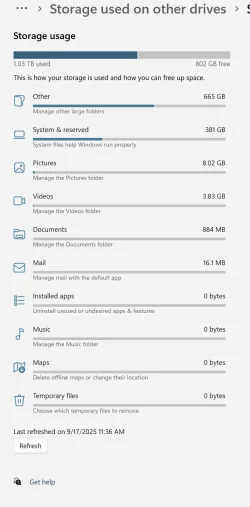
- Fixed: Settings > System > Storage > Disks and Volumes might show a link for BitLocker drive encryption in unsupported cases. Clicking it results in BitLocker opening and displaying error 0x80004005.
- New! The Manage or clear your Bing search history entry under Settings > Privacy & security > Search > Search history has been removed. You can now manage your Bing search history directly from the Privacy dashboard, accessible via the Privacy resources link under Related settings on that Settings page.
- [Gaming]
- New! Xbox controller support for gaming on Windows 11 has been improved. Short pressing the Xbox button opens Game Bar. A new change we’re introducing is when you long press the Xbox button, it will open Task View. Pressing and holding the Xbox button continues to turn off the game controller.

Connect Xbox Wireless Controller to Windows 11 PC
This tutorial will show you how to connect an Xbox Wireless Controller to your Windows 11 PC. Many PC games let you play with an Xbox Wireless Controller instead of a keyboard or mouse. Connect your controller to a Windows device by using a USB cable, the Xbox Wireless Adapter for Windows, or...
www.elevenforum.com
- Improved: Made some underlying changes to help improve performance when gaming with Game Bar or other overlays on top of your game. This may particularly help those with multiple monitors which have different refresh rates.
- New! Xbox controller support for gaming on Windows 11 has been improved. Short pressing the Xbox button opens Game Bar. A new change we’re introducing is when you long press the Xbox button, it will open Task View. Pressing and holding the Xbox button continues to turn off the game controller.
- [Other] New! Several dialogs, including the one that appears when an app fails to open, have been modernized with WinUI 3 and match the visuals for Windows 11.
- [Dynamic Lighting] Fixed: The Dynamic Lighting Background Controller may occasionally consume excessive CPU after unlocking your PC.
- [Voice Access] Fixed: Voice Access may get stuck in a state where it says it’s listening but is stuck and doesn’t respond.
- [Windows Hello] Fixed: You may unexpectedly see a message saying “Something happened and your PIN isn’t available” when attempting to enter safe mode.
- [Windows Sandbox] Fixed: When Windows Sandbox is enabled, the VmmemCmFirstBoot process may consume large amounts of CPU after login, causing your PC to become unresponsive.
- [HDR] Fixed: HDR may unexpectedly immediately turn off after being enabled in Settings.
- [Quick Settings]: Fixed: If you had to enter a PIN for your device to cast from Quick Settings, pressing Enter wouldn’t confirm the PIN.
Normal rollout
This update includes the following features and improvements that are rolling out as part of this update. Text bolded in brackets indicates the area of the change being documented.- [Input]
- Fixed: An issue where some characters didn’t display correctly when using the Chinese Input Method Editor (IME).
- Fixed: This update addresses an issue where certain Chinese characters appeared as empty boxes in some text fields, such as those used in Connection Manager Administration Kit, when a character limit was set.
- [Servicing] Fixed: This update addresses an issue that disrupted Windows Update for customers using Windows Server Update Services (WSUS).
- [Windows Hello] Fixed: This update addresses an issue that affects Windows Hello PIN setup with error 0x80090010 on devices joined to Microsoft Entra ID domains after installing Windows updates released on or after KB5060842.
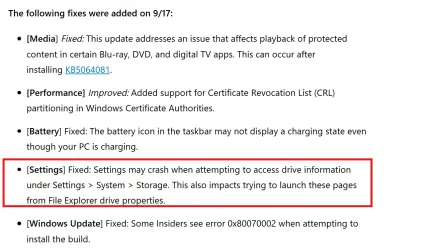
- [Media] Fixed: This update addresses an issue that affects playback of protected content in certain Blu-ray, DVD, and digital TV apps. This can occur after installing KB5064081.
- [Performance] Improved: Added support for Certificate Revocation List (CRL) partitioning in Windows Certificate Authorities.
- [Battery] Fixed: The battery icon in the taskbar may not display a charging state even though your PC is charging.
- [Settings] Fixed: Settings may crash when attempting to access drive information under Settings > System > Storage. This also impacts trying to launch these pages from File Explorer drive properties.
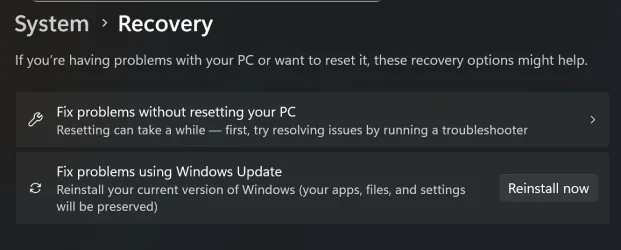
- [Windows Update] Fixed: Some Insiders see error 0x80070002 when attempting to install the build.
Windows Insider Program Team
Source:
Releasing Windows 11 Builds 26100.6713 and 26200.6713 to the Release Preview Channel
Hello Windows Insiders, today we’re releasing Windows 11 Builds 26100.5061 and 26200.6713 (KB5065789) to Insiders in the Release Preview Channel on Windows 11, version 24
blogs.windows.com
Check Windows Updates
25H2 Enablement Package MSU Download:
For 64-bit Windows 11
Windows11.0-KB5054156-x64 (ZIP 163KB)
Download
OR
For ARM64 Windows 11
Windows11.0-KB5054156-arm64 (ZIP 167KB)
Download
UUP Dump:
64-bit ISO download:
Select language for Windows 11, version 24H2 (26100.6725) amd64
Select language for Windows 11, version 24H2 (26100.6725) amd64 on UUP dump. UUP dump lets you download Unified Update Platform files, like Windows Insider updates, directly from Windows Update.
uupdump.net
Select language for Windows 11, version 25H2 (26200.6725) amd64
Select language for Windows 11, version 25H2 (26200.6725) amd64 on UUP dump. UUP dump lets you download Unified Update Platform files, like Windows Insider updates, directly from Windows Update.
uupdump.net
ARM64 ISO download:
Select language for Windows 11, version 24H2 (26100.6725) arm64
Select language for Windows 11, version 24H2 (26100.6725) arm64 on UUP dump. UUP dump lets you download Unified Update Platform files, like Windows Insider updates, directly from Windows Update.
uupdump.net
Select language for Windows 11, version 25H2 (26200.6725) arm64
Select language for Windows 11, version 25H2 (26200.6725) arm64 on UUP dump. UUP dump lets you download Unified Update Platform files, like Windows Insider updates, directly from Windows Update.
uupdump.net
UUP Dump - Download Windows Insider ISO
UUP Dump is the most practical and easy way to get ISO images of any Insider Windows 10 or Windows 11 version, as soon as Microsoft has released a new build. UUP Dump creates a download configuration file according to your choices, downloads necessary files directly from Microsoft servers, and...
www.elevenforum.com
Attachments
Last edited: