UPDATE 10/06:
 www.elevenforum.com
[Updated 10/2/2025]
Known Issue: We’ve been hearing your feedback that some Insiders on Dev and Beta Channels have lost some updated features that were rolled recently rolled out to Insiders with the “Get the latest updates as soon as they’re available” toggle on*.
Insiders may see an update on their devices for “Windows Configuration Update” that is meant to address this issue.
We have paused new flights of 26120.6760 while we address this fix.
Hello Windows Insiders, today we are releasing Windows 11 Insider Preview Build 26120.6760 (KB5065793) to the Beta Channel for Windows Insiders on Windows 11, version 24H2.
Changes in Beta Channel builds and updates are documented in two buckets: new features, improvements, and fixes that are being gradually rolled out for Insiders who have turned on the toggle to get the latest updates as they are available (via Settings > Windows Update*) and then new features, improvements, and fixes rolling out to everyone in the Beta Channel. For more information, see the Reminders section at the bottom of this blog post.
 www.elevenforum.com
Amanda

 blogs.windows.com
Check Windows Updates
UUP Dump:
64-bit ISO download:

ARM64 ISO download:
 www.elevenforum.com
KB5065797 Windows 11 Insider Beta build 26120.6772 (24H2) - Oct. 6
Windows Insider Blog: Source: Check Windows Updates UUP Dump: 64-bit ISO download: https://uupdump.net/selectlang.php?id=e025c126-b32c-498e-a233-410820d43fd7 ARM64 ISO download: https://uupdump.net/selectlang.php?id=260bd2a8-6446-4a7c-b507-8db46c2c1620...
www.elevenforum.com
Windows Insider Blog:
[Updated 10/2/2025]
Known Issue: We’ve been hearing your feedback that some Insiders on Dev and Beta Channels have lost some updated features that were rolled recently rolled out to Insiders with the “Get the latest updates as soon as they’re available” toggle on*.
Insiders may see an update on their devices for “Windows Configuration Update” that is meant to address this issue.
We have paused new flights of 26120.6760 while we address this fix.
Hello Windows Insiders, today we are releasing Windows 11 Insider Preview Build 26120.6760 (KB5065793) to the Beta Channel for Windows Insiders on Windows 11, version 24H2.
Changes in Beta Channel builds and updates are documented in two buckets: new features, improvements, and fixes that are being gradually rolled out for Insiders who have turned on the toggle to get the latest updates as they are available (via Settings > Windows Update*) and then new features, improvements, and fixes rolling out to everyone in the Beta Channel. For more information, see the Reminders section at the bottom of this blog post.
Enable or Disable Get Latest Updates as soon as available in Windows 11
This tutorial will show you how to turn on or off "Get the latest updates as soon as they are available" in Windows 11. Starting with Windows 11 build 22621.1635, Microsoft added a new "Get the latest updates as soon as they are available" toggle under Settings > Windows Update. When you turn...
www.elevenforum.com
New features gradually being rolled out to the Beta Channel with toggle on*
[Taskbar & System Tray]
- We are introducing the ability to do built-in network speed test accessible from the taskbar. You can launch it via the Wi-Fi and Cellular Quick Settings pages or by right-clicking the network icon in the system tray. The tool opens in your default browser and supports testing Ethernet, Wi-Fi, and Cellular connections. This feature helps assess network performance and supports troubleshooting.

Perform Network Speed Test in Windows 11
This tutorial will show you how to perform a Ethernet, Wi-Fi, or Cellular network speed test in Windows 11. Starting with Windows 11 build 26100.7922 (24H2) and 26200.7922 (25H2), and build 2800.1764 (26H1), Microsoft is gradually rolling out the ability to do built-in network speed test...
www.elevenforum.com
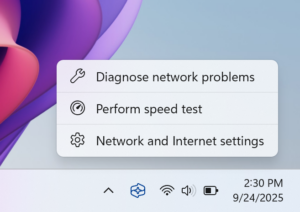
Menu options to Diagnose network problems, Perform speed test, and Network and Internet settings from the network icon in the system tray.
[Get Started/Microsoft 365 Copilot]
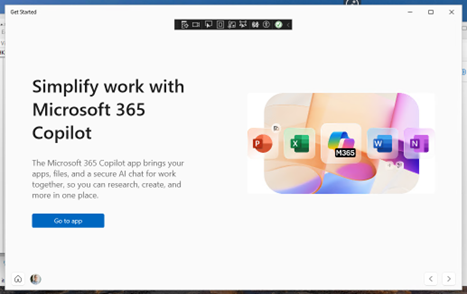
- We’re adding a new Microsoft 365 Copilot page to the Get Started experience for managed commercial devices that are managed with an active Microsoft 365 subscription. This experience is designed to help users discover and engage with Microsoft 365 Copilot more easily, providing quick access to key features and helpful guidance directly within the Get Started flow.
Menu options to Diagnose network problems, Perform speed test, and Network and Internet settings from the network icon in the system tray.
ALT-TEXT: Get Started experience describing what Microsoft 365 Copilot can do and offers a link to the application.
Changes and Improvements gradually being rolled out to the Beta Channel with toggle on*
[Windows Search]
The following changes and improvements are rolling out for improved Windows Search on Copilot+ PCs:- For Insiders with Copilot+ PCs, we’re updating the File Explorer Search Box placeholder text to raise awareness of the improved Windows Search experience introduced earlier this year. Learn more in our January blog post.

File Explorer Search Box with a magnifying glass search icon with the words “Try describing an image or file”.
[File Explorer]
- New! StorageProvider APIs for cloud providers to integrate with File Explorer Home. Developer documentation available here.

Add or Remove Home in Navigation Pane of File Explorer in Windows 11
This tutorial will show you how to add or remove Home in the navigation pane of File Explorer for your account or all users in Windows 11. Home in the navigation pane is the default homepage of File Explorer (Win+E) that allows you to quickly access and view your pinned/frequent locations...
www.elevenforum.com
[Emoji]
- We are temporarily turning off Emoji 16.0 and will bring it back in a future release.

Open Emoji Panel in Windows 11
This tutorial will show you how to open the Emoji Panel in Windows 11. An emoji is a pictogram, logogram, ideogram or smiley embedded in text. Windows 11 includes 3D Fluent emoji you can use from the Emoji Panel. Starting with Windows 11 build 22631.3810, Microsoft is adding support for Emoji...
www.elevenforum.com
[Voice access]
- We are introducing a new ‘Wait time before acting’ setting in voice access, allowing users to configure the delay before a voice command is executed. This provides greater flexibility for users with varying speech patterns, enabling more accurate recognition whether speaking slowly or quickly. To set this up, navigate to voice access settings > Wait time before acting, and choose the option that best fits your preferences.

Change Voice Access "Wait time before acting" in Windows 11
This tutorial will show you how to change the Voice Access "Wait time before acting" on voice command setting for your account in Windows 11. Voice access in Windows 11 enables everyone, including people with mobility disabilities, to control their PC and author text using their voice. For...
www.elevenforum.com
Fixes gradually being rolled out to the Beta Channel with toggle on*
[General]
- Fixed an underlying issue which was leading to some screen readers no longer being able to read screen content after the latest flights.
[Click to Do (Preview)]
The following fixes are rolling out for Click to Do on Copilot+ PCs:- Fixed an issue where Click to Do may unexpectedly invoke sometimes when pressing WIN + P.
[Taskbar & System Tray]
- Fixed an issue in the latest builds where the battery icon could get out of sync with the actual charging state (for example, it would show that you weren’t plugged in when you were).
[File Explorer]
- Fixed an issue where when you customized a folder’s view (for example, sorting files by name or changing the icon size), those settings only applied to the specific navigation path. If you opened the same folder from another app (like a browser), the settings wouldn’t carry over, leading you to need to manually reapply them every time. This was particularly noticeable with the Downloads folder, if you had turned off Group By Date.
[Lock and Login screens]
- Fixed an issue in the latest build where the media controls might not be displayed on the lock screen although media was playing in an app that supports these controls.
[Windows Update]
- Fixed an underlying issue which could lead “Update and shutdown” to not actually shut down your PC after.
[Settings]
- Fixed an issue causing Settings to crash for some Insiders when accessing drive information under Settings > System > Storage. This also impacted accessing the drive information from the properties when you right clicked a drive in File Explorer.
- Fixed an issue causing the placeholder text in the Settings search box to potentially appear vertically misaligned.
Fixes for everyone in the Beta Channel
[Networking]
- Fixed an issue where you might not be able to connect to shared files and folders if you were using the Server Message Block (SMB) v1 protocol on NetBIOS over TCP/IP NetBIOS (NetBT) after the latest updates.
[For Developers]
- There was an issue where PIX on Windows was unable to play back GPU captures on the latest OS versions. This was addressed by a new PIX release late last week.
[Video Playback]
- Fixed an issue that affected playback of protected content in certain Blu-ray, DVD, and digital TV apps that used Enhanced Video Renderer with HDCP
Known issues
[Click to Do]
- Launching Click to Do on your primary display via right-edge gesture will result in the swipe visuals appearing on the incorrect display. The issue is being investigated.
[Taskbar & System Tray]
- Our new animations on taskbar previews have been turned off temporarily because they were interfering with the ability to share a window from its preview, we will note when they’re brought back.
- We have a few issues that need ironing out with the changes in the previous flight when “automatically hide the taskbar” is enabled, including that the system tray may unexpectedly peek up – thanks Insiders that have shared feedback about it. We’re working on it.
[Search]
- Certain searches may show unexpected text instead of the expected results and images.
[Windows Studio Effects]
- For some classes of external webcams, turning on “Use Windows Studio Effects” in the advanced camera setting may result in a camera preview failure. This is due to a compatibility issue with the camera firmware and is being addressed with a future update. In the meantime, if you are impacted by this issue, turn off Windows Studio Effects inside the camera settings.
[Xbox Controllers]
- Some Insiders are experiencing an issue where using their Xbox Controller via Bluetooth is causing their PC to bugcheck. Here is how to resolve the issue. Open Device Manager by searching for it via the search box on your taskbar. Once Device Manager is open, click on “View” and then “Devices by Driver”. Find the driver named “oemXXX.inf (XboxGameControllerDriver.inf)” where the “XXX” will be a specific number on your PC. Right-click on that driver and click “Uninstall”.
Reminders for Windows Insiders in the Beta Channel
- Windows Insiders in the Beta Channel on Windows 11, version 24H2 will receive updates based on Windows 11, version 24H2 via an enablement package (Build 26120.xxxx).
- Updates delivered to the Beta Channel are in a format that offers a preview of enhancements to servicing technology on Windows 11, version 24H2. To learn more, see Introducing Windows 11 checkpoint cumulative updates | Windows IT Pro Blog.
- Many features in the Beta Channel are rolled out using Controlled Feature Rollout technology, starting with a subset of Insiders and ramping up over time as we monitor feedback to see how they land before pushing them out to everyone in this channel.
- For Windows Insiders in the Beta Channel who want to be the first to get features gradually rolled out to you, you can turn ON the toggle to get the latest updates as they are available via Settings > Windows Update*. Over time, we will increase the rollouts of features to everyone with the toggle turned on. Should you keep this toggle off, new features will gradually be rolled out to your PC over time once they are ready.
- Features and experiences included in these builds may never get released as we try out different concepts and get feedback. Features may change over time, be removed, or replaced and never get released beyond Windows Insiders. Some of these features and experiences could show up in future Windows releases when they’re ready.
- Some features in active development we preview with Windows Insiders may not be fully localized and localization will happen over time as features are finalized. As you see issues with localization in your language, please report those issues to us via Feedback Hub.
- Please note that some accessibility features may not work with features like Recall and Click to Do while in preview with Windows Insiders.
- Because the Dev and Beta Channels represent parallel development paths from our engineers, there may be cases where features and experiences show up in the Beta Channel first.
- Check out Flight Hub for a complete look at what build is in which Insider channel.
Amanda
Source:
Announcing Windows 11 Insider Preview Build 26120.6760 (Beta Channel)
[Updated 10/2/2025] Known Issue: We’ve been hearing your feedback that some Insiders on Dev and Beta Channels have lost some updated features that were recently rolled out to Insiders with the “
blogs.windows.com
Check Windows Updates
UUP Dump:
64-bit ISO download:
Select language for Windows 11 Insider Preview 10.0.26120.6760 (ge_release_upr) amd64
Select language for Windows 11 Insider Preview 10.0.26120.6760 (ge_release_upr) amd64 on UUP dump. UUP dump lets you download Unified Update Platform files, like Windows Insider updates, directly from Windows Update.
uupdump.net
ARM64 ISO download:
Select language for Windows 11 Insider Preview 10.0.26120.6760 (ge_release_upr) arm64
Select language for Windows 11 Insider Preview 10.0.26120.6760 (ge_release_upr) arm64 on UUP dump. UUP dump lets you download Unified Update Platform files, like Windows Insider updates, directly from Windows Update.
uupdump.net
UUP Dump - Download Windows Insider ISO
UUP Dump is the most practical and easy way to get ISO images of any Insider Windows 10 or Windows 11 version, as soon as Microsoft has released a new build. UUP Dump creates a download configuration file according to your choices, downloads necessary files directly from Microsoft servers, and...
www.elevenforum.com
Last edited:








 Workaround: