UPDATE 5/22:
 www.elevenforum.com
As a reminder, these release notes apply to those who are in the Experimental channel, formerly known as the Dev Channel. As we begin the transition to the new Windows Insider Program, all new build release notes will be labeled under the new channel names, even though Insiders in the Dev Channel may not yet find themselves having transitioned to Experimental. See the Windows Insider Blog for more details.
 www.elevenforum.com
 www.elevenforum.com
See the in-depth blog for more information about Taskbar improvements.

 blogs.windows.com
Check Windows Updates
ISO from Microsoft:
 www.elevenforum.com
UUP Dump:
64-bit ISO download:

ARM64 ISO download:
 www.elevenforum.com
Windows 11 Insider Experimental (25H2) build 26300.8497 - May 22
Windows Insider Blog: Source: Check Windows Updates UUP Dump: 64-bit ISO download: https://uupdump.net/selectlang.php?id=2207dbd6-f0f9-4f99-9e4d-4e239eca14ef ARM64 ISO download: https://uupdump.net/selectlang.php?id=5cee423c-900e-4730-ad52-bbb5c6f64633...
www.elevenforum.com
Windows Insider Blog:
As a reminder, these release notes apply to those who are in the Experimental channel, formerly known as the Dev Channel. As we begin the transition to the new Windows Insider Program, all new build release notes will be labeled under the new channel names, even though Insiders in the Dev Channel may not yet find themselves having transitioned to Experimental. See the Windows Insider Blog for more details.
Microsoft improving your Windows Insider experience for Windows 11
Windows Insider Blog: Hello Windows Insiders, Today is the day we’re beginning to move to the new Experimental and Beta channels as announced earlier this month. As a reminder, most Insiders, those who are in the Dev and Beta channels today will transition to the new channels over time as...
www.elevenforum.com
Enable or Disable Get Latest Updates as soon as available in Windows 11
This tutorial will show you how to turn on or off "Get the latest updates as soon as they are available" in Windows 11. Starting with Windows 11 build 22621.1635, Microsoft added a new "Get the latest updates as soon as they are available" toggle under Settings > Windows Update. When you turn...
www.elevenforum.com
Changes and improvements gradually being rolled out
[Taskbar]
- Alternate Taskbar Position
- You can now change the position of taskbar on your screen. In Settings > Personalization > Taskbar > Taskbar Behaviors, you can select the side of the screen you want your taskbar on: bottom, top, left, or right. In these other positions, tooltips, flyouts, and animations will still come from the taskbar, and most customization settings like small taskbar and never combine taskbar icons will work with all locations.
- Support for touch gestures, Search box, and Ask Copilot in alternate locations is in progress. Auto-hidden taskbar and touch optimized taskbar are not yet supported.
Change Taskbar Position on Screen in Windows 11
This tutorial will show you how to change the taskbar position to any edge of the screen for your account in Windows 11. Starting with Windows 11 build 26100.9278 (24H2), build 26200.9278 (25H2), and build 2800.3086 (26H1), you can now change the position of taskbar on your screen. You can...
www.elevenforum.com

Screenshot of the taskbar in the left-aligned position.
- Smaller Taskbar
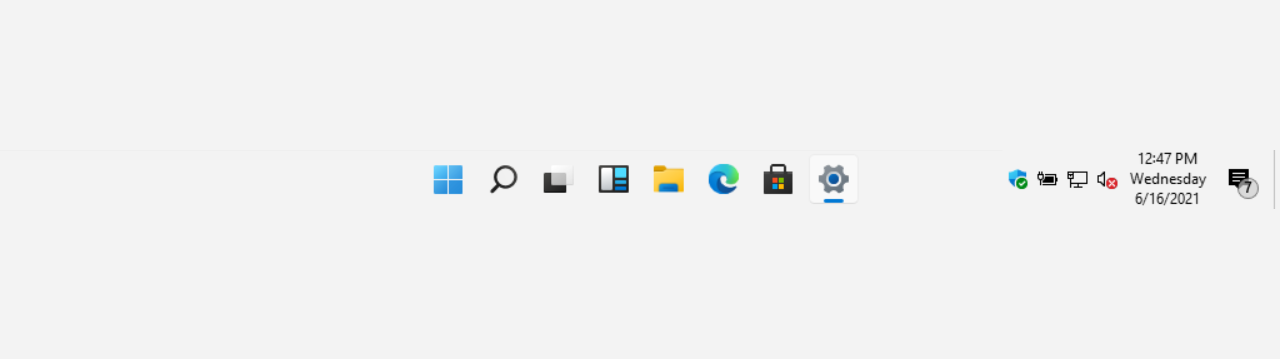
- We’re introducing a smaller taskbar for users who want to maximize screen space, especially on smaller devices. While the default taskbar remains unchanged, this setting provides a more compact experience with smaller icons and a reduced taskbar height, giving you more room for your apps. Core elements like Start, Search, and the system tray scale appropriately to stay aligned and consistent.
- To change your taskbar size, go to Settings > Personalization > Taskbar > Taskbar behaviors > Show smaller taskbar buttons. When set to Always, both the icons and the taskbar height become smaller.
Change Size of Taskbar Icons in Windows 11
This tutorial will show you how to change when to show small icons on the taskbar for your account, all users, or specific users in Windows 11. Starting with Windows 11 build 26100.4484 (24H2), build 28120.2387 (Experimental 26H1), build 26220.9022 (Beta 25H2), and build 28020.2623 (Beta 26H1)...
www.elevenforum.com

Side-by-side comparison of the standard and smaller taskbar heights on the same device and resolution, showing the additional screen space gained.
- We’re also working on improving taskbar settings to make resizing easier, these enhancements are currently in progress.
See the in-depth blog for more information about Taskbar improvements.
[Widgets]
- As we continue to make Widgets feel less distracting, we’ve made a small but meaningful visual update to taskbar badging. For those that have taskbar badging on, the badge color will now match your Windows accent color instead of always appearing red, reducing the sense of urgency that something needs your immediate attention.
Enable or Disable Notification Badges for Widgets on Taskbar in Windows 11
This tutorial will show you how to turn on or off whether Widgets will show notification badging on the Widgets taskbar icon for your account in Windows 11. Widgets in Windows are interactive elements that display dynamic content and provide quick access to various apps and features. You can...
www.elevenforum.com

The Taskbar badge color will now match your Windows accent color instead of always appearing red. - We’re also testing out quieting down a user’s experience based on their level of engagement. For example, a user who highly engages with Widgets likely has their settings set to a state that works best for them, as compared to a user who barely engages with it and would benefit from having the experience quieted down with taskbar badging turned off as it is for new users who experience it as quiet by default.
- Please share your feedback to let us know how these changes are working for you or if you encounter any issues with your quieter Widgets experience.
[Windows Search Box]
We've started making changes to make Windows Search Box more relevant, starting with making it easier to find your files and apps:- Files and apps more reliably appear ahead of web suggestions when your content is a stronger match
[Voice access and Voice typing]
- Fluid Dictation is now available in Spanish & French for Windows Insiders! It makes voice-based dictation smoother and smarter by automatically correcting grammar, punctuation, and filler words as you speak, reducing the need for manual editing. This experience is powered by on-device small language models (SLMs) to ensure fast and private processing. You can try out fluid dictation from Windows voice access or Voice typing (Win +H).

Enable or Disable Fluid Dictation in Voice Access on Windows 11
This tutorial will show you how to turn on or off the fluid dictation feature in voice access for your account on Windows 11 Copilot+ PCs. Voice access in Windows 11 enables everyone, including people with mobility disabilities, to control their PC and author text using their voice. For...
www.elevenforum.com

Enable or Disable Fluid Dictation in Voice Typing on Windows 11
This tutorial will show you how to turn on or off the fluid dictation feature in voice typing for your account on Windows 11 Copilot+ PCs. Voice typing allows you to enter text on your PC by speaking. You can use voice typing commands to manually insert punctuation marks. Starting with...
www.elevenforum.com
[Windows design]
- We are introducing consistent solid (donut) spinners across key Windows scenarios including Boot, Logon, Restart, Shutdown, and Update. This update replaces legacy spinner visuals to deliver a more cohesive and modern experience aligned with Windows design standards. Users will now see a unified spinner behavior with corresponding status text (e.g., "Restarting", "Working on updates", "Welcome") across these flows, improving perceived reliability and visual consistency.
[File Explorer]
- Fixed an issue in the previous flight where Properties wasn’t invoking correctly for the Recycle bin and some other scenarios.
[Run]
- Fixed an issue where the refreshed Run dialog didn’t navigate through your history if you pressed the up / down arrow keys on first launch.
[Other]
- This flight contains the first of a set of optimizations to improve logon performance that we expect to flight in the Windows Insider Program over the next few months. Note that this is part of an ongoing effort – we plan to flight additional logon optimizations to WIP, measure real impact, and use that data to drive the next round of improvements.
- Improved reliability when switching between multiple desktops.
- This update improves the reliability of Simple Service Discovery Protocol (SSDP) notifications to help prevent the service from becoming unresponsive.
- Improved reliability of running dism /online /cleanup-image /restorehealth command.
- Improved reliability of PC remaining asleep if it had been asleep prior to an update
Known Issues
[Reset PC]
- Resetting your PC may get stuck when using “Reset this PC.” To complete the reset successfully, choose the cloud download option (Cloud PBR) instead of local.
Reset Windows 11 PC
This tutorial will show you how to reset Windows 11 and Remove everything or Keep my files. You can reset Windows 11 when your PC isn’t working well and it’s been a while since you installed an app, driver, or update. Resetting reinstalls Windows 11, but lets you choose whether to keep your...
www.elevenforum.com
Reminders for Windows Insiders in the Experimental channel
- Updates are based on Windows 11, version 25H2 via an enablement package (Build 26300.8493).
- Many features are rolled out using Controlled Feature Rollout technology, starting with a subset of Insiders and ramping up over time as we monitor feedback to see how they land before pushing them out to everyone in this channel.
- For Windows Insiders who want to be the first to try new features, see the available list of features to toggle on at the Feature flags page under Settings > Windows Update > Windows Insider Program.
- The desktop watermark shown at the lower right corner of the desktop is normal for Windows Insider pre-release builds.
- Features and experiences included in these builds may never get released as we try out different concepts and get feedback. Features may change over time, be removed, or replaced and never get released beyond Windows Insiders. Some of these features and experiences could show up in future Windows releases when they’re ready.
- Some features in active development we preview with Windows Insiders may not be fully localized and localization will happen over time as features are finalized. As you see issues with localization in your language, please report those issues to us via Feedback Hub.
- Check out Flight Hub for a complete look at what build is in which Insider channel.
Source:
Experimental Preview Build 26300.8493 - Windows Insider Program
Release notes for Experimental Preview Build 26300.8493
learn.microsoft.com
Announcing new builds for 15 May 2026
Hello Windows Insiders, Today we will be expanding the rollout of the new Windows Insider Program changes to devices in the Beta Channel, which will be moved to the new Beta experience. Please see the announce
blogs.windows.com
Check Windows Updates
ISO from Microsoft:
Download Official Windows 11 ISO file from Microsoft
This tutorial will show you how to download an official Windows Server or Windows 11 64-bit or ARM64 ISO file from Microsoft. Microsoft provides ISO files for Windows Server and Windows 11 to download. You can use these ISO files to clean install or in-place upgrade Windows 11. The Flight Hub...
www.elevenforum.com
UUP Dump:
64-bit ISO download:
Select language for Windows 11 Insider Preview Feature Update (26300.8493) amd64
Select language for Windows 11 Insider Preview Feature Update (26300.8493) amd64 on UUP dump. UUP dump lets you download Unified Update Platform files, like Windows Insider updates, directly from Windows Update.
uupdump.net
ARM64 ISO download:
Select language for Windows 11 Insider Preview Feature Update (26300.8493) arm64
Select language for Windows 11 Insider Preview Feature Update (26300.8493) arm64 on UUP dump. UUP dump lets you download Unified Update Platform files, like Windows Insider updates, directly from Windows Update.
uupdump.net
UUP Dump - Download Windows Insider ISO
UUP Dump is the most practical and easy way to get ISO images of any Insider Windows 10 or Windows 11 version, as soon as Microsoft has released a new build. UUP Dump creates a download configuration file according to your choices, downloads necessary files directly from Microsoft servers, and...
www.elevenforum.com
Last edited: