Microsoft Support:
This cumulative update for Windows 11, versions 26H2 and 25H2 (KB5127936), includes production-quality improvements.
Announcements and messages
This section provides key notifications related to this release, including announcements, change logs, and end-of-support notices.Windows Secure Boot certificate expiration
Important: Secure Boot certificates used by most Windows devices started to expire in June 2026. Microsoft has been updating these certificates on consumer and non-managed business devices over the past several months. Devices that haven’t received the newer certificates will continue to start and operate normally, and standard Windows updates will continue to install. Updated certificates will continue to be delivered through Windows Update in the coming months. For more information, see Windows Secure Boot certificate expiration and CA updates.
Highlights
This update is available through two release phases: gradual rollout and normal rollout. A gradual rollout delivers an update in phases, so features reach devices over time instead of all at once, meaning availability varies by device. A normal rollout is the broad release to all eligible devices at the same time, usually when it reaches general availability (GA).Note If you installed earlier updates, your device downloads and installs only the new updates contained in this package.
Gradual rollout
The following summary outlines new Windows 11 PC experiences, along with improvements and fixes. The bold text within the brackets indicates the item or area of the change.
- [Context menu in File Explorer]
- New! This update introduces an updated context menu that is faster, simpler, and more customizable. The updated menu opens more quickly, reduces clutter, and gives you more control over the commands and app extensions that appear when you right-click.
- You can now customize the context menu to better fit how you use Windows. Select Customize menu at the bottom of the context menu to open its Settings page.
- Turn built-in Windows commands, such as Send to and Create shortcut, on or off.
- Add commands such as Print to the context menu.
- Choose which app extensions appear in the main menu or a submenu or hide the app extensions submenu.
- Display Cut, Copy, Paste, Rename, Delete, and Share directly in the menu instead of as a row of icons.
- Move Properties to the bottom of the context menu.
- To personalize the context menu, right-click and select Customize menu, then choose the commands, app extensions, and layout you prefer. No action is required to use the default configuration. To see more options, hold down Shift and right-click on your desktop.

Customize Context Menu in File Explorer on Windows 11
This tutorial will show you how to customize what appears in the context menu in File Explorer for your account in Windows 11. A context menu is a graphical user interface (GUI) that appears when you right click or press and hold on an item (ex: desktop, file, folder, drive, etc...) in Windows... www.elevenforum.com
- You can now customize the context menu to better fit how you use Windows. Select Customize menu at the bottom of the context menu to open its Settings page.
- New! This update introduces an updated context menu that is faster, simpler, and more customizable. The updated menu opens more quickly, reduces clutter, and gives you more control over the commands and app extensions that appear when you right-click.
- [File Explorer]
- New! Key file information, such as name, location, and date, now appear in a consistent layout on the File Explorer search results page, making search results easier to scan.
- New! Address bar now supports ~, making it quicker to navigate directly to your user profile folder and subfolders (for example, ~\AppData).

Show Full Path in File Explorer Address Bar in Windows 11
This tutorial will show you how to see the full path in the address bar of File Explorer on demand in Windows 10 and Windows 11. File Explorer shows breadcrumbs in the address bar by default. Breadcrumbs display the hierarchy path of folders that were navigated to for the current folder...
www.elevenforum.com
- New! This update enables dark mode support in the Folder Options dialog in File Explorer.
- [XBOX mode]
- New! This update introduces a refreshed Gaming Task View experience in XBOX mode, featuring a new navigation bar that provides quick access to Exit to Desktop and Power Options, making key system actions easier to access while gaming. 1
Enter and Exit Xbox Mode in Windows 11
This tutorial will show you how to enter and exit Xbox mode for full screen gaming for your account on Windows 11. Starting with Windows 11 build 26100.8328 (24H2), build 26200.8328 (25H2), and build 28000.2179 (26H1), Xbox mode is now available on Windows 11 PCs, including laptops, desktops...
www.elevenforum.com
- New! This update introduces a refreshed Gaming Task View experience in XBOX mode, featuring a new navigation bar that provides quick access to Exit to Desktop and Power Options, making key system actions easier to access while gaming. 1
- [Settings]
- New! This update improves the Privacy & security page in Windows Settings by grouping related Camera, Microphone, and Location privacy controls and elevating usage information from linked pages onto the main page.
- New! The Device Info card on the Settings Home page, first introduced in the March 2026 preview update KB5079391, is expanding to additional markets. Available to users signed in with a Microsoft account, the card provides a quick view of key PC specifications and usage, with more detailed device information available under Settings > System > About. 1
- This update makes some small visual refinements to the design of the temporary files section under Settings > System > Storage.
- [Phone Link]
- New! You can now hover over a recent message or notification in the Recent section to preview its content directly in Start without opening the item. This experience can be managed under Phone Link > Settings > Start menu personalization.

Enable or Disable Mobile Device Notification Previews on Hover in Start Menu on Windows 11
This tutorial will show you how to enable or disable showing full mobile device (phone) notifications when hovering over them in the Start menu for your account in Windows 11. You can directly access content on your mobile device from the Start menu on your PC. Using this feature, you can view...
www.elevenforum.com
- New! You can now hover over a recent message or notification in the Recent section to preview its content directly in Start without opening the item. This experience can be managed under Phone Link > Settings > Start menu personalization.
- [Taskbar]
- New! The update improves animations of app window previews when mousing across app icons in the taskbar.
- This update improves the underlying state persistence of taskbar settings related to multiple monitors across monitor connections and disconnections.
- [Magnifier]
- New! Magnifier now includes a contrast theme toggle that can reduce screen glare while keeping the original colors in photos, videos, and charts. The toggle applies a dark contrast theme by default and is available from the Magnifier toolbar. To choose a different contrast theme, go to Settings > Accessibility > Magnifier. Color inversion remains available as a separate option.

Turn On or Off a High Contrast Theme in Windows 11
This tutorial will show you how to turn on or off using a high contrast theme for your account in Windows 11. Text with low contrast can be difficult to read for people with low vision. There are web sites that have, for example, poor color combinations such as blue links on black backgrounds...
www.elevenforum.com
- New! Magnifier now supports per-monitor zoom, allowing each display to use its own zoom level while keeping the magnified view within that display. To use per-monitor zoom, set your displays to Extend under Settings > System > Display.

Enable or Disable Magnifier Zoom per Display in Windows 11
This tutorial will show you how to enable or disable Magnifier to zoom each display independently for your account in Windows 11. Magnifier makes part or all of your screen bigger so you can see words and images better. You can change the Magnifier zoom level to choose how much Magnifier...
www.elevenforum.com
- To adjust a display, move your pointer to it and press Windows key + Plus (+) or Windows key + Minus (-), use Ctrl + Alt with the mouse wheel or move the Magnifier toolbar to that display and use its controls.
- Per-monitor zoom is on by default. You can turn it off or adjust individual zoom levels from the Magnifier toolbar or under Settings > Accessibility > Magnifier.

Change Magnifier Zoom Level in Windows 11
This tutorial will show you how to change the zoom level of Magnifier for your account in Windows 11. Magnifier makes part or all of your screen bigger so you can see words and images better. You can change the Magnifier zoom level to choose how much Magnifier enlarges the screen when turned...
www.elevenforum.com
- New! Magnifier now supports viewport locking for multi-monitor setups with per-monitor zoom turned on. It keeps the magnified view on a display in place while you move the pointer to another display. The locked display remains interactive. Point to a display and press Ctrl + Windows key + K to lock or unlock its view.

Change Lock View Shortcut for Magnifier Zoom on Multiple Displays in Windows 11
This tutorial will show you how to change the lock view keyboard shortcut used to lock the current view on a screen until unlocked when using zoom in Magnifier for your account in Windows 11. Magnifier makes part or all of your screen bigger so you can see words and images better. You can...
www.elevenforum.com
- Press Windows key + Esc to release all locked displays.
- You can change the lock shortcut to Ctrl + Alt + P under Settings > Accessibility > Magnifier.
- New! Magnifier now includes a contrast theme toggle that can reduce screen glare while keeping the original colors in photos, videos, and charts. The toggle applies a dark contrast theme by default and is available from the Magnifier toolbar. To choose a different contrast theme, go to Settings > Accessibility > Magnifier. Color inversion remains available as a separate option.
- [Live Captions]
- New! This update improves Live Captions with a new Include screen reader audio setting, which is off by default. With the setting off, Live Captions will not transcribe audio from screen readers such as Narrator, JAWS, and NVDA, keeping captions focused on microphone and system audio. To turn on this setting, go to Settings > Accessibility > Captions.

Enable or Disable Include Screen Reader Audio in Live Captions on Windows 11
This tutorial will show you how to turn on or off including screen reader audio with Live Captions for your account in Windows 11. Live captions helps everyone, including people who are deaf or hard-of-hearing, better understand audio by providing automatic transcription. Captions are...
www.elevenforum.com
- New! This update improves Live Captions with a new Include screen reader audio setting, which is off by default. With the setting off, Live Captions will not transcribe audio from screen readers such as Narrator, JAWS, and NVDA, keeping captions focused on microphone and system audio. To turn on this setting, go to Settings > Accessibility > Captions.
- [Narrator]
- New! Narrator now supports reading and navigating math equations in supported Microsoft 365 apps, including Word and PowerPoint, and supported web content in Microsoft Edge (version 153.0.4234.32 and later) and Google Chrome (version 153.0.8010.18 and later). This makes it easier for users who are blind or have low vision to understand and explore equations, formulas, and scientific notation.

Enable or Disable Math Reading for Narrator in Windows 11
This tutorial will show you how to turn on or off math reading in Narrator for your account in Windows 11. Narrator is a screen reader included with Windows 11 that describes what's on your screen. Narrator lets you use your PC without a mouse to complete common tasks if you’re blind or have...
www.elevenforum.com
- Press Narrator key + Alt + N to turn on math navigation and use the arrow keys to explore parts of an equation. Press Esc to exit.
- Math reading supports English (United States), English (United Kingdom), Traditional Chinese, Finnish, German, and Spanish. You can change the language and other math reading preferences in Narrator settings (Accessibility > Narrator > Math reading).

Change Narrator Math Reading Language in Windows 11
This tutorial will show you how to change the language used for reading mathematical content by Narrator math reading for your account in Windows 11. Narrator is a screen reader included with Windows 11 that describes what's on your screen. Narrator lets you use your PC without a mouse to...
www.elevenforum.com
- New! Narrator now supports reading and navigating math equations in supported Microsoft 365 apps, including Word and PowerPoint, and supported web content in Microsoft Edge (version 153.0.4234.32 and later) and Google Chrome (version 153.0.8010.18 and later). This makes it easier for users who are blind or have low vision to understand and explore equations, formulas, and scientific notation.
- [Family Safety]
- New! The update improves family safety messaging when applications are blocked because of age-restricted parental controls.
- [Recovery]
- New! This update enables Windows recovery (WinRE) to automatically reuse eligible Wi-Fi profiles already saved in Windows, including supported certificate-based networks. Devices can now get online automatically during recovery scenarios such as quick machine recovery or cloud rebuild, without preconfiguring Wi-Fi credentials in WinRE. This capability is on by default, and IT admins can disable it. This feature was previously disclosed last month and is now beginning to roll out.
- To learn more, see Networking in WinRE.
- [Cloud rebuild]
- New! This update introduces Cloud rebuild, a new recovery option that reinstalls Windows 11 using a Windows image and device drivers downloaded from Windows Update, including when Windows is unable to start. No USB media or custom image is required. Cloud rebuild includes:
- Drive sanitization: Choose to remove your files or securely erase data using the storage hardware’s erase capability before Windows is reinstalled. Sanitization is irreversible.
- Remote management: IT administrators can configure and start a Cloud rebuild remotely through the Recovery CSP using either the currently installed build or a specified target build.
- To start Cloud rebuild:
- In Windows, go to Settings > System > Recovery, and then select Rebuild PC. The device restarts into the Windows Recovery Environment and starts Cloud rebuild.
- Alternatively, if Windows can't start, the device enters the Windows Recovery Environment automatically after repeated boot failures. From the Windows Recovery Environment (WinRE), select Troubleshoot > Recovery and uninstall > Cloud rebuild.
- Connect to a wired Ethernet or Wi-Fi network.
- Review the target Windows build, edition, and language, and then confirm the data loss warning before the rebuild begins. You can choose whether to remove files or remove and sanitize files prior to Windows reinstalling.
- To learn more, see Cloud rebuild.

Cloud Rebuild Windows 11
This tutorial will show you how to use Cloud rebuild to perform a full clean reinstall of Windows 11 from Windows Recovery (WinRE). Starting with Windows 11 build 26300.8772 (Experimental 26H2), build 26220.9343 (Beta 25H2), build 28020.3142 (Beta 26H1), and build 28120.3032 (Experimental 26H1)...
www.elevenforum.com
- New! This update introduces Cloud rebuild, a new recovery option that reinstalls Windows 11 using a Windows image and device drivers downloaded from Windows Update, including when Windows is unable to start. No USB media or custom image is required. Cloud rebuild includes:
- [Windows settings backup and restore]
- New! This update introduces a Restore Summary that appears after you restore a backup profile to a new device. The summary gives a clear overview of what was successfully restored, including Windows settings and the list of Microsoft Store apps. This improves transparency during device transitions and helps you validate your restore results and continue setup on your new device with confidence.
- For more information see, Windows settings backup and restore overview.
- [App management]
- New! Policy-based inbox app removal now supports multi-session environments. IT administrators can use the existing policy-based app removal capability to manage the removal of supported in-box apps on Windows 11 Enterprise and Education devices in multi-session environments.
- [Adaptive hibernate policy]
- New! This update improves the adaptive hibernate policy to provide more instant-on resumes from Modern Standby while helping preserve battery life when the charge is low. Noticeable changes include less hibernation while the battery is above 80% and hibernating sooner when the battery is below 10%.

Disable Modern Standby in Windows 10 and Windows 11
This tutorial will show you how to disable Modern Standby (S0 Low Power Idle) to enable S3 support on a Windows 10 and Windows 11 device. In Windows 10 and Windows 11, there are two power models for PCs: S3 and Modern Standby (S0 Low Power Idle). The S3 power model is an older standard and is...
www.elevenforum.com

Hibernate Computer in Windows 11
This tutorial will show you different ways on how to hibernate your Windows 11 computer. Hibernate was designed for laptops and might not be available for all PCs. (For example, PCs with Modern Standby may not have the hibernate option.) Hibernate uses less power than sleep and when you start...
www.elevenforum.com
- New! This update improves the adaptive hibernate policy to provide more instant-on resumes from Modern Standby while helping preserve battery life when the charge is low. Noticeable changes include less hibernation while the battery is above 80% and hibernating sooner when the battery is below 10%.
- [Security]
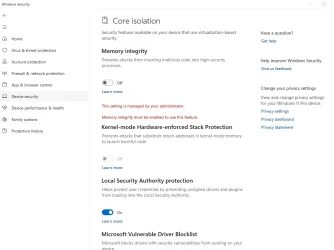
- New! This update expands memory integrity protection across eligible devices. Supported PCs may now have memory integrity (HVCI) enabled during updates to help improve security and prepare devices for advanced Windows security features, while respecting existing user or IT administrator choices. For more information, see Expanding memory integrity protection across Windows devices.

Enable or Disable Core Isolation Memory Integrity in Windows 11
This tutorial will show you how to turn on or off core isolation memory integrity in Windows 11. Core isolation is a security feature of Microsoft Windows that protects important core processes of Windows from malicious software by isolating them in memory. It does this by running those core...
www.elevenforum.com
- New! This update expands memory integrity protection across eligible devices. Supported PCs may now have memory integrity (HVCI) enabled during updates to help improve security and prepare devices for advanced Windows security features, while respecting existing user or IT administrator choices. For more information, see Expanding memory integrity protection across Windows devices.
- [Windows IPv6 networking support]
- New! Windows now supports IPv6 CLAT for Wi-Fi and Ethernet network interfaces, adding client-side 464XLAT translation so IPv4-only applications can continue reaching IPv4 services from IPv6-only networks. This helps organizations advance IPv6-only deployments while preserving compatibility for legacy IPv4 application scenarios.
- Prefix discovery: PREF64 is discovered through Router Advertisements (RA) by default, with DNS ipv4only.arpa available as a fallback.
- Requirements: CLAT requires SLAAC-based IPv6 addressing. DHCPv6 Prefix Delegation and Windows Subsystem for Linux (WSL) are not currently supported.
- Configuration: Enable CLAT by using netsh interface clat set global permit=enabled pref64fromdns=enabled pref64fromra=enabled or Group Policy under Network > TCPIP Settings > IPv6 Transition Technologies.

Windows CLAT is Now Generally Available on Windows 11
Microsoft Networking Blog: We’re pleased to announce that Windows CLAT (Customer-side Translator) is generally available on Windows 11 Client 25H2 starting with build 26200.9550. As organizations move toward IPv6-only and IPv6-mostly networks, some applications still depend on IPv4-only...
www.elevenforum.com
- New! Windows now supports IPv6 CLAT for Wi-Fi and Ethernet network interfaces, adding client-side 464XLAT translation so IPv4-only applications can continue reaching IPv4 services from IPv6-only networks. This helps organizations advance IPv6-only deployments while preserving compatibility for legacy IPv4 application scenarios.
- [Data Protection API (DPAPI)]
- New! This update adds a warning before prompt-based protect and unprotect operations. The warning explains that this prompt-based experience will be retired in April 2027. If you or an app use these prompts, stop creating new prompt-protected data, use a supported non-interactive protection flow, and decrypt or migrate existing prompt-protected data before retirement. DPAPI operations that do not use the prompt-based flow aren't affected. For more details, see CRYPTPROTECT_PROMPTSTRUCT structure (dpapi.h).
- [Windows Spotlight]
- This update makes underlying platform changes to generally improve Windows Spotlight reliability on the lock screen.

Change Lock Screen Background to Spotlight, Picture, or Slideshow in Windows 11
This tutorial will show you different ways to change the lock screen background to Windows Spotlight, a picture, or slideshow for your account in Windows 11. The lock screen (aka: welcome screen) is the screen you see at startup and when you lock (Win+L) the PC. You will need to dismiss the...
www.elevenforum.com
- This update makes underlying platform changes to generally improve Windows Spotlight reliability on the lock screen.
- [Unicode]
- This update provides Windows text shaping support for Unicode 17.0, helping Windows correctly display and shape newly encoded characters and scripts. Unicode 17.0 added 4,803 characters, including support for four newly encoded scripts: Beria Erfe, Sidetic, Tai Yo, and Tolong Siki. These updates help keep Windows text support current as the Unicode Standard evolves and improve support for languages and writing systems used by people around the world.
Normal rollout
This non-security update includes quality improvements. The following summary outlines key issues addressed by the KB update after you install it. Also, included are available new features. The bold text within the brackets indicates the item or area of the change.
- [Microsoft Edge on Windows now supports Accelerated App Launch]
- New! Microsoft Edge now opens faster and more consistently on Windows, with the biggest improvements when your device is busy or under load. Accelerated app launch streamlines how Windows launches Edge when it's already running in the background, reducing launch delays when you open a link or launch Edge from the taskbar or Start menu.
- This capability is available on Windows 11, version 25H2, 26H2, and 26H1, with Microsoft Edge version 150 or later required.
- New! Microsoft Edge now opens faster and more consistently on Windows, with the biggest improvements when your device is busy or under load. Accelerated app launch streamlines how Windows launches Edge when it's already running in the background, reducing launch delays when you open a link or launch Edge from the taskbar or Start menu.
- [App management]
- New! Policy-based in-box app removal now supports multi-session environments. IT administrators can use the existing policy-based app removal capability to manage the removal of supported in-box apps on Windows 11 Enterprise and Education devices in multi-session environments.
- To learn more, see Policy-based in-box app removal.
- [Remote Desktop (Known issue)] Fixed
- This update addresses an issue that prevented non-admin users from establishing Remote Desktop connections to remote devices with Administrator protection enabled. Affected connections might have failed with error 0xC000000D and displayed the message, “The token that was passed to the function is invalid.”
- This update addresses an issue that prevents the “Specify thumbprints of certificates representing trusted .rdp publishers” policy from being configured through Microsoft Intune.
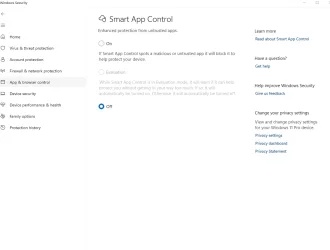
- [Smart App Control (Known issue)] Fixed This update fixes an issue where you might be unable to turn on Smart App Control in the Windows Security app after it has been turned off. On affected devices, the option to turn on Smart App Control might be grayed out.

Turn On or Off Smart App Control in Windows 11
This tutorial will show you how to manually turn on or off Smart App Control in Windows 11. Smart App Control (SAC) is a new security feature starting with Windows 11 build 22567. Smart App Control can work alongside your other security software, such as Microsoft Defender, for added...
www.elevenforum.com
- [Windows PowerShell] This update adds version 5.1 to the names of Windows PowerShell and Windows PowerShell Integrated Scripting Environment (ISE). On existing devices, some Start menu shortcuts might retain their previous names after you install this update.
- Audio This update fixes an issue where HDMI and DisplayPort audio playback might fail on certain AMD graphics cards.
- [Application Control] This update addresses an issue that could prevent a device from starting after using the PS_UpdateAndCompareCIPolicy CIM method.
- [Certificates] This update addresses an issue where TPM attestation identity key (AIK) certificate enrollment could stop responding when a non-Microsoft CNG key storage provider reported a malformed algorithm name or faulted during provider enumeration.
- [Windows Sandbox] This update addresses an issue where Windows Sandbox might close unexpectedly and display error 0x80370106 while in use.
- [BitLocker] This update improves BitLocker pre-boot PIN retry handling to prevent unintended repeated submissions from causing TPM dictionary-attack lockout and recovery.
- [Smart cards] This update adds support for RSA-3072 keys on supported Personal Identity Verification (PIV) smart cards in the Windows smart card minidriver.
- [Always On VPN] This update fixes an issue that affects Always On VPN connections after installing September security update. When automatic protocol selection or protocol fallback was configured, affected VPN connections could remain stuck in a Connecting state or fail to connect after an initial connection attempt failed. In some cases, subsequent connection attempts could display the error, "The specified port is already in use."
- [Windows Subsystem for Linux (WSL)] This update fixes an issue where nested virtualization might not be available in Windows Subsystem for Linux version 2 (WSL2) on devices with AMD processors.
Components updates
AI componentsThis release updates the following AI components to version 1.2610.1063.0: Image Search, Content Extraction, Semantic Analysis, and Settings Model.
To learn more, see Release information for AI components.
Servicing stack update (SSU)
Microsoft combines the latest servicing stack update (SSU) for your operating system with the latest cumulative update (LCU). This Windows update includes KB5132402 (Build 26100.9815), which improves the reliability of the Windows update installation process. To learn more about SSUs, see Servicing stack updates.
Known issues in this update
Symptoms
After installing the September 8, 2026, Windows security update, some USB Audio Class 1.0 devices might fail to start or produce audio. Affected devices might experience one or more of the following symptoms:
Resolution
Microsoft is working on a resolution and will update this documentation when more information is available.
After installing the September 8, 2026, Windows security update, some USB Audio Class 1.0 devices might fail to start or produce audio. Affected devices might experience one or more of the following symptoms:
- The device displays an error in Device Manager: "This device cannot start (Code 10)."
- No audio output.
- Volume controls are unresponsive or remain at zero.
- Sound settings are unresponsive or unavailable.
Resolution
Microsoft is working on a resolution and will update this documentation when more information is available.
How to get this update
Before you install this update
- For Windows Update: For Windows 11, version 24H2 and Windows 11, version 25H2, you must have the Windows update released on or after June 10, 2025 (such as KB5060842) installed before installing this update.
- For Windows Server Update Services (WSUS) deployment or when installing the standalone package from Microsoft Update Catalog: For Windows 11, version 24H2 and Windows 11, version 25H2, you must have the Windows update released on or after June 10, 2025 (such as KB5060842) installed before installing this update.
- For Servicing Stack Update (SSU): You must have the latest SSU installed to install this update.
Deployment
If you deploy dynamic updates such as this update to an existing Windows image, ensure the boot.stl file is included as part of the installation media. Failure to include the file might prevent devices from successfully starting from the installation media and can result in error code 0xc0430001.
Note: The boot.stl file is used during Secure Boot validation and must match the Windows version and architecture of the image you are updating.
To ensure the boot.stl file is included as part of the installation media, do one of the following:
- Use the Update WinPE script to update an existing Windows image. (Recommended)
- Manually copy the boot.stl file from the device Windows\Boot\EFI folder to the corresponding folder on your installation media before deploying the update.
Install this update
To install this update, use one of the following Windows and Microsoft release channels.| Available | Next Step |
|---|---|

| Open Start

|
|
| To install this update, download the standalone package(s) for this update from the Microsoft Update Catalog. This update contains MSU files that require installation in a specific order. Follow the Arm64 installation instructions or x64 installation instructions, as appropriate. If you install additional Dynamic Update packages, use versions from the same release month as this update. If a Safe OS Dynamic Update or Setup Dynamic Update is not available for the same release month, use the most recently released version. Note This latest cumulative update includes updates for AI components. AI components are applicable only to Copilot+ PCs and will not install on other Windows client PCs or Windows Server. |
File information
A list of the files that are included in this update are provided in a CSV (Comma delimited) (*.csv) file. The file can be opened in a text editor such as Notepad or in Microsoft Excel.Note The English (United States) version of this software update might contain files for additional languages.

Source:
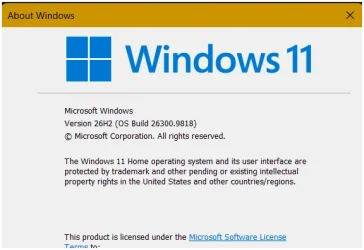
October 28, 2026— KB5127936 (OS Builds 26300.9813 and 26200.9818) Preview | Microsoft Support
October 28, 2026— KB5127936 (OS Builds 26300.9813 and 26200.9818) Preview
 support.microsoft.com
Check Windows Updates
UUP Dump:
64-bit ISO download:

Select language for Windows 11, version 25H2 (26200.9818) amd64
Select language for Windows 11, version 25H2 (26200.9818) amd64 on UUP dump. UUP dump lets you download Unified Update Platform files, like Windows Insider updates, directly from Windows Update.
uupdump.net
Select language for Windows 11, version 26H2 (26300.9818) amd64
Select language for Windows 11, version 26H2 (26300.9818) amd64 on UUP dump. UUP dump lets you download Unified Update Platform files, like Windows Insider updates, directly from Windows Update.
uupdump.net
ARM64 ISO download:
Select language for Windows 11, version 25H2 (26200.9818) arm64
Select language for Windows 11, version 25H2 (26200.9818) arm64 on UUP dump. UUP dump lets you download Unified Update Platform files, like Windows Insider updates, directly from Windows Update.
uupdump.net
Select language for Windows 11, version 26H2 (26300.9818) arm64
Select language for Windows 11, version 26H2 (26300.9818) arm64 on UUP dump. UUP dump lets you download Unified Update Platform files, like Windows Insider updates, directly from Windows Update.
uupdump.net

UUP Dump - Download Windows Insider ISO
UUP Dump is the most practical and easy way to get ISO images of any Insider Windows 10 or Windows 11 version, as soon as Microsoft has released a new build. UUP Dump creates a download configuration file according to your choices, downloads necessary files directly from Microsoft servers, and...
www.elevenforum.com
Last edited:





 Sound by Fosi Audio DA-2120C pushing Magnat Series 503 bookshelf speakers and a SVS SB-1000 Pro subwoofer.