Solved Lenovo X1 will not go into sleep mode when lid closed and power connected


RandySea

Active member
Local time
9:46 AM
Posts
52
OS
Windows 11 Pro
ThinkPad X1 Carbon Gen 10, Windows 11 Pro 24H2


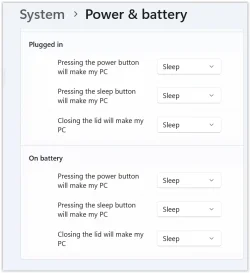
I have lid closing set to put my laptop to sleep, whether it's charging or on battery.. It will only do this if the power is disconnected, and then only after some minutes have passed. I would really like it to Sleep when I close the lid, for security purposes. The lid setting is in Windows. See attached screen shot.


I might add that if it does go to sleep with power disconnected, after a while it goes into Hibernate, which I do not want.
 

Attachments

  • Screen Shot 09-27-25 at 02.17 PM.webp
    Screen Shot 09-27-25 at 02.17 PM.webp
    24.9 KB · Views: 3

My Computers

System One System Two

  • OS
    Windows 11 Pro
    Computer type
    Laptop
    Manufacturer/Model
    Lenovo X1 Extreme 21CS
    CPU
    Intel
    Hard Drives
    2 TB SSD
    Internet Speed
    9 Kbps (rural Internet!)
    Browser
    Firefox
    Antivirus
    Windows Defender
  • Operating System
    Windows 11 Pro
    Computer type
    Laptop
    Manufacturer/Model
    Lenovo X1 Extreme 21CB
    CPU
    Intel
    Motherboard
    OEM
I might add that if it does go to sleep with power disconnected, after a while it goes into Hibernate, which I do not want.
First, let's check if you are indeed using hibernate. .
Please open a command prompt as admin and type powercfg -a
Post a screenshot of your current power configuration.

After we see your power configuration and verify your state here are things to try:

1. Make sure you have latest UEFI bios installed.

2. Check Lenovo Vantage or BIOS Settings
Lenovo Vantage or BIOS may override Windows settings:

Open Lenovo Vantage (or install it from the Microsoft Store).
Go to Power or Thermal Settings and look for any “Smart Power” or “Always On USB” options that might prevent sleep.
Restart and test.

To check BIOS:
Restart your laptop and press F1 or Enter during boot to enter BIOS.
Look for Power or Config tabs.
Ensure “Lid Close” behavior is set to Sleep.
Save and exit.

3. Disable Wake Timers
Go to Power Options → Edit Plan Settings → Change advanced power settings.
Expand Sleep → Allow wake timers.
Set both On battery and Plugged in to Disable.

4. Run Power Troubleshooter
Open Settings → System → Troubleshoot → Other troubleshooters.
Run the Power troubleshooter to detect and fix issues.

5. Check for Background Apps or Devices
Some apps or connected devices (like USB peripherals) can prevent sleep.
Try disconnecting all external devices and closing background apps.
Use powercfg /requests in Command Prompt as admin to see what processes or devices are preventing sleep.
What to look for:
Drivers or Processes listed under SYSTEM or DISPLAY are common culprits.
If you see something like chrome.exe, try closing Chrome and test again.
If it’s a device (e.g., USB Audio), unplug it and retest.

6. From command prompt as admin type: powercfg /lastwake
This shows what last woke your system from sleep.

If it’s a device, you can disable its ability to wake the system:
Open Device Manager → find the device (e.g., USB controller).
Right-click → Properties → Power Management tab.
Uncheck “Allow this device to wake the computer.”

7. Test sleep while in a clean boot state. This eliminates some software conflict that is preventing sleep. If it doesn't happen in a clean boot, you have some software conflicting with Windows. You have to use process of elimination to find which one. Perform a Clean Boot in Windows 11 to Troubleshoot Software Conflicts Tutorial

All that said. I believe your problem will end up being caused by Modern Standby. Most questions we get involving sleep/wake issues in laptops lead back to modern standby. Rather than using s3 sleep as what we are accustomed to, modern laptops use s0 sleep called modern standby. Some but not all laptop bios allow the user to enable s3 sleep which solves most sleep/wake issues. However other laptops will not. In those cases, using hibernate is a better option than s0 sleep.

To understand the different sleep states, refer to the explanation in this old thread. Once you have tried all the above suggestions, if you still have the problem you may want to try the suggestions in that thread to see if your device will let you enable s3 sleep.
 

My Computers

System One System Two

  • OS
    Windows 11 Pro 25H2
    Computer type
    PC/Desktop
    Manufacturer/Model
    Dell Optiplex 7080
    CPU
    i9-10900 10 core 20 threads
    Motherboard
    DELL 0J37VM
    Memory
    32 gb
    Graphics Card(s)
    none-Intel UHD Graphics 630
    Sound Card
    Integrated Realtek
    Monitor(s) Displays
    Benq 27
    Screen Resolution
    2560x1440
    Hard Drives
    2x1tb Solidigm m.2 nvme /External drives 512gb Samsung m.2 sata+2tb Kingston m2.nvme
    PSU
    500w
    Case
    MT
    Cooling
    Dell Premium
    Keyboard
    Logitech wired
    Mouse
    Logitech wireless
    Internet Speed
    so slow I'm too embarrassed to tell
    Browser
    #1 Edge #2 Firefox
    Antivirus
    Defender+MWB Premium
  • Operating System
    Windows 11 Pro 24H2 26200.8457
    Computer type
    PC/Desktop
    Manufacturer/Model
    Beelink Mini PC SER5
    CPU
    AMD Ryzen 7 6800U
    Memory
    32 gb
    Graphics card(s)
    integrated
    Sound Card
    integrated
    Monitor(s) Displays
    Benq 27
    Screen Resolution
    2560x1440
    Hard Drives
    1TB Crucial nvme
    Keyboard
    Logitech wired
    Mouse
    Logitech wireless
    Internet Speed
    still too embarrassed to tell
    Browser
    Firefox
    Antivirus
    Defender
    Other Info
    System 3 is non compliant Dell 9020 i7-4770/24gb ram Win11 PRO 26200.8457
I'VE MADE A START ON YOUR LIST OF THINGS TO TRY. THEY ARE MARKED IN ALL CAPS. WILL TRY MORE LATER, AFTER I SEE IF ANY MAKE A DIFFERENCE.

First, let's check if you are indeed using hibernate. .
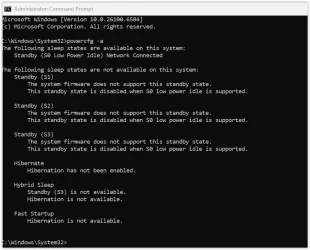
Please open a command prompt as admin and type powercfg -a
Post a screenshot of your current power configuration.

After we see your power configuration and verify your state here are things to try:
DONE - ATTACHED

1. Make sure you have latest UEFI bios installed.
I REGULARLY CHECK VANTAGE AND INSTALL EVERY BIOS UPDATE I'M GIVEN.
RIGHT NOW MY VERSION IS N3AET87W (1.52 )
2. Check Lenovo Vantage or BIOS Settings
Lenovo Vantage or BIOS may override Windows settings:

Open Lenovo Vantage (or install it from the Microsoft Store).
Go to Power or Thermal Settings and look for any “Smart Power” or “Always On USB” options that might prevent sleep.
Restart and test.
HAVE DONE THIS JUST NOW, BUT NOT REBOOTED YET

To check BIOS:
Restart your laptop and press F1 or Enter during boot to enter BIOS.
Look for Power or Config tabs.
Ensure “Lid Close” behavior is set to Sleep.
Save and exit.
I DO NOT FIND ANY "LID CLOSE" SETTINGS UNDER POWER OR CONFIG TABS
3. Disable Wake Timers
Go to Power Options → Edit Plan Settings → Change advanced power settings.
Expand Sleep → Allow wake timers.
Set both On battery and Plugged in to Disable.

4. Run Power Troubleshooter
Open Settings → System → Troubleshoot → Other troubleshooters.
Run the Power troubleshooter to detect and fix issues.
I DON'T SEE ANY POWER TROUBLESHOOTER UNDER "OTHER TROUBLESHOOTERS"
5. Check for Background Apps or Devices
Some apps or connected devices (like USB peripherals) can prevent sleep.
NO USB PERIPHERALS CONNECTED
Try disconnecting all external devices and closing background apps.
Use powercfg /requests in Command Prompt as admin to see what processes or devices are preventing sleep.
What to look for:
Drivers or Processes listed under SYSTEM or DISPLAY are common culprits.
If you see something like chrome.exe, try closing Chrome and test again.
If it’s a device (e.g., USB Audio), unplug it and retest.

6. From command prompt as admin type: powercfg /lastwake
This shows what last woke your system from sleep.

If it’s a device, you can disable its ability to wake the system:
Open Device Manager → find the device (e.g., USB controller).
Right-click → Properties → Power Management tab.
Uncheck “Allow this device to wake the computer.”

7. Test sleep while in a clean boot state. This eliminates some software conflict that is preventing sleep. If it doesn't happen in a clean boot, you have some software conflicting with Windows. You have to use process of elimination to find which one. Perform a Clean Boot in Windows 11 to Troubleshoot Software Conflicts Tutorial

All that said. I believe your problem will end up being caused by Modern Standby. Most questions we get involving sleep/wake issues in laptops lead back to modern standby. Rather than using s3 sleep as what we are accustomed to, modern laptops use s0 sleep called modern standby. Some but not all laptop bios allow the user to enable s3 sleep which solves most sleep/wake issues. However other laptops will not. In those cases, using hibernate is a better option than s0 sleep.

To understand the different sleep states, refer to the explanation in this old thread. Once you have tried all the above suggestions, if you still have the problem you may want to try the suggestions in that thread to see if your device will let you enable s3 sleep.
 

Attachments

  • Screen Shot 09-28-25 at 01.37 PM.webp
    Screen Shot 09-28-25 at 01.37 PM.webp
    63.6 KB · Views: 2

My Computers

System One System Two

  • OS
    Windows 11 Pro
    Computer type
    Laptop
    Manufacturer/Model
    Lenovo X1 Extreme 21CS
    CPU
    Intel
    Hard Drives
    2 TB SSD
    Internet Speed
    9 Kbps (rural Internet!)
    Browser
    Firefox
    Antivirus
    Windows Defender
  • Operating System
    Windows 11 Pro
    Computer type
    Laptop
    Manufacturer/Model
    Lenovo X1 Extreme 21CB
    CPU
    Intel
    Motherboard
    OEM
I have done some more and also got out a timer. What I realize now may be a different issue than where I started this post. .

First, I am now assuming that when I close the lid with power disconnected, if the light (the dot on the "i" in Thinkpad) is flashing the laptop is in Sleep mode. But if I then open the lid, I do not get a password prompt. I have to leave the laptop in sleep mode much longer for opening the lid to require re-entering a Windows password.

I thought any time the laptop is in Sleep mode, waking it up would be to a locked screen. That is actually what I want for security reasons. I've looked through various menus but can't find a setting for this.

I think the behavior is the same when I close the lid with power connected. At least, that light starts blinking and the laptop starts up with no password prompt.

Next I'll see what happens if I don't close the lid.
 

My Computers

System One System Two

  • OS
    Windows 11 Pro
    Computer type
    Laptop
    Manufacturer/Model
    Lenovo X1 Extreme 21CS
    CPU
    Intel
    Hard Drives
    2 TB SSD
    Internet Speed
    9 Kbps (rural Internet!)
    Browser
    Firefox
    Antivirus
    Windows Defender
  • Operating System
    Windows 11 Pro
    Computer type
    Laptop
    Manufacturer/Model
    Lenovo X1 Extreme 21CB
    CPU
    Intel
    Motherboard
    OEM
I DON'T SEE ANY POWER TROUBLESHOOTER UNDER "OTHER TROUBLESHOOTERS"
Sorry abut that, MS removed that from the troubleshoot section. My bad.
 

My Computers

System One System Two

  • OS
    Windows 11 Pro 25H2
    Computer type
    PC/Desktop
    Manufacturer/Model
    Dell Optiplex 7080
    CPU
    i9-10900 10 core 20 threads
    Motherboard
    DELL 0J37VM
    Memory
    32 gb
    Graphics Card(s)
    none-Intel UHD Graphics 630
    Sound Card
    Integrated Realtek
    Monitor(s) Displays
    Benq 27
    Screen Resolution
    2560x1440
    Hard Drives
    2x1tb Solidigm m.2 nvme /External drives 512gb Samsung m.2 sata+2tb Kingston m2.nvme
    PSU
    500w
    Case
    MT
    Cooling
    Dell Premium
    Keyboard
    Logitech wired
    Mouse
    Logitech wireless
    Internet Speed
    so slow I'm too embarrassed to tell
    Browser
    #1 Edge #2 Firefox
    Antivirus
    Defender+MWB Premium
  • Operating System
    Windows 11 Pro 24H2 26200.8457
    Computer type
    PC/Desktop
    Manufacturer/Model
    Beelink Mini PC SER5
    CPU
    AMD Ryzen 7 6800U
    Memory
    32 gb
    Graphics card(s)
    integrated
    Sound Card
    integrated
    Monitor(s) Displays
    Benq 27
    Screen Resolution
    2560x1440
    Hard Drives
    1TB Crucial nvme
    Keyboard
    Logitech wired
    Mouse
    Logitech wireless
    Internet Speed
    still too embarrassed to tell
    Browser
    Firefox
    Antivirus
    Defender
    Other Info
    System 3 is non compliant Dell 9020 i7-4770/24gb ram Win11 PRO 26200.8457
According to your screenshot your system is not hibernating as you mentioned in your first post, but is using modern standby s0 sleep. Hibernation is disabled.
If you are unable to enable s3 (or don't want to even if you can) using hibernate is your only other option. Sorry but that's the nature of modern laptops.
 

My Computers

System One System Two

  • OS
    Windows 11 Pro 25H2
    Computer type
    PC/Desktop
    Manufacturer/Model
    Dell Optiplex 7080
    CPU
    i9-10900 10 core 20 threads
    Motherboard
    DELL 0J37VM
    Memory
    32 gb
    Graphics Card(s)
    none-Intel UHD Graphics 630
    Sound Card
    Integrated Realtek
    Monitor(s) Displays
    Benq 27
    Screen Resolution
    2560x1440
    Hard Drives
    2x1tb Solidigm m.2 nvme /External drives 512gb Samsung m.2 sata+2tb Kingston m2.nvme
    PSU
    500w
    Case
    MT
    Cooling
    Dell Premium
    Keyboard
    Logitech wired
    Mouse
    Logitech wireless
    Internet Speed
    so slow I'm too embarrassed to tell
    Browser
    #1 Edge #2 Firefox
    Antivirus
    Defender+MWB Premium
  • Operating System
    Windows 11 Pro 24H2 26200.8457
    Computer type
    PC/Desktop
    Manufacturer/Model
    Beelink Mini PC SER5
    CPU
    AMD Ryzen 7 6800U
    Memory
    32 gb
    Graphics card(s)
    integrated
    Sound Card
    integrated
    Monitor(s) Displays
    Benq 27
    Screen Resolution
    2560x1440
    Hard Drives
    1TB Crucial nvme
    Keyboard
    Logitech wired
    Mouse
    Logitech wireless
    Internet Speed
    still too embarrassed to tell
    Browser
    Firefox
    Antivirus
    Defender
    Other Info
    System 3 is non compliant Dell 9020 i7-4770/24gb ram Win11 PRO 26200.8457
Latest test:
Lid up, on battery. Light flashing and screen dark after 3 minutes, which is the default setting for sleep on battery. I have to leave the machine alone for 15 or 20 minutes before the screen will be locked on wakeup. Not what I want.

Is is it possible for the screen to be locked whenever the laptop goes into sleep mode?
 

My Computers

System One System Two

  • OS
    Windows 11 Pro
    Computer type
    Laptop
    Manufacturer/Model
    Lenovo X1 Extreme 21CS
    CPU
    Intel
    Hard Drives
    2 TB SSD
    Internet Speed
    9 Kbps (rural Internet!)
    Browser
    Firefox
    Antivirus
    Windows Defender
  • Operating System
    Windows 11 Pro
    Computer type
    Laptop
    Manufacturer/Model
    Lenovo X1 Extreme 21CB
    CPU
    Intel
    Motherboard
    OEM
Sorry abut that, MS removed that from the troubleshoot section. My bad.

To run the power troubleshooter in Windows 11 when it's not in the Settings list, you can use the command-line command: press the Windows key + R, type msdt.exe /id PowerDiagnostic, and press Enter to open and run the troubleshooter.

Still works, just tried it in Windows 11 25H2
 

My Computers

System One System Two

  • OS
    Windows 11 Pro 25H2 Build 26200.8524
    Computer type
    PC/Desktop
    Manufacturer/Model
    Sin-built 2013
    CPU
    Intel(R) Core(TM) i7-4770K CPU @ 3.50GHz
    Motherboard
    ASUS ROG Maximus VI Formula
    Memory
    32.0 GB of I forget and the box is in storage.
    Graphics Card(s)
    Gigabyte nVidia GeForce GTX 1660 Super OC 6GB
    Sound Card
    Onboard thingy
    Monitor(s) Displays
    5 x LG 25MS500-B - 1 x 24MK430H-B - 1 x Wacom Pro 22" Touch Screen Tablet
    Screen Resolution
    All over the place
    Hard Drives
    Too many to list.
    OS on Samsung 1TB 870 QVO SATA
    PSU
    Silverstone 1500
    Case
    NZXT Phantom 820 Full-Tower Case
    Cooling
    Noctua NH-D15 Elite Class Dual Tower CPU Cooler / 6 x EziDIY 120mm / 2 x Corsair 140mm somethings / 1 x 140mm Thermaltake something / 2 x 200mm Corsair.
    Keyboard
    Corsair K95 / Logitech diNovo Edge Wireless
    Mouse
    Logitech: G402 / G502 / Mx Masters / Mx Air Cordless
    Internet Speed
    2000/500Mbps
    Browser
    All sorts
    Antivirus
    Kaspersky Premium
    Other Info
    ㅤㅤㅤㅤㅤㅤㅤㅤㅤㅤㅤㅤㅤㅤㅤㅤㅤㅤㅤㅤㅤㅤㅤㅤㅤㅤㅤㅤㅤㅤㅤㅤㅤㅤㅤㅤㅤㅤㅤㅤ⠀⠀⠀⠀⠀⠀⠀⠀⠀⠀
    TP-Link BE9300 WiFi 7 Bluetooth 5.4 (Archer TBE550E)
    TP-Link TX201 V1 2.5GB Lan

    Grandstream HT812 - VoIP
    ASUS DSL-AX82U - Mesh
    ASUS RT-AC68U - Mesh
    ASUS RT-BE88U Router

    Brother MFC-L2880DW Printer

    I’m on a horse.
  • Operating System
    Windows 11 Pro 25H2 Build 26200.8524
    Computer type
    Laptop
    Manufacturer/Model
    LENOVO Yoga 7 14IRL8 - 7i EVO OLED 14" Touchscreen i5 12 Core 16GB/512GB
    CPU
    Intel Core 12th Gen i5-1240P Processor (1.7 - 4.4GHz)
    Memory
    16GB LPDDR5 RAM
    Graphics card(s)
    Intel Iris Xe Graphics Processor
    Sound Card
    Optimized with Dolby Atmos®
    Screen Resolution
    QHD 2880 x 1800 OLED
    Hard Drives
    M.2 512GB
    Antivirus
    Defender / Malwarebytes
    Other Info
    …still on a horse.
You can reset the power settings via Windows key + R, powercfg -restoredefaultschemes if that helps
 

My Computers

System One System Two

  • OS
    Windows 11 Pro 25H2 Build 26200.8524
    Computer type
    PC/Desktop
    Manufacturer/Model
    Sin-built 2013
    CPU
    Intel(R) Core(TM) i7-4770K CPU @ 3.50GHz
    Motherboard
    ASUS ROG Maximus VI Formula
    Memory
    32.0 GB of I forget and the box is in storage.
    Graphics Card(s)
    Gigabyte nVidia GeForce GTX 1660 Super OC 6GB
    Sound Card
    Onboard thingy
    Monitor(s) Displays
    5 x LG 25MS500-B - 1 x 24MK430H-B - 1 x Wacom Pro 22" Touch Screen Tablet
    Screen Resolution
    All over the place
    Hard Drives
    Too many to list.
    OS on Samsung 1TB 870 QVO SATA
    PSU
    Silverstone 1500
    Case
    NZXT Phantom 820 Full-Tower Case
    Cooling
    Noctua NH-D15 Elite Class Dual Tower CPU Cooler / 6 x EziDIY 120mm / 2 x Corsair 140mm somethings / 1 x 140mm Thermaltake something / 2 x 200mm Corsair.
    Keyboard
    Corsair K95 / Logitech diNovo Edge Wireless
    Mouse
    Logitech: G402 / G502 / Mx Masters / Mx Air Cordless
    Internet Speed
    2000/500Mbps
    Browser
    All sorts
    Antivirus
    Kaspersky Premium
    Other Info
    ㅤㅤㅤㅤㅤㅤㅤㅤㅤㅤㅤㅤㅤㅤㅤㅤㅤㅤㅤㅤㅤㅤㅤㅤㅤㅤㅤㅤㅤㅤㅤㅤㅤㅤㅤㅤㅤㅤㅤㅤ⠀⠀⠀⠀⠀⠀⠀⠀⠀⠀
    TP-Link BE9300 WiFi 7 Bluetooth 5.4 (Archer TBE550E)
    TP-Link TX201 V1 2.5GB Lan

    Grandstream HT812 - VoIP
    ASUS DSL-AX82U - Mesh
    ASUS RT-AC68U - Mesh
    ASUS RT-BE88U Router

    Brother MFC-L2880DW Printer

    I’m on a horse.
  • Operating System
    Windows 11 Pro 25H2 Build 26200.8524
    Computer type
    Laptop
    Manufacturer/Model
    LENOVO Yoga 7 14IRL8 - 7i EVO OLED 14" Touchscreen i5 12 Core 16GB/512GB
    CPU
    Intel Core 12th Gen i5-1240P Processor (1.7 - 4.4GHz)
    Memory
    16GB LPDDR5 RAM
    Graphics card(s)
    Intel Iris Xe Graphics Processor
    Sound Card
    Optimized with Dolby Atmos®
    Screen Resolution
    QHD 2880 x 1800 OLED
    Hard Drives
    M.2 512GB
    Antivirus
    Defender / Malwarebytes
    Other Info
    …still on a horse.
I went through this a couple of years ago with my Lenovo P16s. The only thing that worked long term was this:

Go to Control Panel>Security and Maintenance. Under Maintenance, look for Start Maintenance. Click that and let it run, even if it says it was run recently. It may take several hours to complete in the background. I keep the laptop awake during this process (using Power Toys).

Other solutions may work very temporarily. In my case, the issue would soon return. The Maintenance solution works almost permanently for me. I had to run it a few days ago for maybe the third time in 2.5 years.

YMMV. Good luck!
 

My Computers

System One System Two

  • OS
    Windows 11 Pro 24H2
    Computer type
    Laptop
    Manufacturer/Model
    Lenovo P16s Workstation
    CPU
    Intel i7-1260P 12th Gen 4.7GHz
    Memory
    32GB DDR4-3200
    Graphics Card(s)
    NVIDIA T550 Laptop GPU
    Sound Card
    Realtek Audio
    Monitor(s) Displays
    16" Laptop Display
    Screen Resolution
    2560x1600
    Hard Drives
    2TB Samsung M.2 2280 SSD PCIe 4.0 x 4 NVMe
    Mouse
    Logitech MX Anywhere 2s
    Internet Speed
    1000 Mb
    Browser
    Firefox
    Antivirus
    Avast
  • Operating System
    Windows 11 Pro 24H2
    Computer type
    Laptop
    Manufacturer/Model
    Lenovo P50 Workstation
    CPU
    i7-6820HQ 6th Gen 3.6 GHz
    Memory
    32GB DDR4-2133
    Graphics card(s)
    NVIDIA Quadro M2000M Laptop GPU
    Sound Card
    Realtek Audio
    Monitor(s) Displays
    15.6" Laptop Display
    Screen Resolution
    1920x1080
    Hard Drives
    2 x 1TB Samsung M.2 2280 SSD PCIe 3.0 x 4 NVMe
    Cooling
    Dual Fan System
    Mouse
    Logitech MX Anywhere 2s
    Internet Speed
    1000 Mb
    Browser
    Firefox
    Antivirus
    Avast
The command line you posted got me to the troubleshooter. It found lots of things to "fix", but every one was simply that my times for screen and hard drive on and off battery were longer than the default settings.

It also said troubleshooters were being retired. Unclear what if anything will replace them.

I'VE MADE A START ON YOUR LIST OF THINGS TO TRY. THEY ARE MARKED IN ALL CAPS. WILL TRY MORE LATER, AFTER I SEE IF ANY MAKE A DIFFERENCE.


I REGULARLY CHECK VANTAGE AND INSTALL EVERY BIOS UPDATE I'M GIVEN.
RIGHT NOW MY VERSION IS N3AET87W (1.52 )


I DO NOT FIND ANY "LID CLOSE" SETTINGS UNDER POWER OR CONFIG TABS

I DON'T SEE ANY POWER TROUBLESHOOTER UNDER "OTHER TROUBLESHOOTERS"

NO USB PERIPHERALS CONNECTED
According to your screenshot your system is not hibernating as you mentioned in your first post, but is using modern standby s0 sleep. Hibernation is disabled.
If you are unable to enable s3 (or don't want to even if you can) using hibernate is your only other option. Sorry but that's the nature of modern laptops.

To run the power troubleshooter in Windows 11 when it's not in the Settings list, you can use the command-line command: press the Windows key + R, type msdt.exe /id PowerDiagnostic, and press Enter to open and run the troubleshooter.

Still works, just tried it in Windows 11 25H2
 

My Computers

System One System Two

  • OS
    Windows 11 Pro
    Computer type
    Laptop
    Manufacturer/Model
    Lenovo X1 Extreme 21CS
    CPU
    Intel
    Hard Drives
    2 TB SSD
    Internet Speed
    9 Kbps (rural Internet!)
    Browser
    Firefox
    Antivirus
    Windows Defender
  • Operating System
    Windows 11 Pro
    Computer type
    Laptop
    Manufacturer/Model
    Lenovo X1 Extreme 21CB
    CPU
    Intel
    Motherboard
    OEM
Sleep does take power, more than Hibernate.

"I might add that if it does go to sleep with power disconnected, after a while it goes into Hibernate, which I do not want."

That is because of a couple of reasons:
1. The obvious one is that there is not enough battery power left to maintain Sleep.
2. Look at your Control Panel > Power Options > Change plan settings > Change advanced power settings.

In there you will find sections for Sleep, Hibernate, Battery, Critical/Low battery levels and actions.

Adjust to suit. The battery levels assume a recent calibration, in reality they would be a bit lower.
 

My Computer

System One

  • OS
    Windows 11
  1. Uninstall Lenovo Vantage Service & Lenovo Vantage application from the Apps and Feature page.
  2. Open Device Manager > expand System devices > scroll down to look for System Interface Foundation V2 Device then Right-click and Uninstall Device.
  3. Restart your computer.
  4. Install the Lenovo Vantage from Microsoft Store. Do not launch/open it yet.
  5. Download and install Lenovo System Interface Foundation using this link Lenovo System Interface Foundation for Windows 11
  6. Launch Lenovo Vantage (the above service will be installed automatically) and check its functionality. Look for the power settings in Vantage, see what’s available, see if this helps the laptop respond to sleep when power is attached.
 
Last edited:

My Computers

System One System Two

  • OS
    Windows 11 Pro 25H2 Build 26200.8524
    Computer type
    PC/Desktop
    Manufacturer/Model
    Sin-built 2013
    CPU
    Intel(R) Core(TM) i7-4770K CPU @ 3.50GHz
    Motherboard
    ASUS ROG Maximus VI Formula
    Memory
    32.0 GB of I forget and the box is in storage.
    Graphics Card(s)
    Gigabyte nVidia GeForce GTX 1660 Super OC 6GB
    Sound Card
    Onboard thingy
    Monitor(s) Displays
    5 x LG 25MS500-B - 1 x 24MK430H-B - 1 x Wacom Pro 22" Touch Screen Tablet
    Screen Resolution
    All over the place
    Hard Drives
    Too many to list.
    OS on Samsung 1TB 870 QVO SATA
    PSU
    Silverstone 1500
    Case
    NZXT Phantom 820 Full-Tower Case
    Cooling
    Noctua NH-D15 Elite Class Dual Tower CPU Cooler / 6 x EziDIY 120mm / 2 x Corsair 140mm somethings / 1 x 140mm Thermaltake something / 2 x 200mm Corsair.
    Keyboard
    Corsair K95 / Logitech diNovo Edge Wireless
    Mouse
    Logitech: G402 / G502 / Mx Masters / Mx Air Cordless
    Internet Speed
    2000/500Mbps
    Browser
    All sorts
    Antivirus
    Kaspersky Premium
    Other Info
    ㅤㅤㅤㅤㅤㅤㅤㅤㅤㅤㅤㅤㅤㅤㅤㅤㅤㅤㅤㅤㅤㅤㅤㅤㅤㅤㅤㅤㅤㅤㅤㅤㅤㅤㅤㅤㅤㅤㅤㅤ⠀⠀⠀⠀⠀⠀⠀⠀⠀⠀
    TP-Link BE9300 WiFi 7 Bluetooth 5.4 (Archer TBE550E)
    TP-Link TX201 V1 2.5GB Lan

    Grandstream HT812 - VoIP
    ASUS DSL-AX82U - Mesh
    ASUS RT-AC68U - Mesh
    ASUS RT-BE88U Router

    Brother MFC-L2880DW Printer

    I’m on a horse.
  • Operating System
    Windows 11 Pro 25H2 Build 26200.8524
    Computer type
    Laptop
    Manufacturer/Model
    LENOVO Yoga 7 14IRL8 - 7i EVO OLED 14" Touchscreen i5 12 Core 16GB/512GB
    CPU
    Intel Core 12th Gen i5-1240P Processor (1.7 - 4.4GHz)
    Memory
    16GB LPDDR5 RAM
    Graphics card(s)
    Intel Iris Xe Graphics Processor
    Sound Card
    Optimized with Dolby Atmos®
    Screen Resolution
    QHD 2880 x 1800 OLED
    Hard Drives
    M.2 512GB
    Antivirus
    Defender / Malwarebytes
    Other Info
    …still on a horse.
I have not had time to try what antspants suggested yet. But I do have a clarification.

I can leave the lid shut while plugged in for hours with the power light flashing, indicating some kind of sleep. When I open the lid, I am not asked for a password. If the laptop is running on battery, even after a short while it will open with a password prompt. This is a real security concern.
 

My Computers

System One System Two

  • OS
    Windows 11 Pro
    Computer type
    Laptop
    Manufacturer/Model
    Lenovo X1 Extreme 21CS
    CPU
    Intel
    Hard Drives
    2 TB SSD
    Internet Speed
    9 Kbps (rural Internet!)
    Browser
    Firefox
    Antivirus
    Windows Defender
  • Operating System
    Windows 11 Pro
    Computer type
    Laptop
    Manufacturer/Model
    Lenovo X1 Extreme 21CB
    CPU
    Intel
    Motherboard
    OEM
I have found a solution. in another elevenforum thread. It is not in Power settings, but rather in the Account settings. Basically,

Start, Settings, Accounts, Sign in options
“If you’ve been away, when should Windows require to sign in again?” Choose: “Every time.”
 

My Computers

System One System Two

  • OS
    Windows 11 Pro
    Computer type
    Laptop
    Manufacturer/Model
    Lenovo X1 Extreme 21CS
    CPU
    Intel
    Hard Drives
    2 TB SSD
    Internet Speed
    9 Kbps (rural Internet!)
    Browser
    Firefox
    Antivirus
    Windows Defender
  • Operating System
    Windows 11 Pro
    Computer type
    Laptop
    Manufacturer/Model
    Lenovo X1 Extreme 21CB
    CPU
    Intel
    Motherboard
    OEM
Sleep does take power, more than Hibernate.
Surely hibernate uses no power? The machine should be off completely. I'll take that back: the machine can be turned off completely, and hibernate will still start it back to where it was. But I realise that many PCs (esp laptops) rarely completely turn off, esp if 'wake on LAN' is enabled - or 'wake on anything' come to that.
 

My Computers

System One System Two

  • OS
    W10
    Computer type
    PC/Desktop
    Manufacturer/Model
    Home brew
    CPU
    Ryzen3-2200G
    Motherboard
    GA-A320M-S2H
    Memory
    16 GB Kingston HyperX DDR4
    Graphics Card(s)
    Integrated
    Sound Card
    Integrated
    Monitor(s) Displays
    LG W2246
    Screen Resolution
    1920x1080
    Hard Drives
    Intel 760p 256GB NVMe M.2
    Seagate Barracuda 7200 1TB
    Gash Seagate ST31608
    PSU
    2006-vintage no-name
    Case
    Acer Aspire 2006
    Cooling
    Air (fan-assist)
    Keyboard
    HP SK-2885
    Mouse
    wireless
    Internet Speed
    32 mbps
    Browser
    FF latest
    Antivirus
    MS Defender
  • Operating System
    W10
    Computer type
    Laptop
    Manufacturer/Model
    HP 255 G8
    CPU
    Ryzen 5 3500U
    Memory
    8 GB
    Graphics card(s)
    on-board
    Monitor(s) Displays
    16"
    Screen Resolution
    1920x1080
    Hard Drives
    Samsung SSD 512GB Nvme
    Browser
    FF + Edge
    Antivirus
    MS Defender

Latest Support Threads

Back
Top Bottom