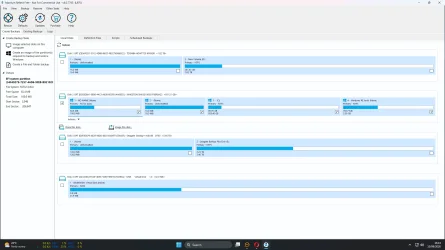
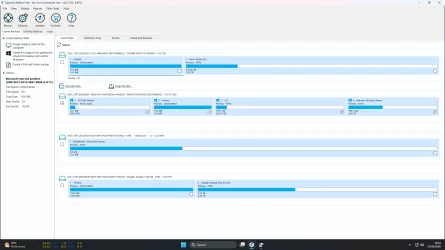
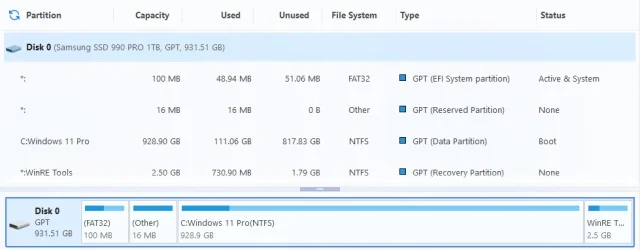
Macrium Reflect showing full partition


I know, but I use Hasleo Backup Suite. I can resize partitions *and* move the 16MB MSR partition(left or right into unallocated space). That saves me from having to use partition managers that might cause issues.

DiskGenius is good, and I haven't had any errors with it, but you can't move the MSR partition. You would have to delete it, expand the EFI partition, leave 16MB of unallocated space, and then recreate the MSR partition using diskpart.
Just to clarify for the OP. MRP refers to the 16 MB Microsoft Reserved Partition and is nothing to do with the Recovery Partition. It is tiny and I see no advantage in moving it.
 

My Computers My Computers

  • At a glance

    Windows 11 Pro 25H2 26200.9168AMD Ryzen 7 5825U with Radeon Graphics16GB
    OS
    Windows 11 Pro 25H2 26200.9168
    Computer type
    Laptop
    Manufacturer/Model
    Acemagic LX15PRO
    CPU
    AMD Ryzen 7 5825U with Radeon Graphics
    Motherboard
    BIOS CT_BI_AMI_LX15PRO_AB8139_A-004
    Memory
    16GB
    Screen Resolution
    1920 x 1080
    Hard Drives
    SSD 2TB
    Internet Speed
    30 Mbps
    Browser
    Brave
    Antivirus
    Webroot SecureAnywhere Complete beta
  • At a glance

    Windows 11 Pro 23H2 22631.2506Atom N450 1.66GHz2GB
    Operating System
    Windows 11 Pro 23H2 22631.2506
    Computer type
    Laptop
    Manufacturer/Model
    HP Mini 210-1090NR PC (bought in late 2009!)
    CPU
    Atom N450 1.66GHz
    Memory
    2GB
    Browser
    Brave
    Antivirus
    Webroot
  • Acer Swift SF114-34 laptop
    OS Windows 11 Pro 26200.8894
    CPU Pentium Silver N6000
    RAM 4GB
    BIOS v1.17
    SSD Samsung 970 EVO Plus SSD 2TB (an upgrade)
Just to clarify for the OP. MRP refers to the 16 MB Microsoft Reserved Partition and is nothing to do with the Recovery Partition. It is tiny and I see no advantage in moving it.
You have to move it to enlarge the EFI partition!

I create unallocated space at the beginning of the C: partition, slide the MSR partition to the right, and enlarge the EFI partition.
 

My Computer My Computer

At a glance

windows 11
OS
windows 11

My Computer My Computer

At a glance

Windows 10
OS
Windows 10
After much deliberation I uploaded a screenshot to ChatGPT with a briefing to enlarge recovery partition and just followed instructions using command prompt/diskpart, didn't take long. I'll do EFI partition another day, not so bothered about that. Thanks for all the input.(y)
 

Attachments

  • Screenshot 2026-08-13 164339.webp
    Screenshot 2026-08-13 164339.webp
    111.6 KB · Views: 2

My Computer My Computer

At a glance

Windows 11 HomeIntel Core i7 14700KFKingston Fury Beast RGB 32GB (2x16GB) DDR5 60...NVIDIA GeForce RTX 5070
OS
Windows 11 Home
Computer type
PC/Desktop
Manufacturer/Model
Built
CPU
Intel Core i7 14700KF
Motherboard
ASUS Prime Z790-P WIFI
Memory
Kingston Fury Beast RGB 32GB (2x16GB) DDR5 6000MHz
Graphics Card(s)
NVIDIA GeForce RTX 5070
Sound Card
Realtek High Definition Audio
Monitor(s) Displays
Samsung LS24D600UAUXXU 24" QHD
Screen Resolution
2560x1440
Hard Drives
Kingston 1TB NVMe SSD
Toshiba 2TB SATA HDD
Seagate Backup Plus Hub 6TB External Hard Drive
PSU
Corsair RM850e Modular PSU
Case
Corsair Frame 4000D RS ARGB
Cooling
Corsair H100x RGB Elite 240mm AIO CPU Cooler
Keyboard
HiPoint wired
Mouse
Logitech wireless
Internet Speed
560 Mbps
Browser
Opera, Brave
Antivirus
Bitdefender Free Antivirus, Windows Firewall
Other Info
Logitech X-230 speaker system
That's good and it's a nice round 2GB, there aren't a few MB lying around.:thumbsup:

Attention, Microsoft has increased the EFI partition size to 200MB for the 2023 certificates which are starting to be deployed. You might run into problems and you might not even know it because the errors might be reported in the event observer, which almost no one looks at.

I had seen a message from garlin indicating that the efi partition had been enlarged for the 2023 certificates. On one computer I had a problem so I had to do a clean install and indeed the partition was 200MB. So I enlarged the EFI partition on other computers.

With diskgenius+diskpart you can easily enlarge it.
With diskpart you delete the msr partition, and after extending the efi partition with diskgenius, you recreate the msr partition with diskpart. You leave 16MB of unallocated space between the efi partition and the c: partition so that you can recreate the msr partition.
 

My Computer My Computer

At a glance

windows 11
OS
windows 11
I decided on a 500 MB EFI partition and I'm needing some more advice. Rather than the destructive method of deleting and recreating of partitions I tried with resize/remove as it seemed less could go wrong. I started at the previous state:
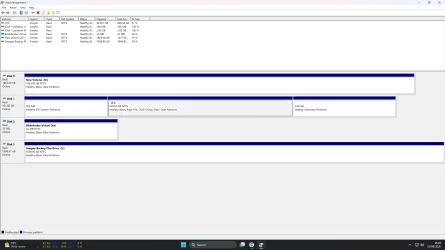
EFI 100 MB - MSR 16 MB - 929.40 GB - Recovery 2GB

To get a 500 MB EFI partition I created 400 MB unallocated space before C: using DiskGenius by Set Front Part = 409600 KB unallocated, Rear Part = 0 unallocated, so I had:
EFI 100 MB - MSR 16 MB - Unallocated 400 MB - C: 929.01 GB - Recovery 2 GB.

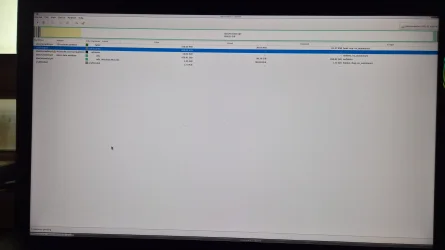
Then I used GParted Live to move the MSR partition by free space preceding 400 MiB, new size 16 MiB, free space following 0 MiB. Then enlarged EFI by free space preceding 0 MiB, new size 500 MiB, free space following 0 MiB, so when operations completed I had:
EFI 500 MiB- MSR 16 MiB - C: 929.01 GiB - Recovery 2 GiB

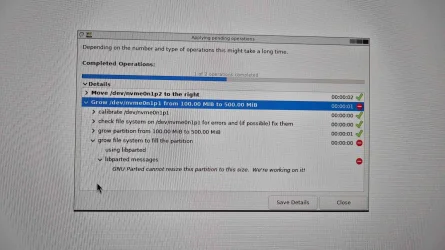
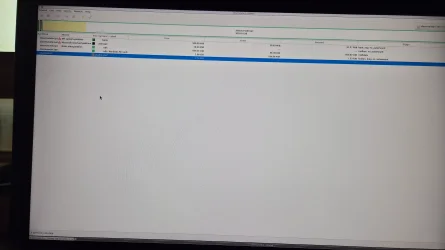
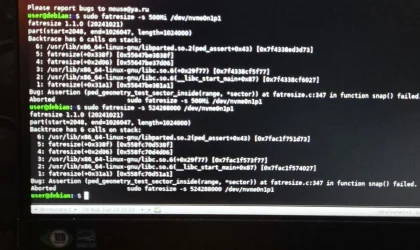
The thing is that GParted moved the MSR partition to the right, the EFI partition itself was successfully enlarged from 100 MiB to 500 MiB but it failed to grow the file system to fill the new 500 MiB partition, "GNU Parted cannot resize this partition to this size. We're working on it!" I then tried sudo fatresize in terminal which also failed. So what I actually had was:
EFI 500 MiB (with 100 MiB filesystem within it) - MSR 16 MiB - C: 929.01 GiB - Recovery 2 GiB

At this point I'd already spent too much time on this and restored Macrium image to original partition state above. So I can create the 400 MB space before C: and move 16 MB MSR to end of it. But I need a way to expand the 100 MB EFI partition and file system into the 400 MB unallocated space in front of it. Any suggestions? And I noticed the exclamation mark on MSR partition in GParted when I started it, don't know why it's there. One appeared on EFI after the operation failed.
 

Attachments

  • 20260818_162820.webp
    20260818_162820.webp
    963.4 KB · Views: 2
  • 20260818_163848.webp
    20260818_163848.webp
    1.7 MB · Views: 2
  • 20260818_164156.webp
    20260818_164156.webp
    1.6 MB · Views: 2
  • 20260818_181618.webp
    20260818_181618.webp
    446.2 KB · Views: 2

My Computer My Computer

At a glance

Windows 11 HomeIntel Core i7 14700KFKingston Fury Beast RGB 32GB (2x16GB) DDR5 60...NVIDIA GeForce RTX 5070
OS
Windows 11 Home
Computer type
PC/Desktop
Manufacturer/Model
Built
CPU
Intel Core i7 14700KF
Motherboard
ASUS Prime Z790-P WIFI
Memory
Kingston Fury Beast RGB 32GB (2x16GB) DDR5 6000MHz
Graphics Card(s)
NVIDIA GeForce RTX 5070
Sound Card
Realtek High Definition Audio
Monitor(s) Displays
Samsung LS24D600UAUXXU 24" QHD
Screen Resolution
2560x1440
Hard Drives
Kingston 1TB NVMe SSD
Toshiba 2TB SATA HDD
Seagate Backup Plus Hub 6TB External Hard Drive
PSU
Corsair RM850e Modular PSU
Case
Corsair Frame 4000D RS ARGB
Cooling
Corsair H100x RGB Elite 240mm AIO CPU Cooler
Keyboard
HiPoint wired
Mouse
Logitech wireless
Internet Speed
560 Mbps
Browser
Opera, Brave
Antivirus
Bitdefender Free Antivirus, Windows Firewall
Other Info
Logitech X-230 speaker system
I've already mentioned the methods: diskgenius + diskpart (delete and recreate the MSR partition).

Or, in one of my comments, the method using Macrium. See if with the macrium method you can restore only the efi partition while enlarging it, taking space allocated on c: etc.

As I already mentioned in one of my comments, do not touch the small unallocated space in front of the efi partition; it is for partition alignment and is important.
 

My Computer My Computer

At a glance

windows 11
OS
windows 11
I know I'm late to this "party", so take this as a "FYI".

Imo painting in red a partition (specially "any" partition) is "clutter", but the kind of "alarming clutter" that convince users (even experienced ones) into thinking that something is very wrong and they must act urgently.

With the Recovery partition under Windows 11 it isn't the case. The stock management of this partition is very smooth under Windows 11. I always find it in red and never a single problem. I suppose WU enlarges it smoothly when needed (now 1.01/1.07 GB used, nothing ever touched manually). Bear in mind you don't use this partition for user files like videos, disk/media images/isos, temporary files, browsers' caches, virtual machines etc. I don't have space problems in C: at all (70/230 GB used), but even if one had them (let's suppose 228/230 GB) it's unlikely that say 20/100 MB taken or released by the Recovery partition is going to change a lot a C: 2GB free situation.

(I also have another partition in red, the main one of a 2TB data disk used for disk images of Windows and seldom several GB of temporary stuff, it now has 20 GB free, when I record a new disk image I use to delete the oldest one; the management of this partition is 100% manual but being "in red" is its normal state).

My experience under Windows 10, specially since KB5034441 is the contrary one. I even tried 100 GB as Recovery partition size, w/o success. I finally got to install it using the dynamic update and a script published by MS. I failed with some successors of KB5034441 too. I believe MS changed some Recovery partition code precisely with this update, but Windows 11 has modern and effective code from start (maybe it uses or can use C: free space for temporary stuff, and it cleans it well afterwards). That said 1GB is enough in general for the Win10 Recovery partition.

I don't have valid experience with the EFI partition though. Enlarging it "normally" (to 200 MB for example) would be valid for afterwards cleaned temporary files, but not for never cleaned and hence accumulated temporary files, in theory.
 

My Computer My Computer

At a glance

Windows 11Celeron J4125 (10th gen)8GB DDR4
OS
Windows 11
Manufacturer/Model
MeLE Quieter 2Q (fanless miniPC)
CPU
Celeron J4125 (10th gen)
Memory
8GB DDR4
Monitor(s) Displays
Samsung SyncMaster T260
Screen Resolution
1920x1200
Hard Drives
256GB eMMC (Windows)
2TB USB3 HDD Toshiba (Data)
I don't have valid experience with the EFI partition though. Enlarging it "normally" (to 200 MB for example) would be valid for afterwards cleaned temporary files, but not for never cleaned and hence accumulated temporary files, in theory.
The ESP doesn't get "cluttered" by actual Windows files, but a lot of OEM's like to borrow the volume to hold their BIOS flashing tools or firmware images. It's a convenient staging location because it's FAT32, which all UEFI's can read.

The problem is the 3rd-party tools don't get cleaned out, and when Windows wants to push a new version of the boot manager to the EFI, it runs out of space. There isn't a standard cleanup process, other than purging folders not named "\EFI\Boot" and "\EFI\Microsoft\Boot".

To avoid running of space, the current advice is to assign 260-400 MB to the EFI volume. You can get away with less if your OEM requires you to use an external USB drive for flashing BIOS images (since it won't be borrowing disk space).
 

My Computer My Computer

At a glance

Windows 7
OS
Windows 7
@JLArranz

No, for me on my Windows 11 computers the recovery partition has not grown or a new one has not been created. I got winload.efi 0xc0000428 error (SkuSiPolicy applied) because the partition did not update automatically. Once on the desktop computer, in the event viewer I saw the error for the recovery partition which could not be updated. So I took the initiative and increased it to 2GB. Now everything is fine.


My Computer My Computer

At a glance

windows 11
OS
windows 11
Turns out Aeomi Partition Assistant Standard does the whole job but I couldn't get an exact free space size with it, kept jumping to about 380 MB when trying to get 400 MB. All worked fine anyway.

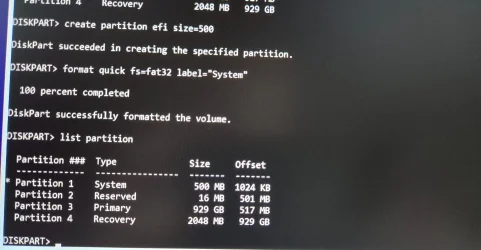
Then as a comparison I loaded another image backup, created the free space with DiskGenius, moved the MSR with GParted, and recreated the EFI partition with diskpart. This gave me exactly 500 MB new EFI partition, all present and correct, perfect. So job done and thanks for all the input, always appreciated.(y) If I ever need to do this again it'll be easy.:-)
 

Attachments

  • Screenshot 2026-08-23 160424.webp
    Screenshot 2026-08-23 160424.webp
    111.4 KB · Views: 1
  • Screenshot 2026-08-23 160436.webp
    Screenshot 2026-08-23 160436.webp
    98.6 KB · Views: 1

My Computer My Computer

At a glance

Windows 11 HomeIntel Core i7 14700KFKingston Fury Beast RGB 32GB (2x16GB) DDR5 60...NVIDIA GeForce RTX 5070
OS
Windows 11 Home
Computer type
PC/Desktop
Manufacturer/Model
Built
CPU
Intel Core i7 14700KF
Motherboard
ASUS Prime Z790-P WIFI
Memory
Kingston Fury Beast RGB 32GB (2x16GB) DDR5 6000MHz
Graphics Card(s)
NVIDIA GeForce RTX 5070
Sound Card
Realtek High Definition Audio
Monitor(s) Displays
Samsung LS24D600UAUXXU 24" QHD
Screen Resolution
2560x1440
Hard Drives
Kingston 1TB NVMe SSD
Toshiba 2TB SATA HDD
Seagate Backup Plus Hub 6TB External Hard Drive
PSU
Corsair RM850e Modular PSU
Case
Corsair Frame 4000D RS ARGB
Cooling
Corsair H100x RGB Elite 240mm AIO CPU Cooler
Keyboard
HiPoint wired
Mouse
Logitech wireless
Internet Speed
560 Mbps
Browser
Opera, Brave
Antivirus
Bitdefender Free Antivirus, Windows Firewall
Other Info
Logitech X-230 speaker system
Blimey - talk about using a sledgehammer to crack a nut going through hoops and loops to resize recovery partitions just to avoid a second one to be created.

It is so easy to simply delete a no longer used recovery partition and reclaim space using a 3rd party tool like minitool partition wizard (even free version works) usually in a couple of minutes or so.

I have seen users resize the recovery partition too much e.g. 1 GB when in fact it can be a lot smaller

Problem is you never know hiw big you should make it to prevent a second one being made so people err on side of caution and you just end up waating space.

So to some extent, resizing recovery partitions is a rather pointless activity. It seems to me it is more OCD than of nay realistic benefit.

I just ignore recovery partitions letting windows create a second one when needed then just tidy up afterwards.
 

My Computer My Computer

At a glance

Windows 11 Pro + Win11 Canary VM.I9 13th gen i9-13900H 2.60 GHZ16 GB solderedIntegrated Intel Iris XE
OS
Windows 11 Pro + Win11 Canary VM.
Computer type
Laptop
Manufacturer/Model
ASUS Zenbook 14
CPU
I9 13th gen i9-13900H 2.60 GHZ
Motherboard
Yep, Laptop has one.
Memory
16 GB soldered
Graphics Card(s)
Integrated Intel Iris XE
Sound Card
Realtek built in
Monitor(s) Displays
laptop OLED screen
Screen Resolution
2880x1800 touchscreen
Hard Drives
1 TB NVME SSD (only weakness is only one slot)
PSU
Internal + 65W thunderbolt USB4 charger
Case
Yep, got one
Cooling
Stella Artois (UK pint cans - 568 ml) - extra cost.
Keyboard
Built in UK keybd
Mouse
Bluetooth , wireless dongled, wired
Internet Speed
900 mbs (ethernet), wifi 6 typical 350-450 mb/s both up and down
Browser
Edge
Antivirus
Defender
Other Info
TPM 2.0, 2xUSB4 thunderbolt, 1xUsb3 (usb a), 1xUsb-c, hdmi out, 3.5 mm audio out/in combo, ASUS backlit trackpad (inc. switchable number pad)

Macrium Reflect Home V8
Office 365 Family (6 users each 1TB onedrive space)
Hyper-V (a vm runs almost as fast as my older laptop)
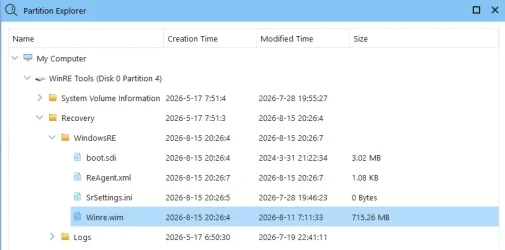
I have seen users resize the recovery partition too much e.g. 1 GB when in fact it can be a lot smaller

The latest Winre.wim is over 700 MB, and its only going to get bigger. 1 GB or less is not enough.

1787540839978.webp

I realize some users have space issues, but some do not.

1787541250363.webp
 

My Computers My Computers

  • At a glance

    Win 11 Pro 25H2 26200.9168Intel® Core™ i7-14700KG.SKILL Ripjaws S5 Series 64GB (2 x 32GB) DDR5ASUS GeForce RTX 4070 Super 12GB
    OS
    Win 11 Pro 25H2 26200.9168
    Computer type
    PC/Desktop
    Manufacturer/Model
    Self Built
    CPU
    Intel® Core™ i7-14700K
    Motherboard
    ASUS TUF Z690-PLUS WIFI (BIOS 4505)
    Memory
    G.SKILL Ripjaws S5 Series 64GB (2 x 32GB) DDR5
    Graphics Card(s)
    ASUS GeForce RTX 4070 Super 12GB
    Sound Card
    Sound Blaster AE-5 Plus
    Monitor(s) Displays
    ASUS TUF Gaming 27" 2K HDR Gaming
    Screen Resolution
    2560 x 1440
    Hard Drives
    Samsung 990 Pro 1TB NVMe (Win 11 25H2)
    SK hynix P41 500GB NVMe
    SK hynix P41 2TB NVMe (x3)
    Crucial P3 Plus 4TB
    PSU
    Corsair RM850x Shift
    Case
    Antec Dark Phantom DP502 FLUX
    Cooling
    Corsair Nautilus 360 RS AIO
    Keyboard
    Logitech MK 320
    Mouse
    Razer Basilisk V3
    Internet Speed
    750Mbs
    Browser
    Firefox
    Antivirus
    Winows Security
    Other Info
    MR 8.1 Home
  • At a glance

    Win 11 Pro 25H2 26200.9168Intel Core i5-1140064 GB DDR4MSI GeForce RTX 3060 Ventus 2X 12GB
    Operating System
    Win 11 Pro 25H2 26200.9168
    Computer type
    PC/Desktop
    Manufacturer/Model
    Self Built
    CPU
    Intel Core i5-11400
    Motherboard
    Asus TUF Gaming Z590 Plus WiFi (BIOS 2803)
    Memory
    64 GB DDR4
    Graphics card(s)
    MSI GeForce RTX 3060 Ventus 2X 12GB
    Sound Card
    SoundBlaster Audigy Fx V2
    Monitor(s) Displays
    Samsung F27T350
    Screen Resolution
    1920x1080
    Hard Drives
    Samsung 980 Pro 1TB
    Samsung 970 EVO Plus 2TB
    Samsung 870 EVO 500GB SSD
    PSU
    Corsair HX750
    Case
    Cougar MX330-G Window
    Cooling
    Thermalright Frozen Edge 240 Black AIO
    Internet Speed
    350Mbps
    Browser
    Firefox
    Antivirus
    Windows Security
  • System Three
    Win 11 Pro 25H2 26200.9168
    ASUS PRIME Z370-P II BIOS 3004 7/12/21
    Intel Core i7-8700 CPU @ 3.20GHz
    32GB DDR4 RAM (4x8)
    iGPU Intel UHD Graphics 630
    Cooler Master Hyper 212
    Mid-Tower Desktop
Turns out Aeomi Partition Assistant Standard does the whole job but I couldn't get an exact free space size with it, kept jumping to about 380 MB when trying to get 400 MB. All worked fine anyway.

Then as a comparison I loaded another image backup, created the free space with DiskGenius, moved the MSR with GParted, and recreated the EFI partition with diskpart. This gave me exactly 500 MB new EFI partition, all present and correct, perfect. So job done and thanks for all the input, always appreciated.(y) If I ever need to do this again it'll be easy.:-)
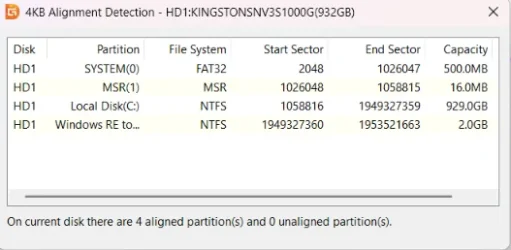
If you haven't already, check the partition alignment. Launch DiskGenius, select your disk from the tree view on the left, go to the "Tools" menu at the top, and select "4KB partition alignment detection", a "Y" indicates they are aligned, while a red "N" means they are not.

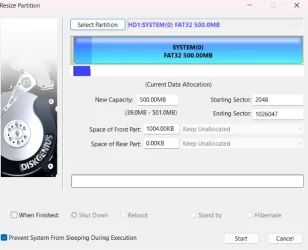
Select the EFI partition in DiskGenius, choose "Resize Partition," and check if there is a small amount of unallocated space at the beginning of the partition indicated in the "space of front part" field. I have 1006.00KB in that field.

Normally, Macrium should align the partitions when you restore. That is how it works for me with Hasleo Backup Suite.
 

My Computer My Computer

At a glance

windows 11
OS
windows 11
DiskGenius shows all partitions aligned. I saw a 1024KB offset when I created the EFI partition so assumed that was it, DiskGenius shows 1004.00 KB preceding.
 

Attachments

  • Screenshot 2026-08-24 135858.webp
    Screenshot 2026-08-24 135858.webp
    17.3 KB · Views: 1
  • 1000008987.webp
    1000008987.webp
    320.4 KB · Views: 1
  • Screenshot 2026-08-24 140656.webp
    Screenshot 2026-08-24 140656.webp
    24.7 KB · Views: 1

My Computer My Computer

At a glance

Windows 11 HomeIntel Core i7 14700KFKingston Fury Beast RGB 32GB (2x16GB) DDR5 60...NVIDIA GeForce RTX 5070
OS
Windows 11 Home
Computer type
PC/Desktop
Manufacturer/Model
Built
CPU
Intel Core i7 14700KF
Motherboard
ASUS Prime Z790-P WIFI
Memory
Kingston Fury Beast RGB 32GB (2x16GB) DDR5 6000MHz
Graphics Card(s)
NVIDIA GeForce RTX 5070
Sound Card
Realtek High Definition Audio
Monitor(s) Displays
Samsung LS24D600UAUXXU 24" QHD
Screen Resolution
2560x1440
Hard Drives
Kingston 1TB NVMe SSD
Toshiba 2TB SATA HDD
Seagate Backup Plus Hub 6TB External Hard Drive
PSU
Corsair RM850e Modular PSU
Case
Corsair Frame 4000D RS ARGB
Cooling
Corsair H100x RGB Elite 240mm AIO CPU Cooler
Keyboard
HiPoint wired
Mouse
Logitech wireless
Internet Speed
560 Mbps
Browser
Opera, Brave
Antivirus
Bitdefender Free Antivirus, Windows Firewall
Other Info
Logitech X-230 speaker system
DiskGenius shows all partitions aligned. I saw a 1024KB offset when I created the EFI partition so assumed that was it, DiskGenius shows 1004.00 KB preceding.
That should be fine.
You can check where the EFI partition starts in msinfo32.
In the Run dialog box, type msinfo32, then Components, Storage, and finally Disks. Locate the 500MB EFI partition, below the "partition size", you will see the partition's starting offset. It should be 1,048,576 bytes.
 

My Computer My Computer

At a glance

windows 11
OS
windows 11

Latest Support Threads

Back
Top Bottom