

mackyreddy
Member
- Local time
- 3:38 AM
- Posts
- 1
- OS
- Micro 11 Barebones
This Powershell Script creates a heavily stripped down Version of Windows 11, Adds portable Classic Calculator, Notepad, Paint & StartAllBack and also creates a TakeOwnership.cmd file in System32, Apart from these files everything else is stock Windows 11.
Latest 26H2 build 26300.9550 installation consumes around 3.80 GB and iso file size is around 1.07 GB.
1.Mount Windows 11 iso using Windows Explorer
2.Extract the downloaded archive into C:\Micro 11 Barebones Powershell Script or C:\Micro 11 Barebones StartAllBack Powershell Script
3.Open PowerShell as Administrator
4.Open & Copy PowerShell Script Instructions
5.Paste them in PowerShell and press enter
6.Now enter the mounted drive letter for the Windows 11 image (example F or G)
7.If you have multiple Windows editions like Home, Pro, Enterprise etc in the iso, Powershell Script will ask for edition you want to strip. So enter the index number and press enter.
8.Thats it all done, after few minutes Micro 11 Barebones.iso or Micro 11 Barebones StartAllBack.iso will be generated in the folder Micro 11 Barebones Powershell Script or Micro 11 Barebones StartAllBack Powershell Script
Hope you enjoy this release and feel free to improve the PowerShell Script
Let me know any issues encountered, I will try to resolve them.
cheers
Micro 11 Barebones Powershell Script
12.24 MB folder on MEGA
Micro 11 Barebones StartAllBack Powershell Script
15.82 MB folder on MEGA
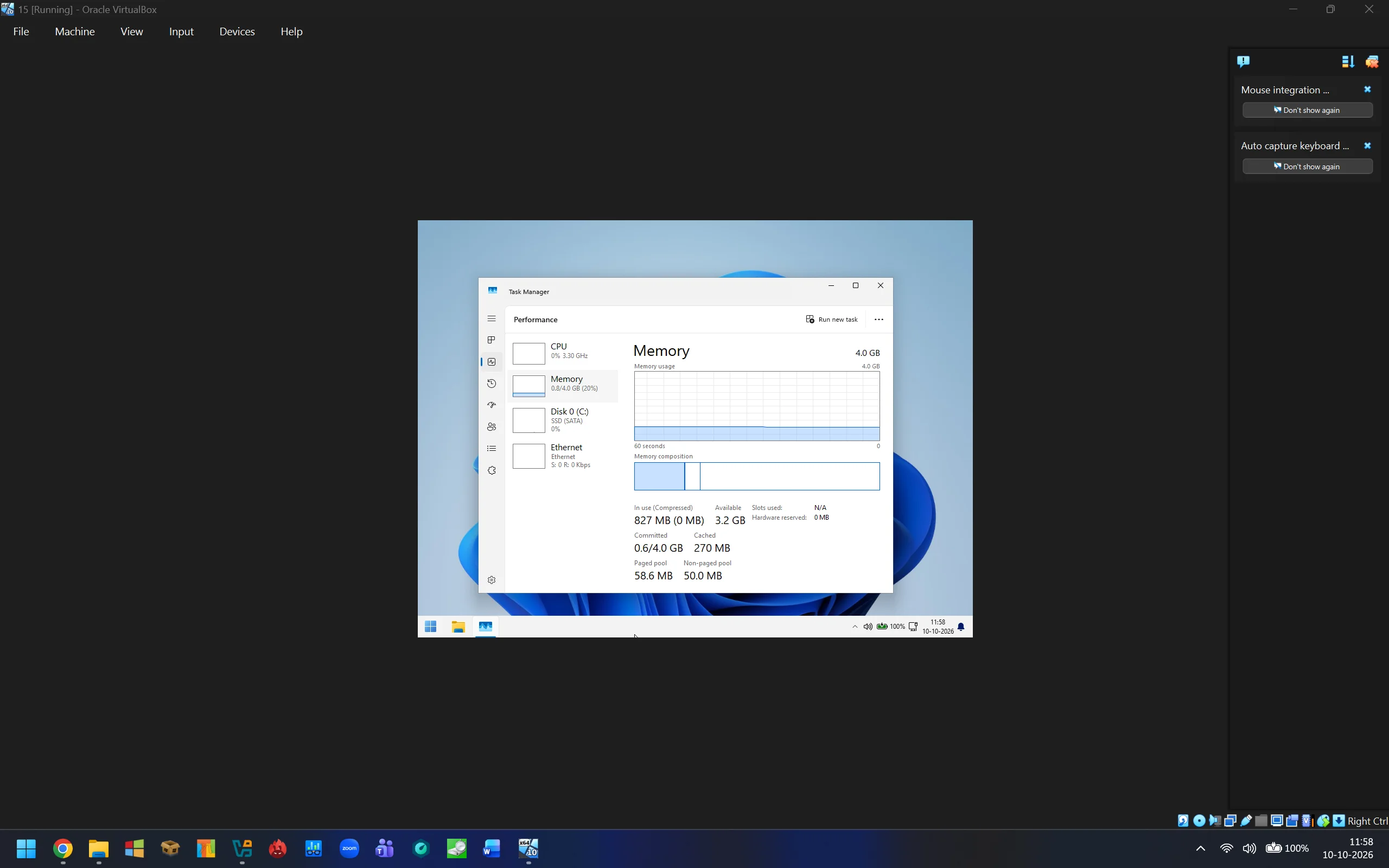
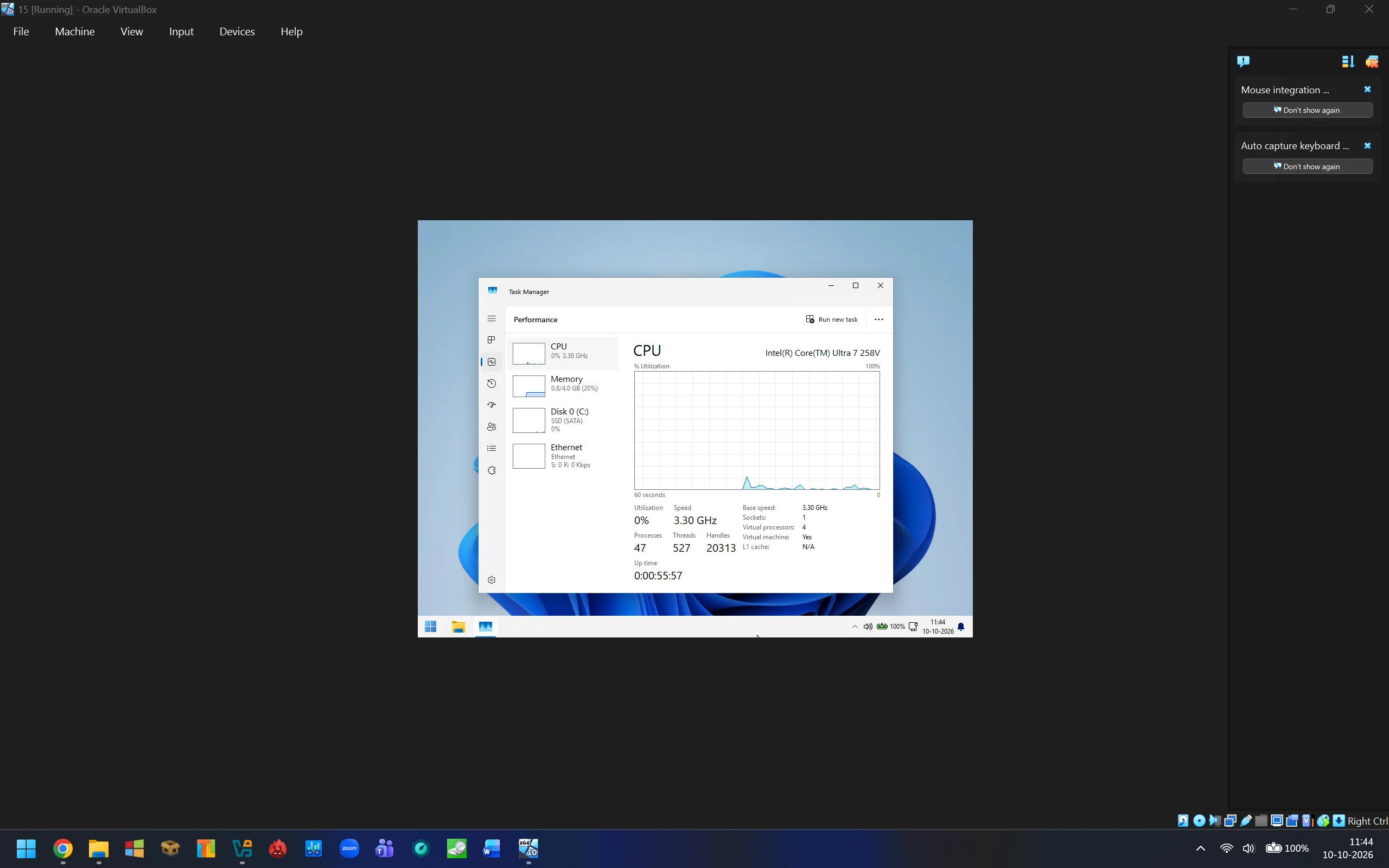
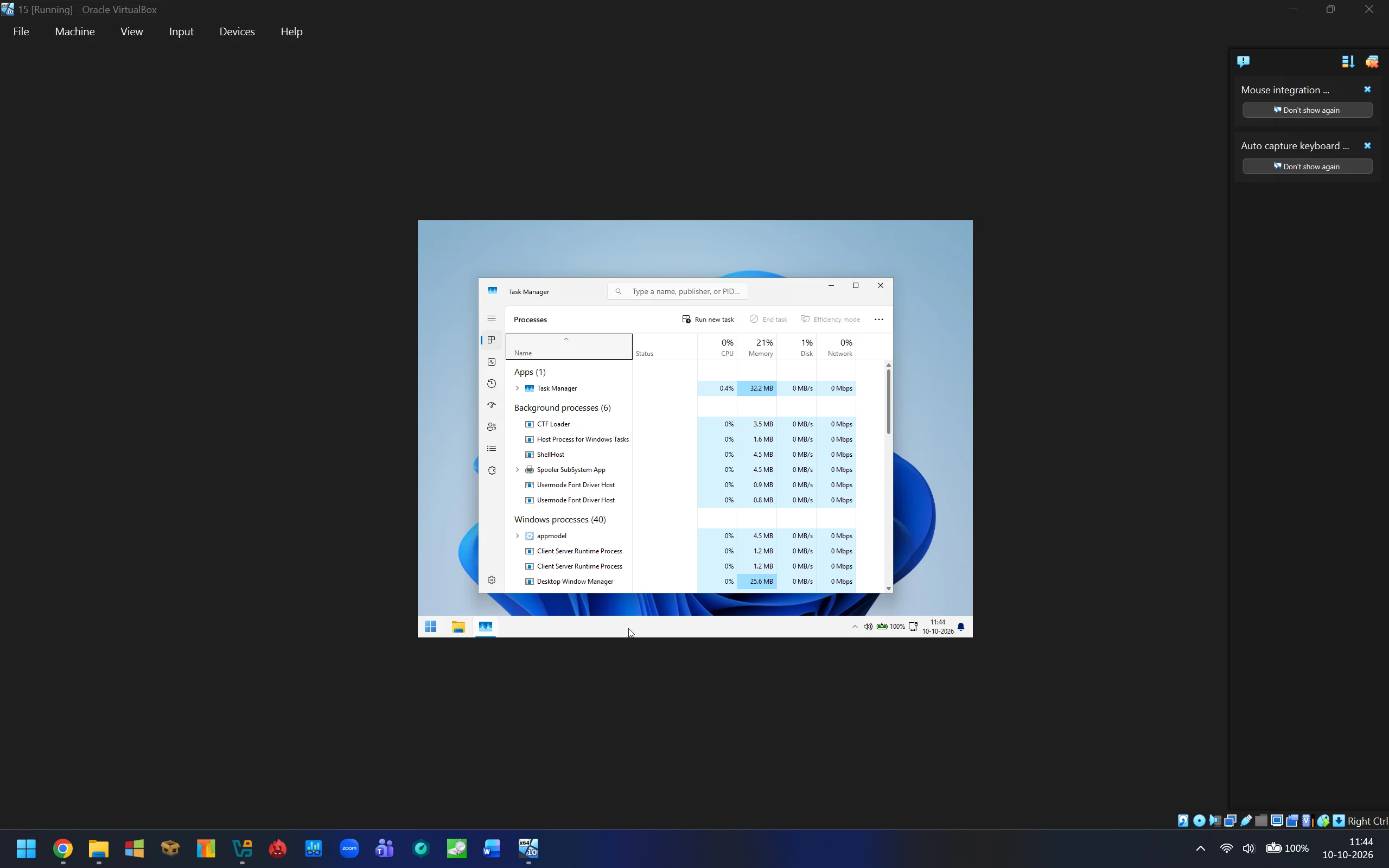
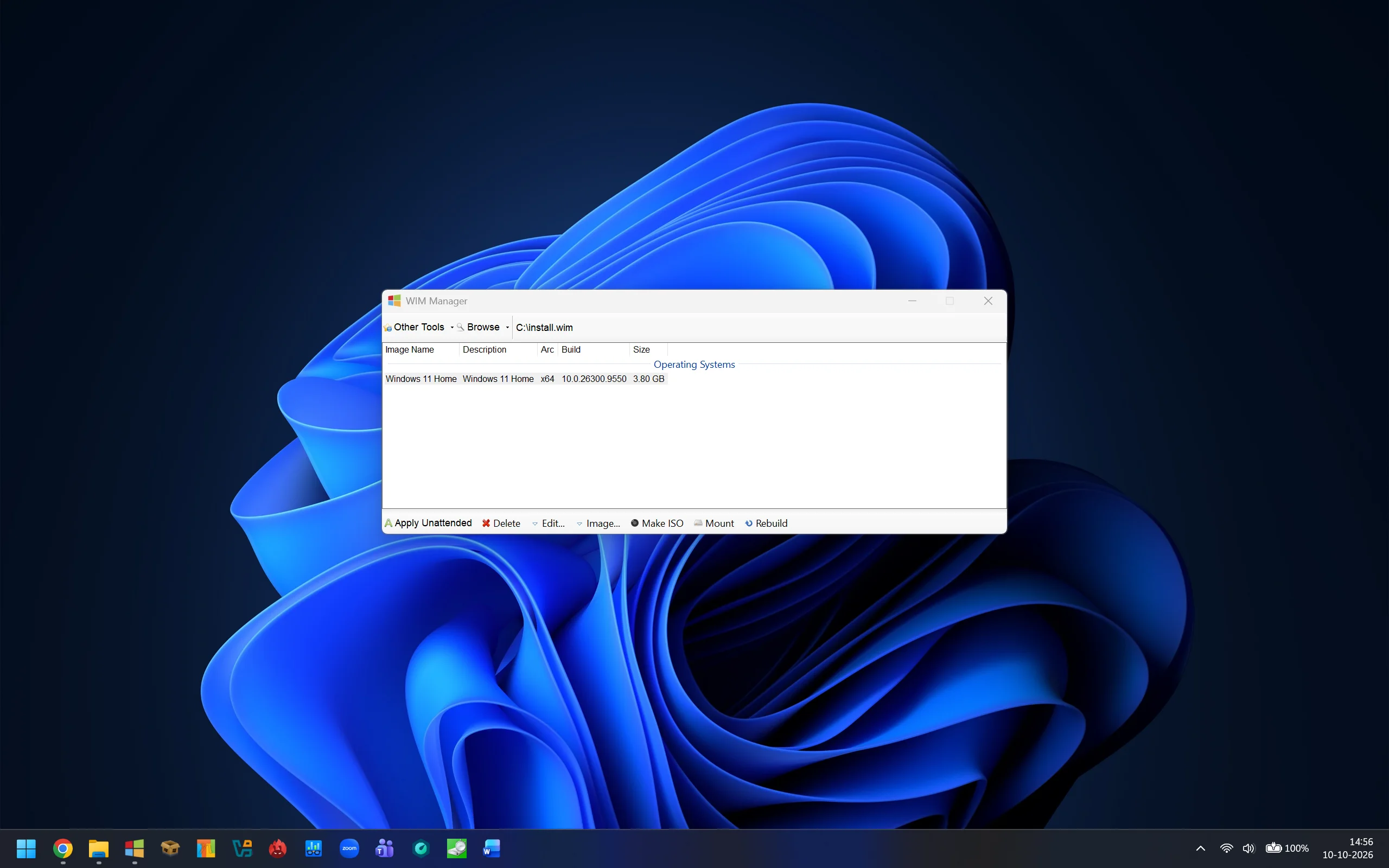
Latest 26H2 build 26300.9550 installation consumes around 3.80 GB and iso file size is around 1.07 GB.
1.Mount Windows 11 iso using Windows Explorer
2.Extract the downloaded archive into C:\Micro 11 Barebones Powershell Script or C:\Micro 11 Barebones StartAllBack Powershell Script
3.Open PowerShell as Administrator
4.Open & Copy PowerShell Script Instructions
5.Paste them in PowerShell and press enter
6.Now enter the mounted drive letter for the Windows 11 image (example F or G)
7.If you have multiple Windows editions like Home, Pro, Enterprise etc in the iso, Powershell Script will ask for edition you want to strip. So enter the index number and press enter.
8.Thats it all done, after few minutes Micro 11 Barebones.iso or Micro 11 Barebones StartAllBack.iso will be generated in the folder Micro 11 Barebones Powershell Script or Micro 11 Barebones StartAllBack Powershell Script
Hope you enjoy this release and feel free to improve the PowerShell Script
Let me know any issues encountered, I will try to resolve them.
cheers
Micro 11 Barebones Powershell Script
12.24 MB folder on MEGA
Micro 11 Barebones StartAllBack Powershell Script
15.82 MB folder on MEGA
My Computer
At a glance
Micro 11 BarebonesIntel Core Ultra 7 258V32GBIntel ARC 140V
- OS
- Micro 11 Barebones
- Computer type
- Laptop
- Manufacturer/Model
- Intel Core Ultra 7 258V
- CPU
- Intel Core Ultra 7 258V
- Motherboard
- Intel Core Ultra 7 258V
- Memory
- 32GB
- Graphics Card(s)
- Intel ARC 140V






