WindowsMize - PowerShell script to automate and customize the configuration of Windows


My Computer

System One

  • OS
    .
Just to clarify—I wasn’t questioning what you did, only trying to replicate the same setup to observe how it behaves on my end.

The point of the first test was to isolate how identity resolution behaves when using runas without elevation. It helps distinguish between environment variables, token identity, and WMI-based ownership—especially when elevation isn’t involved. That contrast sets the stage for understanding how things shift in elevated contexts.

Regarding Get-WmiObject: you're right that it’s not available by default in PowerShell 7, and Get-CimInstance is the newer approach. But technically, Get-WmiObject isn’t deprecated—it’s superseded. That distinction matters in edge-case scripting. In fact, Get-WmiObject is still the most reliable way to call .GetOwner() on a live COM object—especially when SID resolution matters. Get-CimInstance + Invoke-CimMethod works in PowerShell 7, but it can fail in edge cases like orphaned SIDs or restricted DCOM contexts. So, for forensic identity resolution, it’s bulletproof by design. And just to be clear—I’m not trying to convince you (or anyone else) to adopt forensic scripting, nor am I being argumentative. I simply prefer bulletproof logic in parts of a script where I know it’s both possible and not that hard to achieve.

The second test inside the VM confirmed the behavior I was talking about—and validated the point I was trying to make. Thanks for running it.

Here is an updated version of Get-ProcessOwner. This should work in PowerShell 7 (at least if Windows PowerShell 5.1 is available, but on any default installation of Windows 11, it is).
Powershell:
function Get-ProcessOwnerFromLegacyShell {
    param (
        [string]$ProcessName = "powershell.exe"
    )

    $legacyShell = "$env:SystemRoot\System32\WindowsPowerShell\v1.0\powershell.exe"

    if (-not (Test-Path $legacyShell)) {
        Write-Warning "Windows PowerShell 5.1 not found at expected path: $legacyShell"
        return $null
    }

    # Validate shell version
    $versionCheck = & $legacyShell -NoProfile -Command "`$PSVersionTable.PSVersion.Major"
    if ($versionCheck -ne 5) {
        Write-Warning "powershell.exe does not point to Windows PowerShell 5.1 — identity resolution may fail. $versionCheck"
    }

    # Build embedded command with proper escaping
    $command = @"
`$proc = Get-WmiObject Win32_Process -Filter `"Name = '$ProcessName'`" -ErrorAction SilentlyContinue | Select-Object -First 1
if (`$proc) {
    `$owner = `$proc.GetOwner()
    Write-Output "`$(`$owner.Domain)\`$(`$owner.User)"
} else {
    Write-Warning "Process not found or Get-WmiObject unavailable"
}
"@

    $scriptBlock = [Scriptblock]::Create($command)

    try {
        $output = & $legacyShell -NoProfile -Command $scriptBlock
        if ($output -match '\\') {
            return $output.Trim()
        } else {
            Write-Warning "Failed to resolve owner: $output"
            return $null
        }
    } catch {
        Write-Error "Error invoking legacy shell: $($_.Exception.Message)"
        return $null
    }
}
 
Last edited:

My Computers

System One System Two

  • OS
    11 Home
    Computer type
    Laptop
    Manufacturer/Model
    Asus TUF Gaming F16 (2024)
    CPU
    i7 13650HX
    Memory
    16GB DDR5
    Graphics Card(s)
    GeForce RTX 4060 Mobile
    Sound Card
    Eastern Electric MiniMax DAC Supreme; Emotiva UMC-200; Astell & Kern AK240
    Monitor(s) Displays
    Sony Bravia XR-55X90J
    Screen Resolution
    3840×2160
    Hard Drives
    512GB SSD internal
    37TB external
    PSU
    Li-ion
    Cooling
    2× Arc Flow Fans, 4× exhaust vents, 5× heatpipes
    Keyboard
    Logitech K800
    Mouse
    Logitech G402
    Internet Speed
    30Mbit/s up, 500Mbit/s down
    Browser
    FF
    Antivirus
    What's an antivirus?
  • Operating System
    11 Home
    Computer type
    Laptop
    Manufacturer/Model
    Medion S15450
    CPU
    i5 1135G7
    Memory
    16GB DDR4
    Graphics card(s)
    Intel Iris Xe
    Sound Card
    Eastern Electric MiniMax DAC Supreme; Emotiva UMC-200; Astell & Kern AK240
    Monitor(s) Displays
    Sony Bravia XR-55X90J
    Screen Resolution
    3840×2160
    Hard Drives
    2TB SSD internal
    37TB external
    PSU
    Li-ion
    Keyboard
    Logitech K800
    Mouse
    Logitech G402
    Internet Speed
    30Mbit/s up, 500Mbit/s down
    Browser
    FF
Just to clarify—I wasn’t questioning what you did, only trying to replicate the same setup to observe how it behaves on my end.
Ok, my bad then.


I simply prefer bulletproof logic in parts of a script where I know it’s both possible and not that hard to achieve.
I do prefer bulletproof solutions too, who wouldn't.

Get-WmiObject still works in "Powershell 7" by automatically importing the "Windows Powershell" module (if this behavior is not deactivated).
But it returns a Deserialized.System.Management.ManagementObject#root\cimv2\Win32_Process object.
Therefore, the GetOwner and GetOwnerSid methods are unavailable.
"Windows Powershell" return a System.Management.ManagementObject#root\cimv2\Win32_Process object.

Instead of using the "Windows Powershell" executable file path, we can just use the New-Object cmdlet with the .Net class name.
It works on both Powershell 5.1 and 7.
Code:
$Query = "SELECT * FROM Win32_Process WHERE ProcessId = $PID"
$ClassName = 'System.Management.ManagementObjectSearcher'
$Process = (New-Object -TypeName $ClassName -ArgumentList $Query).Get()
$Username = $Process.GetOwner().User
$Username
However, that doesn't change the fact that the result from this command is not what I want.
It returns the admin username instead of the standard account username.


The second test inside the VM confirmed the behavior I was talking about—and validated the point I was trying to make. Thanks for running it.
The test was actually done on a bare metal machine, but it doesn't matter, the results are the same.

It actually didn't confirm the behavior you anticipated ...
[System.Security.Principal.WindowsIdentity]::GetCurrent().Name : return the wrong username (admin instead of standard user)
Get-WmiObject + $PID : return the wrong username (admin instead of standard user) and may return multiple usernames.
Get-WmiObject + explorer.exe : get the correct username but may return multiple usernames, so it's unusable.

elevated prompt logged-in as a standard user (from my previous post):
Code:
PS C:\Users\Admin_Bare_Metal> [System.Security.Principal.WindowsIdentity]::GetCurrent().Name
DESKTOP-ABCDE42\Admin_Bare_Metal
PS C:\Users\Admin_Bare_Metal> (Get-WmiObject Win32_Process -Filter "ProcessId = $PID").GetOwner().User
Admin_Bare_Metal
PS C:\Users\Admin_Bare_Metal> (Get-CimInstance -ClassName 'Win32_ComputerSystem').UserName
DESKTOP-ABCDE42\SUser


Like I said:
For now, (Get-CimInstance -ClassName 'Win32_ComputerSystem').UserName is the best (only ?) option I have.
This is the whole point of Get-LoggedOnUserUsername and Get-LoggedOnUserSID.
To make the script works on a standard account.


I will fix this issue (remote connection, rdp or whatever) by adding a -Username parameter or prompting for the username if it can't be retrieved.
Or maybe an other solution, I don't know yet the "how".
What I know is that it will either be fixed or properly handled. :)
 

My Computer

System One

  • OS
    .
However, that doesn't change the fact that the result from this command is not what I want.
It returns the admin username instead of the standard account username.
That method works cross-version, but returns the token owner, not the interactive user. The method I wrote at the end of my previous reply works cross-version but not if, for whatever the reason, "$env:SystemRoot\System32\WindowsPowerShell\v1.0\powershell.exe" no longer points to Windows PowerShell 5.1. Although it looks kind of ugly, we are not writing poetry, we are writing script code. In my test setup it does return the interactive user, which is what you want.
The test was actually done on a bare metal machine, but it doesn't matter, the results are the same.

It actually didn't confirm the behavior you anticipated ...
[System.Security.Principal.WindowsIdentity]::GetCurrent().Name : return the wrong username (admin instead of standard user)
Get-WmiObject + $PID : return the wrong username (admin instead of standard user) and may return multiple usernames.
Get-WmiObject + explorer.exe : get the correct username but may return multiple usernames, so it's unusable.

elevated prompt logged-in as a standard user (from my previous post):
Code:
PS C:\Users\Admin_Bare_Metal> [System.Security.Principal.WindowsIdentity]::GetCurrent().Name
DESKTOP-ABCDE42\Admin_Bare_Metal
PS C:\Users\Admin_Bare_Metal> (Get-WmiObject Win32_Process -Filter "ProcessId = $PID").GetOwner().User
Admin_Bare_Metal
PS C:\Users\Admin_Bare_Metal> (Get-CimInstance -ClassName 'Win32_ComputerSystem').UserName
DESKTOP-ABCDE42\SUser
  • WindowsIdentity::GetCurrent().Name returns the identity of the current PowerShell process. Since it’s running elevated, it shows Admin_Bare_Metal.
  • GetOwner().User from WMI also returns Admin_Bare_Metal, because it reflects the token owner of the elevated process.
  • Win32_ComputerSystem.UserName finally reveals the interactive session user: SUser.
That last line is the real gem. It shows that the machine is logged in as SUser, but the PowerShell session is elevated under Admin_Bare_Metal. So any identity probe tied to the current process will mislead you unless you correlate with session context. That was my point and, your output confirms it.
Like I said:
(...)
This is the whole point of Get-LoggedOnUserUsername and Get-LoggedOnUserSID.
To make the script works on a standard account.
It does work well for local standard accounts.
I will fix this issue (remote connection, rdp or whatever) by adding a -Username parameter or prompting for the username if it can't be retrieved.
Or maybe an other solution, I don't know yet the "how".
What I know is that it will either be fixed or properly handled. :)
On Windows, usually, designing for resilience requires some (or lot of) duct tape. Otherwise I guess that no one would have to use such a big script to make it more resilient anyway in the first place. 😏
 

My Computers

System One System Two

  • OS
    11 Home
    Computer type
    Laptop
    Manufacturer/Model
    Asus TUF Gaming F16 (2024)
    CPU
    i7 13650HX
    Memory
    16GB DDR5
    Graphics Card(s)
    GeForce RTX 4060 Mobile
    Sound Card
    Eastern Electric MiniMax DAC Supreme; Emotiva UMC-200; Astell & Kern AK240
    Monitor(s) Displays
    Sony Bravia XR-55X90J
    Screen Resolution
    3840×2160
    Hard Drives
    512GB SSD internal
    37TB external
    PSU
    Li-ion
    Cooling
    2× Arc Flow Fans, 4× exhaust vents, 5× heatpipes
    Keyboard
    Logitech K800
    Mouse
    Logitech G402
    Internet Speed
    30Mbit/s up, 500Mbit/s down
    Browser
    FF
    Antivirus
    What's an antivirus?
  • Operating System
    11 Home
    Computer type
    Laptop
    Manufacturer/Model
    Medion S15450
    CPU
    i5 1135G7
    Memory
    16GB DDR4
    Graphics card(s)
    Intel Iris Xe
    Sound Card
    Eastern Electric MiniMax DAC Supreme; Emotiva UMC-200; Astell & Kern AK240
    Monitor(s) Displays
    Sony Bravia XR-55X90J
    Screen Resolution
    3840×2160
    Hard Drives
    2TB SSD internal
    37TB external
    PSU
    Li-ion
    Keyboard
    Logitech K800
    Mouse
    Logitech G402
    Internet Speed
    30Mbit/s up, 500Mbit/s down
    Browser
    FF
That method works cross-version, but returns the token owner, not the interactive user.
The method I wrote at the end of my previous reply works cross-version [...].
In my test setup it does return the interactive user, which is what you want.
Do you realize that these two methods (New-Object and powershell.exe filepath (i.e. Get-WmiObject)) retrieves exactly the same data object ....

So saying that the New-Object method returns the token owner, not the interactive user.
And saying that the powershell.exe filepath method return the interactive user.
It doesn't make any sense ...

Screenshot 2025-09-23 215145.webp

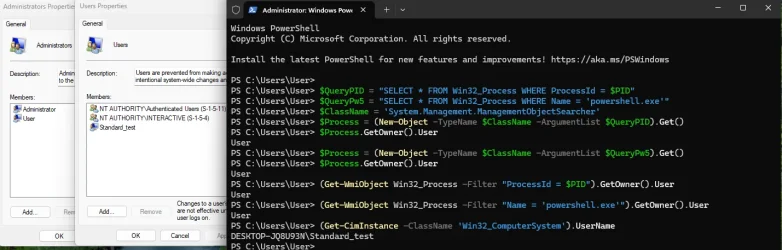
This is an untouched Windows 11 VM and it actually doesn't return the standard account username.
Sorry, but there is no way that you retrieved the standard username with Get-WmiObject if you launched an elevated prompt.

I'm really curious why you did on your test setup and how ? oO You shouldn't have.
We can't have different results if we do the same thing ...


It does work well for local standard accounts.
(Get-CimInstance -ClassName 'Win32_ComputerSystem').UserName is the only option I have.
It also works for interactive domain users, so does Get-LoggedOnUserSID when it will use the .Net class.

Once the fixes will be implemented, Get-LoggedOnUserUsername will hopefully work in any situation.
 

My Computer

System One

  • OS
    .
Let's forget about previous posts. They doesn't matter because they wouldn't work in any situation.

I end up with:
Powershell:
$SessionId = (Get-Process -Id $PID).SessionId
$Query = "SELECT * FROM Win32_Process WHERE SessionId='$SessionId' AND Name='explorer.exe'"
$ClassName = 'System.Management.ManagementObjectSearcher'
$Processes = (New-Object -TypeName $ClassName -ArgumentList $Query).Get()

if ($Processes)
{
    $OwnerInfo = $Processes.GetOwner()
    $OriginalUser = "$($OwnerInfo.Domain)\$($OwnerInfo.User)"
    Write-Output "Original user running this session is: $OriginalUser"
}

It works for local users, including both administrators and standard users running an elevated prompt.
It should work correctly for Remote Desktop (RDP) users, and domain users, even when multiple users are logged-in simultaneously.
This applies to interactive sessions and does not cover non-interactive remote sessions such as SSH.

I will see later to handle the non-interactive remote sessions and the not loaded hive issues.

@hdmi If I may, does it work on your test setup ?
 

My Computer

System One

  • OS
    .
Hey, All,.
Small but worth mentioning update.
The number of script files have been inscreased.

The script is now divided into 6 main categories.
WindowsMize_Script-Categories.webp

I think that the default preset is suitable for Everyone.
If someone have some suggestions, please comment. :)
Would be nice to have something "Ok" for tech and non-tech users.

I know, no GUI yet. ^^
 

My Computer

System One

  • OS
    .
New update.

The script can now handle a UserName to apply the settings to.
The not loaded registry Hive is now resolved too.
 

My Computer

System One

  • OS
    .
Hey agadiffe,

first of all thank you very much for the time and effort you put in the scripts, they are very useful.

I have a quick question: I cant connect to any SMB shares via the "address bar" of my explorer.
Can you tell me please what setting I need to reverse that this works again?
I did the following:
Remove-NetFirewallRule -DisplayName "Block Inbound Port 445 TCP (SMB)"
Remove-NetFirewallRule -DisplayName "Block Inbound TCP - services.exe"
Remove-NetFirewallRule -DisplayName "Block Inbound Port 139 TCP (NetBios TCP/IP)"
Remove-NetFirewallRule -DisplayName "Block Inbound Port 137, 138 UDP (NetBios TCP/IP)"

and both of the Lanman services are running.

Please help.
Thank you very much :)
 

My Computer

System One

  • OS
    Windows 11
I have a quick question: I cant connect to any SMB shares via the "address bar" of my explorer.
Hi.

You could have use the "reset" parameter for those rules.
But what you did is equivalent.
Code:
$FirewallInboundRules = @(
    #'CDP'
    'DCOM'
    'NetBiosTcpIP'
    'SMB'
    'MiscProgSrv' # lsass.exe, wininit.exe, Schedule, EventLog, services.exe # not SMB related
)
Block-DefenderFirewallInboundRule -Name $FirewallInboundRules -Reset
Even with these inbound firewall rules blocked, you should still be able to connect to other computers and their replies will be allowed back.
What might fail is when another computer tries to connect to you (they cannot initiate new SMB/NetBIOS connections).


By default the script disable the NetworkDiscovery toggle in the Settings app.
Windows Settings App > Network & internet > Advanced network settings > Advanced sharing settings
Code:
Set-NetworkSharingSetting -Name 'NetworkDiscovery' -NetProfile 'Private' -State 'Enabled'
Set-NetworkSharingSetting -Name 'FileAndPrinterSharing' -NetProfile 'Private' -State 'Enabled'
But File Explorer should have warn you with a banner popup and asked you to enable it.


In my testing, LLMR and mDNS are required.
By default, the script doesn't disable them.
Code:
Set-NetLlmnr -GPO 'NotConfigured'
Set-NetMulicastDns -State 'Enabled'

According to the device you try to connect to, NetBIOS over TCP/IP might be required.
It's an old protocol, so if the device is not very old, it shouldn't be needed.
Code:
# State: Disabled | Enabled | Default (default)
Set-NetBiosOverTcpIP -State 'Default'


You also need "Client for Microsoft Networks" and "File and Printer Sharing for Microsoft Networks" in the adapter options.
settings > network & internet > advanced network settings > Ethernet and/or Wi-FI: more adapter options > edit
By default, there are not disabled either.
Code:
Set-NetAdapterProtocol -Name 'FileSharingClient' -State 'Enabled'
Set-NetAdapterProtocol -Name 'FileSharingServer' -State 'Enabled'


You need the 'FileAndPrinterSharing' services (which you already have running):
Server (LanmanServer) and Workstation (LanmanWorkstation).
You also need the NetworkDiscovery services:
Function Discovery Resource Publication (FDResPub), Function Discovery Provider Host (fdPHost), SSDP Discovery (SSDPSRV) and UPnP Device Host (upnphost).
Only "SSDP Discovery" should be enought, but as there are related, setting them all to manual is good.
Code:
$ServicesToConfig = @(
    # --- Windows
    'FileAndPrinterSharing' # needed by NetworkDiscovery (File Explorer > Network)
    'NetworkDiscovery' # needed by printer and FileAndPrinterSharing.
)
$ServicesToConfig | Set-ServiceStartupTypeGroup -RestoreDefault
These 6 services are not disabled by default.


Everythings mentionned above are if you want to connect to a local network drive.
If you use "Sharing files" Windows features, you might need to re-enabled it as well.
Code:
Set-FileExplorerSetting -SharingWizard 'Enabled'


Let me know if those steps have solved your problem.
 

My Computer

System One

  • OS
    .
Mighty generous of you to share. Thank you. It reminds me of Winaero.

As someone who is fairly new to coding, could you give an example or two on how to execute them in plain English?

Call me a coding ignorant who is willing to learn.
 

My Computer

System One

  • OS
    Win 7,8.1,10,11, Mint, Kde Plasma, Debian
    Computer type
    Laptop
    Manufacturer/Model
    Dell
    CPU
    Intel(R) Core(TM) i7-6500U CPU @ 2.50GHz
    Memory
    16 GB
    Graphics Card(s)
    Intel(R) HD Graphics 520/Nvidia GeForce 930M
    Sound Card
    Intel(R) Display Audio/RealtekAudio
    Monitor(s) Displays
    Generic Pnp Monitor
    Screen Resolution
    1366 X 768
    Hard Drives
    ST2000LM024-1EJ164
    Keyboard
    Eng (US)
    Mouse
    Sanwa Supply
    Browser
    Firefox
    Antivirus
    Avast One
    Other Info
    Too many laptops with different system specifications.

My Computer

System One

  • OS
    .
Let me know if those steps have solved your problem.
Hey again,

thank you for your help.
unfortunately the steps did not work or i could not find the prompt, but that may be because of my version of your script, its from july or sth.

it maybe helps you if you can take a look in the scripts, so i have them here in my share: WindowsMize - Google Drive

I discovered some new things:
1. I can acces my NAS now after i did: net use B: \\10.0.0.254\share /user:user password
2. I cant access any other SMB shares through the network tab in my explorer (could not find network path)
3. when im trying to connect to SMB shares via the address bar in the explorer, then i can "connect" to the share but the folder is empty (I should get a password prompt)

I enabled those:
@(
"ms_msclient",
"ms_server",
"ms_pacer",
"ms_tcpip",
"ms_tcpip6",
"ms_lldp",
"ms_lltdio",
"ms_rspndr"
)

for testing, but the behaviour didnt change.

hopefully you can help me :)
 

My Computer

System One

  • OS
    Windows 11
Maybe break up this script into smaller ones?
 

My Computer

System One

  • OS
    Windows 11 2H25
    Computer type
    PC/Desktop
    Manufacturer/Model
    DIY
    CPU
    AMD 9900X
    Motherboard
    MSI X870E Carbon
    Memory
    64 GB
    Graphics Card(s)
    AMD 9070 XT
    Sound Card
    built-in
    Monitor(s) Displays
    Dell 24"
    Hard Drives
    Sabrent 1 TB NVMe, 4 x SSD (need to check models), 4 x 3.5" HDD, 8-16 TB, all WD
    PSU
    Seasonic 850
    Case
    Fractal Design North XL (which I likw)
    Cooling
    Corsair AIO for CPU, fans for case
    Keyboard
    Das Keyboard 4
    Mouse
    Corsair M65 (white)
    Internet Speed
    1 TB download
    Browser
    Firefox
    Antivirus
    Bitdefender
    Other Info
    Also have Lenovo T14S laptop (me) and Lenovo Slim 71 (wife)
2. I cant access any other SMB shares through the network tab in my explorer (could not find network path)
3. when im trying to connect to SMB shares via the address bar in the explorer, then i can "connect" to the share but the folder is empty (I should get a password prompt)
I already had those errors.
It's because Link Local Multicast Name Resolution (LLMNR) is disabled.

To re-enable it you need to execute:
Code:
# --- Link Local Multicast Name Resolution (LLMNR)
Set-NetLlmnr -GPO 'NotConfigured'

You tried to re-enable it with:
Code:
# --- Link Local Multicast Name Resolution (LLMNR)
# GPO: Disabled | NotConfigured
Set-NetLlmnr -GPO 'Enabled'
which produced an error saying that the value 'Enabled' doesn't exist for this function.


Setting a group policy to 'NotConfigured' is equivalent to set the setting to its default state.
For LLMNR, it will enable it.
Sometimes you can enforce an "Enabled" state, but not for this one.
I will update the README to be more specific for users not familiar with group policy settings.


You don't have to re execute all the script (you can, the script will not produce any error).
You could run only this specific function.
Save the following code in a ps1 file at the root of WindowsMize folder.
Example: "D:\Download\WindowsMize\NetLlmnr.ps1"
Code:
$Global:ModuleVerbosePreference = 'Continue'
Import-Module -Name "$PSScriptRoot\src\modules\network"
Set-NetLlmnr -GPO 'NotConfigured'
Then open a Terminal with administrator privileges: Right click on the Windows Start Menu Icon > Terminal (Admin).
Make sure it is a Powershell session and not a Windows Powershell session.
But as you already have executed WindowsMize, it is already the default profile.
And run: D:\Download\WindowsMize\NetLlmnr.ps1

or do it manually in regedit by deleting this entry:
Code:
Path: 'HKEY_LOCAL_MACHINE\SOFTWARE\Policies\Microsoft\Windows NT\DNSClient'
Entry: 'EnableMulticast'


Same remark as above for this setting:
Code:
# --- Show the lock screen background picture on the sign-in screen
Set-LockScreenSetting -ShowPictureOnSigninScreenGPO 'Enabled'
The value is 'Disabled' or 'NotConfigured'.
See the comment at the top of personnalization.ps1
Code:
# Parameters values (if not specified):
#   State: Disabled | Enabled # State's default is in parentheses next to the title.
#   GPO:   Disabled | NotConfigured # GPO's default is always NotConfigured.
I will add a comment in the README about that too.
 

My Computer

System One

  • OS
    .
@timook
Hey. Did you managed to solved your issue ?

@pewa
I just updated the README usage's section.
Tell me if it helps.
Don't hesitate to ask if you need more information or if you still need an example ?
That doesn't bother me. Ask anything.
 

My Computer

System One

  • OS
    .
Hey. Did you managed to solved your issue ?
Hey,

sadly no...
i tried to make the GPO "not configured" and I manually deleted the regkey but it didnt help.

but nevermind, ill customize your latest version of the script to my needs and reinstall my PC.
I will let you know if I have further issues.

Thank you very much & happy new year :)
 

My Computer

System One

  • OS
    Windows 11
Hey,

sadly no...
i tried to make the GPO "not configured" and I manually deleted the regkey but it didnt help.

but nevermind, ill customize your latest version of the script to my needs and reinstall my PC.
I will let you know if I have further issues.

Thank you very much & happy new year :)
while testing the latest release of the script i sadly get multiple errors:
Powershell:
Error Block 1

# Power & Battery (Control Panel)
# ========================================

# Windows Settings App - System
# ========================================

# Power (& battery)
Set-PowerSetting: %userprofile%\Downloads\WindowsMize-main\scripts\system_&_tweaks\power_&_battery.ps1:82
Line |
  82 |  Set-PowerSetting -PowerMode 'Balanced'
     |  ~~~~~~~~~~~~~~~~
     | The term 'Set-PowerSetting' is not recognized as a name of a cmdlet, function, script file, or
     | executable program. Check the spelling of the name, or if a path was included, verify that the path is
     | correct and try again.
Set-PowerSetting: %userprofile%\Downloads\WindowsMize-main\scripts\system_&_tweaks\power_&_battery.ps1:85
Line |
  85 |  Set-PowerSetting -BatteryPercentage 'Enabled'
     |  ~~~~~~~~~~~~~~~~
     | The term 'Set-PowerSetting' is not recognized as a name of a cmdlet, function, script file, or
     | executable program. Check the spelling of the name, or if a path was included, verify that the path is
     | correct and try again.
Set-PowerSetting: %userprofile%\Downloads\WindowsMize-main\scripts\system_&_tweaks\power_&_battery.ps1:97
Line |
  97 |  Set-PowerSetting -PowerSource 'PluggedIn' -PowerState 'Screen'    -Ti …
     |  ~~~~~~~~~~~~~~~~
     | The term 'Set-PowerSetting' is not recognized as a name of a cmdlet, function, script file, or
     | executable program. Check the spelling of the name, or if a path was included, verify that the path is
     | correct and try again.
Set-PowerSetting: %userprofile%\Downloads\WindowsMize-main\scripts\system_&_tweaks\power_&_battery.ps1:98
Line |
  98 |  Set-PowerSetting -PowerSource 'PluggedIn' -PowerState 'Sleep'     -Ti …
     |  ~~~~~~~~~~~~~~~~
     | The term 'Set-PowerSetting' is not recognized as a name of a cmdlet, function, script file, or
     | executable program. Check the spelling of the name, or if a path was included, verify that the path is
     | correct and try again.
Set-PowerSetting: %userprofile%\Downloads\WindowsMize-main\scripts\system_&_tweaks\power_&_battery.ps1:99
Line |
  99 |  Set-PowerSetting -PowerSource 'PluggedIn' -PowerState 'Hibernate' -Ti …
     |  ~~~~~~~~~~~~~~~~
     | The term 'Set-PowerSetting' is not recognized as a name of a cmdlet, function, script file, or
     | executable program. Check the spelling of the name, or if a path was included, verify that the path is
     | correct and try again.
Set-PowerSetting: %userprofile%\Downloads\WindowsMize-main\scripts\system_&_tweaks\power_&_battery.ps1:101
Line |
 101 |  Set-PowerSetting -PowerSource 'OnBattery' -PowerState 'Screen'    -Ti …
     |  ~~~~~~~~~~~~~~~~
     | The term 'Set-PowerSetting' is not recognized as a name of a cmdlet, function, script file, or
     | executable program. Check the spelling of the name, or if a path was included, verify that the path is
     | correct and try again.
Set-PowerSetting: %userprofile%\Downloads\WindowsMize-main\scripts\system_&_tweaks\power_&_battery.ps1:102
Line |
 102 |  Set-PowerSetting -PowerSource 'OnBattery' -PowerState 'Sleep'     -Ti …
     |  ~~~~~~~~~~~~~~~~
     | The term 'Set-PowerSetting' is not recognized as a name of a cmdlet, function, script file, or
     | executable program. Check the spelling of the name, or if a path was included, verify that the path is
     | correct and try again.
Set-PowerSetting: %userprofile%\Downloads\WindowsMize-main\scripts\system_&_tweaks\power_&_battery.ps1:103
Line |
 103 |  Set-PowerSetting -PowerSource 'OnBattery' -PowerState 'Hibernate' -Ti …
     |  ~~~~~~~~~~~~~~~~
     | The term 'Set-PowerSetting' is not recognized as a name of a cmdlet, function, script file, or
     | executable program. Check the spelling of the name, or if a path was included, verify that the path is
     | correct and try again.
Set-EnergySaverSetting: %userprofile%\Downloads\WindowsMize-main\scripts\system_&_tweaks\power_&_battery.ps1:109
Line |
 109 |  Set-EnergySaverSetting -AlwaysOn 'Disabled'
     |  ~~~~~~~~~~~~~~~~~~~~~~
     | The term 'Set-EnergySaverSetting' is not recognized as a name of a cmdlet, function, script file, or
     | executable program. Check the spelling of the name, or if a path was included, verify that the path is
     | correct and try again.
Set-EnergySaverSetting: %userprofile%\Downloads\WindowsMize-main\scripts\system_&_tweaks\power_&_battery.ps1:113
Line |
 113 |  Set-EnergySaverSetting -TurnOnAtBatteryLevel 30
     |  ~~~~~~~~~~~~~~~~~~~~~~
     | The term 'Set-EnergySaverSetting' is not recognized as a name of a cmdlet, function, script file, or
     | executable program. Check the spelling of the name, or if a path was included, verify that the path is
     | correct and try again.
Set-EnergySaverSetting: %userprofile%\Downloads\WindowsMize-main\scripts\system_&_tweaks\power_&_battery.ps1:119
Line |
 119 |  Set-EnergySaverSetting -LowerBrightness 50
     |  ~~~~~~~~~~~~~~~~~~~~~~
     | The term 'Set-EnergySaverSetting' is not recognized as a name of a cmdlet, function, script file, or
     | executable program. Check the spelling of the name, or if a path was included, verify that the path is
     | correct and try again.
Set-PowerSetting: %userprofile%\Downloads\WindowsMize-main\scripts\system_&_tweaks\power_&_battery.ps1:131
Line |
 131 |  Set-PowerSetting -PowerSource 'PluggedIn' -ButtonControls 'PowerButto …
     |  ~~~~~~~~~~~~~~~~
     | The term 'Set-PowerSetting' is not recognized as a name of a cmdlet, function, script file, or
     | executable program. Check the spelling of the name, or if a path was included, verify that the path is
     | correct and try again.
Set-PowerSetting: %userprofile%\Downloads\WindowsMize-main\scripts\system_&_tweaks\power_&_battery.ps1:132
Line |
 132 |  Set-PowerSetting -PowerSource 'PluggedIn' -ButtonControls 'SleepButto …
     |  ~~~~~~~~~~~~~~~~
     | The term 'Set-PowerSetting' is not recognized as a name of a cmdlet, function, script file, or
     | executable program. Check the spelling of the name, or if a path was included, verify that the path is
     | correct and try again.
Set-PowerSetting: %userprofile%\Downloads\WindowsMize-main\scripts\system_&_tweaks\power_&_battery.ps1:133
Line |
 133 |  Set-PowerSetting -PowerSource 'PluggedIn' -ButtonControls 'LidClose'  …
     |  ~~~~~~~~~~~~~~~~
     | The term 'Set-PowerSetting' is not recognized as a name of a cmdlet, function, script file, or
     | executable program. Check the spelling of the name, or if a path was included, verify that the path is
     | correct and try again.
Set-PowerSetting: %userprofile%\Downloads\WindowsMize-main\scripts\system_&_tweaks\power_&_battery.ps1:135
Line |
 135 |  Set-PowerSetting -PowerSource 'OnBattery' -ButtonControls 'PowerButto …
     |  ~~~~~~~~~~~~~~~~
     | The term 'Set-PowerSetting' is not recognized as a name of a cmdlet, function, script file, or
     | executable program. Check the spelling of the name, or if a path was included, verify that the path is
     | correct and try again.
Set-PowerSetting: %userprofile%\Downloads\WindowsMize-main\scripts\system_&_tweaks\power_&_battery.ps1:136
Line |
 136 |  Set-PowerSetting -PowerSource 'OnBattery' -ButtonControls 'SleepButto …
     |  ~~~~~~~~~~~~~~~~
     | The term 'Set-PowerSetting' is not recognized as a name of a cmdlet, function, script file, or
     | executable program. Check the spelling of the name, or if a path was included, verify that the path is
     | correct and try again.
Set-PowerSetting: %userprofile%\Downloads\WindowsMize-main\scripts\system_&_tweaks\power_&_battery.ps1:137
Line |
 137 |  Set-PowerSetting -PowerSource 'OnBattery' -ButtonControls 'LidClose'  …
     |  ~~~~~~~~~~~~~~~~
     | The term 'Set-PowerSetting' is not recognized as a name of a cmdlet, function, script file, or
     | executable program. Check the spelling of the name, or if a path was included, verify that the path is
     | correct and try again.


Error: 2
# System and performance
Set-LongPaths: %userprofile%\Downloads\WindowsMize-main\scripts\system_&_tweaks\tweaks.ps1:91
Line |
  91 |  Set-LongPaths -State 'Enabled'
     |  ~~~~~~~~~~~~~
     | The term 'Set-LongPaths' is not recognized as a name of a cmdlet, function, script file, or executable
     | program. Check the spelling of the name, or if a path was included, verify that the path is correct and
     | try again.

InvalidOperation: %userprofile%\Downloads\WindowsMize-main\src\modules\tweaks\public\system_and_performance\Set-StartupAppsDelay.ps1:27
Line |
  27 |          [ValidateRange(0-45)]
     |          ~~~~~~~~~~~~~~~~~~~~~
     | The following exception occurred while constructing the attribute "ValidateRange": "Cannot convert value
     | "-45" to type "System.Management.Automation.ValidateRangeKind" due to enumeration values that are not
     | valid. Specify one of the following enumeration values and try again. The possible enumeration values
     | are "Positive;NonNegative;Negative;NonPositive"."


Error: 3
# For developers
Set-SystemAdvancedSetting: %userprofile%\Downloads\WindowsMize-main\scripts\win_settings_app\system.ps1:211
Line |
 211 |  Set-SystemAdvancedSetting -Sudo 'Enabled'
     |                                  ~~~~~~~~~
     | Cannot process argument transformation on parameter 'Sudo'. Cannot convert value "Enabled" to type
     | "SudoMode". Error: "Unable to match the identifier name Enabled to a valid enumerator name. Specify one
     | of the following enumerator names and try again: Disabled, NewWindow, InputDisabled, Inline"

Error: 4
# Device usage
VERBOSE: Setting 'Device Usage Consent' to 'NotAccepted' ...
VERBOSE:       key: HKEY_CURRENT_USER\Software\Microsoft\Windows\CurrentVersion\CloudExperienceHost\Intent\OffDeviceConsent
VERBOSE:       set: 'accepted' to '0' (DWord)
ParserError: %userprofile%\Downloads\WindowsMize-main\src\modules\settings_app\apps\public\Set-AppActions.ps1:35
Line |
  35 |      [CmdletBinding()]
     |      ~~~~~~~~~~~~~~~~~
     | Unexpected attribute 'CmdletBinding'.

Error: 5
Loading 'Applications\Management' & 'settings_app\optional_features' Modules ...
Loading 'Applications\Settings' Module ...
Transcript stopped, output file is %userprofile%\Downloads\WindowsMize-main\log\User\WindowsMize-2026-01-02T01-33-57.log
Loading 'Applications\Settings' Module ...

...
Loading 'Win_settings_app\Accessibility' Module ...
Loading 'Win_settings_app\Windows_update' Module ...
Stop-Transcript: %userprofile%\Downloads\WindowsMize-main\WindowsMize.ps1:85
Line |
  85 |  Stop-Transcript
     |  ~~~~~~~~~~~~~~~
     | An error occurred stopping transcription: The host is not currently transcribing.

I checked the functions and Set-PowerSetting & Set-EnergySaverSetting are not there.
Can you help?
 

My Computer

System One

  • OS
    Windows 11
@timook

sadly no...
i tried to make the GPO "not configured" and I manually deleted the regkey but it didnt help.
Strange.
If you follow everything in the post 50, it should have worked. :(
I'm sure we could have sorted it out.
Doing a fresh install will definitly do it. ^^.


while testing the latest release of the script i sadly get multiple errors:
Yeah, sorry about that, I discovered those issues recently.
I used to test only WindowsMize.mini, was a mistake ...


The term 'Set-PowerSetting' is not recognized as a name of a cmdlet
The term 'Set-EnergySaverSetting' is not recognized as a name of a cmdlet
You used the 2025.12.28 version.
Fixed in the 2025.12.31 version. (was a missing import module).

Starting with the 2025.12.31 version, the script will tell you if a newer version exist (if the computer have internet connection ofc).


Set-LongPaths: %userprofile%\Downloads\WindowsMize-main\scripts\system_&_tweaks\tweaks.ps1:91
Line |
91 | Set-LongPaths -State 'Enabled'
Yeah, the function has moved to "Windows Settings Apps > System > Advanced" but I forgot to remove the function call from the tweaks.
Fixed in 2025.12.31.


InvalidOperation: %userprofile%\Downloads\WindowsMize-main\src\modules\tweaks\public\system_and_performance\Set-StartupAppsDelay.ps1:27
Line |
27 | [ValidateRange(0-45)]
Oops. Thank you for that.
Fixed in 2026.01.02


211 | Set-SystemAdvancedSetting -Sudo 'Enabled'
| Cannot process argument transformation on parameter 'Sudo'. Cannot convert value "Enabled" to type | "SudoMode". Error: "Unable to match the identifier name Enabled to a valid enumerator name. Specify one | of the following enumerator names and try again: Disabled, NewWindow, InputDisabled, Inline"
The "-Sudo" parameter values are: Disabled, NewWindow, InputDisabled, Inline.
Same as in the Windows settings app GUI.
Use Set-SystemAdvancedSetting -Sudo 'Inline' to have the sudo act similary as linux.


VERBOSE: Setting 'Device Usage Consent' to 'NotAccepted' ...
VERBOSE: key: HKEY_CURRENT_USER\Software\Microsoft\Windows\CurrentVersion\CloudExperienceHost\Intent\OffDeviceConsent
VERBOSE: set: 'accepted' to '0' (DWord)
This is not an error.
As there are any device usage defined (Set-DeviceUsageSetting -DisableAll), the Consent is reset to its default 'NotAccepted' value.


ParserError: %userprofile%\Downloads\WindowsMize-main\src\modules\settings_app\apps\public\Set-AppActions.ps1:35
| Unexpected attribute 'CmdletBinding'.
Fixed in 2025.12.31.


85 | Stop-Transcript
| An error occurred stopping transcription: The host is not currently transcribing.
Fixed in 2025.12.31.


Thank you very much & happy new year :)
Thanks. Happy new year.
 

My Computer

System One

  • OS
    .
Back
Top Bottom