Intune Customer Success Blog:
Organizations have spent years refining Windows Autopilot deployments. Profiles, Enrollment Status Page settings, group tags, dynamic groups, application assignments, and support processes all work together to deliver a familiar provisioning experience.
Windows Autopilot device preparation is a re-architecture of Windows Autopilot designed around the customer asks we hear most often: simpler configuration, faster and more reliable setup, clearer progress for users, and near real-time deployment reporting for administrators. A single device preparation policy brings deployment and the out-of-box experience (OOBE) settings together, enrollment time grouping (ETG) places devices into the right security group during enrollment, and granular application and PowerShell script status makes troubleshooting easier.
Autopilot device preparation is now the recommended solution for user-driven scenarios. Future engineering investments will focus on Windows Autopilot device preparation, enabling organizations to benefit from ongoing improvements to provisioning, reliability, reporting, and support. Moving eligible deployments positions your organization to benefit from those ongoing improvements while reducing the complexity of provisioning and support.
So how do you move without disrupting devices that are already working - or forcing every deployment scenario to transition at once?
The answer is a phased approach.
Windows Autopilot and Windows Autopilot device preparation can coexist in the same organization. You can move eligible user-driven Microsoft Entra join populations in controlled waves, validate the full experience, and keep scenarios that still require Windows Autopilot on their existing path.
The result is a practical way to adopt a simpler provisioning model while protecting the investments and workflows your organization still depends on.
Start with the outcome, not a one-for-one migration
Windows Autopilot device preparation brings enrollment settings, OOBE, device naming, required applications, PowerShell scripts, and enrollment-time targeting into a more coherent policy flow. The device preparation page, which replaces the Enrollment status page, gives users clearer progress and gives administrators more detailed deployment status for troubleshooting.Windows Autopilot device preparation includes two complementary capabilities:
- Device preparation policy defines the deployment experience, including OOBE settings, applications, scripts, naming, and ETG.
- Device association optionally binds a physical device to your organization before enrollment. It can establish corporate ownership and tenant affinity, enable associated-device OOBE settings, and support direct per-device policy assignment.
But moving to that model shouldn't mean recreating every Windows Autopilot object exactly as it exists today.
Instead, begin with the outcome each device population needs. Identify the required OOBE behavior, applications, scripts, naming, assignments, and support experience. Then design the device preparation policy and ETG model that delivers that outcome.
This approach reduces inherited complexity and helps ensure that the new deployment is designed for Windows Autopilot device preparation and not constrained by the architecture it replaces.
Choose what moves - and what stays
Windows Autopilot device preparation is the recommended path for eligible user-driven provisioning scenarios, including:- Corporate-owned Windows 11 devices
- User-driven Microsoft Entra join
- Windows 365
This isn't an all-or-nothing decision. The right transition plan deliberately separates eligible populations from valid exceptions.
Translate the provisioning model
Several familiar Windows Autopilot concepts have a corresponding role in Windows Autopilot device preparation:Windows Autopilot Concept | Windows Autopilot Device Preparation Model |
|---|---|
| Deployment profile | Device preparation policy |
| Enrollment Status Page profile | Device preparation policy |
| Enrollment Status Page in OOBE | Device preparation page in OOBE |
| Windows Autopilot registration | Optional device association |
| Profile and dynamic group-based targeting based on group tags | Granular device preparation policy assignment with enrollment time grouping (ETG) using Microsoft Entra static security groups |
| Device name template defined in the Autopilot deployment profile | Device name template defined in the device preparation policy |
| Windows Autopilot deployments report | Windows Autopilot device preparation deployments report |
The goal is to preserve the required customer and administrator experience - not every historical configuration object.
How the transition flow works
A controlled transition can follow eight steps:- Define the eligible population: Start with corporate-owned Windows 11 devices using user-driven Microsoft Entra join. Exclude scenarios that should remain on Windows Autopilot.
- Design enrollment time grouping (ETG): Create assigned, static Microsoft Entra security groups for populations that genuinely differ by location, role, device type, or required configuration. Don't build the new design around a group tag or a device object that must exist before enrollment.
- Create device preparation policy equivalents: Inventory each deployment profile and Enrollment Status Page pairing. Map the required OOBE settings, naming, applications, PowerShell scripts, blocking requirements, and dependencies into the new device preparation policy.
- Evaluate whether device association is required for all scenarios. For user-targeted deployments that don't need pre-enrollment tenant affinity or per-device policy selection, the organization can use the device preparation policy without device association and simplify the setup and management of device onboarding. For devices that need automatic corporate ownership, OOBE customization settings, or stronger pre-enrollment trust, continue with step 5.
- Pre-associate eligible devices. For existing registered or enrolled devices, collect the pre-association information by collecting the diagnostics logs, then exporting the DeviceLink CSV file found in the logs. Upload the CSV in the Associated devices blade in Intune and assign a device preparation policy to the device. Assignment can be done during the CSV upload process or after. Confirm that the device reaches the Pre-associated state before its planned reset or refresh.
- Pilot the complete OOBE experience. Start with new devices or reset a small, representative set of devices. Validate policy selection, ETG placement, applications, scripts, naming, progress reporting.
- Expand and pre-associate remaining devices. Pre-associate additional populations in controlled waves. You do not need to force resets to all existing enrolled devices but simply pre-associate to prepare them so they enroll via the Windows Autopilot device preparation flow whenever each device next undergoes a natural or required reset.
- Retire registered flows. Retire deployment profiles, Enrollment Status Page profiles, groups, registrations, and processes only after reporting confirms that no active or planned population still depends on them.
Don't remove the Windows Autopilot registration early. Doing so can remove Autopilot properties and affect dynamic-group membership that supports the device's current configuration.
The next time the device enters OOBE, Windows recognizes the association and follows the Windows Autopilot device preparation path. If a device is both registered and associated, association takes precedence. Plan the pilot around this behavior rather than expecting an automatic fallback to Windows Autopilot.
OEM and partner note: Device association uploads are currently only supported through Intune. OEM and partner pre-association scenarios aren't supported yet, but they’re on the roadmap.
What this means for your organization
- You can prepare existing devices for transition while they remain enrolled and in use.
- You can move one eligible population at a time instead of committing to an organization-wide cutover.
- You can preserve Windows Autopilot for scenarios that still require it.
- You can use the transition to simplify assignment and provisioning logic rather than carry every legacy object forward.
- You can retire the old configuration gradually - after validation and dependency checks confirm that nothing still relies on it.
A sample customer pilot setup scenario
Consider a multinational organization, Contoso, that uses group tags to distinguish devices in the United Kingdom and Germany and to identify different device use cases. Dynamic groups use those tags to determine which deployment profile, Enrollment Status Page configuration, applications, policies, scope tags, and naming rules apply. The organization wants to move its eligible user-driven Windows 11 populations to Windows Autopilot device preparation without reproducing the same pre-created record and dynamic-group dependencies.The Contoso deployment team transitions to Autopilot device preparation with the following steps:
- Create static security groups for each required configuration. The team creates assigned Microsoft Entra security groups such as User Devices UK and User Devices Germany. It creates separate groups only when location, role, device type, scope, or required configuration differs.
- Create a device preparation policy for each population. The team creates a policy such as User Devices UK DPP and User Devices Germany DPP. Each policy contains the required OOBE settings, applications, PowerShell scripts, blocking behavior, and device name template, and identifies the corresponding enrollment time grouping (ETG) security group.
- Assign the device preparation policies to each population. The team assigns each device preparation policy to the respective sets of devices at time of pre-association or later. During enrollment, the device joins the group selected by the device preparation policy. For example, devices assigned the User Devices UK DPP join the User Devices UK group and receive the apps and policies assigned to that group.
- Configure scope through the static groups. The team assigns the appropriate regional scope tag to each ETG security group. The device receives the associated scope tag when it joins the group during enrollment.
- Set a naming template for each device preparation policy. The organization uses a naming convention where devices start with a prefix indicating their location. The team sets UK-%SERIAL% in User Devices UK DPP and DE-%SERIAL% in User Devices Germany DPP.
- Pre-associate pilot devices without disruption. Selected devices can be pre-associated while they remain enrolled and in use. The team collects diagnostics logs via script, extracts the DeviceLink CSV files, imports them in Intune, confirms the devices reach the Pre-associated state, and keeps the Windows Autopilot registration in place until the approved reset or refresh window.
- Validate the end-to-end experience with representative devices. The admin team uses test devices representing each target population to verify policy assignment, static group membership, scope tags, naming, applications, scripts, reporting, and successful completion of the device preparation flow. Existing devices can remain in service until their next natural or required reset.
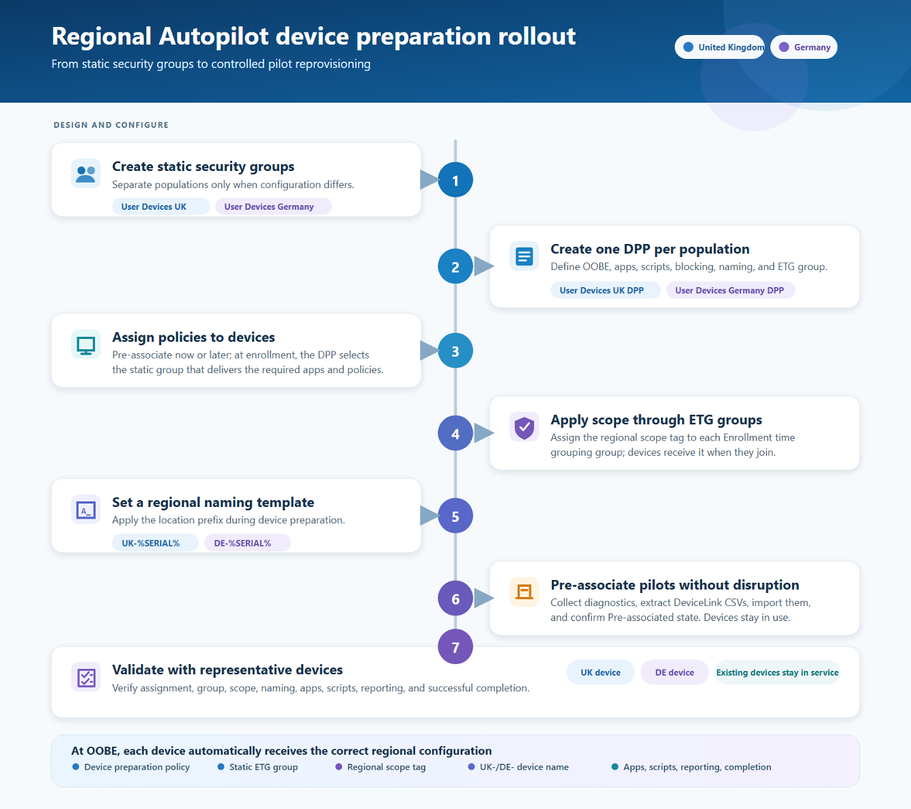
Figure 1: Seven-step regional Windows Autopilot device preparation rollout workflow, from creating security groups and device preparation policies through regional configuration, pilot association, and device validation.
This scenario is illustrative, not a completed deployment or a measured customer outcome. It shows the transition pattern: define the supported scope, replace group-tag dependencies with ETG, move Enrollment Status Page and deployment profile settings to the device preparation policy, decide where device association adds value, validate end to end, and expand in controlled waves.
Get started
Begin with one eligible user-driven Microsoft Entra join population. Map its current Windows Autopilot outcomes to enrollment time grouping (ETG) and a device preparation policy. Pre-associate a representative pilot, validate the complete reset-to-desktop experience, and expand only when the results meet your deployment and support criteria.Moving to Windows Autopilot device preparation doesn't require a forced cutover. It requires a clear boundary, a deliberately redesigned assignment model, and evidence from each wave.
That gives IT a controlled path toward simpler provisioning while keeping every device population on the experience that supports it best.
Learn more
- Windows Autopilot device preparation overview
- Compare Windows Autopilot device preparation and Windows Autopilot
- Windows Autopilot device preparation user-driven Microsoft Entra join workflow
- Windows Autopilot device preparation requirements
Source:
Moving from Windows Autopilot to Windows Autopilot device preparation | Microsoft Community Hub
By: Maggie Dakeva, Senior Product Manager - Microsoft Intune Organizations have spent years refining Windows Autopilot deployments. Profiles, Enrollment...
 techcommunity.microsoft.com