My Windows 11 Pro does not auto update


chzuck

New member
Local time
7:35 PM
Posts
5
OS
Windows 11 Pro
Windows 11 Pro will not find updates automatically, I have to do a manual check for updates. Where do I look to see why?
 
Windows Build/Version
Version 25H2 (OS Build 26200.8457)

My Computer

System One

  • OS
    Windows 11 Pro
    Computer type
    PC/Desktop
    Manufacturer/Model
    Dell
Your build number appears to be that of

May 12, 2026 - KB5089549 (OS Builds 26200.8457 and 26100.8457)​

- so why do you think there's a problem?


If there is a problem as your title indicates and as per
Windows 11 Pro will not find updates automatically
- have you perhaps paused Windows Update?

I guess you mean you can use 'Check for Updates' but the scheduled check isn't running.

If you look at Windows Update in Settings, do you see any red text or indication that any group policies are set?

What happened or changed around the time this started?
 

My Computer

System One

  • OS
    Windows 11 Pro
    Computer type
    Laptop
    Manufacturer/Model
    Lenovo t480s
    CPU
    i7-8650U
    Memory
    16GB
    Graphics Card(s)
    Intel UHD 620
    Screen Resolution
    1920x1080
    Hard Drives
    C SN810 SDCPNRY-512G-1006
    Browser
    Edge, Firefox
    Antivirus
    Defender
I'm having the same experience (I think it is not an issue). Since I installed version 22H2, Windows Update hasn't been checking for updates automatically. I have to click “Check for Updates” to make it do so. The only things that install automatically are Windows Defender updates and apps from the Windows Store.

Honestly, it's a real advantage to manually control updates so they don't install whenever they want. And all of this without making any changes to the system.

I think this behavior is due to a setting I selected during the Windows 11 installation. Although I have Windows 11 Pro, during installation, when I was asked to choose the installation type (Personal or Work), I selected Work/School. It’s possible that this detail caused Windows Update to behave this way.
 

My Computer

System One

  • OS
    Win 11 Pro 23H2
    Computer type
    PC/Desktop
    CPU
    13700K
    Motherboard
    MAG Z790 TOMAHAWK WIFI (7D91vHH - 0x12F)
    Memory
    32GB DDR5 Kingston Fury Renegade @6400
    Graphics Card(s)
    MSI GeForce RTX 4070 Ti Gaming X Slim White 12G
    Sound Card
    Creative Sound Blaster Z SE
    Monitor(s) Displays
    ASUS VA24DQ
    Hard Drives
    WD Black SN850X 2TB (main)
    SAMSUNG SSD 990 Pro 2TB
    WD Blue 1TB 7200rpm
    PSU
    Corsair RM1000x SHIFT
    Case
    DeepCool CH560 WH
    Cooling
    Noctua NH-D15S
    Keyboard
    Ducky One 3 Pro Nazca Line
    Mouse
    Logitech G403 HERO
I think this behavior is due to a setting I selected during the Windows 11 installation. Although I have Windows 11 Pro, during installation, when I was asked to choose the installation type (Personal or Work), I selected Work/School. It’s possible that this detail caused Windows Update to behave this way.
Yours is because your Windows version is very much out of support.
 

My Computer

System One

  • OS
    Windows 11 Pro 25H2
    Computer type
    PC/Desktop
    Manufacturer/Model
    Intel NUC12WSHi7
    CPU
    12th Gen Core i7-1260P
    Motherboard
    NUC12WSBi7
    Memory
    64 GB Micron PC4-25600
    Graphics Card(s)
    Intel Iris Xe Graphics
    Sound Card
    on-board Realtek HD Audio
    Monitor(s) Displays
    Dell U3219Q
    Screen Resolution
    3840 x 2160
    Hard Drives
    Samsung SSD 990 PRO 1TB
    Crucial MX500 2 TB
    Antivirus
    Microsoft Defender
Yours is because your Windows version is very much out of support.

23H2 is still supported until November 2026. Home and Pro editions must download the updates manually through the Windows Catalog. Enterprise and Education editions still receive automatic updates throught Windows Update.

I've always experienced the Windows Update behavior we're describing, ever since I installed Windows 11 in 2023.
 

My Computer

System One

  • OS
    Win 11 Pro 23H2
    Computer type
    PC/Desktop
    CPU
    13700K
    Motherboard
    MAG Z790 TOMAHAWK WIFI (7D91vHH - 0x12F)
    Memory
    32GB DDR5 Kingston Fury Renegade @6400
    Graphics Card(s)
    MSI GeForce RTX 4070 Ti Gaming X Slim White 12G
    Sound Card
    Creative Sound Blaster Z SE
    Monitor(s) Displays
    ASUS VA24DQ
    Hard Drives
    WD Black SN850X 2TB (main)
    SAMSUNG SSD 990 Pro 2TB
    WD Blue 1TB 7200rpm
    PSU
    Corsair RM1000x SHIFT
    Case
    DeepCool CH560 WH
    Cooling
    Noctua NH-D15S
    Keyboard
    Ducky One 3 Pro Nazca Line
    Mouse
    Logitech G403 HERO

My Computer

System One

  • OS
    Windows 11 Pro 25H2
    Computer type
    PC/Desktop
    Manufacturer/Model
    Intel NUC12WSHi7
    CPU
    12th Gen Core i7-1260P
    Motherboard
    NUC12WSBi7
    Memory
    64 GB Micron PC4-25600
    Graphics Card(s)
    Intel Iris Xe Graphics
    Sound Card
    on-board Realtek HD Audio
    Monitor(s) Displays
    Dell U3219Q
    Screen Resolution
    3840 x 2160
    Hard Drives
    Samsung SSD 990 PRO 1TB
    Crucial MX500 2 TB
    Antivirus
    Microsoft Defender
@win11raider - Could you please start your own thread if you wish to pursue that- as said, your issue is liekly to be quite different to chzuk's - whose post is puzzling as the reported build number is current.

When you do so, please state this:
If you look at Windows Update in Settings, do you see any red text or indication that any group policies are set?

and whether target feature update applies, and whether any Windows Update-related group policies are configured. Thanks.
 

My Computer

System One

  • OS
    Windows 11 Pro
    Computer type
    Laptop
    Manufacturer/Model
    Lenovo t480s
    CPU
    i7-8650U
    Memory
    16GB
    Graphics Card(s)
    Intel UHD 620
    Screen Resolution
    1920x1080
    Hard Drives
    C SN810 SDCPNRY-512G-1006
    Browser
    Edge, Firefox
    Antivirus
    Defender
Your build number appears to be that of

May 12, 2026 - KB5089549 (OS Builds 26200.8457 and 26100.8457)​

- so why do you think there's a problem?


If there is a problem as your title indicates and as per

- have you perhaps paused Windows Update?

I guess you mean you can use 'Check for Updates' but the scheduled check isn't running.

If you look at Windows Update in Settings, do you see any red text or indication that any group policies are set?

What happened or changed around the time this started?
My Dell is a refurbished PC and this problem has been present since I got it. I must manually do the Windows Update. Pause updates says pause for 1 week. I added what was recommended in the link as there was no FlightSettingsMaxPauseDays the registry under settings and set it for 7 days. Even before I added that pause updates was at 1 week.
 

My Computer

System One

  • OS
    Windows 11 Pro
    Computer type
    PC/Desktop
    Manufacturer/Model
    Dell
Can you open a powershell prompt and run the following?
Powershell:
Get-ChildItem 'HKLM:\Software\Policies\Microsoft\Windows\WindowsUpdate'

If you see something like Name: AU and Property: NoAutoUpdate: 1 then auto updating is disabled via a GPO

Alternatively from an elevated powershell prompt you can type
Code:
gpresult /SCOPE COMPUTER /V | findstr WindowsUpdate
If anything comes back it should give you a clue as to which GPO settings are enabled impacting Automatic Updates
 

My Computer

System One

  • OS
    Linux Mint
    Computer type
    Laptop
    Manufacturer/Model
    System76 Lemur Pro
And thank you for your reply.
My Dell is a refurbished PC and this problem has been present since I got it.
How confident were you that what was installed was reliable?

Again:
If you look at Windows Update in Settings, do you see any red text or indication that any group policies are set?
- which relates to neemobeer's post, as you didn't address the question of group policies.

Again: you haven't said whether Windows Update checks are paused- see my post.

There could be other causes. Without you actually looking- you'll make no progress. My crystal ball is down for unforeseen maintenance, unfortunately.

It really does help if you actually answer questions. I get bored asking them repeatedly and unsubscribe.

Feel free to try
- but I don't think that addresses the scheduled tasks which control Windows Update.

 

My Computer

System One

  • OS
    Windows 11 Pro
    Computer type
    Laptop
    Manufacturer/Model
    Lenovo t480s
    CPU
    i7-8650U
    Memory
    16GB
    Graphics Card(s)
    Intel UHD 620
    Screen Resolution
    1920x1080
    Hard Drives
    C SN810 SDCPNRY-512G-1006
    Browser
    Edge, Firefox
    Antivirus
    Defender
Can you open a powershell prompt and run the following?
Powershell:
Get-ChildItem 'HKLM:\Software\Policies\Microsoft\Windows\WindowsUpdate'

If you see something like Name: AU and Property: NoAutoUpdate: 1 then auto updating is disabled via a GPO

Alternatively from an elevated powershell prompt you can type
Code:
gpresult /SCOPE COMPUTER /V | findstr WindowsUpdate
If anything comes back it should give you a clue as to which GPO settings are enabled impacting Automatic Updates
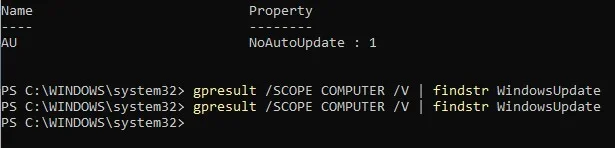
No Auto Update is indicated. Second code entry, nothing comes back.
 

Attachments

  • powershell.webp
    powershell.webp
    11 KB · Views: 1

My Computer

System One

  • OS
    Windows 11 Pro
    Computer type
    PC/Desktop
    Manufacturer/Model
    Dell
And thank you for your reply.

How confident were you that what was installed was reliable?

Again:
If you look at Windows Update in Settings, do you see any red text or indication that any group policies are set?
- which relates to neemobeer's post, as you didn't address the question of group policies.

Again: you haven't said whether Windows Update checks are paused- see my post.

There could be other causes. Without you actually looking- you'll make no progress. My crystal ball is down for unforeseen maintenance, unfortunately.

It really does help if you actually answer questions. I get bored asking them repeatedly and unsubscribe.

Feel free to try
- but I don't think that addresses the scheduled tasks which control Windows Update.

Maybe I joined the wrong forum. I am sorry that I did not answer all of your questions and I will not be offended if you unsubscribe.
 

My Computer

System One

  • OS
    Windows 11 Pro
    Computer type
    PC/Desktop
    Manufacturer/Model
    Dell
Open regedit and navigate to
HKLM:\Software\Policies\Microsoft\Windows\WindowsUpdate

Delete the whole folder called WindowsUpate and reboot
 

My Computer

System One

  • OS
    Linux Mint
    Computer type
    Laptop
    Manufacturer/Model
    System76 Lemur Pro
Open regedit and navigate to
HKLM:\Software\Policies\Microsoft\Windows\WindowsUpdate

Delete the whole folder called WindowsUpate and reboot
Says I cannot delete Windows Update: Error while deleting key.
I went ahead and rebooted and the greyed out pause statement was no longer greyed out.
 

My Computer

System One

  • OS
    Windows 11 Pro
    Computer type
    PC/Desktop
    Manufacturer/Model
    Dell

Latest Support Threads

Back
Top Bottom