Microsoft 365 Insider Blog:
Hi, Insiders! We’re Jessica Hu and Hugo Garcia, Product Managers on the Apple Experiences team. We’re excited to share a new, modern home experience for Microsoft Word, Excel, and PowerPoint for iOS!
Liquid Glass and template category filters in Word, Excel, and PowerPoint for iOS
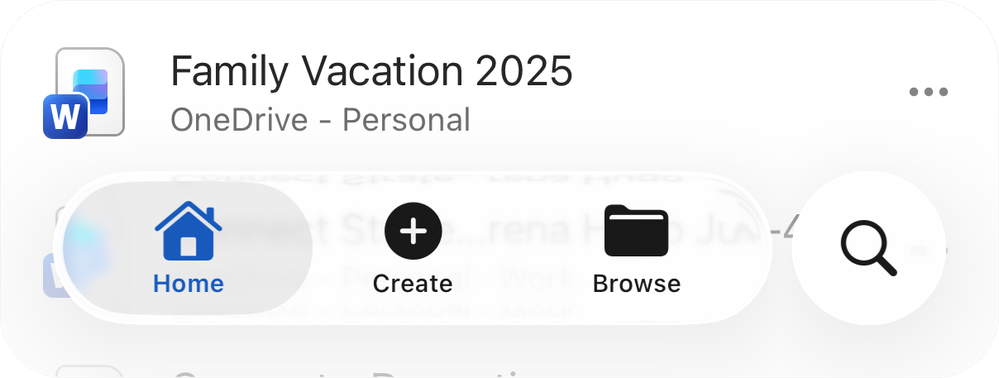
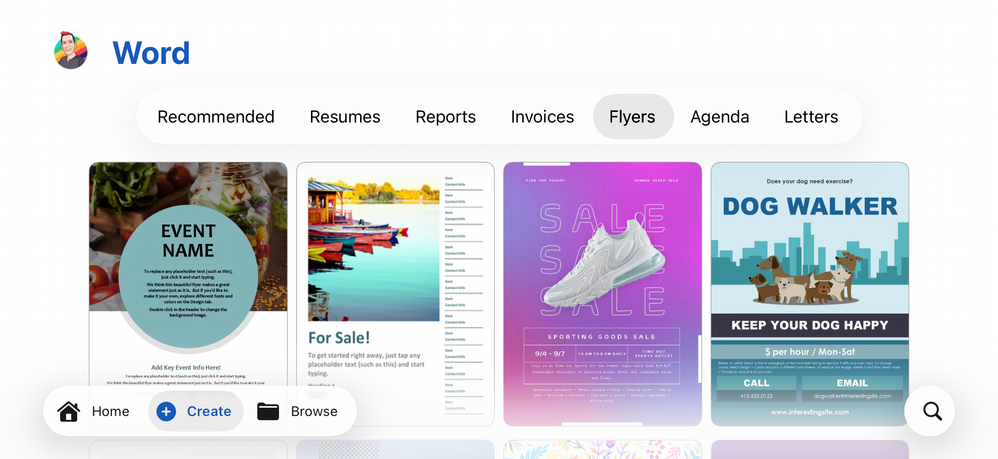
Your favorite Microsoft 365 apps on iPhone, iPad, and Apple Vision Pro now feature Liquid Glass styling. We’ve also made the search experience available from the bottom of the screen, to align with iOS 26’s search patterns and make it easier to use with one hand.When searching for templates, you’ll now also see quick filter buttons at the top that let you browse by category – like Flyers, Resumes, or Invoices – instead of scrolling through a single long list, so finding the perfect template is faster and more intuitive.
How it works
- Make sure your device is updated to iOS 26.
- Open the Word, Excel, or PowerPoint app, and notice that the navigation bar at the bottom now features Liquid Glass.
- To search for templates, select Create, then click on the search button in the bottom right-hand corner of the screen and begin typing, or use the quick filter buttons at the top.
Availability
The new Word, Excel, and PowerPoint for iOS home experience is available to users running Version 2.102 (Build 25101016).Feedback
We’d love to hear your thoughts on the new update! From the Home screen in Word, Excel, or PowerPoint for iOS, select your user account icon in the top left-hand corner, and then select Help & Feedback to provide feedback. Source:
Liquid Glass and template category filters in Word, Excel, and PowerPoint for iOS
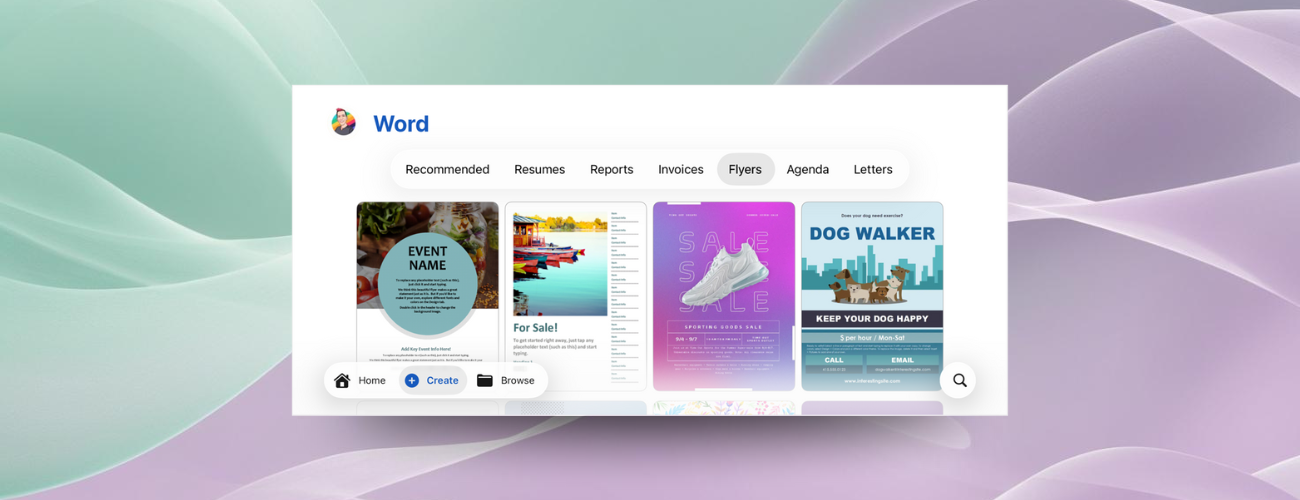
The Microsoft Word, Excel, and PowerPoint for iOS apps now feature Liquid Glass styling and a new search experience for easier template access.
 techcommunity.microsoft.com