Getting things done successfully in a fast-moving workplace requires teams to work closely together and operate off the same information. Yet, a recent Microsoft Work Trend Index Report revealed that 68% of people say they don’t have enough uninterrupted focus-time during the day, and 62% of survey respondents say they struggle with too much time spent searching for information. The new channels experience, now generally available in classic and new Teams, makes it easier to focus on key topics, engage with the right stakeholders, and find specific information so your team can accomplish more together.
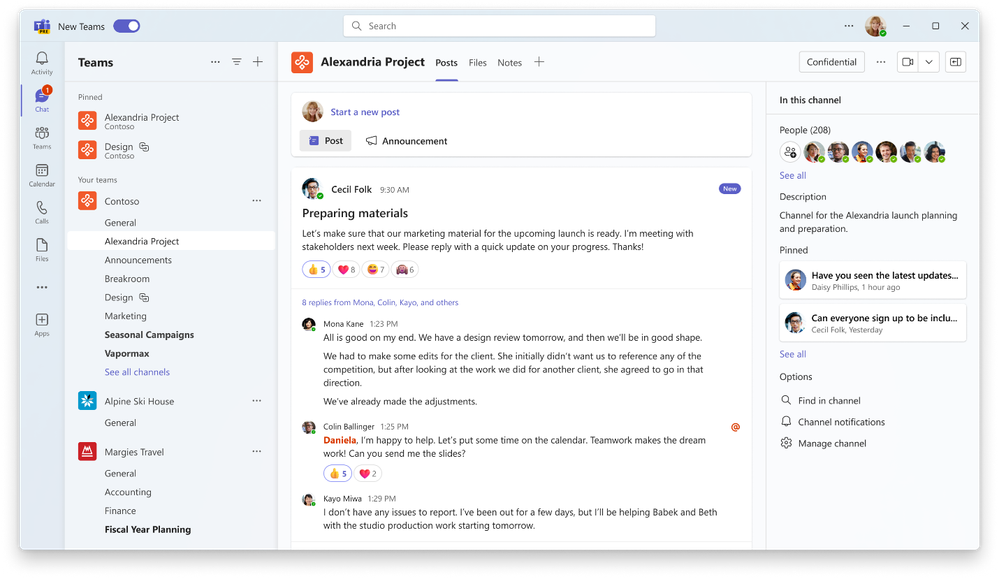
The new visual design makes it easier to follow key topics.
So, why the revamp of channels?
Channels make it possible for teams and workgroups of all sizes to collaborate in a dedicated virtual workspace organized by topic. Yet, our observations revealed that many customers were not using channels to their full capacity. In developing the new channels experience, we embraced customer feedback, user research input, and trends across communication platforms to transform channels and improve workgroup productivity.
A more engaging, expressive, and flexible workspace for teams
Let’s go over how updates to the Teams channels experience will help you and your team stay focused and productive.
The new conversation view in channels allows team members to identify which channel topic to focus on, one conversation at a time. Users can quickly scan the conversation, easily come back at any time to find content, and reply directly to a thread synchronously, just like a chat. Popping out the post will allow you to keep an eye on the discussion while continuing to work on other topics. Pinning a post will flag its importance to the channel’s members and enable you to quickly come back to it for future reference.

Select “Pop out conversation” within chat options to help focus on a single conversation.
Whether you prefer to see recent posts and compose box at the bottom of a channel or at the top, you’ll now be able to choose the order that works for you. Helping you efficiently catch up on the latest discussion and participate in the conversation or quickly start a new one.
Channels will default to having the most recent posts and compose box appear at the bottom, but you’ll have the ability to easily reverse the order by toggling “See new posts at top” in the channel settings.

Order channel posts how you want, from newest to oldest or the other way around.
The revamped compose box experience simplifies and improves usability. Collaborate effectively with your team to create a post to discuss a specific topic in project, or share an announcement to highlight a team’s milestone.

The updated compose box gives you tools to tailor your message for impact.
We’ve streamlined the information pane to provide a showcase of important channel information to provide helpful context, such as the channel’s description, member list and pinned conversations.

The “In this channel” content provides valuable and accessible context for the channel.
Teams users can now benefit from an enhanced in-channel search experience, now in public preview, including a new “find in channel” search button that is integrated into the channel information pane. Search within a specific channel and have the results displayed in the right pane of the screen. In a single view, you will be able to quickly glance at your search results as well as the channel interface, without leaving your flow of work. After selecting a search result, you are taken to that specific message in the channel post.
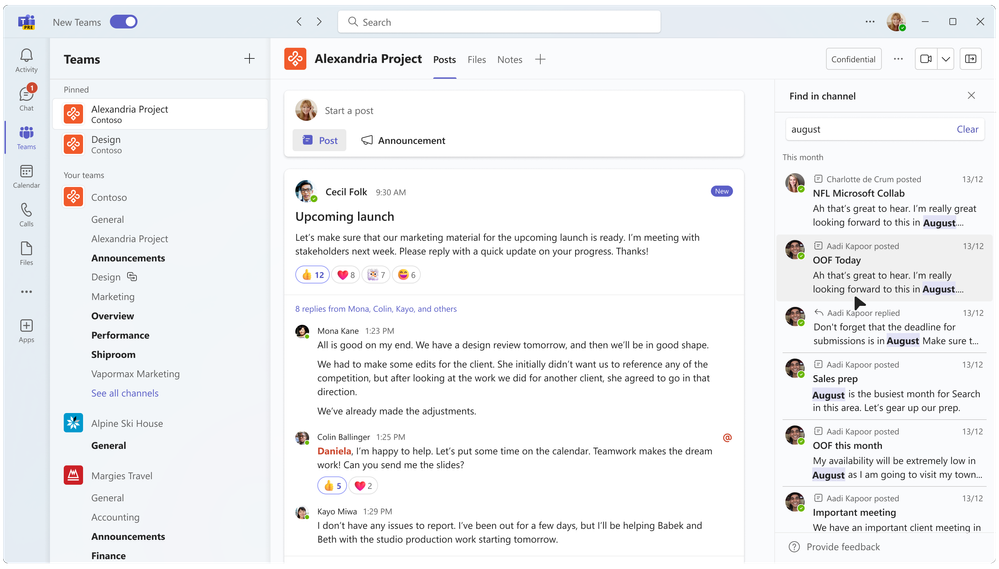
Channel search improvements help you easily find specific topics in posts and replies.
Does it ever seem challenging to keep up with everything in your organization? Hashtags referencing Viva Topics can automatically provide helpful organizational context in channels, bringing together information on key topics, such as an overview of the topic, topic performance, relevant resources, and people who are active in that area.
What’s next
We are committed to ensuring our customers capitalize on Teams capabilities to empower them to do more. Today’s announcements reflect our ongoing effort to simplify and enhance the channel experience to enabling efficient collaboration in a dynamic work environment. The new channel experience is already enabled in all channel types, including standard, private, and shared channels.
Learn how to get the most from Teams channels.
Source:

Create focused collaboration with the new Microsoft Teams channels experience
Getting things done successfully in a fast-moving workplace requires teams to work closely together and operate off the same information. Yet, a recent..
techcommunity.microsoft.com