General Open Command Prompt at Boot in Windows 11

  • Thread starter Thread starter Brink
  • Start date Published: Start date Updated Updated:
  • Tags Tags
    command

Command_prompt_banner.png

This tutorial will show you how to open an elevated command prompt at boot in Windows 11.

The Command shell is an entry point for typing commands in the Command Prompt console window. By typing commands at the command prompt, you can perform tasks on your computer without using the Windows GUI.

If you are troubleshooting or unable to open a command prompt from within Windows 11, you can open a command prompt at boot to use instead.


Contents

  • Option One: Open Command Prompt at Boot using Windows 11 Installation Media
  • Option Two: Open Command Prompt at Boot from Advanced Startup


Option One

Open Command Prompt at Boot using Windows 11 Installation Media


1 Boot from your Windows 11 installation USB, or ISO file if in a virtual machine.

2 Do step 3 (Shift+F10) or step 4 (Advanced Startup) below for how you would like to open a command prompt at boot.


3 Open Command Prompt at Boot with Shift+F10

A) When you see Windows Setup, press the Shift + F10 keys. (see screenshot below)

Command_prompt_at_boot_installation_media-1.png

B) A command prompt at boot will now open. (see screenshot below)

Command_prompt_at_boot_installation_media-2.png


4 Open Command Prompt at Boot from Advanced Startup

A) When you see Windows Setup, click/tap on Next. (see screenshot below)

Advanced_Startup_USB-1.png

B) Click/tap on Repair your computer, and go to step 2 in OPTION TWO below. (see screenshot below)

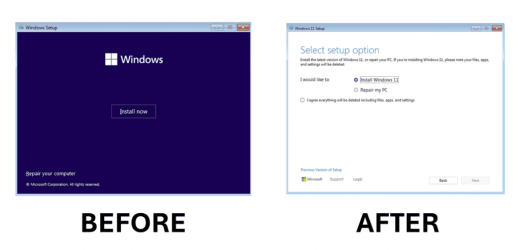
Starting with Windows 11 build 26040 (Canary), Microsoft is refreshing Windows OS Media Setup with a much cleaner and more modern design. All of the same features will continue to be supported in the bare-metal (clean) OS installation experience, including unattended support, but will now be consistent with the current upgrade and installation experience available for the devices already running the Windows OS.
winsetup-before-after.png


Advanced_Startup_USB-2.png


Option Two

Open Command Prompt at Boot from Advanced Startup


1 Boot to Advanced Startup.

2 Click/tap on the Troubleshoot option. (see screenshot below)

Command_prompt_at_boot_Advanced_startup-1.png

3 Click/tap on Advanced options. (see screenshot below)

If you came from Option One, you would skip this step and go directly to step 4 below instead.


Command_prompt_at_boot_Advanced_startup-2.png

4 Click/tap on the Command prompt option. (see screenshot below)

Command_prompt_at_boot_Advanced_startup-3.png

5 If prompted about BitLocker, click/tap on Skip this drive. (see screenshot below)

Command_prompt_at_boot_Advanced_startup-4.jpg

6 A command prompt at boot will now open. (see screenshot below)

Command_prompt_at_boot_Advanced_startup-5.png


That's it,
Shawn Brink


Last edited:
Hence, I understand that this Installation screen is similar as the existing ones :)
Thank you!
 

My Computer My Computer

At a glance

Windows 10
OS
Windows 10

My Computers My Computers

  • At a glance

    Windows 11 Pro for WorkstationsIntel i7-8700K 5 GHz64 GB (4x16GB) G.SKILL TridentZ RGB DDR4 3600...ASUS ROG-STRIX-GTX1080TI-O11G-GAMING (11GB GD...
    OS
    Windows 11 Pro for Workstations
    Computer type
    PC/Desktop
    Manufacturer/Model
    Custom self build
    CPU
    Intel i7-8700K 5 GHz
    Motherboard
    ASUS ROG Maximus XI Formula Z390
    Memory
    64 GB (4x16GB) G.SKILL TridentZ RGB DDR4 3600 MHz (F4-3600C18D-32GTZR)
    Graphics Card(s)
    ASUS ROG-STRIX-GTX1080TI-O11G-GAMING (11GB GDDR5X)
    Sound Card
    Integrated Digital Audio (S/PDIF)
    Monitor(s) Displays
    2 x Samsung Odyssey G75 27"
    Screen Resolution
    2560x1440
    Hard Drives
    1TB Samsung 990 PRO M.2,
    4TB Samsung 990 PRO M.2,
    TerraMaster F8 SSD Plus NAS
    PSU
    Seasonic Prime Titanium 850W
    Case
    Thermaltake Core P3 wall mounted
    Cooling
    Corsair Hydro H115i
    Keyboard
    Amazon Basics Wired Full Keyboard MD005
    Mouse
    Logitech MX Master 4
    Internet Speed
    2 Gbps Download and 100 Mbps Upload
    Browser
    Chrome and Edge
    Antivirus
    Microsoft Defender
    Other Info
    Logitech Z625 speaker system,
    Logitech BRIO 4K Pro webcam,
    HP Color LaserJet Pro MFP M477fdn,
    CyberPower CP1500PFCLCD
    Galaxy S23 Plus phone
  • At a glance

    Windows 11 ProSnapdragon X Elite (12 core) 3.42 GHz16 GB LPDDR5x-7467 MHz
    Operating System
    Windows 11 Pro
    Computer type
    Laptop
    Manufacturer/Model
    Surface Laptop 7 Copilot+ PC
    CPU
    Snapdragon X Elite (12 core) 3.42 GHz
    Memory
    16 GB LPDDR5x-7467 MHz
    Monitor(s) Displays
    15" HDR
    Screen Resolution
    2496 x 1664
    Hard Drives
    1 TB SSD
    Internet Speed
    Wi-Fi 7 and Bluetooth 5.4
    Browser
    Chrome and Edge
    Antivirus
    Microsoft Defender
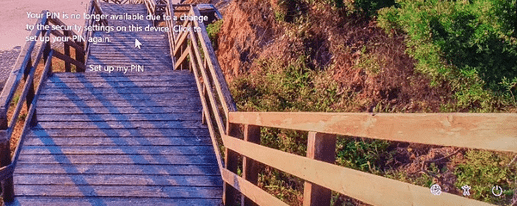
Hi there,
How do you find your actual C: drive in this environment so that you can carry out the
install of some drivers.
My ethernet drivers are not being seen.
So I get to the Login screen and there is no internet connection.
Only the World icon is at the bottom right.
Help Please.
Thank you.
Regards
David
 

Attachments

  • Windows Issue_Login Screen 2.png
    Windows Issue_Login Screen 2.png
    86 KB · Views: 139

My Computer My Computer

At a glance

Windows 11 Pro BetaIntel i9-7900X64.0 GBGygabyte AORUS 3090
OS
Windows 11 Pro Beta
Computer type
PC/Desktop
Manufacturer/Model
Own Build
CPU
Intel i9-7900X
Motherboard
ASUS Prime X299-Deluxe
Memory
64.0 GB
Graphics Card(s)
Gygabyte AORUS 3090
Sound Card
Using the graphics card through HDMI.
Monitor(s) Displays
Samsung 32" tv & Sony 55" tv
Screen Resolution
1920x1080 & 3840x2160
Hard Drives
2TB Samsung SSD & 18TB Seagate HDD
PSU
1000W
Case
Corsair 900D Tower
Cooling
Thermaltake 360 . Water Cooled.
Keyboard
Logitech K800
Internet Speed
350MB Virginmedia Cable
Browser
Firefox
Antivirus
Bitdefender

Latest Support Threads

Back
Top Bottom