This tutorial will show you how to open the Emoji Panel in Windows 11.
An emoji is a pictogram, logogram, ideogram or smiley embedded in text.
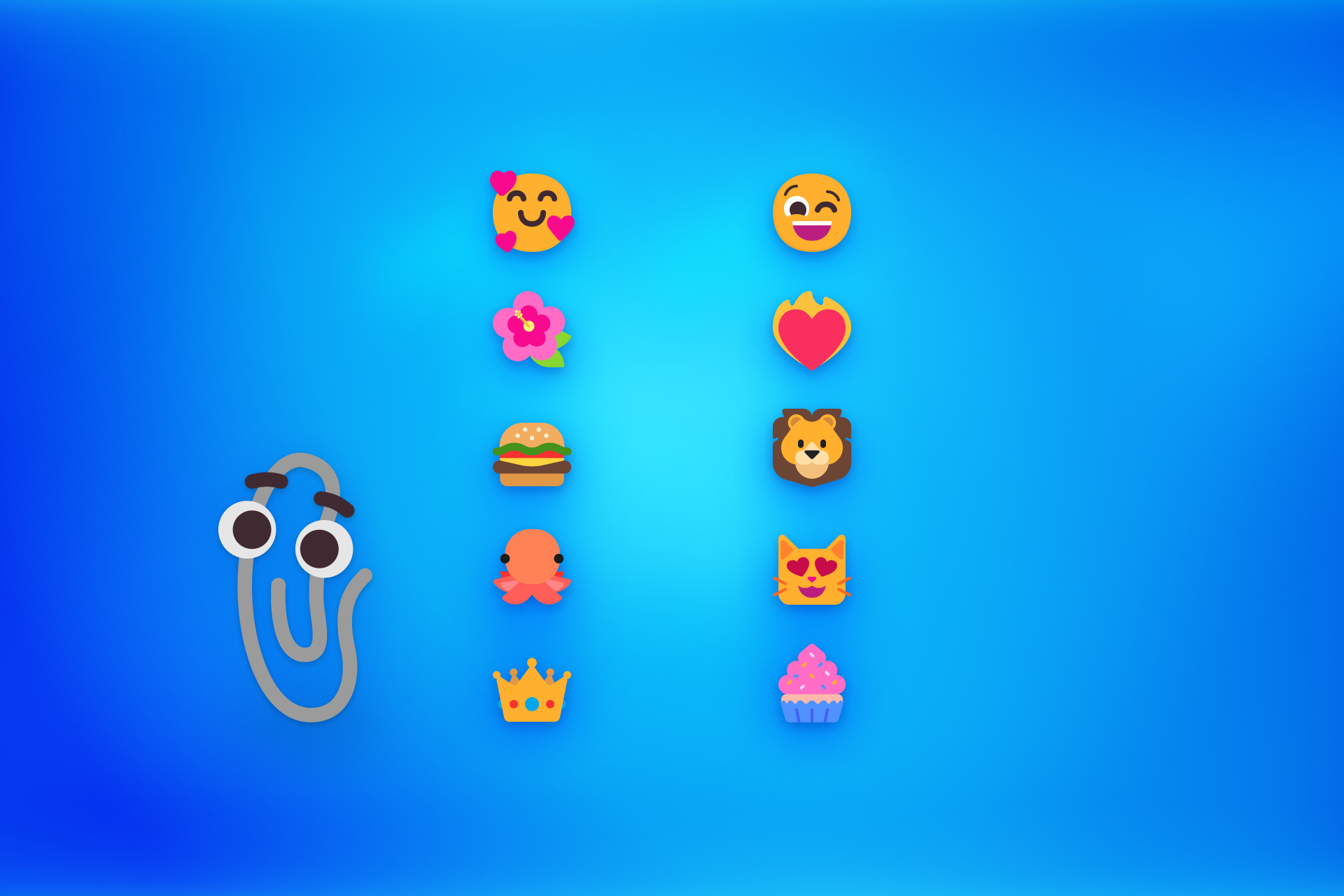
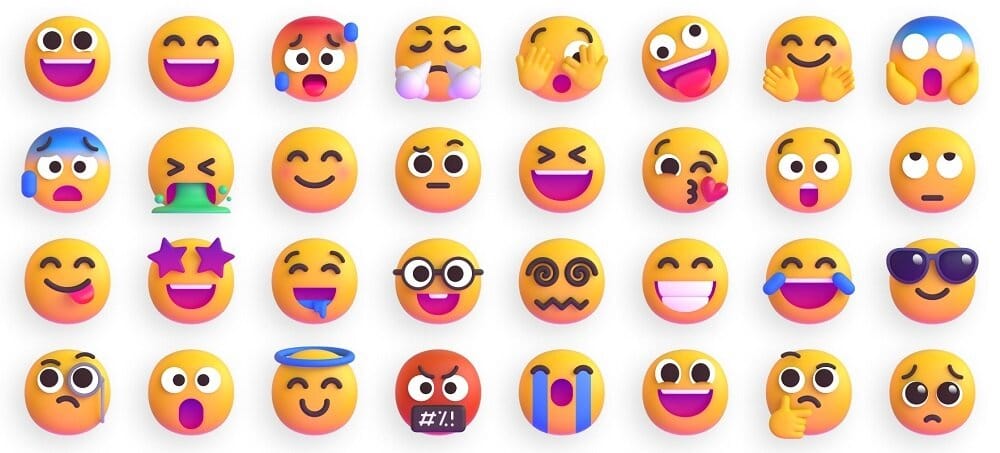
Windows 11 includes 3D Fluent emoji you can use from the Emoji Panel.
Starting with Windows 11 build 22631.3810, Microsoft is adding support for Emoji 15.1. Windows supports Unicode symbol-like shapes for family groupings. But Windows will keep using people for them. Also, you can choose the right or left facing direction for some people emoji.
Starting with Windows 11 build 26100.7922 (24H2) and 26200.9822 (25H2), and build 2800.1764 (26H1), Microsoft is starting to roll Emoji 16.0 back to Insiders. The Emoji 16.0 release introduces a small but thoughtfully curated set of new emojis—one from each major category—designed to resonate across cultures and contexts. With this build, you will see these new emoji available in the emoji panel.
Starting with Windows 11 build 26100.8737 (24H2) and build 26200.8737 (25H2), the emoji panel now uses GIPHY as the GIF provider, delivering a smoother GIF browsing and sharing experience following the deprecation of Tenor.
Starting with Windows 11 build 26100.9550 (24H2), build 26200.9550 (25H2), and build 26300.9550 (26H2), Microsoft is adding support for Emoji 17.0. This includes new emoji such as distorted face, fight cloud, and hairy creature. To try the new emoji, press the Windows key plus Period (.) to open the emoji panel and insert them from there. As part of this effort, Microsoft has also made some slight adjustments to the design of some of our current emoji to improve consistency across platforms. This includes the saluting face, face with peeking eye, goose, lotus, and kissing cat emoji.
References:
Express yourself with new emoji now available in Windows 11
 blogs.windows.com
Windows keyboard tips and tricks | Microsoft Support
 support.microsoft.com
The making of Fluent emoji
Microsoft Open Sources its 3D Fluent Emoji Library
 www.elevenforum.com
- Option One: Open Emoji Panel using Keyboard Shortcut
- Option Two: Open Emoji Panel from Context Menu
- Option Three: Open Emoji Panel from Touch Keyboard
EXAMPLE: Emoji Panel
1 While you have the cursor in a text box, press the Win+. (period) or Win+; (semicolon) keys.
Using the . period key from the number pad will not work for this.
2 You can now search and select an emoji you want to use from the Emoji Panel.
In addition to using your mouse to select an emoji, you can also navigate through the panel by using the following keys:
Arrow keys = Navigate among emoji
Tab / Shift + Tab = Switch emoji category
Enter = Select an emoji
Esc = Close the panel
1 Right click in a text field, and click/tap on Emoji. (see screenshot below)
For example, in Google Chrome, Microsoft Edge, or Firefox.
2 You can now search and select an emoji you want to use from the Emoji Panel.
In addition to using your mouse to select an emoji, you can also navigate through the panel by using the following keys:
Arrow keys = Navigate among emoji
Tab / Shift + Tab = Switch emoji category
Enter = Select an emoji
Esc = Close the panel
1 Open the Touch Keyboard.
2 While you have the cursor in a text box, click/tap on the Emoji icon at the top left corner of the Touch Keyboard. (see screenshot below)
3 You can now search and select an emoji you want to use from the Emoji Panel. (see screenshot below)
In addition to using your mouse to select an emoji, you can also navigate through the panel by using the following keys:
Arrow keys = Navigate among emoji
Tab / Shift + Tab = Switch emoji category
Enter = Select an emoji
Esc = Close the panel
That's it,
Shawn Brink






 thank you
 recently lost all my pictures thanks' to a Microsoft download on my old windows 10 tried everything to no avail but I learned a lot about PC's , luckily I saved everything to a memory stick now just have to remember where I put It
  having just used the site to help me get rid of a pinned folder that refused to be unpinned I am impressed and grateful so thanks for that.