partitioning question W11


WacoJohn

Member
Local time
5:04 PM
Posts
10
OS
Windows 11
Disk Management on my laptop indicates two partitions that appear to be empty on Disk 0. The screenshot reveals then ... 2 areas at the right end. 1.41 GB and 13 MB unallocated. Seems to me these areas/spaces are being wasted and would like to dedicate them to the OS C: partition. Would appreciate opinions, advice, and instructions before I honk something up. Thank anyone in advance.

2026-10-18 05_35_45-Disk Management.webp
 

My Computer My Computer

At a glance

Windows 11
OS
Windows 11
Computer type
Laptop
I think it's a waste of time & effort for 1GB but, if I was doing it, I'd use
MiniTool Partition Wizard
MiniTool Partition Wizard User Manual

Looking at your diagram, it seems to me that the only job worth doing is splitting the OS drive into two so your OS & applications drive is separate from your own-files drive. This would ease the burden of backing up & restoring [particularly the making of regular system images].
Personally, I leave about 130GB for my C drive [Windows & applications] and put the rest into a D drive for my own files [e.g. audio, video, MSOffice documents, ...].
This way I can make fairly small system images of my C drive quite quickly and I can restore them quickly if needs be.
I make simple file copy backups of the contents of my D drive.


Denis
 

My Computer My Computer

At a glance

Windows 11 Home x64 Version 26H2 Build 26300....
OS
Windows 11 Home x64 Version 26H2 Build 26300.9457
The 13mb is as it says, unallocated. That could be joined to the 1.41gb partition. Could the 1.41gb be the original laptop manufacturers recovery space? If you never want to use it (if it is) you could add it with the 13mb to your OS (C) partition.

I think the other members could appreciate it if you completed your "My Computer" with a little more detail. Then they could give better advice than me. (y)
 

My Computer My Computer

At a glance

Windows 11 Pro 25H2 26200.7922Intel Core i9 13900F2 x Kingston Fury 32gb DDR5 5600 BeastGigabyte Eagle (Nvidia) RTX 3060
OS
Windows 11 Pro 25H2 26200.7922
Computer type
PC/Desktop
Manufacturer/Model
Local shop built (KC Computers Ltd)
CPU
Intel Core i9 13900F
Motherboard
Gigabyte Z690 Gaming X (rev. 1.0/1.1) - (BIOS: F32 09 18 2025)
Memory
2 x Kingston Fury 32gb DDR5 5600 Beast
Graphics Card(s)
Gigabyte Eagle (Nvidia) RTX 3060
Sound Card
Chord Async USB 44.1kHz - 384kHz 2Qute DAC
Monitor(s) Displays
Gigabyte AORUS FO32U2 32” OLED Flat Gaming Monitor, 0.03ms, KVM, 250 cd/m2, FreeSync Premium Pro, HDR True Black 400
Screen Resolution
3840 x 2160 (UHD), 240Hz
Hard Drives
1 x KINGSTON NVMe M.2 SSDSKC3000D2048G 2TB
1 x Samsung SSD 870 EVO 250GB
2 x Crucial CT4000MX500SSD1 4TB
2 x Crucial CT2000MX500SSD1 2TB
1 x Crucial CT250MX500SSD1 250.0 GB
PSU
Gigabyte 750w
Case
Fractal Torrent
Cooling
Stock Intel CPU, 2 x Fractal 180mm PWM (front), 3 x Fractal 140mm PWM (bottom)
Keyboard
Logitech MX Mechanical Wireless Illuminated Performance Keyboard
Mouse
Logitech MX Master 3S Wireless Performance Mouse
Internet Speed
900 Mbps/900 Mbps Trooli FTTP
Browser
Firefox
Antivirus
Eset Nod32
Leave it as is. Some laptop manufacturers do some odd partitioning for their recovery methods.
Not worth potential problems for such a small amount of lost disc space.

Maybe someone with knowledge of the particular Laptop brand ? can comment.
 

My Computer My Computer

At a glance

Windows 11
OS
Windows 11
The 1.41 GB partition isn't shown as unallocated, so we shouldn't assume it's empty or unnecessary. It might be an OEM recovery or diagnostic partition.

Before considering deleting anything, could you provide the laptop's manufacturer and exact model, along with screenshots showing the results of these commands from an elevated Command Prompt or PowerShell?

diskpart
list disk
select disk 0
list partition
list volume
exit

Also, please run:

reagentc /info

These will help us identify the partitions and determine which recovery partition Windows is using.

Given that C: is already approximately 474 GB, the additional 1.41 GB would provide very little benefit. My inclination would be to leave the partitions alone unless there's a compelling reason to change them.
 

My Computers My Computers

  • At a glance

    Windows 11 ProAMD Ryzen 9 9950X3DKingston FURY Beast 64GB (2x32GB) DDR5 6000MT/sASUS TUF Gaming Radeon RX 9070 OC Edition 16G...
    OS
    Windows 11 Pro
    Computer type
    PC/Desktop
    CPU
    AMD Ryzen 9 9950X3D
    Motherboard
    ASRock B650E Taichi Lite
    Memory
    Kingston FURY Beast 64GB (2x32GB) DDR5 6000MT/s
    Graphics Card(s)
    ASUS TUF Gaming Radeon RX 9070 OC Edition 16GB GDDR6
    Hard Drives
    Solidigm P44 Pro 2TB M.2 NVMe SSD
  • At a glance

    Windows 11 HomeIntel Core Ultra 9 275HX64GB (2x 32GB) DDR5-6400NVIDIA GeForce RTX 5080 16GB GDDR7 Laptop GPU
    Operating System
    Windows 11 Home
    Computer type
    Laptop
    Manufacturer/Model
    Lenovo Legion Pro 7i Gen 10 16"
    CPU
    Intel Core Ultra 9 275HX
    Memory
    64GB (2x 32GB) DDR5-6400
    Graphics card(s)
    NVIDIA GeForce RTX 5080 16GB GDDR7 Laptop GPU
    Hard Drives
    2x 1TB M.2 NVMe SSD (SK Hynix)
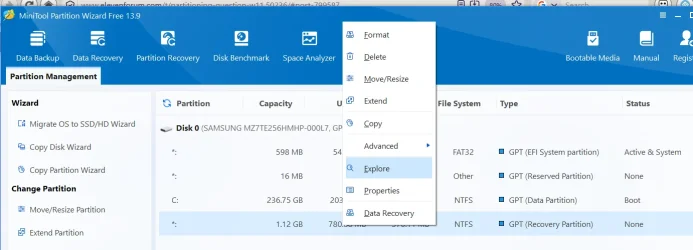
You can readily examine the content (if any) of a partition with no drive letter thus:
untitled-webp.187162


- just click 'Explore'
 

Attachments

  • Untitled.webp
    Untitled.webp
    57 KB · Views: 4

My Computer My Computer

At a glance

Windows 11 Proi7-8650U16GBIntel UHD 620
OS
Windows 11 Pro
Computer type
Laptop
Manufacturer/Model
Lenovo t480s
CPU
i7-8650U
Memory
16GB
Graphics Card(s)
Intel UHD 620
Screen Resolution
1920x1080
Hard Drives
C SN810 SDCPNRY-512G-1006
Browser
Edge, Firefox
Antivirus
Defender
It might be the OEM recovery partition. If you manually do a clean installation of Windows 11 using the official ISO, it's not needed and you can delete it. If you have an OEM installation of Windows 11, then there is some recovery tool by pressing a specific F key while booting that needs it. If you decide to remove it, you must first stop Windows recovery so you can move the Windows recovery partition next to it at the end of the disk. Then using Minitool Partition Wizard you can delete the OEM recovery partition, move Windows recovery partition to the end, and expand the Windows partition to take the available unallocated space. Then start Windows recovery again. I don't know all the commands syntax to tell you exactly, but as you realize it's a lot of trouble for about 1.5GB.
 

My Computers My Computers

  • At a glance

    Windows 11 Pro 23H2 (7584), 26H2 (9711)Mobile DualCore Intel Core 2 Duo T7250, 2000 MHz4GBMobile Intel(R) GMA 4500M (Mobile 4 series)
    OS
    Windows 11 Pro 23H2 (7584), 26H2 (9711)
    Computer type
    Laptop
    Manufacturer/Model
    Acer Extensa 5630EZ
    CPU
    Mobile DualCore Intel Core 2 Duo T7250, 2000 MHz
    Motherboard
    Acer Extensa 5630
    Memory
    4GB
    Graphics Card(s)
    Mobile Intel(R) GMA 4500M (Mobile 4 series)
    Sound Card
    Realtek ALC268 @ Intel 82801IB ICH9 - High Definition Audio Controller
    Monitor(s) Displays
    1
    Screen Resolution
    1280x800
    Hard Drives
    Samsung SSD 850 EVO 250GB SATA Device (250 GB, SATA-III)
    Internet Speed
    802.11g wireless 54 Mbps
    Browser
    MICROSOFT EDGE
    Antivirus
    WINDOWS DEFENDER
    Other Info
    Legacy MBR installation, no TPM, no Secure Boot, no WDDM 2.0 graphics drivers, no SSE4.2, cannot get more unsupported ;) This is only my test laptop. I had installed Windows 11 here before upgrading my main PC. For my main PC I use everyday see my 2nd system specs.
  • At a glance

    Windows 11 Pro 26H2 (build 26300.9711)Intel Core-i7 3770 3.40GHz s1155 (3rd generat...2x Kingston Hyper-X Blu 8GB DDR3-1600GIGABYTE GeForce RTX 3050 WINDFORCE OC V2 6GB...
    Operating System
    Windows 11 Pro 26H2 (build 26300.9711)
    Computer type
    PC/Desktop
    Manufacturer/Model
    Custom-built PC
    CPU
    Intel Core-i7 3770 3.40GHz s1155 (3rd generation)
    Motherboard
    Asus P8H61 s1155 ATX
    Memory
    2x Kingston Hyper-X Blu 8GB DDR3-1600
    Graphics card(s)
    GIGABYTE GeForce RTX 3050 WINDFORCE OC V2 6GB (GV-N3050WF2OCV2-6GD)
    Sound Card
    Realtek HD audio (ALC887)
    Monitor(s) Displays
    Sony Bravia KDL-19L4000 19" LCD TV via VGA
    Screen Resolution
    1440x900 32-bit 60Hz
    Hard Drives
    WD Blue SA510 2.5 1000GB SSD as system disk, Western Digital Caviar Purple 4TB SATA III (WD40PURZ) as second
    PSU
    Thermaltake Litepower RGB 550W Full Wired
    Case
    SUPERCASE MIDI-TOWER
    Cooling
    Deepcool Gamma Archer CPU cooler, 1x 8cm fan at the back
    Keyboard
    Mitsumi 101-key PS/2
    Mouse
    Microsoft Compact Optical Mouse
    Internet Speed
    802.11ac 5GHz wireless 260Mpbs
    Browser
    Microsoft Edge, Mozilla Firefox
    Antivirus
    Microsoft Windows Defender
    Other Info
    Legacy BIOS (MBR) installation, no TPM, no Secure Boot, WDDM 3.0 graphics drivers, WEI score 7.4
appear to be empty on Disk 0

You can have look with the FILES tab in diskgenius

It also has various rt click context menu options

dg-files2.webp
 

My Computers My Computers

  • At a glance

    Win7,Win11i7-97002x16gb 3600mhz
    OS
    Win7,Win11
    Computer type
    PC/Desktop
    CPU
    i7-9700
    Motherboard
    gigabyte b365m ds3h
    Memory
    2x16gb 3600mhz
    Monitor(s) Displays
    benq gw2480
    PSU
    bequiet pure power 11 400CM
    Cooling
    cryorig m9i
  • At a glance

    win7,win11i5-84002x8gb 3200
    Operating System
    win7,win11
    Computer type
    PC/Desktop
    CPU
    i5-8400
    Motherboard
    gigabyte b365m ds3h
    Memory
    2x8gb 3200
    PSU
    xfx pro 450
Disk management does not display hidden partitions.

Windows diskpart commands or third party software or both can be used for partition/free space modifications.


Please open administrative command prompt and copy and paste: (all commands at one time) > post share links displaying commands with results

Code:
bcdedit
reagentc/info
diskpart
lis dis
lis vol
sel dis 0
det dis
lis par
sel par 1
det par
sel par 2
det par
sel par 3
det par
sel par 4
det par
sel par 5
det par
sel par 6
det par
 

My Computer My Computer

At a glance

Windows 10Intel(R) Core(TM) i7-4800MQ CPU @ 2.70GHz16 GB Total: Manufacturer : Samsung MemoryTyp...NVIDIA Quadro K3100M; Intel(R) HD Graphics 4600
OS
Windows 10
Computer type
Laptop
Manufacturer/Model
HP
CPU
Intel(R) Core(TM) i7-4800MQ CPU @ 2.70GHz
Motherboard
Product : 190A Version : KBC Version 94.56
Memory
16 GB Total: Manufacturer : Samsung MemoryType : DDR3 FormFactor : SODIMM Capacity : 8GB Speed : 1600
Graphics Card(s)
NVIDIA Quadro K3100M; Intel(R) HD Graphics 4600
Sound Card
IDT High Definition Audio CODEC; PNP Device ID HDAUDIO\FUNC_01&VEN_111D&DEV_76E0
Hard Drives
Model Hitachi HTS727575A9E364
Antivirus
Microsoft Defender
Other Info
Mobile Workstation
Back
Top Bottom