Windows IT Pro Blog:
When a Windows PC experiences an unexpected issue, every minute of downtime matters. Devices are constantly evolving through updates, apps, policies, drivers, and user activity, which can make recovery complex. For IT teams, getting users back to work often means time-consuming troubleshooting, or full rebuilds that take hours.
Today, we’re excited to announce the general availability of point‑in‑time restore for Windows 11 new built-in recovery capability designed to recover in minutes instead of hours, with confidence, by safely rolling a device back to a previous state. Available in Windows Enterprise, Pro and Home SKUs, point-in-time restore provides admins and employees a quick, built‑in ability to go back in time to a moment before the issue occurred.
This release marks an important step forward in Windows recovery and resilience and reflects what we’ve heard consistently from Windows users and IT admins: recovery should be reliable, simple, and easy to use when it matters most.

Point-in-time restore shown in the Troubleshoot menu for Windows Recovery Environment (Windows RE)
What is point‑in‑time restore for Windows 11 PCs?
Point‑in‑time restore automatically captures comprehensive restore points on a predictable cadence and stores them locally on the device.
With point‑in‑time restore, a device can be restored to the exact system state captured earlier, including:
- Windows OS
- Installed applications
- System and app configurations
- Settings
- Local user files
- Automatic and predictable: Restore points are captured on a recurring schedule (default: every 24 hours), so recent recovery points are already available if an issue occurs.
- Fast, full‑system recovery: Restore the entire system to a previous state in minutes*, minimizing user and business impact.
- Designed for real‑world disruptions: Useful for both one‑off device issues and wider incidents affecting many machines, such as a problematic updates, driver regressions, app corruption, configuration errors or other user or admin-initiated changes that result in system instability.
- Built into Windows 11: Configuration is available within system settings, and restore operations are initiated from Windows RE, providing a trusted recovery path even when the Windows PC won’t boot.
Point‑in‑time restore is part of Windows resiliency, focused on helping organizations prevent, manage, and recover from PC incidents more effectively. Check out the click-through demo to see the configuration and restore experience.
How is this different from System Restore?
You may be wondering how point‑in‑time restore compares to System Restore. While both features leverage Volume Shadow Copy Service (VSS) under the hood, point‑in‑time restore is more comprehensive and is built for modern Windows PCs management and recovery.Point-in-time restore | System Restore | |
|---|---|---|
| Restore points | Automatic, configurable cadence; user files are included in restore point | Event-triggered or manual only; user files are excluded from restore point |
| Reliability | Strict retention and cleanup policies | No retention limits |
| User experience | Integrated in system settings | Limited to control panel |
| Storage impact | Minimizes storage impact by integrating with reserved storage* | Higher impact to storage space |
| Management | Will support robust remote management capabilities | Limited remote management capabilities |
How does this feature in Windows 11 compare to point-in-time restore for Windows 365?
Some of you are already familiar with point‑in‑time restore for Windows 365 Enterprise, which protects Cloud PCs. While these features share the same goals of fast recovery and minimal downtime, they are optimized for different environments.Each solution is purpose‑built for its environment, and organizations may use both depending on device types.
Windows Client | Windows 365 | |
|---|---|---|
| Feature enablement | Can be enabled or disabled | Always on |
| Restore point retention | Up to 72 hours | Up to 1 month |
| Restore point types | Short-term only | Short-term, long term, and manual |
| Restore point sharing | No sharing, restore points remain local | Support sharing across Windows 365 and Azure Cloud |
| Restore speed | Likely faster due to local storage of restore point | Speed is affected by network latency and bulk vs. single restores |
| Storage constraints | Bound by physical disk limits | Scalable, cloud storage |
What’s included in general availability (GA)?
Since its initial public preview, point-in-time restore has been enabled on over 2M devices and the feature has continued to mature based on feedback and real‑world testing. GA signals that point‑in‑time restore is ready for production use and to become part of your Windows recovery toolkit.Highlights in the GA release include:
- Availability for all users on consumer and commercial editions of Windows 11
- CSPs for remote configuration
- Integration with system reserved storage to minimize local storage impact
- Visibility into restore points on the system and their disk usage
- Consistency in settings across feature updates and integration with OneSettings
- Updated documentation and guidance
Configuring point-in-time restore
Configuration defaults for general availability are outlined below:Configuration | Default | Options | Editions eligible to configure |
|---|---|---|---|
| Feature On/Off | See below | On, Off | Home, Pro, Enterprise |
| Restore point frequency | Every 24 hours | 4, 6, 12, 16, 24 hours | Enterprise only |
| Restore point retention | 72 hours | 4, 6, 12, 16, 24, 72 hours | Enterprise only |
| Maximum usage limit | 2% of disk | Percent of disk (min 2 GB, max 50 GB equivalent) | Home, Pro, Enterprise |
Point-in-time restore is on by default on some systems not under enterprise management:
- Windows Home edition devices
- Windows Pro edition devices that are not domain joined and not enrolled in enterprise endpoint management
- Windows Enterprise and Education edition devices
- Windows Pro edition devices that are domain joined or managed by an organization
Point-in-time restore can be configured in system settings: System > Recovery > Point-in-time restore. Only local admins can view or edit point-in-time restore settings on their system.
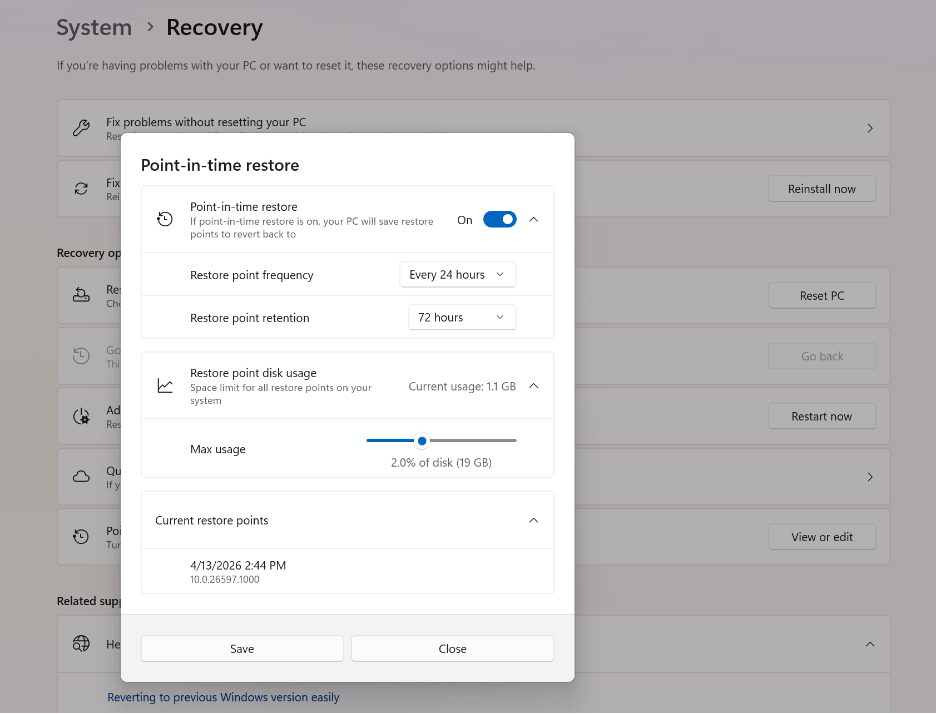
Point-in-time restore settings page in System > Recovery
Important considerations before you restore
Point‑in‑time restore is a powerful recovery tool, and it’s important to understand its behavior and impact:- Data loss: Any changes made after the selected restore point including files, apps, and settings will be lost. Cloud data is not affected but may require resync. Microsoft recommends storing data in the cloud.
- Local storage: Restore points are stored locally and require sufficient disk space. Older restore points are automatically removed when limits are reached.
- BitLocker protection: A BitLocker recovery key is required when restoring encrypted devices.
Restoring a device
Currently, a restore can only be triggered locally by the user when the device is in Windows RE. The steps to perform a point-in-time restore are below:- In Windows RE select Troubleshoot > Point-in-time restore
- Enter Bitlocker recovery key
- Select a restore point to restore PC to the exact state it was at the time of the restore point
- Acknowledge the risks and limitations associated with this feature by selecting Continue
- Review the restore point selection, OS version and warning of data loss and select Restore to start the restore process
Start using point‑in‑time restore today and provide feedback
Point‑in‑time restore is now generally available on Windows 11 Client PCs on versions 24H2 and later.Learn more and get started: point-in-time restore for Windows 11 Microsoft Learn.
We strongly encourage you to share feedback through Feedback Hub, within Recovery and Uninstall > Point-in-time restore as we continue investing in Windows recovery and resiliency.
Looking ahead
Point‑in‑time restore is an important foundation for the future of Windows recovery. As part of Windows resiliency, we’ll continue to enhance point-in-time restore and expand recovery options, improving manageability, and reducing the time it takes to get users back to productivity across a broad range of issues. Source:

Point-in-time restore for Windows 11 is now generally available
Restore devices to an earlier state in minutes to keep users productive.
 techcommunity.microsoft.com
Last edited: