Point-in-time restore for Windows 11 is now generally available


 Windows IT Pro Blog:

When a Windows PC experiences an unexpected issue, every minute of downtime matters. Devices are constantly evolving through updates, apps, policies, drivers, and user activity, which can make recovery complex. For IT teams, getting users back to work often means time-consuming troubleshooting, or full rebuilds that take hours.

Today, we’re excited to announce the general availability of point‑in‑time restore for Windows 11 new built-in recovery capability designed to recover in minutes instead of hours, with confidence, by safely rolling a device back to a previous state. Available in Windows Enterprise, Pro and Home SKUs, point-in-time restore provides admins and employees a quick, built‑in ability to go back in time to a moment before the issue occurred.

This release marks an important step forward in Windows recovery and resilience and reflects what we’ve heard consistently from Windows users and IT admins: recovery should be reliable, simple, and easy to use when it matters most.
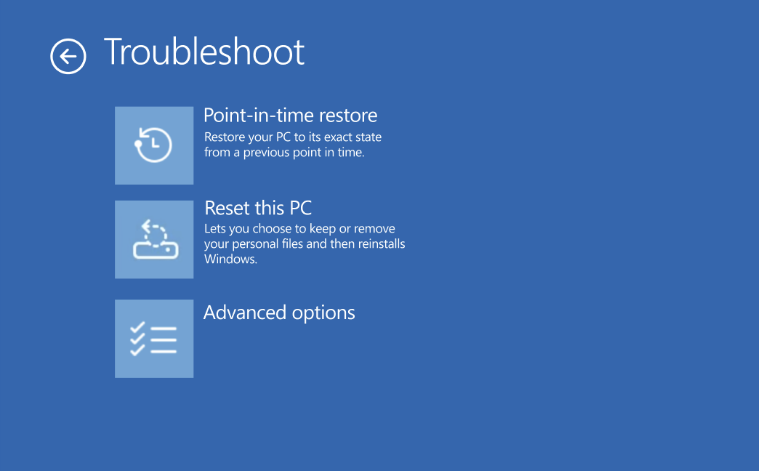
bS00NTA4MTAxLWVta21yNg

Point-in-time restore shown in the Troubleshoot menu for Windows Recovery Environment (Windows RE)

What is point‑in‑time restore for Windows 11 PCs?

Point‑in‑time restore automatically captures comprehensive restore points on a predictable cadence and stores them locally on the device.

With point‑in‑time restore, a device can be restored to the exact system state captured earlier, including:
  • Windows OS
  • Installed applications
  • System and app configurations
  • Settings
  • Local user files
Key characteristics:
  • Automatic and predictable: Restore points are captured on a recurring schedule (default: every 24 hours), so recent recovery points are already available if an issue occurs.
  • Fast, full‑system recovery: Restore the entire system to a previous state in minutes*, minimizing user and business impact.
  • Designed for real‑world disruptions: Useful for both one‑off device issues and wider incidents affecting many machines, such as a problematic updates, driver regressions, app corruption, configuration errors or other user or admin-initiated changes that result in system instability.
  • Built into Windows 11: Configuration is available within system settings, and restore operations are initiated from Windows RE, providing a trusted recovery path even when the Windows PC won’t boot.
*Note: Restore time is dependent on several factors, such as changes that have occurred on the system since restore point capture and system performance.

Point‑in‑time restore is part of Windows resiliency, focused on helping organizations prevent, manage, and recover from PC incidents more effectively. Check out the click-through demo to see the configuration and restore experience. 

How is this different from System Restore?​

You may be wondering how point‑in‑time restore compares to System Restore. While both features leverage Volume Shadow Copy Service (VSS) under the hood, point‑in‑time restore is more comprehensive and is built for modern Windows PCs management and recovery.

Point-in-time restore​
System Restore​
Restore pointsAutomatic, configurable cadence; user files are included in restore pointEvent-triggered or manual only; user files are excluded from restore point
ReliabilityStrict retention and cleanup policiesNo retention limits
User experienceIntegrated in system settingsLimited to control panel
Storage impactMinimizes storage impact by integrating with reserved storage*Higher impact to storage space
ManagementWill support robust remote management capabilitiesLimited remote management capabilities
*Note: Reserved storage is a Windows feature that sets aside a portion of disk space for successful update installation. It helps ensure that updates, temporary files, and system processes can run reliably, without requiring users to free up space.

How does this feature in Windows 11 compare to point-in-time restore for Windows 365?​

Some of you are already familiar with point‑in‑time restore for Windows 365 Enterprise, which protects Cloud PCs. While these features share the same goals of fast recovery and minimal downtime, they are optimized for different environments.

Each solution is purpose‑built for its environment, and organizations may use both depending on device types.

Windows Client​
Windows 365​
Feature enablementCan be enabled or disabledAlways on
Restore point retentionUp to 72 hoursUp to 1 month
Restore point typesShort-term onlyShort-term, long term, and manual
Restore point sharingNo sharing, restore points remain localSupport sharing across Windows 365 and Azure Cloud
Restore speedLikely faster due to local storage of restore pointSpeed is affected by network latency and bulk vs. single restores
Storage constraintsBound by physical disk limitsScalable, cloud storage

What’s included in general availability (GA)?​

Since its initial public preview, point-in-time restore has been enabled on over 2M devices and the feature has continued to mature based on feedback and real‑world testing. GA signals that point‑in‑time restore is ready for production use and to become part of your Windows recovery toolkit.

Highlights in the GA release include:
  • Availability for all users on consumer and commercial editions of Windows 11
  • CSPs for remote configuration
  • Integration with system reserved storage to minimize local storage impact
  • Visibility into restore points on the system and their disk usage
  • Consistency in settings across feature updates and integration with OneSettings
  • Updated documentation and guidance

Configuring point-in-time restore​

Configuration defaults for general availability are outlined below:

Configuration​
Default​
Options​
Editions eligible to configure​
Feature On/OffSee belowOn, OffHome, Pro, Enterprise
Restore point frequencyEvery 24 hours4, 6, 12, 16, 24 hoursEnterprise only
Restore point retention72 hours4, 6, 12, 16, 24, 72 hoursEnterprise only
Maximum usage limit2% of diskPercent of disk (min 2 GB, max 50 GB equivalent)Home, Pro, Enterprise

Point-in-time restore is on by default on some systems not under enterprise management:
  • Windows Home edition devices
  • Windows Pro edition devices that are not domain joined and not enrolled in enterprise endpoint management
Point-in-time restore is off by default, until Windows 11, version 26H2 on some enterprise-managed systems:
  • Windows Enterprise and Education edition devices
  • Windows Pro edition devices that are domain joined or managed by an organization
*Note: Only devices with an OS volume size of 200GB or greater, will have the feature on by default. The feature will be off by default on devices with OS volume size below 200GB, but admins can turn the feature on if desired.

Point-in-time restore can be configured in system settings: System > Recovery > Point-in-time restore. Only local admins can view or edit point-in-time restore settings on their system.
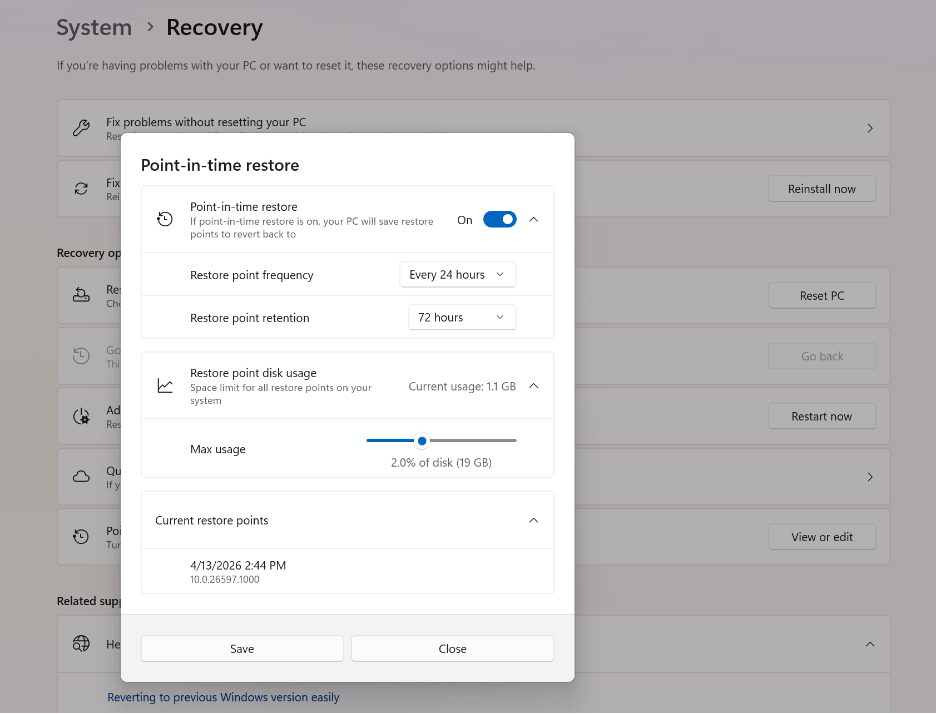
bS00NTA4MTAxLUtVbTA0dg

Point-in-time restore settings page in System > Recovery

Important considerations before you restore​

Point‑in‑time restore is a powerful recovery tool, and it’s important to understand its behavior and impact:
  • Data loss: Any changes made after the selected restore point including files, apps, and settings will be lost. Cloud data is not affected but may require resync. Microsoft recommends storing data in the cloud.
  • Local storage: Restore points are stored locally and require sufficient disk space. Older restore points are automatically removed when limits are reached.
  • BitLocker protection: A BitLocker recovery key is required when restoring encrypted devices.
For detailed requirements, limitations, and best practices, we strongly recommend reviewing the documentation.

Restoring a device​

Currently, a restore can only be triggered locally by the user when the device is in Windows RE. The steps to perform a point-in-time restore are below:
  1. In Windows RE select Troubleshoot > Point-in-time restore
  2. Enter Bitlocker recovery key
  3. Select a restore point to restore PC to the exact state it was at the time of the restore point
  4. Acknowledge the risks and limitations associated with this feature by selecting Continue
  5. Review the restore point selection, OS version and warning of data loss and select Restore to start the restore process
*Note: Microsoft has announced plans to enable remote initiation in the future, through Intune recovery, giving organizations a more scalable way to restore devices when that capability becomes available.

Start using point‑in‑time restore today and provide feedback​

Point‑in‑time restore is now generally available on Windows 11 Client PCs on versions 24H2 and later.
Learn more and get started: point-in-time restore for Windows 11 Microsoft Learn.

We strongly encourage you to share feedback through Feedback Hub, within Recovery and Uninstall > Point-in-time restore as we continue investing in Windows recovery and resiliency.

Looking ahead​

Point‑in‑time restore is an important foundation for the future of Windows recovery. As part of Windows resiliency, we’ll continue to enhance point-in-time restore and expand recovery options, improving manageability, and reducing the time it takes to get users back to productivity across a broad range of issues.


 Source:
 
Last edited:
Yes I think it's good for those who don't make image backups but otherwise pretty much redundant
Fair statement but, of course, my personal experience is "informed" users who make regular image backups is probably less than 10%.

Not one of my friends, colleagues or family have ever used or installed image backup tools although one or two have used the old deprecated W7 backup tool.

I cannot say if this is a general trend (lies, damned lies and statistics) but I eould be very surprised of image backups are used by much more than 10% of users worldwide.

Regardless of our "informed" position as regulars on these forums, we have to recognise MS have introduced a significant native improvement that could help the vast majority of users.

We often knock MS's new features but in this case, I think MS have made a significant base level inprovement EVEN if it has limited benefit for those who frequent these forums.
 

My Computer My Computer

At a glance

Windows 11 Pro + Win11 Canary VM.I9 13th gen i9-13900H 2.60 GHZ16 GB solderedIntegrated Intel Iris XE
OS
Windows 11 Pro + Win11 Canary VM.
Computer type
Laptop
Manufacturer/Model
ASUS Zenbook 14
CPU
I9 13th gen i9-13900H 2.60 GHZ
Motherboard
Yep, Laptop has one.
Memory
16 GB soldered
Graphics Card(s)
Integrated Intel Iris XE
Sound Card
Realtek built in
Monitor(s) Displays
laptop OLED screen
Screen Resolution
2880x1800 touchscreen
Hard Drives
1 TB NVME SSD (only weakness is only one slot)
PSU
Internal + 65W thunderbolt USB4 charger
Case
Yep, got one
Cooling
Stella Artois (UK pint cans - 568 ml) - extra cost.
Keyboard
Built in UK keybd
Mouse
Bluetooth , wireless dongled, wired
Internet Speed
900 mbs (ethernet), wifi 6 typical 350-450 mb/s both up and down
Browser
Edge
Antivirus
Defender
Other Info
TPM 2.0, 2xUSB4 thunderbolt, 1xUsb3 (usb a), 1xUsb-c, hdmi out, 3.5 mm audio out/in combo, ASUS backlit trackpad (inc. switchable number pad)

Macrium Reflect Home V8
Office 365 Family (6 users each 1TB onedrive space)
Hyper-V (a vm runs almost as fast as my older laptop)
I use Reflect 8 on my laptops and Reflect X on my desktop PC to make regular scheduled backups. Reflect has always proven super reliable for restoring the OS and my files. I stopped using System Restore a few years ago since I found it unreliable. I see there is now a new Windows 11 option - Point in Time Restore. Is this new backup / restore method reliable and does it offer anything useful compared to Reflect backup / restore?
 

My Computer My Computer

At a glance

Windows 11 ProCore i7-13700K64 GB Kingston Fury Beast DDR5Gigabyte GeForce RTX 2060 Super Gaming OC 8G
OS
Windows 11 Pro
Computer type
PC/Desktop
Manufacturer/Model
Self build
CPU
Core i7-13700K
Motherboard
Asus TUF Gaming Plus WiFi Z790
Memory
64 GB Kingston Fury Beast DDR5
Graphics Card(s)
Gigabyte GeForce RTX 2060 Super Gaming OC 8G
Sound Card
Realtek S1200A
Monitor(s) Displays
Viewsonic VP2770 & Dell (secondary)
Screen Resolution
2560 x 1440
Hard Drives
Kingston KC3000 2TB NVME SSD & SATA HDDs & SSD
PSU
EVGA SuperNova G2 850W
Case
Nanoxia Deep Silence 1
Cooling
Noctua NH-D14
Keyboard
Microsoft Digital Media Pro
Mouse
Logitech Wireless
Internet Speed
80 Mb / s
Browser
Chrome
Antivirus
Defender, Malwarebytes Free & AdwCleaner
Clearly it's meant to be a quickly and easily accessible method of reversion to a previous state on an otherwise fairly functional PC (no disk or file system problems) - but includes some personal data.

In most cases one wouldn't wish to revert personal data- which is where System Restore wins.

And that's a disadvantage too of using imaging- if the problem is minor, and related to a program or the O/S, restoring an image reverts any changes to personal data since creating the image.

Therefore it's a matter of using the right tool for the job. Not chucking out tools arbitrarily and just relying on a sledgehammer for everything.
 
Last edited:

My Computer My Computer

At a glance

Windows 11 Proi7-8650U16GBIntel UHD 620
OS
Windows 11 Pro
Computer type
Laptop
Manufacturer/Model
Lenovo t480s
CPU
i7-8650U
Memory
16GB
Graphics Card(s)
Intel UHD 620
Screen Resolution
1920x1080
Hard Drives
C SN810 SDCPNRY-512G-1006
Browser
Edge, Firefox
Antivirus
Defender
I do daily Macrium Reflect X images and in addition I keep all of my data and photos in OneDrive. I can never lose even a byte of what I'm working on as my data is always synced in the cloud in real-time. This has been my backup strategy for many years and for me it works beautifully.
 
Last edited:

My Computers My Computers

  • At a glance

    Windows 11 ProIntel Series 3 Core Ultra X9 388H64GB LPDDR5x 9600 MT/sIntel Arc graphics B390 Panther Lake
    OS
    Windows 11 Pro
    Computer type
    Laptop
    Manufacturer/Model
    Dell XPS 16 DA16260
    CPU
    Intel Series 3 Core Ultra X9 388H
    Memory
    64GB LPDDR5x 9600 MT/s
    Graphics Card(s)
    Intel Arc graphics B390 Panther Lake
    Monitor(s) Displays
    16" 3.2K Tandem OLED Infinity Edge
    Screen Resolution
    3200 x 2000 16:10 236 PPI
    Hard Drives
    1 Terabyte M.2 PCIe NVMe SSD
    Case
    Black Anodized Aluminum
    Cooling
    Vapor Chamber Cooling
    Mouse
    None
    Internet Speed
    942 Mbps Netgear Mesh + 2 Satellites
    Browser
    Microsoft Edge (Chromium)
    Antivirus
    Windows Security (Defender)
    Other Info
    NPU delivering 67 TOPS
    Microsoft 365 subscription
    Microsoft Office 365
    Microsoft OneDrive 1TB Cloud
    Microsoft Visual Studio
    Microsoft Visual Studio Code
    Microsoft Sysinternals Suite
    Microsoft BitLocker
    Microsoft Copilot
    Dell Support Assist
    Dell Command | Update
    Macrium Reflect X subscription
    1Password Password Manager
    Amazon Kindle for PC
    Lightroom/Photoshop subscription
    Interactive Brokers Trader Workstation
  • At a glance

    Windows 11 ProSnapdragon® X Elite (12 Core) with Hexagon NP...32GB LPDDR5x 8448 MT/sIntegrated Adreno GPU
    Operating System
    Windows 11 Pro
    Computer type
    Laptop
    Manufacturer/Model
    Microsoft Surface Laptop 7
    CPU
    Snapdragon® X Elite (12 Core) with Hexagon NPU delivering 45 TOPS
    Memory
    32GB LPDDR5x 8448 MT/s
    Graphics card(s)
    Integrated Adreno GPU
    Sound Card
    Omnisonic speakers with Dolby Atmos spatial sound
    Monitor(s) Displays
    13.8″ PixelSense Flow touchscreen 120 Hz 600 NIT
    Screen Resolution
    2304 × 1536 (201 PPI), 3:2 aspect ratio
    Hard Drives
    1 TB PCIe NVMe Gen 4 SSD
    Case
    Black Anodized Aluminum
    Cooling
    Vapor Chamber Cooling
    Mouse
    None
    Internet Speed
    942 Mbps Netgear Mesh + 2 Satellites
    Browser
    Microsoft Edge (Chromium)
    Antivirus
    Windows Security (Defender)
    Other Info
    Microsoft 365 subscription (Office)
    Microsoft Office 365
    Microsoft OneDrive 1TB Cloud
    Microsoft Visual Studio 2026
    Microsoft Visual Studio Code
    Interactive Brokers Trader Workstation
    Lightroom/Photoshop subscription
    1Password Password Manager
    Microsoft Sysinternals
    Amazon Kindle for PC
    Microsoft BitLocker
    Microsoft Copilot
I've been using Macrium (7/8/X) for years to back up my C:\partition. It's great for each Insider build that comes along, as if something seems out of whack in a new build, reverting to the former build is a mere 15 minutes away, as I've done a few times for various reasons. I've never liked One Drive because it's just so awkward and bulky, and I haven't used it in years, and Microsoft does not enforce its use, thankfully.
 

My Computer My Computer

At a glance

Win11 Experimental Channel for 26H2 buildsAMD R7 7800X3DGSkill 2x16GB @ 6400MT/sXFX 9070 XT SWIFT tri-fan (PCIe5.0)
OS
Win11 Experimental Channel for 26H2 builds
Computer type
PC/Desktop
Manufacturer/Model
a cherry-picked assembly
CPU
AMD R7 7800X3D
Motherboard
MSI x870 Tomahawk Wi-Fi, 8-layer, 2 oz copper, server PCB
Memory
GSkill 2x16GB @ 6400MT/s
Graphics Card(s)
XFX 9070 XT SWIFT tri-fan (PCIe5.0)
Sound Card
Creative Labs G8 USB External Sound device, Gaming DAC, Sound Card & Earphone AMP.. HIGHLY RECOMMENDED, btw. Totally changed my opinion of external USB sound. I like!...;)
Monitor(s) Displays
Philips 42" OLED @ 4k
Screen Resolution
3840x2160
Hard Drives
*Boot: Samsung 980 Pro 2 TB NVMe (PCIe4x4)
*Samsung 980 EVO NVMe 500GB (PCIe 4x4)
*Kingston SNV3S2000G 2TB NVMe (PCIe4x4)
*Samsung 960 EVO 250GB NVMe(PCIe3x2)
*8TB Toshiba x300 HDD
*ST4000DM004 S3 4TB HDD
PSU
Gigabyte 850W Gold, Rev 2
Case
Lian Li Lancool 217, white, with wood trim, very nice looking--tired of black, 5-fans standard
Cooling
Air coutesy Lian Li
Keyboard
Cherry MX 2.0S RGB
Mouse
Razer Basilisk V3 24k DPI
Internet Speed
~950Mbps down and up!
Browser
Firefox x64 DE
Antivirus
Defender
Other Info
Great New system. Exceeds my expectations by quite a bit, btw. I love the USB G8 SoundBlaster, it's quite an improvement over the G6!
I can never lose even a byte of what I'm working on as my data is always synced in the cloud in real-time.

You are depending on servers which have drives and drives of any kind can fail for no reason.
 

My Computer My Computer

At a glance

Windows 11 Pro
OS
Windows 11 Pro
You are depending on servers which have drives and drives of any kind can fail for no reason.
OneDrive is duplicated across many Microsoft Data Centers across the country eliminating the concern of individual drive failure.
 

My Computers My Computers

  • At a glance

    Windows 11 ProIntel Series 3 Core Ultra X9 388H64GB LPDDR5x 9600 MT/sIntel Arc graphics B390 Panther Lake
    OS
    Windows 11 Pro
    Computer type
    Laptop
    Manufacturer/Model
    Dell XPS 16 DA16260
    CPU
    Intel Series 3 Core Ultra X9 388H
    Memory
    64GB LPDDR5x 9600 MT/s
    Graphics Card(s)
    Intel Arc graphics B390 Panther Lake
    Monitor(s) Displays
    16" 3.2K Tandem OLED Infinity Edge
    Screen Resolution
    3200 x 2000 16:10 236 PPI
    Hard Drives
    1 Terabyte M.2 PCIe NVMe SSD
    Case
    Black Anodized Aluminum
    Cooling
    Vapor Chamber Cooling
    Mouse
    None
    Internet Speed
    942 Mbps Netgear Mesh + 2 Satellites
    Browser
    Microsoft Edge (Chromium)
    Antivirus
    Windows Security (Defender)
    Other Info
    NPU delivering 67 TOPS
    Microsoft 365 subscription
    Microsoft Office 365
    Microsoft OneDrive 1TB Cloud
    Microsoft Visual Studio
    Microsoft Visual Studio Code
    Microsoft Sysinternals Suite
    Microsoft BitLocker
    Microsoft Copilot
    Dell Support Assist
    Dell Command | Update
    Macrium Reflect X subscription
    1Password Password Manager
    Amazon Kindle for PC
    Lightroom/Photoshop subscription
    Interactive Brokers Trader Workstation
  • At a glance

    Windows 11 ProSnapdragon® X Elite (12 Core) with Hexagon NP...32GB LPDDR5x 8448 MT/sIntegrated Adreno GPU
    Operating System
    Windows 11 Pro
    Computer type
    Laptop
    Manufacturer/Model
    Microsoft Surface Laptop 7
    CPU
    Snapdragon® X Elite (12 Core) with Hexagon NPU delivering 45 TOPS
    Memory
    32GB LPDDR5x 8448 MT/s
    Graphics card(s)
    Integrated Adreno GPU
    Sound Card
    Omnisonic speakers with Dolby Atmos spatial sound
    Monitor(s) Displays
    13.8″ PixelSense Flow touchscreen 120 Hz 600 NIT
    Screen Resolution
    2304 × 1536 (201 PPI), 3:2 aspect ratio
    Hard Drives
    1 TB PCIe NVMe Gen 4 SSD
    Case
    Black Anodized Aluminum
    Cooling
    Vapor Chamber Cooling
    Mouse
    None
    Internet Speed
    942 Mbps Netgear Mesh + 2 Satellites
    Browser
    Microsoft Edge (Chromium)
    Antivirus
    Windows Security (Defender)
    Other Info
    Microsoft 365 subscription (Office)
    Microsoft Office 365
    Microsoft OneDrive 1TB Cloud
    Microsoft Visual Studio 2026
    Microsoft Visual Studio Code
    Interactive Brokers Trader Workstation
    Lightroom/Photoshop subscription
    1Password Password Manager
    Microsoft Sysinternals
    Amazon Kindle for PC
    Microsoft BitLocker
    Microsoft Copilot
OneDrive is duplicated across many Microsoft Data Centers across the country eliminating the concern of individual drive failure.

People have lost data so it can happen.


My Computer My Computer

At a glance

Windows 11 Pro
OS
Windows 11 Pro
I know Outlook.com makes 4 copies of everyone's mailbox, 3 are stored in data centers located in different parts of the world, and the 4th is a point-in-time backup in case some software corruption happens on MS's end.

Can't say OneDrive operates in the same manner, but your data is replicated in multiple locations. Now in the case you posted, there's no follow up to understand whether this is an user-triggered problem, an OneDrive sync client issue, a storage quota issue, or data loss in the cloud.

In case you're not sure what's happening, it's always wise to check the web version of OneDrive and confirm if you see the same files as expected.
 

My Computer My Computer

At a glance

Windows 7
OS
Windows 7
People have lost data so it can happen.


OneDrive remains the offsite component of my 3-2-1 Backup Strategy.

The onsite components of my 3-2-1 Backup Strategy are my daily Macrium Reflect X full drive images.

Along with millions of others, I will continue using OneDrive. In 20 years, I've never lost even a single byte of data.

If you don't trust OneDrive, don't use it.
 

My Computers My Computers

  • At a glance

    Windows 11 ProIntel Series 3 Core Ultra X9 388H64GB LPDDR5x 9600 MT/sIntel Arc graphics B390 Panther Lake
    OS
    Windows 11 Pro
    Computer type
    Laptop
    Manufacturer/Model
    Dell XPS 16 DA16260
    CPU
    Intel Series 3 Core Ultra X9 388H
    Memory
    64GB LPDDR5x 9600 MT/s
    Graphics Card(s)
    Intel Arc graphics B390 Panther Lake
    Monitor(s) Displays
    16" 3.2K Tandem OLED Infinity Edge
    Screen Resolution
    3200 x 2000 16:10 236 PPI
    Hard Drives
    1 Terabyte M.2 PCIe NVMe SSD
    Case
    Black Anodized Aluminum
    Cooling
    Vapor Chamber Cooling
    Mouse
    None
    Internet Speed
    942 Mbps Netgear Mesh + 2 Satellites
    Browser
    Microsoft Edge (Chromium)
    Antivirus
    Windows Security (Defender)
    Other Info
    NPU delivering 67 TOPS
    Microsoft 365 subscription
    Microsoft Office 365
    Microsoft OneDrive 1TB Cloud
    Microsoft Visual Studio
    Microsoft Visual Studio Code
    Microsoft Sysinternals Suite
    Microsoft BitLocker
    Microsoft Copilot
    Dell Support Assist
    Dell Command | Update
    Macrium Reflect X subscription
    1Password Password Manager
    Amazon Kindle for PC
    Lightroom/Photoshop subscription
    Interactive Brokers Trader Workstation
  • At a glance

    Windows 11 ProSnapdragon® X Elite (12 Core) with Hexagon NP...32GB LPDDR5x 8448 MT/sIntegrated Adreno GPU
    Operating System
    Windows 11 Pro
    Computer type
    Laptop
    Manufacturer/Model
    Microsoft Surface Laptop 7
    CPU
    Snapdragon® X Elite (12 Core) with Hexagon NPU delivering 45 TOPS
    Memory
    32GB LPDDR5x 8448 MT/s
    Graphics card(s)
    Integrated Adreno GPU
    Sound Card
    Omnisonic speakers with Dolby Atmos spatial sound
    Monitor(s) Displays
    13.8″ PixelSense Flow touchscreen 120 Hz 600 NIT
    Screen Resolution
    2304 × 1536 (201 PPI), 3:2 aspect ratio
    Hard Drives
    1 TB PCIe NVMe Gen 4 SSD
    Case
    Black Anodized Aluminum
    Cooling
    Vapor Chamber Cooling
    Mouse
    None
    Internet Speed
    942 Mbps Netgear Mesh + 2 Satellites
    Browser
    Microsoft Edge (Chromium)
    Antivirus
    Windows Security (Defender)
    Other Info
    Microsoft 365 subscription (Office)
    Microsoft Office 365
    Microsoft OneDrive 1TB Cloud
    Microsoft Visual Studio 2026
    Microsoft Visual Studio Code
    Interactive Brokers Trader Workstation
    Lightroom/Photoshop subscription
    1Password Password Manager
    Microsoft Sysinternals
    Amazon Kindle for PC
    Microsoft BitLocker
    Microsoft Copilot
windows-pitr-config
Configure Point-in-time restore (PITR) on Windows 11 — including the frequency and retention settings that Microsoft exposes on the Enterprise edition only.
A single, self-contained .cmd file with a graphical interface. No installation, no dependencies, no PowerShell modules. Copy it to a USB stick and run it anywhere.
 

My Computer My Computer

At a glance

Windows 11 Insider Experimental (26H2)Intel Core i5-1140032Gb (DDR4 SDRAM)Intel(R) UHD Graphics 730
OS
Windows 11 Insider Experimental (26H2)
Computer type
PC/Desktop
Manufacturer/Model
Gigabyte Technology Co., Ltd.
CPU
Intel Core i5-11400
Motherboard
Z590 AORUS PRO AX
Memory
32Gb (DDR4 SDRAM)
Graphics Card(s)
Intel(R) UHD Graphics 730
Sound Card
Realtek USB Audio
Monitor(s) Displays
LG 27US500-W 4K UHD UltraFine™
Screen Resolution
3840x2160
Hard Drives
Samsung SSD 980 PRO 1TB
WDC WD7501AALS
PSU
Montech CENTURY, 650W, 80+ Gold
Case
Cougar Airface ECO RGB
Cooling
ID-COOLING SE-224-XTS BLACK
Keyboard
Microsoft SideWinder X6 Keyboard
Mouse
Microsoft SideWinder Mouse
Internet Speed
Internet speed of 1 Gbit/s
Browser
Vivaldi browser
Antivirus
Windows Defender
People have lost data so it can happen.


Four replies but the originator hasn't responded in more than two weeks.
 

My Computer My Computer

At a glance

Windows 11
OS
Windows 11
Computer type
Laptop
Yesterday I enabled Point in Time backups. Today I saw that I had on created automatically as I expected. I was curious about what sort of disk space (if any) was required to hold it. (I've seen various comments suggesting it might or might not take any additional space.) So I used Wiztree to check on all the space usage of my boot drive. This is a portion of the result I found most interesting:
1.webp
Notice that there are 2 files in the System Volume Information group, and they are close to the same size. In the past there was only one of these, so my guess is that one was my last (and only) Restore point and one was the Point in Time. restore point. But I was WRONG!

It turned out that Windows Update had made a new Restore Point without my knowing it. So I deleted the older of the 2 Restore Points and things went back to normal - there is now only one of those big yellow blocks.

So that means I still have a question: Where is the Point in Time backup putting it's info? Could it be in the purple block named Customizations/apps.ppkg? I don't recall seeing that one before, but then there are lots of things I don't recall.

2.webp
 

My Computer My Computer

At a glance

Win11 ProAMD Ryzen 5 5500U16 GBRadeon 2100
OS
Win11 Pro
Computer type
PC/Desktop
Manufacturer/Model
BeeLink SER Mini
CPU
AMD Ryzen 5 5500U
Motherboard
BeeLink SER
Memory
16 GB
Graphics Card(s)
Radeon 2100
Sound Card
none
Monitor(s) Displays
Primary: Phillips 4K; Secondary: LG 4K
Screen Resolution
Both 3860 x 2160
Hard Drives
C: NVme 500 GB Windows only
D: 128 GB NVme User data + Windows Temp via Junction Link
PSU
External
Case
Mini
Cooling
Internal fan
Keyboard
Logitech Wireless Lighted
Mouse
Kensington ExpertMouse wireless trackball
Internet Speed
500/500
Browser
Brave
Antivirus
Windows Defender
It's a series of hidden files in the system volume information folder. DiskGenius can see them. One each day or more if you have made some system changes I think.
 

My Computers My Computers

  • At a glance

    Windows 11 Pro 25H2 26200.9278AMD Ryzen 7 5825U with Radeon Graphics16GB
    OS
    Windows 11 Pro 25H2 26200.9278
    Computer type
    Laptop
    Manufacturer/Model
    Acemagic LX15PRO
    CPU
    AMD Ryzen 7 5825U with Radeon Graphics
    Motherboard
    BIOS CT_BI_AMI_LX15PRO_AB8139_A-004
    Memory
    16GB
    Screen Resolution
    1920 x 1080
    Hard Drives
    SSD 2TB
    Internet Speed
    30 Mbps
    Browser
    Brave
    Antivirus
    Webroot SecureAnywhere Complete beta
  • At a glance

    Windows 11 Pro 23H2 22631.2506Atom N450 1.66GHz2GB
    Operating System
    Windows 11 Pro 23H2 22631.2506
    Computer type
    Laptop
    Manufacturer/Model
    HP Mini 210-1090NR PC (bought in late 2009!)
    CPU
    Atom N450 1.66GHz
    Memory
    2GB
    Browser
    Brave
    Antivirus
    Webroot
  • Acer Swift SF114-34 laptop
    OS Windows 11 Pro 26200.8894
    CPU Pentium Silver N6000
    RAM 4GB
    BIOS v1.17
    SSD Samsung 970 EVO Plus SSD 2TB (an upgrade)
It's a series of hidden files in the system volume information folder.
Hmmm...I thought each of those Volume Information (VI) folders was an individual Restore Point because when I deleted my oldest of 2 Restore Points one of the VI folders disappeared. I guess I'll have to get a copy of Disk Genius to better see what's really going on. Thanks for the info.
 

My Computer My Computer

At a glance

Win11 ProAMD Ryzen 5 5500U16 GBRadeon 2100
OS
Win11 Pro
Computer type
PC/Desktop
Manufacturer/Model
BeeLink SER Mini
CPU
AMD Ryzen 5 5500U
Motherboard
BeeLink SER
Memory
16 GB
Graphics Card(s)
Radeon 2100
Sound Card
none
Monitor(s) Displays
Primary: Phillips 4K; Secondary: LG 4K
Screen Resolution
Both 3860 x 2160
Hard Drives
C: NVme 500 GB Windows only
D: 128 GB NVme User data + Windows Temp via Junction Link
PSU
External
Case
Mini
Cooling
Internal fan
Keyboard
Logitech Wireless Lighted
Mouse
Kensington ExpertMouse wireless trackball
Internet Speed
500/500
Browser
Brave
Antivirus
Windows Defender
People have lost data so it can happen.

Sure crap happens in any system.

In context 600 GB is roughly the amount of data I have on onedrive, and I am one user. Think about the total volume of data on cloud servers and it must be thousands of terabytes (or higher).

If one relies on any single medium, data loss is a risk. So a sensible person will backup to local removable drives as well or other cloud service.

Many avoid cloud services due to (often irrational) concerns on privacy and reliability.

Of those who use cloud services, many use cheaper cloud services where the redundancy of the cloud servers is questionable. MS has massive experience in redundancy infrastructure. I know which I would trust more.

I would bet the odds of losing data on MS cloud servers is much much lower than on a local drive. Proper NAS systems with redundacy are obviously better than one usb hard drive.

It all comes down to common sense (oxymoron regrettably) i.e. store critical data as a minimum in at least two separate systems (preferably at different locations).

In fact when one analyses data, the reality is that for most domestic consumers, critical data is a small fraction of their stored data. So backing critical data to multiple systems is a relatively painless activity.
 

My Computer My Computer

At a glance

Windows 11 Pro + Win11 Canary VM.I9 13th gen i9-13900H 2.60 GHZ16 GB solderedIntegrated Intel Iris XE
OS
Windows 11 Pro + Win11 Canary VM.
Computer type
Laptop
Manufacturer/Model
ASUS Zenbook 14
CPU
I9 13th gen i9-13900H 2.60 GHZ
Motherboard
Yep, Laptop has one.
Memory
16 GB soldered
Graphics Card(s)
Integrated Intel Iris XE
Sound Card
Realtek built in
Monitor(s) Displays
laptop OLED screen
Screen Resolution
2880x1800 touchscreen
Hard Drives
1 TB NVME SSD (only weakness is only one slot)
PSU
Internal + 65W thunderbolt USB4 charger
Case
Yep, got one
Cooling
Stella Artois (UK pint cans - 568 ml) - extra cost.
Keyboard
Built in UK keybd
Mouse
Bluetooth , wireless dongled, wired
Internet Speed
900 mbs (ethernet), wifi 6 typical 350-450 mb/s both up and down
Browser
Edge
Antivirus
Defender
Other Info
TPM 2.0, 2xUSB4 thunderbolt, 1xUsb3 (usb a), 1xUsb-c, hdmi out, 3.5 mm audio out/in combo, ASUS backlit trackpad (inc. switchable number pad)

Macrium Reflect Home V8
Office 365 Family (6 users each 1TB onedrive space)
Hyper-V (a vm runs almost as fast as my older laptop)

Latest Support Threads

Back
Top Bottom