Reflect 8 No Longer Mounts an Image File for Windows Explorer


bobeeire​

OK, that's your choice. But I think you need to trap there missteps or you will alienate potential users. I am creating recovery media on a smaller USB. Then, I will do a system backup and then a restore.
You're right — it should have checked, and it didn't. That's a straight miss: the builder spent twenty minutes assembling the boot image and then failed on something knowable in the first second.

Fixed. The drive picker will now mark any stick over 32 GB ("TOO LARGE FOR FAT32") and refuse it before the build starts, with the reason spelled out — the media is formatted FAT32 and Windows can't FAT32-format anything above 32 GB. The check will also exist server-side (CLI included), and if a format failure like yours does slip through, the error now explains the size limit instead of just quoting a DiskPart code. For bigger sticks the suggestion is: build the ISO and write it with Rufus, which can format larger FAT32 volumes. This ships in the next release (0.6.93).

And fair on the wider point too — "trap the missteps before users hit them" is the right standard, and I'd rather hear it than lose you as a tester. restoring the system disk from inside Windows is now blocked up front (that's the fix from 0.6.92), and I've also just implemented the nicer version of that story — OPBS can now stage the restore and run it automatically after a one-shot reboot into a recovery environment built from your own Windows RE image, then come back to Windows and report the result. It's in testing now; I'll say more when it's shipped.
 

My Computer My Computer

At a glance

w11
OS
w11
could add the .wim to the windows boot menu if desired.


Is there a reason it does not use winre.wim as the base ? winre.wim can be copied then the program and winpeshl.ini shoved in using something like wimlib

I have made simple boot media that way without bothering to mount the copied winre.wim.

I usually put a little menu in so the one wim can accomodate several programs
Both good points — and no, there was no strong reason against winre.wim. It's now the base for the flow I am adding, your exact pattern. The machine's winre.wim gets copied (never modified in place), the OPBS payload and a staged restore config sit beside it, and a launcher is injected so the restore runs automatically and the machine reboots back to Windows afterwards. No ADK involved at all — system DISM does the injection — which also sidesteps the ADK install failures kelper has been fighting.

On the boot menu: rather than adding it to the visible menu, the entry is set as a one-shot bootsequence, so it fires only on the next restart and the normal menu is never changed. And per your tenforums guide (small world), the ramdisk device is a dedicated /create … /device object — the shared {ramdiskoptions} that WinRE uses is left strictly alone, so the machine's recovery environment keeps working exactly as before. There's a 10-second cancel window at boot before anything is written, and a result marker comes back to Windows for OPBS to report.

The wimlib no-mount trick is neat — worth a look if the DISM mount ever becomes the slow part. Thanks for the pointers.
 

My Computer My Computer

At a glance

w11
OS
w11
I booted from the new usb and tried to restore. More errors.

Validating the plan (preflight — nothing is written)...
[2026-10-28T04:56:46.872Z] [INFO] Restore chain resolved: E:\opbs-disk0-2026-10-27T17-58-12.opbs

Image: E:\opbs-disk0-2026-10-27T17-58-12.opbs
Verify before write: no
Target partitions: disk 0 part 0 @1.0 MB, disk 0 part 1 @301.0 MB, disk 0 part 2 @317.0 MB, disk 0 part 3 @130.4 GB
Partition table: keep existing (no layout change)

Type RESTORE to start the restore, anything else to cancel.
Confirm > RESTORE

Starting restore — do not power off this machine.
[2026-10-28T04:56:53.654Z] [INFO] Restore chain resolved: E:\opbs-disk0-2026-10-27T17-58-12.opbs
[writing] 0% 316 MB/132 GB 124 MB/s Partition 2 clearing free space
Restore FAILED: Write failed for Partition 2 block 0 at 332398592: WriteFile failed on \\.\PhysicalDrive0 at offset 332398592 (1048576 bytes): Access is denied. (error 5 / 0x5)

The wizard ended with code 1.
Press any key to continue . . .
First, the good news, because the log looks alarming: your Windows partition was not touched. The failure is at the very first block write to Partition 2 (the Windows volume) — the restore refused that write, so nothing on C: was overwritten. The two small partitions before it (EFI and MSR) were rewritten from your own image, which is the same content that was already there. Try booting the machine normally first — Windows should come up as usual.

What went wrong is our bug, and a bad one: the recovery environment still had the Windows volume mounted when the restore started. OPBS tries to dismount target volumes before writing — that step failed quietly, warned internally, and the restore pressed on anyway and hit "Access is denied" at the first write. It should have stopped right there before writing anything, and now it does: the restore refuses to start (nothing written) when a target volume can't be locked, and the error message now says exactly what the cause is instead of a raw system code.

One thing in your log worth explaining while I'm here: the "132 GB" total — that's the "clear free space after restore" option (it zeroes every block the backup didn't contain, so nothing created after the backup can be recovered). It's a security feature and it was on by default without saying so, which also made the restore look far bigger than your image. The wizard now shows it and lets you choose.

To pin down the exact cause of the lock on your machine: is C: BitLocker-encrypted? In Windows, run manage-bde -status C: in an admin command prompt. If it says "Protection On", the recovery environment sees a locked volume and the restore has to unlock (or suspend BitLocker for one boot) before writing — tell me and I'll give you the exact steps for the USB you have now. If it says "Protection Off", then it was the mounted/held-volume case above, and the fix covers it.

Either way: boot normally and confirm Windows is intact first — then we get your restore done.
 

My Computer My Computer

At a glance

w11
OS
w11
So does restore work with Ver 8 paid
 

My Computer My Computer

At a glance

windows 11Intel i5-10600kf32gb corsair vengerance proAMD RX 6500XT
OS
windows 11
Computer type
PC/Desktop
Manufacturer/Model
Antec/Case
CPU
Intel i5-10600kf
Motherboard
GIGABYTE Z590 UD AC
Memory
32gb corsair vengerance pro
Graphics Card(s)
AMD RX 6500XT
Sound Card
onboard
Monitor(s) Displays
40" Hisense
Hard Drives
Samsung 850
Samsung 870
Seagate 2TB
PSU
EVGA GQ 750
So does restore work with Ver 8 paid
Yes — restore (and Browse Files) accepts Macrium Reflect 7/8 .mrimg containers regardless of edition. The paid versions write the same container format as the Free one, and OPBS restores full, differential and incremental chains from it. Reflect X (.mrimgx) is supported too.

One important exception: if your images were created with Reflect's encryption/password protection (a paid-edition feature), OPBS can't open them yet — encrypted Macrium images are on the roadmap, and I'll say more here when that lands. If your images have no password, you're good to go. A gentle first step either way: open the image in Browse Files — it's read-only, so you can confirm OPBS sees the partitions and files before committing to a restore.
 

My Computer My Computer

At a glance

w11
OS
w11
Could OPBS write a small FAT32 partition and make the rest NTFS? A 32GB USB stick won't hold my Windows OS. You accept all our criticisms with good grace - thanks.

And, to answer your question, I never use Bitlocker.
 
Last edited:

My Computers My Computers

  • At a glance

    Windows 11 Pro 26H2 26300.9818AMD Ryzen 7 5825U with Radeon Graphics16GB
    OS
    Windows 11 Pro 26H2 26300.9818
    Computer type
    Laptop
    Manufacturer/Model
    Acemagic LX15PRO
    CPU
    AMD Ryzen 7 5825U with Radeon Graphics
    Motherboard
    BIOS CT_BI_AMI_LX15PRO_AB8139_A-004
    Memory
    16GB
    Screen Resolution
    1920 x 1080
    Hard Drives
    SSD 2TB
    Internet Speed
    30 Mbps
    Browser
    Brave
    Antivirus
    Webroot SecureAnywhere Complete beta
  • At a glance

    Windows 11 Pro 23H2 22631.2506Atom N450 1.66GHz2GB
    Operating System
    Windows 11 Pro 23H2 22631.2506
    Computer type
    Laptop
    Manufacturer/Model
    HP Mini 210-1090NR PC (bought in late 2009!)
    CPU
    Atom N450 1.66GHz
    Memory
    2GB
    Browser
    Brave
    Antivirus
    Webroot
  • Acer Swift SF114-34 laptop
    OS Windows 11 Pro 26200.8894
    CPU Pentium Silver N6000
    RAM 4GB
    BIOS v1.17
    SSD Samsung 970 EVO Plus SSD 2TB (an upgrade)
I'm now trying with a 120 GB USB SSD. I made two partitions, one FAT32 partition of 1GB and the second partition NTFS of about 118GB for backups.

But still it failed.

Image File : C:\Users\Martin\AppData\Local\Temp\opbs-winpe-WfDDmo\build\media\sources\boot.wim
Image Index : 1
Saving image
[==========================100.0%==========================]
Unmounting image
[==========================100.0%==========================]
The operation completed successfully.
Formatting E:...

ERROR: Failed to format "E:"; DiskPart errorlevel -2147024809.
**********************
Windows PowerShell transcript end
End time: 20261028090246
**********************
 

My Computers My Computers

  • At a glance

    Windows 11 Pro 26H2 26300.9818AMD Ryzen 7 5825U with Radeon Graphics16GB
    OS
    Windows 11 Pro 26H2 26300.9818
    Computer type
    Laptop
    Manufacturer/Model
    Acemagic LX15PRO
    CPU
    AMD Ryzen 7 5825U with Radeon Graphics
    Motherboard
    BIOS CT_BI_AMI_LX15PRO_AB8139_A-004
    Memory
    16GB
    Screen Resolution
    1920 x 1080
    Hard Drives
    SSD 2TB
    Internet Speed
    30 Mbps
    Browser
    Brave
    Antivirus
    Webroot SecureAnywhere Complete beta
  • At a glance

    Windows 11 Pro 23H2 22631.2506Atom N450 1.66GHz2GB
    Operating System
    Windows 11 Pro 23H2 22631.2506
    Computer type
    Laptop
    Manufacturer/Model
    HP Mini 210-1090NR PC (bought in late 2009!)
    CPU
    Atom N450 1.66GHz
    Memory
    2GB
    Browser
    Brave
    Antivirus
    Webroot
  • Acer Swift SF114-34 laptop
    OS Windows 11 Pro 26200.8894
    CPU Pentium Silver N6000
    RAM 4GB
    BIOS v1.17
    SSD Samsung 970 EVO Plus SSD 2TB (an upgrade)
I'm now trying with a 120 GB USB SSD. I made two partitions, one FAT32 partition of 1GB and the second partition NTFS of about 118GB for backups.

But still it failed.

Image File : C:\Users\Martin\AppData\Local\Temp\opbs-winpe-WfDDmo\build\media\sources\boot.wim
Image Index : 1
Saving image
[==========================100.0%==========================]
Unmounting image
[==========================100.0%==========================]
The operation completed successfully.
Formatting E:...

ERROR: Failed to format "E:"; DiskPart errorlevel -2147024809.
**********************
Windows PowerShell transcript end
End time: 20261028090246
**********************
First — thanks, and noted on BitLocker: that answer closes the book on the restore failure. With no BitLocker involved, the cause was the one remaining suspect: the recovery environment still had your Windows volume mounted when the restore started, so the first write to it was refused. (Which is why your Windows partition came through untouched — the failure was at its very first block.) The next build will turn that into a clean "refusing to start" before anything is written, with the reason spelled out. Your round trip on the current build is still worth doing — just expect that hard stop instead of a mid-restore failure if the volume is held again.

On the two-partition stick — your instinct is exactly right, and the failure is ours, not yours. You built the correct layout (small FAT32 boot + big NTFS for backups), but OPBS's media builder finishes with MakeWinPEMedia, which insists on formatting the target as one FAT32 volume — that's both the 32 GB wall and the reason it tripped over your carefully prepared E:. What I'm going to start to build is what you have described : OPBS prepares the stick itself — a small FAT32 boot partition and the rest NTFS for your images — and also accepts an existing FAT32 partition like yours instead of reformatting it. That's the right shape for "boot and carry backups on one stick", and it will be one of my next builds.

You don't have to wait, though — your log shows the hard part all succeeded and OPBS kept the finished files on disk.

In File Explorer, open C:\Users\Martin\AppData\Local\Temp\opbs-winpe-WfDDmo\build\media and copy everything inside that folder onto your 1 GB FAT32 partition (the one you made first). On a UEFI machine like yours, that's all it takes — the stick boots as-is. (Only for old legacy-BIOS machines would you additionally need bootsect /nt60.) Boot it and the restore wizard will find your backup image on the NTFS partition automatically. If that boots, your system backup + restore round trip is unblocked today.
 

My Computer My Computer

At a glance

w11
OS
w11
First — thanks, and noted on BitLocker: that answer closes the book on the restore failure. With no BitLocker involved, the cause was the one remaining suspect: the recovery environment still had your Windows volume mounted when the restore started, so the first write to it was refused.
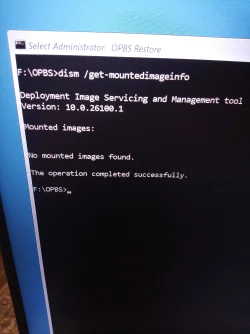
I shut down my laptop and booted with the small USB recovery media. How can anything be mounted?

PS C:\Users\Martin> dism /Get-MountedImageInfo

Deployment Image Servicing and Management tool
Version: 10.0.26100.9549

Mounted images:


No mounted images found.

The operation completed successfully.
PS C:\Users\Martin> dism /Cleanup-Mountpoints

Deployment Image Servicing and Management tool
Version: 10.0.26100.9549

Cleaning up image
Scanning drive C for stale files
Scanning drive D for stale files
Scanning drive G for stale files
The operation completed successfully.
 

My Computers My Computers

  • At a glance

    Windows 11 Pro 26H2 26300.9818AMD Ryzen 7 5825U with Radeon Graphics16GB
    OS
    Windows 11 Pro 26H2 26300.9818
    Computer type
    Laptop
    Manufacturer/Model
    Acemagic LX15PRO
    CPU
    AMD Ryzen 7 5825U with Radeon Graphics
    Motherboard
    BIOS CT_BI_AMI_LX15PRO_AB8139_A-004
    Memory
    16GB
    Screen Resolution
    1920 x 1080
    Hard Drives
    SSD 2TB
    Internet Speed
    30 Mbps
    Browser
    Brave
    Antivirus
    Webroot SecureAnywhere Complete beta
  • At a glance

    Windows 11 Pro 23H2 22631.2506Atom N450 1.66GHz2GB
    Operating System
    Windows 11 Pro 23H2 22631.2506
    Computer type
    Laptop
    Manufacturer/Model
    HP Mini 210-1090NR PC (bought in late 2009!)
    CPU
    Atom N450 1.66GHz
    Memory
    2GB
    Browser
    Brave
    Antivirus
    Webroot
  • Acer Swift SF114-34 laptop
    OS Windows 11 Pro 26200.8894
    CPU Pentium Silver N6000
    RAM 4GB
    BIOS v1.17
    SSD Samsung 970 EVO Plus SSD 2TB (an upgrade)
In you PE I checked too
 

Attachments

  • IMG_20261028_124740_473.webp
    IMG_20261028_124740_473.webp
    1.1 MB · Views: 1

My Computers My Computers

  • At a glance

    Windows 11 Pro 26H2 26300.9818AMD Ryzen 7 5825U with Radeon Graphics16GB
    OS
    Windows 11 Pro 26H2 26300.9818
    Computer type
    Laptop
    Manufacturer/Model
    Acemagic LX15PRO
    CPU
    AMD Ryzen 7 5825U with Radeon Graphics
    Motherboard
    BIOS CT_BI_AMI_LX15PRO_AB8139_A-004
    Memory
    16GB
    Screen Resolution
    1920 x 1080
    Hard Drives
    SSD 2TB
    Internet Speed
    30 Mbps
    Browser
    Brave
    Antivirus
    Webroot SecureAnywhere Complete beta
  • At a glance

    Windows 11 Pro 23H2 22631.2506Atom N450 1.66GHz2GB
    Operating System
    Windows 11 Pro 23H2 22631.2506
    Computer type
    Laptop
    Manufacturer/Model
    HP Mini 210-1090NR PC (bought in late 2009!)
    CPU
    Atom N450 1.66GHz
    Memory
    2GB
    Browser
    Brave
    Antivirus
    Webroot
  • Acer Swift SF114-34 laptop
    OS Windows 11 Pro 26200.8894
    CPU Pentium Silver N6000
    RAM 4GB
    BIOS v1.17
    SSD Samsung 970 EVO Plus SSD 2TB (an upgrade)
I copied those files to the 1GB partition and am now doing to fresh backup to the 118GB partition. Then I'll try a restore.
 

My Computers My Computers

  • At a glance

    Windows 11 Pro 26H2 26300.9818AMD Ryzen 7 5825U with Radeon Graphics16GB
    OS
    Windows 11 Pro 26H2 26300.9818
    Computer type
    Laptop
    Manufacturer/Model
    Acemagic LX15PRO
    CPU
    AMD Ryzen 7 5825U with Radeon Graphics
    Motherboard
    BIOS CT_BI_AMI_LX15PRO_AB8139_A-004
    Memory
    16GB
    Screen Resolution
    1920 x 1080
    Hard Drives
    SSD 2TB
    Internet Speed
    30 Mbps
    Browser
    Brave
    Antivirus
    Webroot SecureAnywhere Complete beta
  • At a glance

    Windows 11 Pro 23H2 22631.2506Atom N450 1.66GHz2GB
    Operating System
    Windows 11 Pro 23H2 22631.2506
    Computer type
    Laptop
    Manufacturer/Model
    HP Mini 210-1090NR PC (bought in late 2009!)
    CPU
    Atom N450 1.66GHz
    Memory
    2GB
    Browser
    Brave
    Antivirus
    Webroot
  • Acer Swift SF114-34 laptop
    OS Windows 11 Pro 26200.8894
    CPU Pentium Silver N6000
    RAM 4GB
    BIOS v1.17
    SSD Samsung 970 EVO Plus SSD 2TB (an upgrade)
In you PE I checked too
Nothing is wrong — that output is exactly what you want to see. You're looking at two different meanings of "mounted":

dism /Get-MountedImageInfo lists WIM images mounted for servicing — the way the media builder temporarily mounts boot.wim to customize it. In a booted recovery environment there are none. Correct and clean.

What I meant by "the Windows volume was still mounted" is a different thing: when Windows runs normally, it mounts the system volume and holds files open on it — that's what refused the raw writes in your first attempt. The recovery environment doesn't hold the system volume that way, and OPBS dismounts the target volumes before writing. That's exactly why the restore belongs here, and why it works from here. So — proceed.

Your two-partition plan is working exactly as designed, by the way: boot from the 1 GB FAT32, images on the 118 GB NTFS.

To run the restore from that console:

Type restore.cmd — the interactive wizard starts and scans every attached volume; it will find your fresh backup on the NTFS partition by itself.
Pick the image → the internal disk → the four partitions → the options → type RESTORE to confirm.
One expectation to set: the progress total will read ~130 GB, much larger than your image. After writing the backup, the restore zeroes every block the image didn't contain — so nothing created after the backup can be carved back out (the "clear free space" security option; it's what inflated the total in your first log too). At the speeds you saw, expect roughly 20–30 minutes. If you'd rather skip the zeroing for this particular test run, tell me and I'll send a one-line config that turns it off.

And for the next round: 0.6.93 is out now — it shows that option in the wizard instead of enabling it silently, and it refuses to start before writing anything if a target volume can't be locked. If anything misbehaves on this run, photograph the console and send it — between your two-partition stick and this flow, you're running the exact path the feature is built for.
 

My Computer My Computer

At a glance

w11
OS
w11
But I had shut down the laptop, booted from the 1GB partition on the USB SSD and tried to restore. It failed. I'll try again if you like.
 

My Computers My Computers

  • At a glance

    Windows 11 Pro 26H2 26300.9818AMD Ryzen 7 5825U with Radeon Graphics16GB
    OS
    Windows 11 Pro 26H2 26300.9818
    Computer type
    Laptop
    Manufacturer/Model
    Acemagic LX15PRO
    CPU
    AMD Ryzen 7 5825U with Radeon Graphics
    Motherboard
    BIOS CT_BI_AMI_LX15PRO_AB8139_A-004
    Memory
    16GB
    Screen Resolution
    1920 x 1080
    Hard Drives
    SSD 2TB
    Internet Speed
    30 Mbps
    Browser
    Brave
    Antivirus
    Webroot SecureAnywhere Complete beta
  • At a glance

    Windows 11 Pro 23H2 22631.2506Atom N450 1.66GHz2GB
    Operating System
    Windows 11 Pro 23H2 22631.2506
    Computer type
    Laptop
    Manufacturer/Model
    HP Mini 210-1090NR PC (bought in late 2009!)
    CPU
    Atom N450 1.66GHz
    Memory
    2GB
    Browser
    Brave
    Antivirus
    Webroot
  • Acer Swift SF114-34 laptop
    OS Windows 11 Pro 26200.8894
    CPU Pentium Silver N6000
    RAM 4GB
    BIOS v1.17
    SSD Samsung 970 EVO Plus SSD 2TB (an upgrade)
But I had shut down the laptop, booted from the 1GB partition on the USB SSD and tried to restore. It failed. I'll try again if you like.
Yes please — retry it, and grab the console output this time (a photo is perfect). The exact error text is the whole diagnosis: "it failed" could be several different things, and each has a different fix.

One question narrows it fastest: does the error look like the "Access is denied / Write failed" message from your first attempt, or something different (image not found, wrong disk, verify failure)?

And to be straight with you: if it is the same access-denied from the recovery environment too, then part of my earlier explanation was incomplete — and the new build is exactly what settles it. That brings me to one thing worth knowing about your stick: it carries the older engine, from before the diagnostics I described. The current version (0.6.93) refuses to start before writing anything when it can't lock a target volume, and tells you exactly why — mounted volume, BitLocker, or otherwise — instead of a bare system code. If you'd like those messages on your next attempt, updating the stick doesn't need the format step at all: with the 0.6.93 app, Media page → Create ISO (nothing touches your sticks), then double-click the ISO in Windows to mount it as a virtual drive, and copy its contents over the 1 GB FAT32 partition — the same copy you already did once.

Either path works: old stick + your screenshot of the error, or updated stick + the new message. Send me whatever the console shows and I'll take it from there.
 

My Computer My Computer

At a glance

w11
OS
w11
Good news — and it's the thing you asked for. 0.6.93 adds "Restore after reboot into recovery": when a restore targets the disk Windows is running from, OPBS now stages the restore and reboots once into a recovery environment to apply it — then returns to Windows and reports the result. It's built on your own Windows RE image (no ADK needed), boots once via a one-shot entry that never touches your normal boot menu, gives you a 10-second cancel window at boot, and re-enables BitLocker automatically if it suspended it. I tested the whole round trip end-to-end on real hardware before shipping — stage, reboot, automatic restore, return, report, clean up.

Two more of your points landed in the same release: the media builder refuses sticks over 32 GB before wasting twenty minutes (with the ISO + Rufus alternative spelled out), and the restore now refuses to start — before writing anything — when the target volume can't be locked, instead of failing partway through like the run you hit. The "clear free space" option is also visible and optional now. Same-disk restores still write only the partitions you select.

And SIW2 deserves the credit for the recipe — winre.wim as the base, boot.sdi beside it, and winpeshl.ini as the launcher is exactly the pattern he described. It survived contact with the field intact, after some… vigorous testing. Your machine was never at risk in any of it, and I appreciate the patience — this is the kind of feedback that turns "works on my machine" into "works on yours".
 

My Computer My Computer

At a glance

w11
OS
w11
I rebuilt the rescue media with the latest version. I shut down the laptop. I booted with the rescue media which was a 16GB USB flash drive. I selected restore and it could not write to the second partition.
1000003858.webp
 

My Computers My Computers

  • At a glance

    Windows 11 Pro 26H2 26300.9818AMD Ryzen 7 5825U with Radeon Graphics16GB
    OS
    Windows 11 Pro 26H2 26300.9818
    Computer type
    Laptop
    Manufacturer/Model
    Acemagic LX15PRO
    CPU
    AMD Ryzen 7 5825U with Radeon Graphics
    Motherboard
    BIOS CT_BI_AMI_LX15PRO_AB8139_A-004
    Memory
    16GB
    Screen Resolution
    1920 x 1080
    Hard Drives
    SSD 2TB
    Internet Speed
    30 Mbps
    Browser
    Brave
    Antivirus
    Webroot SecureAnywhere Complete beta
  • At a glance

    Windows 11 Pro 23H2 22631.2506Atom N450 1.66GHz2GB
    Operating System
    Windows 11 Pro 23H2 22631.2506
    Computer type
    Laptop
    Manufacturer/Model
    HP Mini 210-1090NR PC (bought in late 2009!)
    CPU
    Atom N450 1.66GHz
    Memory
    2GB
    Browser
    Brave
    Antivirus
    Webroot
  • Acer Swift SF114-34 laptop
    OS Windows 11 Pro 26200.8894
    CPU Pentium Silver N6000
    RAM 4GB
    BIOS v1.17
    SSD Samsung 970 EVO Plus SSD 2TB (an upgrade)
While still in the rescue environment, I ran DiskPart... detail disk. See attachment.
I tried to delete a file on my C: drive, but got 'access denied".
 

Attachments

My Computers My Computers

  • At a glance

    Windows 11 Pro 26H2 26300.9818AMD Ryzen 7 5825U with Radeon Graphics16GB
    OS
    Windows 11 Pro 26H2 26300.9818
    Computer type
    Laptop
    Manufacturer/Model
    Acemagic LX15PRO
    CPU
    AMD Ryzen 7 5825U with Radeon Graphics
    Motherboard
    BIOS CT_BI_AMI_LX15PRO_AB8139_A-004
    Memory
    16GB
    Screen Resolution
    1920 x 1080
    Hard Drives
    SSD 2TB
    Internet Speed
    30 Mbps
    Browser
    Brave
    Antivirus
    Webroot SecureAnywhere Complete beta
  • At a glance

    Windows 11 Pro 23H2 22631.2506Atom N450 1.66GHz2GB
    Operating System
    Windows 11 Pro 23H2 22631.2506
    Computer type
    Laptop
    Manufacturer/Model
    HP Mini 210-1090NR PC (bought in late 2009!)
    CPU
    Atom N450 1.66GHz
    Memory
    2GB
    Browser
    Brave
    Antivirus
    Webroot
  • Acer Swift SF114-34 laptop
    OS Windows 11 Pro 26200.8894
    CPU Pentium Silver N6000
    RAM 4GB
    BIOS v1.17
    SSD Samsung 970 EVO Plus SSD 2TB (an upgrade)
Back
Top Bottom