Well you haven't filled out your computer specs, and haven't give much information, so I'll just guess.
I don't know whether you have an Nvidia or AMD graphics card, so here's both sets of instructions.
Sometimes the drivers that MS occasionally includes with Windows Updates...
can conflict with drivers that are already installed. Which is what the tutorial at the top is for.
DDU, on the other hand, will remove all the leftovers from MS or Nvidia drivers, so when you install an Nvidia driver, it has a clean slate to work with.
DDU Instructions - Nvidia
1. First, do Option #2, step #3 and onward, here...
This tutorial will show you how to enable or disable including drivers with Windows Updates in Windows 10 and Windows 11. Windows Update will include drivers when available in Windows 11 by default. You can enable the Do not include drivers with Windows Updates policy to not include drivers...

www.elevenforum.com
2. This will block MS from including drivers in Windows Updates.
3. They'll still be listed as Optional Updates, if you ever need them.
1. Get this program, here:
Display Driver Uninstaller (DDU) | Wagnardsoft ...get the latest version, and save it to your desktop.
2. Get the Nvidia WHQL vid card driver here...
https://www.guru3d.com/files/category/videocards-nvidia-geforce-windows-7-8-10/ ...save this to your desktop.
3.
Unhook the internet completely.
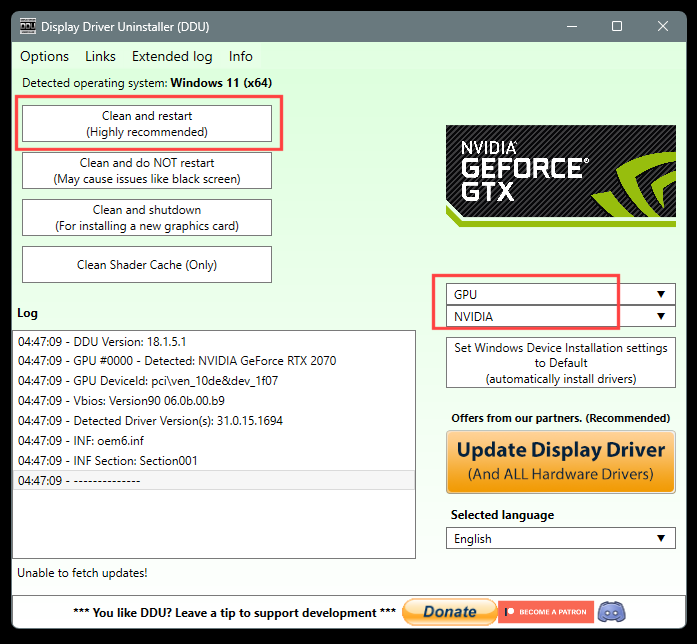
4. Reboot into Safe Mode and run DDU (Display Driver Uninstaller) choose the "Highly Recommend Option", and just do what it tells you.
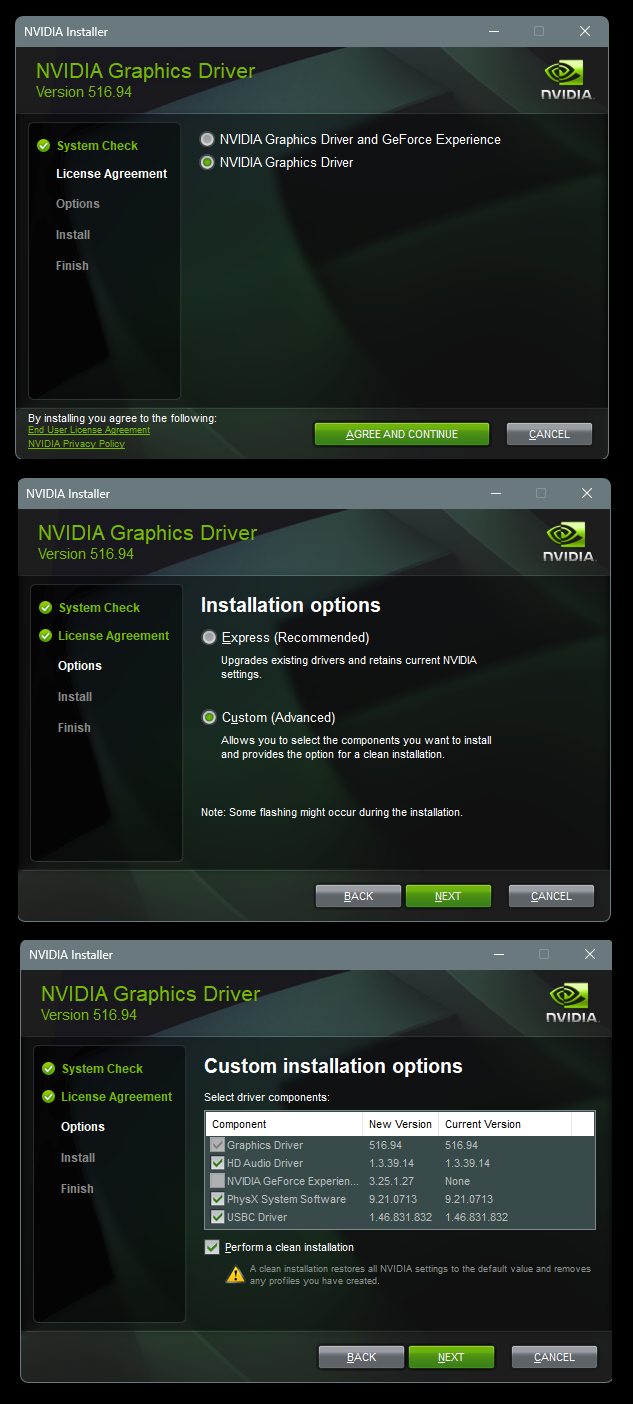
5. After it's done, reboot to normal mode, then just double click the Nvidia driver to install.
[See pics below]. If it want's to reboot, let it.
Rehook the internet.
DDU Instructions - AMD
1. First, do Option #2, step #3 and onward, here...
This tutorial will show you how to enable or disable including drivers with Windows Updates in Windows 10 and Windows 11. Windows Update will include drivers when available in Windows 11 by default. You can enable the Do not include drivers with Windows Updates policy to not include drivers...
www.elevenforum.com
2. This will block MS from including drivers in Windows Updates.
3. They'll still be listed in the Optional Updates, if you ever need them.
1. Get this program, here:
Display Driver Uninstaller (DDU) | Wagnardsoft ...get the latest version, and save it to your desktop.
2. Get your vid card driver here, use the
Manual Search:
http://support.amd.com/en-us/download ...save this to your desktop.
Unhook the internet completely.
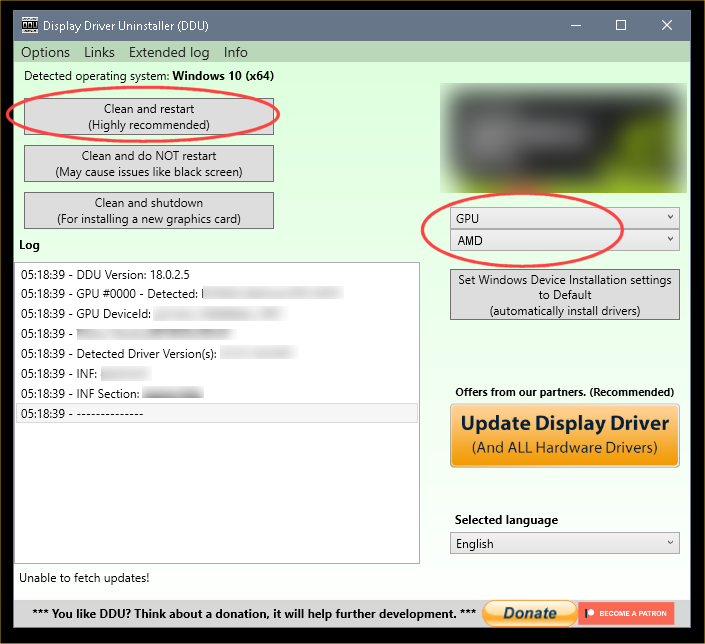
3. Reboot into Safe Mode and run DDU (Display Driver Uninstaller) choose the "Highly Recommend Option", and just do what it tells you.
4. After it's done, reboot to normal mode, then just double click the AMD driver to install. If it want's to reboot, let it.
Rehook the internet.