Hi
What is the most simple way of installing Win11 via Pixie book-Task sequence that will land in OOBE ready for autopilot/intune enrolment?
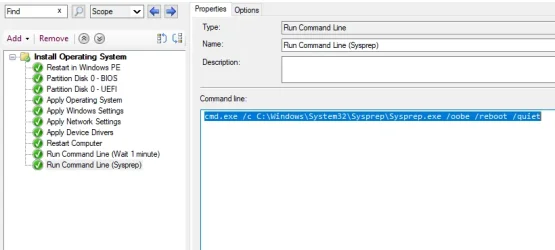
I've experimented with adding cmd after installation:
but failed miserably.
This is what my TS looks like.
Now I am contemplating using autounatted.xml file instead.
I'm suggesting to use this, but wanted to check with you guys, because I am losing my patience after couple of failed attemps.
What is the most simple way of installing Win11 via Pixie book-Task sequence that will land in OOBE ready for autopilot/intune enrolment?
I've experimented with adding cmd after installation:
Code:
cmd.exe /c C:\Windows\System32\Sysprep\Sysprep.exe /oobe /reboot /quietbut failed miserably.
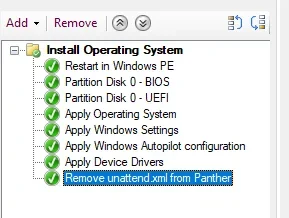
This is what my TS looks like.
Now I am contemplating using autounatted.xml file instead.
I'm suggesting to use this, but wanted to check with you guys, because I am losing my patience after couple of failed attemps.
Code:
<?xml version="1.0" encoding="utf-8"?>
<unattend xmlns="urn:schemas-microsoft-com:unattend">


    <settings pass="specialize">
        <component name="Microsoft-Windows-Shell-Setup"
                   processorArchitecture="amd64"
                   publicKeyToken="31bf3856ad364e35"
                   language="neutral"
                   versionScope="nonSxS">
            <ComputerName>*</ComputerName>
            <TimeZone>GMT Standard Time</TimeZone>
        </component>
    </settings>

    <settings pass="oobeSystem">
        <component name="Microsoft-Windows-International-Core"
                   processorArchitecture="amd64"
                   publicKeyToken="31bf3856ad364e35"
                   language="neutral"
                   versionScope="nonSxS">
            <InputLocale>en-GB</InputLocale>
            <SystemLocale>en-GB</SystemLocale>
            <UILanguage>en-GB</UILanguage>
            <UserLocale>en-GB</UserLocale>
        </component>
        <component name="Microsoft-Windows-Shell-Setup"
                   processorArchitecture="amd64"
                   publicKeyToken="31bf3856ad364e35"
                   language="neutral"
                   versionScope="nonSxS">
            <OOBE>
                <HideEULAPage>true</HideEULAPage>
                <ProtectYourPC>3</ProtectYourPC>

                <SkipMachineOOBE>false</SkipMachineOOBE>
                <SkipUserOOBE>false</SkipUserOOBE>
            </OOBE>
        </component>
    </settings>
</unattend>
My Computer
At a glance
win 11
- OS
- win 11