
SCCM Win11 install for Intune


fgr1990

Member
Local time
12:25 AM
Posts
13
OS
win 11
Hi

What is the most simple way of installing Win11 via Pixie book-Task sequence that will land in OOBE ready for autopilot/intune enrolment?

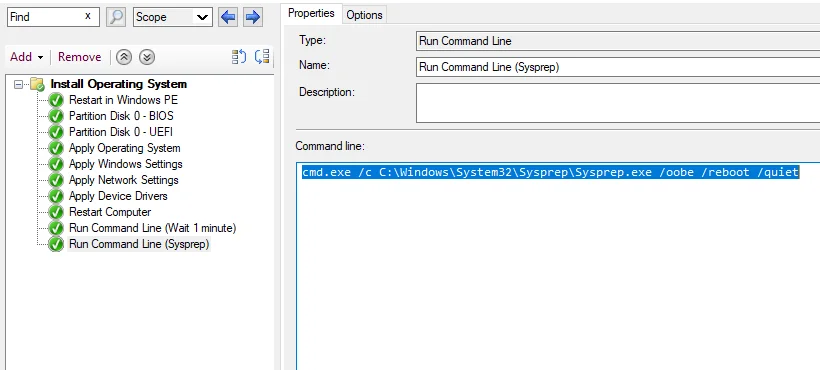
I've experimented with adding cmd after installation:

Code:
cmd.exe /c C:\Windows\System32\Sysprep\Sysprep.exe /oobe /reboot /quiet

but failed miserably.

This is what my TS looks like.
1780579146415.webp

Now I am contemplating using autounatted.xml file instead.

I'm suggesting to use this, but wanted to check with you guys, because I am losing my patience after couple of failed attemps.

Code:
<?xml version="1.0" encoding="utf-8"?>
<unattend xmlns="urn:schemas-microsoft-com:unattend">


    <settings pass="specialize">
        <component name="Microsoft-Windows-Shell-Setup"
                   processorArchitecture="amd64"
                   publicKeyToken="31bf3856ad364e35"
                   language="neutral"
                   versionScope="nonSxS">
            <ComputerName>*</ComputerName>
            <TimeZone>GMT Standard Time</TimeZone>
        </component>
    </settings>

    <settings pass="oobeSystem">
        <component name="Microsoft-Windows-International-Core"
                   processorArchitecture="amd64"
                   publicKeyToken="31bf3856ad364e35"
                   language="neutral"
                   versionScope="nonSxS">
            <InputLocale>en-GB</InputLocale>
            <SystemLocale>en-GB</SystemLocale>
            <UILanguage>en-GB</UILanguage>
            <UserLocale>en-GB</UserLocale>
        </component>
        <component name="Microsoft-Windows-Shell-Setup"
                   processorArchitecture="amd64"
                   publicKeyToken="31bf3856ad364e35"
                   language="neutral"
                   versionScope="nonSxS">
            <OOBE>
                <HideEULAPage>true</HideEULAPage>
                <ProtectYourPC>3</ProtectYourPC>

                <SkipMachineOOBE>false</SkipMachineOOBE>
                <SkipUserOOBE>false</SkipUserOOBE>
            </OOBE>
        </component>
    </settings>
</unattend>
 

My Computer My Computer

At a glance

win 11
OS
win 11
Are you hybrid joining? Entra only? Are the devices going to be enrolled in Autopilot in advance?
 

My Computer My Computer

At a glance

Windows 11 Enterprise 25H2
OS
Windows 11 Enterprise 25H2
Are you hybrid joining? Entra only? Are the devices going to be enrolled in Autopilot in advance?

Enrolled in advance - yes.

Entra only.

So I really need the simplest possible installation that will allow me to manually carry on from OOBE.
 

My Computer My Computer

At a glance

win 11
OS
win 11
Since they're Entra-only and already in Autopilot, the simplest approach is to use the "Deploy Windows Autopilot for Existing Devices" task sequence.

Import your Windows 11 image into Configuration Manager.
Create an Autopilot profile in Intune.
Export the profile to AutopilotConfigurationFile.json.
Create a ConfigMgr package containing the JSON file.
Create a Deploy Windows Autopilot for Existing Devices task sequence.

Select:

Your Windows 11 image
The Autopilot JSON package
Set the task sequence to shut down at completion.

The device will:

Reimage with Windows 11
Inject the Autopilot profile
Run Sysprep /OOBE
Shut down

When the user powers it on:

Windows starts OOBE
The device contacts the Autopilot service
The assigned Autopilot profile is applied
The user signs in with their Entra ID account
Intune enrollment occurs automatically

Because the hardware hash is already registered, the JSON file mainly ensures the device lands in the intended Autopilot flow immediately after imaging.
 

My Computer My Computer

At a glance

Windows 11 Enterprise 25H2
OS
Windows 11 Enterprise 25H2
Thanks, that sounds really good.

I tried something similar after going through the Microsoft Learn article (linked below), and managed to get it to boot into OOBE properly.

Turns out my main issues were:
- Using the wrong TS template (wasn’t using “Deploy Windows Autopilot for Existing Devices”)
- Not including the JSON file

Now that this bit’s working, I’m wondering about the next step - is there a way to have the task sequence handle uploading the device hash and enrolling it into Autopilot automatically?

Microsoft Learn:
 

My Computer My Computer

At a glance

win 11
OS
win 11
That is my current TS for this:

1780916755935.webp
 

My Computer My Computer

At a glance

win 11
OS
win 11
Now that this bit’s working, I’m wondering about the next step - is there a way to have the task sequence handle uploading the device hash and enrolling it into Autopilot automatically?

I thought they were already in Autopilot?
 

My Computer My Computer

At a glance

Windows 11 Enterprise 25H2
OS
Windows 11 Enterprise 25H2
So fart, I’m grabbing the device hash manually and uploading it into Intune:
Microsoft Intune admin center > Devices > Enrollment > Windows Autopilot > Devices


After that, I run the task sequence.

Once the install finishes, I log in with our Intune admin account to let all the policies and settings apply.

Hope that makes sense.
 

My Computer My Computer

At a glance

win 11
OS
win 11
First, I love that you said, "so fart." Made my day.

But also, do you have the "Convert all targeted devices to Autopilot" setting enabled in the Windows Autopilot profile? It should register on its own.
 

My Computer My Computer

At a glance

Windows 11 Enterprise 25H2
OS
Windows 11 Enterprise 25H2
1780927037647.webp

Looks like I do.

Does this mean I don't have to upload device HASH manually to Intune?
 

My Computer My Computer

At a glance

win 11
OS
win 11
I would verify to make sure. Image something that's not registered now, and see if it shows up. Then see if you can do a reset on Windows from the clouds.
 

My Computer My Computer

At a glance

Windows 11 Enterprise 25H2
OS
Windows 11 Enterprise 25H2
Back
Top Bottom





