
Solved Secure boot certificate 2023 valid but event present


If you request the Secure Boot task to perform some of the revoke actions, but not all of them, it will comply. As long as you have a compliant boot manager (matching the highest Windows BootMgr SVN), your system will still boot. But you weren't supposed to bump SVN up before banning the DBX.

It's one of those "you can get away with it, but that's not the intended workflow". Why? Because applying an SVN is a form of revocation. Having a SVN enforces a minimum version on the boot manager.
OK... so maybe I know how I have this scenario.

I updated BIOS to get the 2023 certs as defaults, then ran MOSBY to create a unique PK, get all three DB certs and get rid of Gigabyte's completely unnecessary DB certs. I think it also updated DBX to the latest SVN, but I know I did not let it put the 2011 PCA cert into DBX thus revoking it.

I admit I'm (now) a little nervous about bypassing MS's workflow for the updates, which is the reason I'm waiting for them to revoke the 2011 PCA. I probably didn't think it could matter and assumed it was "normal and expected" at the time!

But, will having this SVN already interfere in any way with Microsoft's methodology for revoking DBX? I could go into BIOS and reset to defaults (it has the 2023 keys as defaults and I can live with the Gigabyte keys for a while) then wait for Microsoft to do its thing before re-running MOSBY to get the configuration I want. Not sure that would matter or help in any way, especially if I don't currently have any problems.

Or might should I go ahead and revoke the 2011 cert. That scares me, mainly because of the unknown-unknown aspect. But if the worst should happen I can always reset defaults to recover from that... and I have my BitLocker key for recovery of that too.
 
Last edited:

My Computers

System One System Two

  • OS
    Windows 11 Pro
    Computer type
    PC/Desktop
    Manufacturer/Model
    DIY
    CPU
    Ryzen 7 5800X
    Motherboard
    Gigabyte B550M Aorus Pro
    Memory
    GSkill 3200, 2x8GB
    Graphics Card(s)
    MSI RX 6800 XT Gaming Z
    Sound Card
    on-board Realtek
    Monitor(s) Displays
    MSI 180hz
    Screen Resolution
    1440p
    Hard Drives
    Samsung 980 Pro, Samsung 870 Evo, generic PCIe NVME, WD 1TB 2.5" laptop spinner
    PSU
    Corsair RM 650
    Case
    mATX
    Cooling
    BeQuiet 240mm AIO and a bunch of case fans
    Keyboard
    one that clacks softly
    Mouse
    logitech
    Internet Speed
    bunches of bps
    Browser
    Firefox
    Antivirus
    Windows' own
  • Operating System
    Win11 Pro
    Computer type
    PC/Desktop
    Manufacturer/Model
    DIY
    CPU
    Ryzen 7 1700
    Motherboard
    GA-AB350M G-3
    Memory
    16GB DDR4
    Graphics card(s)
    RX-480
    Sound Card
    In-Built Realtek
    Monitor(s) Displays
    Samsung
    Screen Resolution
    1440p
    Hard Drives
    NVME/SSD's
    PSU
    Thermaltake BX1 550W
    Case
    Some junky thing
    Cooling
    ThermalTake Assassin(?)
    Browser
    FF/Edge
    Antivirus
    Whatever Windows does
    Other Info
    Secure Boot enabled updated to 2023 CA keys, TPM2.0 enabled with system drive Bitlocker'd.
Thank you, I heard that if I don't have the 2023 OROM, I might have some problems with the card. I have an RTX 50 Series, and I updated its firmware after I bought it.
What about that?
 

My Computer

System One

  • OS
    Windows 11
    Computer type
    PC/Desktop
    Manufacturer/Model
    Asrock b760 pro rs
I admit I'm (now) a little nervous about bypassing MS's workflow for the updates, which is the reason I'm waiting for them to revoke the 2011 PCA. I probably didn't think it could matter and assumed it was "normal and expected" at the time!

But, will having this SVN already interfere in any way with Microsoft's methodology for revoking DBX? I could go into BIOS and reset to defaults (it has the 2023 keys as defaults and I can live with the Gigabyte keys for a while) then wait for Microsoft to do its thing before re-running MOSBY to get the configuration I want. Not sure that would matter or help in any way, especially if I don't currently have any problems.

Or might should I go ahead and revoke the 2011 cert. That scares me, mainly because of the unknown-unknown aspect. But if the worst should happen I can always reset defaults to recover from that... and I have my BitLocker key for recovery of that too.
You're not going to break the PC, as long as the latest boot manager was installed to the EFI. The problem is a non-technical user might not know which version of the boot manager is currently installed. And if you have the wrong combination of boot file and DBX (or DB) entries, the system may fail to boot in Secure Boot mode.

But since the whole Secure Boot business causes a lot of anxiety, sometimes it's easier to "rip off the band-aid" and just ahead. If you revoke PCA 2011 now, and everything else checks out, then all you have to worry about is updating any bootable USB drives with a new boot manager file. That way, you're not concerned about waiting for the mandatory revocating, or being ready for it. Instead of half-way revoking it, finish the job.

The hardest part is getting a signed KEK CA 2023 for your PC. If you used Mosby for that part, then it did it's job. The rest is downhill as long as you have the current set of Monthly Updates installed (since the update files are bundled in the Monthly).
 

My Computer

System One

  • OS
    Windows 7
You're not going to break the PC, as long as the latest boot manager was installed to the EFI. The problem is a non-technical user might not know which version of the boot manager is currently installed. And if you have the wrong combination of boot file and DBX (or DB) entries, the system may fail to boot in Secure Boot mode.

But since the whole Secure Boot business causes a lot of anxiety, sometimes it's easier to "rip off the band-aid" and just ahead. If you revoke PCA 2011 now, and everything else checks out, then all you have to worry about is updating any bootable USB drives with a new boot manager file. That way, you're not concerned about waiting for the mandatory revocating, or being ready for it. Instead of half-way revoking it, finish the job.

The hardest part is getting a signed KEK CA 2023 for your PC. If you used Mosby for that part, then it did it's job. The rest is downhill as long as you have the current set of Monthly Updates installed (since the update files are bundled in the Monthly).
Any guide about that? or can i just use cjee21 script
 

My Computer

System One

  • OS
    Windows 11
    Computer type
    PC/Desktop
    Manufacturer/Model
    Asrock b760 pro rs
as long as the latest boot manager was installed to the EFI
Which I do have installed and it is booting from it.

I had the 2023 KEK with the BIOS update... but I also got some Gigabyte keys in KEK and DB I saw no purpose for and wanted gone.
 
Last edited:

My Computers

System One System Two

  • OS
    Windows 11 Pro
    Computer type
    PC/Desktop
    Manufacturer/Model
    DIY
    CPU
    Ryzen 7 5800X
    Motherboard
    Gigabyte B550M Aorus Pro
    Memory
    GSkill 3200, 2x8GB
    Graphics Card(s)
    MSI RX 6800 XT Gaming Z
    Sound Card
    on-board Realtek
    Monitor(s) Displays
    MSI 180hz
    Screen Resolution
    1440p
    Hard Drives
    Samsung 980 Pro, Samsung 870 Evo, generic PCIe NVME, WD 1TB 2.5" laptop spinner
    PSU
    Corsair RM 650
    Case
    mATX
    Cooling
    BeQuiet 240mm AIO and a bunch of case fans
    Keyboard
    one that clacks softly
    Mouse
    logitech
    Internet Speed
    bunches of bps
    Browser
    Firefox
    Antivirus
    Windows' own
  • Operating System
    Win11 Pro
    Computer type
    PC/Desktop
    Manufacturer/Model
    DIY
    CPU
    Ryzen 7 1700
    Motherboard
    GA-AB350M G-3
    Memory
    16GB DDR4
    Graphics card(s)
    RX-480
    Sound Card
    In-Built Realtek
    Monitor(s) Displays
    Samsung
    Screen Resolution
    1440p
    Hard Drives
    NVME/SSD's
    PSU
    Thermaltake BX1 550W
    Case
    Some junky thing
    Cooling
    ThermalTake Assassin(?)
    Browser
    FF/Edge
    Antivirus
    Whatever Windows does
    Other Info
    Secure Boot enabled updated to 2023 CA keys, TPM2.0 enabled with system drive Bitlocker'd.
Any guide about that? or can i just use cjee21 script
You can look for an event log entry for an Event ID 1833, which is a boot Manager update was applied successfully (EFI now contains 2023-signed boot mgr). But if it got put there by something other than a Microsoft update during their Secure Boot Update process it might get logged in the Event Log. There were some other scripts floating around that indicate if the system is using a 2023 boot manager. You can also access the EFI partition and examine the signature chain of the boot manager files to see (this is the only proof-positive way to know with a certainty).
 

My Computers

System One System Two

  • OS
    Windows 11 Pro
    Computer type
    PC/Desktop
    Manufacturer/Model
    DIY
    CPU
    Ryzen 7 5800X
    Motherboard
    Gigabyte B550M Aorus Pro
    Memory
    GSkill 3200, 2x8GB
    Graphics Card(s)
    MSI RX 6800 XT Gaming Z
    Sound Card
    on-board Realtek
    Monitor(s) Displays
    MSI 180hz
    Screen Resolution
    1440p
    Hard Drives
    Samsung 980 Pro, Samsung 870 Evo, generic PCIe NVME, WD 1TB 2.5" laptop spinner
    PSU
    Corsair RM 650
    Case
    mATX
    Cooling
    BeQuiet 240mm AIO and a bunch of case fans
    Keyboard
    one that clacks softly
    Mouse
    logitech
    Internet Speed
    bunches of bps
    Browser
    Firefox
    Antivirus
    Windows' own
  • Operating System
    Win11 Pro
    Computer type
    PC/Desktop
    Manufacturer/Model
    DIY
    CPU
    Ryzen 7 1700
    Motherboard
    GA-AB350M G-3
    Memory
    16GB DDR4
    Graphics card(s)
    RX-480
    Sound Card
    In-Built Realtek
    Monitor(s) Displays
    Samsung
    Screen Resolution
    1440p
    Hard Drives
    NVME/SSD's
    PSU
    Thermaltake BX1 550W
    Case
    Some junky thing
    Cooling
    ThermalTake Assassin(?)
    Browser
    FF/Edge
    Antivirus
    Whatever Windows does
    Other Info
    Secure Boot enabled updated to 2023 CA keys, TPM2.0 enabled with system drive Bitlocker'd.
You can look for an event log entry for an Event ID 1833, which is a boot Manager update was applied successfully (EFI now contains 2023-signed boot mgr). But if it got put there by something other than a Microsoft update during their Secure Boot Update process it might get logged in the Event Log. There were some other scripts floating around that indicate if the system is using a 2023 boot manager. You can also access the EFI partition and examine the signature chain of the boot manager files to see (this is the only proof-positive way to know with a certainty).
Someone should write a script which checks the EFI partition's boot file, and the cert chain to see if that boot file's allowed. And it should instruct you what commands to run... or another script to apply all pending changes.

And you never have to check any reg keys, or browse the Event viewer!

garlin's PowerShell scripts for updating Secure Boot CA 2023
 

My Computer

System One

  • OS
    Windows 7
If you change AvailableUpdates to 0x200, you will get SVN 7.0.

But since you currently have Secure Boot disabled, all this is academic so you can go ahead and do the full revocation since your PC isn't currently enforcing Secure Boot mode right now.
Code:
reg add HKEY_LOCAL_MACHINE\SYSTEM\CurrentControlSet\Control\Secureboot /v AvailableUpdates /t REG_DWORD /d 0x282 /f
powershell Start-ScheduledTask -TaskName "\Microsoft\Windows\PI\Secure-Boot-Update"
Well I did that. Had to enable SB for it to run the updates (errors in event viewer)

How it looking now?
 

Attachments

  • Screenshot 2026-03-12 085623.webp
    Screenshot 2026-03-12 085623.webp
    94 KB · Views: 4
Last edited:

My Computer

System One

  • OS
    Windows 11 Pro 25H2 (RP channel)
    Computer type
    PC/Desktop
    Manufacturer/Model
    MSI
    CPU
    AMD Ryzen 7 9800X3D 8-core
    Motherboard
    MEG X870E Godlike
    Memory
    64GB Corsair Titanium 6000/CL30
    Graphics Card(s)
    MSI Suprim 5080 SOC
    Sound Card
    Soundblaster AE-9
    Monitor(s) Displays
    ASUS TUF Gaming VG289Q
    Screen Resolution
    3840x2160
    Hard Drives
    Samsung 9100 Pro 4TB (gen 5 x4, system drive/games)
    Samsung 990 Pro 2TB
    Samsung 980 Pro 2TB
    Samsung 870 Evo 4TB
    Samsung 870 Evo 2TB
    Samsung T9 4TB
    PSU
    Seasonic PX-2200
    Case
    Bequiet! Dark Base Pro 901
    Cooling
    Noctua NH-D15S Chromax black
    Keyboard
    Logitech G915 X (wired)
    Mouse
    Logitech G903 with PowerPlay charger
    Internet Speed
    900Mb/sec
    Browser
    Microsoft Edge
    Antivirus
    Windows Defender

My Computer

System One

  • OS
    Windows 11
    Computer type
    PC/Desktop
    Manufacturer/Model
    Asrock b760 pro rs
You can look for an event log entry for an Event ID 1833, which is a boot Manager update was applied successfully (EFI now contains 2023-signed boot mgr). But if it got put there by something other than a Microsoft update during their Secure Boot Update process it might get logged in the Event Log. There were some other scripts floating around that indicate if the system is using a 2023 boot manager. You can also access the EFI partition and examine the signature chain of the boot manager files to see (this is the only proof-positive way to know with a certainty).
I don't have any log about this
 

My Computer

System One

  • OS
    Windows 11
    Computer type
    PC/Desktop
    Manufacturer/Model
    Asrock b760 pro rs
I knew the script existed! just don't know where to find it easily... and make sure it's one that works right all the time. There are so many links to flaky ones around.

But one question: does the script actually examine the boot files' signature chain to make a determination that Windows is starting from a CA 2023 boot manager, or another method that provides equally proof-positive it is updated? I've often wondered that.

I don't have any log about this
Neither do I on any of my systems. That makes examining the boot files in EFI or a script that does something similar the best method to know with confidence for those of us who've been dinking around using "out of band" methods to try and get all updates, including revocations, put in place ahead of Microsoft's schedule.
 
Last edited:

My Computers

System One System Two

  • OS
    Windows 11 Pro
    Computer type
    PC/Desktop
    Manufacturer/Model
    DIY
    CPU
    Ryzen 7 5800X
    Motherboard
    Gigabyte B550M Aorus Pro
    Memory
    GSkill 3200, 2x8GB
    Graphics Card(s)
    MSI RX 6800 XT Gaming Z
    Sound Card
    on-board Realtek
    Monitor(s) Displays
    MSI 180hz
    Screen Resolution
    1440p
    Hard Drives
    Samsung 980 Pro, Samsung 870 Evo, generic PCIe NVME, WD 1TB 2.5" laptop spinner
    PSU
    Corsair RM 650
    Case
    mATX
    Cooling
    BeQuiet 240mm AIO and a bunch of case fans
    Keyboard
    one that clacks softly
    Mouse
    logitech
    Internet Speed
    bunches of bps
    Browser
    Firefox
    Antivirus
    Windows' own
  • Operating System
    Win11 Pro
    Computer type
    PC/Desktop
    Manufacturer/Model
    DIY
    CPU
    Ryzen 7 1700
    Motherboard
    GA-AB350M G-3
    Memory
    16GB DDR4
    Graphics card(s)
    RX-480
    Sound Card
    In-Built Realtek
    Monitor(s) Displays
    Samsung
    Screen Resolution
    1440p
    Hard Drives
    NVME/SSD's
    PSU
    Thermaltake BX1 550W
    Case
    Some junky thing
    Cooling
    ThermalTake Assassin(?)
    Browser
    FF/Edge
    Antivirus
    Whatever Windows does
    Other Info
    Secure Boot enabled updated to 2023 CA keys, TPM2.0 enabled with system drive Bitlocker'd.
Someone should write a script which checks the EFI partition's boot file, and the cert chain to see if that boot file's allowed. And it should instruct you what commands to run... or another script to apply all pending changes.

And you never have to check any reg keys, or browse the Event viewer!

garlin's PowerShell scripts for updating Secure Boot CA 2023
So what should i do?
I knew the script existed! just don't know where to find it easily... and make sure it's one that works right all the time. There are so many links to flaky ones around.

But one question: does the script actually examine the boot files' signature chain to make a determination that Windows is starting from a CA 2023 boot manager, or another method that provides equally proof-positive it is updated? I've often wondered that.


Neither do I on any of my systems. That makes examining the boot files in EFI or a script that does something similar the best method to know with confidence for those of us who've been dinking around using "out of band" methods to try and get all updates, including revocations, put in place ahead of Microsoft's schedule.
So, should I use this script or just wait for Microsoft to do it? 1773326201273.webp
 

My Computer

System One

  • OS
    Windows 11
    Computer type
    PC/Desktop
    Manufacturer/Model
    Asrock b760 pro rs
So, should I use this script or just wait for Microsoft to do it?
If you mean revoke the 2011 PCA certificate, I'm waiting for Microsoft to do it. But many have done it with no problems so that pretty much makes it a personal choice. It's not essential to do it even after the certificates expire in June, just safer from a vulnerability perspective. Like going out on the roads in winter during a snowstorm, you can argue all day about the odds of being hurt by either one but it's your choice to take the chance or not. Just do go prepared in each case.

If what you want to know is if it's ABSOLUTELY SAFE to do it without a 2011 key as an alternative way to validate for Secure Boot: I'd wait for Garlin's response to my question. If his method for determining you're on the 2023 boot files provides "positive proof" then run the script he's linking and if it says you are then yeah, go ahead with confidence. Just be ready to do the things he says as far as creating bootable recovery media and the like (assuming you have any... I don't, I live dangerous that way I suppose).

If you've use all his scripts (and only his scripts) to do the updates you can most likely do it with confidence too. That's because he scripted everything and so knows the end state the system was left in.
 
Last edited:

My Computers

System One System Two

  • OS
    Windows 11 Pro
    Computer type
    PC/Desktop
    Manufacturer/Model
    DIY
    CPU
    Ryzen 7 5800X
    Motherboard
    Gigabyte B550M Aorus Pro
    Memory
    GSkill 3200, 2x8GB
    Graphics Card(s)
    MSI RX 6800 XT Gaming Z
    Sound Card
    on-board Realtek
    Monitor(s) Displays
    MSI 180hz
    Screen Resolution
    1440p
    Hard Drives
    Samsung 980 Pro, Samsung 870 Evo, generic PCIe NVME, WD 1TB 2.5" laptop spinner
    PSU
    Corsair RM 650
    Case
    mATX
    Cooling
    BeQuiet 240mm AIO and a bunch of case fans
    Keyboard
    one that clacks softly
    Mouse
    logitech
    Internet Speed
    bunches of bps
    Browser
    Firefox
    Antivirus
    Windows' own
  • Operating System
    Win11 Pro
    Computer type
    PC/Desktop
    Manufacturer/Model
    DIY
    CPU
    Ryzen 7 1700
    Motherboard
    GA-AB350M G-3
    Memory
    16GB DDR4
    Graphics card(s)
    RX-480
    Sound Card
    In-Built Realtek
    Monitor(s) Displays
    Samsung
    Screen Resolution
    1440p
    Hard Drives
    NVME/SSD's
    PSU
    Thermaltake BX1 550W
    Case
    Some junky thing
    Cooling
    ThermalTake Assassin(?)
    Browser
    FF/Edge
    Antivirus
    Whatever Windows does
    Other Info
    Secure Boot enabled updated to 2023 CA keys, TPM2.0 enabled with system drive Bitlocker'd.
If you mean revoke the 2011 PCA certificate, I'm waiting for Microsoft to do it. But many have done it with no problems so that pretty much makes it a personal choice. Like going out on the roads in winter during a snowstorm, you can argue all day about the odds of being hurt by either one but it's your choice to take the chance or not. Just do go prepared in each case.

If what you want to know is if it's ABSOLUTELY SAFE to do it without a 2011 key as an alternative way to validate for Secure Boot: I'd wait for Garlin's response to my question. If his method for determining you're on the 2023 boot files provides "positive proof" then run the script he's linking and if it says you are then yeah, go ahead with confidence. Just be ready to do the things he says as far as creating bootable recovery media and the like (assuming you have any... I don't, I live dangerous that way I suppose).
I'm referring to the "Option ROM 2023 CA". Script from cjee21 It can add it for me, but will that be enough? Or should I wait until Microsoft does it itself, if they do it at all?
 

My Computer

System One

  • OS
    Windows 11
    Computer type
    PC/Desktop
    Manufacturer/Model
    Asrock b760 pro rs
I'm referring to the "Option ROM 2023 CA". Script from cjee21 It can add it for me, but will that be enough? Or should I wait until Microsoft does it itself, if they do it at all?
If you don't have hardware that requires it I wouldn't worry about it. VERY few people do, probably a reason most mfr's don't even include it with their BIOS updates for 2023 Secure Boot keys. The most likely is anything that must be initialized and made fully functional in the pre-boot environment, like add-in network card or add-in drive/RAID controller board. Some GPU's might require it, but I'm totally not aware which, why or when. I think most GPU's use simple BIOS routines to get a display in pre-boot and don't fully initialize themselves until in-OS drivers do so, after all boot validations have been successfully completed.
 
Last edited:

My Computers

System One System Two

  • OS
    Windows 11 Pro
    Computer type
    PC/Desktop
    Manufacturer/Model
    DIY
    CPU
    Ryzen 7 5800X
    Motherboard
    Gigabyte B550M Aorus Pro
    Memory
    GSkill 3200, 2x8GB
    Graphics Card(s)
    MSI RX 6800 XT Gaming Z
    Sound Card
    on-board Realtek
    Monitor(s) Displays
    MSI 180hz
    Screen Resolution
    1440p
    Hard Drives
    Samsung 980 Pro, Samsung 870 Evo, generic PCIe NVME, WD 1TB 2.5" laptop spinner
    PSU
    Corsair RM 650
    Case
    mATX
    Cooling
    BeQuiet 240mm AIO and a bunch of case fans
    Keyboard
    one that clacks softly
    Mouse
    logitech
    Internet Speed
    bunches of bps
    Browser
    Firefox
    Antivirus
    Windows' own
  • Operating System
    Win11 Pro
    Computer type
    PC/Desktop
    Manufacturer/Model
    DIY
    CPU
    Ryzen 7 1700
    Motherboard
    GA-AB350M G-3
    Memory
    16GB DDR4
    Graphics card(s)
    RX-480
    Sound Card
    In-Built Realtek
    Monitor(s) Displays
    Samsung
    Screen Resolution
    1440p
    Hard Drives
    NVME/SSD's
    PSU
    Thermaltake BX1 550W
    Case
    Some junky thing
    Cooling
    ThermalTake Assassin(?)
    Browser
    FF/Edge
    Antivirus
    Whatever Windows does
    Other Info
    Secure Boot enabled updated to 2023 CA keys, TPM2.0 enabled with system drive Bitlocker'd.
I knew the script existed! just don't know where to find it easily... and make sure it's one that works right all the time. There are so many links to flaky ones around.

But one question: does the script actually examine the boot files' signature chain to make a determination that Windows is starting from a CA 2023 boot manager, or another method that provides equally proof-positive it is updated? I've often wondered that.
The script checks for the following:
1. Windows has been updated to Oct. 2025 or later, in order to have the latest SecureBootUpdates files.

2. If your PK doesn't belong to "DO NOT TRUST" or "TEST", it's flagged for attention.

3. Checks your PK's thumbprint against the MS GitHub, looking for match on the KEK JSON list. If you have a match, chances are high that it's supported. Otherwise flag it for manual key enrollment.

4. Check for presence of KEK CA 2023, Windows UEFI CA 2023, MS UEFI CA 2023, and Option ROM.

5. Check for presence of PCA 2011 in DBX.

6. Compare the DBXUpdate.bin's EFI cert hashes against the DBX variable. The script doesn't assume any count, it compares the Windows update file's contents against DBX. The update script has a -Latest option to download the latest version of this file from GitHub.

7. Compare the DBXUpdateSVN.bin's BootMgr SVN number against the DBX variable. The update script has a -Latest option to download the latest version of this file from GitHub. Only the BootMgr's SVN is important, CD and WDS SVN's are irrelevant.

8. Compare the bootmgfw.efi file that's on the EFI partition. Determine if the current boot manager is allowed, by reading the file's signing cert and checking the cert chain (right KEK -> right DB -> boot manager cert AND Secure Boot is enabled).

9. Optionally check the boot file on removable media, and boot.wim/install/wim has the EFI_EX folders inside the image.

10. If Virtualization Based Security is enabled, check if you have a current version of the SkuSiPolicy.p7b on the EFI.

Neither do I on any of my systems. That makes examining the boot files in EFI or a script that does something similar the best method to know with confidence for those of us who've been dinking around using "out of band" methods to try and get all updates, including revocations, put in place ahead of Microsoft's schedule.
The problem with a number of update scripts I've found online:

- They use AvailableUpdates to control actions. Which works, but not all Secure Boot task actions are immediately carried out. There are delays before some actions are applied. My update script does all the sanity checks, but applies the cert updates immediately thru PowerShell and does the expected file copies.

- Most of them don't do sanity check, they just throw out AvailableUpdates bitmask combinations and hope the task does the right thing. Which it does, but the task gives no feedback. You have to go fishing in the Event logs for possible error or success message.
 

My Computer

System One

  • OS
    Windows 7

My Computer

System One

  • OS
    Windows 11 Pro 25H2 (RP channel)
    Computer type
    PC/Desktop
    Manufacturer/Model
    MSI
    CPU
    AMD Ryzen 7 9800X3D 8-core
    Motherboard
    MEG X870E Godlike
    Memory
    64GB Corsair Titanium 6000/CL30
    Graphics Card(s)
    MSI Suprim 5080 SOC
    Sound Card
    Soundblaster AE-9
    Monitor(s) Displays
    ASUS TUF Gaming VG289Q
    Screen Resolution
    3840x2160
    Hard Drives
    Samsung 9100 Pro 4TB (gen 5 x4, system drive/games)
    Samsung 990 Pro 2TB
    Samsung 980 Pro 2TB
    Samsung 870 Evo 4TB
    Samsung 870 Evo 2TB
    Samsung T9 4TB
    PSU
    Seasonic PX-2200
    Case
    Bequiet! Dark Base Pro 901
    Cooling
    Noctua NH-D15S Chromax black
    Keyboard
    Logitech G915 X (wired)
    Mouse
    Logitech G903 with PowerPlay charger
    Internet Speed
    900Mb/sec
    Browser
    Microsoft Edge
    Antivirus
    Windows Defender
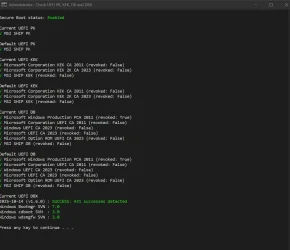
What about the non-revoked 'false' things?
Here's my honest opinion: cjee21's scripts are technically accurate, but terrible in presenting info.

Some certs are flagged, because they don't exist. But some of them are fully optional (like the Option ROM). That doesn't deserve a red mark.

Instead of "revoked: False", the script should just highlight which certs are revoked. Why confuse the user when you can have the script make an intelligent conclusion for them?

I can't tell people not to run cjee21's script. It does report the truth, but half the users draw the wrong conclusions after reading the output. I can only suggest they use my script because it's presented in a more logical manner.
 

My Computer

System One

  • OS
    Windows 7
Here's my honest opinion: cjee21's scripts are technically accurate, but terrible in presenting info.
I agree it's a bit confusing with presentation... it took me a while to figure out what it was telling me.

Two things I like about the script though. First is it tells me ALL the certs loaded in the databases, even the non-Microsoft certs that have no business being there (IMO). It appears yours does too but this was the first one I used that did.

Another is it reports on contents of the 'Defaults' that will be loaded should they toggle the "Restore Defaults" in their UEFI BIOS screens. It will confuse most people if they don't understand what it means I suppose, which it does not do either. But it's probably a good idea they do understand it to not do it accidentally... as I have done before when it didn't matter.
 

My Computers

System One System Two

  • OS
    Windows 11 Pro
    Computer type
    PC/Desktop
    Manufacturer/Model
    DIY
    CPU
    Ryzen 7 5800X
    Motherboard
    Gigabyte B550M Aorus Pro
    Memory
    GSkill 3200, 2x8GB
    Graphics Card(s)
    MSI RX 6800 XT Gaming Z
    Sound Card
    on-board Realtek
    Monitor(s) Displays
    MSI 180hz
    Screen Resolution
    1440p
    Hard Drives
    Samsung 980 Pro, Samsung 870 Evo, generic PCIe NVME, WD 1TB 2.5" laptop spinner
    PSU
    Corsair RM 650
    Case
    mATX
    Cooling
    BeQuiet 240mm AIO and a bunch of case fans
    Keyboard
    one that clacks softly
    Mouse
    logitech
    Internet Speed
    bunches of bps
    Browser
    Firefox
    Antivirus
    Windows' own
  • Operating System
    Win11 Pro
    Computer type
    PC/Desktop
    Manufacturer/Model
    DIY
    CPU
    Ryzen 7 1700
    Motherboard
    GA-AB350M G-3
    Memory
    16GB DDR4
    Graphics card(s)
    RX-480
    Sound Card
    In-Built Realtek
    Monitor(s) Displays
    Samsung
    Screen Resolution
    1440p
    Hard Drives
    NVME/SSD's
    PSU
    Thermaltake BX1 550W
    Case
    Some junky thing
    Cooling
    ThermalTake Assassin(?)
    Browser
    FF/Edge
    Antivirus
    Whatever Windows does
    Other Info
    Secure Boot enabled updated to 2023 CA keys, TPM2.0 enabled with system drive Bitlocker'd.
Back
Top Bottom




