It's really quite easy:
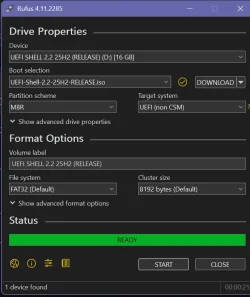
First thing to do is prepare an EFI bootable USB drive with the Mosby files on it. Go get RUFUS, the latest version, to create it. Use the Bootable UEFI V2.2 option and it will both create the EFI bootable USB drive and copy in the MOSBY files you'll need. Once you have a bootable USB drive with the MOSBY files go to the next part.
There are how-to's all over Eleven Forums on using RUFUS to create EFI bootable drives, and even a few youtube vid's.
In BIOS settings disable Secure Boot and put it in what's called SETUP mode. It depends on how your BIOS is set up, with some you just delete all the keys (not reset, completely delete). If you can't find this then MOSBY won't work; UEFI Secure Boot MUST be in SETUP mode (all the key variables emptied) to have keys installed like this.
Read the MOSBY README's that are on the USB drive.
Then restart the system and boot into the EFI bootable USB drive you created.
Run MOSBY from the EFI command line. It does the rest. There are command line options (covered in the readme) for doing custom things (like including your own key you might want in DB as for booting to another OS like Linux), you don't really need to worry those just run MOSBY and it does what's needed for Windows to boot.
Once it's finished, reboot into BIOS settings, enable Secure Boot, boot into the system.
If you see there's a STANDARD mode and CUSTOM mode, leave it in CUSTOM mode or it will revert all to default keys (at least it did with mine). You can delete and re-install again, it's just an unnecessary hassle. (BTW, it will do that with keys that have been pushed into firmware by Microsoft too.)
So, to summarize: 1: Prepare Bootable USB w/MOSBY, 2: Disable Secure Boot and put it in Setup Mode in BIOS settings, 3: Boot to the USB, run MOSBY, 4: Boot back into BIOS and enable Secure Boot. Done.
BitLocker will probably go into Recovery if using it, so be prepared.
If things go south you can Restore Default Keys to get the default keys restored and Secure Boot back.