Windows Blogs:
UPDATE 3/20: The following update for Snipping Tool and Notepad is now rolling out to Windows Insiders in the Beta and Release Preview Channels.
Hello Windows Insiders, today we are beginning to roll out updates to Snipping Tool and Notepad to Windows Insiders in the Canary and Dev Channels on Windows 11.
Snipping Tool (version 11.2502.18.0)
Draw & HoldIn this update, we are making improvements to the inking markup experience by introducing draw & hold, which helps you draw neat lines and shapes with ease. To get started, open Snipping Tool and capture a screenshot of any content on your screen. If the image does not automatically open in the app, click on the toast notification to “Mark up and share” your image. Select the pen tool and draw a line, arrow, rectangle, or oval over the image – before letting go of the shape, hold your cursor or pen still for a moment to convert your stroke into a well-formed shape. Resize, move, or adjust your shape as needed before clicking away to let the ink dry.

Take and Annotate Screenshots with Snipping Tool app in Windows 11
This tutorial will show you how to use the Snipping Tool app to take and annotate screenshots to save or share in Windows 11. The Snipping Tool app includes a built-in screen recorder and allows you to quickly take and annotate screenshots, photos and other images with your pen, touch, or mouse...
 www.elevenforum.com

Animated gif showing draw and hold in Snipping Tool.
Protocol Launch
For developers, Snipping Tool now supports a new and improved protocol launch experience! App callers can now customize which Snipping Tool capture features are shown when invoked from their experience. The protocol is designed to offer improved flexibility, security, and ease of use, aligning closely with familiar HTTP-based interactions. This shift can make use of the protocol more intuitive for developers, and it expands support for better integration with web technologies. To learn more and get started, check out the Launch Snipping Tool developer documentation page.
FEEDBACK: Please file feedback in Feedback Hub (WIN + F) under Apps > Snipping Tool.
Notepad (version 11.2501.29.0 11.2501.30.0)
With this update, we are introducing the ability to summarize content in Notepad with the help of generative AI. We are also adding recent files to the File menu, a highly-requested feature, allowing you to quickly reopen recently closed documents.Summarize
To get started, select the text you want to summarize, then right-click and choose Summarize, select Summarize from the Copilot menu, or use the Ctrl + M keyboard shortcut. Notepad will generate a summary of the selected text, providing a quick way to condense content. You can experiment with different summary lengths to refine the output.
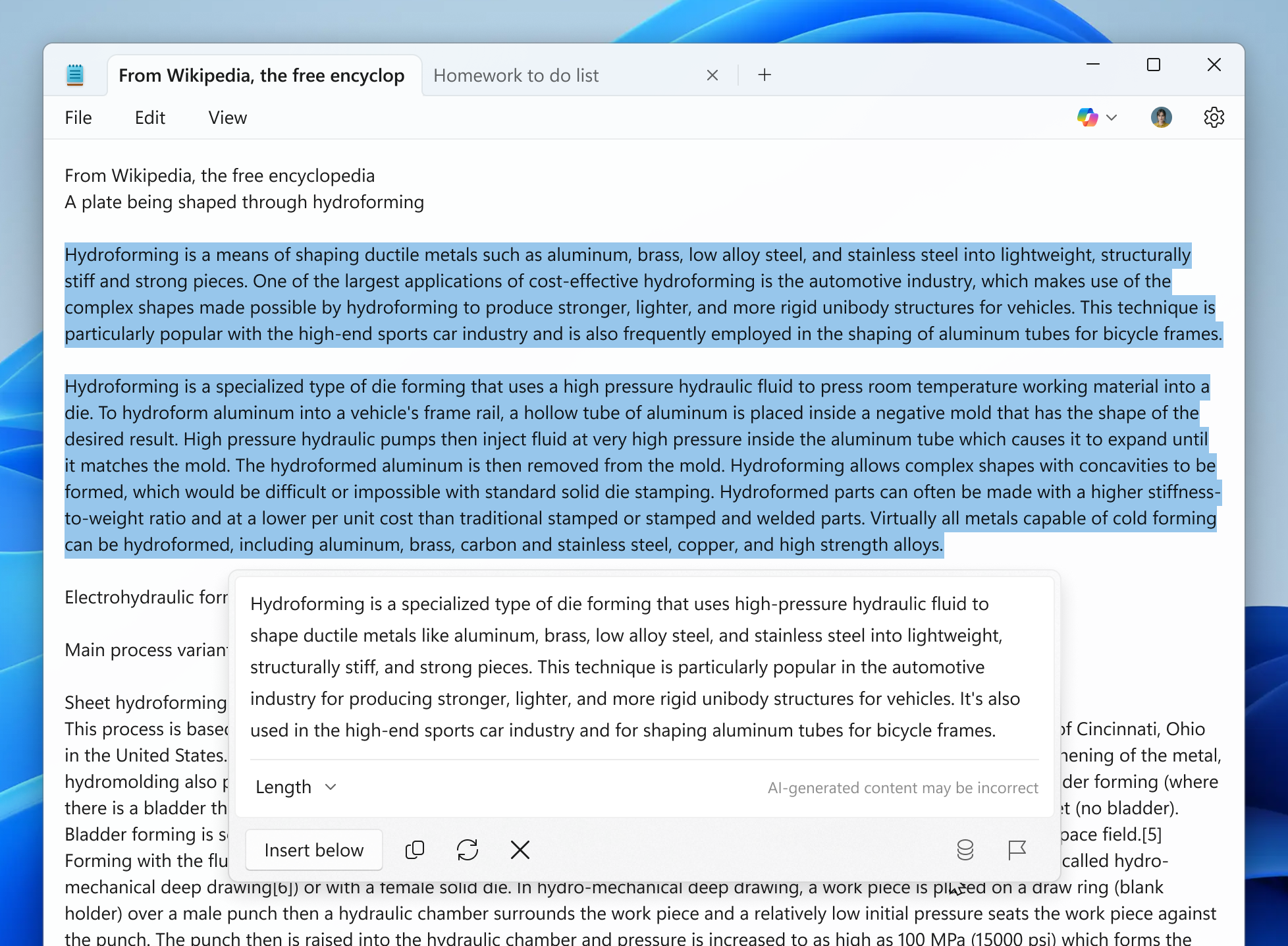
Image showing Notepad with highlighted text and a dialogue with the results of using the summarize feature to summarize the text.
If you prefer, you can disable AI features in app settings.
To use Summarize, you need to sign in with your Microsoft personal account. Microsoft 365 Personal, Family, and Copilot Pro subscribers will be able to use AI credits to use Summarize in Notepad.
Recent Files
With recent files, you can now reopen your recently closed files directly within Notepad. To access Recent Files, open Notepad and go to the File menu, where you will find a list of your recently used documents. Click on any file to instantly reopen and continue editing.
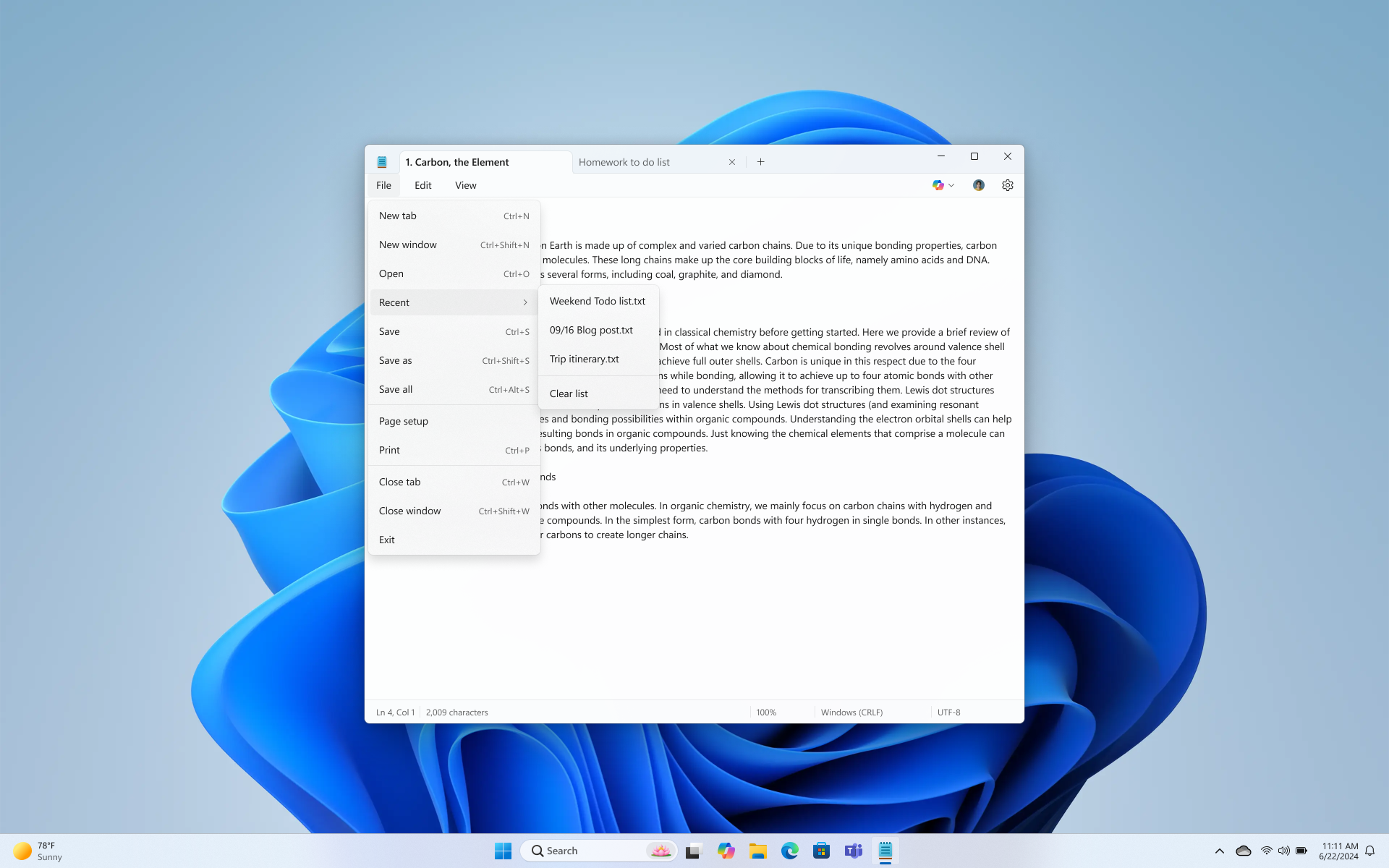
Image of a Notepad with the file menu open and highlighting the Recent option to open a recent file.
You can also clear the Recent list at any time or turn off the Recent Files feature in app settings if you prefer not to keep a history of recently closed files.
FEEDBACK: Please share your feedback in Feedback Hub (WIN + F) under Apps > Notepad.
[These features in Snipping Tool and Notepad are beginning to rollout in these updates, so it may not be available to all Insiders in the Canary and Dev Channels just yet as we plan to monitor feedback and see how it lands before pushing them out to everyone.]
As always, we love getting feedback from the community and we will be looking out for your thoughts and suggestions on these updates!
Thanks,
Dave Grochocki, Principal Group Product Manager – Windows Inbox Apps
Source:
Snipping Tool and Notepad app updates begin rolling out to Windows Insiders
UPDATE 3/20: The following update for Snipping Tool and Notepad is now rolling out to Windows Insiders in the Beta and Release Preview Channels. Hello Windows Insiders, today we are beginning to roll out updates to Snipping Tool and
 blogs.windows.com
Last edited: