This tutorial will show you how to transfer your files, settings, and preferences from your previous (old) Windows 10/11 PC to your new Windows 11 PC during Windows Setup.
Starting with Windows 11 build 26100.9550 (24H2), build 26200.9550 (25H2), and build 26300.9550 (26H2), PC-to-PC Migration is no longer available. This feature, introduced through a phased rollout, previously allowed you to transfer files and settings directly from your previous PC when setting up a new Windows PC. To back up and restore your files, settings, and other supported items when moving to a new PC, use Windows Backup. For more information, see Back up and restore with Windows Backup.
The Windows Backup app includes a PC to PC migration experience to Transfer to a new PC. When you're setting up your new PC, this experience is designed to transfer your important data from your previous PC to your new one. This means you can start using your new PC with all your files, settings, and preferences intact.
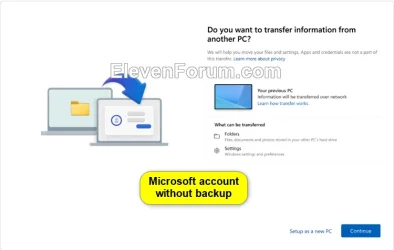
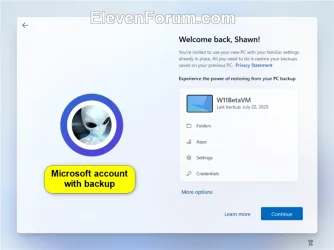
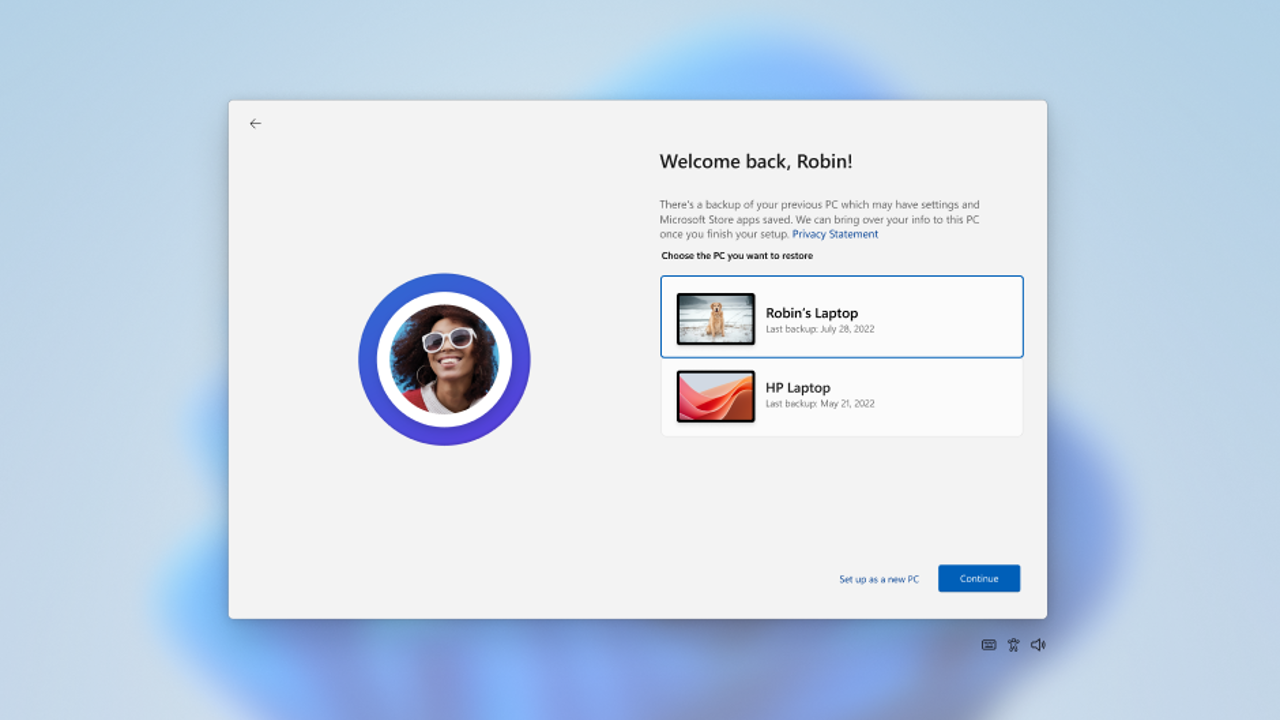
The PC Migration experience is only available to Microsoft accounts that don't have an existing backup. If your Microsoft account has an existing backup, you can restore it on the new PC during Windows Setup using the Windows restore experience like at step 20J here instead.
What is transferred?
During the transfer process, the following is copied:- All files: Your documents, photos, videos, and other files saved across folders or drives are transferred to your new PC.
- Settings and preferences: This includes your wallpaper, themes, and other personalization settings.
What isn't transferred?
- System and OS files like Program Files, Program Data, Temp, etc. are automatically excluded from the transfer.
- OneDrive files won't be transferred. Sign in to OneDrive on your new PC to access them.
- Applications installed on your previous PC.
- Saved Passwords and sign-in credentials.
- Drives encrypted with BitLocker. To include data from such drives, please decrypt them before starting the transfer.
Requirements
- Operating system version: The previous PC can run Windows 10 or Windows 11, while the new PC must run Windows 11, version 2024 or later. ARM-based devices are currently not supported.
- Microsoft account: On the new PC, sign in with a Microsoft account during setup. Make sure the account does not already contain an existing backup.
References:
Windows first sign-in restore experience now available - Windows IT Pro Blog
 techcommunity.microsoft.com
Transfer your files and settings to a new Windows PC | Microsoft Support
 support.microsoft.com
The PC-to-PC migration experience in Windows is starting to roll out. You’ll begin to see the landing and the pairing page in the Windows Backup app, giving you a first look at what’s coming. In the full experience, you’ll be able to transfer files and settings from an old PC to a new one during setup. Support for this feature during PC setup will arrive in a future update. The rollout is being introduced in phases to support a smooth experience.
Here's How:
1 On the old PC, make sure you are signed in with a Microsoft account.
2 On the old PC, Clear stored settings for your Microsoft account's Cloud synced settings to make sure the account does not already contain an existing backup for this old device.

Clear Cloud Synced Settings from all Windows Backup Devices for Microsoft Account
 www.elevenforum.com
3 On the new PC during Windows Setup, make sure you are connected to the same network as the old PC. (see screenshot below)
4 On the new PC during Windows Setup, make sure you set up and sign in with the same Microsoft account used on the old PC. (see screenshots below)
5 On the new PC during Windows Setup, click/tap on Continue on the "Do your want to transfer information from another PC" screen when you get to it. (see screenshot below)
6 On the old PC, open the Windows Backup app, select Transfer to a new PC, and click/tap on Next. (see screenshot below)
7 On the old PC, open the Windows Backup app, make note of the old PC's computer name (ex: "W11BETAVM") you will need to enter on the new PC. (see screenshot below)
8 On the new PC during Windows Setup, enter the old PC's computer name (ex: "W11BETAVM") from above, and click/tap on Next. (see screenshot below)
9 Perform the steps below to securely paired the old and new PC after verification: (see screenshot below)
- On the new PC, make note of the one-time code.
- On the old PC, enter the one-time code from the new PC, and click/tap on Next.
10 On the new PC during Windows Setup, a list of files and folders available for transfer appears. Use the drop-down menu to adjust (check or uncheck) your selection and choose the items to bring over, and click/tap on Start transfer when ready. (see screenshot below)
If the new PC has less storage space than the previous one, some files or folders must be deselected to fit within the available space before proceeding.
11 On the new PC during Windows Setup, your files and settings will now get copied to your new device. Once the transfer is complete, you'll receive a summary of what has been transferred. The remaining setup experience will continue as usual.
If the transfer is interrupted due to a network issue or any other reason, Windows automatically tries to resume the transfer for you. If Windows is unable to resume the transfer, you can restart the transfer.
That's it,
Shawn Brink