Personalization Turn On or Off Hidden Icon Menu on Taskbar System Tray in Windows 11

  • Thread starter Thread starter Brink
  • Start date Published: Start date Updated Updated:
  • Tags Tags
    taskbar

Tasbar_corner_banner.png

This tutorial will show you how to turn on or off the hidden icon menu on taskbar system tray for your account in Windows 11.

The hidden icon menu (aka: taskbar corner overflow menu) shows the notification icons you turned off from showing on the system tray.

Starting with Windows 11 build 22572, you can turn on or off showing the hidden icon menu on the taskbar system tray.

Starting with Windows 11 build 22610, there will no longer be an empty show hidden icons arrow showing in your system tray when you’ve set all your icons there to show.


Contents

  • Option One: Turn On or Off Hidden Icon Menu on Taskbar System Tray in Settings
  • Option Two: Turn On or Off Hidden Icon Menu on Taskbar System Tray using REG file


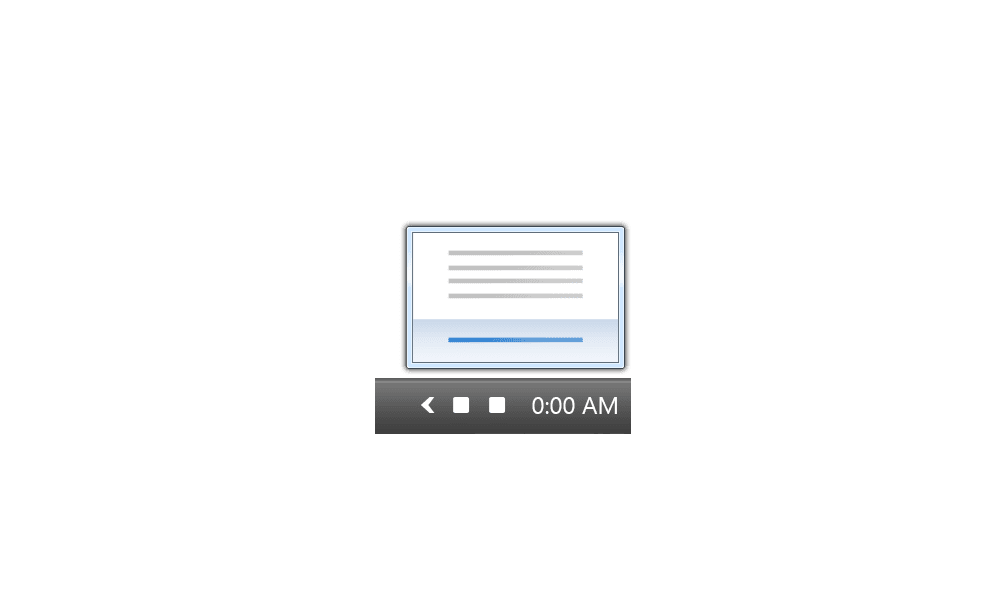
EXAMPLE: Hidden icon menu (chevron) on taskbar corner system tray

Hidden_icon_menu-on.png
Hidden_icon_menu-off.png


Option One

Turn On or Off Hidden Icon Menu on Taskbar System Tray in Settings


1 Open Settings (WIn+I).

2 Click/tap on Personalization on the left side, and click/tap on Taskbar on the right side. (see screenshot below)


Hidden_icon_menu_Settings-1.png

3 Click/tap on Other system tray icons on the right side to expand it open. (see screenshot below step 4)

4 Turn On (default) or Off Hidden icon menu for what you want. (see screenshot below)

Hidden_icon_menu_Settings-2.png

5 You can now close Settings if you like.


Option Two

Turn On or Off Hidden Icon Menu on Taskbar System Tray using REG file


1 Do step 2 (on) or step 3 (off) below for what you would like to do.

2 Turn On Hidden Icon Menu on Taskbar Corner

This is the default setting.


A) Click/tap on the Download button below to download the file below, and go to step 4 below.

Turn_ON_Hidden_icon_menu_on_taskbar_corner.reg


(Contents of REG file for reference)
Code:
Windows Registry Editor Version 5.00

[HKEY_CURRENT_USER\Software\Classes\Local Settings\Software\Microsoft\Windows\CurrentVersion\TrayNotify]
"SystemTrayChevronVisibility"=dword:00000001

3 Turn Off Hidden Icon Menu on Taskbar Corner

A) Click/tap on the Download button below to download the file below, and go to step 4 below.

Turn_OFF_Hidden_icon_menu_on_taskbar_corner.reg


(Contents of REG file for reference)
Code:
Windows Registry Editor Version 5.00

[HKEY_CURRENT_USER\Software\Classes\Local Settings\Software\Microsoft\Windows\CurrentVersion\TrayNotify]
"SystemTrayChevronVisibility"=dword:00000000

4 Save the .reg file to your desktop.

5 Double click/tap on the downloaded .reg file to merge it.

6 When prompted, click/tap on Run, Yes (UAC), Yes, and OK to approve the merge.

7 You can now delete the downloaded .reg file if you like.


That's it,
Shawn Brink


Attachments

Last edited:
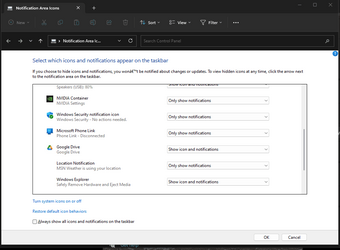
When I access the "Hidden Icon menu" there are no icons listed. Previously, whenever Google Drive updated, the tray icon disappeared and I had to go to this setting and set it up to show the Google Drive icon. Now there is nothing listed in this area. I did manage to find a backdoor (using the ExplorerPatcher app) to a control panel called "Notification Area Icons." But when I change the Google Drive setting from "Only show notifications" to "Show icon and notifications," either nothing happens and the setting reverts to "Only show notifications," or Explorer crashes and the desktop restarts.

2023-03 Cumulative Update for Windows 11 Version 22H2 for x64-based Systems (KB5023706)
 

Attachments

  • taskbar.png
    taskbar.png
    19.3 KB · Views: 210
  • Notification area.png
    Notification area.png
    22.9 KB · Views: 224

My Computer My Computer

At a glance

Windows 11 ProAMD Ryzen 7 5800H with Radeon Graphics, 320116 GBNVIDIA GeForce RTX 3050 Ti Laptop GPU
OS
Windows 11 Pro
Computer type
Laptop
Manufacturer/Model
ASUS Zenbook UX535QE_UM535QE
CPU
AMD Ryzen 7 5800H with Radeon Graphics, 3201
Motherboard
American Megatrends International
Memory
16 GB
Graphics Card(s)
NVIDIA GeForce RTX 3050 Ti Laptop GPU
Sound Card
AMD High Definition Audio Device
Monitor(s) Displays
External HDMI Samsung LF24T35
Screen Resolution
Laptop: 1920 x1080 (125% scale). External: 1920x1080 (100% scale)
Hard Drives
WDC PC SN730 SDBPNTY-1T00-1102
Keyboard
Microsoft Wireless Comfort Keyboard 5000
Mouse
Microsoft Wireless Mobile Mouse 4000
Internet Speed
500+ Mbps download and upload
Browser
Chrome (current version)
Antivirus
Norton 360 Premium
Other Info
Plugable USB 3.0 Docking Station UD-3900 (Display Link)
Woops, of course just after I posted that, I found a page that explained that I could just drag and drop the hidden icon into the system tray. I did not know that was possible. That is so much easier (but still doesn't explain the missing functionality, except that MS once again broke something with an improvement).
 

My Computer My Computer

At a glance

Windows 11 ProAMD Ryzen 7 5800H with Radeon Graphics, 320116 GBNVIDIA GeForce RTX 3050 Ti Laptop GPU
OS
Windows 11 Pro
Computer type
Laptop
Manufacturer/Model
ASUS Zenbook UX535QE_UM535QE
CPU
AMD Ryzen 7 5800H with Radeon Graphics, 3201
Motherboard
American Megatrends International
Memory
16 GB
Graphics Card(s)
NVIDIA GeForce RTX 3050 Ti Laptop GPU
Sound Card
AMD High Definition Audio Device
Monitor(s) Displays
External HDMI Samsung LF24T35
Screen Resolution
Laptop: 1920 x1080 (125% scale). External: 1920x1080 (100% scale)
Hard Drives
WDC PC SN730 SDBPNTY-1T00-1102
Keyboard
Microsoft Wireless Comfort Keyboard 5000
Mouse
Microsoft Wireless Mobile Mouse 4000
Internet Speed
500+ Mbps download and upload
Browser
Chrome (current version)
Antivirus
Norton 360 Premium
Other Info
Plugable USB 3.0 Docking Station UD-3900 (Display Link)
Woops, of course just after I posted that, I found a page that explained that I could just drag and drop the hidden icon into the system tray. I did not know that was possible. That is so much easier (but still doesn't explain the missing functionality, except that MS once again broke something with an improvement).

:shawn:


My Computers My Computers

  • At a glance

    Windows 11 Pro for WorkstationsIntel i7-8700K 5 GHz64 GB (4x16GB) G.SKILL TridentZ RGB DDR4 3600...ASUS ROG-STRIX-GTX1080TI-O11G-GAMING (11GB GD...
    OS
    Windows 11 Pro for Workstations
    Computer type
    PC/Desktop
    Manufacturer/Model
    Custom self build
    CPU
    Intel i7-8700K 5 GHz
    Motherboard
    ASUS ROG Maximus XI Formula Z390
    Memory
    64 GB (4x16GB) G.SKILL TridentZ RGB DDR4 3600 MHz (F4-3600C18D-32GTZR)
    Graphics Card(s)
    ASUS ROG-STRIX-GTX1080TI-O11G-GAMING (11GB GDDR5X)
    Sound Card
    Integrated Digital Audio (S/PDIF)
    Monitor(s) Displays
    2 x Samsung Odyssey G75 27"
    Screen Resolution
    2560x1440
    Hard Drives
    1TB Samsung 990 PRO M.2,
    4TB Samsung 990 PRO M.2,
    TerraMaster F8 SSD Plus NAS
    PSU
    Seasonic Prime Titanium 850W
    Case
    Thermaltake Core P3 wall mounted
    Cooling
    Corsair Hydro H115i
    Keyboard
    Amazon Basics Wired Full Keyboard MD005
    Mouse
    Logitech MX Master 4
    Internet Speed
    2 Gbps Download and 100 Mbps Upload
    Browser
    Chrome and Edge
    Antivirus
    Microsoft Defender
    Other Info
    Logitech Z625 speaker system,
    Logitech BRIO 4K Pro webcam,
    HP Color LaserJet Pro MFP M477fdn,
    CyberPower CP1500PFCLCD
    Galaxy S23 Plus phone
  • At a glance

    Windows 11 ProSnapdragon X Elite (12 core) 3.42 GHz16 GB LPDDR5x-7467 MHz
    Operating System
    Windows 11 Pro
    Computer type
    Laptop
    Manufacturer/Model
    Surface Laptop 7 Copilot+ PC
    CPU
    Snapdragon X Elite (12 core) 3.42 GHz
    Memory
    16 GB LPDDR5x-7467 MHz
    Monitor(s) Displays
    15" HDR
    Screen Resolution
    2496 x 1664
    Hard Drives
    1 TB SSD
    Internet Speed
    Wi-Fi 7 and Bluetooth 5.4
    Browser
    Chrome and Edge
    Antivirus
    Microsoft Defender
Yes, thanks, I knew how to do it from the Personalization menu, but that option seems to have disappeared. The overflow menu option is gone (see my screenshots), as well as a list of hidden icons. I never knew about the drag and drop option until just after I left my message.

Just wondering why the Overflow Menu option disappeared all of a sudden. No real worries, drag and drop is easier. But it seems like a strange thing for MS to hide.
 

My Computer My Computer

At a glance

Windows 11 ProAMD Ryzen 7 5800H with Radeon Graphics, 320116 GBNVIDIA GeForce RTX 3050 Ti Laptop GPU
OS
Windows 11 Pro
Computer type
Laptop
Manufacturer/Model
ASUS Zenbook UX535QE_UM535QE
CPU
AMD Ryzen 7 5800H with Radeon Graphics, 3201
Motherboard
American Megatrends International
Memory
16 GB
Graphics Card(s)
NVIDIA GeForce RTX 3050 Ti Laptop GPU
Sound Card
AMD High Definition Audio Device
Monitor(s) Displays
External HDMI Samsung LF24T35
Screen Resolution
Laptop: 1920 x1080 (125% scale). External: 1920x1080 (100% scale)
Hard Drives
WDC PC SN730 SDBPNTY-1T00-1102
Keyboard
Microsoft Wireless Comfort Keyboard 5000
Mouse
Microsoft Wireless Mobile Mouse 4000
Internet Speed
500+ Mbps download and upload
Browser
Chrome (current version)
Antivirus
Norton 360 Premium
Other Info
Plugable USB 3.0 Docking Station UD-3900 (Display Link)
Yes, thanks, I knew how to do it from the Personalization menu, but that option seems to have disappeared. The overflow menu option is gone (see my screenshots), as well as a list of hidden icons. I never knew about the drag and drop option until just after I left my message.

Just wondering why the Overflow Menu option disappeared all of a sudden. No real worries, drag and drop is easier. But it seems like a strange thing for MS to hide.

The taskbar corner (system tray) overflow menu will only show if you have set a notification to hide instead of show on the system tray.
 

My Computers My Computers

  • At a glance

    Windows 11 Pro for WorkstationsIntel i7-8700K 5 GHz64 GB (4x16GB) G.SKILL TridentZ RGB DDR4 3600...ASUS ROG-STRIX-GTX1080TI-O11G-GAMING (11GB GD...
    OS
    Windows 11 Pro for Workstations
    Computer type
    PC/Desktop
    Manufacturer/Model
    Custom self build
    CPU
    Intel i7-8700K 5 GHz
    Motherboard
    ASUS ROG Maximus XI Formula Z390
    Memory
    64 GB (4x16GB) G.SKILL TridentZ RGB DDR4 3600 MHz (F4-3600C18D-32GTZR)
    Graphics Card(s)
    ASUS ROG-STRIX-GTX1080TI-O11G-GAMING (11GB GDDR5X)
    Sound Card
    Integrated Digital Audio (S/PDIF)
    Monitor(s) Displays
    2 x Samsung Odyssey G75 27"
    Screen Resolution
    2560x1440
    Hard Drives
    1TB Samsung 990 PRO M.2,
    4TB Samsung 990 PRO M.2,
    TerraMaster F8 SSD Plus NAS
    PSU
    Seasonic Prime Titanium 850W
    Case
    Thermaltake Core P3 wall mounted
    Cooling
    Corsair Hydro H115i
    Keyboard
    Amazon Basics Wired Full Keyboard MD005
    Mouse
    Logitech MX Master 4
    Internet Speed
    2 Gbps Download and 100 Mbps Upload
    Browser
    Chrome and Edge
    Antivirus
    Microsoft Defender
    Other Info
    Logitech Z625 speaker system,
    Logitech BRIO 4K Pro webcam,
    HP Color LaserJet Pro MFP M477fdn,
    CyberPower CP1500PFCLCD
    Galaxy S23 Plus phone
  • At a glance

    Windows 11 ProSnapdragon X Elite (12 core) 3.42 GHz16 GB LPDDR5x-7467 MHz
    Operating System
    Windows 11 Pro
    Computer type
    Laptop
    Manufacturer/Model
    Surface Laptop 7 Copilot+ PC
    CPU
    Snapdragon X Elite (12 core) 3.42 GHz
    Memory
    16 GB LPDDR5x-7467 MHz
    Monitor(s) Displays
    15" HDR
    Screen Resolution
    2496 x 1664
    Hard Drives
    1 TB SSD
    Internet Speed
    Wi-Fi 7 and Bluetooth 5.4
    Browser
    Chrome and Edge
    Antivirus
    Microsoft Defender
There are three other programs which are set to hide by default (notification only), which I am fine with. But I wanted the Google Drive icon to be always visible. Previously I had to change it from hidden to visible every time it updated. So with the other three icons hidden, shouldn't the overflow menu show?
 

My Computer My Computer

At a glance

Windows 11 ProAMD Ryzen 7 5800H with Radeon Graphics, 320116 GBNVIDIA GeForce RTX 3050 Ti Laptop GPU
OS
Windows 11 Pro
Computer type
Laptop
Manufacturer/Model
ASUS Zenbook UX535QE_UM535QE
CPU
AMD Ryzen 7 5800H with Radeon Graphics, 3201
Motherboard
American Megatrends International
Memory
16 GB
Graphics Card(s)
NVIDIA GeForce RTX 3050 Ti Laptop GPU
Sound Card
AMD High Definition Audio Device
Monitor(s) Displays
External HDMI Samsung LF24T35
Screen Resolution
Laptop: 1920 x1080 (125% scale). External: 1920x1080 (100% scale)
Hard Drives
WDC PC SN730 SDBPNTY-1T00-1102
Keyboard
Microsoft Wireless Comfort Keyboard 5000
Mouse
Microsoft Wireless Mobile Mouse 4000
Internet Speed
500+ Mbps download and upload
Browser
Chrome (current version)
Antivirus
Norton 360 Premium
Other Info
Plugable USB 3.0 Docking Station UD-3900 (Display Link)
There are three other programs which are set to hide by default (notification only), which I am fine with. But I wanted the Google Drive icon to be always visible. Previously I had to change it from hidden to visible every time it updated. So with the other three icons hidden, shouldn't the overflow menu show?

It should unless Hidden icon menu was turned off.
 

My Computers My Computers

  • At a glance

    Windows 11 Pro for WorkstationsIntel i7-8700K 5 GHz64 GB (4x16GB) G.SKILL TridentZ RGB DDR4 3600...ASUS ROG-STRIX-GTX1080TI-O11G-GAMING (11GB GD...
    OS
    Windows 11 Pro for Workstations
    Computer type
    PC/Desktop
    Manufacturer/Model
    Custom self build
    CPU
    Intel i7-8700K 5 GHz
    Motherboard
    ASUS ROG Maximus XI Formula Z390
    Memory
    64 GB (4x16GB) G.SKILL TridentZ RGB DDR4 3600 MHz (F4-3600C18D-32GTZR)
    Graphics Card(s)
    ASUS ROG-STRIX-GTX1080TI-O11G-GAMING (11GB GDDR5X)
    Sound Card
    Integrated Digital Audio (S/PDIF)
    Monitor(s) Displays
    2 x Samsung Odyssey G75 27"
    Screen Resolution
    2560x1440
    Hard Drives
    1TB Samsung 990 PRO M.2,
    4TB Samsung 990 PRO M.2,
    TerraMaster F8 SSD Plus NAS
    PSU
    Seasonic Prime Titanium 850W
    Case
    Thermaltake Core P3 wall mounted
    Cooling
    Corsair Hydro H115i
    Keyboard
    Amazon Basics Wired Full Keyboard MD005
    Mouse
    Logitech MX Master 4
    Internet Speed
    2 Gbps Download and 100 Mbps Upload
    Browser
    Chrome and Edge
    Antivirus
    Microsoft Defender
    Other Info
    Logitech Z625 speaker system,
    Logitech BRIO 4K Pro webcam,
    HP Color LaserJet Pro MFP M477fdn,
    CyberPower CP1500PFCLCD
    Galaxy S23 Plus phone
  • At a glance

    Windows 11 ProSnapdragon X Elite (12 core) 3.42 GHz16 GB LPDDR5x-7467 MHz
    Operating System
    Windows 11 Pro
    Computer type
    Laptop
    Manufacturer/Model
    Surface Laptop 7 Copilot+ PC
    CPU
    Snapdragon X Elite (12 core) 3.42 GHz
    Memory
    16 GB LPDDR5x-7467 MHz
    Monitor(s) Displays
    15" HDR
    Screen Resolution
    2496 x 1664
    Hard Drives
    1 TB SSD
    Internet Speed
    Wi-Fi 7 and Bluetooth 5.4
    Browser
    Chrome and Edge
    Antivirus
    Microsoft Defender
It's on. Maybe it's a flaw with my system. Ugh. I'm not reinstalling just to fix this.
 

My Computer My Computer

At a glance

Windows 11 ProAMD Ryzen 7 5800H with Radeon Graphics, 320116 GBNVIDIA GeForce RTX 3050 Ti Laptop GPU
OS
Windows 11 Pro
Computer type
Laptop
Manufacturer/Model
ASUS Zenbook UX535QE_UM535QE
CPU
AMD Ryzen 7 5800H with Radeon Graphics, 3201
Motherboard
American Megatrends International
Memory
16 GB
Graphics Card(s)
NVIDIA GeForce RTX 3050 Ti Laptop GPU
Sound Card
AMD High Definition Audio Device
Monitor(s) Displays
External HDMI Samsung LF24T35
Screen Resolution
Laptop: 1920 x1080 (125% scale). External: 1920x1080 (100% scale)
Hard Drives
WDC PC SN730 SDBPNTY-1T00-1102
Keyboard
Microsoft Wireless Comfort Keyboard 5000
Mouse
Microsoft Wireless Mobile Mouse 4000
Internet Speed
500+ Mbps download and upload
Browser
Chrome (current version)
Antivirus
Norton 360 Premium
Other Info
Plugable USB 3.0 Docking Station UD-3900 (Display Link)
It's on. Maybe it's a flaw with my system. Ugh. I'm not reinstalling just to fix this.

You could test toggling the hidden icon menu off and on to see if it may refresh to show, or test turning off another app showing on the system tray to hide in the overflow menu to see if the overflow menu will then show.
 

My Computers My Computers

  • At a glance

    Windows 11 Pro for WorkstationsIntel i7-8700K 5 GHz64 GB (4x16GB) G.SKILL TridentZ RGB DDR4 3600...ASUS ROG-STRIX-GTX1080TI-O11G-GAMING (11GB GD...
    OS
    Windows 11 Pro for Workstations
    Computer type
    PC/Desktop
    Manufacturer/Model
    Custom self build
    CPU
    Intel i7-8700K 5 GHz
    Motherboard
    ASUS ROG Maximus XI Formula Z390
    Memory
    64 GB (4x16GB) G.SKILL TridentZ RGB DDR4 3600 MHz (F4-3600C18D-32GTZR)
    Graphics Card(s)
    ASUS ROG-STRIX-GTX1080TI-O11G-GAMING (11GB GDDR5X)
    Sound Card
    Integrated Digital Audio (S/PDIF)
    Monitor(s) Displays
    2 x Samsung Odyssey G75 27"
    Screen Resolution
    2560x1440
    Hard Drives
    1TB Samsung 990 PRO M.2,
    4TB Samsung 990 PRO M.2,
    TerraMaster F8 SSD Plus NAS
    PSU
    Seasonic Prime Titanium 850W
    Case
    Thermaltake Core P3 wall mounted
    Cooling
    Corsair Hydro H115i
    Keyboard
    Amazon Basics Wired Full Keyboard MD005
    Mouse
    Logitech MX Master 4
    Internet Speed
    2 Gbps Download and 100 Mbps Upload
    Browser
    Chrome and Edge
    Antivirus
    Microsoft Defender
    Other Info
    Logitech Z625 speaker system,
    Logitech BRIO 4K Pro webcam,
    HP Color LaserJet Pro MFP M477fdn,
    CyberPower CP1500PFCLCD
    Galaxy S23 Plus phone
  • At a glance

    Windows 11 ProSnapdragon X Elite (12 core) 3.42 GHz16 GB LPDDR5x-7467 MHz
    Operating System
    Windows 11 Pro
    Computer type
    Laptop
    Manufacturer/Model
    Surface Laptop 7 Copilot+ PC
    CPU
    Snapdragon X Elite (12 core) 3.42 GHz
    Memory
    16 GB LPDDR5x-7467 MHz
    Monitor(s) Displays
    15" HDR
    Screen Resolution
    2496 x 1664
    Hard Drives
    1 TB SSD
    Internet Speed
    Wi-Fi 7 and Bluetooth 5.4
    Browser
    Chrome and Edge
    Antivirus
    Microsoft Defender
Toggling the hidden icon menu off and on had no effect, even when I turned it off and then rebooted.

I couldn't turn off other app icons since the list doesn't show. I did turn off the bluetooth icon, but had to turn it on from the other bluetooth settings (legacy) menu.

As shown in the first message, the "Notification Area Icons" pane (what I'm calling legacy control panel) does nothing when I change settings (from "Notification only" to "Show icon and notification") for individual apps UNLESS I check the box that says "Always show all icons...." Then ALL the hidden icons show. But trying to show them individually from this control panel does nothing.

I can, however, drag and drop them on and off from the taskbar to the hidden icon menu. So I guess that's what I have to do from now on.
 

My Computer My Computer

At a glance

Windows 11 ProAMD Ryzen 7 5800H with Radeon Graphics, 320116 GBNVIDIA GeForce RTX 3050 Ti Laptop GPU
OS
Windows 11 Pro
Computer type
Laptop
Manufacturer/Model
ASUS Zenbook UX535QE_UM535QE
CPU
AMD Ryzen 7 5800H with Radeon Graphics, 3201
Motherboard
American Megatrends International
Memory
16 GB
Graphics Card(s)
NVIDIA GeForce RTX 3050 Ti Laptop GPU
Sound Card
AMD High Definition Audio Device
Monitor(s) Displays
External HDMI Samsung LF24T35
Screen Resolution
Laptop: 1920 x1080 (125% scale). External: 1920x1080 (100% scale)
Hard Drives
WDC PC SN730 SDBPNTY-1T00-1102
Keyboard
Microsoft Wireless Comfort Keyboard 5000
Mouse
Microsoft Wireless Mobile Mouse 4000
Internet Speed
500+ Mbps download and upload
Browser
Chrome (current version)
Antivirus
Norton 360 Premium
Other Info
Plugable USB 3.0 Docking Station UD-3900 (Display Link)
Hi Brink,
Great job with the sites as I first started your forums back in the Vista days. I have been reading your articles on the Windows 11 notifications/show icons on systray and I am puzzled. Currently, On Win10 Ent, I have all icons showing so nothing is hidden (no chevron). It appears this functionality is just not available anymore on Windows 11 Enterprise 22621.2134? I am using MDT and trying to set a reg key or something so all icons show all the time on the systray for all users.

In the past Win10 GPO I have this option set to Enabled to show all icons:
Turn Off Notifications Area Clean Up

If there no such reg key or GPO for Windows 11 Enterprise to show all icons all the time? Thank you for your time and keep up the good work!
 

My Computer My Computer

At a glance

Windows 11 Enterprise
OS
Windows 11 Enterprise
Computer type
PC/Desktop
Manufacturer/Model
WMI says "To be Filled By OEM"
Keyboard
Plastic
Mouse
I have not seen any lately
Internet Speed
Insert AIM ICON :)
Browser
The first one I find to double click on.
Antivirus
Sandbox
Hi Brink,
Great job with the sites as I first started your forums back in the Vista days. I have been reading your articles on the Windows 11 notifications/show icons on systray and I am puzzled. Currently, On Win10 Ent, I have all icons showing so nothing is hidden (no chevron). It appears this functionality is just not available anymore on Windows 11 Enterprise 22621.2134? I am using MDT and trying to set a reg key or something so all icons show all the time on the systray for all users.

In the past Win10 GPO I have this option set to Enabled to show all icons:
Turn Off Notifications Area Clean Up

If there no such reg key or GPO for Windows 11 Enterprise to show all icons all the time? Thank you for your time and keep up the good work!

Hello JagoWu, and welcome. :alien:

You might see if using option four below may help.


If the above doesn't work, you might test option 5 or 6 below.


Edit:
Well, it appears none of the above work anymore in Windows 11.
 
Last edited:

My Computers My Computers

  • At a glance

    Windows 11 Pro for WorkstationsIntel i7-8700K 5 GHz64 GB (4x16GB) G.SKILL TridentZ RGB DDR4 3600...ASUS ROG-STRIX-GTX1080TI-O11G-GAMING (11GB GD...
    OS
    Windows 11 Pro for Workstations
    Computer type
    PC/Desktop
    Manufacturer/Model
    Custom self build
    CPU
    Intel i7-8700K 5 GHz
    Motherboard
    ASUS ROG Maximus XI Formula Z390
    Memory
    64 GB (4x16GB) G.SKILL TridentZ RGB DDR4 3600 MHz (F4-3600C18D-32GTZR)
    Graphics Card(s)
    ASUS ROG-STRIX-GTX1080TI-O11G-GAMING (11GB GDDR5X)
    Sound Card
    Integrated Digital Audio (S/PDIF)
    Monitor(s) Displays
    2 x Samsung Odyssey G75 27"
    Screen Resolution
    2560x1440
    Hard Drives
    1TB Samsung 990 PRO M.2,
    4TB Samsung 990 PRO M.2,
    TerraMaster F8 SSD Plus NAS
    PSU
    Seasonic Prime Titanium 850W
    Case
    Thermaltake Core P3 wall mounted
    Cooling
    Corsair Hydro H115i
    Keyboard
    Amazon Basics Wired Full Keyboard MD005
    Mouse
    Logitech MX Master 4
    Internet Speed
    2 Gbps Download and 100 Mbps Upload
    Browser
    Chrome and Edge
    Antivirus
    Microsoft Defender
    Other Info
    Logitech Z625 speaker system,
    Logitech BRIO 4K Pro webcam,
    HP Color LaserJet Pro MFP M477fdn,
    CyberPower CP1500PFCLCD
    Galaxy S23 Plus phone
  • At a glance

    Windows 11 ProSnapdragon X Elite (12 core) 3.42 GHz16 GB LPDDR5x-7467 MHz
    Operating System
    Windows 11 Pro
    Computer type
    Laptop
    Manufacturer/Model
    Surface Laptop 7 Copilot+ PC
    CPU
    Snapdragon X Elite (12 core) 3.42 GHz
    Memory
    16 GB LPDDR5x-7467 MHz
    Monitor(s) Displays
    15" HDR
    Screen Resolution
    2496 x 1664
    Hard Drives
    1 TB SSD
    Internet Speed
    Wi-Fi 7 and Bluetooth 5.4
    Browser
    Chrome and Edge
    Antivirus
    Microsoft Defender
Brink,
I spent a good two hours on the topic this past weekend in the lab. I lost some hair over it. :)
 

My Computer My Computer

At a glance

Windows 11 Enterprise
OS
Windows 11 Enterprise
Computer type
PC/Desktop
Manufacturer/Model
WMI says "To be Filled By OEM"
Keyboard
Plastic
Mouse
I have not seen any lately
Internet Speed
Insert AIM ICON :)
Browser
The first one I find to double click on.
Antivirus
Sandbox
The registry hack doesn't work for me. That is on 21H2. Also, the pictures in the article are outdated. There does not seem to be any way to show all system trays anymore... 😢
 

My Computers My Computers

  • At a glance

    Windows 11 24H2
    OS
    Windows 11 24H2
    Computer type
    PC/Desktop
  • At a glance

    Windows 11 23H2
    Operating System
    Windows 11 23H2
    Computer type
    PC/Desktop
The registry hack doesn't work for me. That is on 21H2. Also, the pictures in the article are outdated. There does not seem to be any way to show all system trays anymore... 😢

Hello, :alien:

This Hidden icon menu setting is not available until build 22572.201 (22H2) instead.

You'll need to update to the latest build and version of Windows 11.
 

My Computers My Computers

  • At a glance

    Windows 11 Pro for WorkstationsIntel i7-8700K 5 GHz64 GB (4x16GB) G.SKILL TridentZ RGB DDR4 3600...ASUS ROG-STRIX-GTX1080TI-O11G-GAMING (11GB GD...
    OS
    Windows 11 Pro for Workstations
    Computer type
    PC/Desktop
    Manufacturer/Model
    Custom self build
    CPU
    Intel i7-8700K 5 GHz
    Motherboard
    ASUS ROG Maximus XI Formula Z390
    Memory
    64 GB (4x16GB) G.SKILL TridentZ RGB DDR4 3600 MHz (F4-3600C18D-32GTZR)
    Graphics Card(s)
    ASUS ROG-STRIX-GTX1080TI-O11G-GAMING (11GB GDDR5X)
    Sound Card
    Integrated Digital Audio (S/PDIF)
    Monitor(s) Displays
    2 x Samsung Odyssey G75 27"
    Screen Resolution
    2560x1440
    Hard Drives
    1TB Samsung 990 PRO M.2,
    4TB Samsung 990 PRO M.2,
    TerraMaster F8 SSD Plus NAS
    PSU
    Seasonic Prime Titanium 850W
    Case
    Thermaltake Core P3 wall mounted
    Cooling
    Corsair Hydro H115i
    Keyboard
    Amazon Basics Wired Full Keyboard MD005
    Mouse
    Logitech MX Master 4
    Internet Speed
    2 Gbps Download and 100 Mbps Upload
    Browser
    Chrome and Edge
    Antivirus
    Microsoft Defender
    Other Info
    Logitech Z625 speaker system,
    Logitech BRIO 4K Pro webcam,
    HP Color LaserJet Pro MFP M477fdn,
    CyberPower CP1500PFCLCD
    Galaxy S23 Plus phone
  • At a glance

    Windows 11 ProSnapdragon X Elite (12 core) 3.42 GHz16 GB LPDDR5x-7467 MHz
    Operating System
    Windows 11 Pro
    Computer type
    Laptop
    Manufacturer/Model
    Surface Laptop 7 Copilot+ PC
    CPU
    Snapdragon X Elite (12 core) 3.42 GHz
    Memory
    16 GB LPDDR5x-7467 MHz
    Monitor(s) Displays
    15" HDR
    Screen Resolution
    2496 x 1664
    Hard Drives
    1 TB SSD
    Internet Speed
    Wi-Fi 7 and Bluetooth 5.4
    Browser
    Chrome and Edge
    Antivirus
    Microsoft Defender
You'll need to update to the latest build and version of Windows 11.
Thanks! Updated to 23H2 and now it works.
Maybe the article should advise using this version?
 

My Computers My Computers

  • At a glance

    Windows 11 24H2
    OS
    Windows 11 24H2
    Computer type
    PC/Desktop
  • At a glance

    Windows 11 23H2
    Operating System
    Windows 11 23H2
    Computer type
    PC/Desktop
Thanks! Updated to 23H2 and now it works.
Maybe the article should advise using this version?
It has the starting build in the information at the top. ;)
 

My Computers My Computers

  • At a glance

    Windows 11 Pro for WorkstationsIntel i7-8700K 5 GHz64 GB (4x16GB) G.SKILL TridentZ RGB DDR4 3600...ASUS ROG-STRIX-GTX1080TI-O11G-GAMING (11GB GD...
    OS
    Windows 11 Pro for Workstations
    Computer type
    PC/Desktop
    Manufacturer/Model
    Custom self build
    CPU
    Intel i7-8700K 5 GHz
    Motherboard
    ASUS ROG Maximus XI Formula Z390
    Memory
    64 GB (4x16GB) G.SKILL TridentZ RGB DDR4 3600 MHz (F4-3600C18D-32GTZR)
    Graphics Card(s)
    ASUS ROG-STRIX-GTX1080TI-O11G-GAMING (11GB GDDR5X)
    Sound Card
    Integrated Digital Audio (S/PDIF)
    Monitor(s) Displays
    2 x Samsung Odyssey G75 27"
    Screen Resolution
    2560x1440
    Hard Drives
    1TB Samsung 990 PRO M.2,
    4TB Samsung 990 PRO M.2,
    TerraMaster F8 SSD Plus NAS
    PSU
    Seasonic Prime Titanium 850W
    Case
    Thermaltake Core P3 wall mounted
    Cooling
    Corsair Hydro H115i
    Keyboard
    Amazon Basics Wired Full Keyboard MD005
    Mouse
    Logitech MX Master 4
    Internet Speed
    2 Gbps Download and 100 Mbps Upload
    Browser
    Chrome and Edge
    Antivirus
    Microsoft Defender
    Other Info
    Logitech Z625 speaker system,
    Logitech BRIO 4K Pro webcam,
    HP Color LaserJet Pro MFP M477fdn,
    CyberPower CP1500PFCLCD
    Galaxy S23 Plus phone
  • At a glance

    Windows 11 ProSnapdragon X Elite (12 core) 3.42 GHz16 GB LPDDR5x-7467 MHz
    Operating System
    Windows 11 Pro
    Computer type
    Laptop
    Manufacturer/Model
    Surface Laptop 7 Copilot+ PC
    CPU
    Snapdragon X Elite (12 core) 3.42 GHz
    Memory
    16 GB LPDDR5x-7467 MHz
    Monitor(s) Displays
    15" HDR
    Screen Resolution
    2496 x 1664
    Hard Drives
    1 TB SSD
    Internet Speed
    Wi-Fi 7 and Bluetooth 5.4
    Browser
    Chrome and Edge
    Antivirus
    Microsoft Defender
This is probably not possible, but I would like to be able to move the 'show hidden icons' indicator from the left of the non-hidden icons to the right of those icons. Any idea if that's possible?
 

My Computer My Computer

At a glance

Windows 11
OS
Windows 11
Back
Top Bottom