Tutorial for understanding folder access?


MichaelDSM

Member
Member
Local time
1:04 PM
Posts
6
OS
Windows 11 Home
In my slow migration to a new Win 11 HP laptop, I've realized that I've gotten by for years with scant understanding of Windows UAC, permissions, hierarchies, etc.
Somehow, just making my account Admin level has avoided access restrictions since at least as far back as Windows XP, so I got by.
I'm afraid to ask for what might send me down a rabbit hole of education that I don't have time for, so I'm hoping for simple answers, although the tutorial mentioned in the title would be good to have access to.

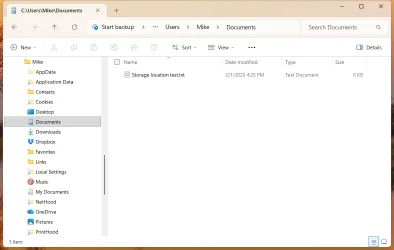
Here's the immediate problem: In File Explorer, I can see folders such as Users>Mike>Pictures that are greyed out and Windows denies access.

I've only just begun migrating to this new machine. During setup, I saw no choice but to initially log in with an MS account. I did, and used the tutorial by @Brink to add a local account (Mike) which I now use exclusively to log in (I'm the sole user of the machine). The Mike account is Admin level.

In Windows 10, if I tried to open a greyed-out folder, I'd get a dialog with a Continue button to permanently get access. In Windows 11, I don't get that option. What's changed?
 
Windows Build/Version
Win 11 Home, 24H2, Build 26100.8037

My Computer

System One

  • OS
    Windows 11 Home
    Computer type
    Laptop
    Manufacturer/Model
    Hp Envy
    CPU
    Intel Core Ultra 7 155U
    Memory
    32GB DDR5
    Graphics Card(s)
    NVIDIA GeForce RTX 3050
    Hard Drives
    1TB SSD
Hello @MichaelDSM and welcome to ElevenForum. :-)

I have a Local administrator account.

Image1.webp

I'm the only one using my comp, so I just turn UAC off.

The "Pictures" folder should be accessible, the one in your account anyway.
Below is my copy/paste NewGuy stuff. In the Win 11 Tweaks - Leader Board (Context Menu section) are tutorials for "Take Ownership" of folders, and a tutorial for "Reset Permissions"..


Here's some other things that you may find useful...


And... here's ten points, just for filling out your computer specs. :-)


NOTE:

On my system, all three of these (RED box) have full control.
Back in 2021, I may have "Taken Ownership", but I honestly don't remember.

Image1.webp


NOTE 2: As a test... I just used "Reset Permissions" on my Pictures folder, and rebooted. All three user names in the pic, still have full control.
 
Last edited:

My Computers

System One System Two

  • OS
    Win 11 Home ♦♦♦26200.8457 ♦♦♦♦♦♦♦25H2
    Computer type
    PC/Desktop
    Manufacturer/Model
    Built by Ghot® [May 2020]
    CPU
    AMD Ryzen 7 3700X
    Motherboard
    Asus Pro WS X570-ACE (BIOS 5302)
    Memory
    G.Skill (F4-3200C14D-16GTZKW)
    Graphics Card(s)
    EVGA RTX 2070 (08G-P4-2171-KR)
    Sound Card
    Realtek ALC1220P / ALC S1220A
    Monitor(s) Displays
    Dell U3011 30"
    Screen Resolution
    2560 x 1600
    Hard Drives
    2x Samsung 860 EVO 500GB,
    WD 4TB Black FZBX - SATA III,
    WD 8TB Black FZBX - SATA III,
    DRW-24B1ST CD/DVD Burner
    PSU
    PC Power & Cooling 750W Quad EPS12V
    Case
    Cooler Master ATCS 840 Tower
    Cooling
    CM Hyper 212 EVO (push/pull)
    Keyboard
    Ducky DK9008 Shine II Blue LED
    Mouse
    Logitech Optical M-100
    Internet Speed
    300/300
    Browser
    Firefox (latest)
    Antivirus
    Bitdefender Total Security
    Other Info
    Speakers: Klipsch Pro Media 2.1
  • Operating System
    Windows XP Pro 32bit w/SP3
    Computer type
    PC/Desktop
    Manufacturer/Model
    Built by Ghot® (not in use)
    CPU
    AMD Athlon 64 X2 5000+ (OC'd @ 3.2Ghz)
    Motherboard
    ASUS M2N32-SLI Deluxe Wireless Edition
    Memory
    TWIN2X2048-6400C4DHX (2 x 1GB, DDR2 800)
    Graphics card(s)
    EVGA 256-P2-N758-TR GeForce 8600GT SSC
    Sound Card
    Onboard
    Monitor(s) Displays
    ViewSonic G90FB Black 19" Professional (CRT)
    Screen Resolution
    up to 2048 x 1536
    Hard Drives
    WD 36GB 10,000rpm Raptor SATA
    Seagate 80GB 7200rpm SATA
    Lite-On LTR-52246S CD/RW
    Lite-On LH-18A1P CD/DVD Burner
    PSU
    PC Power & Cooling Silencer 750 Quad EPS12V
    Case
    Generic Beige case, 80mm fans
    Cooling
    ZALMAN 9500A 92mm CPU Cooler
    Keyboard
    Logitech Classic Keybooard 200
    Mouse
    Logitech Optical M-BT96a
    Internet Speed
    300/300
    Browser
    Firefox 3.x ??
    Antivirus
    Symantec (Norton)
    Other Info
    Still assembled, still runs. Haven't turned it on for 15 years?
Wow, thank you for all that @Ghot ! I have bookmarked each of those initial pages for future reference. Of course I didn't have time to click into and read all of the Windows 11 Tweaks items, but I looked the entire page over, especially scrutinizing the File Explorer section, and I didn't see anything that might solve my mystery.

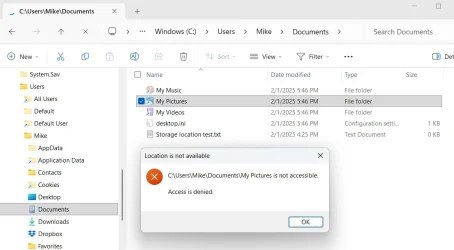
Since my OP, I have discovered a few greyed-out folders in File Explorer that still have the Continue option (and I can't find one to recall for you right now), but there are lots of folders that give me the 'Location is not available' popup.
Screenshot 2026-04-04 145240.webp

Do you think this problem is related to my having the MS account user and the local account user? Each account created a full set of folders under their User folder. I find it to be a lot of clutter that I didn't have on the Win 10 machine, but I'm also wondering if it's causing larger issues. BTW, I just noticed that all of the folders I can't access are system-generated shortcuts. BUT - not every system generated shortcut produces the message! I can access All Users for example.

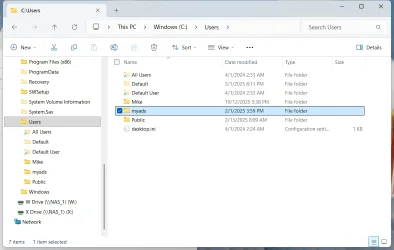
In the next screenshot, you can see that the system generated 6 different users. On my old Win 10 machine there are only 3: Administrator, Mike and Public.
Screenshot 2026-04-04 15.37.37.webp
I would consider doing a factory restore if I could be convinced that I could gain meaningful ground. I haven't migrated much to the new machine yet. I don't know if it's possible to avoid creating the MS account user during setup. I didn't see an obvious workaround.

Apologies for no signature yet...
 

My Computer

System One

  • OS
    Windows 11 Home
    Computer type
    Laptop
    Manufacturer/Model
    Hp Envy
    CPU
    Intel Core Ultra 7 155U
    Memory
    32GB DDR5
    Graphics Card(s)
    NVIDIA GeForce RTX 3050
    Hard Drives
    1TB SSD
Do you think this problem is related to my having the MS account user and the local account user


Could very well be the problem.
But I don't DO MS accts. I'm allergic to them. :-)

In the Win 11 Tweaks - Leader board... check out the Repair Install - In-Place Upgrade.
Do Option Two the ISO method.

You won't lose any programs files or drivers.
Much better than a factory restore
 

My Computers

System One System Two

  • OS
    Win 11 Home ♦♦♦26200.8457 ♦♦♦♦♦♦♦25H2
    Computer type
    PC/Desktop
    Manufacturer/Model
    Built by Ghot® [May 2020]
    CPU
    AMD Ryzen 7 3700X
    Motherboard
    Asus Pro WS X570-ACE (BIOS 5302)
    Memory
    G.Skill (F4-3200C14D-16GTZKW)
    Graphics Card(s)
    EVGA RTX 2070 (08G-P4-2171-KR)
    Sound Card
    Realtek ALC1220P / ALC S1220A
    Monitor(s) Displays
    Dell U3011 30"
    Screen Resolution
    2560 x 1600
    Hard Drives
    2x Samsung 860 EVO 500GB,
    WD 4TB Black FZBX - SATA III,
    WD 8TB Black FZBX - SATA III,
    DRW-24B1ST CD/DVD Burner
    PSU
    PC Power & Cooling 750W Quad EPS12V
    Case
    Cooler Master ATCS 840 Tower
    Cooling
    CM Hyper 212 EVO (push/pull)
    Keyboard
    Ducky DK9008 Shine II Blue LED
    Mouse
    Logitech Optical M-100
    Internet Speed
    300/300
    Browser
    Firefox (latest)
    Antivirus
    Bitdefender Total Security
    Other Info
    Speakers: Klipsch Pro Media 2.1
  • Operating System
    Windows XP Pro 32bit w/SP3
    Computer type
    PC/Desktop
    Manufacturer/Model
    Built by Ghot® (not in use)
    CPU
    AMD Athlon 64 X2 5000+ (OC'd @ 3.2Ghz)
    Motherboard
    ASUS M2N32-SLI Deluxe Wireless Edition
    Memory
    TWIN2X2048-6400C4DHX (2 x 1GB, DDR2 800)
    Graphics card(s)
    EVGA 256-P2-N758-TR GeForce 8600GT SSC
    Sound Card
    Onboard
    Monitor(s) Displays
    ViewSonic G90FB Black 19" Professional (CRT)
    Screen Resolution
    up to 2048 x 1536
    Hard Drives
    WD 36GB 10,000rpm Raptor SATA
    Seagate 80GB 7200rpm SATA
    Lite-On LTR-52246S CD/RW
    Lite-On LH-18A1P CD/DVD Burner
    PSU
    PC Power & Cooling Silencer 750 Quad EPS12V
    Case
    Generic Beige case, 80mm fans
    Cooling
    ZALMAN 9500A 92mm CPU Cooler
    Keyboard
    Logitech Classic Keybooard 200
    Mouse
    Logitech Optical M-BT96a
    Internet Speed
    300/300
    Browser
    Firefox 3.x ??
    Antivirus
    Symantec (Norton)
    Other Info
    Still assembled, still runs. Haven't turned it on for 15 years?
Lol - I was too! I had one because of having created a free OneDrive acct years ago, then didn't access it for so long that they froze it! And not because I hate all things Microsoft like some people - I don't! All in good balance, though. I mainly just didn't need the MS account - until I booted the new HP laptop for the first time. I was able to unfreeze the old MS account but I'm not crazy about the result. I would have been much happier just doing the setup with a local account and then using the MS account on the few occasions that I might need it.

Should I start a new thread asking for a means of going through Setup using a local account?
 

My Computer

System One

  • OS
    Windows 11 Home
    Computer type
    Laptop
    Manufacturer/Model
    Hp Envy
    CPU
    Intel Core Ultra 7 155U
    Memory
    32GB DDR5
    Graphics Card(s)
    NVIDIA GeForce RTX 3050
    Hard Drives
    1TB SSD
Lol - I was too! I had one because of having created a free OneDrive acct years ago, then didn't access it for so long that they froze it! And not because I hate all things Microsoft like some people - I don't! All in good balance, though. I mainly just didn't need the MS account - until I booted the new HP laptop for the first time. I was able to unfreeze the old MS account but I'm not crazy about the result. I would have been much happier just doing the setup with a local account and then using the MS account on the few occasions that I might need it.

Should I start a new thread asking for a means of going through Setup using a local account?


If you're talking reinstalling... step #15 below will help you install with a Local account...


My Computers

System One System Two

  • OS
    Win 11 Home ♦♦♦26200.8457 ♦♦♦♦♦♦♦25H2
    Computer type
    PC/Desktop
    Manufacturer/Model
    Built by Ghot® [May 2020]
    CPU
    AMD Ryzen 7 3700X
    Motherboard
    Asus Pro WS X570-ACE (BIOS 5302)
    Memory
    G.Skill (F4-3200C14D-16GTZKW)
    Graphics Card(s)
    EVGA RTX 2070 (08G-P4-2171-KR)
    Sound Card
    Realtek ALC1220P / ALC S1220A
    Monitor(s) Displays
    Dell U3011 30"
    Screen Resolution
    2560 x 1600
    Hard Drives
    2x Samsung 860 EVO 500GB,
    WD 4TB Black FZBX - SATA III,
    WD 8TB Black FZBX - SATA III,
    DRW-24B1ST CD/DVD Burner
    PSU
    PC Power & Cooling 750W Quad EPS12V
    Case
    Cooler Master ATCS 840 Tower
    Cooling
    CM Hyper 212 EVO (push/pull)
    Keyboard
    Ducky DK9008 Shine II Blue LED
    Mouse
    Logitech Optical M-100
    Internet Speed
    300/300
    Browser
    Firefox (latest)
    Antivirus
    Bitdefender Total Security
    Other Info
    Speakers: Klipsch Pro Media 2.1
  • Operating System
    Windows XP Pro 32bit w/SP3
    Computer type
    PC/Desktop
    Manufacturer/Model
    Built by Ghot® (not in use)
    CPU
    AMD Athlon 64 X2 5000+ (OC'd @ 3.2Ghz)
    Motherboard
    ASUS M2N32-SLI Deluxe Wireless Edition
    Memory
    TWIN2X2048-6400C4DHX (2 x 1GB, DDR2 800)
    Graphics card(s)
    EVGA 256-P2-N758-TR GeForce 8600GT SSC
    Sound Card
    Onboard
    Monitor(s) Displays
    ViewSonic G90FB Black 19" Professional (CRT)
    Screen Resolution
    up to 2048 x 1536
    Hard Drives
    WD 36GB 10,000rpm Raptor SATA
    Seagate 80GB 7200rpm SATA
    Lite-On LTR-52246S CD/RW
    Lite-On LH-18A1P CD/DVD Burner
    PSU
    PC Power & Cooling Silencer 750 Quad EPS12V
    Case
    Generic Beige case, 80mm fans
    Cooling
    ZALMAN 9500A 92mm CPU Cooler
    Keyboard
    Logitech Classic Keybooard 200
    Mouse
    Logitech Optical M-BT96a
    Internet Speed
    300/300
    Browser
    Firefox 3.x ??
    Antivirus
    Symantec (Norton)
    Other Info
    Still assembled, still runs. Haven't turned it on for 15 years?
If you look carefully at the "folders" you don't understand, you should notice the little green arrows on them. That shows they are links. They are there to allow badly written old programs that hard coded the paths to various folders such as the pictures folder in XP style. e.g. it used to be "documents\my pictures". Microsoft changed all the paths in Vista, and added hidden links to fix problematic programs. Properly written programs asked Windows for the location of the pictures folder, so didn't need any help moving from XP to Vista.

Under normal use you won't see these links. I never do from Explorer. If I really wanted to do so I could use a command or PowerShell prompt. Technically these are Junction points or Symlinks.

If you leave UAC at it's normal setting and stop showing superhidden files, then you won't see them.

To accommodate Windows 95 programs MS made XP horribly insecure. They made an enormous effort to fix things for Vista. A combination of updated programs and slacker UAC settings in Windows 7 got most programs working correctly for non-admin users (and for admin users with UAC).

I wouldn't reccomend @Ghot s suggestions to disable UAC or to use an admin account for normal use. But if you do, you should pay attention to his advice to do regular full system backups.
 

My Computers

System One System Two

  • OS
    Windows 11 25H2 Pro Build 26200
    Computer type
    PC/Desktop
    Manufacturer/Model
    MSI PRO ADL-U Cubi 5 (MS-B0A8)
    CPU
    i3-1215U
    Memory
    8GB
    Monitor(s) Displays
    Sony 43" 4k TV
    Screen Resolution
    3840x2160
    Hard Drives
    250GB NVMe M.2 PCIe Gen 3 SSD
    PSU
    External 65W
    Case
    Mini PC
    Browser
    FireFox
    Antivirus
    MS
  • Operating System
    Windows 11 Pro 25H2
    Computer type
    PC/Desktop
    Manufacturer/Model
    Dell Optiplex 3070 SFF
    CPU
    Intel i3-9100
    Memory
    16GB DDR4
    Monitor(s) Displays
    Dell S2721
    Screen Resolution
    3840 x 2160
    Hard Drives
    Samsung 500GB nvMe
    Case
    Dell small form factor
    Keyboard
    Cherry mechanical (Blue)
    Mouse
    Microsoft
    Antivirus
    MS Defender
Thank you for that. I'm going to have to do some studying and get back to you. If I were to deviate from the factory reinstall process as the tutorial instructs, I don't even know my activation code at this point! :-) Note: I've only read a little of the tutorial.

Also, I did clean installs on my last two laptops in order to follow fine tutorials by Kari Finn on having the Users folder reside on a different drive partition than Windows. First, it was with Windows 7 and then Windows 10 (the machine I'm still working from). Here's a link to the latter tutorial: Move Users Folder Location in Windows 10

In the process, I lost all the factory tools (HP tools) and - I'm not really sure what else, because I lost all that. So I wanted to try to stay "in the box" this time. At the same time, I don't know if there's really any merit to it!

If anyone wants to comment on reasons for or against reusing the factory image, please speak up.
 

My Computer

System One

  • OS
    Windows 11 Home
    Computer type
    Laptop
    Manufacturer/Model
    Hp Envy
    CPU
    Intel Core Ultra 7 155U
    Memory
    32GB DDR5
    Graphics Card(s)
    NVIDIA GeForce RTX 3050
    Hard Drives
    1TB SSD
@MichaelDSM

A Factory Restore will take the computer back to when it was manufactured.

An In-Place Upgrade will just fix Windows problems and leave everything else alone.


Also, you can do an In-Place upgrade from Win 10 directly to Win 11.
In fact, that's what I did.

I had Win 10 running tight and clean so I just did an In-Place Upgrade to Win 11.
It kept my Local account from Win 10 and kept everything else.


Here's the short version of the In-Place upgrade from Win 10 to Win 11 or from Win 11 to Win 11...


An In-Place Upgrade "compares" what is installed on the computer, with the Windows ISO image.
Then, it overwrites any corrupted Windows files, with clean copies from the ISO image.
This is how it "repairs" Windows while allowing you to keep your programs and personal files.


Here is the short version of the In-place upgrade tutorial...

DISABLE non-Microsoft:
a) antivirus software
b) firewall software
c) drive encryption software


Make a full OS backup with a program like Macrium Reflect or AOMEI Backupper Standard
Making a backup is optional, but always a smart move.
Macrium Reflect
AOMEI Backupper Standard (free)
Hasleo Backup Suite (free)


Get the Windows 11 ISO (Option #1), and save it to your desktop...


Right click the ISO image and choose: MOUNT
Open File Explorer and you will see a new drive letter. It will "look" like a DVD optical drive.
Double click the new drive letter to open it.
Find setup.exe and double click it to start the in-place upgrade.

Choose the Keep personal files and apps option.

After it's all done... to UNmount the ISO image, right click that same new drive letter and choose: EJECT.

The ONLY thing you might lose is some of your personalizations.
Your drivers, programs and data will be intact.
 
Last edited:

My Computers

System One System Two

  • OS
    Win 11 Home ♦♦♦26200.8457 ♦♦♦♦♦♦♦25H2
    Computer type
    PC/Desktop
    Manufacturer/Model
    Built by Ghot® [May 2020]
    CPU
    AMD Ryzen 7 3700X
    Motherboard
    Asus Pro WS X570-ACE (BIOS 5302)
    Memory
    G.Skill (F4-3200C14D-16GTZKW)
    Graphics Card(s)
    EVGA RTX 2070 (08G-P4-2171-KR)
    Sound Card
    Realtek ALC1220P / ALC S1220A
    Monitor(s) Displays
    Dell U3011 30"
    Screen Resolution
    2560 x 1600
    Hard Drives
    2x Samsung 860 EVO 500GB,
    WD 4TB Black FZBX - SATA III,
    WD 8TB Black FZBX - SATA III,
    DRW-24B1ST CD/DVD Burner
    PSU
    PC Power & Cooling 750W Quad EPS12V
    Case
    Cooler Master ATCS 840 Tower
    Cooling
    CM Hyper 212 EVO (push/pull)
    Keyboard
    Ducky DK9008 Shine II Blue LED
    Mouse
    Logitech Optical M-100
    Internet Speed
    300/300
    Browser
    Firefox (latest)
    Antivirus
    Bitdefender Total Security
    Other Info
    Speakers: Klipsch Pro Media 2.1
  • Operating System
    Windows XP Pro 32bit w/SP3
    Computer type
    PC/Desktop
    Manufacturer/Model
    Built by Ghot® (not in use)
    CPU
    AMD Athlon 64 X2 5000+ (OC'd @ 3.2Ghz)
    Motherboard
    ASUS M2N32-SLI Deluxe Wireless Edition
    Memory
    TWIN2X2048-6400C4DHX (2 x 1GB, DDR2 800)
    Graphics card(s)
    EVGA 256-P2-N758-TR GeForce 8600GT SSC
    Sound Card
    Onboard
    Monitor(s) Displays
    ViewSonic G90FB Black 19" Professional (CRT)
    Screen Resolution
    up to 2048 x 1536
    Hard Drives
    WD 36GB 10,000rpm Raptor SATA
    Seagate 80GB 7200rpm SATA
    Lite-On LTR-52246S CD/RW
    Lite-On LH-18A1P CD/DVD Burner
    PSU
    PC Power & Cooling Silencer 750 Quad EPS12V
    Case
    Generic Beige case, 80mm fans
    Cooling
    ZALMAN 9500A 92mm CPU Cooler
    Keyboard
    Logitech Classic Keybooard 200
    Mouse
    Logitech Optical M-BT96a
    Internet Speed
    300/300
    Browser
    Firefox 3.x ??
    Antivirus
    Symantec (Norton)
    Other Info
    Still assembled, still runs. Haven't turned it on for 15 years?
I wouldn't reccomend @Ghot s suggestions to disable UAC or to use an admin account for normal use. But if you do, you should pay attention to his advice to do regular full system backups.
I think doing regular full system backups is a good idea whether you follow Ghot's suggestions or not.

Personal preference: I would not turn UAC off even if you are the only user. I feel it is good protection to be alerted when a program or function needs elevated authority. It's a minor annoyance when using programs I trust (such as security, security, and monitoring and diagnostic programs), but it lets me know when a new, untrusted program wants to make changes.
 

My Computer

System One

  • OS
    Windows 11
    Computer type
    PC/Desktop
    Manufacturer/Model
    Microsoft
    CPU
    Intel Core i5-8400
    Motherboard
    ASUS PRIME H370-PLUS
    Memory
    16GB
    Graphics Card(s)
    Intel UHD Graphics 630
    Sound Card
    On board
    Monitor(s) Displays
    Samsung SyncMaster 2043BWX
    Screen Resolution
    1680 x 1050
    Hard Drives
    Samsung SSD 850 256GB
    WDC 1TB NVMe
    WD 3TB external USB drive
    PSU
    I don't remember
    Case
    Corsair something-or-other
    Cooling
    Air CPU + 2 case fans
    Keyboard
    DAS S Pro (Cherry Brown)
    Mouse
    Logitech USB of some sort
@Ghot: thank you for another tutorial :-)
I don't plan to do an In-Place upgrade on either machine that I'm working from. I'm writing this from my older HP Win 10 laptop while I have the new Win 11 HP laptop open next to it. I haven't installed much on the new machine yet, which is why I was (am) considering starting over. Once I've fully migrated to the new machine, I will upgrade the old one to Win 11, but probably will do a clean install there because my new machine will be my daily use machine.

Everyone: I do use Macrium Reflect for nightly backups. I used to use AOMEI but I moved to Macrium a couple of years ago. This is on the OLD machine; I haven't bothered with the new one yet (although I've installed the program).

@Skeptic Mike: My apologies for not refreshing before I sent my previous reply. I hadn't seen your post. Thank you for that info! You're right about some of it: I've determined that every greyed-out folder I can't access has the "little green arrow" and the greyed-out folders that I can access have no arrow. I thought they were greyed-out shortcuts, but I'm sure you're right that they're Symlinks. I hadn't thought of that because I'm not used to seeing Symlinks. That's great to know the history of those things!

I haven't mucked around with UAC that I can recall. What UAC setting might you be referring to? I don't typically need to do any tweaking of UAC settings because I set my account as Admin and keep UAC turned on. As @pokeefe0001 said, the occasional UAC prompts are a very minor interruption.

I did tweak File Explorer options to "Show hidden files, folders and drives" as I always have, but that's not the same thing. However, you inspired me to turn that off to see what happens, and - weird stuff!

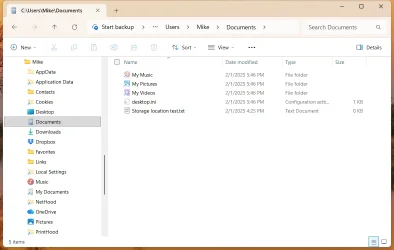
Here's File Explorer with it turned on (show hidden):
Screenshot 2026-04-05 17.40.52.webp

Here it is with it turned off:
Screenshot 2026-04-05 17.41.17.webp

So you're partly right: those were Symlinks that went away - but not from tweaking UAC, just the folder View option. That doesn't work that way on my Windows 10 machine.
But also, take a look at the folders that are still greyed out with shortcut arrows - like Application Data, Cookies, or Local Settings. Those still appear! And I can't access those any better than the ones I hid a moment earlier.

WTH?
 

My Computer

System One

  • OS
    Windows 11 Home
    Computer type
    Laptop
    Manufacturer/Model
    Hp Envy
    CPU
    Intel Core Ultra 7 155U
    Memory
    32GB DDR5
    Graphics Card(s)
    NVIDIA GeForce RTX 3050
    Hard Drives
    1TB SSD
This is on the OLD machine; I haven't bothered with the new one yet (although I've installed the program


On the new machine, you should always make a backup right after the install... just in case.
 

My Computers

System One System Two

  • OS
    Win 11 Home ♦♦♦26200.8457 ♦♦♦♦♦♦♦25H2
    Computer type
    PC/Desktop
    Manufacturer/Model
    Built by Ghot® [May 2020]
    CPU
    AMD Ryzen 7 3700X
    Motherboard
    Asus Pro WS X570-ACE (BIOS 5302)
    Memory
    G.Skill (F4-3200C14D-16GTZKW)
    Graphics Card(s)
    EVGA RTX 2070 (08G-P4-2171-KR)
    Sound Card
    Realtek ALC1220P / ALC S1220A
    Monitor(s) Displays
    Dell U3011 30"
    Screen Resolution
    2560 x 1600
    Hard Drives
    2x Samsung 860 EVO 500GB,
    WD 4TB Black FZBX - SATA III,
    WD 8TB Black FZBX - SATA III,
    DRW-24B1ST CD/DVD Burner
    PSU
    PC Power & Cooling 750W Quad EPS12V
    Case
    Cooler Master ATCS 840 Tower
    Cooling
    CM Hyper 212 EVO (push/pull)
    Keyboard
    Ducky DK9008 Shine II Blue LED
    Mouse
    Logitech Optical M-100
    Internet Speed
    300/300
    Browser
    Firefox (latest)
    Antivirus
    Bitdefender Total Security
    Other Info
    Speakers: Klipsch Pro Media 2.1
  • Operating System
    Windows XP Pro 32bit w/SP3
    Computer type
    PC/Desktop
    Manufacturer/Model
    Built by Ghot® (not in use)
    CPU
    AMD Athlon 64 X2 5000+ (OC'd @ 3.2Ghz)
    Motherboard
    ASUS M2N32-SLI Deluxe Wireless Edition
    Memory
    TWIN2X2048-6400C4DHX (2 x 1GB, DDR2 800)
    Graphics card(s)
    EVGA 256-P2-N758-TR GeForce 8600GT SSC
    Sound Card
    Onboard
    Monitor(s) Displays
    ViewSonic G90FB Black 19" Professional (CRT)
    Screen Resolution
    up to 2048 x 1536
    Hard Drives
    WD 36GB 10,000rpm Raptor SATA
    Seagate 80GB 7200rpm SATA
    Lite-On LTR-52246S CD/RW
    Lite-On LH-18A1P CD/DVD Burner
    PSU
    PC Power & Cooling Silencer 750 Quad EPS12V
    Case
    Generic Beige case, 80mm fans
    Cooling
    ZALMAN 9500A 92mm CPU Cooler
    Keyboard
    Logitech Classic Keybooard 200
    Mouse
    Logitech Optical M-BT96a
    Internet Speed
    300/300
    Browser
    Firefox 3.x ??
    Antivirus
    Symantec (Norton)
    Other Info
    Still assembled, still runs. Haven't turned it on for 15 years?
@Ghot: thank you for another tutorial :-)
But also, take a look at the folders that are still greyed out with shortcut arrows - like Application Data, Cookies, or Local Settings. Those still appear! And I can't access those any better than the ones I hid a moment earlier.
WTH?
They're not there for you. They are for backward compatibility with programs written many moons ago.
 

My Computer

System One

  • OS
    Windows 11 Pro 25H2
    Computer type
    PC/Desktop
    Manufacturer/Model
    Intel NUC12WSHi7
    CPU
    12th Gen Core i7-1260P
    Motherboard
    NUC12WSBi7
    Memory
    64 GB Micron PC4-25600
    Graphics Card(s)
    Intel Iris Xe Graphics
    Sound Card
    on-board Realtek HD Audio
    Monitor(s) Displays
    Dell U3219Q
    Screen Resolution
    3840 x 2160
    Hard Drives
    Samsung SSD 990 PRO 1TB
    Crucial MX500 2 TB
    Antivirus
    Microsoft Defender

Latest Support Threads

Back
Top Bottom