- Local time
- 8:20 PM
- Posts
- 5,389
- OS
- Windows 11
In this guide, I’ll outline the steps to enable the hidden NVMe driver to improve SSD performance on Windows 11.
Windows 11 have hidden Registry tweak derived from Windows Server 2025 NVMe driver behavior.
The tweak removes legacy SCSI translation, potentially improving SSD latency and IOPS.
On Windows 11, registry tweak can improve NVMe Solid-State Drive (SSD) performance, tweak that enables a newer native NVMe driver behavior originally introduced on Windows Server 2025. This change may reduce storage latency, increase IOPS, and improve overall system responsiveness by removing legacy SCSI command translation from the storage stack.
To enable the new NVMe driver to improve SSD performance on Windows 11, follow these steps:
If you plan to use these instructions, it’s recommended to perform a performance test of the NVMe SSD and compare it with the new driver enabled.
Download CrystalDiskMark
From Start Menu search bar type cmd.exe, right-click the top result, and choose the Run as administrator option.
Type this command to enable the new storage driver on Windows 11 and press Enter:
Restart the computer.
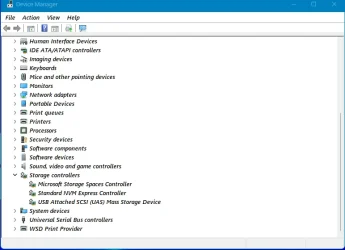
Open the device manager and expand “Storage disks” branch, and that your drive appears on the list.
Open GitHub website.
Download the ViveTool-vx.x.x.zip file on your computer.
If the “Storage disks” branch isn’t available, it’s likely because the driver isn’t available on your computer. In this case, you can try enabling the feature using the ViveTool and running the following command:
After restarting the computer, “Storage disks” should appear in the Device Manager, indicating that the driver is now working on your computer.
Hidden Windows 11 Tweak to Speed up NVMe SSD Performance
Windows 11 have hidden Registry tweak derived from Windows Server 2025 NVMe driver behavior.
The tweak removes legacy SCSI translation, potentially improving SSD latency and IOPS.
On Windows 11, registry tweak can improve NVMe Solid-State Drive (SSD) performance, tweak that enables a newer native NVMe driver behavior originally introduced on Windows Server 2025. This change may reduce storage latency, increase IOPS, and improve overall system responsiveness by removing legacy SCSI command translation from the storage stack.
To enable the new NVMe driver to improve SSD performance on Windows 11, follow these steps:
If you plan to use these instructions, it’s recommended to perform a performance test of the NVMe SSD and compare it with the new driver enabled.
Download CrystalDiskMark
From Start Menu search bar type cmd.exe, right-click the top result, and choose the Run as administrator option.
Type this command to enable the new storage driver on Windows 11 and press Enter:
Code:
reg add "HKEY_LOCAL_MACHINE\SYSTEM\CurrentControlSet\Policies\Microsoft\FeatureManagement\Overrides" /v 735209102 /t REG_DWORD /d 1 /f && reg add "HKEY_LOCAL_MACHINE\SYSTEM\CurrentControlSet\Policies\Microsoft\FeatureManagement\Overrides" /v 1853569164 /t REG_DWORD /d 1 /f && reg add "HKEY_LOCAL_MACHINE\SYSTEM\CurrentControlSet\Policies\Microsoft\FeatureManagement\Overrides" /v 156965516 /t REG_DWORD /d 1 /fRestart the computer.
Open the device manager and expand “Storage disks” branch, and that your drive appears on the list.
Open GitHub website.
Download the ViveTool-vx.x.x.zip file on your computer.
If the “Storage disks” branch isn’t available, it’s likely because the driver isn’t available on your computer. In this case, you can try enabling the feature using the ViveTool and running the following command:
Code:
vivetool /enable /id:60786016,48433719After restarting the computer, “Storage disks” should appear in the Device Manager, indicating that the driver is now working on your computer.
Hidden Windows 11 Tweak to Speed up NVMe SSD Performance
My Computer
At a glance
Windows 11AMD Ryzen 7 5700GMicron Technology DDR4-3200 16GBNVIDIA GeForce RTX 3060
- OS
- Windows 11
- Computer type
- PC/Desktop
- Manufacturer/Model
- HP Pavilion
- CPU
- AMD Ryzen 7 5700G
- Motherboard
- Erica6
- Memory
- Micron Technology DDR4-3200 16GB
- Graphics Card(s)
- NVIDIA GeForce RTX 3060
- Sound Card
- Realtek ALC671
- Monitor(s) Displays
- Samsung SyncMaster U28E590
- Screen Resolution
- 3840 x 2160
- Hard Drives
- SAMSUNG MZVLQ1T0HALB-000H1


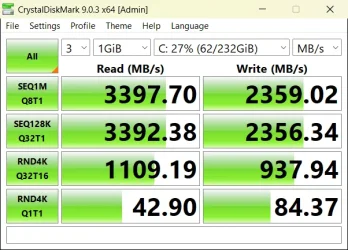
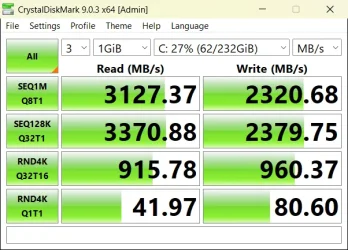

 Upgrading to NVMe 4.0 drives in my new build got me over a 10:1 improvement speed increase over the SATA SSD drives I was using in the previous computer, I think I can live with that.