Microsoft Virtualization Blog:
Learn what changed in the Virtual Machine Connection dialog when you connect to a Hyper-V virtual machine in enhanced session mode, why local resources are no longer shared by default, and how to choose which resources to share.
Understanding device redirection changes in Hyper-V Virtual Machine Connection
Starting with the October 2026 security update, Hyper-V Virtual Machine Connection (VMConnect) changes how it shares your local devices and resources with a virtual machine (VM) when you connect in enhanced session mode. The connection dialog now shows the most sensitive resources up front, and several of them are no longer shared by default. This article explains what changed, why, and what to do.What is enhanced session mode?
When you connect to a VM from Hyper-V Manager or by running vmconnect.exe, Virtual Machine Connection opens a window that shows the VM's screen. If the VM's operating system supports it, VMConnect can use enhanced session mode, which uses the Remote Desktop Protocol (RDP) over the VMBus channel between the host and the VM. Enhanced session mode adds features such as resizable displays, multiple monitors, and redirection: sharing parts of your local computer with the VM, such as your clipboard, printers, smart cards, or security keys. The dialog looks like this: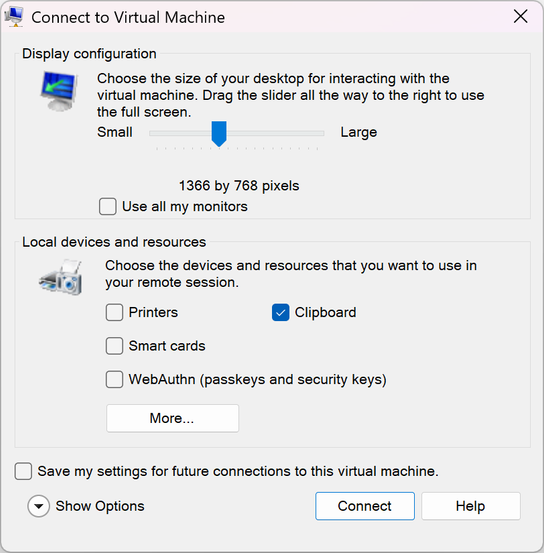
VMConnect
Basic session mode connects to the VM's console without RDP and doesn't share these resources. This update doesn't change basic session mode.
Why this changed
In enhanced session mode, the VM acts as the Remote Desktop server and your computer acts as the client. Any resource you redirect is available to software running inside the VM.Before this update, VMConnect shared your clipboard, printers, smart cards, and WebAuthn (Windows Hello and security keys) with the VM by default. Smart card and WebAuthn redirection appeared only on a secondary page (Show Options > Local Resources > More...). If you connected to a VM by selecting Connect, you shared those credential channels without being shown that you did.
That's a problem if the VM isn't fully trustworthy. For example, it might run untrusted software, be used for malware analysis or testing, be managed by someone else, or be compromised. Software in such a VM could:
- Use your redirected smart card or Windows Hello for Business credentials to authenticate as you to other systems.
- Send WebAuthn (passkey or security key) prompts to your computer that look legitimate, to try to get you to approve a sign-in for an attacker.
- Send print jobs to your local printers.
- Interact with the client-side components on your host that handle each redirected device. This exposes more of your host to an attacker in the guest.
IMPORTANT: Only share local resources with VMs you trust. If you don't know whether you need a resource in the VM, leave it unchecked. You can turn it on later.
What changed
After you install this update, when you connect to a VM in enhanced session mode, the Virtual Machine Connection dialog shows a checkbox for each of the following resources directly, without selecting Show Options:- Clipboard
- Printers
- Smart cards
- WebAuthn (Windows Hello or security keys)
| Resource | Default before this update | Default after this update | Where it appears after this update |
|---|---|---|---|
| Clipboard | On | On | Connection dialog |
| Printers | On | Off | Connection dialog |
| Smart cards | On | Off | Connection dialog |
| WebAuthn (Windows Hello or security keys) | On | Off | Connection dialog |
| Drives | Off | Off | Show Options > Local Resources > More... |
| Other supported Plug and Play (PnP) devices | Off | Off | Show Options > Local Resources > More... |
| USB devices | Off | Off | Show Options > Local Resources > More... |
| Audio playback | On | On | Show Options > Local Resources > Remote audio |
| Audio recording (microphone) | Off | Off | Show Options > Local Resources > Remote audio |
Clipboard stays on by default because copying and pasting between the host and the VM is the most common reason people use enhanced session mode. Turning it off by default would disrupt the most people. It's now shown in the dialog, so you can turn it off for any VM where you don't need it.
Audio playback stays on because it only sends sound from the VM to your speakers. It doesn't give the VM access to your data or credentials.
If you select Connect without changing anything, you get clipboard sharing and audio playback, and nothing else.
Saved settings and when you see the dialog
VMConnect can save your connection settings separately for each VM. To do this, select Save my settings for future connections to this virtual machine in the connection dialog.- After the update, you see the dialog once for each VM, even if you saved settings before. Earlier saved settings were made when most of these options were hidden, so VMConnect asks you to confirm your choices again.
- The update never turns on a resource that you turned off. If your saved settings for a VM had a resource turned off, it stays off.
- After you confirm and save your choices, VMConnect uses them for later connections to that VM and doesn't show the dialog again. VMConnect shows the dialog again if a later update adds a new type of redirection.
- If you don't save your settings, the dialog appears each time you connect, with the defaults in the preceding table.
- In Hyper-V Manager, select the VM, and then in the Actions pane, select Edit Session Settings....
- Run vmconnect.exe <ServerName> <VMName> /edit.
Understanding redirections
Each redirected resource gives software in the VM access to part of your computer. For detailed descriptions of the risk of each resource type, see Understanding redirections. That article covers Remote Desktop Connection, but the risks apply equally to VMConnect enhanced sessions. The following summary covers the resources this update changes:Clipboard
- What it does: Shares copied text, images, and files between your computer and the VM.
- Risk: Software in the VM can read anything you copy on your computer while connected, including passwords. It can also put content on your clipboard that you might later paste into a local app.
Printers
- What it does: Makes your local printers available to apps in the VM.
- Risk: Software in the VM can send print jobs to your printers and interacts with the printer redirection components on your computer.
Smart cards
- What it does: Lets the VM use smart cards and Windows Hello for Business credentials on your computer.
- Risk: Software in the VM can use your credentials to authenticate as you, to the VM or to other systems the VM can reach.
WebAuthn (Windows Hello or security keys)
- What it does: Lets the VM use your local passkeys, Windows Hello, and FIDO2 security keys to complete web sign-in challenges.
- Risk: Software in the VM can send sign-in prompts to your computer and try to get you to approve a sign-in for an attacker.
How to stay safe
- Only redirect what you need. Leave everything else unchecked.
- Be most careful with smart cards and WebAuthn. Turn them on only for VMs you control and trust, and only when you need to sign in from inside the VM.
- Turn off clipboard sharing for untrusted VMs, such as VMs you use to test unknown software or analyze malware.
- Use basic session mode for VMs you don't trust. In the Virtual Machine Connection window, select View, and then clear Enhanced session.
- Review your saved settings for VMs you connect to often, by using Edit Session Settings....
Frequently asked questions
I selected Connect, and now I can't print or use my smart card or security key in the VM. What happened?
Printers, smart cards, and WebAuthn are no longer shared by default. Disconnect, reconnect, and select the resources you need in the connection dialog. To keep your choice for that VM, select Save my settings for future connections to this virtual machine. To change saved settings, use Edit Session Settings... in Hyper-V Manager.Why am I seeing the connection dialog for a VM where I saved my settings?
After this update, VMConnect asks you once for each VM to confirm which resources to share, because earlier choices were made when most of these options were hidden. After you confirm and save, you won't see the dialog again for that VM.Does this update affect basic session mode?
No. Basic session mode doesn't redirect local resources, and its behavior doesn't change.Does this update affect connections to a VM by using Remote Desktop Connection (mstsc.exe)?
No. This update changes only Virtual Machine Connection. Remote Desktop Connection has its own warnings and defaults for redirection when you open RDP files. For more information, see Understanding security warnings when opening Remote Desktop (RDP) files.Does this update affect Windows Admin Center, System Center Virtual Machine Manager, or other tools?
Yes, the update is in vmconnect.exe and Microsoft.Virtualization.Client.dll. Any tools that open vmconnect.exe will see this change.Which versions of Windows get this change?
The October 13, 2026 security update makes this change on the following versions:- Windows 11
- Windows 10
- Windows Server 2025
- Windows Server 2022
- Windows Server 2019
- Windows Server 2016
- Windows Server 2012 R2 (Extended Security Updates)
Source:
Understanding device redirection changes in Hyper-V Virtual Machine Connection enhanced session mode | Microsoft Community Hub
Understanding device redirection changes in Hyper-V Virtual Machine Connection Starting with the October 2026 security update, Hyper-V Virtual Machine...
 techcommunity.microsoft.com