Updating Microsoft Secure Boot keys before expiration in June 2026


UPDATE 4/02:

UPDATE 2/10:

Official OEM Secure Boot guides​

If your computer still shows a yellow or red warning in the Windows Security app, or you simply want to verify that your device has received the new 2023 Secure Boot certificates, check your manufacturer’s official support page.

 Windows IT Pro Blog:

Secure Boot playbook for certificates expiring in 2026

The first set of tools and steps are now available to help you proactively update your Secure Boot certificates before they expire in June of 2026.

Secure Boot is more mature and robust today than it was some years ago. Coupled with the Unified Extensible Firmware Interface (UEFI) firmware signing process, Secure Boot uses cryptographic keys, known as certificate authorities (CAs), to validate that firmware modules come from a trusted source. This helps prevent malware from running early in the startup sequence of a Windows device.

Secure Boot certificates have always had expiration dates. New certificates help ensure that your devices stay up to date with the latest security protections. That is why your organization will need to install the 2023 CAs before the 2011 CAs start expiring in June of 2026.

Note: Need a refresher on why updating Secure Boot certificates is so important?
Many Windows PCs manufactured since 2024 already have the updated 2023 certificates. For the remaining devices, Microsoft is delivering new Secure Boot certificates through Windows monthly updates, with partner original equipment manufacturers (OEMs) making firmware updates available to help ensure compatibility.

If you wish to proactively update your Secure Boot certificates, this post contains initial steps you can take and tools you can use, with more scalable approaches coming soon. At a minimum, we encourage you to monitor the progress of your device fleet from the start.

Let’s get started. Here’s a summary of what you can do today to prepare:
  • Step 1: Inventory and prepare your environment
  • Step 2: Monitor and check your devices for Secure Boot status
  • Step 3: Apply OEM firmware updates before Microsoft updates
  • Step 4: Plan and pilot Secure Boot certificate deployments
  • Step 5: Troubleshoot and remediate common issues

Step 1: Inventory and prepare your environment​

For most devices in your organization, Microsoft will automatically update high-confidence devices via Windows Update. However, you can validate and actively roll out these updates, in which case, you would start by conducting an inventory.

Inventory

Most devices manufactured since 2012 have Secure Boot enabled, but you should always verify that. You should also check the status of the Secure Boot certificates with sample inventory PowerShell commands or by checking the value of the UEFICA2023Status registry key (it should ultimately be “updated”). Out of the devices that show up as not updated, build a small, representative sample. We recommend that you focus on the less common devices, for which high confidence determination isn’t automatic. Then follow the rest of the steps outlined in this post to pilot the certificate updates and help ensure that deployment is successful

Prepare select devices

To prepare devices for Secure Boot certificate deployment, consider how you’ll manage it. There are several approaches to managing Secure Boot certificate updates. Today, you can use registry keys or Group Policy. A Configuration Service Provider (CSP) for mobile device management (MDM), such as Microsoft Intune, is coming soon. Bookmark Windows Secure Boot certificate expiration and CA updates - Microsoft Support for the latest updates.
  1. The primary method is to deploy the certificates to devices that have been validated as ready for the update. See Step 4 when you’re ready to deploy these updates!
  2. For the more common device configurations in your environment, you can utilize two “assists” to manage your deployment:
    • Get new certificates through monthly Windows updates for high-confidence devices. This option is enabled by default for devices that are ready for new certificates. Microsoft will update these devices for you unless you opt out. To opt out, set the HighConfidenceOptOut registry key<a href="Secure Boot playbook for certificates expiring in 2026 - Windows IT Pro Blog" target="_self" rel="nofollow noopener noreferrer">ii</a> value to 1 or set the Automatic Certificate Deployment via Updates Group Policy to Disabled.
    • Opt devices in to Microsoft-managed controlled feature rollout. With registry keys, set the value of MicrosoftUpdateManagedOptIn to 1 to opt in to Microsoft-managed controlled feature rollout. The value of 0 or non-existent key means that you’re opted out. With Group Policy, configure the Certificate Deployment via Controlled Feature Rollout policy to Enabled. Note: To opt in, please configure devices to share required diagnostic data with Microsoft.
Important: All Secure Boot registry keys are under these two paths:

HKEY_LOCAL_MACHINE\SYSTEM\CurrentControlSet\Control\SecureBoot
HKEY_LOCAL_MACHINE\SYSTEM\CurrentControlSet\Control\SecureBoot\Servicing


See Registry key updates for Secure Boot: Windows devices with IT-managed updates for more details.

Group Policy settings are available to you under the following path: Computer Configuration > Administrative Templates > Windows Components > Secure Boot. To get the updates that include the Group Policy for deploying Secure Boot certificate updates, download the latest Administrative Templates (.admx) for Windows 11 and Windows Server.

Step 2: Monitor and check your devices for Secure Boot status​

Check the Secure Boot status of your devices before and after deployment. Soon, you will be able to use your preferred management and reporting tools. For now, you can use registry keys or Windows Event Log events to identify which devices already have new certificates and which ones need attention.

Deployment progress

The text value of the UEFICA2023Status registry key will indicate if your certificate deployment status is not started, in progress, or updated. The value will change progressively until all new certificates and the new boot manager have been deployed successfully.

Successful deployment
  • Audit the Windows System Event Log events for Event ID 1808. This informational event indicates that the device has the required new Secure Boot certificates applied to the device’s firmware.
  • Audit the UEFICA2023Error registry key for issues. This key should not exist unless an error is pending.
  • Check that the text value of the UEFICA2023Status registry key reads as “Updated.”
Errors during deployment
  • Audit the Windows System Event Log for Event ID 1801.This error event indicates that the updated certificates have not been applied to the device. Analyze details specific to the device, including device attributes, that will help you in correlating which devices still need updating.
  • Check if the UEFICA2023Error registry key exists. If so, it indicates an error in certificate deployment. The error itself won’t appear in the Event Log. Trace related issues through Secure Boot DB and DBX variable update events.

Step 3: Apply OEM firmware updates before Microsoft updates​

Updated firmware can help prevent compatibility problems and ensure new Secure Boot certificates are accepted. If your organization has identified Secure Boot update issues or your OEM recommends a firmware update, apply the latest BIOS/UEFI update before installing Secure Boot–related Windows updates.

Some OEMs provide firmware updates that include important fixes and updated certificate stores. These updates help Secure Boot function correctly with new Windows certificates. Microsoft works closely with OEM partners to ensure these updates integrate smoothly with Windows.

Step 4: Plan and pilot Secure Boot certificate deployments​

As you’ve seen in Step 1, Microsoft can assist with your Secure Boot updates if you enable diagnostic data.

You can also deploy new Secure Boot certificates yourself for devices that don’t already have them. Choose a way to do this with registry keys, via Windows Configuration System (WinCS) command-line interface (CLI), or using Group Policy today. Pilot your desired method first on a representative set of devices to gain confidence.

In a typical enterprise deployment, whatever option you choose, allow approximately 48 hours and one or more restarts after changing configuration for updates to fully apply. See How updates are deployed for more details. For testing scenarios, you can accelerate the experience by following the steps outlined in Device Testing Using Registry Keys.

Important: Avoid mixing deployment methods on the same device. For additional technical recommendations to help you plan and deploy your Secure Boot updates, see Deployment strategies.

Option 1: Deploy certificates with registry keys​

Find the AvailableUpdates registry key located under this registry path:

HKEY_LOCAL_MACHINE\SYSTEM\CurrentControlSet\Control\SecureBoot

Set its value to 0x5944 to deploy all needed certificates and update to the Windows UEFI CA 2023 signed boot manager. This key corresponds to the Group Policy setting Enable Secure Boot certificate deployment. For details, see Registry key updates for Secure Boot: Windows devices with IT-managed updates.

Option 2: Deploy certificates via Windows Configuration System (WinCS)​

New command-line tools are now available for domain-joined clients on Windows 11, versions 25H2, 24H2, and 23H2.

These include both a traditional executable and a PowerShell module to query and apply Secure Boot configurations locally to a device. For step-by-step guidance, see Windows Configuration System (WinCS) APIs for Secure Boot.

Deploy the Secure Boot updates via WinCS:
  • Feature name: Feature_AllKeysAndBootMgrByWinCS
  • WinCS key value: F33E0C8E002
  • Secure Boot configuration state: Enabled

Option 3: Deploy certificates using Group Policy​

Group Policy settings are available by navigating to Computer Configuration > Administrative Templates > Windows Components > Secure Boot.

To apply Secure Boot updates to devices using Group Policy, set the Enable Secure Boot certificate deployment policy to Enabled. This lets Windows automatically begin the certificate deployment process. This setting corresponds to the registry key AvailableUpdates.

Be sure to get the latest version of the .admx for Windows 11 and Windows Server. For more details, see Group Policy Objects (GPO) method of Secure Boot for Windows devices with IT-managed updates.

Option 4: Deploy certificates using mobile device management (coming soon)​

Soon, you’ll be able to manage Secure Boot updates using MDM solutions, such as Microsoft Intune. When this method is available, we will post updated guidance at Windows Secure Boot certificate expiration and CA updates - Microsoft Support.

Step 5. Troubleshoot and remediate common issues​

You can also use registry keys and Windows Event Log events to identify and resolve common issues:
  • The UEFICA2023Error registry key doesn’t exist if there are no errors. If it exists with a value other than 0, check your remediation recommendations in Secure Boot DB and DBX variable update events.
  • The AvailableUpdates registry key on a device is set to 0x4104. If it doesn’t clear the 0x0004 bit even after multiple restarts, the device doesn’t progress past deploying the new Key Exchange Key (KEK) certificate. If you encounter this error, check with your OEM to confirm they have followed the steps outlined in Windows Secure Boot Key Creation and Management Guidance.
  • If Event Viewer Windows Logs for System registers an Event ID 1795, it means that there was an error when Windows attempted to hand off the certificates to firmware. Check with the OEM to see if there is a firmware update available for the device to resolve this issue.

Your update strategy begins today​

Today, you can start preparing, monitoring, deploying, and troubleshooting Secure Boot certificates in advance of the June 2026 expiration date. The new registry keys, WinCS, Group Policy, and Windows Log tools are here to support you and are just the beginning. More tools for additional scenarios are in development.

For the latest information, bookmark Windows Secure Boot certificate expiration and CA updates. Looking for a specific topic?

 Source:


 Windows IT Pro Blog:

Updating Microsoft Secure Boot keys​

Microsoft, in collaboration with our ecosystem partners, is preparing to roll out replacement certificates that’ll set new Unified Extensible Firmware Interface (UEFI) Certificate Authorities (CAs) trust anchors in Secure Boot for the future. Look out for Secure Boot database updates rolling out in phases to add trust for the new database (DB) and Key Exchange Key (KEK) certificates. This new DB update is available as an optional servicing update for all Secure Boot enabled devices from February 13, 2024.

What is Secure Boot?​

Secure Boot is a security feature in the UEFI that helps ensure that only trusted software runs during the system’s boot sequence. It works by verifying the digital signature of any software against a set of trusted digital keys stored in the UEFI. As an industry standard, UEFI’s Secure Boot defines how platform firmware manages certificates, authenticates firmware, and how the operating system (OS) interfaces with this process. For more details on UEFI and Secure Boot, please refer to this article.

Secure Boot was first introduced to Windows systems with the Windows 8 release to protect against the emerging pre-boot malware (bootkit) threat at that time. Since then, Secure Boot has continued to be a part of Microsoft's Trusted Boot security architecture. Secure Boot authenticates modules such as UEFI firmware drivers, bootloaders, applications, and option ROMs (Read-Only Memory), which are firmware run by the PC BIOS during platform initialization, before they are all executed. As the final step of the Secure Boot process, the firmware verifies the Windows boot loader is trusted by Secure Boot and then passes control to the boot loader which in turn verifies, loads into memory, and launches Windows. This process coupled with the UEFI firmware signing process helps to ensure that only verified code executes before Windows, preventing attackers from utilizing the boot path as an attack vector. To learn more about how Secure Boot fits in with the overall Windows chip-t-cloud security, please refer to the Windows Security Book RWMyFE.

Trust and authenticity in Secure Boot are built using the Public-Key Infrastructure (PKI). This establishes a certificate management system which utilizes CAs to store digital certificates. These CAs, consisting of Original Equipment Manufacturer (OEM) or their delegates and Microsoft, generate key pairs that form the root of trust of a system.
bS00MDU1MzI0LTU1MTA0OWlGOEI2MDY4MzMyRDJDNzBC


Secure Boot “root of trust”: Setting trust anchors for the future​

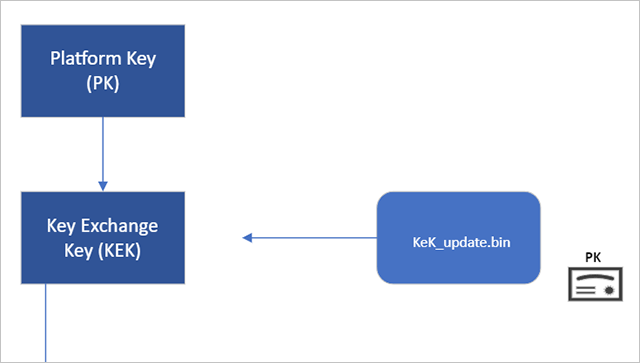
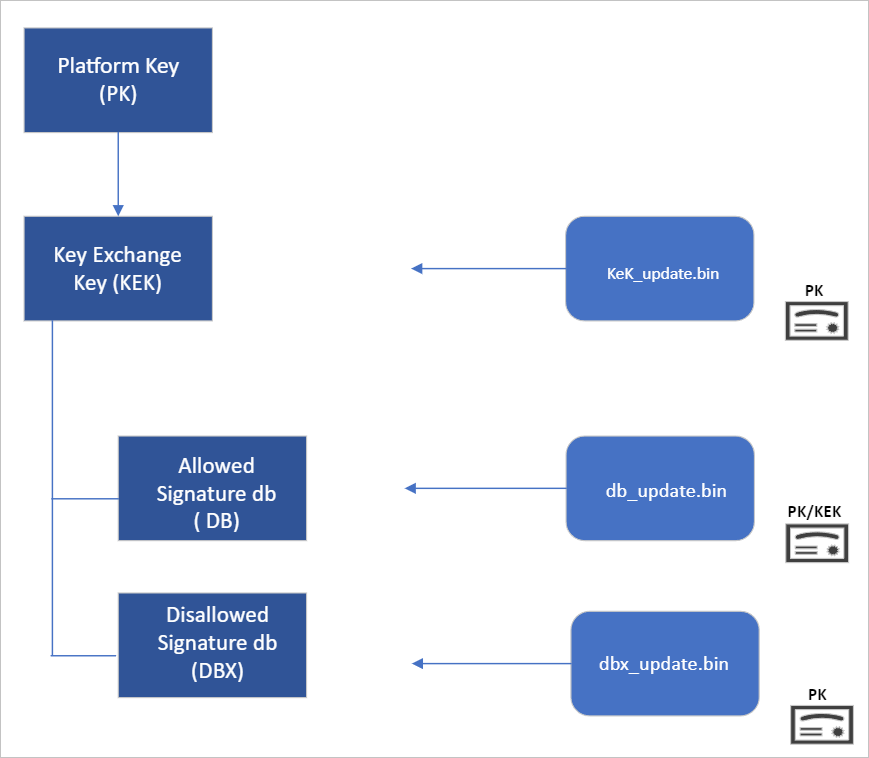
Secure Boot’s root of trust utilizes a hierarchical system, where the Platform Key (PK) is typically managed by the OEM and used to sign updates to the KEK database. The KEK in turn signs updates to both the Allowed Signature DB and the Forbidden Signature Database (DBX).

The Secure Boot Allowed Signature DB and the DBX are integral to the functionality of Secure Boot. Bootloader modules’ signing authority must be allowlisted by the Secure Boot DB, while the DBX is used for revoking previously trusted boot components. Updates to the DB and DBX must be signed by a KEK in the Secure Boot KEK database.

The configuration of Secure Boot DB and KEK for Windows devices has remained the same since Windows 8. Microsoft requires every OEM to include the same three certificates managed by Microsoft for Windows and in support of the third-party hardware and OS ecosystem. These include the Microsoft Corporation KEK CA 2011 stored in the KEK database, and two certificates stored in the DB called the Microsoft Windows Production PCA 2011, which signs the Windows bootloader, and the Microsoft UEFI CA 2011 (or third-party UEFI CA), which signs third-party OS and hardware driver components.

All three of these Microsoft certificates expire in 2026. So, in collaboration with our ecosystem partners, Microsoft is preparing to roll out replacement certificates that will set new UEFI CA trust anchors for the future. Microsoft will be rolling out Secure Boot database updates in phases to add trust for the new DB and KEK certificates. The first DB update will add the Microsoft Windows UEFI CA 2023 to the system DB. The new Microsoft Windows UEFI CA 2023 will be used to sign Windows boot components prior to the expiration of the Windows Production CA 2011. This DB update will be optional for the February 2024 servicing and preview updates, and can be manually applied to devices. Microsoft will slowly roll out this DB update as we validate devices and firmware compatibility globally. The full DB update’s controlled-rollout process to all Windows customers will begin during the 2024 April servicing and preview updates, ahead of the certificate expiration in 2026. Meanwhile, efforts to update the Microsoft UEFI CA 2011 (aka third-party UEFI CA) and Microsoft Corporation KEK CA 2011 will begin late 2024, and will follow a similar controlled rollout process as this DB update.

While Microsoft has frequently performed DBX updates globally since the inception of Secure Boot, this will be the first DB update performed on such a large scale. We’re actively collaborating with our OEM partners to identify and address bugs in firmware implementation that could result in unbootable systems or render a device unreceptive to the DB update. To ensure a successful rollout, devices with identified issues will be suspended from receiving the update until a fix is released.

Microsoft is taking a very deliberate and cautious approach to rolling out this update. With this DB update, Microsoft will sustain its ability to service all Windows devices’ boot components.

Guidance to manually apply DB update​

The DB update is available on February 13, 2024, along with manual steps to allow customers to test for firmware compatibility, especially for organizations with fleets of devices. If you would like to manually apply the DB update to validate that your system is compatible, please read the following instructions. These actions should be completed with non-critical hardware representing devices in your environment.

Pre-requisite checks​

Before attempting the DB update, please ensure to perform the necessary pre-requisite checks:
  1. If you intend to manually apply this update to a large group of devices, we advise that you begin by rolling out to individual devices with the same firmware and specifications first to minimize the risks in the case of firmware bugs in your devices.
  2. Please verify that your UEFI firmware version is the most recent available version by your firmware vendor or OEM.
  3. For data backup steps, please refer to this guide.
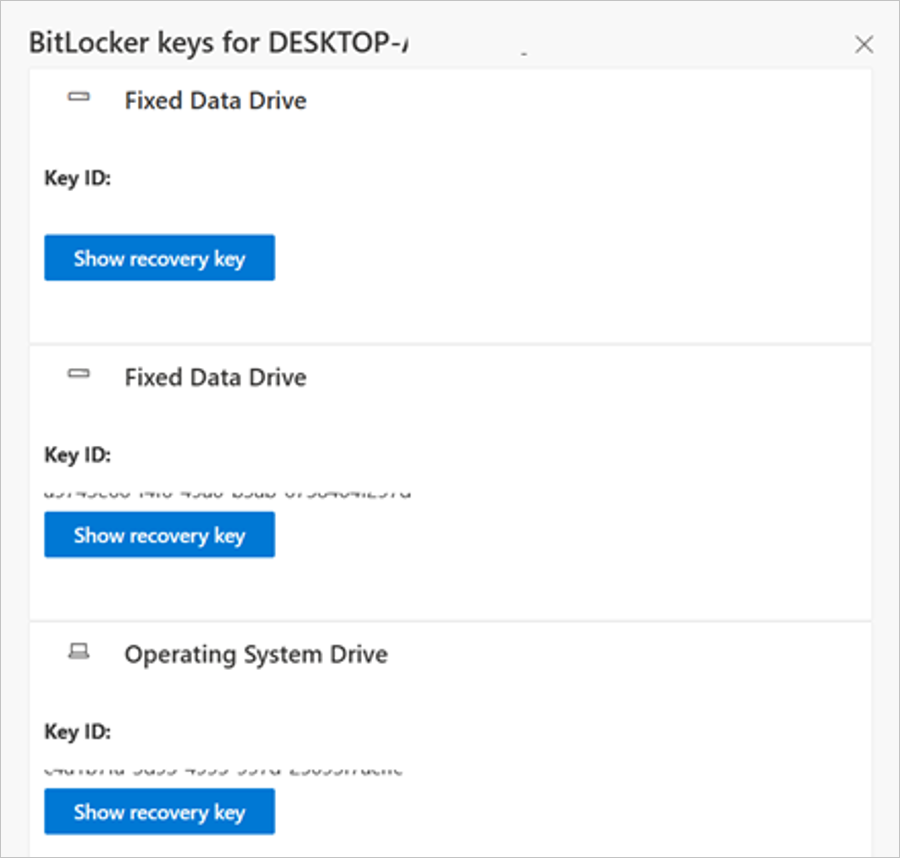
  4. If you use BitLocker or if your enterprise has deployed BitLocker on your machine, ensure to backup BitLocker Keys:

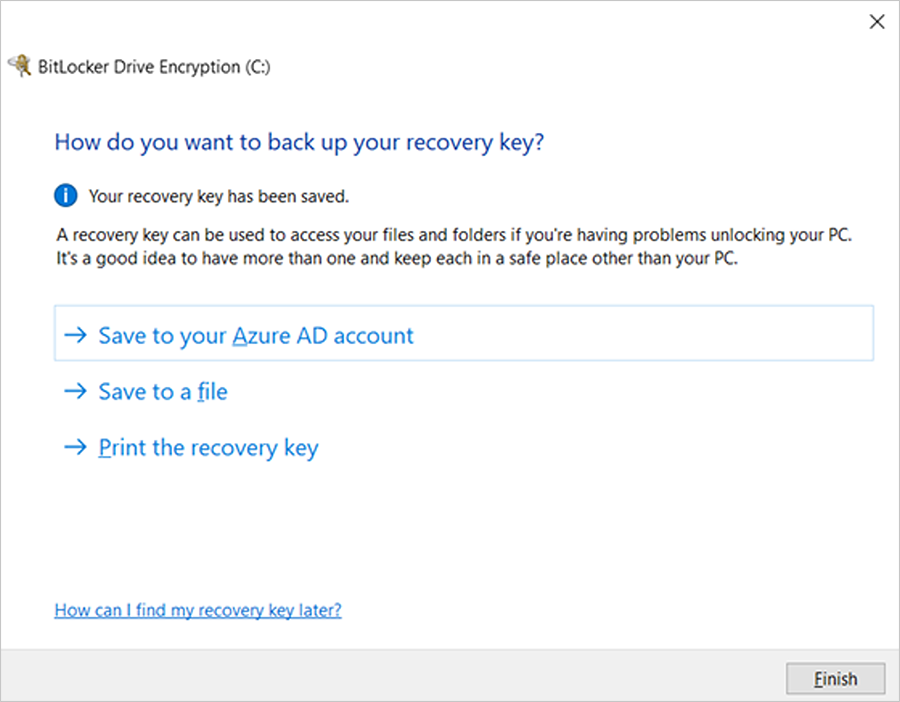
    A) See this portal to ensure your BitLocker keys are backed up before your next reboot for your selfhost device. In the unlikely event that device becomes inoperable after receiving the update, the hard drive can still be unlocked.

    B) If the keys are backed up, the UI should resemble the following:

    bS00MDU1MzI0LTU1MTA1MGk5NzY0QzRENjdBQkYwRkE2


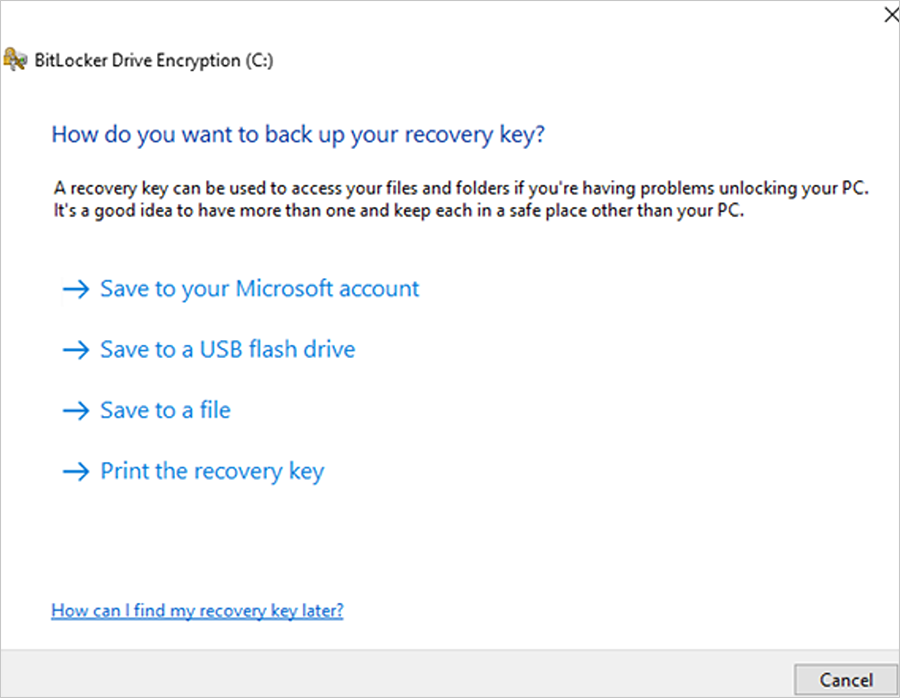
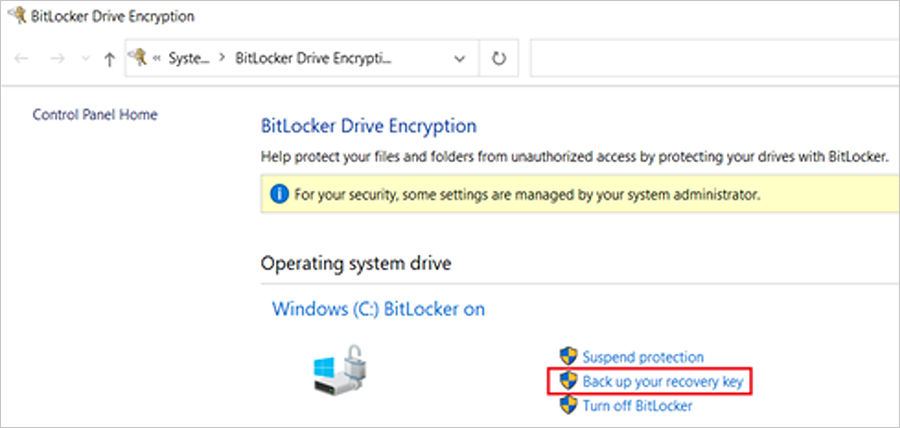
    C) If the keys are not backed up, please open Windows Search to search for “Manage BitLocker” and select Back up your recovery key followed by Save to your Azure AD or MSA account.
    bS00MDU1MzI0LTU1MTA1MWlEQkZDQTZDNDBDOEQwNzMy


    bS00MDU1MzI0LTU1MTA1Mmk5QjE2MDRBRTAyMUE1MDQ5


    bS00MDU1MzI0LTU1MTA1M2k2MzgxMUE1NEQ5NjEzREE4
For users that use a local account instead of an Azure Active Directory (AAD) or Microsoft account (MSA), you can print your recovery password, save to a file, and store it in a secure location.


 Formal DB update steps

  1. Apply the February 2024 (or later) security update.
  2. Open a PowerShell console and ensure that PowerShell is running as an administrator before running the following commands:
    1. Set the registry key to:

      Set-ItemProperty -Path "HKLM:\SYSTEM\CurrentControlSet\Control\SecureBoot" -Name "AvailableUpdates" -Value 0x40
    2. Run the following scheduled task as:

      Start-ScheduledTask -TaskName "\Microsoft\Windows\PI\Secure-Boot-Update"
  3. Reboot the machine twice after running these commands to confirm that the machine is booting with the updated DB.
  4. To verify that the Secure Boot DB update was successful, open a PowerShell console and ensure that PowerShell is running as an administrator before running the following command:

    [System.Text.Encoding]::ASCII.GetString((Get-SecureBootUEFI db).bytes) -match ‘Windows UEFI CA 2023’

    bS00MDU1MzI0LTU1MTA1NGlGNjJBRDlDRTNCRDJCQTIw
If the command returns “True”, the update was successful. In the case of errors while applying the DB update, please refer to the article, KB5016061: Addressing vulnerable and revoked Boot Managers.


 Source:


See also:
 
Last edited:
Received 10.0.29554.1001 and it's displaying the new text. This was on a B850 m/b with a BIOS from last June for which registry and event indications were that it already had the new certs.

So the extra info will be more useful on a B550 board that although it had a BIOS update in September seems to have not had the cert update delivered. Even with BIOS updates over the years they don't seem to like making much change to a given platform - the BIOS eventually added TPM-B only when some games wouldn't load - but not new certs it seems. With so many different m/bs each with many BIOS updates it's hard to see how the bucket system will work in the time available.

The absence of new certs in BIOS - so relying on WU - is important. With B550 and Gigabyte in particular, after a BIOS update SB reverts to not active - the only way to enable SB in Windows is to load "defaults" which relies on the BIOS certs being suitable.
 

My Computer My Computer

At a glance

Windows 11
OS
Windows 11
Today I got a update "Update for Windows Security platform - KB5007651 (Version 10.0.29554.1001)"

Secure boot shows now green checkmark with "Secure boot is on but your using an older boot trust configuration that should be updated.
There is not enough data to classify your device for automatic update. Visit link below for more info"

My dad has this message. I have not updated any keys or anything to do with secure boot on his computer. (we have the exact same PC builds) There has been no Windows update with the new keys.

On my pc I used Garlin's scripts to update my keys and I have "Secure Boot is on and all required certificate updates have been applied."

I asked my dad if he wanted to wait until next month to update the keys but he indicated to me he was getting a little bit stressed. So I am heading over there to fix it for him.
 

My Computers My Computers

  • At a glance

    Windows 11 ProIntel Core i5-12600K 3.7 GHz 10-Core ProcessorCorsair Vengeance LPX 64 GB (2 x 32 GB) DDR4-...Integrated Intel UHD Graphics 770
    OS
    Windows 11 Pro
    Computer type
    PC/Desktop
    Manufacturer/Model
    Self built PC by me.
    CPU
    Intel Core i5-12600K 3.7 GHz 10-Core Processor
    Motherboard
    Gigabyte B760M H DDR4 Micro ATX LGA1700 Motherboard
    Memory
    Corsair Vengeance LPX 64 GB (2 x 32 GB) DDR4-3200 CL16 Memory
    Graphics Card(s)
    Integrated Intel UHD Graphics 770
    Sound Card
    Realtek
    Monitor(s) Displays
    LG
    Hard Drives
    Samsung 990 Pro 1 TB M.2-2280 PCIe 4.0 X4 NVME Solid State Drive
    Samsung 990 Pro 2 TB M.2-2280 PCIe 4.0 X4 NVME Solid State Drive
    PSU
    NZXT 850w ATX 3.1 Gold Fully Modular Power Supply
    Case
    Thermaltake Versa H25 ATX Mid Tower Case
    Cooling
    CPU Cooler Thermalright Assassin Spirit 120 EVO ARGB (ARGB Disabled) - Case Fans BlackThermalright TL-C12C-S X3 66.17 CFM 120 mm Fans 3-Pack (ARGB disabled)
    Internet Speed
    1 Gbps
    Other Info
    I hate ARGB.
  • At a glance

    Windows 11 Pro
    Operating System
    Windows 11 Pro
    Computer type
    Laptop
    Manufacturer/Model
    Lenovo ThinkBook 14 G2 ITL
So I tweaked my PS a bit and got this. Mind you if BIOS is legacy, it will mention it in report.
1776178356691.webp
 

My Computer My Computer

At a glance

Windows 11 EducationIntel® Core™ i9-13900K Desktop Processor 16 (...G.Skill Ripjaws V Series 32gb (2x16gb) DDR4 3...Asus Dual Geforce Rtx™ 3060 TI Edition 8gb Gddr6
OS
Windows 11 Education
Computer type
PC/Desktop
CPU
Intel® Core™ i9-13900K Desktop Processor 16 (8P+8E)
Motherboard
Asus TUF Gaming Z790-PLUS WIFI D4
Memory
G.Skill Ripjaws V Series 32gb (2x16gb) DDR4 3600mhz
Graphics Card(s)
Asus Dual Geforce Rtx™ 3060 TI Edition 8gb Gddr6
Monitor(s) Displays
BenQ EW3270U 31.5” 3840x2160 UHD 16:9 HDR LED 4K LG 27UK850-W 27'' 4K UHD IPS LED Monitor with HDR10
Screen Resolution
3840x2160
Hard Drives
Samsung 990 with heatsink PRO PCIe 4.0 Gen 4 NVMe® SSD 1TB
WD_BLACK SN850X NVMe M.2 2280 1TB PCI-Express 4.0
Crucial T500 2TB Gen4
Samsung 970 Evo M.2 2280 2tb Pcie Gen3. X4
PSU
Corsair AXi Series AX860i Digital 860W 80 PLUS PSU
Case
Fractal Meshify C ATX Mid Tower Case
Keyboard
Logi MX Keys
Mouse
Logi M705
Internet Speed
400 mbs
Browser
Firefox
Antivirus
Eset NOD32
Other Info
Love fast boots
So I tweaked my PS a bit and got this. Mind you if BIOS is legacy, it will mention it in report.
You need to confirm that both KEK CA 2023 and Windows UEFI CA 2023 are present. Otherwise it's a false positive when Windows UEFI CA 2023 exists without a matching KEK CA 2023 to authorize the cert. A common reason for update failure is your PC is missing the KEK, which is provided by the OEM. You can have Secure Boot on, but using the old CA 2011 certs.

This reg key is a better indicator of update success:

Registry ValueTypeDescription and Usage
HKEY_LOCAL_MACHINE\SYSTEM\CurrentControlSet\Control\SecureBoot\Servicing\UEFICA2023StatusREG_SZ (string)Deployment status indicator.
Reflects the current state of the Secure Boot key update on the device. It will be set to one of the following text values:
  • NotStarted: The update has not yet run.
  • InProgress: The update is actively in progress.
  • Updated: The update has completed successfully.
Initially the status is NotStarted. It changes to InProgress once the update begins, and finally to Updated when all new keys and the new boot manager have been deployed. If there is an error, then the UEFICA2023Error registry value is set to a non-zero code.
 

My Computer My Computer

At a glance

Windows 7
OS
Windows 7
after today's updates text in event ID 1808 message has changed from
BucketConfidenceLevel: Under Observation - More Data Needed to BucketConfidenceLevel: High Confidence
 

My Computer My Computer

At a glance

Windows 11 Pro 64bit (release preview channel)i5 840016 GB DDR4RTX 3060 Ti
OS
Windows 11 Pro 64bit (release preview channel)
Computer type
PC/Desktop
Manufacturer/Model
Asus
CPU
i5 8400
Motherboard
ROG STRIX Z370-H GAMING
Memory
16 GB DDR4
Graphics Card(s)
RTX 3060 Ti
Sound Card
On Board
Monitor(s) Displays
Acer VG242Y P
Screen Resolution
1080p
Hard Drives
Intel 660p SSD
PSU
800w
Internet Speed
1000 Mbps
after today's updates text in event ID 1808 message has changed from
BucketConfidenceLevel: Under Observation - More Data Needed to BucketConfidenceLevel: High Confidence
MS assigns everyone's PC to a Confidence Bucket, where you're grouped in a pool with everyone who shares the exact same PC motherboard/model & BIOS version. If they've detected other users have successfully been updated, the bucket gets changed to High Confidence.

Every Patch Tuesday, the latest Monthly Update will push a new set of Confidence Bucket data.

With today's update, MS has decided it's safe to push the updates to everyone in your Confidence Bucket. Which means Windows will take care of PC's in that group, and finish the Secure Boot updates. Some users have PC's where not enough data exists, and will be stuck in "More Data Needed" for a while longer.
 

My Computer My Computer

At a glance

Windows 7
OS
Windows 7
OK, to follow Garlin's logic, here we go.

My Z790:
1776221990652.webp

My other machine Z690 Secure boot disabled:
1776222055405.webp
and finally an old K53 with legacy bios: Just took a capture of the secure boot section
1776222144294.webp

So all seems to work. 😊
 

Attachments

  • 1776222107575.webp
    1776222107575.webp
    118.2 KB · Views: 2

My Computer My Computer

At a glance

Windows 11 EducationIntel® Core™ i9-13900K Desktop Processor 16 (...G.Skill Ripjaws V Series 32gb (2x16gb) DDR4 3...Asus Dual Geforce Rtx™ 3060 TI Edition 8gb Gddr6
OS
Windows 11 Education
Computer type
PC/Desktop
CPU
Intel® Core™ i9-13900K Desktop Processor 16 (8P+8E)
Motherboard
Asus TUF Gaming Z790-PLUS WIFI D4
Memory
G.Skill Ripjaws V Series 32gb (2x16gb) DDR4 3600mhz
Graphics Card(s)
Asus Dual Geforce Rtx™ 3060 TI Edition 8gb Gddr6
Monitor(s) Displays
BenQ EW3270U 31.5” 3840x2160 UHD 16:9 HDR LED 4K LG 27UK850-W 27'' 4K UHD IPS LED Monitor with HDR10
Screen Resolution
3840x2160
Hard Drives
Samsung 990 with heatsink PRO PCIe 4.0 Gen 4 NVMe® SSD 1TB
WD_BLACK SN850X NVMe M.2 2280 1TB PCI-Express 4.0
Crucial T500 2TB Gen4
Samsung 970 Evo M.2 2280 2tb Pcie Gen3. X4
PSU
Corsair AXi Series AX860i Digital 860W 80 PLUS PSU
Case
Fractal Meshify C ATX Mid Tower Case
Keyboard
Logi MX Keys
Mouse
Logi M705
Internet Speed
400 mbs
Browser
Firefox
Antivirus
Eset NOD32
Other Info
Love fast boots
MS considers the combination of (Secure Boot on + KEK + Windows UEFI) as "secure". Having the new certs, and not using Secure Boot would be pointless since the certs only exist for Secure Boot.
 

My Computer My Computer

At a glance

Windows 7
OS
Windows 7
MS considers the combination of (Secure Boot on + KEK + Windows UEFI) as "secure". Having the new certs, and not using Secure Boot would be pointless since the certs only exist for Secure Boot.
II understand but I don't give moral courses to my customers, just inform them. They decide what they want. At least they have the info. :wink:
 

My Computer My Computer

At a glance

Windows 11 EducationIntel® Core™ i9-13900K Desktop Processor 16 (...G.Skill Ripjaws V Series 32gb (2x16gb) DDR4 3...Asus Dual Geforce Rtx™ 3060 TI Edition 8gb Gddr6
OS
Windows 11 Education
Computer type
PC/Desktop
CPU
Intel® Core™ i9-13900K Desktop Processor 16 (8P+8E)
Motherboard
Asus TUF Gaming Z790-PLUS WIFI D4
Memory
G.Skill Ripjaws V Series 32gb (2x16gb) DDR4 3600mhz
Graphics Card(s)
Asus Dual Geforce Rtx™ 3060 TI Edition 8gb Gddr6
Monitor(s) Displays
BenQ EW3270U 31.5” 3840x2160 UHD 16:9 HDR LED 4K LG 27UK850-W 27'' 4K UHD IPS LED Monitor with HDR10
Screen Resolution
3840x2160
Hard Drives
Samsung 990 with heatsink PRO PCIe 4.0 Gen 4 NVMe® SSD 1TB
WD_BLACK SN850X NVMe M.2 2280 1TB PCI-Express 4.0
Crucial T500 2TB Gen4
Samsung 970 Evo M.2 2280 2tb Pcie Gen3. X4
PSU
Corsair AXi Series AX860i Digital 860W 80 PLUS PSU
Case
Fractal Meshify C ATX Mid Tower Case
Keyboard
Logi MX Keys
Mouse
Logi M705
Internet Speed
400 mbs
Browser
Firefox
Antivirus
Eset NOD32
Other Info
Love fast boots
Did they change from June to October or has it always been October?
1776683878615.webp
 

My Computer My Computer

At a glance

Windows 11
OS
Windows 11
Computer type
PC/Desktop
The dates have never changed, they're 15-year certificates. PCA 2011's end date is offset by a few months.

The KEK cert undersigns all of the DB (and DBX) certs. When your KEK expires, you cannot issue new DB certs against the KEK as the signing authority. But your newly created certs can have a starting date anywhere from [now] until the end of your KEK's lifetime.

BeginEnd
Microsoft Corporation KEK 2K CA 20233/2/20233/2/2038
Windows UEFI CA 20236/13/20236/13/2035
Microsoft UEFI CA 20236/13/20236/13/2035
Microsoft Option ROM UEFI CA 202310/26/202310/26/2038
 

My Computer My Computer

At a glance

Windows 7
OS
Windows 7
Successfully updated on my 4.5 year old HP Pavilion.

If you have an older PC, you're forever on the last secure boot certificate. Everything will continue to work normally after June 2026. The secure boot certificate update affects only PC's capable of receiving a new PC BIOS that can allow it to be invoked. My ZBook 2015 era workstations won't get a new BIOS. And that won't affect Windows 11 that runs on them.
 

My Computers My Computers

  • At a glance

    Windows 11 Education For 25H2Intel® Core i7 5500u8 GBIntel HD Family Graphics 5500 AMD Firepro 4150M
    OS
    Windows 11 Education For 25H2
    Computer type
    Laptop
    Manufacturer/Model
    HP ZBook G2
    CPU
    Intel® Core i7 5500u
    Motherboard
    HP
    Memory
    8 GB
    Graphics Card(s)
    Intel HD Family Graphics 5500 AMD Firepro 4150M
    Sound Card
    Realtek High Audio
    Hard Drives
    1 TB SSD
    Mouse
    HP USB Mouse
    Antivirus
    Windows Defender
  • At a glance

    Windows 11 Pro For Workstations 25H2Xeon 1535m v632 GBAMD Quadro Pro 4100
    Operating System
    Windows 11 Pro For Workstations 25H2
    Computer type
    Laptop
    Manufacturer/Model
    HP Zbook G4
    CPU
    Xeon 1535m v6
    Motherboard
    HP
    Memory
    32 GB
    Graphics card(s)
    AMD Quadro Pro 4100
    Sound Card
    Bang and Olufson Audio
    Hard Drives
    1TB SSD
    Mouse
    HP USB Mouse
    Antivirus
    Windows Defender
If you have an older PC, you're forever on the last secure boot certificate. Everything will continue to work normally after June 2026. The secure boot certificate update affects only PC's capable of receiving a new PC BIOS that can allow it to be invoked. My ZBook 2015 era workstations won't get a new BIOS. And that won't affect Windows 11 that runs on them.
Wrong. There is the Windows OEM Devices set of certs provided by MS, for the OEM's who are too lazy to provide an updated KEK CA 2023. You have the option to clear your factory certs and use the Windows OEM keys as a drop-in replacement.

But admitted this is a manual step, because the UEFI security model says you can only append (and not replace) certs when you have a working Platform Key installed on a PC. Therefore MS can't just "fix" every unsupported PC, because it requires being physically in the BIOS menu as a security feature.

Except for some really ancient BIOS'es dating back to 2014-2018, this option does work on most unsupported PC's. Some crappy BIOS'es can't take this option because they're broken to begin with.
 

My Computer My Computer

At a glance

Windows 7
OS
Windows 7
Wrong. There is the Windows OEM Devices set of certs provided by MS, for the OEM's who are too lazy to provide an updated KEK CA 2023. You have the option to clear your factory certs and use the Windows OEM keys as a drop-in replacement.

But admitted this is a manual step, because the UEFI security model says you can only append (and not replace) certs when you have a working Platform Key installed on a PC. Therefore MS can't just "fix" every unsupported PC, because it requires being physically in the BIOS menu as a security feature.

Except for some really ancient BIOS'es dating back to 2014-2018, this option does work on most unsupported PC's. Some crappy BIOS'es can't take this option because they're broken to begin with.

OEMs won't support PCs that are out of warranty and the best of them will provide support for up to ten years, which is generous. And the keys are stored in the BIOS, not in Windows. Windows Update and MOSBY are delivery mechanisms. If an OEM doesn't want to provide a BIOS update, as you noted, Microsoft can't trigger a secure boot certificate update. If you reboot twice per Microsoft's own documentation on an older PC, the OEM keys remain set.
 

My Computers My Computers

  • At a glance

    Windows 11 Education For 25H2Intel® Core i7 5500u8 GBIntel HD Family Graphics 5500 AMD Firepro 4150M
    OS
    Windows 11 Education For 25H2
    Computer type
    Laptop
    Manufacturer/Model
    HP ZBook G2
    CPU
    Intel® Core i7 5500u
    Motherboard
    HP
    Memory
    8 GB
    Graphics Card(s)
    Intel HD Family Graphics 5500 AMD Firepro 4150M
    Sound Card
    Realtek High Audio
    Hard Drives
    1 TB SSD
    Mouse
    HP USB Mouse
    Antivirus
    Windows Defender
  • At a glance

    Windows 11 Pro For Workstations 25H2Xeon 1535m v632 GBAMD Quadro Pro 4100
    Operating System
    Windows 11 Pro For Workstations 25H2
    Computer type
    Laptop
    Manufacturer/Model
    HP Zbook G4
    CPU
    Xeon 1535m v6
    Motherboard
    HP
    Memory
    32 GB
    Graphics card(s)
    AMD Quadro Pro 4100
    Sound Card
    Bang and Olufson Audio
    Hard Drives
    1TB SSD
    Mouse
    HP USB Mouse
    Antivirus
    Windows Defender
Wrong. There is the Windows OEM Devices set of certs provided by MS, for the OEM's who are too lazy to provide an updated KEK CA 2023. You have the option to clear your factory certs and use the Windows OEM keys as a drop-in replacement.

But admitted this is a manual step, because the UEFI security model says you can only append (and not replace) certs when you have a working Platform Key installed on a PC. Therefore MS can't just "fix" every unsupported PC, because it requires being physically in the BIOS menu as a security feature.

Except for some really ancient BIOS'es dating back to 2014-2018, this option does work on most unsupported PC's. Some crappy BIOS'es can't take this option because they're broken to begin with.
Hi I know the focus is not on platform keys but please help me understand then what has happened to two of my Chinese origin mini PC's - I used the method described here to bypass PKFail - the one PC kept on booting happily in SB mode but the other one reset to non-SB after the first boot. They are not the same brand.
 

My Computers My Computers

  • At a glance

    Win 10 > Win 11 > Linux Mint 22.3i5-1140064GB Crucial RAM DDR4none
    OS
    Win 10 > Win 11 > Linux Mint 22.3
    Computer type
    PC/Desktop
    Manufacturer/Model
    Custom
    CPU
    i5-11400
    Motherboard
    Gigabyte B560M DS3H
    Memory
    64GB Crucial RAM DDR4
    Graphics Card(s)
    none
    Sound Card
    Custom USB 24-bit 96kHz DAC (PCM5102A + STM32F411)
    Monitor(s) Displays
    31.5" LG 1440p
    Screen Resolution
    2560x1440
    Hard Drives
    4 TB WD HDD
    1 TB WD SSD
    500 GB WD NVME
    500 GB Crucial P5 (main OS Win10)
    PSU
    Corsair 550W
    Case
    ATX
    Cooling
    Fan
    Keyboard
    Genius
    Mouse
    Logitech
    Internet Speed
    4G/5G
    Browser
    Firefox
    Antivirus
    Defender
  • At a glance

    Win 10 more than Win 11 more than Linux Mint ...i5-1440048 GB DDR5none
    Operating System
    Win 10 more than Win 11 more than Linux Mint 22.1
    Computer type
    PC/Desktop
    Manufacturer/Model
    Home
    CPU
    i5-14400
    Motherboard
    Gigabyte B760M D3H
    Memory
    48 GB DDR5
    Graphics card(s)
    none
    Sound Card
    Custom USB 24-bit 96kHz DAC (PCM5102A + STM32F411)
    Monitor(s) Displays
    27" FHD Gaming IPS LCD 144Hz
    Screen Resolution
    1920x1080
    Hard Drives
    4 TB WD HDD
    1TB + 2TB WD NVME
    PSU
    Corsair 550W
    Case
    Cooler Master
    Cooling
    Fan
    Keyboard
    Genius
    Mouse
    Logitec
    Internet Speed
    4G/5G
    Browser
    Firefox
    Antivirus
    Defender
Hi I know the focus is not on platform keys but please help me understand then what has happened to two of my Chinese origin mini PC's - I used the method described here to bypass PKFail - the one PC kept on booting happily in SB mode but the other one reset to non-SB after the first boot. They are not the same brand.
This was the first published solution to use the Windows OEM Devices certs, and indirectly blessed by MS.

MS provides a reference example of the Secure Boot keys, except where they own the PK themselves instead of relying on the vendor. Under the industry model, it's preferable to keep the PK owner separate from the KEK owner. But if you're abandoned, it's not going to happen.

For the Windows OEM Devices solution to work:

1. Secure Boot may need to be enabled (or not) before applying the keys. Some BIOS'es are weird in that you can't make changes unless Secure Boot is on. Other BIOS'es don't seem to care. You'll have to experiment to find out which one.

2. Your UEFI Secure Boot setting is Custom mode (don't use the factory defaults).

3. All certs should be deleted. The GitHub solution presented only swaps out the PK, and doesn't bother doing anything about the result of the Secure Boot keys (KEK, DB and DBX). Once your keys are wiped, you're in Setup Mode.

4. You can use an update script which applies the complete set of Windows OEM Devices certs (1x PK + 2x KEK + 5x DB) at the same time. Now you will have a vendor-independent set of keys, provided by MS.

These certs are NOT backed by the factory defaults. If you end up resetting the UEFI, you will have to temporarily disable Secure Boot and repeat the process. But that need should be rare.
 

My Computer My Computer

At a glance

Windows 7
OS
Windows 7

My Computers My Computers

  • At a glance

    Windows 11 Pro for WorkstationsIntel i7-8700K 5 GHz64 GB (4x16GB) G.SKILL TridentZ RGB DDR4 3600...ASUS ROG-STRIX-GTX1080TI-O11G-GAMING (11GB GD...
    OS
    Windows 11 Pro for Workstations
    Computer type
    PC/Desktop
    Manufacturer/Model
    Custom self build
    CPU
    Intel i7-8700K 5 GHz
    Motherboard
    ASUS ROG Maximus XI Formula Z390
    Memory
    64 GB (4x16GB) G.SKILL TridentZ RGB DDR4 3600 MHz (F4-3600C18D-32GTZR)
    Graphics Card(s)
    ASUS ROG-STRIX-GTX1080TI-O11G-GAMING (11GB GDDR5X)
    Sound Card
    Integrated Digital Audio (S/PDIF)
    Monitor(s) Displays
    2 x Samsung Odyssey G75 27"
    Screen Resolution
    2560x1440
    Hard Drives
    1TB Samsung 990 PRO M.2,
    4TB Samsung 990 PRO M.2,
    TerraMaster F8 SSD Plus NAS
    PSU
    Seasonic Prime Titanium 850W
    Case
    Thermaltake Core P3 wall mounted
    Cooling
    Corsair Hydro H115i
    Keyboard
    Amazon Basics Wired Full Keyboard MD005
    Mouse
    Logitech MX Master 4
    Internet Speed
    2 Gbps Download and 100 Mbps Upload
    Browser
    Chrome and Edge
    Antivirus
    Microsoft Defender
    Other Info
    Logitech Z625 speaker system,
    Logitech BRIO 4K Pro webcam,
    HP Color LaserJet Pro MFP M477fdn,
    CyberPower CP1500PFCLCD
    Galaxy S23 Plus phone
  • At a glance

    Windows 11 ProSnapdragon X Elite (12 core) 3.42 GHz16 GB LPDDR5x-7467 MHz
    Operating System
    Windows 11 Pro
    Computer type
    Laptop
    Manufacturer/Model
    Surface Laptop 7 Copilot+ PC
    CPU
    Snapdragon X Elite (12 core) 3.42 GHz
    Memory
    16 GB LPDDR5x-7467 MHz
    Monitor(s) Displays
    15" HDR
    Screen Resolution
    2496 x 1664
    Hard Drives
    1 TB SSD
    Internet Speed
    Wi-Fi 7 and Bluetooth 5.4
    Browser
    Chrome and Edge
    Antivirus
    Microsoft Defender
Unfortunately for most ElevenForum readers, I don't recommend watching this video or following the Secure Boot AMA's. You will find them boring, and not useful for learning about how to manage your PC.

They are targeted at the IT professionals in large companies, who manage hundreds or thousands of PC's. They are using MS tools which are unavailable to you, and most of what the video discusses are those tools. I've actually sat through part of the video, and read the AMA's.

If you're managing devices with InTune or depending on the Bucket Confidence data to manage your updates, this video is for you. Otherwise, none of this is intended for retail (or home) users.

I'd just continue asking Secure Boot questions on the different threads, if you need assistance.
 

My Computer My Computer

At a glance

Windows 7
OS
Windows 7
Where bucket confidence seemed to have relevance to home use is with a (Gigabyte B550i) board with a BIOS update from last year that appeared to not contain new certs.

There's often multiple BIOS versions released for motherboards, some regarded as beta or interim, each replaced by a subsequent version sometimes only weeks later. Although the board is common, the bucket system seems to take account of BIOS version number and mine was stuck in low confidence, likely because the number of other users who had taken - and remained on - that version was low. Simply by updating to the most recent BIOS version released shortly after mine, functionally similar and apparently still without the certs, but importantly now stable for 6 months - triggered the download.

While unnecessary BIOS updates aren't to be encouraged, when it does solve an issue like receiving the certs - suggests it's a valid approach to the thread topic, for those whose manufacturer hasn't included them.
 

My Computer My Computer

At a glance

Windows 11
OS
Windows 11
There’s two key points in the whole Secure Boot update process which are obscured by many other issues.

1. No PC can install the full set of CA 2023 certs unless a KEK CA 2023 is available for your BIOS. In the UEFI security model, responsibility for validating certs is shared between the OEM and MS. The OEM owns the Platform Key which is unique to their platform/BIOS combination.

The OEM signs a MS KEK cert to validate its authenticity. After the KEK is entrusted, any MS DB or DBX certs are then validated in a chaining process. PK -> KEK -> DB or DBX.

Without the right KEK, nothing else in this whole process matters. The OEM is the only source of a signed KEK. If it’s not provided by a BIOS firmware update, or submitted to MS, your UEFI cannot finish the update.

The core problem is in order to respect the vendors, MS doesn’t publish a public list of BIOS’es with supported KEK’s available. It leaves that process to the OEM’s. MS doesn’t want to shame the unhelpful vendors in public. Bad for business…

2. Instead it created this Confidence Bucket scheme where it assigns every unique motherboard/model & BIOS combination (could be a million possibilities). Based on shared telemetry data, the Secure Boot update success rates for all PC’s in the same assigned bucket are averaged. If the group tends to be successful (KEK is supported and no BIOS surprises), then MS is confident all the other identical PC’s with the same model/BIOS should work.

The problem with the bucket scheme, is it presumes a lot of good data is collected. That is easy in a large corporate environment when they buy thousands of the same PC models and maintain them exactly the same. For home PC’s, your assigned bucket may not be larger enough for MS to force an automatic update. So your PC is delayed.

You can manually attempt the update now, instead of waiting for Windows. But the June 2026 deadline is approaching fast, and eventually Windows will have to try or give up.

Just because the bucket confidence isn’t high doesn’t mean anything other than MS is too cautious right now. In reality there is a relative simple predictor of success, but MS doesn’t follow it. They’ve already asked OEM’s for several years now to submit a signed KEK CA 2023 to their GitHub. If your PK’s signature isn’t on their list, the chances of a supported update are low.

To me, the entire bucket scheme is waste of time other than pretending to shield the OEM’s who are slow on the signing process. Signing the cert is a relative simple process for any competent PC company.
 
Last edited:

My Computer My Computer

At a glance

Windows 7
OS
Windows 7

Latest Support Threads

Back
Top Bottom