This tutorial will show you how to manually perform a Quick Machine Recovery in Windows 11 from WinRE.
Quick machine recovery is a feature that enables the recovery of Windows devices when they encounter critical errors that prevent them from booting. This feature can automatically search for remediations in the cloud and recover from widespread boot failures, significantly reducing the burden on IT administrators when multiple devices are affected.
Building on the foundation of Startup Repair, quick machine recovery uses a secure and connected Windows Recovery Environment to scan Windows Update for remediation options. This allows devices to be recovered without requiring manual intervention.
There are two main settings of quick machine recovery: cloud remediation and auto remediation.
Cloud remediation is the process of using Windows Update to find remediations and fix issues on devices:
- When enabled, devices connect to the network and utilize Windows Update during recovery scenarios
- When disabled, Windows uses Startup Repair as a local recovery option
- When enabled, the device connects automatically to Windows Update and tries to find a remediation. If a solution isn't found on the first attempt, the device retries without requiring manual intervention
- When disabled or not configured, the device requires manual intervention to continue the recovery process
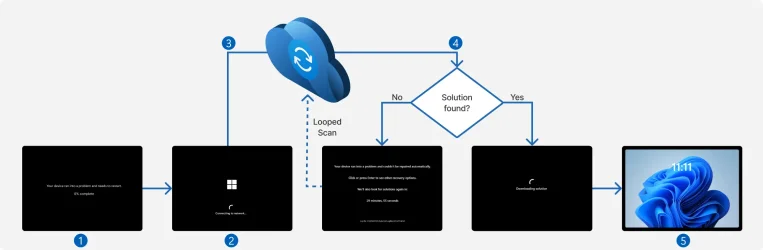
- Device crash: When the device fails to boot repeatedly, the system automatically detects the issue and initiates the recovery process
- Boot to recovery: The device boots into the recovery environment to initiate the quick machine recovery process
- Network connection: After a network connection is established, the device scans Windows Update for remediations
- Remediation
- If no solution is found, the system retries the process based on the configured retry scanning intervals and time-outs
- If a solution is found, the system downloads and applies it
- Reboot: After a remediation is applied, the device reboots:
- If the solution is successful, the device boots into Windows
- If the solution fails, the device reboots into the recovery environment again and the process repeats from step 2
Reference:

Quick Machine Recovery
Here's How:
1 Boot to Advanced Startup (WinRE).
2 Click/tap on Troubleshoot. (see screenshot below)
3 Click/tap on Advanced options. (see screenshot below)
4 Click/tap on Quick machine recovery. (see screenshot below)
5 QMR will now start diagnosing your PC. (see screenshot below)
6 After a network connection is established, the device scans Windows Update for remediations. (see screenshots below)
Starting with Windows 11 build 26100.9550 (24H2), build 26200.9550 (25H2), and build 26300.9550 (26H2), Microsoft added a new WinRE networking capability that allows the Windows Recovery Environment to automatically reuse eligible Wi-Fi profiles already saved in the main Windows OS, including supported certificate-based Wi-Fi networks. Previously, WinRE could automatically connect only to wired unauthenticated Ethernet or Wi-Fi networks that were separately preconfigured for WinRE, while users had to manually connect to other WPA2/3 networks by entering a password. With this update, WinRE can use saved Wi-Fi profile information when a recovery workflow requires connectivity, helping devices get online automatically during scenarios such as quick machine recovery or cloud rebuild without requiring users or IT admins to separately preconfigure Wi-Fi credentials in WinRE. By default, this capability is enabled. However, IT admins can disable this functionality if desired. To test this feature in your environment, see Test networking in WinRE.
7 Remediation will depend on if a solution is found or not: (see screenshots below)
- If no solution is found and the system is configured with the default one-time scan setting, the user will be guided to other recovery options
- If no solution is found and the system is configured with retry scanning intervals, the system retries the process based on the configured retry scanning intervals and timeouts
- If a solution is found, the system downloads and applies it
8 If a remediation is applied, the device boots back into Windows 11. You can verify the quick machine recovery remediation in Windows Update history. The remediation should be listed under Quality updates. (see screenshot below)
If the solution fails, the device reboots into the recovery environment again and the process repeats.

View Update History in Windows 11
 www.elevenforum.com
That's it,
Shawn Brink