Solved User Folder displaying wrong name


ThomasW7302

Member
Local time
1:29 PM
Posts
10
OS
Windows 11
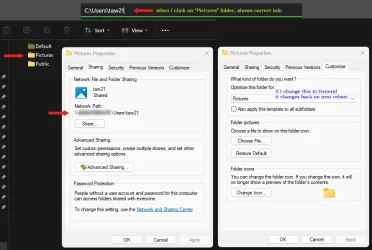
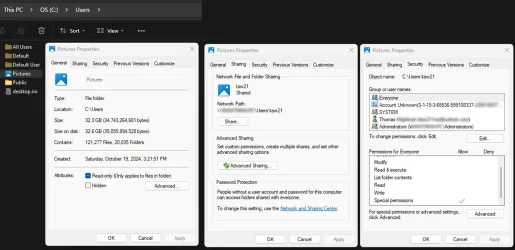
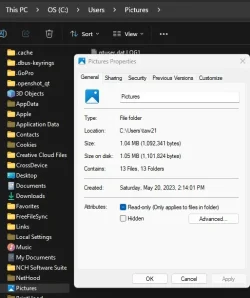
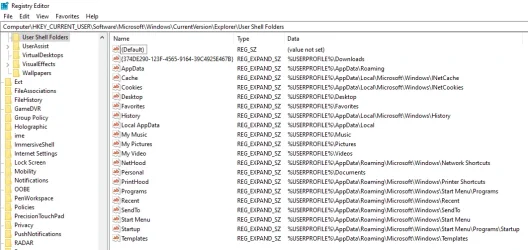
I recently noticed that my personal user folder is displaying the name "Pictures". However, when I click on the folder, everything is correct within the folder and the address bar shows the correct folder name. I tried clearing the Explorer cache, but that did not help. I also did a Windows reset, with Keep my Files, but no change. I pasted several images together to create the attached image, which I hope will help explain what's happening. Thanks, Tom

Windows error User folder.webp
 
Windows Build/Version
Verion 25H2 OS Build 26200.7922

My Computer

System One

  • OS
    Windows 11
    Computer type
    PC/Desktop
    Manufacturer/Model
    Dell
Hello @ThomasW7302 and welcome to ElevenForum. :-)


Although this won't help with your current problem...

Here's some things that you may find useful...


Last edited:

My Computers

System One System Two

  • OS
    Win 11 Home ♦♦♦26200.8655 ♦♦♦♦♦♦♦25H2
    Computer type
    PC/Desktop
    Manufacturer/Model
    Built by Ghot® [May 2020]
    CPU
    AMD Ryzen 7 3700X
    Motherboard
    Asus Pro WS X570-ACE (BIOS 5302)
    Memory
    G.Skill (F4-3200C14D-16GTZKW)
    Graphics Card(s)
    EVGA RTX 2070 (08G-P4-2171-KR)
    Sound Card
    Realtek ALC1220P / ALC S1220A
    Monitor(s) Displays
    Dell U3011 30"
    Screen Resolution
    2560 x 1600
    Hard Drives
    2x Samsung 860 EVO 500GB,
    WD 4TB Black FZBX - SATA III,
    WD 8TB Black FZBX - SATA III,
    DRW-24B1ST CD/DVD Burner
    PSU
    PC Power & Cooling 750W Quad EPS12V
    Case
    Cooler Master ATCS 840 Tower
    Cooling
    CM Hyper 212 EVO (push/pull)
    Keyboard
    Ducky DK9008 Shine II Blue LED
    Mouse
    Logitech Optical M-100
    Internet Speed
    300/300
    Browser
    Firefox (latest)
    Antivirus
    Bitdefender Total Security
    Other Info
    Speakers: Klipsch Pro Media 2.1
  • Operating System
    Windows XP Pro 32bit w/SP3
    Computer type
    PC/Desktop
    Manufacturer/Model
    Built by Ghot® (not in use)
    CPU
    AMD Athlon 64 X2 5000+ (OC'd @ 3.2Ghz)
    Motherboard
    ASUS M2N32-SLI Deluxe Wireless Edition
    Memory
    TWIN2X2048-6400C4DHX (2 x 1GB, DDR2 800)
    Graphics card(s)
    EVGA 256-P2-N758-TR GeForce 8600GT SSC
    Sound Card
    Onboard
    Monitor(s) Displays
    ViewSonic G90FB Black 19" Professional (CRT)
    Screen Resolution
    up to 2048 x 1536
    Hard Drives
    WD 36GB 10,000rpm Raptor SATA
    Seagate 80GB 7200rpm SATA
    Lite-On LTR-52246S CD/RW
    Lite-On LH-18A1P CD/DVD Burner
    PSU
    PC Power & Cooling Silencer 750 Quad EPS12V
    Case
    Generic Beige case, 80mm fans
    Cooling
    ZALMAN 9500A 92mm CPU Cooler
    Keyboard
    Logitech Classic Keybooard 200
    Mouse
    Logitech Optical M-BT96a
    Internet Speed
    300/300
    Browser
    Firefox 3.x ??
    Antivirus
    Symantec (Norton)
    Other Info
    Still assembled, still runs. Haven't turned it on for 15 years?
In File (Windows) Explorer browse to C:\Users what are the User names?
If you click taw21, do you only show Pictures? or are there any other folders
(ie) Documents, Desktop, Downloads etc on the left panel?

Do you have an icon for OneDrive in the taskbar by the clock?
Is OneDrive showing in File (Windows) Explorer on the left panel?
Are your other user files showing under OneDrive?

You can restore the Default location of the Pictures folder
 

My Computer

System One

  • OS
    Windows 11 Pro Insider 64 bit 25H2 26200.5742
    Computer type
    PC/Desktop
    Manufacturer/Model
    Gigabyte Z390 UD
    CPU
    Intel Core i7 9700K 3.60
    Motherboard
    Gigabyte Z390 UD
    Memory
    16 GB
    Graphics Card(s)
    nVidia GEForce RTX 2060 Super
    Sound Card
    onboard
    Monitor(s) Displays
    Two 27" Dell 4K monitors
    Screen Resolution
    3840 x 2160
    Hard Drives
    M.2 NVME SSD, 500 GB; Two 2TB Mechanical HDD's
    PSU
    850w PSU
    Case
    Cyberpower PC
    Cooling
    Water cooled
    Keyboard
    Backlit Cyberpower gaming keyboard
    Mouse
    Backlit Cyberpower gaming mouse
    Internet Speed
    1 GB mbps
    Browser
    Brave
    Antivirus
    Windows Security
The folders in the C:\User folder are as shown above, Default, Pictures, and Public. When I click on "Pictures", I see all the normal sub-folders for TAW21 and the address bar shows it to actually be C:\User\taw21. The real Pictures folder is in it's correct location and functions as it should. I do not have OneDrive in the taskbar as I uninstalled it some time ago. Tom
 

My Computer

System One

  • OS
    Windows 11
    Computer type
    PC/Desktop
    Manufacturer/Model
    Dell
In the "Pictures" folder properties, first try the Restore Default Button.
If that fails, Rename "Pictures" to your User Name

You can also enable the Hidden Administrator account and restart the computer,
This should add Administrator to the User accounts along with Public and Default
Try editing the User Name logged in as the previously Hidden Admin account
 

My Computer

System One

  • OS
    Windows 11 Pro Insider 64 bit 25H2 26200.5742
    Computer type
    PC/Desktop
    Manufacturer/Model
    Gigabyte Z390 UD
    CPU
    Intel Core i7 9700K 3.60
    Motherboard
    Gigabyte Z390 UD
    Memory
    16 GB
    Graphics Card(s)
    nVidia GEForce RTX 2060 Super
    Sound Card
    onboard
    Monitor(s) Displays
    Two 27" Dell 4K monitors
    Screen Resolution
    3840 x 2160
    Hard Drives
    M.2 NVME SSD, 500 GB; Two 2TB Mechanical HDD's
    PSU
    850w PSU
    Case
    Cyberpower PC
    Cooling
    Water cooled
    Keyboard
    Backlit Cyberpower gaming keyboard
    Mouse
    Backlit Cyberpower gaming mouse
    Internet Speed
    1 GB mbps
    Browser
    Brave
    Antivirus
    Windows Security
Make sure the two folder options circled below are set as they are in the picture. Open the C:\Users\Taw21 folder (the one that says Pictures mistakenly), and see if there is a desktop.ini file there. If one exists, remove it; it isn't supposed to be there. You might need to reboot or at least log off for the change to take effect.

View attachment 164676
 

My Computer

System One

  • OS
    Windows 11 Pro 25H2
    Computer type
    PC/Desktop
    Manufacturer/Model
    Intel NUC12WSHi7
    CPU
    12th Gen Core i7-1260P
    Motherboard
    NUC12WSBi7
    Memory
    64 GB Micron PC4-25600
    Graphics Card(s)
    Intel Iris Xe Graphics
    Sound Card
    on-board Realtek HD Audio
    Monitor(s) Displays
    Dell U3219Q
    Screen Resolution
    3840 x 2160
    Hard Drives
    Samsung SSD 990 PRO 1TB
    Crucial MX500 2 TB
    Antivirus
    Microsoft Defender
By un-hiding the files, I am able to find a desktop.ini file inside the taw21 user folder. As soon as I delete it, the folder is restored to taw21 as it should be. However, following a computer reboot the problem returns and so does the desktop.ini in the folder !
This is what is inside the desktop.ini file:
[.ShellClassInfo]
LocalizedResourceName=@%SystemRoot%\system32\windows.storage.dll,-21779
InfoTip=@%SystemRoot%\system32\shell32.dll,-12688
IconResource=%SystemRoot%\system32\imageres.dll,-113
IconFile=%SystemRoot%\system32\shell32.dll
IconIndex=-236

ALSO: Even though deleting the desktop.ini file restores the correct filename (at least temporarily), if I open properties of the taw21 file and then the Customize tab, it still shows the folder as optimized for Pictures (changing this to General only lasts temporarily). I've also just discovered that the problem will actually return after closing and reopening File Explorer, I don't even have to reboot to see the problem return.
 
Last edited:

My Computer

System One

  • OS
    Windows 11
    Computer type
    PC/Desktop
    Manufacturer/Model
    Dell
AI says:
  1. Open Registry Editor: Press Windows + R, type regedit, and hit Enter.
  2. Navigate to the Key: Go to the following path:

    Copy Code, paste to Registry Address bar
    HKEY_CURRENT_USER\Software\Microsoft\Windows\CurrentVersion\Explorer\Shell Folders
  3. Check the Value: Look for the entry corresponding to your user folder (e.g., Pictures. on the right Data Column
  4. Ensure it points to the default location, typically C:\Users\YourUserName\Pictures
  5. Modify if Necessary: If the path is incorrect, double-click the entry and change it to the default path.
  6. Close Registry Editor: Exit the Registry Editor and restart your computer for the changes to take effect.

Additional Notes​

  • If the desktop.ini file is missing, it is not a problem; Windows will recreate it with default settings when needed.
  • Ensure you have administrative privileges to make these changes.
By following these methods, you can successfully reset your desktop.ini user name folder to its default configuration.
 

My Computer

System One

  • OS
    Windows 11 Pro Insider 64 bit 25H2 26200.5742
    Computer type
    PC/Desktop
    Manufacturer/Model
    Gigabyte Z390 UD
    CPU
    Intel Core i7 9700K 3.60
    Motherboard
    Gigabyte Z390 UD
    Memory
    16 GB
    Graphics Card(s)
    nVidia GEForce RTX 2060 Super
    Sound Card
    onboard
    Monitor(s) Displays
    Two 27" Dell 4K monitors
    Screen Resolution
    3840 x 2160
    Hard Drives
    M.2 NVME SSD, 500 GB; Two 2TB Mechanical HDD's
    PSU
    850w PSU
    Case
    Cyberpower PC
    Cooling
    Water cooled
    Keyboard
    Backlit Cyberpower gaming keyboard
    Mouse
    Backlit Cyberpower gaming mouse
    Internet Speed
    1 GB mbps
    Browser
    Brave
    Antivirus
    Windows Security
The folders in the C:\User folder are as shown above, Default, Pictures, and Public. When I click on "Pictures", I see all the normal sub-folders for TAW21 and the address bar shows it to actually be C:\User\taw21. The real Pictures folder is in it's correct location and functions as it should. I do not have OneDrive in the taskbar as I uninstalled it some time ago. Tom

It means that you somehow accidentally registered the path `C:\User\taw21` as your profile's `Pictures` location. When you do that Windows replaces the actual folder name with the word `Pictures`. This is what you observe.

Do the following: enter our profile folder as usual, find `Pictures` there (is it present?), open its properties and check what path it shows on `Location` tab. Try "Restore Default" button there.
 

My Computer

System One

  • OS
    Windows 11 Pro
    Computer type
    PC/Desktop
    CPU
    Intel(R) Core(TM) i7-5930K CPU @ 3.50GHz
    Motherboard
    EVGA X99 Micro
    Graphics Card(s)
    NVIDIA GeForce GTX 970
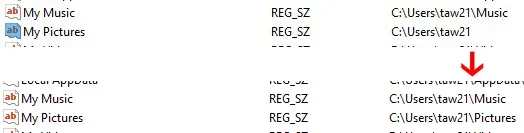
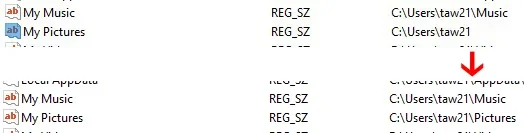
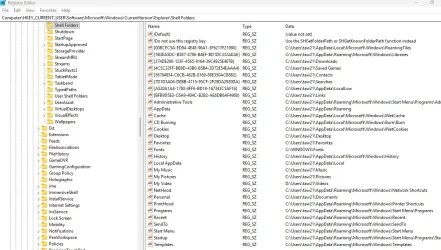
Spunk: I followed your instructions and you were correct that the path was incomplete, which I corrected (as administrator) as shown in the attached image. But after a reboot the problem remains. I did also verify that the registry change remains corrected.

AndreyT: The actual Pictures folder is within the profile folder and I followed your instructions, but that did not correct the problem.

Each time I resolve the problem by deleting the desktop.ini file in the user profile folder the problem goes away, but returns when I next open File Explorer. I'm not very knowledgeable about the technical aspects of Windows, but I wonder what causes it to continually recreate this desktop.ini file in the profile folder that insists on creating this mirage of the folder name. I notice that there is also a desktop.ini file in the main Users folder, is it safe to try deleting that one also?

Registry error Picture 030426.webp
 

My Computer

System One

  • OS
    Windows 11
    Computer type
    PC/Desktop
    Manufacturer/Model
    Dell
Be sure to backup your Registry before proceeding.
In the Registry where your pic was taken
In the upper My Pictures with the path C:\Users\taw21
Right click My Pictures that is highlighted in the pic Rename it to taw21
Do not rename the My Pictures with the path C:\Users\taw21\Pictures
You may first need to go to

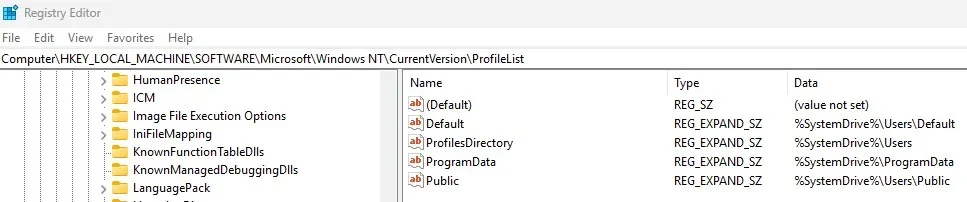
Computer\HKEY_LOCAL_MACHINE\SOFTWARE\Microsoft\Windows NT\CurrentVersion\ProfileList be sure it leads to
%SystemDrive%\Users
 
Last edited:

My Computer

System One

  • OS
    Windows 11 Pro Insider 64 bit 25H2 26200.5742
    Computer type
    PC/Desktop
    Manufacturer/Model
    Gigabyte Z390 UD
    CPU
    Intel Core i7 9700K 3.60
    Motherboard
    Gigabyte Z390 UD
    Memory
    16 GB
    Graphics Card(s)
    nVidia GEForce RTX 2060 Super
    Sound Card
    onboard
    Monitor(s) Displays
    Two 27" Dell 4K monitors
    Screen Resolution
    3840 x 2160
    Hard Drives
    M.2 NVME SSD, 500 GB; Two 2TB Mechanical HDD's
    PSU
    850w PSU
    Case
    Cyberpower PC
    Cooling
    Water cooled
    Keyboard
    Backlit Cyberpower gaming keyboard
    Mouse
    Backlit Cyberpower gaming mouse
    Internet Speed
    1 GB mbps
    Browser
    Brave
    Antivirus
    Windows Security
Sorry if my image was confusing; the top part of the image shows prior to the change, the lower shows after the change.
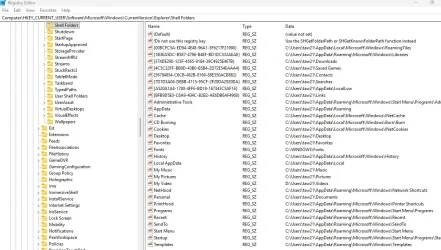
Attached is the full image of that registry folder and an image of the Profile List folder, where all but one item appears pointed to %SystemDrive%\Users.
 

Attachments

  • Registry error Picture 030426.webp
    Registry error Picture 030426.webp
    10.6 KB · Views: 1
  • Registrey Shell Folders 030526.webp
    Registrey Shell Folders 030526.webp
    138.7 KB · Views: 2

My Computer

System One

  • OS
    Windows 11
    Computer type
    PC/Desktop
    Manufacturer/Model
    Dell
Sorry if my image was confusing; the top part of the image shows prior to the change, the lower shows after the change.
Your image clearly shows that the problem is exactly as I described: your `Pictures` location points to `C:\User\taw21`. This is the reason why your profile folder shows as `Pictures`. This part of the issue is clear now.

AndreyT: The actual Pictures folder is within the profile folder
No, it is not. What you see "within the profile folder" is actually an illusion created by File Explorer - a "virtual" folder. It is just an icon that leads to the same `C:\User\taw21` location.

Now, again, go into your profile folder, right click that virtual `Pictures` folder, select `Properties` and switch to `Location` tab. What do you see there?
 

My Computer

System One

  • OS
    Windows 11 Pro
    Computer type
    PC/Desktop
    CPU
    Intel(R) Core(TM) i7-5930K CPU @ 3.50GHz
    Motherboard
    EVGA X99 Micro
    Graphics Card(s)
    NVIDIA GeForce GTX 970
Computer\HKEY_LOCAL_MACHINE\SOFTWARE\Microsoft\Windows NT\CurrentVersion\ProfileList Profile Directory be sure it is pointing to
%SystemDrive%\Users
Follow the instructions in the quote above and Go to this Registry key and make sure it is pointing to this correctly, if not right click and Modify it.
 

My Computer

System One

  • OS
    Windows 11 Pro Insider 64 bit 25H2 26200.5742
    Computer type
    PC/Desktop
    Manufacturer/Model
    Gigabyte Z390 UD
    CPU
    Intel Core i7 9700K 3.60
    Motherboard
    Gigabyte Z390 UD
    Memory
    16 GB
    Graphics Card(s)
    nVidia GEForce RTX 2060 Super
    Sound Card
    onboard
    Monitor(s) Displays
    Two 27" Dell 4K monitors
    Screen Resolution
    3840 x 2160
    Hard Drives
    M.2 NVME SSD, 500 GB; Two 2TB Mechanical HDD's
    PSU
    850w PSU
    Case
    Cyberpower PC
    Cooling
    Water cooled
    Keyboard
    Backlit Cyberpower gaming keyboard
    Mouse
    Backlit Cyberpower gaming mouse
    Internet Speed
    1 GB mbps
    Browser
    Brave
    Antivirus
    Windows Security
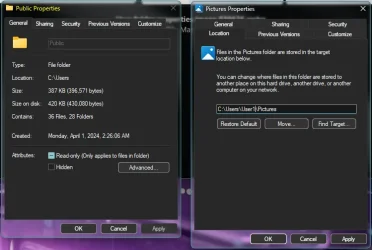
AndreyT: I'm not seeing a Location tab, see attached image.
Spunk: I went to location in Registry as directed, but it seems correct, see attached image.
Thanks, Tom
 

Attachments

  • User folder properties image 030626.webp
    User folder properties image 030626.webp
    106.7 KB · Views: 1
  • Registry Shell Folders 030526.webp
    Registry Shell Folders 030526.webp
    138.7 KB · Views: 1
  • Registry ProfilesLIst 030526.webp
    Registry ProfilesLIst 030526.webp
    26.1 KB · Views: 2

My Computer

System One

  • OS
    Windows 11
    Computer type
    PC/Desktop
    Manufacturer/Model
    Dell
When I open the properties on the C:\Users\taw21\Pictures folder, I see the attached image. Also attached is what I see if I click on the Pictures folder in my Libraries tree; wondering if the issue is because I uninstalled OneDrive and should try reinstalling it?
 

Attachments

  • Pictures folder properties 030626.webp
    Pictures folder properties 030626.webp
    34.4 KB · Views: 1
  • Pictures folder from Libraries 030626.webp
    Pictures folder from Libraries 030626.webp
    6.8 KB · Views: 1

My Computer

System One

  • OS
    Windows 11
    Computer type
    PC/Desktop
    Manufacturer/Model
    Dell
Windows often fails to cope if one of its rules gets broken.
In this case, the broken rule is that no two user folders can have the same path.
You will have to undo the change by editing the Registry.
Post the contents of the Registry key [as text so relevant bits can easily be copied in order to give you accurate instructions].
- Run RegEdit
- Paste this path into its address bar
HKEY_CURRENT_USER\Software\Microsoft\Windows\CurrentVersion\Explorer\User Shell Folders
- Here's an example of what you'll see -
BrandNewUser-UserShellFolders.webp
- In the left-hand pane, right-click on that User shell folders Key, select Export, give it whatever path & name you want and just accept the suggested format .reg
- Close RegEdit
- Find the exported file and make it easier to work with by renaming its whatever.reg.txt i.e. add .txt onto its file extension. And check that its icon changes to that of a standard text file. If you have any problems doing this, run Notepad, drag&drop the file into the Notepad window and save it as a text file.
- Post the text in this thread. There's no need to attach it or anything fancy, just copy all its text contents and paste it all into your next post.
- I expect to tell you one or two entries that you will have to manually change back to whatever you want as your Pictures folder path.


Denis
 

My Computer

System One

  • OS
    Windows 11 Home x64 Version 25H2 Build 26200.8037
I recently noticed that my personal user folder is displaying the name "Pictures". However, when I click on the folder, everything is correct within the folder and the address bar shows the correct folder name. I tried clearing the Explorer cache, but that did not help. I also did a Windows reset, with Keep my Files, but no change. I pasted several images
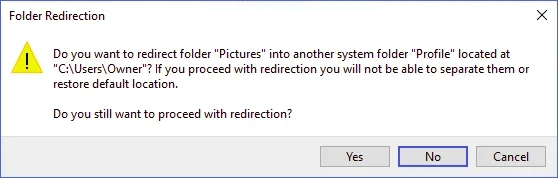
This is usually a consequence of moving the Pictures folder, then later trying to move it back to the C: drive. It is all to easy to accidentally merge the Pictures folder with your User Profile folder. According to Microsoft this is irreversible.

1772850736258.webp

In this case, the broken rule is that no two user folders can have the same path. You will have to undo the change by editing the Registry.

This can be undone, but not simply, it takes some registry editing to do so. I wrote this tutorial is for Windows 10, but should apply to Windows 11 too.

When you make this move the original C:\Users\<YourUsername>\Pictures folder will be deleted. If you change your mind and want to move Pictures back to the C: drive you will have to create a new Pictures folder in your User folder and select that as the destination. If you fail to take this step and just select C:\Users\<YourUsername> then Windows warns you that you are trying to merge Pictures with you Profile and that this is a permanent change that cannot be undone.
 

My Computers

System One System Two

  • OS
    Windows 11 Home
    Computer type
    Laptop
    Manufacturer/Model
    Acer Aspire 3 A315-23-R9VY
    CPU
    AMD Athlon Silver 3050U
    Memory
    8GB
    Graphics Card(s)
    Radeon Graphics
    Monitor(s) Displays
    laptop screen
    Screen Resolution
    1366x768 native resolution, up to 2560x1440 with Radeon Virtual Super Resolution
    Hard Drives
    1TB Samsung EVO 870 SSD (from April 2026: 250GB EVO 850)
    Internet Speed
    150 Mbps
    Browser
    Edge, Firefox
    Antivirus
    Defender
    Other Info
    fully 'Windows 11 ready' laptop. Windows 10 C: partition migrated from my old unsupported 'main machine' then upgraded to 11. A test migration ran Insider builds for 2 months. When 11 was released on 5th October 2021 it was re-imaged back to 10 and was offered the upgrade in Windows Update on 20th October. Windows Update offered the 22H2 Feature Update on 20th September 2022. It got the 23H2 Feature Update on 4th November 2023 through Windows Update, 24H2 on 3rd October 2024 through Windows Update by setting the Target Release Version for 24H2, and 25H2 on 30th September 2025 through Windows Update by setting the Target Release Version for 25H2.

    UPDATE - 11 April 2026: due to mechanical deterioration this PC has been retired from active duty. The OS with all software and files has been migrated to my System Seven below to carry on as my general purpose 'main machine'.

    My SYSTEM THREE is a Dell Latitude 5410, i7-10610U, 32GB RAM, 512GB NVMe ssd, supported device running Windows 11 Pro.

    My SYSTEM FOUR is a 2-in-1 convertible Lenovo Yoga 11e 20DA, Celeron N2930, 8GB RAM, 256GB ssd. Unsupported device: currently running Win10 Pro, plus Win11 Pro RTM and Insider Dev, Beta, and RP 24H2 as native boot vhdx.

    My SYSTEM FIVE is a Dell Latitude 3190 2-in-1, Pentium Silver N5030, 8GB RAM, 1TB NVMe ssd, supported device running Windows 11 Pro, plus Insider Beta, Dev, and Canary builds (and a few others) as a native boot .vhdx.

    My SYSTEM SIX is a Dell Latitude 5550, Core Ultra 7 165H, 64GB RAM, 1TB NVMe SSD, supported device, Windows 11 Pro 24H2, Hyper-V host machine. Updated to 25H2 on 30th September 2025.

    My SYSTEM SEVEN is a Lenovo Thinkpad T580, Intel Core i7-8650U, 16GB RAM, 512GB NVMe SSD + 2nd 512GB NVMe SSD, a supported device for Windows 11. This is my current general purpose 'main machine'. The installed Windows 11 Home from my System One has been migrated to this machine.
  • Operating System
    Windows 11 Pro
    Computer type
    Laptop
    Manufacturer/Model
    Dell Latitude E4310
    CPU
    Intel® Core™ i5-520M
    Motherboard
    0T6M8G
    Memory
    8GB
    Graphics card(s)
    (integrated graphics) Intel HD Graphics
    Screen Resolution
    1366x768
    Hard Drives
    500GB Crucial MX500 SSD
    Browser
    Firefox, Edge
    Antivirus
    Defender
    Other Info
    unsupported machine: Legacy bios, MBR, TPM 1.2, upgraded from W10 to W11 using W10/W11 hybrid install media workaround. In-place upgrade to 22H2 using ISO and a workaround. Feature Update to 23H2 by manually installing the Enablement Package. In-place upgrade to 24H2 using hybrid 23H2/24H2 install media. Upgraded to 25H2 by Enablement Package. Also running Insider Dev, and Canary builds and Windows 10 as native boot .vhdx.

    My SYSTEM THREE is a Dell Latitude 5410, i7-10610U, 32GB RAM, 512GB NVMe ssd, supported device running Windows 11 Pro.

    My SYSTEM FOUR is a 2-in-1 convertible Lenovo Yoga 11e 20DA, Celeron N2930, 8GB RAM, 256GB ssd. Unsupported device: currently running Win10 Pro, plus Win11 Pro RTM and Insider Dev, Beta, and RP 24H2 as native boot vhdx.

    My SYSTEM FIVE is a Dell Latitude 3190 2-in-1, Pentium Silver N5030, 8GB RAM, 1TB NVMe ssd, supported device running Windows 11 Pro, plus Insider Beta, Dev, and Canary builds (and a few others) as a native boot .vhdx.

    My SYSTEM SIX is a Dell Latitude 5550, Core Ultra 7 165H, 64GB RAM, 1TB NVMe SSD, supported device, Windows 11 Pro 24H2, Hyper-V host machine. Updated to 25H2 on 30th September 2025.

    My SYSTEM SEVEN is a Lenovo Thinkpad T580, Intel Core i7-8650U, 16GB RAM, 512GB NVMe SSD + 2nd 512GB NVMe SSD, a supported device for Windows 11. This is my current general purpose 'main machine'. The installed Windows 11 Home from my System One has been migrated to this machine.
Dennis, as you requested:

Code:
Windows Registry Editor Version 5.00

[HKEY_CURRENT_USER\Software\Microsoft\Windows\CurrentVersion\Explorer\User Shell Folders]
"AppData"=hex(2):25,00,55,00,53,00,45,00,52,00,50,00,52,00,4f,00,46,00,49,00,\
  4c,00,45,00,25,00,5c,00,41,00,70,00,70,00,44,00,61,00,74,00,61,00,5c,00,52,\
  00,6f,00,61,00,6d,00,69,00,6e,00,67,00,00,00
"Cache"=hex(2):25,00,55,00,53,00,45,00,52,00,50,00,52,00,4f,00,46,00,49,00,4c,\
  00,45,00,25,00,5c,00,41,00,70,00,70,00,44,00,61,00,74,00,61,00,5c,00,4c,00,\
  6f,00,63,00,61,00,6c,00,5c,00,4d,00,69,00,63,00,72,00,6f,00,73,00,6f,00,66,\
  00,74,00,5c,00,57,00,69,00,6e,00,64,00,6f,00,77,00,73,00,5c,00,49,00,4e,00,\
  65,00,74,00,43,00,61,00,63,00,68,00,65,00,00,00
"Cookies"=hex(2):25,00,55,00,53,00,45,00,52,00,50,00,52,00,4f,00,46,00,49,00,\
  4c,00,45,00,25,00,5c,00,41,00,70,00,70,00,44,00,61,00,74,00,61,00,5c,00,4c,\
  00,6f,00,63,00,61,00,6c,00,5c,00,4d,00,69,00,63,00,72,00,6f,00,73,00,6f,00,\
  66,00,74,00,5c,00,57,00,69,00,6e,00,64,00,6f,00,77,00,73,00,5c,00,49,00,4e,\
  00,65,00,74,00,43,00,6f,00,6f,00,6b,00,69,00,65,00,73,00,00,00
"Desktop"=hex(2):25,00,55,00,53,00,45,00,52,00,50,00,52,00,4f,00,46,00,49,00,\
  4c,00,45,00,25,00,5c,00,44,00,65,00,73,00,6b,00,74,00,6f,00,70,00,00,00
"Favorites"=hex(2):25,00,55,00,53,00,45,00,52,00,50,00,52,00,4f,00,46,00,49,00,\
  4c,00,45,00,25,00,5c,00,46,00,61,00,76,00,6f,00,72,00,69,00,74,00,65,00,73,\
  00,00,00
"History"=hex(2):25,00,55,00,53,00,45,00,52,00,50,00,52,00,4f,00,46,00,49,00,\
  4c,00,45,00,25,00,5c,00,41,00,70,00,70,00,44,00,61,00,74,00,61,00,5c,00,4c,\
  00,6f,00,63,00,61,00,6c,00,5c,00,4d,00,69,00,63,00,72,00,6f,00,73,00,6f,00,\
  66,00,74,00,5c,00,57,00,69,00,6e,00,64,00,6f,00,77,00,73,00,5c,00,48,00,69,\
  00,73,00,74,00,6f,00,72,00,79,00,00,00
"Local AppData"=hex(2):25,00,55,00,53,00,45,00,52,00,50,00,52,00,4f,00,46,00,\
  49,00,4c,00,45,00,25,00,5c,00,41,00,70,00,70,00,44,00,61,00,74,00,61,00,5c,\
  00,4c,00,6f,00,63,00,61,00,6c,00,00,00
"My Music"=hex(2):25,00,55,00,53,00,45,00,52,00,50,00,52,00,4f,00,46,00,49,00,\
  4c,00,45,00,25,00,5c,00,4d,00,75,00,73,00,69,00,63,00,00,00
"NetHood"=hex(2):25,00,55,00,53,00,45,00,52,00,50,00,52,00,4f,00,46,00,49,00,\
  4c,00,45,00,25,00,5c,00,41,00,70,00,70,00,44,00,61,00,74,00,61,00,5c,00,52,\
  00,6f,00,61,00,6d,00,69,00,6e,00,67,00,5c,00,4d,00,69,00,63,00,72,00,6f,00,\
  73,00,6f,00,66,00,74,00,5c,00,57,00,69,00,6e,00,64,00,6f,00,77,00,73,00,5c,\
  00,4e,00,65,00,74,00,77,00,6f,00,72,00,6b,00,20,00,53,00,68,00,6f,00,72,00,\
  74,00,63,00,75,00,74,00,73,00,00,00
"Personal"=hex(2):25,00,55,00,53,00,45,00,52,00,50,00,52,00,4f,00,46,00,49,00,\
  4c,00,45,00,25,00,5c,00,44,00,6f,00,63,00,75,00,6d,00,65,00,6e,00,74,00,73,\
  00,00,00
"PrintHood"=hex(2):25,00,55,00,53,00,45,00,52,00,50,00,52,00,4f,00,46,00,49,00,\
  4c,00,45,00,25,00,5c,00,41,00,70,00,70,00,44,00,61,00,74,00,61,00,5c,00,52,\
  00,6f,00,61,00,6d,00,69,00,6e,00,67,00,5c,00,4d,00,69,00,63,00,72,00,6f,00,\
  73,00,6f,00,66,00,74,00,5c,00,57,00,69,00,6e,00,64,00,6f,00,77,00,73,00,5c,\
  00,50,00,72,00,69,00,6e,00,74,00,65,00,72,00,20,00,53,00,68,00,6f,00,72,00,\
  74,00,63,00,75,00,74,00,73,00,00,00
"Programs"=hex(2):25,00,55,00,53,00,45,00,52,00,50,00,52,00,4f,00,46,00,49,00,\
  4c,00,45,00,25,00,5c,00,41,00,70,00,70,00,44,00,61,00,74,00,61,00,5c,00,52,\
  00,6f,00,61,00,6d,00,69,00,6e,00,67,00,5c,00,4d,00,69,00,63,00,72,00,6f,00,\
  73,00,6f,00,66,00,74,00,5c,00,57,00,69,00,6e,00,64,00,6f,00,77,00,73,00,5c,\
  00,53,00,74,00,61,00,72,00,74,00,20,00,4d,00,65,00,6e,00,75,00,5c,00,50,00,\
  72,00,6f,00,67,00,72,00,61,00,6d,00,73,00,00,00
"Recent"=hex(2):25,00,55,00,53,00,45,00,52,00,50,00,52,00,4f,00,46,00,49,00,4c,\
  00,45,00,25,00,5c,00,41,00,70,00,70,00,44,00,61,00,74,00,61,00,5c,00,52,00,\
  6f,00,61,00,6d,00,69,00,6e,00,67,00,5c,00,4d,00,69,00,63,00,72,00,6f,00,73,\
  00,6f,00,66,00,74,00,5c,00,57,00,69,00,6e,00,64,00,6f,00,77,00,73,00,5c,00,\
  52,00,65,00,63,00,65,00,6e,00,74,00,00,00
"SendTo"=hex(2):25,00,55,00,53,00,45,00,52,00,50,00,52,00,4f,00,46,00,49,00,4c,\
  00,45,00,25,00,5c,00,41,00,70,00,70,00,44,00,61,00,74,00,61,00,5c,00,52,00,\
  6f,00,61,00,6d,00,69,00,6e,00,67,00,5c,00,4d,00,69,00,63,00,72,00,6f,00,73,\
  00,6f,00,66,00,74,00,5c,00,57,00,69,00,6e,00,64,00,6f,00,77,00,73,00,5c,00,\
  53,00,65,00,6e,00,64,00,54,00,6f,00,00,00
"Start Menu"=hex(2):25,00,55,00,53,00,45,00,52,00,50,00,52,00,4f,00,46,00,49,\
  00,4c,00,45,00,25,00,5c,00,41,00,70,00,70,00,44,00,61,00,74,00,61,00,5c,00,\
  52,00,6f,00,61,00,6d,00,69,00,6e,00,67,00,5c,00,4d,00,69,00,63,00,72,00,6f,\
  00,73,00,6f,00,66,00,74,00,5c,00,57,00,69,00,6e,00,64,00,6f,00,77,00,73,00,\
  5c,00,53,00,74,00,61,00,72,00,74,00,20,00,4d,00,65,00,6e,00,75,00,00,00
"Startup"=hex(2):25,00,55,00,53,00,45,00,52,00,50,00,52,00,4f,00,46,00,49,00,\
  4c,00,45,00,25,00,5c,00,41,00,70,00,70,00,44,00,61,00,74,00,61,00,5c,00,52,\
  00,6f,00,61,00,6d,00,69,00,6e,00,67,00,5c,00,4d,00,69,00,63,00,72,00,6f,00,\
  73,00,6f,00,66,00,74,00,5c,00,57,00,69,00,6e,00,64,00,6f,00,77,00,73,00,5c,\
  00,53,00,74,00,61,00,72,00,74,00,20,00,4d,00,65,00,6e,00,75,00,5c,00,50,00,\
  72,00,6f,00,67,00,72,00,61,00,6d,00,73,00,5c,00,53,00,74,00,61,00,72,00,74,\
  00,75,00,70,00,00,00
"Templates"=hex(2):25,00,55,00,53,00,45,00,52,00,50,00,52,00,4f,00,46,00,49,00,\
  4c,00,45,00,25,00,5c,00,41,00,70,00,70,00,44,00,61,00,74,00,61,00,5c,00,52,\
  00,6f,00,61,00,6d,00,69,00,6e,00,67,00,5c,00,4d,00,69,00,63,00,72,00,6f,00,\
  73,00,6f,00,66,00,74,00,5c,00,57,00,69,00,6e,00,64,00,6f,00,77,00,73,00,5c,\
  00,54,00,65,00,6d,00,70,00,6c,00,61,00,74,00,65,00,73,00,00,00
"{374DE290-123F-4565-9164-39C4925E467B}"=hex(2):25,00,55,00,53,00,45,00,52,00,\
  50,00,52,00,4f,00,46,00,49,00,4c,00,45,00,25,00,5c,00,44,00,6f,00,77,00,6e,\
  00,6c,00,6f,00,61,00,64,00,73,00,00,00
"{A52BBA46-E9E1-435f-B3D9-28DAA648C0F6}"=hex(2):43,00,3a,00,5c,00,55,00,73,00,\
  65,00,72,00,73,00,5c,00,74,00,61,00,77,00,32,00,31,00,5c,00,4f,00,6e,00,65,\
  00,44,00,72,00,69,00,76,00,65,00,00,00
"{B7BEDE81-DF94-4682-A7D8-57A52620B86F}"=hex(2):44,00,3a,00,5c,00,55,00,73,00,\
  65,00,72,00,73,00,5c,00,74,00,61,00,77,00,32,00,31,00,5c,00,50,00,69,00,63,\
  00,74,00,75,00,72,00,65,00,73,00,5c,00,53,00,63,00,72,00,65,00,65,00,6e,00,\
  73,00,68,00,6f,00,74,00,73,00,00,00
"My Pictures"=hex(2):43,00,3a,00,5c,00,55,00,73,00,65,00,72,00,73,00,5c,00,74,\
  00,61,00,77,00,32,00,31,00,00,00
"My Video"=hex(2):44,00,3a,00,5c,00,55,00,73,00,65,00,72,00,73,00,5c,00,74,00,\
  61,00,77,00,32,00,31,00,5c,00,56,00,69,00,64,00,65,00,6f,00,73,00,00,00
"{0DDD015D-B06C-45D5-8C4C-F59713854639}"=hex(2):25,00,55,00,53,00,45,00,52,00,\
  50,00,52,00,4f,00,46,00,49,00,4c,00,45,00,25,00,00,00
"{35286A68-3C57-41A1-BBB1-0EAE73D76C95}"=hex(2):44,00,3a,00,5c,00,55,00,73,00,\
  65,00,72,00,73,00,5c,00,74,00,61,00,77,00,32,00,31,00,5c,00,56,00,69,00,64,\
  00,65,00,6f,00,73,00,00,00

 

My Computer

System One

  • OS
    Windows 11
    Computer type
    PC/Desktop
    Manufacturer/Model
    Dell
Back
Top Bottom