Visual Studio 2026 release notes:
IDE
Numbered document tab shortcuts
Quickly jump to document tabs using industry-standard keyboard shortcuts.
You can now quickly switch to open documents using Ctrl+Numpad 1 through Ctrl+Numpad 9. Each shortcut activates the corresponding visible document tab in the active document group, making it faster to navigate between files without reaching for the mouse.

The numbering follows the document well's visual order, including both pinned and unpinned tabs. Preview tabs do not consume a shortcut slot, ensuring the numbering remains predictable. The shortcuts are scoped to the active document group, so switching groups updates the tab mapping automatically.
This behavior aligns Visual Studio with common editor conventions, making it easier to transition between development environments while maintaining a consistent keyboard-first workflow. The commands are available through keyboard customization and the command system.
Open Folder respects restore settings
Open Folder now honors workspace restoration preferences.
Visual Studio has long restored open documents and Solution Explorer state when reopening a folder. Previously, the Reopen documents on solution load and Restore Solution Explorer project hierarchy state on solution load settings only affected solution-based workflows, and Open Folder would restore the workspace regardless of those settings.
With this update, Open Folder now respects the same settings. If you disable either option, Visual Studio will no longer restore open documents or Solution Explorer state when reopening a folder.
To change these preferences, go to Tools → Options → Projects and Solutions → General and configure Reopen documents on solution load and Restore Solution Explorer project hierarchy state on solution load. The selected behavior now applies consistently to both solutions and folders.
Never lose unsaved work - Hot Exit
Hot Exit preserves unsaved files & saved files with unsaved changes, so you can pick up exactly where you left off.
When enabled, Hot Exit saves your session state when you close Visual Studio. The next time you open Visual Studio, it restores your open documents, edits, and unsaved changes automatically, so you don't need to save manually.
To enable Hot Exit, go to Tools → Options → Projects and Solutions → General and select Reopen unsaved documents on solution load or empty environment.

Hot Exit preserves:
- Unsaved files.
- Saved files with unsaved changes.
- Undo functionality for saved files, including Ctrl+Z.
- Your tab and window layout.
Fonts and Colors
Customize Visual Studio with a modernized Fonts and Colors experience built on Unified Settings.
Personalize Visual Studio with a modernized Fonts and Colors experience built on Unified Settings. Previously available through the legacy Tools > Options dialog, Fonts and Colors now benefits from the same settings platform used throughout Visual Studio.
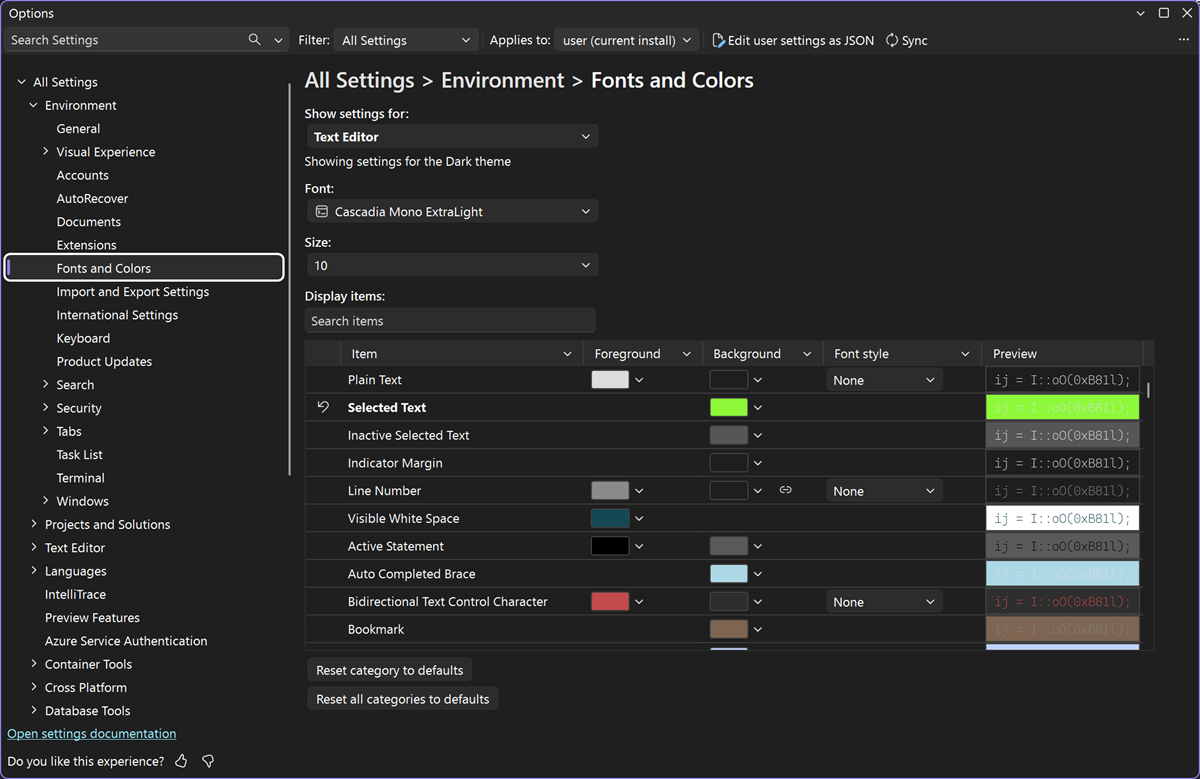
The new experience introduces category-based navigation, integrated search, inline previews, and an updated color editing experience. Foreground colors, background colors, font styles, and previews are displayed directly within the settings grid, making it easier to review existing customizations and update multiple settings without repeatedly selecting individual items.
Backed by settings.json
Fonts and Colors settings now participate in Visual Studio's settings.json model. Changes made through the UI are reflected in settings.json, allowing advanced users to inspect, edit, share, or revert customizations directly through the file while keeping both experiences synchronized.
Productivity
Hover tooltip delay settingControl how long you need to hover over code before the Quick Info tooltip appears, so it doesn't get in your way when you're moving the mouse around the editor.
Hover tooltips in the editor have always appeared after a fixed 150 ms of hovering. If you move the mouse slowly, or just pass over code on your way somewhere else, that tooltip pops up over the exact line you were trying to click.
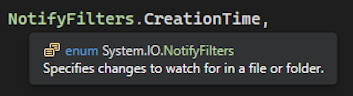
You can now set that delay yourself.
Tools → Options → Text Editor → Advanced → Quick Info hover delay (ms)
The default is 150 ms, which is the value Visual Studio has always used, so nothing changes until you change it. Valid values are 50 to 10000 ms. Turn it up if tooltips get in your way, turn it down if you want them faster.
The setting applies immediately. No restart, no reopening files.
One note on scope: this controls the delay for hover handlers that don't request a specific timing of their own, which is what Quick Info uses. Extensions that ask for an explicit hover delay keep their own behavior.
Stop build on first failure
You can now make Visual Studio stop the build after the first failure, instead of continuing to build the remaining projects.
Visual Studio now includes an opt-in setting that stops a solution build after the first project failure. You can get back to fixing the error sooner instead of waiting for projects that can no longer produce a successful build.
Enable Stop solution build after first failure in Tools → Options → Projects and Solutions → Build and Run. When you enable it, Visual Studio stops starting queued projects and safely stops projects already building. The build still reports as failed, not canceled. If you leave the setting disabled, build behavior stays the same.
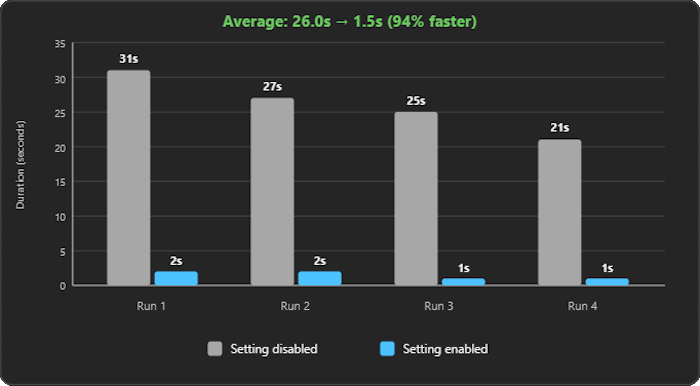
This improvement can be substantial for large solutions. In testing, four regular builds averaged 26 seconds with the setting disabled and 1.5 seconds with it enabled - a 94% reduction in post-failure completion time. Results vary by solution, but projects with longer dependency chains or many parallel builds are likely to benefit the most.
Move documents with the keyboard
Rearrange document tabs using a new keyboard shortcut that makes it easier to organize your workspace.
You can now reorder the active tab in the document well without touching the mouse. Ctrl+Shift+PgUp moves the tab one visual position left, and Ctrl+Shift+PgDn moves it one position right. With vertical tabs enabled, the same shortcuts move the tab up and down instead, so the gesture stays the same whichever layout you prefer. The commands work for both documents and tool windows hosted in the document well.
Tab movement respects the structure you've already set up. Pinned and unpinned tabs keep their separation, so a tab won't jump across that boundary and quietly break your pinned set. In vertical tabs, a tab stays within its project group, and manual reordering is unavailable while alphabetical sorting is turned on. Preview tabs can't be moved.
Behind the shortcuts are two new global commands, Window.MoveTabLeft and Window.MoveTabRight, both listed in Tools → Options → Environment → Keyboard if you'd rather bind them somewhere else. The defaults take over the previous Text Editor bindings for Edit.ViewTopExtend and Edit.ViewBottomExtend; those commands are still available and can be reassigned to any shortcut you like.
Thanks to everyone who voted for this on Developer Community. Ctrl+Shift+PgUp/PgDn is the same binding most browsers use, so it should feel familiar from the first press.
Reset zoom keyboard shortcut
If you've zoomed in or out of the editor, you can now reset the zoom level to 100% with a new keyboard shortcut.
Press Ctrl+NumPad0 to snap the editor zoom level straight back to 100%. Zoom in to inspect a dense block of code, zoom out to get a sense of a file's shape, then return to your normal view with a single keystroke.
Until now, getting back to 100% meant nudging the zoom with Ctrl+Mouse Wheel until it looked about right, or picking the value from the zoom control in the corner of the editor. That's easy to overshoot, and it's especially annoying when a sensitive mouse wheel changes the zoom without you asking. The new shortcut removes the guesswork and keeps a consistent editing view as you move between files.
The shortcut is backed by a new View.ZoomReset command. Ctrl+NumPad0 matches the binding used in VS Code and most browsers, but if you'd rather use something else, or you're on a keyboard without a number pad, you can remap it in Tools → Options → Environment → Keyboard.
New markdown template
You can now create a new markdown file from the New File dialog.
You can now create a Markdown file directly from the New File dialog. Press Ctrl+N, select Markdown, and start writing without manually creating a file or setting its extension.
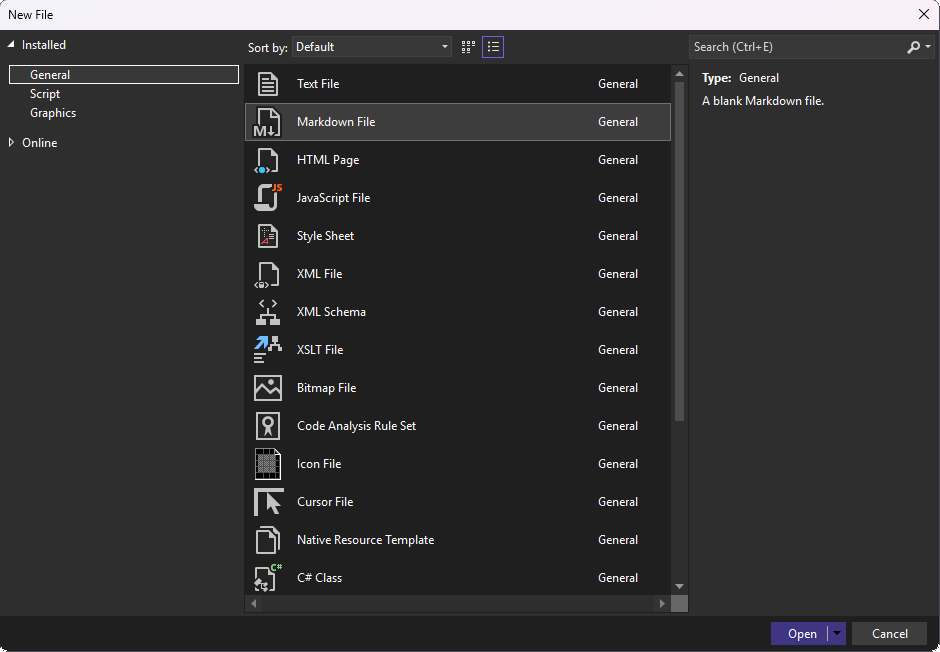
This workflow makes it faster to create notes, documentation, and other Markdown content. It also works with Hot Exit, which restores your unsaved files when you restart Visual Studio so you can continue where you left off.
GitHub Copilot
Try the new Copilot chat experienceA refreshed Copilot chat, built on the Copilot SDK that powers Copilot everywhere.
There's a new Copilot chat experience in Visual Studio, built on the Copilot SDK, the same foundation that powers the Copilot CLI and the GitHub Copilot app. It's the next step in the journey that started with Agent (Preview), the first Visual Studio experience built on the SDK. Now that same foundation powers the whole chat experience, including Ask mode, Agent mode, and the underlying chat infrastructure.
Building on a shared foundation means Visual Studio gets better as Copilot gets better. When you turn it on, you get:
- More capable agent workflows that handle end-to-end tasks with less back-and-forth.
- Longer-running sessions with more effective prompt caching for better performance.
- Consistent behavior across every Copilot surface.
Turn it on
- In Visual Studio, go to Tools → Options.
- Go to GitHub → Copilot → Copilot Chat.
- Check Use new Copilot chat experience.
- Restart Visual Studio for the change to take effect.
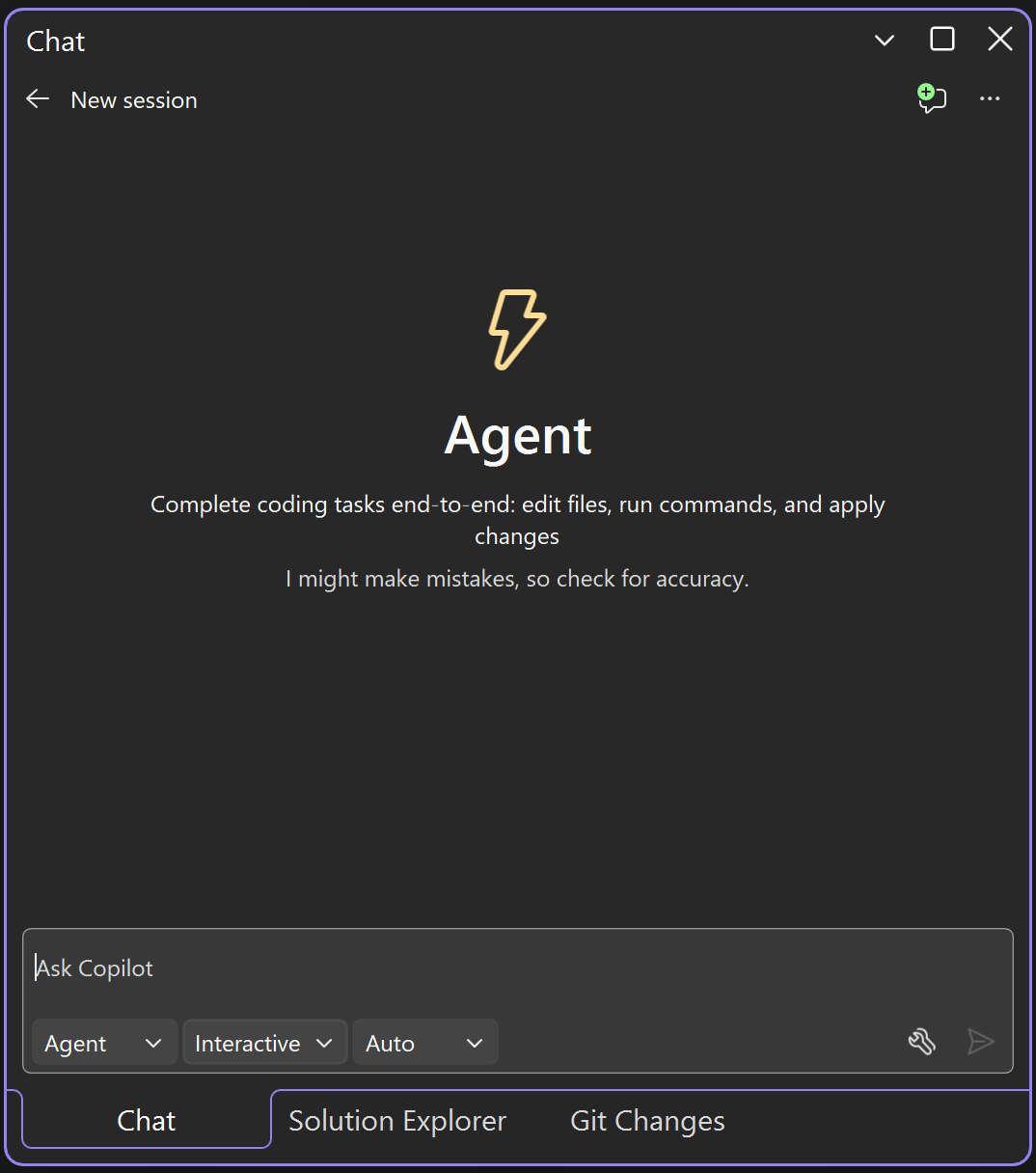
Then use it on the work you already do: feature changes, bug fixes, refactors, and everything in between.
We'd love your feedback. If something is missing or not working, send it through Help → Send Feedback → Report a Problem so we know what to prioritize next.
Git tooling
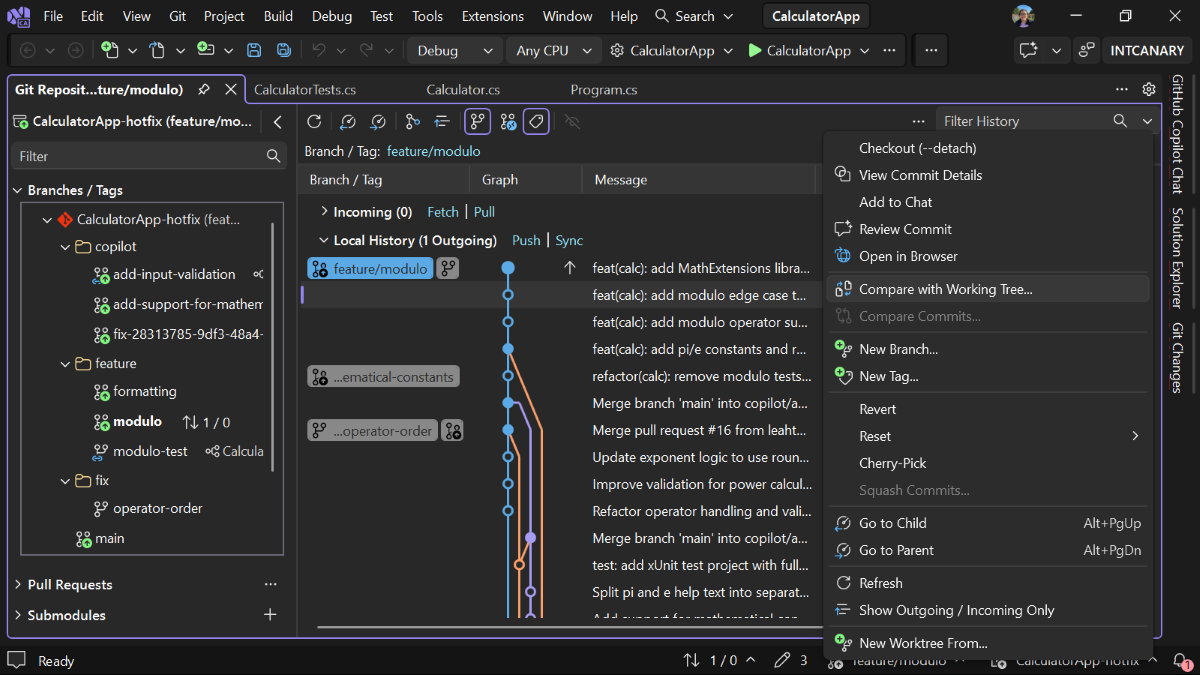
Compare a commit to your working treeSee what's changed between a commit and your code today.
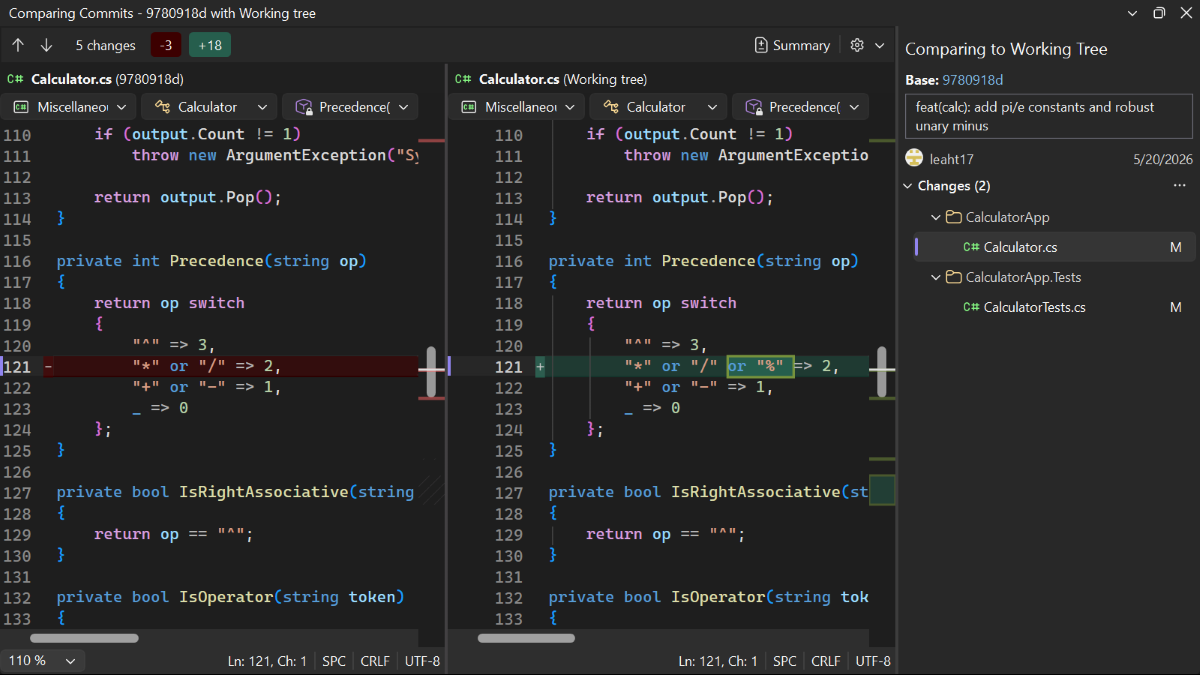
You can now compare any commit directly to your working tree, so you can see exactly what's changed since that point.
From commit history or the branch list, right-click a commit and select Compare with Working Tree. It opens a compare view where you can click through the diffs against your working tree without checking out the commit.
Bulk resolve merge conflicts
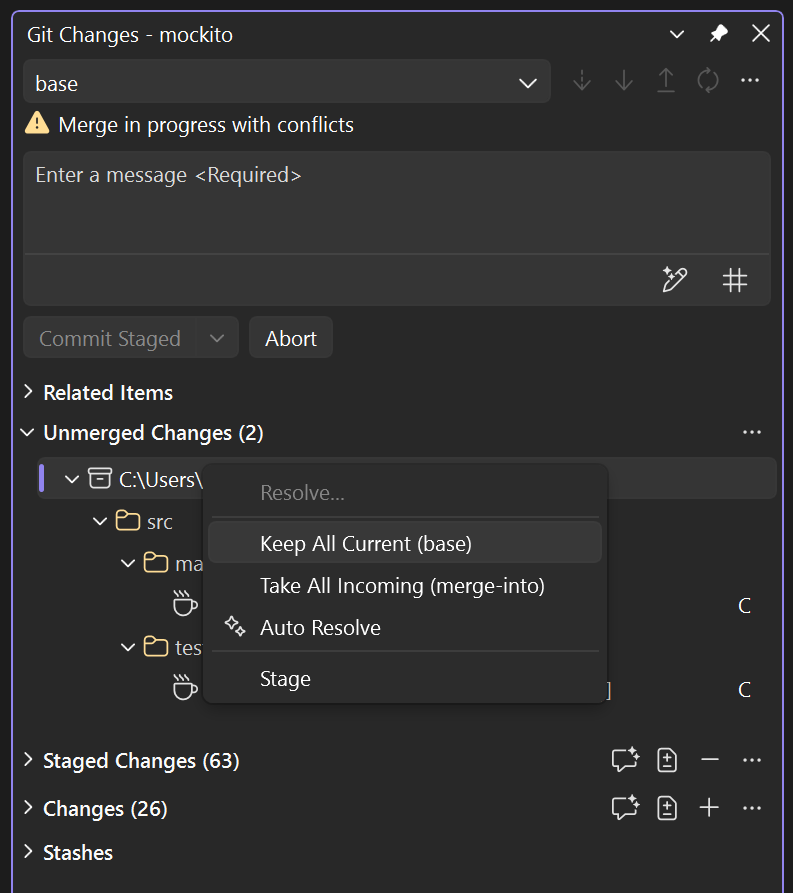
Skip resolving conflicts one file at a time: keep or take them all at once.
Resolving conflicts one file at a time gets old fast when a merge touches dozens of them.
In Git Changes, right-click any file, folder, or the repo root under Unmerged Changes and select Keep All Current or Take All Incoming to resolve everything underneath it in one step.
| Top bug fixes | From the community |
|---|---|
| Fixed an issue that could cause MSBuild item excludes to be ignored | Feedback ticket |
Source:

Visual Studio 2026 release notes
Learn about the latest features, bug fixes, and support for Visual Studio 2026. Download today.
learn.microsoft.com