Solved W11 24h2 and old installation setup


I think hsehes missed that bit.
Indeed I did :-).

Thanks for pointing that out. Weird thing is I read it like 3 times. I guess I kept seeing what I wanted to see each time :-)
 

My Computers

System One System Two

  • OS
    Win11 Pro 25H2 (RTM+)
    Computer type
    PC/Desktop
    Manufacturer/Model
    Acemagic
    CPU
    Intel i7-14650HX
    Memory
    32 GB
    Graphics Card(s)
    No GPU - Built-in Intel Graphics
    Sound Card
    Integrated
    Monitor(s) Displays
    Varies as machine will often be moved to locations with different monitors
    Screen Resolution
    Varies
    Hard Drives
    1 x 1TB Gen 4 NVMe SSD
    PSU
    120W Power Brick
    Keyboard
    Corsair K70 Max RGB Magnetic Keyboard
    Mouse
    Logitech MX Master 3
    Internet Speed
    1Gb Up / 1 Gb Down
    Browser
    Edge
    Antivirus
    Windows Defender
  • Operating System
    Win11 Pro 25H2 (RTM+)
    Computer type
    Laptop
    Manufacturer/Model
    Lenovo ThinkBook 13x Gen 2
    CPU
    Intel i7-1255U
    Memory
    16 GB
    Graphics card(s)
    Intel Iris Xe Graphics
    Sound Card
    Realtek® ALC3306-CG codec
    Monitor(s) Displays
    13.3-inch IPS Display
    Screen Resolution
    WQXGA (2560 x 1600)
    Hard Drives
    2 TB 4 x 4 NVMe SSD
    PSU
    USB-C / Thunderbolt 4 Power / Charging
    Keyboard
    Backlit, spill resistant keyboard
    Mouse
    Buttonless Glass Precision Touchpad
    Internet Speed
    1Gb Up / 1Gb Down
    Browser
    Edge
    Antivirus
    Windows Defender
    Other Info
    WiFi 6e / Bluetooth 5.1 / Facial Recognition / Fingerprint Sensor / ToF (Time of Flight) Human Presence Sensor
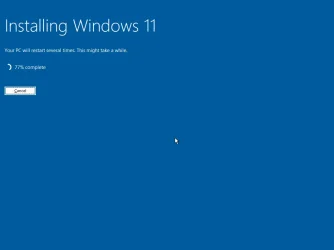
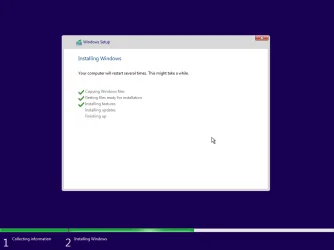
I'm wondering if the difference between the old and new setup is basically just the look and feel of the dialog screens during setup. It looks to me like the end result is all the same, so it may simply be stylistic differences.

Since unattended setup is going to bypass all of this, I wonder if there is simply no need to switch between an old and new setup in unattended setup.

In any case, both the old and new setups work flawlessly for me now, as does unattended setup.
With the modern setup interface, it's possible to install Windows on a partition formatted with ReFS. In the legacy interface, a message is displayed stating that the file system is not supported.
 

My Computer

System One

  • OS
    Windows 11
    Computer type
    Laptop
    Manufacturer/Model
    Lenovo
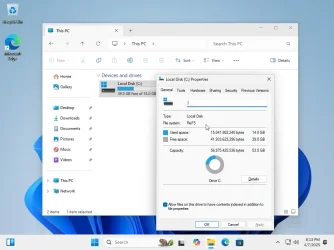
I installed 24H2 on a ReFS filesystem, using both Setup clients and the same unattended file. Because the disk layout only accepts NTFS or FAT32 as valid options, you're forced to use a diskpart script to format the ReFS volume.
Code:
<?xml version="1.0" encoding="utf-8"?>
<unattend xmlns="urn:schemas-microsoft-com:unattend">
    <settings pass="windowsPE">
        <component name="Microsoft-Windows-Setup" processorArchitecture="amd64" publicKeyToken="31bf3856ad364e35" language="neutral" versionScope="nonSxS" xmlns:wcm="http://schemas.microsoft.com/WMIConfig/2002/State" xmlns:xsi="http://www.w3.org/2001/XMLSchema-instance">
            <ImageInstall>
                <OSImage>
                    <InstallTo>
                        <DiskID>0</DiskID>
                        <PartitionID>3</PartitionID>
                    </InstallTo>
                </OSImage>
            </ImageInstall>
            <RunSynchronous>
                <RunSynchronousCommand wcm:action="add">
                    <Order>1</Order>
                    <Path>cmd /c (for %a in ("sel dis 0" "cle" "con gpt" "cre par efi size=100" "for quick fs=fat32" "cre par msr size=16" "cre par pri" "shr minimum=800" "for quick fs=refs") do @echo %~a) &gt; X:\UEFI.txt</Path>
                </RunSynchronousCommand>
                <RunSynchronousCommand wcm:action="add">
                    <Order>2</Order>
                    <Path>cmd /c (for %a in ("cre par pri" "for quick fs=ntfs" "set id=de94bba4-06d1-4d40-a16a-bfd50179d6ac" "gpt attributes=0x8000000000000001") do @echo %~a) &gt;&gt; X:\UEFI.txt &amp; diskpart /s X:\UEFI.txt</Path>
                </RunSynchronousCommand>
            </RunSynchronous>
            <UserData>
                <ProductKey>
                    <Key></Key>
                </ProductKey>
            </UserData>
        </component>
    </settings>
</unattend>

If you're calling setupprep, it doesn't allow for unattended mode because setupprep can only perform in-place upgrades.

In my tests, running the new Setup with this unattended file completed, but my desktop failed to have a taskbar (even after logging out). Repeating the test with the old Setup, it appears to work just fine.
 

Attachments

  • Windows 11 x64-2025-04-07-18-14-20.webp
    Windows 11 x64-2025-04-07-18-14-20.webp
    39.7 KB · Views: 5
  • Windows 11 x64-2025-04-07-18-22-16.webp
    Windows 11 x64-2025-04-07-18-22-16.webp
    11.4 KB · Views: 4
  • Windows 11 x64-2025-04-07-19-06-50.webp
    Windows 11 x64-2025-04-07-19-06-50.webp
    52.7 KB · Views: 3
  • Windows 11 x64-2025-04-07-19-08-18.webp
    Windows 11 x64-2025-04-07-19-08-18.webp
    43.3 KB · Views: 4
  • Windows 11 x64-2025-04-07-19-34-49.webp
    Windows 11 x64-2025-04-07-19-34-49.webp
    14.5 KB · Views: 4
  • Windows 11 x64-2025-04-07-20-13-03.webp
    Windows 11 x64-2025-04-07-20-13-03.webp
    44.8 KB · Views: 4

My Computer

System One

  • OS
    Windows 7
I installed 24H2 on a ReFS filesystem, using both Setup clients and the same unattended file. Because the disk layout only accepts NTFS or FAT32 as valid options, you're forced to use a diskpart script to format the ReFS volume.
Code:
<?xml version="1.0" encoding="utf-8"?>
<unattend xmlns="urn:schemas-microsoft-com:unattend">
    <settings pass="windowsPE">
        <component name="Microsoft-Windows-Setup" processorArchitecture="amd64" publicKeyToken="31bf3856ad364e35" language="neutral" versionScope="nonSxS" xmlns:wcm="http://schemas.microsoft.com/WMIConfig/2002/State" xmlns:xsi="http://www.w3.org/2001/XMLSchema-instance">
            <ImageInstall>
                <OSImage>
                    <InstallTo>
                        <DiskID>0</DiskID>
                        <PartitionID>3</PartitionID>
                    </InstallTo>
                </OSImage>
            </ImageInstall>
            <RunSynchronous>
                <RunSynchronousCommand wcm:action="add">
                    <Order>1</Order>
                    <Path>cmd /c (for %a in ("sel dis 0" "cle" "con gpt" "cre par efi size=100" "for quick fs=fat32" "cre par msr size=16" "cre par pri" "shr minimum=800" "for quick fs=refs") do @echo %~a) &gt; X:\UEFI.txt</Path>
                </RunSynchronousCommand>
                <RunSynchronousCommand wcm:action="add">
                    <Order>2</Order>
                    <Path>cmd /c (for %a in ("cre par pri" "for quick fs=ntfs" "set id=de94bba4-06d1-4d40-a16a-bfd50179d6ac" "gpt attributes=0x8000000000000001") do @echo %~a) &gt;&gt; X:\UEFI.txt &amp; diskpart /s X:\UEFI.txt</Path>
                </RunSynchronousCommand>
            </RunSynchronous>
            <UserData>
                <ProductKey>
                    <Key></Key>
                </ProductKey>
            </UserData>
        </component>
    </settings>
</unattend>

If you're calling setupprep, it doesn't allow for unattended mode because setupprep can only perform in-place upgrades.

In my tests, running the new Setup with this unattended file completed, but my desktop failed to have a taskbar (even after logging out). Repeating the test with the old Setup, it appears to work just fine.
I sincerely appreciate your attention and that of the other colleagues. Could you please test by referencing an install.esd file from another location? For example:

Batch:
setup.exe /installfrom:"Another path\install.esd" /unattend:"Another path\unattend.xml"

If it works, I’ll try your XML configuration, since I’m currently using:

XML:
<ImageInstall>
    <OSImage>
        <InstallToAvailablePartition>true</InstallToAvailablePartition>
    </OSImage>
</ImageInstall>
 

My Computer

System One

  • OS
    Windows 11
    Computer type
    Laptop
    Manufacturer/Model
    Lenovo
What is so important about ReFS over NTFS? In case something happens to Windows and you cannot boot, how are you going to retrieve your data? I am not sure you could read it. Back in Windows XP first days, I would avoid NTFS and install on FAT32 for exactly that reason. I had a lot of ways to read data from a FAT32 disk, but hardly from NTFS. I converted the disk from FAT32 to NTFS to upgrade to Vista.
 

My Computers

System One System Two

  • OS
    Windows 11 Pro 23H2 (5699), 25H2 (8655)
    Computer type
    Laptop
    Manufacturer/Model
    Acer Extensa 5630EZ
    CPU
    Mobile DualCore Intel Core 2 Duo T7250, 2000 MHz
    Motherboard
    Acer Extensa 5630
    Memory
    4GB
    Graphics Card(s)
    Mobile Intel(R) GMA 4500M (Mobile 4 series)
    Sound Card
    Realtek ALC268 @ Intel 82801IB ICH9 - High Definition Audio Controller
    Monitor(s) Displays
    1
    Screen Resolution
    1280x800
    Hard Drives
    Samsung SSD 850 EVO 250GB SATA Device (250 GB, SATA-III)
    Internet Speed
    VDSL 50 Mbps
    Browser
    MICROSOFT EDGE
    Antivirus
    WINDOWS DEFENDER
    Other Info
    Legacy MBR installation, no TPM, no Secure Boot, no WDDM 2.0 graphics drivers, no SSE4.2, cannot get more unsupported ;) This is only my test laptop. I had installed Windows 11 here before upgrading my main PC. For my main PC I use everyday see my 2nd system specs.
  • Operating System
    Windows 11 Pro v25H2 (build 26200.8655)
    Computer type
    PC/Desktop
    Manufacturer/Model
    Custom-built PC
    CPU
    Intel Core-i7 3770 3.40GHz s1155 (3rd generation)
    Motherboard
    Asus P8H61 s1155 ATX
    Memory
    2x Kingston Hyper-X Blu 8GB DDR3-1600
    Graphics card(s)
    GIGABYTE GeForce RTX 3050 WINDFORCE OC V2 6GB (GV-N3050WF2OCV2-6GD)
    Sound Card
    Realtek HD audio (ALC887)
    Monitor(s) Displays
    Sony Bravia KDL-19L4000 19" LCD TV via VGA
    Screen Resolution
    1440x900 32-bit 60Hz
    Hard Drives
    WD Blue SA510 2.5 1000GB SSD as system disk, Western Digital Caviar Purple 4TB SATA III (WD40PURZ) as second
    PSU
    Thermaltake Litepower RGB 550W Full Wired
    Case
    SUPERCASE MIDI-TOWER
    Cooling
    Deepcool Gamma Archer CPU cooler, 1x 8cm fan at the back
    Keyboard
    Mitsumi 101-key PS/2
    Mouse
    Sunnyline OptiEye PS/2
    Internet Speed
    100Mbps
    Browser
    Microsoft Edge, Mozilla Firefox
    Antivirus
    Microsoft Windows Defender
    Other Info
    Legacy BIOS (MBR) installation, no TPM, no Secure Boot, WDDM 3.0 graphics drivers, WEI score 7.4

My Computers

System One System Two

  • OS
    Windows 11 Workstation
    Computer type
    PC/Desktop
    Manufacturer/Model
    doofenshmirtz evil incorporated
    CPU
    Ryzen 9 5950X
    Motherboard
    Asus ROG Crosshair VIII Formula
    Memory
    Corsair Vengeance RGB PRO Black 64GB (4x16GB) 3600MHz AMD Ryzen Tuned DDR4
    Graphics Card(s)
    ASUS AMD Radeon RX 6900 XT 16GB ROG Strix LC OC
    Sound Card
    Sound BlasterX Katana
    Monitor(s) Displays
    3 x27" Dell U2724D & 1 x 34" Dell U3415W
    Hard Drives
    Samsung 980 Pro 1TB M.2 2280 PCI-e 4.0 x4 NVMe Solid State
    Drive
    PSU
    ASUS ROG THOR 850W 80 Plus Platinum
    Case
    ASUS ROG Strix Helios Midi-Tower ARGB Gaming Case
    Cooling
    ASUS ROG Strix LC Performance RGB AIO CPU Liquid Cooler - 360mm
    Keyboard
    Logi Ergo
    Mouse
    Logitech MX Vertical
    Internet Speed
    900/100 Mbps
    Browser
    Chrome
    Antivirus
    Windows Defender, Malwarebytes Pro
    Other Info
    HP M281 Printer
    Logitech Brio Stream webcam
    Yeti X mic
  • Operating System
    Windows 10
    Computer type
    Laptop
    Manufacturer/Model
    Surface Laptop
    CPU
    i7
I installed 24H2 on a ReFS filesystem, using both Setup clients and the same unattended file. Because the disk layout only accepts NTFS or FAT32 as valid options, you're forced to use a diskpart script to format the ReFS volume.
Code:
<?xml version="1.0" encoding="utf-8"?>
<unattend xmlns="urn:schemas-microsoft-com:unattend">
    <settings pass="windowsPE">
        <component name="Microsoft-Windows-Setup" processorArchitecture="amd64" publicKeyToken="31bf3856ad364e35" language="neutral" versionScope="nonSxS" xmlns:wcm="http://schemas.microsoft.com/WMIConfig/2002/State" xmlns:xsi="http://www.w3.org/2001/XMLSchema-instance">
            <ImageInstall>
                <OSImage>
                    <InstallTo>
                        <DiskID>0</DiskID>
                        <PartitionID>3</PartitionID>
                    </InstallTo>
                </OSImage>
            </ImageInstall>
            <RunSynchronous>
                <RunSynchronousCommand wcm:action="add">
                    <Order>1</Order>
                    <Path>cmd /c (for %a in ("sel dis 0" "cle" "con gpt" "cre par efi size=100" "for quick fs=fat32" "cre par msr size=16" "cre par pri" "shr minimum=800" "for quick fs=refs") do @echo %~a) &gt; X:\UEFI.txt</Path>
                </RunSynchronousCommand>
                <RunSynchronousCommand wcm:action="add">
                    <Order>2</Order>
                    <Path>cmd /c (for %a in ("cre par pri" "for quick fs=ntfs" "set id=de94bba4-06d1-4d40-a16a-bfd50179d6ac" "gpt attributes=0x8000000000000001") do @echo %~a) &gt;&gt; X:\UEFI.txt &amp; diskpart /s X:\UEFI.txt</Path>
                </RunSynchronousCommand>
            </RunSynchronous>
            <UserData>
                <ProductKey>
                    <Key></Key>
                </ProductKey>
            </UserData>
        </component>
    </settings>
</unattend>

If you're calling setupprep, it doesn't allow for unattended mode because setupprep can only perform in-place upgrades.

In my tests, running the new Setup with this unattended file completed, but my desktop failed to have a taskbar (even after logging out). Repeating the test with the old Setup, it appears to work just fine.
I appreciate your attention and that of all the other members participating in this discussion. I corrected my answer file, and now everything is working fine. The goal is to provide the option to use ReFS for those who need it, rather than making it the default in the installation performed by the tool I developed to automate Windows setup.
 

My Computer

System One

  • OS
    Windows 11
    Computer type
    Laptop
    Manufacturer/Model
    Lenovo
This is what you don't get when ReFS replaces NTFS:

FunctionalityReFSNTFS
File system compression (CompactOS)NoYes
File system encryption (required for paid Store apps, like Xbox Game Pass)NoYes
Short namesNoYes
Extended attributesNoYes
Disk quotasNoYes
Bootable (not true as we've proven)NoYes
Supported on removable mediaNoYes
 

My Computer

System One

  • OS
    Windows 7
This is what you don't get when ReFS replaces NTFS:

FunctionalityReFSNTFS
File system compression (CompactOS)NoYes
File system encryption (required for paid Store apps, like Xbox Game Pass)NoYes
Short namesNoYes
Extended attributesNoYes
Disk quotasNoYes
Bootable (not true as we've proven)NoYes
Supported on removable mediaNoYes
I am aware of the limitations; however, some sections of Microsoft's documentation are outdated: DISM and OneDrive work perfectly on ReFS in version 24H2.
 

My Computer

System One

  • OS
    Windows 11
    Computer type
    Laptop
    Manufacturer/Model
    Lenovo
You may be informed, but others who read this thread might not understand the limits. Like Xbox Game Pass.
 

My Computer

System One

  • OS
    Windows 7
What is the link for the 5-line version of Garlin's to do this? J
 

My Computer

System One

  • OS
    Windows 11 pro
    Computer type
    Laptop
    Manufacturer/Model
    Asus
    CPU
    I-7 2gigaherz
    Motherboard
    Asus
    Memory
    16Gig
    Screen Resolution
    1024x768
    Hard Drives
    512 SSD
Thank you very much for everyone's input !
 

My Computer

System One

  • OS
    Windows 11 pro
    Computer type
    Laptop
    Manufacturer/Model
    Asus
    CPU
    I-7 2gigaherz
    Motherboard
    Asus
    Memory
    16Gig
    Screen Resolution
    1024x768
    Hard Drives
    512 SSD
Last edited:

My Computer

System One

  • OS
    Windows 7
Thanks, i literally just tried that before your post and sadly didn´t work either
I tried that and it reboot my machine to re begin windows 11 install
 

My Computer

System One

  • OS
    Windows 11 pro
    Computer type
    Laptop
    Manufacturer/Model
    Asus
    CPU
    I-7 2gigaherz
    Motherboard
    Asus
    Memory
    16Gig
    Screen Resolution
    1024x768
    Hard Drives
    512 SSD
for %%A in (D E F G H I J K L M N O P Q R S T U V W Y Z) do if exist %%A:\sources\setup.exe (<br> set DRIVE=%%A<br> goto :continue
1. Is there a way to make sure that this goes in Windows setup and not Windows PE Setup?
 

My Computer

System One

  • OS
    Windows 11 pro
    Computer type
    Laptop
    Manufacturer/Model
    Asus
    CPU
    I-7 2gigaherz
    Motherboard
    Asus
    Memory
    16Gig
    Screen Resolution
    1024x768
    Hard Drives
    512 SSD
I had a problem with AutoUnattend.xml and registry hacks. Basically the Autounattend.xml wasn't even seen by Windows. so, I went ahead and asked my what Windows 11 version I wanted to Install [I only had one PRO]
 

My Computer

System One

  • OS
    Windows 11 pro
    Computer type
    Laptop
    Manufacturer/Model
    Asus
    CPU
    I-7 2gigaherz
    Motherboard
    Asus
    Memory
    16Gig
    Screen Resolution
    1024x768
    Hard Drives
    512 SSD
for %%A in (D E F G H I J K L M N O P Q R S T U V W Y Z) do if exist %%A:\sources\setup.exe (<br> set DRIVE=%%A<br> goto :continue
1. Is there a way to make sure that this goes in Windows setup and not Windows PE Setup?

Windows PE is index #1 of the boot.wim while index #2 is Windows Setup. If you make changes to index #2 then you are targeting Windows Setup.
 

My Computers

System One System Two

  • OS
    Win11 Pro 25H2 (RTM+)
    Computer type
    PC/Desktop
    Manufacturer/Model
    Acemagic
    CPU
    Intel i7-14650HX
    Memory
    32 GB
    Graphics Card(s)
    No GPU - Built-in Intel Graphics
    Sound Card
    Integrated
    Monitor(s) Displays
    Varies as machine will often be moved to locations with different monitors
    Screen Resolution
    Varies
    Hard Drives
    1 x 1TB Gen 4 NVMe SSD
    PSU
    120W Power Brick
    Keyboard
    Corsair K70 Max RGB Magnetic Keyboard
    Mouse
    Logitech MX Master 3
    Internet Speed
    1Gb Up / 1 Gb Down
    Browser
    Edge
    Antivirus
    Windows Defender
  • Operating System
    Win11 Pro 25H2 (RTM+)
    Computer type
    Laptop
    Manufacturer/Model
    Lenovo ThinkBook 13x Gen 2
    CPU
    Intel i7-1255U
    Memory
    16 GB
    Graphics card(s)
    Intel Iris Xe Graphics
    Sound Card
    Realtek® ALC3306-CG codec
    Monitor(s) Displays
    13.3-inch IPS Display
    Screen Resolution
    WQXGA (2560 x 1600)
    Hard Drives
    2 TB 4 x 4 NVMe SSD
    PSU
    USB-C / Thunderbolt 4 Power / Charging
    Keyboard
    Backlit, spill resistant keyboard
    Mouse
    Buttonless Glass Precision Touchpad
    Internet Speed
    1Gb Up / 1Gb Down
    Browser
    Edge
    Antivirus
    Windows Defender
    Other Info
    WiFi 6e / Bluetooth 5.1 / Facial Recognition / Fingerprint Sensor / ToF (Time of Flight) Human Presence Sensor
hi,
I modified the Win 11 25H2 ISO with the winpeshl.ini file as suggested in the thread.

What doesn't work is loading the unattend.xml file with cmd

%WINDIR%\System32\Sysprep\Sysprep.exe /oobe /unattend:C:\unattend.xml /reboot
at the OOBE screen "Is your location"?

It seems the debloating and settings instructions are being ignored; only the offline user setting is being taken.
Is there a solution to this?
Thanks
 

My Computer

System One

  • OS
    Windows 10
for anyone that dont want the hassle of editing the iso file what i did and worked for me (windows 11 25h2 build: 26200):
1. Save the following content as winpeshl.ini (thanks to @Young Min Oh)
[LaunchApps]
%SystemDrive%\setup.exe /legacy
2. open the windows 11 iso with 7zip navigate to sources folder and extract boot.wim
3.open the extracted boot.wim with 7 zip navigate to Windows\System32 and drop winpeshl.ini in there and exit 7zip it will ask you if you want to save it press yes
4.use rufus to make a usb with the original win 11 iso after it finish open the usb and go to the "sources" folder and replace boot.wim file with the one we crated in step 3, Done
i tried to add my unattended.xml file in the usb and it work normally (my xml file answer all the question all the way to the desktop and even run custom script all of them worked)
The whole point for switching to old setup for me is on the hard drive selection tab i use "tab" on the keyboard to quickly select partitions and delete them , in the new UI you need to use the mouse or like 8 tabs to reach the partitions i hate it as an it that do alot of formats daily, hope that help someone.
 

My Computer

System One

  • OS
    win 10
Been using winpeshl.ini for years in my pebuilds.

typically I do this

Code:
[LaunchApp]
AppPath="Pecmd.exe Main %SystemDrive%\Windows\System32\Pecmd.ini"

however it can be pointed at something else like below

Anybody can do this.

make a new text file . Name it winpeshl.ini

copy this code into winpeshl.ini

Code:
[LaunchApp]
AppPath="%SystemDrive%\sources\setup.exe"


copy winpeshl.ini into boot.wim image2 \windows\system32

easily done with 7-zip only takes a few seconds


It needs to be in system32 of the bootable image.
The ms supplied boot.wim that comes with installation media has 2 images. Image 2 is marked bootable

If you want to use winpeshl.ini to launch something in winre.wim there is only one image
 

My Computers

System One System Two

  • OS
    Win7,Win11
    Computer type
    PC/Desktop
    CPU
    i7-9700
    Motherboard
    gigabyte b365m ds3h
    Memory
    2x16gb 3600mhz
    Monitor(s) Displays
    benq gw2480
    PSU
    bequiet pure power 11 400CM
    Cooling
    cryorig m9i
  • Operating System
    win7,win11
    Computer type
    PC/Desktop
    CPU
    i5-8400
    Motherboard
    gigabyte b365m ds3h
    Memory
    2x8gb 3200
    PSU
    xfx pro 450
Back
Top Bottom