- Local time
- 10:47 AM
- Posts
- 32
- OS
- Windows 11 Pro
I tried putting the latest version of Rescuzilla onto several USB sticks with Rufus, but each time I get a notice that...
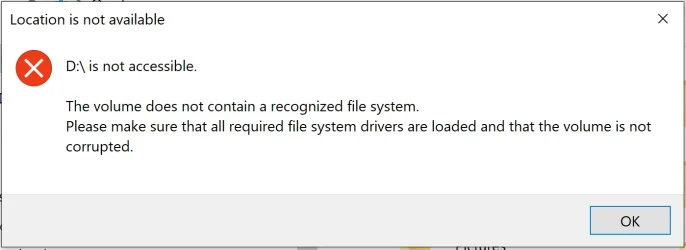
"D:\ is not accessible...volume does not contain a recognized file system."
No errors found when I run a diagnostic scan, and Win 11 Disk Mgt reports each USB drive I used is "Healthy."
Below are the steps I tried:
1. Connected 250 GB USB stick to PC (tried all the ports).
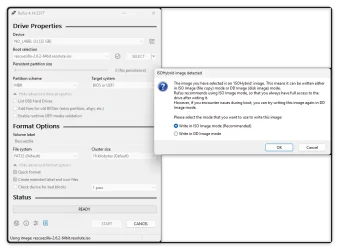
2. Launched Rufus -> from "Device" drop-down menu, I selected the inserted USB stick
3. Boot selection: Rescuezilla (x64)_v2,6,2.iso
4. Persistent partition size: 0
5. Partition scheme: GPT (my system is GUID. I did try MBR and NTFS).
6. Target system: UEFI (non CSM)
7. Volume label: Rescuezilla
8. File system: FAT32 (Default). I also tried NTFS as exFAT is not offered.
9. Cluster size: 32 KB (default)
10. Create extended label and icon files: Yes
11. Check for bad blocks (1 pass)
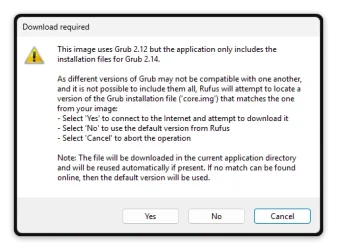
12. Start -> Write in ISO -> OK -> OK.
14. Notice appears that "D:\ is not accessible. The volume does not contain a recognized file system."
15. I click OK. The copying of the ISO continues; but then when I try to clone my SSD, the process fails.
So what file system does the operation require if not the recommended FAT32 or NTFS?
"D:\ is not accessible...volume does not contain a recognized file system."
No errors found when I run a diagnostic scan, and Win 11 Disk Mgt reports each USB drive I used is "Healthy."
Below are the steps I tried:
1. Connected 250 GB USB stick to PC (tried all the ports).
2. Launched Rufus -> from "Device" drop-down menu, I selected the inserted USB stick
3. Boot selection: Rescuezilla (x64)_v2,6,2.iso
4. Persistent partition size: 0
5. Partition scheme: GPT (my system is GUID. I did try MBR and NTFS).
6. Target system: UEFI (non CSM)
7. Volume label: Rescuezilla
8. File system: FAT32 (Default). I also tried NTFS as exFAT is not offered.
9. Cluster size: 32 KB (default)
10. Create extended label and icon files: Yes
11. Check for bad blocks (1 pass)
12. Start -> Write in ISO -> OK -> OK.
14. Notice appears that "D:\ is not accessible. The volume does not contain a recognized file system."
15. I click OK. The copying of the ISO continues; but then when I try to clone my SSD, the process fails.
So what file system does the operation require if not the recommended FAT32 or NTFS?
- Windows Build/Version
- Window 11 Home
My Computer
At a glance
Windows 11 ProIntel Core Ultra 7 155H, 16 cores, 22 threads...64GB DDR5-5600 MT/sIntel Arc Graphics
- OS
- Windows 11 Pro
- Computer type
- Laptop
- Manufacturer/Model
- HP Envy 17t-da000
- CPU
- Intel Core Ultra 7 155H, 16 cores, 22 threads, 4.8GHz.
- Motherboard
- HP?
- Memory
- 64GB DDR5-5600 MT/s
- Graphics Card(s)
- Intel Arc Graphics
- Sound Card
- Realtek Hi-def/Intel Smart Sound
- Monitor(s) Displays
- 17.3" touch screen
- Screen Resolution
- 1920 x 1080, dual monitors.
- Hard Drives
- 1TB SSD and 7 external USB drives.
- PSU
- 20VDC, 3.25A.
- Case
- Silver
- Cooling
- Fans
- Keyboard
- Numeric
- Mouse
- Logitech wireless
- Internet Speed
- Upload: 330 Mb/s; Download: 438 Mb/s.
- Browser
- FireFox
- Antivirus
- Win Defender
- Other Info
- My cat's name is Mr. Scruffins.