Windows 11, version 25H2 is a feature update for Windows 11. It includes all features and fixes in previous cumulative updates to Windows 11, version 24H2. This article lists the new and updated features IT pros should know.
Looking for consumer information? See Windows 11 2025 update.
Windows 11, version 25H2 follows the Windows 11 servicing timeline:
- Windows 11 Pro: Serviced for 24 months from the release date.
- Windows 11 Enterprise: Serviced for 36 months from the release date.
Windows 11, version 25H2 is available through Windows Server Update Services (including Configuration Manager), Windows Update client policies, and the Microsoft 365 admin center. For more information, see How to get the Windows 11 2025 Update. Review the Windows 11, version 25H2 Windows IT Pro blog post to discover information about available deployment resources such as the Windows Assessment and Deployment Kit (Windows ADK).
[Important] Windows 11, version 25H2 through Windows Server Update Services (including Configuration Manager) will be available starting October 14, 2025. If you manage updates through Windows Server Update Services (WSUS) or Configuration Manager, you won't see the update until that date.
To learn more about the status of the update rollout, known issues, and new information, see Windows release health.
Features no longer under temporary enterprise control
Temporary enterprise feature control temporarily turns off certain features that were introduced during monthly cumulative updates for managed Windows 11 devices. For the purposes of temporary enterprise control, a system is considered managed if it's configured to get updates from Windows Update client policies or Windows Server Update Services (WSUS). Clients that get updates from Microsoft Configuration Manager and Microsoft Intune are considered managed since their updates ultimately come from WSUS or Windows Updates for Business.For a list of features that were under temporary enterprise control between Windows 11, version 22H2 and Windows 11, version 24H2, see, Windows 11 features behind temporary enterprise feature control. The following features are under temporary enterprise control between Windows 11, version 24H2 and Windows 11, version 25H2:
Feature | KB article where the feature was introduced | Notes |
|---|---|---|
| Agent in Settings | July 22, 2025 - KB5062660 | This feature also has a permanent control. For more information, see Configure the agent in Windows Settings. |
| Improved Windows search | April 25, 2025 - KB5055627 | Improved Windows search continues to respect your existing search policies. |
| Click to Do | April 25, 2025 - KB5055627 | This feature also has a permanent control. For more information, see Manage Click to Do. |
| AI actions in File Explorer | September 24, 2025 - KB5065789 |
Features unique to Copilot+ PCs in 25H2
Copilot+ PCs are a new class of Windows 11 AI PCs that are powered by a neural processing unit (NPU) that can perform more than 40 trillion operations per second (TOPS). The following features were released within the past year's continuous innovation updates and are unique to Copilot+ PCs:- Click to Do helps users to get things done faster by identifying text and images that are currently on their screen so they can perform actions on them. For more information, see Manage Click to Do.

Use Click to Do in Windows 11
This tutorial will show you how to use Click to Do to perform AI actions with text and images for your account on a Windows 11 Copilot+ PC. Click to Do (preview) helps you get things done faster by identifying text and images on your screen that you can take actions with. Click to Do analyzes... www.elevenforum.com
- Recall (preview) allows users to search locally saved and locally analyzed snapshots of their screen using natural language. By default, Recall is disabled and removed on managed devices. For more information, see Manage Recall.

Use Recall with Snapshots in Windows 11
This tutorial will show you how to use Recall with snapshots of your activity to find and jump back into what you have seen before on your Windows 11 Copilot+ PC. Recall is an experience exclusive to Copilot+ PCs that will help you easily find and remember things you've seen using natural...
www.elevenforum.com
- Improved Windows search for Copilot+ PCs performs semantic indexing along with traditional indexing. Semantic indexing makes searches more powerful since items that are close and related to search terms would also be included in search results. Improved Windows search continues to respect your existing search policies.

Turn On or Off Enhanced Mode for Search Indexer in Windows 11
This tutorial will show you how to turn on or off Enhanced mode for search indexer for all users in Windows 11. Search Indexing in Windows improves the speed and efficiency of searches by creating an index of files and their properties on your device. This index allows Windows to quickly locate...
www.elevenforum.com
- Agent in Settings for Copilot+ PCs uses on-device AI to help user find and change settings on their PC. It can also help you troubleshoot issues by providing recommendations and automating tasks based on the input.

Find a Setting in Settings app in Windows 11
This tutorial will show you how to search to find a setting within the Settings app in Windows 11. Microsoft designed Settings to be beautiful, easy to use and inclusive of all your Microsoft experiences in Windows 11. Settings has left-handed navigation that persists between pages, and...
www.elevenforum.com

Enable or Disable Settings Search Agent in Windows 11
This tutorial will show you how to enable or disable the Settings agentic search experience for all users on Windows 11 Copilot+ PCs. Starting in Windows 11, version 24H2 with KB5062660 on Copilot+ PCs, the agent in Windows Settings is a feature that uses on-device AI to help you find and...
www.elevenforum.com
The following features are unique to Copilot+ PCs starting in Windows 11, version 24H2:
> Live Captions allow you to translate audio and video content into English subtitles from 44 languages.
> Windows Studio Effects is the collective name of AI-powered video call and audio effects that are available on Copilot+ PCs and select Windows 11 devices with compatible NPUs. Windows Studio Effects automatically improves lighting and cancels noises during video calls.
> Cocreator in Paint allows you to create amazing artwork with the help of AI. Enter a text prompt, start drawing in Paint, and Cocreator generates artwork based on what you're drawing.
> Auto Super Resolution (Auto SR) is the first AI-powered super resolution solution built into an operating system, making games automatically play smoother with higher resolution details.
> Microsoft Photos Restyle Image and Image Creator let you reimagine your photos or create new images with the assistance of AI.
Features added to Windows 11 since version 24H2
New features and enhancements were introduced to Windows 11, version 24H2 periodically to provide continuous innovation for Windows 11. These features and enhancements use the normal update servicing channels you're already familiar with. At first, new features are introduced with an optional nonsecurity preview release and gradually rolled out to clients. These new features are released later as part of a monthly security update release. For more information about continuous innovation, see Update release cycle for Windows clients.Some of the features that were released within the past year's continuous innovation updates and carry forward into the 25H2 feature update include:
Policy-based removal of preinstalled Microsoft Store Apps
IT admins now have an easy way to remove preinstalled Microsoft Store apps (inbox apps) from Enterprise and Education editions of Windows 11, version 25H2 and later. This policy can streamline device provisioning and prevent removed apps such as Microsoft Clipchamp, Media Player, and Microsoft Teams from reappearing. For more information, see Policy-based removal of preinstalled Microsoft Store apps and RemoveDefaultMicrosoftStorePackages in the ApplicationManagement Policy CSP.Support for Wi-Fi 7 enterprise access points
Windows 11, version 25H2 has support for Wi-Fi 7 enterprise access points, representing a significant advancement in wireless networking capabilities for modern organizations. Wi-Fi 7 enables increased speeds, greater throughput, improved reliability, and enhanced security for your organization. To get started, organizations need:- Devices running Windows 11, version 25H2, or Windows 11 version 24H2 with KB5065789 (or a later update installed)
- Wi-Fi 7 capable enterprise laptops
- Certified Wi-Fi 7 drivers
- Enterprise-grade Wi-Fi 7 access points
Windows Backup for Organizations
Windows Backup for Organizations is generally available. Users experience seamless device transitions with backup and restore of their user settings and Microsoft Store apps. Windows Backup for Organizations helps sustain productivity with minimal disruption, ensuring business continuity when refreshing devices, upgrading to Windows 11, or deploying AI-powered PCs. This feature is available for multiple versions of Windows 11. It's also available for Windows 10, version 22H2 when the backup is restored to a supported version of Windows 11. For more information, see Windows Backup for Organizations FAQ.Quick machine recovery
Quick machine recovery enables the recovery of Windows devices when they encounter critical errors that prevent them from booting. Quick machine recovery automatically searches for remediations in the cloud and recovers from widespread boot failures, significantly reducing the burden on IT administrators when multiple devices are affected. For more information about enabling and configuring quick machine recovery, see Quick machine recovery.
Enable or Disable Quick Machine Recovery in Windows 11
www.elevenforum.com
Taskbar pinning improvements
IT admins no longer need to restart explorer.exe to apply the pinning policy. After applying the policy, users might see a pin on their taskbar within approximately 8 hours, depending on the refresh interval. Admins can also configure taskbar policies so users can unpin specific apps, ensuring they aren't repinned during the next policy refresh. To turn on this feature, use the PinGeneration option. The PinGeneration option is available for Windows 11, version 23H2 or later devices.Energy Saver Settings
IT admins can manage energy saver settings on Windows 11 PCs through group policies and MDM configurations using Microsoft Intune. This feature helps extend battery life by limiting background activity, dimming the screen, and contributing to environmental sustainability. For more information about this policy, see EnableEnergySaver in the Power Policy CSP.File Explorer improvements
AI actions in File Explorer: Right click or Shift+F10 on a file and select AI actions to edit images or summarize documents. If the file is an image (.jpg, .jpeg, or .png), AI options such as Blur background, Erase objects, and Remove background, are displayed in the context menu. AI actions in Microsoft 365 make it easier to work with your documents. With the Summarize action in Copilot, you can quickly generate summaries of files stored in OneDrive and SharePoint without needing to open files. The Microsoft 365 AI action requires an active Microsoft 365 subscription and a Copilot license (Microsoft account or Microsoft Entra ID).
Use AI Actions in File Explorer in Windows 11
www.elevenforum.com
Other File Explorer improvements include:
- When you right-click items in the left pane, the New Folder command appears on the context menu.

Create New Folder in Windows 11
This tutorial will show you different ways to create a new folder in Windows 11. A folder is a location where you can store your files. You can create any number of folders and have folders inside other folders (subfolders). Starting with Windows 11 build 26100.3037 and build 22631.4830...
www.elevenforum.com
- When Restore previous folder windows at logon is enabled from Options in File Explorer, Windows restores all the previously open tabs in each File Explorer window.

Turn On or Off Restore previous folder windows at logon in Windows 11
This tutorial will show you how to turn on or off "Restore previous folder windows at logon" for your account in Windows 11. You can have Windows automatically restore previous folder windows at sign in when you sign out, restart the computer, or shut down the computer. Starting with Windows...
www.elevenforum.com
- When Automatically save my restartable apps and restart them when I sign back in is enabled, Windows turns on specific File Explorer settings for you. Go to Settings > Accounts > Sign in options to enable the feature.

Turn On or Off Automatically Restart Apps when Sign back in Windows 11
This tutorial will show you how to turn on or off automatically restart apps when you sign back in for your account in Windows 11. You can have Windows automatically save your open restartable apps when you sign out, restart the computer, or shut down the computer and restart them when you sign...
www.elevenforum.com
- Enhanced performance when extracting archive files. This performance improvement helps with copy pasting large numbers of files out of large 7z or .rar archive.
- Dividers now separate top-level icons in the File Explorer context menu.
- When signed in with a Microsoft Entra ID, File Explorer displays people icons in the Activity column and the Recommended section at the top of File Explorer Home.
Task Manager improvements
The following improvements were made to Task Manager:- The units for DDR speed changes from MHz to MT/s.
- Task Manager releases process handles more quickly when it stops a process.
- Performance improvements when changing the sort order of processes in Task Manager
- Resizing the Task Manager window is easier when grabbing the top of its window.
- When Task Manager is open, ejecting USB devices using the Safely Remove Hardware option fails.
- Task Manager reliability improvements
- Keyboard focus
- Tab key navigation
- Text scaling
- The readout of item names by screen readers
- High contrast heatmaps
- Task Manager now uses standard metrics to show CPU workload consistently across all pages to align with industry standards and third-party tools. If you prefer the previous view, you can enable a new optional column called CPU Utility in the Details tab to display the earlier CPU usage value shown on the Processes page.
End-user experience improvements
- Settings > Privacy & security > Text and Image Generation displays the apps that have recently used on-device generative AI models provided by Windows. Users can also choose which apps are permitted to use the generative AI technologies.

Enable or Disable Text and Image Generation for Apps in Windows 11
This tutorial will show you how to turn on or off text and image generation for apps using generative AI for your account or all users in Windows 11. Text and image generation uses on-device generative Al technologies to quickly respond to requests. Starting with Windows 11 build 26120.4741...
www.elevenforum.com
- When an app requests access to location, camera, microphone, or other device capabilities, Windows shows a redesigned system dialog box. To emphasize the privacy prompt, the screen dims slightly, and the prompt appears at the center of the screen.
- When signed in with a Microsoft Entra ID account, File Explorer displays people icons in the Activity column and the Recommended section at the top of File Explorer Home. Hover over or select a person's icon to open their Microsoft 365 Live Persona Card, which shows who they are and how they're connected to the file.
- Windows Hello interface was redesigned to support fast, clear communication that appears across multiple authentication flows.
- The Windows security credential experience for passkey offers a more intuitive interface designed to support fast, secure sign-in and easy switching between authentication options such as passkeys or connected devices.
- The Settings homepage was added that shows some existing cards relevant to enterprise-managed PCs like Recommended settings and Bluetooth devices as well as two new enterprise-specific device info and accessibility preferences cards. For users who also use their Microsoft account on their managed PC, there will also be a new accounts card indicating the presence of both work and school and Microsoft account types.
- The taskbar now resizes icons to fit more apps when space runs low, keeping everything visible and easy to access. This default setting can be changed from Settings > Personalization > Taskbar > Taskbar behaviors > Show smaller taskbar buttons.
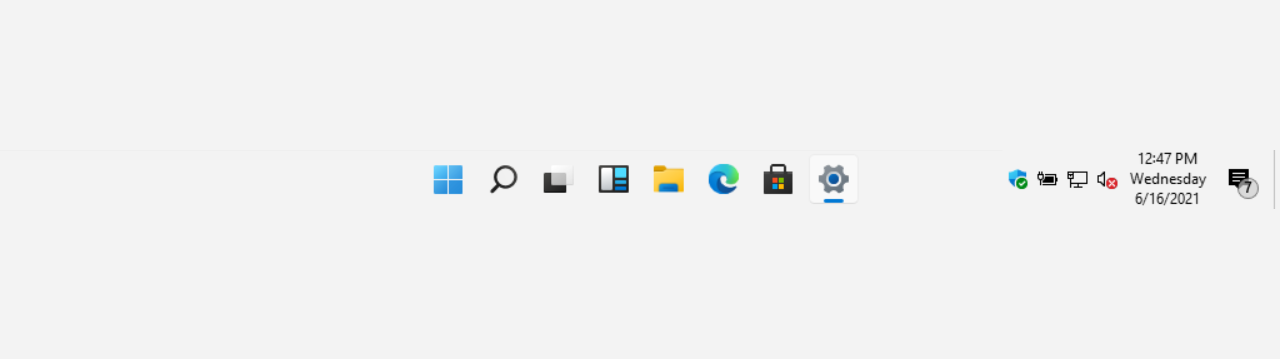
Change Size of Taskbar Icons in Windows 11
This tutorial will show you how to change when to show small icons on the taskbar for your account, all users, or specific users in Windows 11. Starting with Windows 11 build 26100.4484 (24H2), build 28120.2387 (Experimental 26H1), build 26220.9022 (Beta 25H2), and build 28020.2623 (Beta 26H1)...
www.elevenforum.com
- Windows Spotlight now has a Learn about this picture icon. Changes to the icon color and background make Windows Spotlight easier to find for the user.
Features removed in Windows 11, version 25H2
The following deprecated features are removed in Windows 11, version 25H2:- PowerShell 2.0: PowerShell 2.0 is no longer included in Windows 11, version 25H2. For more information, see Update to the latest version of PowerShell.
- Windows Management Instrumentation command-line (WMIC) utility: WMIC is removed from Windows 11, version 25H2. All later releases for Windows 11 won't include WMIC.

What's new in Windows 11, version 25H2 for IT pros
Inside this update | Microsoft Support
 support.microsoft.com