Solved What is this drive called RUFUS BOOT after creating ISO installation with Rufus?


win11freak

Well-known member
Member
Local time
7:55 PM
Posts
284
OS
Windows 11 Pro 22H2
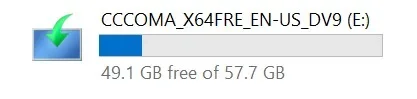
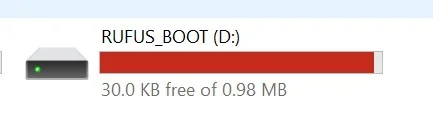
After creating the Windows 11 26H2 ISO using Rufus, I noticed this drive called RUFUS BOOT.
What is this?

The other drive called CCCOMA_X64FRE_EN-US_DV9 (E:) is normal, that's the one with the main Windows 11 ISO files inside of it.

But this RUFUS BOOT is concerning because it also shows a red line that the drive capacity is getting low.
 

Attachments
  • Screenshot 2026-10-18 115334.webp
    Screenshot 2026-10-18 115334.webp
    3.9 KB · Views: 1
  • Screenshot 2026-10-18 115320.webp
    Screenshot 2026-10-18 115320.webp
    5.2 KB · Views: 3

My Computer My Computer

At a glance

Windows 11 Pro 22H2
OS
Windows 11 Pro 22H2
Rufus supports booting from NTFS in native UEFI mode through its UEFI:NTFS feature. When Rufus uses NTFS, it creates a small FAT partition labeled RUFUS_BOOT (previously UEFI_NTFS) containing the UEFI:NTFS bootloader. The firmware boots from this small FAT partition; UEFI:NTFS then loads an NTFS driver and launches the Windows UEFI bootloader from the main NTFS partition. This allows Rufus to use NTFS for Windows installation media when the ISO contains an install.esd or install.wim larger than FAT32's 4 GB maximum file size.

The UEFI bootloader and NTFS driver used by current versions of Rufus are Secure Boot signed, so Secure Boot normally does not need to be disabled to use UEFI.

Disk Management.webp


The screenshots below show USB installation media created using Rufus.
The first screenshot shows the Rufus UEFI:NTFS bootloader.

Rufus UEFI-NTFS bootloader.webp


Select location to install Windows 11 - Rufus.webp


The Media Creation Tool works differently: when it creates a FAT32 USB flash drive, it can split a large Windows image into install.swm, install2.swm, and so on. This keeps each split image file below FAT32's 4 GB maximum file size.

The screenshot below shows USB installation media created using the Media Creation Tool.

Select location to install Windows 11 - MCT.webp
 
Last edited:

My Computers My Computers

  • At a glance

    Windows 11 ProAMD Ryzen 9 9950X3DKingston FURY Beast 64GB (2x32GB) DDR5 6000MT/sASUS TUF Gaming Radeon RX 9070 OC Edition 16G...
    OS
    Windows 11 Pro
    Computer type
    PC/Desktop
    CPU
    AMD Ryzen 9 9950X3D
    Motherboard
    ASRock B650E Taichi Lite
    Memory
    Kingston FURY Beast 64GB (2x32GB) DDR5 6000MT/s
    Graphics Card(s)
    ASUS TUF Gaming Radeon RX 9070 OC Edition 16GB GDDR6
    Hard Drives
    Solidigm P44 Pro 2TB M.2 NVMe SSD
  • At a glance

    Windows 11 HomeIntel Core Ultra 9 275HX64GB (2x 32GB) DDR5-6400NVIDIA GeForce RTX 5080 16GB GDDR7 Laptop GPU
    Operating System
    Windows 11 Home
    Computer type
    Laptop
    Manufacturer/Model
    Lenovo Legion Pro 7i Gen 10 16"
    CPU
    Intel Core Ultra 9 275HX
    Memory
    64GB (2x 32GB) DDR5-6400
    Graphics card(s)
    NVIDIA GeForce RTX 5080 16GB GDDR7 Laptop GPU
    Hard Drives
    2x 1TB M.2 NVMe SSD (SK Hynix)
Did you wrote that .ISO to an USB-stick? The USB contains 2 partitions. A small one with a FAT32 boot partition to boot from and to call the larger partition to install Windows. Normally you should see only one: Partition 2. Partition 1 is normally hidden. When you reboot your system and enter the bootmenu of the motherboard (With an ASUS motherboard that is F8, with other brands an other key) you will notice 2 partitions with the same name and size. The top one is always the boot partition. The second one below it is the Windows (NTFS) partition. Windows can not boot from a NTFS partition only from an FAT32 partition. If you want to install Windows select the bottom one (partition 2) and Windows will start to install.

In case of Rufus v4.15 this is now normal behavior. I have also wrote an .ISO with Rufus to an USB-stick (Zorin-OS) and this is wat I see also when I attach the USB stick into my system: (If you don't want to see that boot-partition: Use diskpart to make that partition hidden)


Rufus USB disk1.webp

So this is normal behavior.....
 
Last edited:

My Computers My Computers

  • At a glance

    Win 11 Pro 26H2 Build 26300.9711, Zorin OS ProIntel® Core™ i7-12700KF 12th Gen. (S1700)32GB DDR5 5600-36 Vengeance (2x16)PCIe4.0 Asus NVIDIA RTX3060Ti
    OS
    Win 11 Pro 26H2 Build 26300.9711, Zorin OS Pro
    Computer type
    PC/Desktop
    Manufacturer/Model
    Self built
    CPU
    Intel® Core™ i7-12700KF 12th Gen. (S1700)
    Motherboard
    ASUS Prime Z690-A, BIOS v4505 (Z690 Intel Chipset)
    Memory
    32GB DDR5 5600-36 Vengeance (2x16)
    Graphics Card(s)
    PCIe4.0 Asus NVIDIA RTX3060Ti
    Sound Card
    Onboard; Realtek
    Monitor(s) Displays
    34" LG 34UC79G-B Curved 21:9 144Hz
    Screen Resolution
    2560x1080 (No HDR)
    Hard Drives
    250Gb Samsung 870PRO NVMe (Win 11 Pro)
    1Tb Samsung 980PRO NVMe
    1Tb Samsung 970EVO NVMe
    2Tb Samsung 990PRO NVMe with heatsink.
    4Tb WDC WD40EZRZ Blue SATA (Int.)
    4Tb WDC WD40EZRZ Blue SATA (Int.)
    3Tb WDC WD30EFRZ Red SATA (Int.)
    256Gb Samsung 840PRO SSD (RHEL 9,5)
    256Gb Samsung 850PRO SSD (Zorin OS Pro 18)
    PSU
    Coolermaster 850W V2 Gold with internal 12cm exaust fan
    Case
    Be-Quiet Pure Base 600.
    Cooling
    3x Be-Quiet! 12/14cm "Silent Wings 4" casefans, 1x Arctic Freezer i35 CPU towerblock with fan.
    Keyboard
    Steelseries APEX 7 keyboard.
    Mouse
    Logitech G-502 Hero
    Internet Speed
    1Gb
    Browser
    Brave
    Antivirus
    F-Secure
    Other Info
    No Noise system.
    256Gb Kingston Travler USB 3.0 drive.
    64Gb Sandisk USB 3.2 drive. (Ventoy)
    8Gb Philips USB 3.0 drive. (Win. Inst.)
    8Gb Philips USB 3.0 drive. (Rescue disk)
    2Tb WD USB 3.0 Passport drive.
    USB Ext. 500Gb WD SATA drive.
    External USB 3.0 C.A. CD/DVD* burner.
  • At a glance

    Windows 11 Pro 26H2Intel® Core™ i7-6700K 6th Gen. (S1151)32Gb DDR4 2400 Corsair Vengeance (4x8)ASUS GeForce GTX1080
    Operating System
    Windows 11 Pro 26H2
    Computer type
    PC/Desktop
    Manufacturer/Model
    Selfbuild
    CPU
    Intel® Core™ i7-6700K 6th Gen. (S1151)
    Motherboard
    ASUS Maximus VIII Ranger (Intel Chipset Z170)
    Memory
    32Gb DDR4 2400 Corsair Vengeance (4x8)
    Graphics card(s)
    ASUS GeForce GTX1080
    Sound Card
    Onboard; Realtek
    Monitor(s) Displays
    LG IPS277L 27" WideLED, IPS
    Screen Resolution
    1920x1080
    Hard Drives
    Samsung 850 Pro SSD
    PSU
    Zalman ZM600-HP with internal exhaust fan. Heatpipes & Modular cables.
    Case
    Cooler Master Aero
    Cooling
    Scythe Mugen 4 dual fan towerblock.
    Keyboard
    Red Dragon
    Mouse
    Red Dragon
    Internet Speed
    1Gb
    Browser
    Brave
    Antivirus
    F-Secure
The USB contains 2 partitions. A small one with a FAT32 boot partition to boot from and to call the larger partition to install Windows. Normally you should see only one: Partition 2. Partition 1 is normally hidden. When you reboot your system and enter the bootmenu of the motherboard (With an ASUS motherboard that is F8, with other brands an other key) you will notice 2 partitions with the same name and size. The top one is always the boot partition. The second one below it is the Windows (NTFS) partition. Windows can not boot from a NTFS partition only from an FAT32 partition. If you want to install Windows select the bottom one (partition 2) and Windows will start to install.

The two entries in your motherboard's boot menu do not necessarily correspond to the two partitions on the USB drive. When Rufus creates Windows 11 installation media using the GPT partition scheme, the USB drive is bootable only in UEFI mode, regardless of whether CSM (Compatibility Support Module) is enabled. Some UEFI implementations may display separate boot entries for different partitions on the same USB drive.

On my laptop, which has UEFI-only firmware, the Rufus USB drive appears only once in the boot menu.

Also, UEFI is not limited to booting from FAT32. Rufus uses its UEFI feature to boot Windows installation media from NTFS. The small FAT partition contains the UEFI bootloader, which loads an NTFS driver and launches the Windows UEFI bootloader (\EFI\Boot\bootx64.efi) from the main NTFS partition. If the UEFI firmware has native NTFS support, it can boot directly from the NTFS partition instead.

Therefore, the claim that Windows cannot boot from NTFS is incorrect, and selecting the second boot-menu entry is not a universal requirement. The correct entry depends on the firmware and how the USB drive was configured.
 

My Computers My Computers

  • At a glance

    Windows 11 ProAMD Ryzen 9 9950X3DKingston FURY Beast 64GB (2x32GB) DDR5 6000MT/sASUS TUF Gaming Radeon RX 9070 OC Edition 16G...
    OS
    Windows 11 Pro
    Computer type
    PC/Desktop
    CPU
    AMD Ryzen 9 9950X3D
    Motherboard
    ASRock B650E Taichi Lite
    Memory
    Kingston FURY Beast 64GB (2x32GB) DDR5 6000MT/s
    Graphics Card(s)
    ASUS TUF Gaming Radeon RX 9070 OC Edition 16GB GDDR6
    Hard Drives
    Solidigm P44 Pro 2TB M.2 NVMe SSD
  • At a glance

    Windows 11 HomeIntel Core Ultra 9 275HX64GB (2x 32GB) DDR5-6400NVIDIA GeForce RTX 5080 16GB GDDR7 Laptop GPU
    Operating System
    Windows 11 Home
    Computer type
    Laptop
    Manufacturer/Model
    Lenovo Legion Pro 7i Gen 10 16"
    CPU
    Intel Core Ultra 9 275HX
    Memory
    64GB (2x 32GB) DDR5-6400
    Graphics card(s)
    NVIDIA GeForce RTX 5080 16GB GDDR7 Laptop GPU
    Hard Drives
    2x 1TB M.2 NVMe SSD (SK Hynix)
The two entries in your motherboard's boot menu do not necessarily correspond to the two partitions on the USB drive. When Rufus creates Windows 11 installation media using the GPT partition scheme, the USB drive is bootable only in UEFI mode, regardless of whether CSM (Compatibility Support Module) is enabled. Some UEFI implementations may display separate boot entries for different partitions on the same USB drive.

On my laptop, which has UEFI-only firmware, the Rufus USB drive appears only once in the boot menu.

Also, UEFI is not limited to booting from FAT32. Rufus uses its UEFI feature to boot Windows installation media from NTFS. The small FAT partition contains the UEFI bootloader, which loads an NTFS driver and launches the Windows UEFI bootloader (\EFI\Boot\bootx64.efi) from the main NTFS partition. If the UEFI firmware has native NTFS support, it can boot directly from the NTFS partition instead.

Therefore, the claim that Windows cannot boot from NTFS is incorrect, and selecting the second boot-menu entry is not a universal requirement. The correct entry depends on the firmware and how the USB drive was configured.
I know that using only 1 partition is possible, but Rufus did not choose for that option. I was not clear with claiming that Windows can only boot from FAT32. That was for Legacy purposes. Now with UEFI is is also possible to boot from NTFS. For Linux it still needs FAT32 because you can install it on any system. Old or new. UEFI is only Windows requirement. Linux has not such a requirement. It uses FAT32 and en Ext4 partition. Because Rufus want to address both; Linux and Windows. Rufus is using a FAT32 method. So you can by using Rufus install as well Windows as Linux distributions.

Did you use Rufus v4.15p? I did and I wrote an ISO to a USB-stick and after everything was done; this is what showing to me. Just like Rufus and Ventoy; both solutions use 2 partitions. But Ventoy changed that recently like your said to 1 with their latest version v1.1.18. But it is still the case with Rufus. There is no setting inside Rufus that could change that.

Inside that Rufus Boot partition disk there is an autorun.inf file:
Code:
; Created by Rufus 4.15.2396 (Portable)
; https://rufus.ie
[autorun]
icon  = autorun.ico
label = RUFUS_BOOT (I changed it into Rufus Boot)
Inside that Rufus Boot partition disk there is a readme file which states:
Code:
This partition was created by Rufus (https://rufus.ie).
It is used for booting NTFS and exFAT partitions in UEFI mode.

For details, see https://github.com/pbatard/uefi-ntfs.
If you follow that link, it states clearly 2 partitions:
Code:
The way UEFI:NTFS works, in conjunction with Rufus, is as follows:

Rufus creates 2 partitions on the target USB disk (these can be MBR or GPT partitions). The first one is an NTFS partition occupying almost all the drive, that contains the Windows files (for Windows To Go, or for regular installation), and the second is a very small FAT partition, located at the very end, that contains an NTFS UEFI driver (see https://efi.akeo.ie) as well as the UEFI:NTFS bootloader.
When the USB drive boots in UEFI mode, the first NTFS partition gets ignored by the UEFI firmware (unless that firmware already includes an NTFS driver, in which case 2 boot options will be available, that perform the same thing) and the UEFI:NTFS bootloader from the bootable FAT partition is executed.
UEFI:NTFS then loads the relevant NTFS UEFI driver, locates the existing NTFS partition on the same media, and executes the /efi/boot/bootia32.efi, /efi/boot/bootx64.efi, /efi/boot/bootarm.efi or /efi/boot/bootaa64.efi that resides there. This achieves the exact same outcome as if the UEFI firmware had native support for NTFS and could boot straight from it.
So..... It is what it is.
 
Last edited:

My Computers My Computers

  • At a glance

    Win 11 Pro 26H2 Build 26300.9711, Zorin OS ProIntel® Core™ i7-12700KF 12th Gen. (S1700)32GB DDR5 5600-36 Vengeance (2x16)PCIe4.0 Asus NVIDIA RTX3060Ti
    OS
    Win 11 Pro 26H2 Build 26300.9711, Zorin OS Pro
    Computer type
    PC/Desktop
    Manufacturer/Model
    Self built
    CPU
    Intel® Core™ i7-12700KF 12th Gen. (S1700)
    Motherboard
    ASUS Prime Z690-A, BIOS v4505 (Z690 Intel Chipset)
    Memory
    32GB DDR5 5600-36 Vengeance (2x16)
    Graphics Card(s)
    PCIe4.0 Asus NVIDIA RTX3060Ti
    Sound Card
    Onboard; Realtek
    Monitor(s) Displays
    34" LG 34UC79G-B Curved 21:9 144Hz
    Screen Resolution
    2560x1080 (No HDR)
    Hard Drives
    250Gb Samsung 870PRO NVMe (Win 11 Pro)
    1Tb Samsung 980PRO NVMe
    1Tb Samsung 970EVO NVMe
    2Tb Samsung 990PRO NVMe with heatsink.
    4Tb WDC WD40EZRZ Blue SATA (Int.)
    4Tb WDC WD40EZRZ Blue SATA (Int.)
    3Tb WDC WD30EFRZ Red SATA (Int.)
    256Gb Samsung 840PRO SSD (RHEL 9,5)
    256Gb Samsung 850PRO SSD (Zorin OS Pro 18)
    PSU
    Coolermaster 850W V2 Gold with internal 12cm exaust fan
    Case
    Be-Quiet Pure Base 600.
    Cooling
    3x Be-Quiet! 12/14cm "Silent Wings 4" casefans, 1x Arctic Freezer i35 CPU towerblock with fan.
    Keyboard
    Steelseries APEX 7 keyboard.
    Mouse
    Logitech G-502 Hero
    Internet Speed
    1Gb
    Browser
    Brave
    Antivirus
    F-Secure
    Other Info
    No Noise system.
    256Gb Kingston Travler USB 3.0 drive.
    64Gb Sandisk USB 3.2 drive. (Ventoy)
    8Gb Philips USB 3.0 drive. (Win. Inst.)
    8Gb Philips USB 3.0 drive. (Rescue disk)
    2Tb WD USB 3.0 Passport drive.
    USB Ext. 500Gb WD SATA drive.
    External USB 3.0 C.A. CD/DVD* burner.
  • At a glance

    Windows 11 Pro 26H2Intel® Core™ i7-6700K 6th Gen. (S1151)32Gb DDR4 2400 Corsair Vengeance (4x8)ASUS GeForce GTX1080
    Operating System
    Windows 11 Pro 26H2
    Computer type
    PC/Desktop
    Manufacturer/Model
    Selfbuild
    CPU
    Intel® Core™ i7-6700K 6th Gen. (S1151)
    Motherboard
    ASUS Maximus VIII Ranger (Intel Chipset Z170)
    Memory
    32Gb DDR4 2400 Corsair Vengeance (4x8)
    Graphics card(s)
    ASUS GeForce GTX1080
    Sound Card
    Onboard; Realtek
    Monitor(s) Displays
    LG IPS277L 27" WideLED, IPS
    Screen Resolution
    1920x1080
    Hard Drives
    Samsung 850 Pro SSD
    PSU
    Zalman ZM600-HP with internal exhaust fan. Heatpipes & Modular cables.
    Case
    Cooler Master Aero
    Cooling
    Scythe Mugen 4 dual fan towerblock.
    Keyboard
    Red Dragon
    Mouse
    Red Dragon
    Internet Speed
    1Gb
    Browser
    Brave
    Antivirus
    F-Secure
Rufus.webp


When a Windows 11 ISO file, either downloaded directly from the Windows 11 download page or created using the Media Creation Tool, is selected in Rufus, and the ISO contains an install.wim or install.esd file larger than 4 GB in the sources folder, Rufus selects NTFS as the file system.

In my tests, Rufus displayed the following settings:

Partition scheme: GPT
Target system: UEFI (non CSM)
File system: NTFS

With these settings, Rufus creates a main NTFS partition and a small FAT partition containing Rufus's UEFI:NTFS bootloader.

The "File system" setting cannot be changed to FAT32 if the ISO contains a file larger than 4 GB.

Rufus automatically determines the "Target system" setting based on the selected partition scheme (GPT or MBR).
 

My Computers My Computers

  • At a glance

    Windows 11 ProAMD Ryzen 9 9950X3DKingston FURY Beast 64GB (2x32GB) DDR5 6000MT/sASUS TUF Gaming Radeon RX 9070 OC Edition 16G...
    OS
    Windows 11 Pro
    Computer type
    PC/Desktop
    CPU
    AMD Ryzen 9 9950X3D
    Motherboard
    ASRock B650E Taichi Lite
    Memory
    Kingston FURY Beast 64GB (2x32GB) DDR5 6000MT/s
    Graphics Card(s)
    ASUS TUF Gaming Radeon RX 9070 OC Edition 16GB GDDR6
    Hard Drives
    Solidigm P44 Pro 2TB M.2 NVMe SSD
  • At a glance

    Windows 11 HomeIntel Core Ultra 9 275HX64GB (2x 32GB) DDR5-6400NVIDIA GeForce RTX 5080 16GB GDDR7 Laptop GPU
    Operating System
    Windows 11 Home
    Computer type
    Laptop
    Manufacturer/Model
    Lenovo Legion Pro 7i Gen 10 16"
    CPU
    Intel Core Ultra 9 275HX
    Memory
    64GB (2x 32GB) DDR5-6400
    Graphics card(s)
    NVIDIA GeForce RTX 5080 16GB GDDR7 Laptop GPU
    Hard Drives
    2x 1TB M.2 NVMe SSD (SK Hynix)
When a Windows 11 ISO file, either downloaded directly from the Windows 11 download page or created using the Media Creation Tool, is selected in Rufus, and the ISO contains an install.wim or install.esd file larger than 4 GB in the sources folder, Rufus selects NTFS as the file system.

In my tests, Rufus displayed the following settings:

Partition scheme: GPT
Target system: UEFI (non CSM)
File system: NTFS

With these settings, Rufus creates a main NTFS partition and a small FAT partition containing Rufus's UEFI:NTFS bootloader.

The "File system" setting cannot be changed to FAT32 if the ISO contains a file larger than 4 GB.

Rufus automatically determines the "Target system" setting based on the selected partition scheme (GPT or MBR).
I have used the same settings. As I already told you I can not influence how many partitions Rufus is making.

Found out something however. (Has nothing to do with MBR/GPT)
I made a new .ISO image from a MCT 26300.9711 ,ISO on to 16Gb USB disk (GPT) with Rufus v4.15.
At first only 1 partition showed up; The partition that contains data. (No RUFUS_BOOT partition)
I opened a VM with 26300.9711 and made a connection to that USB disk and low and behold I saw 2 partitions. 1 of them was called RUFUS_BOOT
Switched it back again. 1 partition. Switched again to the VM; 2 partitions. etc.

Look at the volumes with diskpart and there was the difference. The RUFUS_BOOT partition was hidden om my machine where I created, but not on the other machine. The same happened with my Ventoy USB disk.

Both products are making 2 partitions A boot partition and a data partition.
I think the Rufus disk hides the boot-partition on the machine where it was made. Transfer the USB disk to an other machine and it is not hidden anymore.

I think it has to do with this registry entry; HKEY_LOCAL_MACHINE\SYSTEM\MountedDevices once set it will not change. On the other machine it discovered a new USB disk and made his separate entry for this device. It made 2 entries. On my machine just 1. (1 hidden)
If I make the hide the RUFUS_BOOT partition on the VM machine the drive letter also disappears from the MountedDevices list. If i switch no the USB disk from my machine to the VM and back again; the RUFUS_BOOT partition stays hidden!

That's all I can make of this situation: The person who saw that RUFUS_BOOT partition was an indication that that USB disk was not created on that machine but on a other machine. On that machine the partition stays hidden. Once hidden on the machine it stays hidden. Transfer it to another machine it is not hidden anymore. Nice to know.....

If it visible than you can make it hidden:
Batch:
diskpart
list volume
select volume <# of the BOOT_RUFUS volume>
remove letter=<Letter of the BOOT_RUFUS volume>
exit
From now on it stays hidden.....
 

My Computers My Computers

  • At a glance

    Win 11 Pro 26H2 Build 26300.9711, Zorin OS ProIntel® Core™ i7-12700KF 12th Gen. (S1700)32GB DDR5 5600-36 Vengeance (2x16)PCIe4.0 Asus NVIDIA RTX3060Ti
    OS
    Win 11 Pro 26H2 Build 26300.9711, Zorin OS Pro
    Computer type
    PC/Desktop
    Manufacturer/Model
    Self built
    CPU
    Intel® Core™ i7-12700KF 12th Gen. (S1700)
    Motherboard
    ASUS Prime Z690-A, BIOS v4505 (Z690 Intel Chipset)
    Memory
    32GB DDR5 5600-36 Vengeance (2x16)
    Graphics Card(s)
    PCIe4.0 Asus NVIDIA RTX3060Ti
    Sound Card
    Onboard; Realtek
    Monitor(s) Displays
    34" LG 34UC79G-B Curved 21:9 144Hz
    Screen Resolution
    2560x1080 (No HDR)
    Hard Drives
    250Gb Samsung 870PRO NVMe (Win 11 Pro)
    1Tb Samsung 980PRO NVMe
    1Tb Samsung 970EVO NVMe
    2Tb Samsung 990PRO NVMe with heatsink.
    4Tb WDC WD40EZRZ Blue SATA (Int.)
    4Tb WDC WD40EZRZ Blue SATA (Int.)
    3Tb WDC WD30EFRZ Red SATA (Int.)
    256Gb Samsung 840PRO SSD (RHEL 9,5)
    256Gb Samsung 850PRO SSD (Zorin OS Pro 18)
    PSU
    Coolermaster 850W V2 Gold with internal 12cm exaust fan
    Case
    Be-Quiet Pure Base 600.
    Cooling
    3x Be-Quiet! 12/14cm "Silent Wings 4" casefans, 1x Arctic Freezer i35 CPU towerblock with fan.
    Keyboard
    Steelseries APEX 7 keyboard.
    Mouse
    Logitech G-502 Hero
    Internet Speed
    1Gb
    Browser
    Brave
    Antivirus
    F-Secure
    Other Info
    No Noise system.
    256Gb Kingston Travler USB 3.0 drive.
    64Gb Sandisk USB 3.2 drive. (Ventoy)
    8Gb Philips USB 3.0 drive. (Win. Inst.)
    8Gb Philips USB 3.0 drive. (Rescue disk)
    2Tb WD USB 3.0 Passport drive.
    USB Ext. 500Gb WD SATA drive.
    External USB 3.0 C.A. CD/DVD* burner.
  • At a glance

    Windows 11 Pro 26H2Intel® Core™ i7-6700K 6th Gen. (S1151)32Gb DDR4 2400 Corsair Vengeance (4x8)ASUS GeForce GTX1080
    Operating System
    Windows 11 Pro 26H2
    Computer type
    PC/Desktop
    Manufacturer/Model
    Selfbuild
    CPU
    Intel® Core™ i7-6700K 6th Gen. (S1151)
    Motherboard
    ASUS Maximus VIII Ranger (Intel Chipset Z170)
    Memory
    32Gb DDR4 2400 Corsair Vengeance (4x8)
    Graphics card(s)
    ASUS GeForce GTX1080
    Sound Card
    Onboard; Realtek
    Monitor(s) Displays
    LG IPS277L 27" WideLED, IPS
    Screen Resolution
    1920x1080
    Hard Drives
    Samsung 850 Pro SSD
    PSU
    Zalman ZM600-HP with internal exhaust fan. Heatpipes & Modular cables.
    Case
    Cooler Master Aero
    Cooling
    Scythe Mugen 4 dual fan towerblock.
    Keyboard
    Red Dragon
    Mouse
    Red Dragon
    Internet Speed
    1Gb
    Browser
    Brave
    Antivirus
    F-Secure

Latest Support Threads

Back
Top Bottom